
Filmora
Filmora - AI Video Editor
Edit Faster, Smarter and Easier!
OPEN

GPT Image 2: Create Professional Visual Assets with Precision

Create studio-quality posters, thumbnails, and key visuals from a prompt or reference image, then edit and export them directly on the Filmora timeline.

Generate studio-quality posters, thumbnails, and key visuals from a single prompt or reference image — then edit and export on the same Filmora timeline.

See What You Can Create with GPT Image 2 in Filmora

From eye-catching thumbnails to brand-ready key visuals, see how creators generate polished images with GPT Image 2 in minutes.
prompt pic
Prompt:
Copy
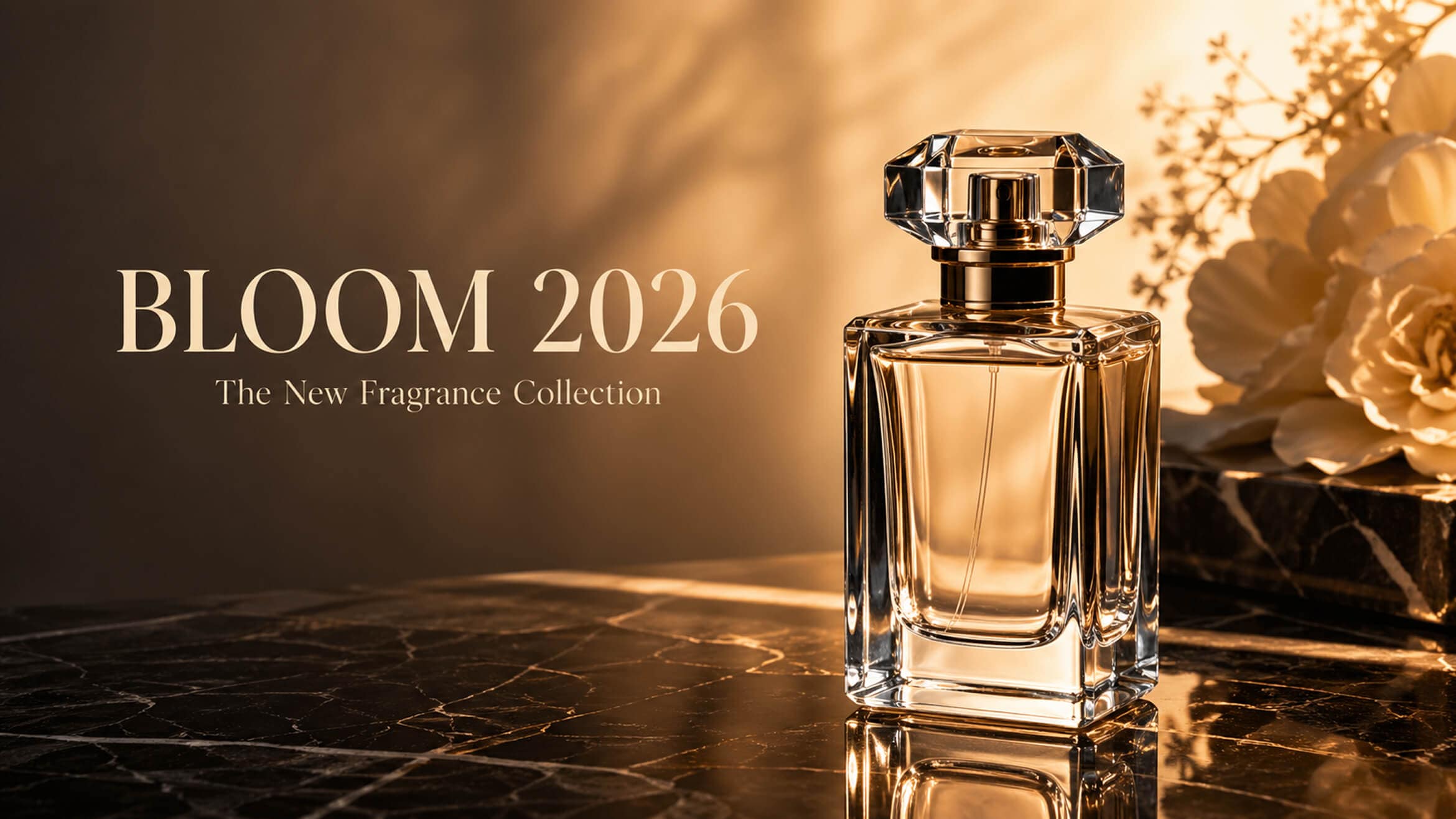
A premium product launch poster: glass perfume bottle on dark marble surface, soft golden backlight, bold serif headline "BLOOM 2026" with elegant subtitle "The New Fragrance Collection", clean typographic hierarchy, photorealistic, 16:9.
prompt pic
Prompt:
Copy
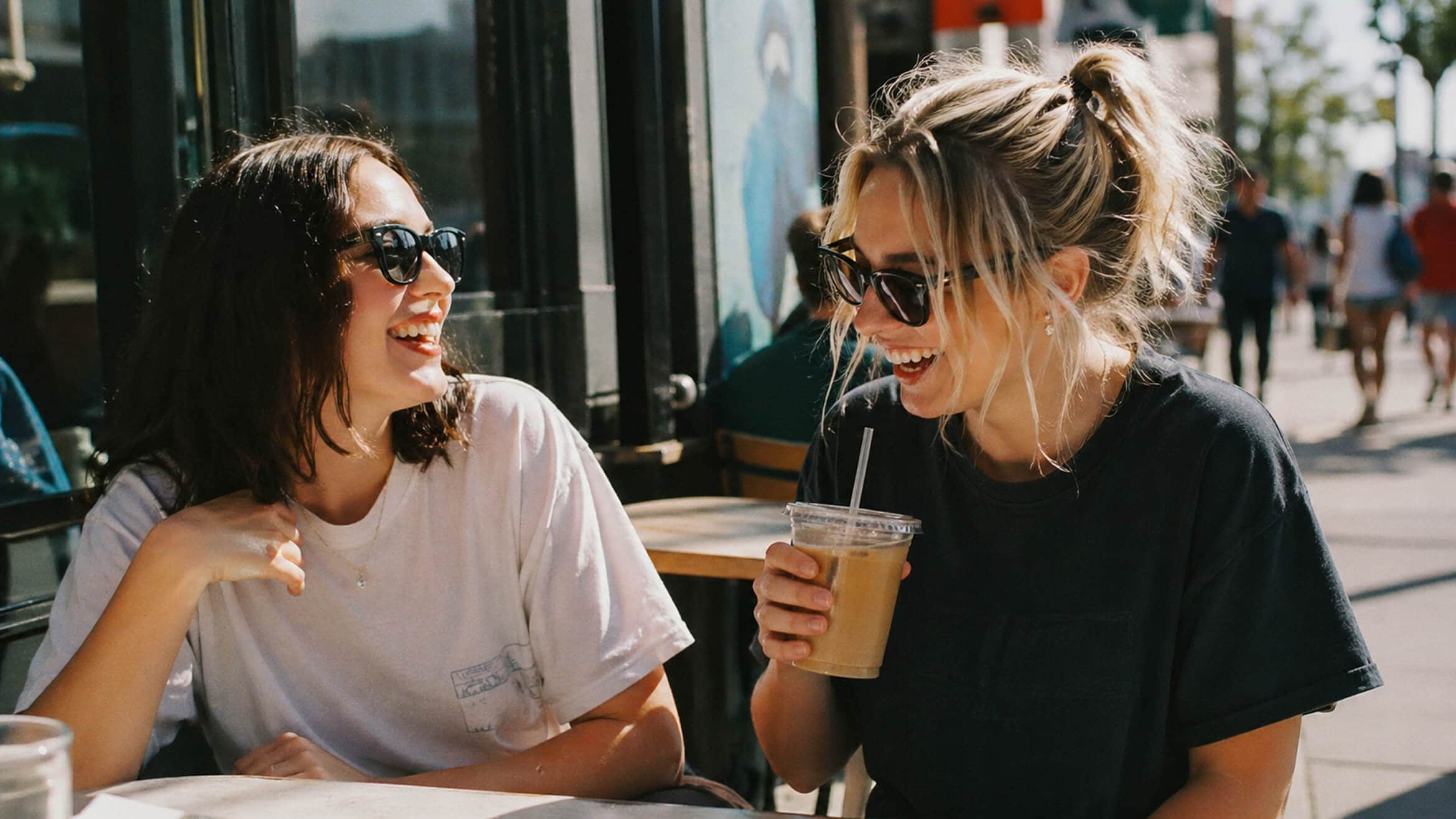
A candid photo of two friends laughing at a sunlit sidewalk cafe, one holding an iced coffee, natural skin tones, shallow depth of field, shot on 35mm film grain, warm afternoon light, no AI artifacts, 16:9.
prompt pic
Prompt:
Copy
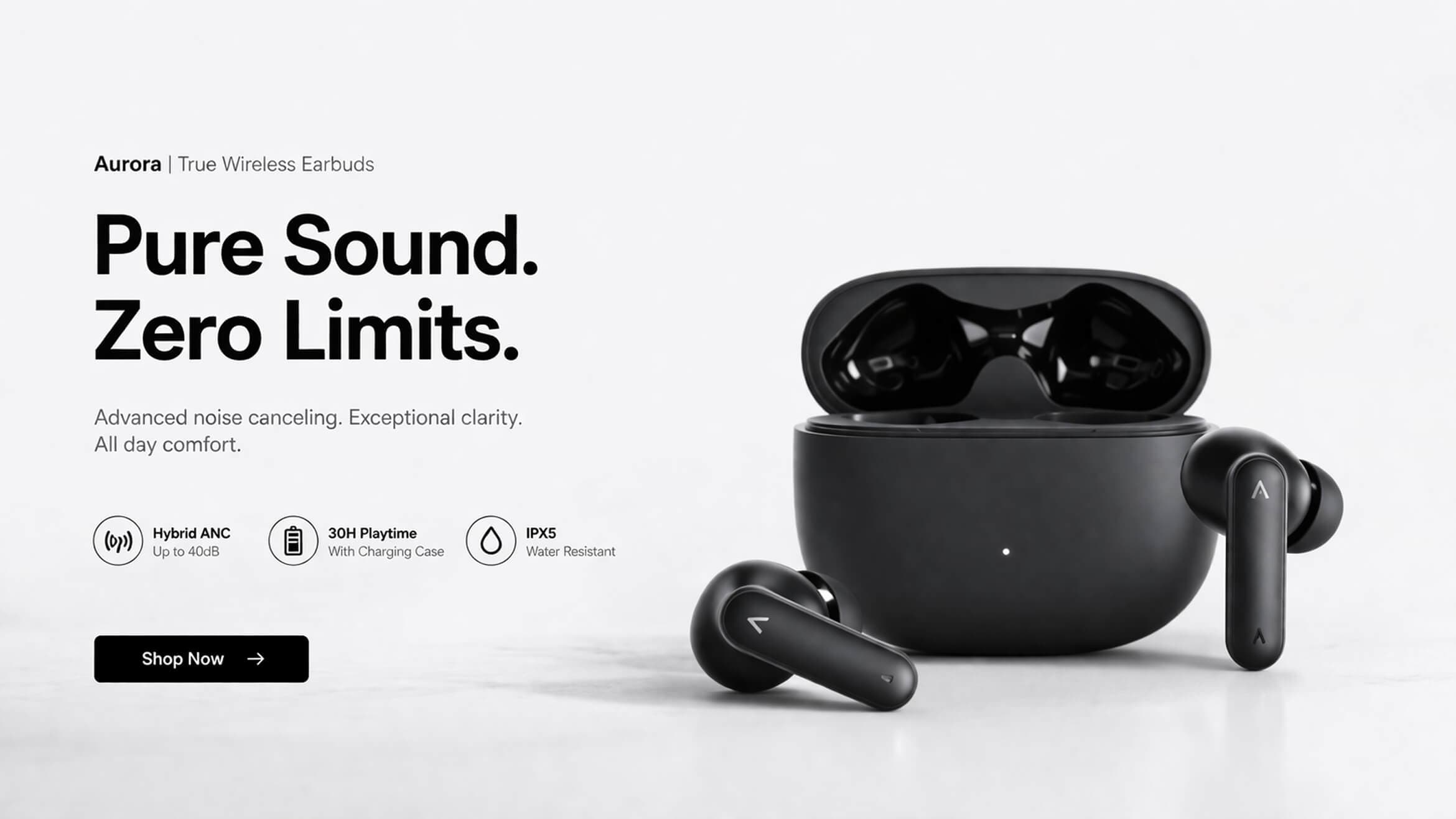
A minimalist premium ecommerce hero banner for a 3C electronic product, wide horizontal 16:9 layout, centered product composition, clean white or light gray background, luxury product photography, soft natural lighting, subtle reflections, delicate shadow, large negative space, sleek modern tech aesthetic, refined typography layout, simple bold headline, short subtitle, minimal feature highlights, clean commercial design, photorealistic, sharp details, elegant and understated, high-end online store visual, landscape banner, ultra-clean composition, 16:9 aspect ratio
prompt pic
Prompt:
Copy
Generate a Valentine's Day-themed poster tailored for the Western market, featuring stylish, attractive young women and men. The design should be minimalist, with a 16:9 aspect ratio.

Why Create Images with GPT Image 2 in Filmora

OpenAI's most advanced image model is now inside Filmora. Stronger instruction following, cleaner text rendering, and true multilingual accuracy — so your generated visuals are ready to use, not ready to fix.

Multilingual Prompts for Localized Visuals

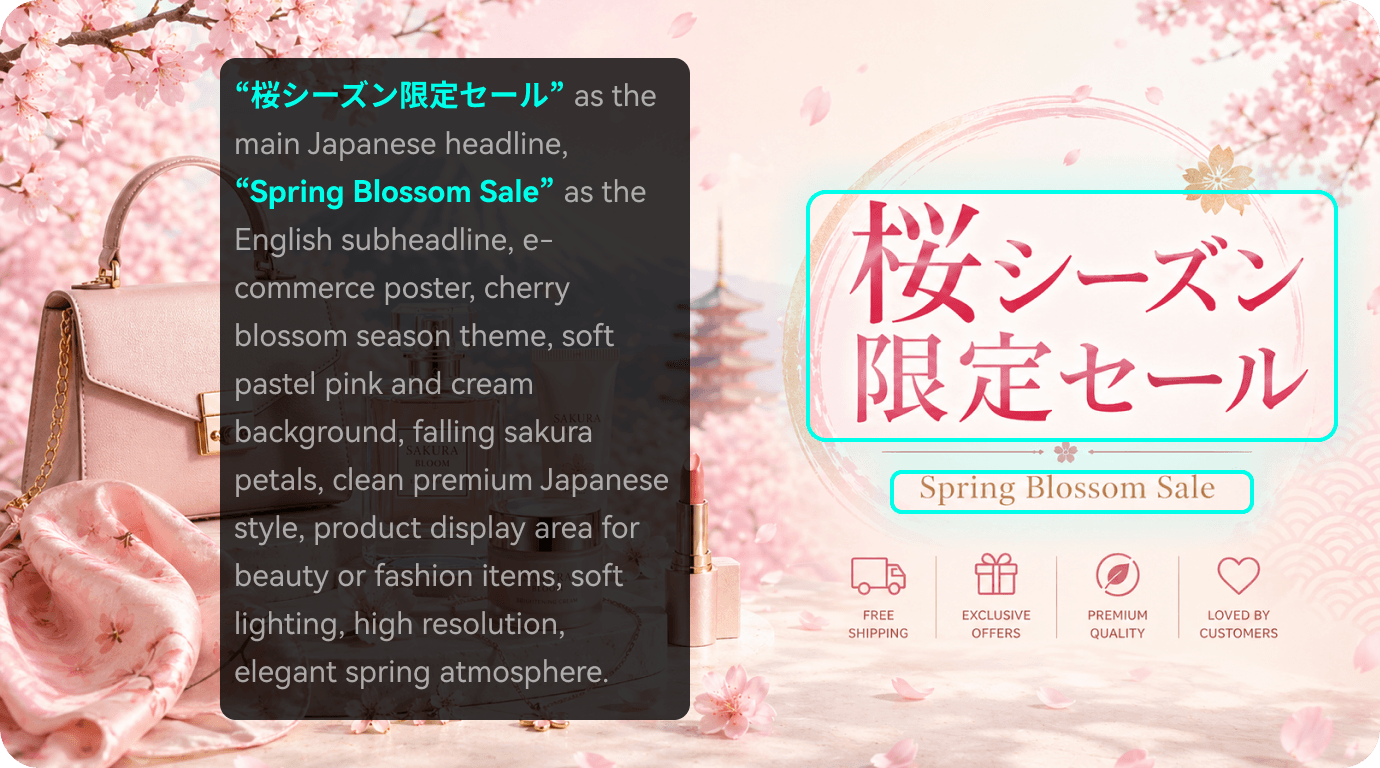
Write prompts in English, Chinese, or other supported languages to create visuals with clearer localized text. It is ideal for teams producing marketing assets for different regions.

  • Clearer Chinese and multilingual text rendering
  • Localized campaign visuals from a single prompt
  • Less need for manual text overlays
feature-mult-prompts

Image to Image: Create from Your References

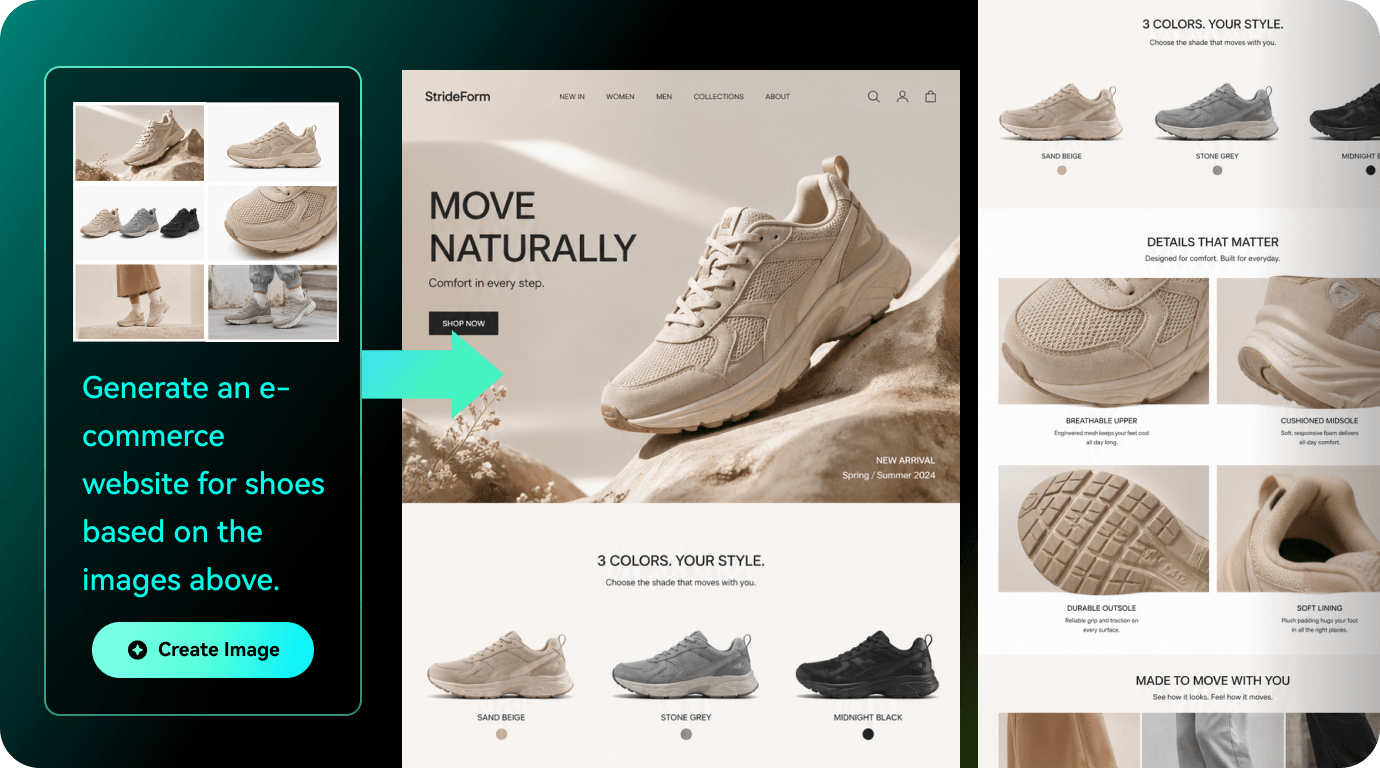
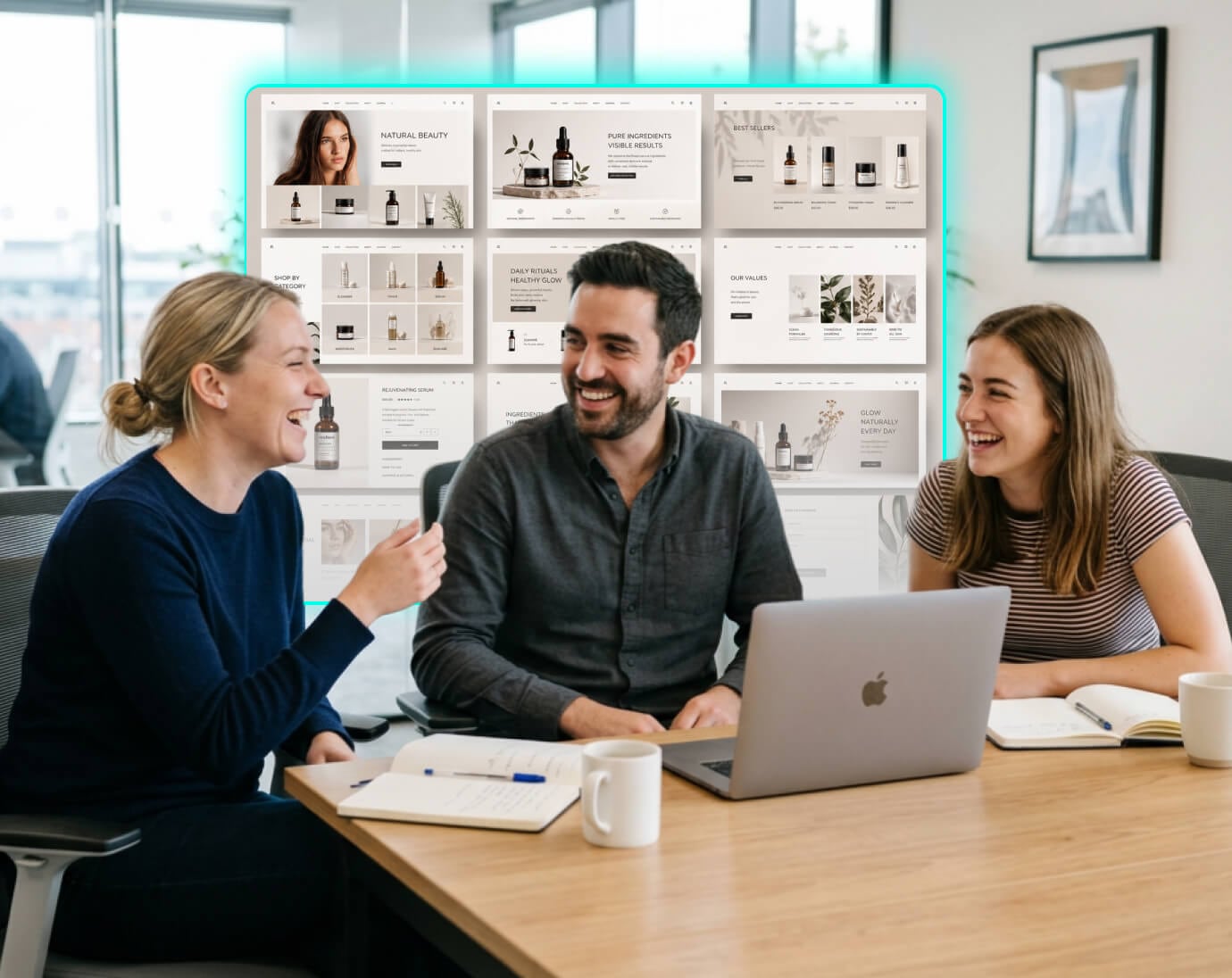
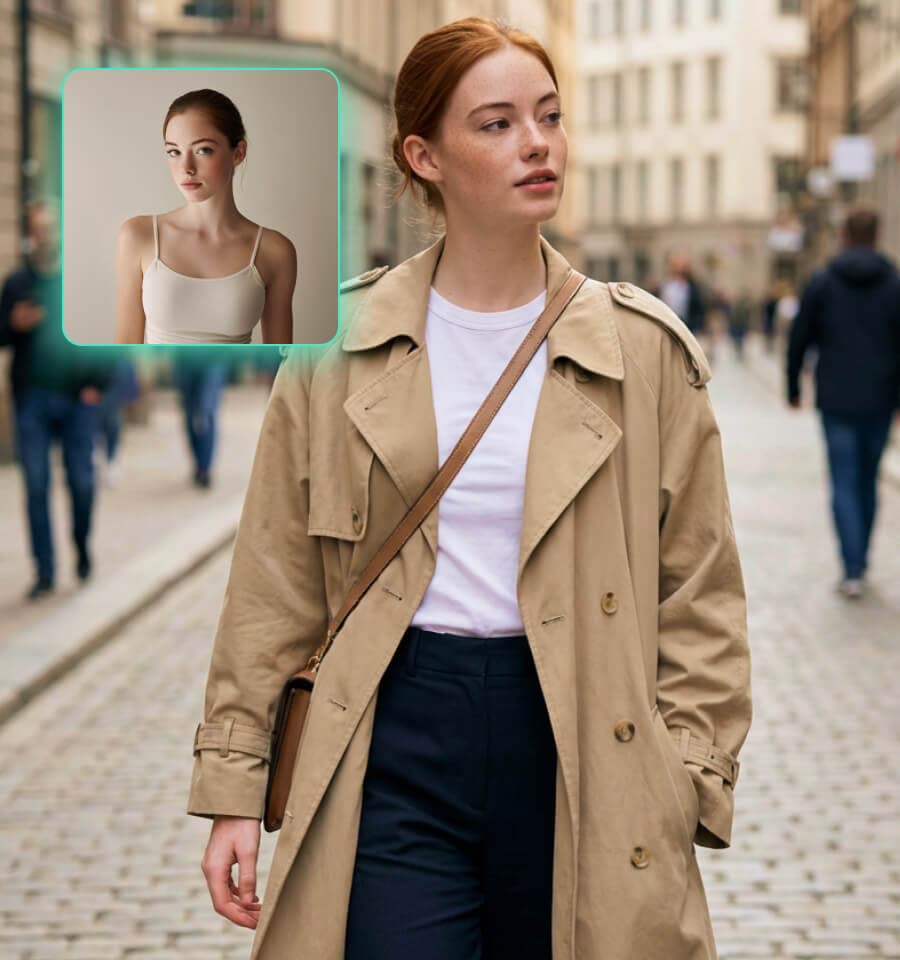
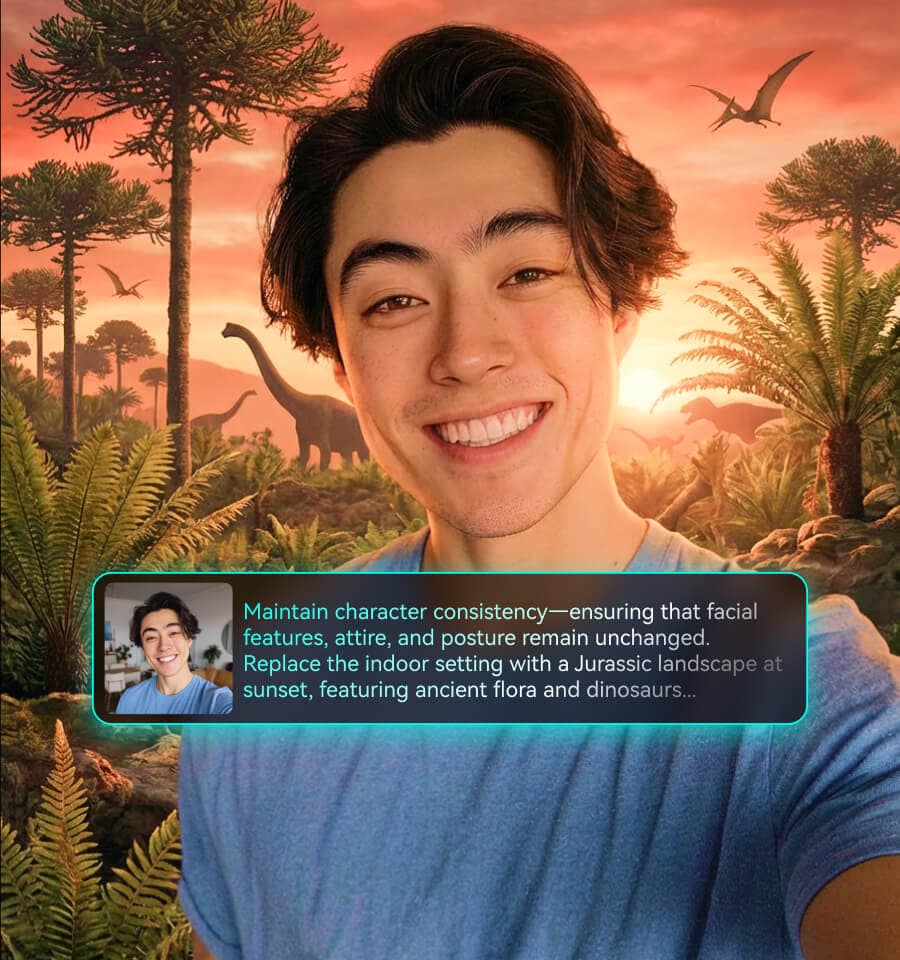
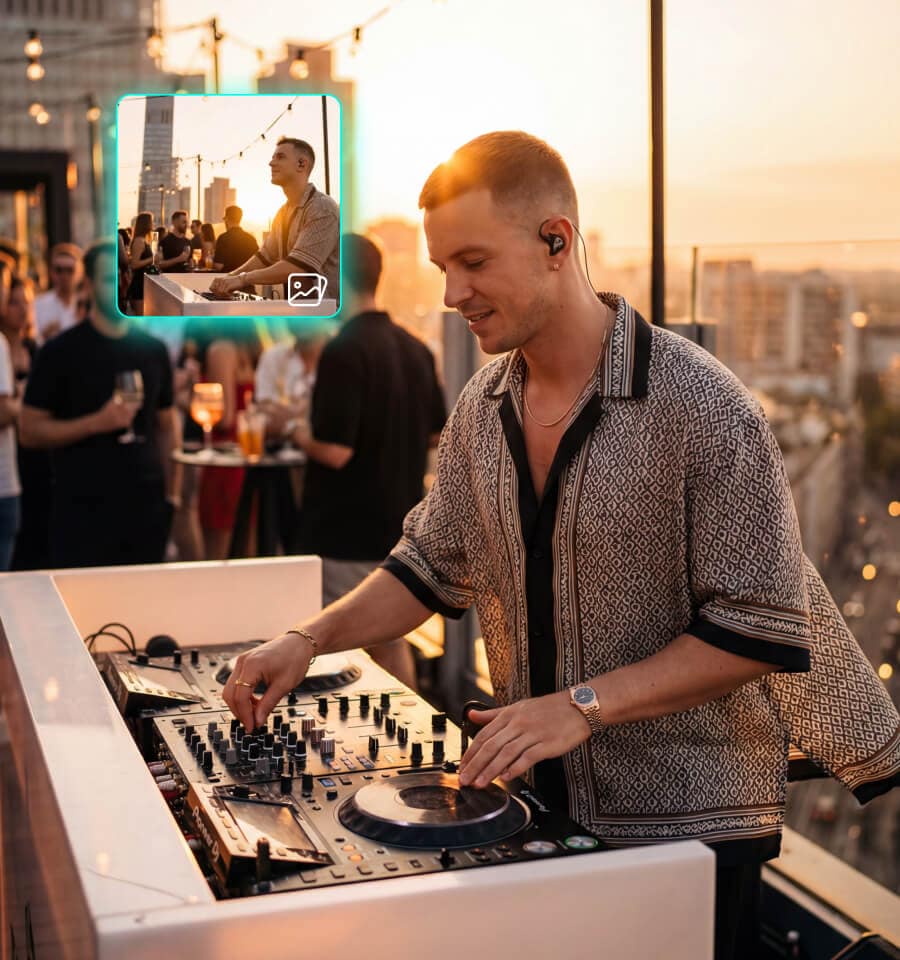
Upload product photos, brand mood boards, or style guides and let GPT Image 2 match the composition, palette, and feel. Your output stays on-brand without starting from scratch.

  • Upload up to 7 reference images per generation
  • Style, color, and composition guidance
  • Consistent visual series for campaigns & social feeds
feature-image-image

Text to Image with Greater Prompt Control

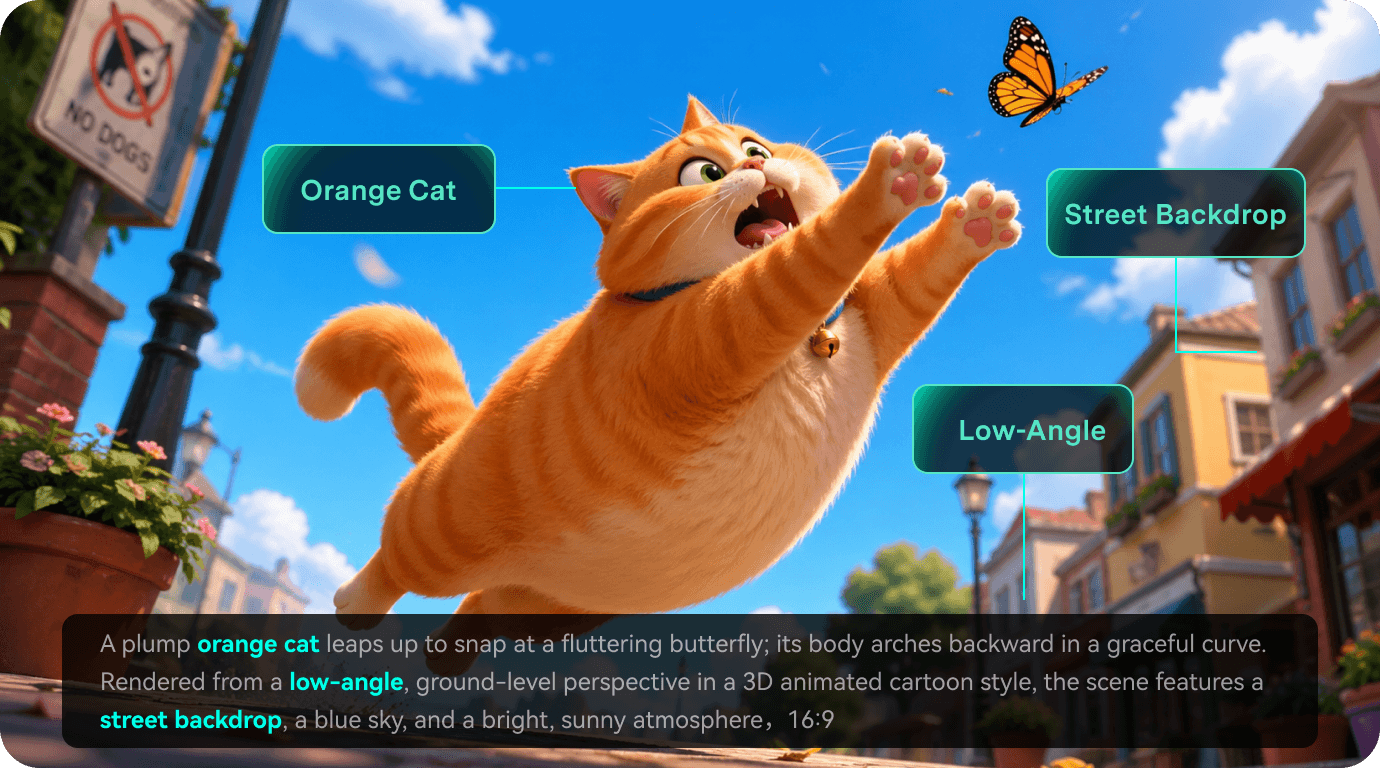
Describe the image you need and generate visuals with readable headlines, cleaner layouts, and details that better follow your prompt. Spend less time regenerating or manually fixing the result.

  • Readable text for posters and thumbnails
  • Better layout and composition control
  • Low AI artifacts, high first-generation accuracy
feature-text-image

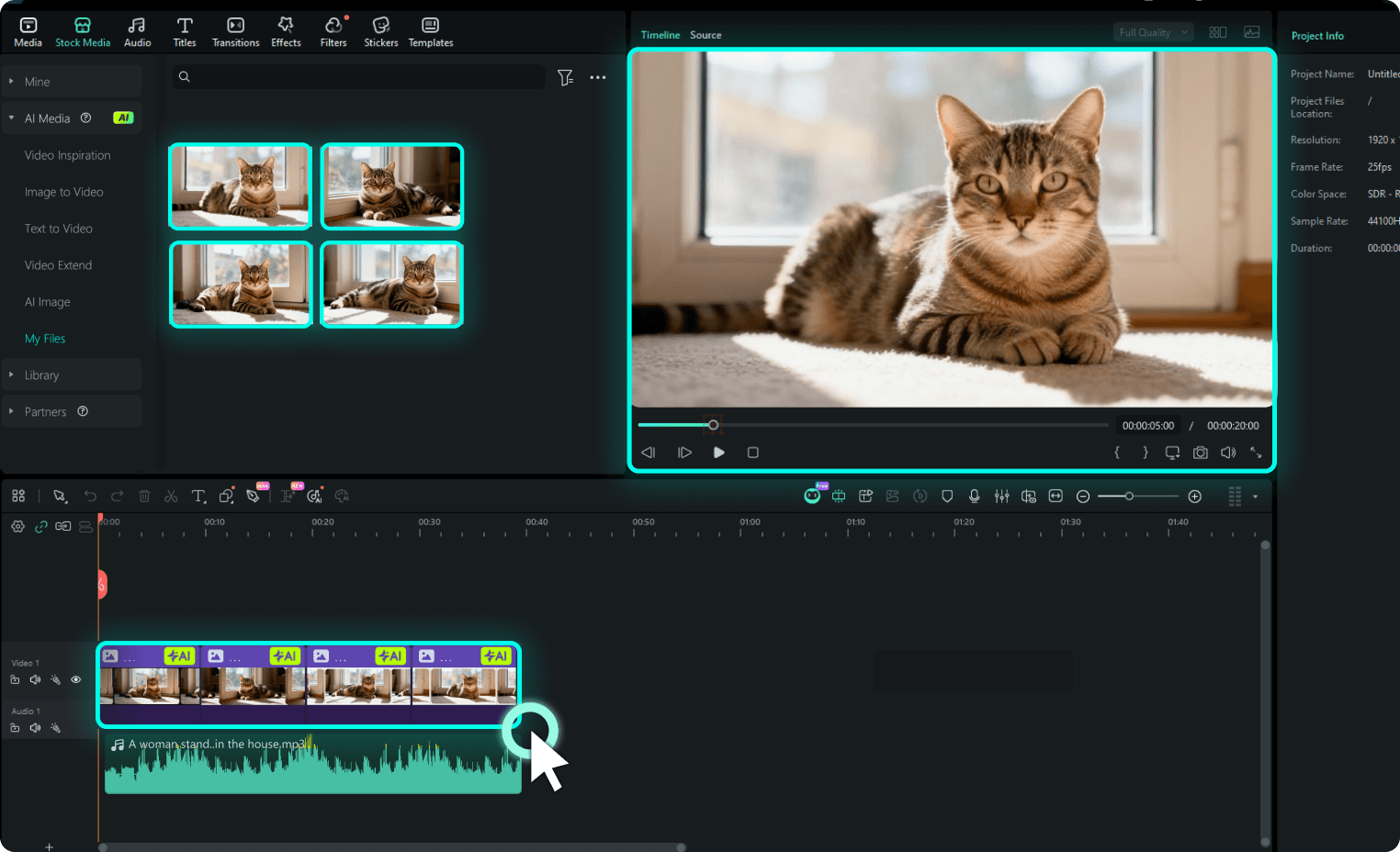
Generate to Timeline for a Seamless Workflow

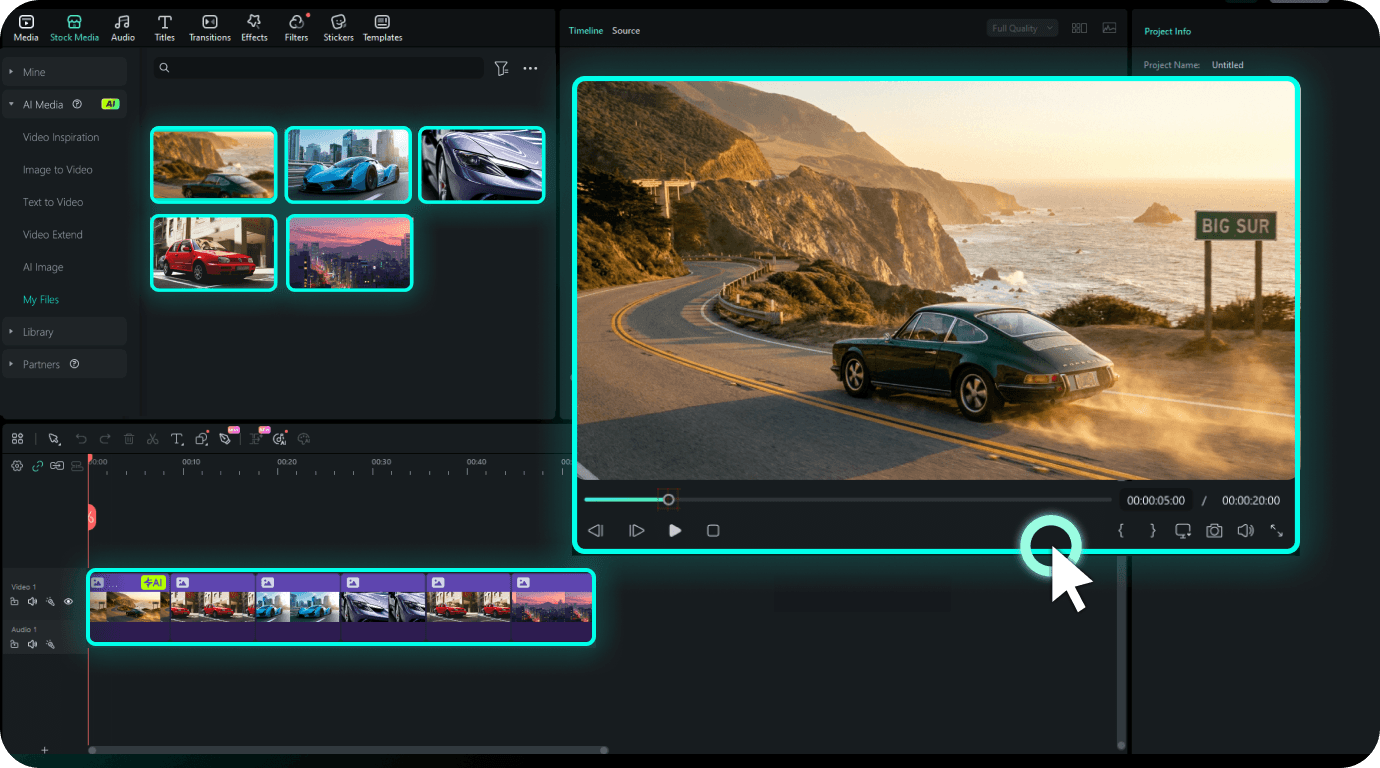
Send your generated image directly to the Filmora editing timeline. Add text overlays, transitions, effects, or keyframe animations, then export your final project without switching between tools.

  • Generate and edit in a single workspace
  • Add effects, text, and animations directly
  • Export video for different platforms from Filmora
feature-generate-timeline

GPT Image 2 vs. Nano Banana Pro in Filmora

Choose from multiple AI image models in one panel and select the best option for each creative task.

AI Image Model Comparison
Model
GPT Image 2
Nano Banana Pro
Strengths Precise prompt following, clear text rendering, multilingual support, and fewer visible AI artifacts Photographic realism, cinematic lighting, and natural-looking skin tones
Max Resolution 2160P (4K) 2K / 4K
Text Rendering Excellent for readable headlines and multilingual text Good for simple text, but less suitable for complex layouts
Best For Posters, thumbnails, UI mockups, comics, product shots, and brand KVs Cinematic scenes, portrait-style images, and lifestyle brand visuals

How to Use GPT Image 2 in Filmora

Experience the power of high-quality AI image generation directly within Filmora, now upgraded with the GPT Image 2 model to transform your creative descriptions into stunning visuals for any video project.

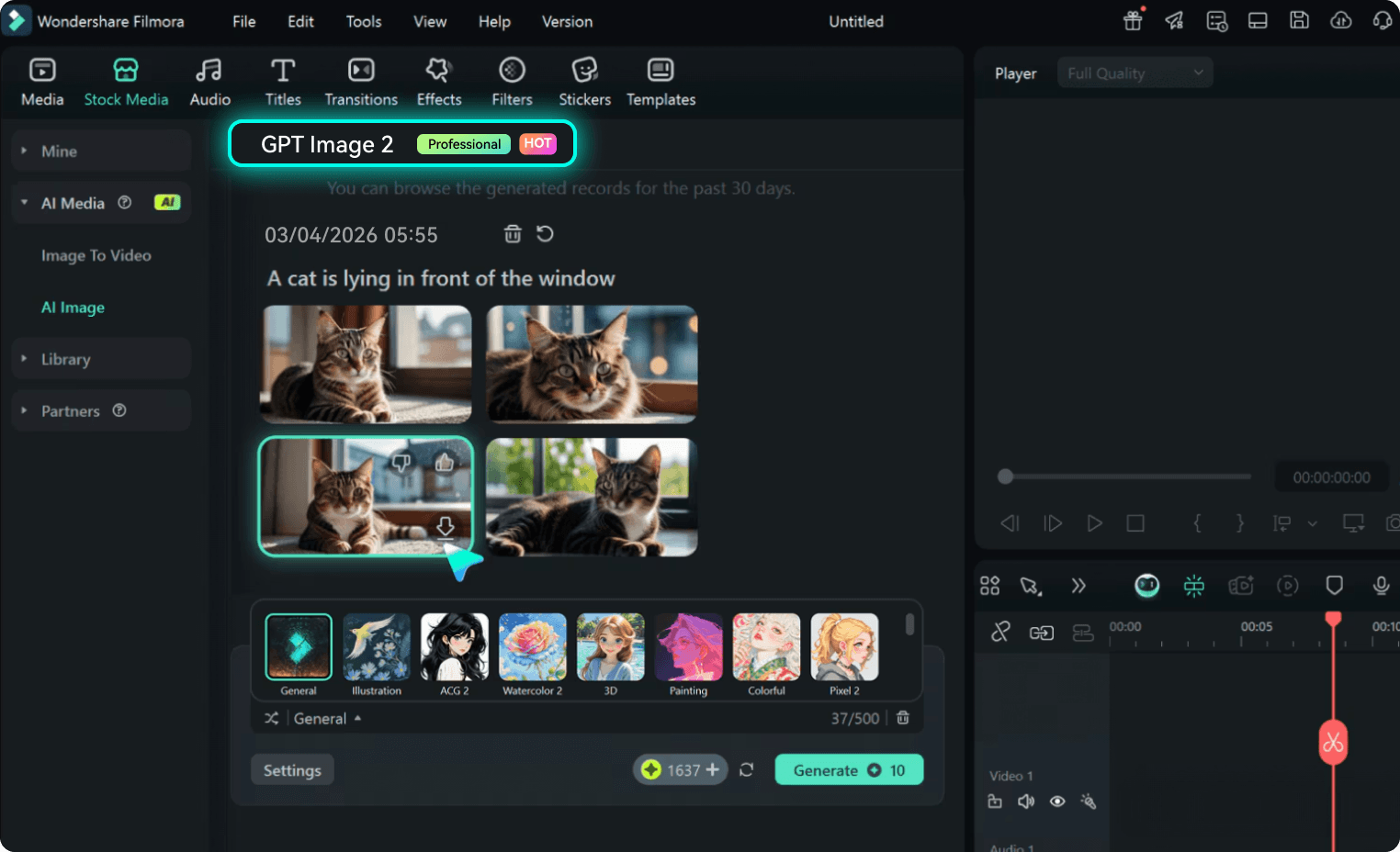
Step 1. Select GPT Image 2 in Filmora

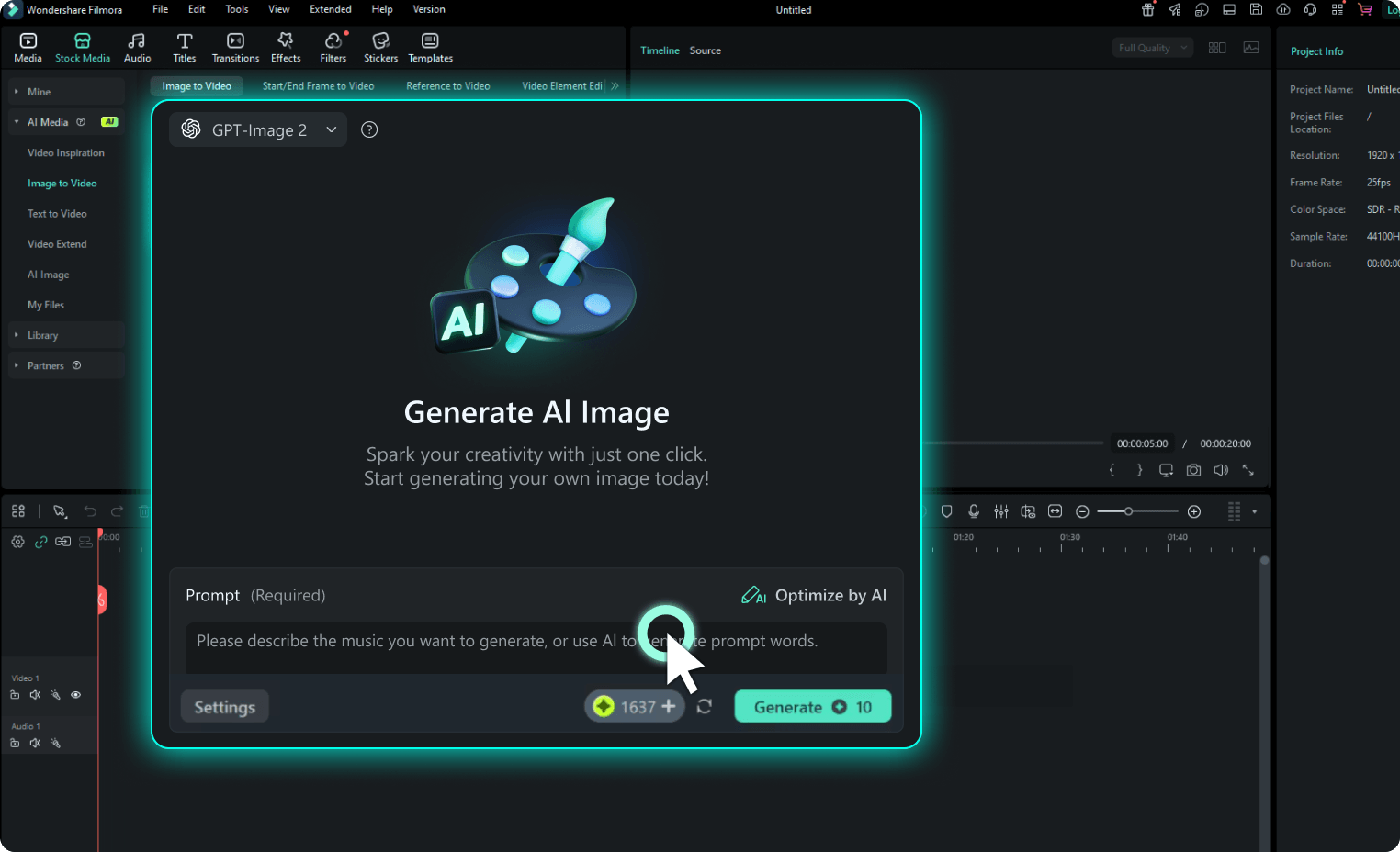
Launch Filmora and start a new project. Go to Stock Media → AI Media → AI Image, then choose GPT Image 2 as your preferred model.

Select GPT Image in Filmora
Step 2. Generate or Refine with a Prompt

Write a clear prompt, then customize the style, aspect ratio, and resolution to generate or refine your AI image.

Generate or Refine with a Prompt
Step 3. Download or Edit on the Timeline

Download your finished image, or drag it directly onto the timeline to continue editing, enhance the visuals, and use it in your video project.

Download or Edit on the Timeline
  1. Step 1: Select GPT Image in Filmora

    Launch Filmora and start a new project. Go to Stock Media → AI Media → AI Image, then choose GPT Image 2 as your preferred model.

  2. Step 2: Generate or Refine with a Prompt

    Write a clear prompt, then customize the style, aspect ratio, and resolution to generate or refine your AI image.

  3. Step 3: Download or Edit on the Timeline

    Download your finished image, or drag it directly onto the timeline to continue editing, enhance the visuals, and use it in your video project.

Who Uses GPT Image 2 in Filmora

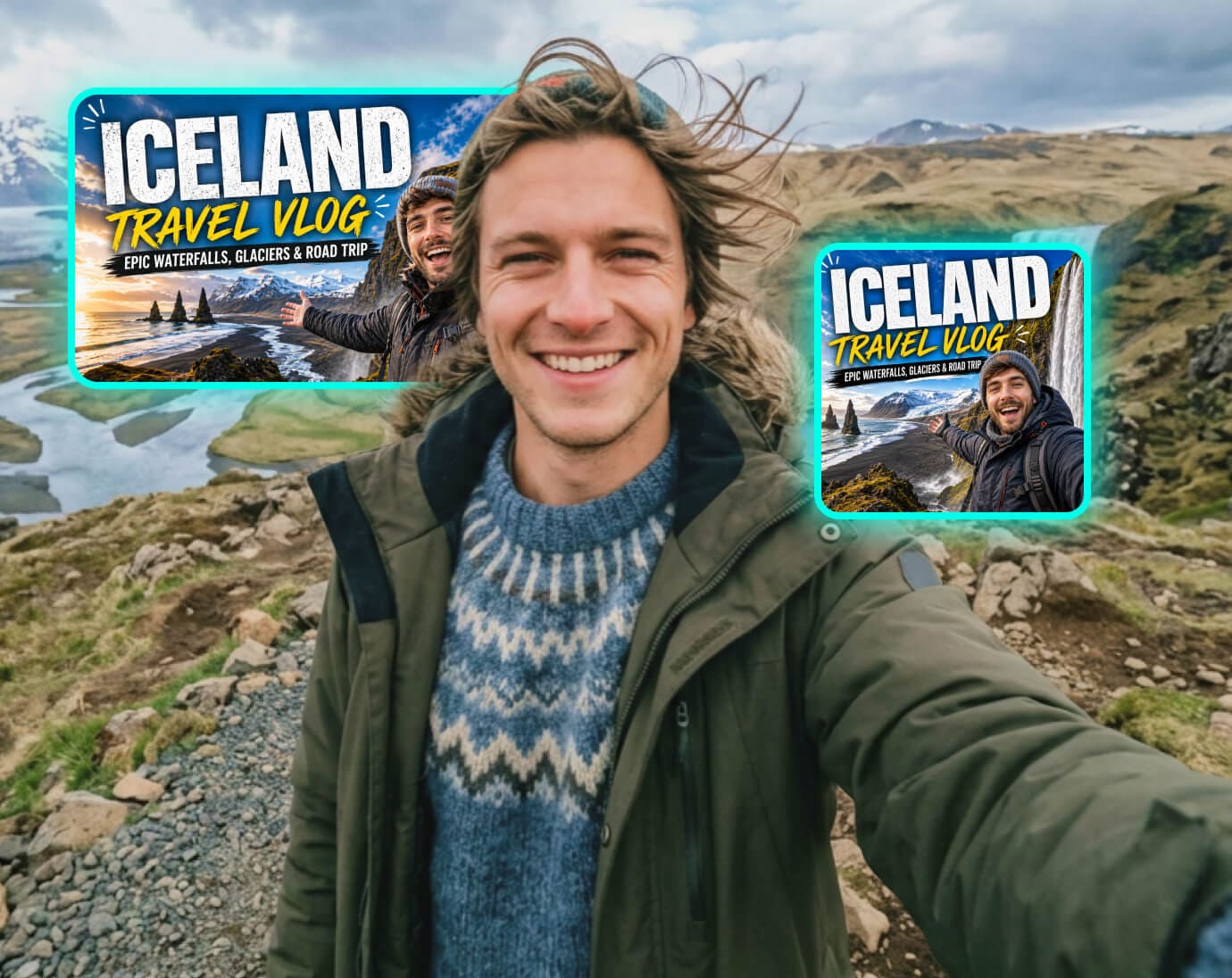
Social Media Creators

Social Media Creators

Generate scroll-stopping thumbnails, channel banners, and cover images directly in Filmora. Type a prompt, pick your aspect ratio, and drag the result onto your timeline — no Photoshop, no stock photo subscriptions.
benefit-pic

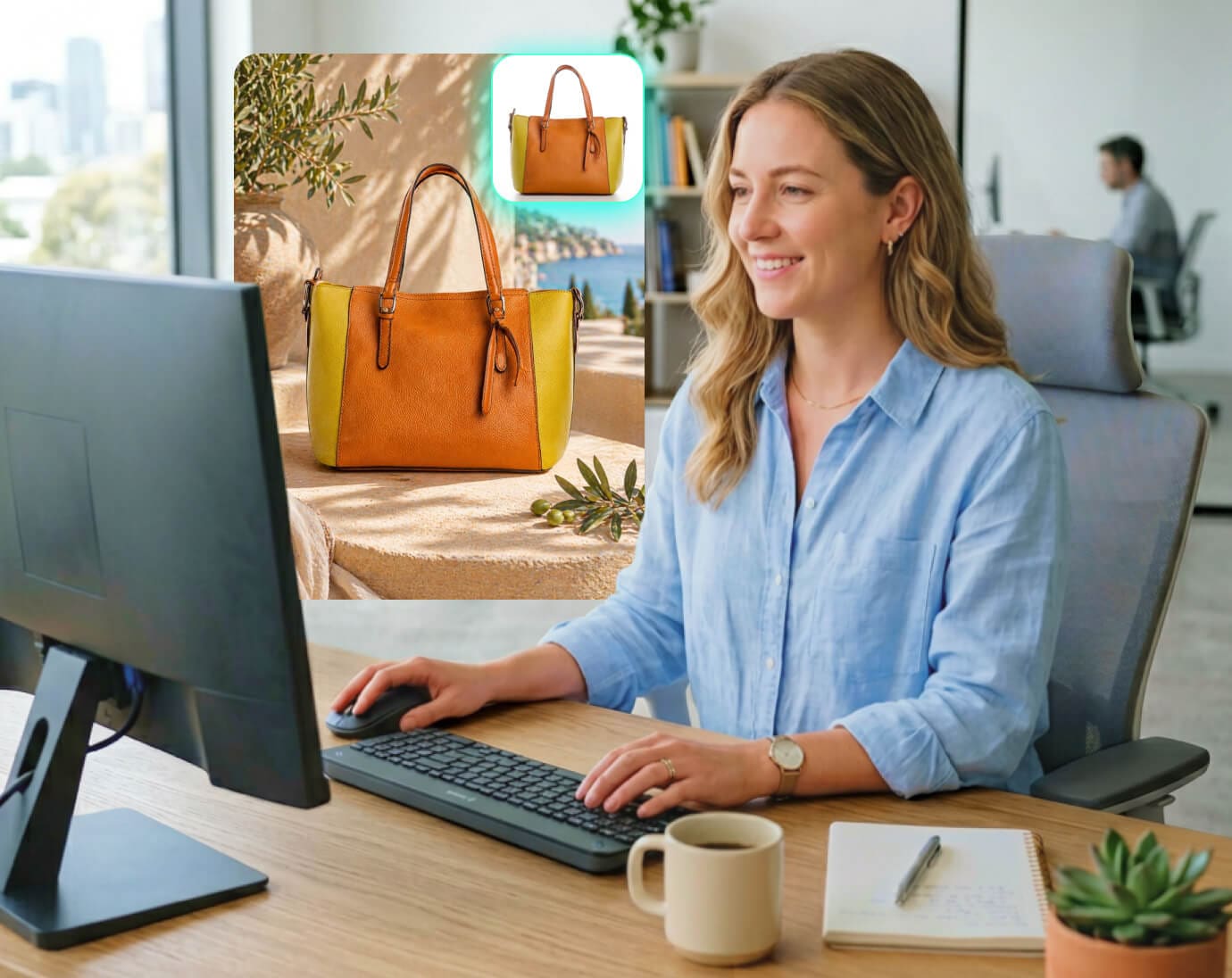
E-Commerce Sellers

E-Commerce Sellers

Turn product photos into styled hero shots with background swaps and scene generation — ready for Amazon, Shopify, and ad creatives.
benefit-pic

Marketing & Ad Teams

Marketing & Ad Teams

Generate brand key visuals, campaign posters, and localized assets in bulk — consistent style, no designer bottleneck.
benefit-pic

Frequently Asked Questions

GPT Image 2 is OpenAI's most advanced image model, now built into Filmora's AI Image panel. It generates high-quality images from text prompts or reference photos, with industry-leading text rendering and multilingual accuracy. Select it from the model dropdown (marked Professional · NEW) to start.

Nano Banana Pro excels at photographic realism and cinematic lighting — ideal for portrait photography and lifestyle imagery. GPT Image 2 wins on text rendering, UI/poster layouts, illustration, and precise multilingual prompt following. Choose based on your output type.

Yes. Generate from a text prompt alone, or upload up to 7 reference images (PNG/JPG, max 50 MB each) to guide composition, style, or subject. Both modes support all resolution and quality settings.

Yes. GPT Image 2 runs on a fair-use credit system — up to 8,000 credits per account per month. Once the limit is reached, generation requests enter a queue. Credits reset monthly.

Filmora for Windows and Mac, overseas editions only, from version 15.x onward. The feature is not available in the domestic Chinese edition.

Resolution: 720P / 1440P / 2160P (up to 4K). Aspect Ratio: 16:9 / 9:16 / 1:1. Quality: Low (fast drafts), Medium (everyday content), High (print-ready). Defaults: 720P · 16:9 · Medium. One image per generation.

Generated images can be used in your video projects and exported from Filmora. For specific commercial licensing terms, refer to Filmora's Terms of Service and OpenAI's usage policy. AIGC watermarking is applied automatically to exported files.

Loved by Creators Around the World

Sarah Kim
Sarah Kim

YouTube Creator & Freelance Editor

I used to bounce between Midjourney and Photoshop just to get a thumbnail with readable text. Then I tried GPT Image 2 inside Filmora — type a prompt, generate, drag to timeline, done. The text comes out clean every single time.

Marcus Chen
Marcus Chen

Shopify Store Owner & Product Marketer

Shooting product backgrounds for every seasonal campaign was killing my budget. Now I just describe the scene to GPT Image 2 in Filmora — "minimalist kitchen, morning light, holiday mood" — and I get a usable KV in seconds. Honestly the best AI image generator I've used for e-commerce visuals.

Elena Rossi
Elena Rossi

Brand Marketing Lead, DTC Agency

What surprised me about GPT Image 2 wasn't the speed — it was the consistency. I generated a whole campaign series with the same lighting and tone, and they actually look like one brand. Before this, that meant briefing a designer for a week. Now it's an afternoon inside Filmora.

David Okafor
David Okafor

Online Course Instructor & EdTech Creator

My course slides used to look like a PowerPoint from 2025. Once I figured out how to use GPT Image 2 in Filmora, I generated a unified set of chapter illustrations and dropped them straight onto the timeline. Students literally told me the new modules "feel premium." That's a first.