

 TL;DR:
You can create fully animated, realistic AI tornado and thunderstorm videos by importing static storm images into the Filmora AI Tornado Video Generator powered by the Veo 3.1 model.
● Select your initial image generator based on your project needs: use Midjourney v6 for high-impact cinematic visuals, Stable Diffusion XL with ControlNet for precise layout control, Adobe Firefly Image 3 for brand-safe educational realism, or Bing Image Creator for quick beginner drafts.
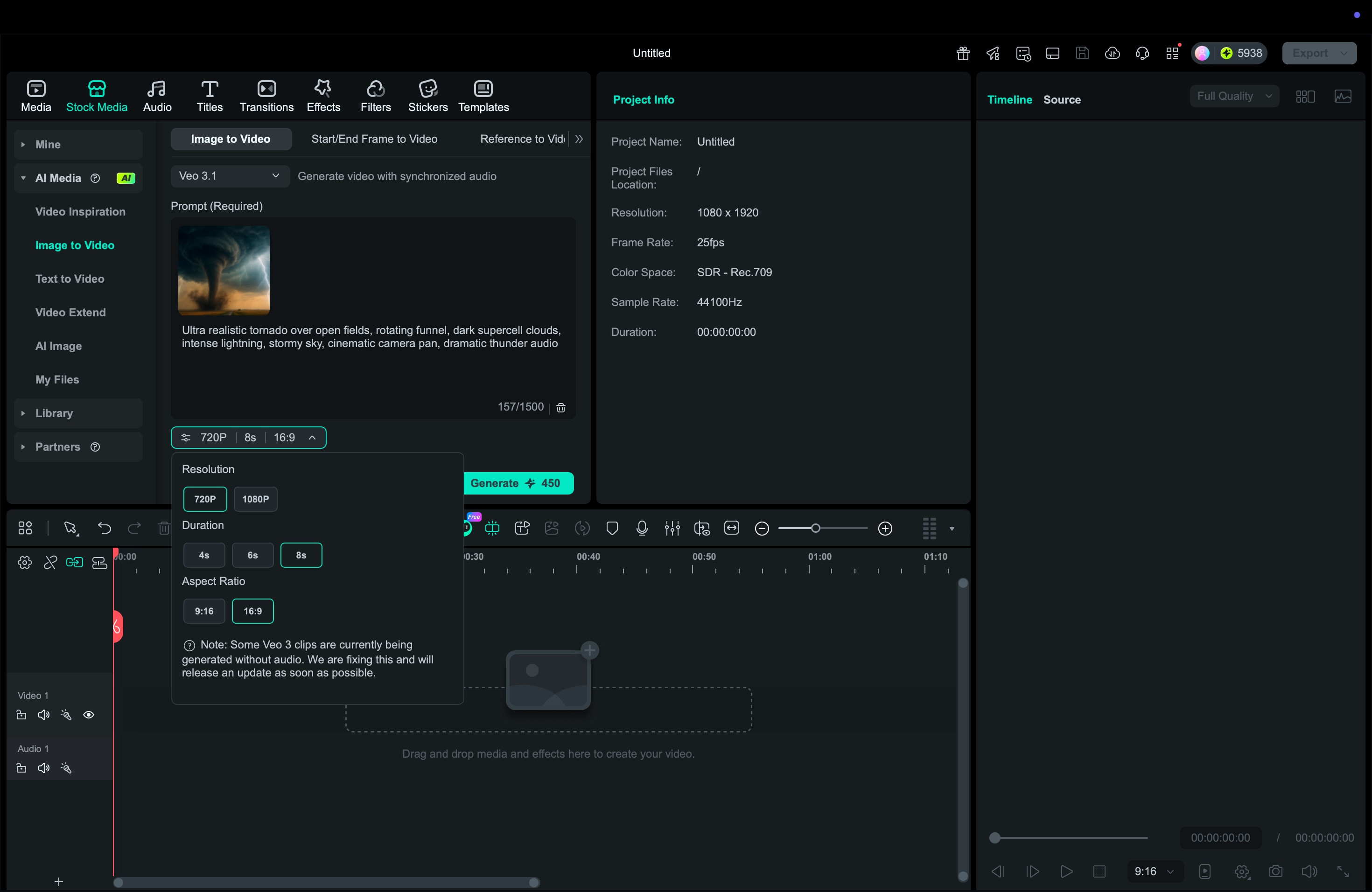
● To bypass the lack of motion and synced audio in standalone image generators, process your reference picture through Filmora's Image to Video Veo 3.1 panel using a detailed text prompt to output a dynamic clip.
● Never present these AI-generated storm clips as real news or official weather agency alerts, and always apply clear on-screen labels to prevent public misinformation regarding severe weather events.
Ask AI for a summary
 ChatGPT
 Perplexity
 Gemini
 Claude
 Grok
Grok
Watching a realistic tornado video no longer requires dangerous storm chasing. With the rise of AI tools, you can now type a simple prompt and generate a dynamic AI tornado scene or an artificial thunderstorm sky in seconds. This guide focuses on the complete workflow using the Filmora AI Tornado Video Generator (powered by Veo 3.1) to transform static storm images into compelling, full-motion clips. Read on to learn how to create realistic storm scenes in Filmora step-by-step.
Part 1. What Is an AI Tornado Generator (and How Does it Create Storm Scenes)?
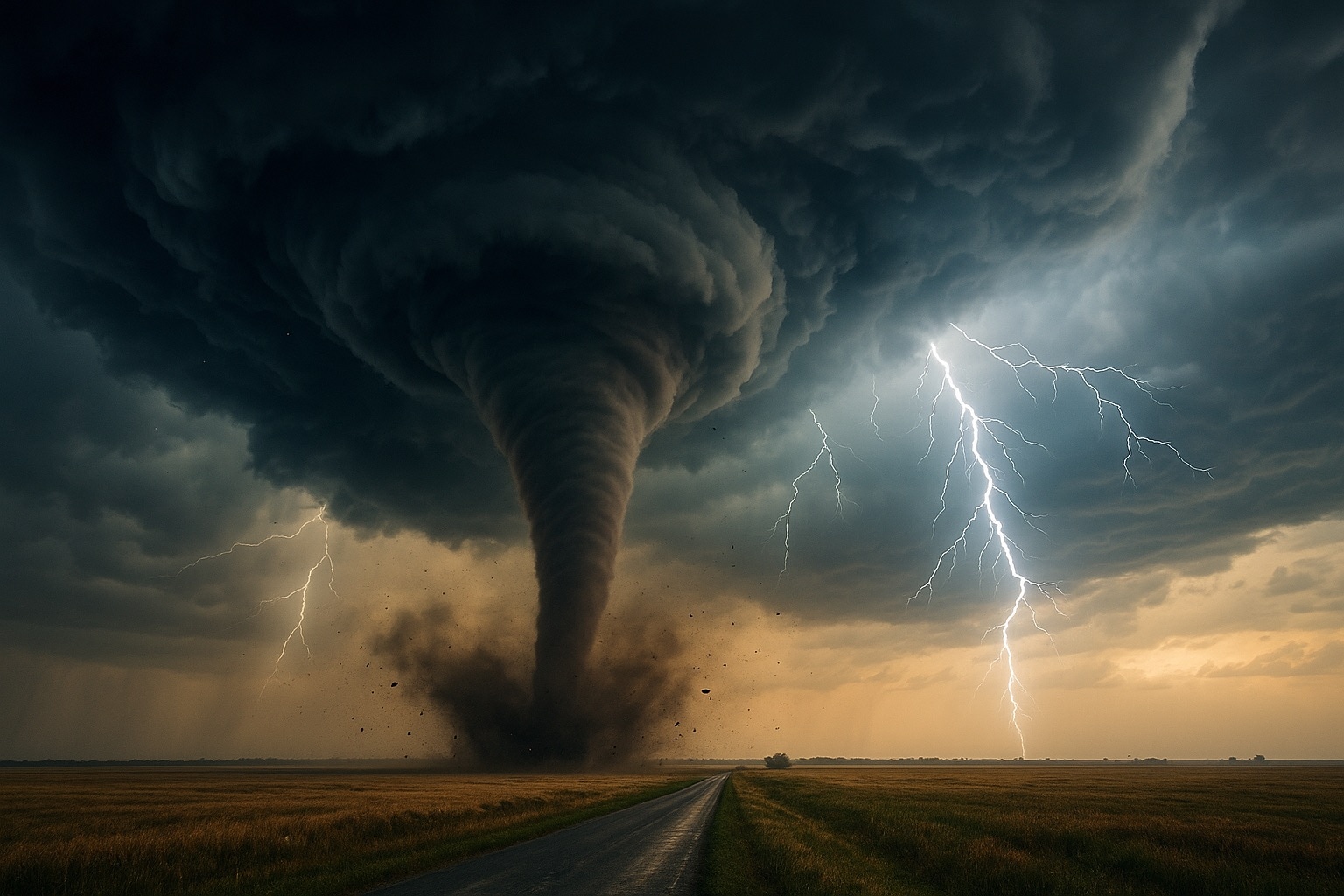
An AI tornado generator is a tool that uses artificial intelligence to create tornado and storm visuals from simple inputs. You type a text prompt, upload an image, or provide a reference frame, and then the model generates scenes with storm clouds, thunderheads, and even full supercells.
So, instead of filming real weather, which can be dangerous and scary, you ask the AI to imagine it for you.
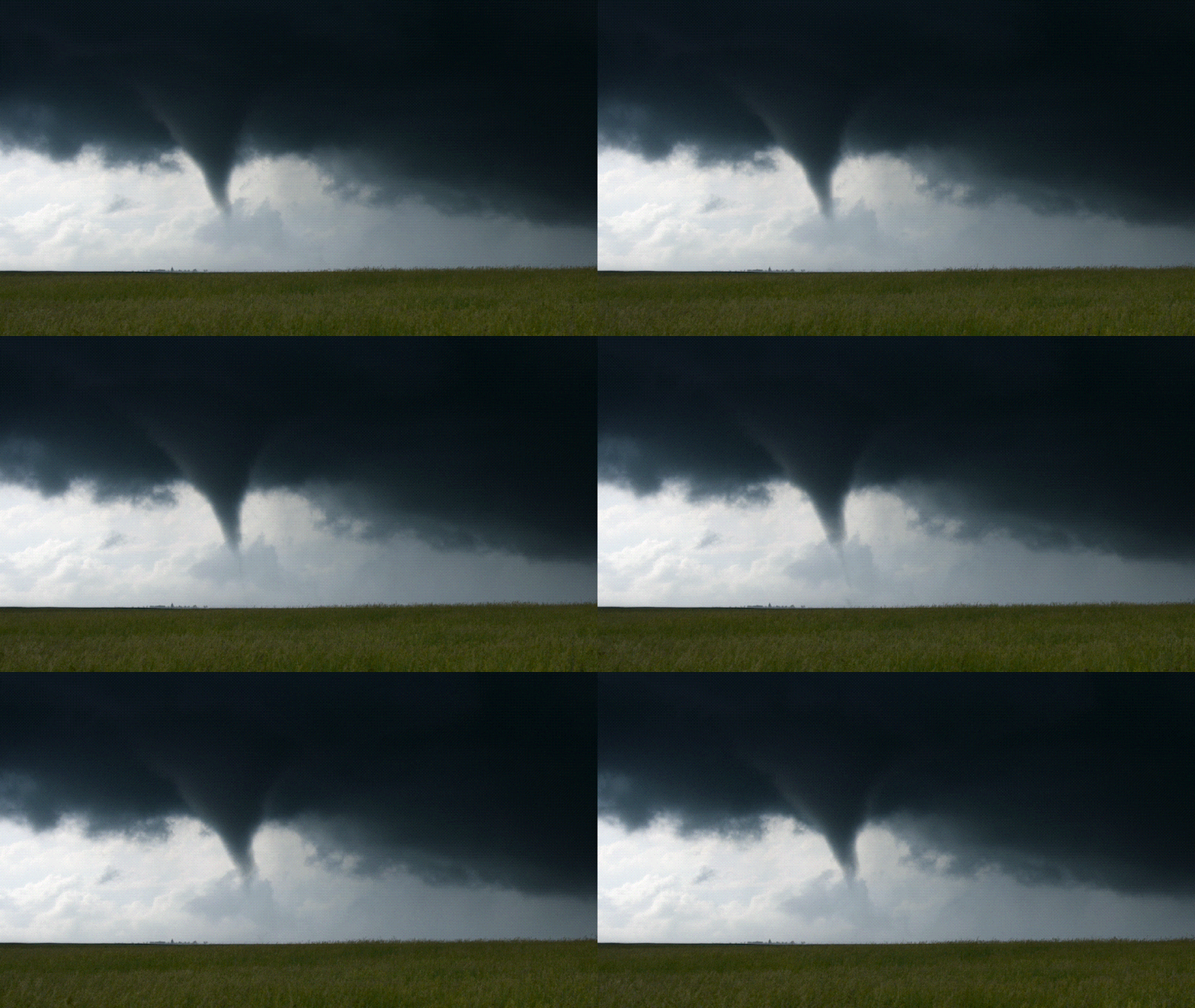
Modern models like Veo 3.1, Stable Diffusion, and Adobe Firefly can produce extremely detailed AI tornado and artificial thunderstorm scenes. They are capable of rendering swirling clouds, rotating funnels, sharp lightning forks, blowing debris, rain bands, and cinematic storm lighting that looks like it came from a movie trailer.
These tools are useful in many creative and educational workflows, for example:
- VFX previsualization, to plan storm shots before real production.
- Educational demos to explain how tornadoes and thunderstorms form.
- Dramatic thumbnails, for videos or articles about extreme weather.
- Content creation for TikTok and YouTube, where short, intense storm clips grab attention fast.
On their own, these generators focus on the visuals. When combined with a video editor, like Wondershare Filmora, they become the foundation for fully animated storm sequences.
Part 2. The 4 Best AI Tools for Generating AI Tornado and Storm Images (2025)
To create a convincing AI tornado video in Filmora, you first need strong still images. The tools below help you generate detailed AI tornado and artificial thunderstorm scenes, complete with dramatic skies and complex cloud structures. Each tool has its own style, level of control, and learning curve.
1. Midjourney (Latest v6-Series Model)
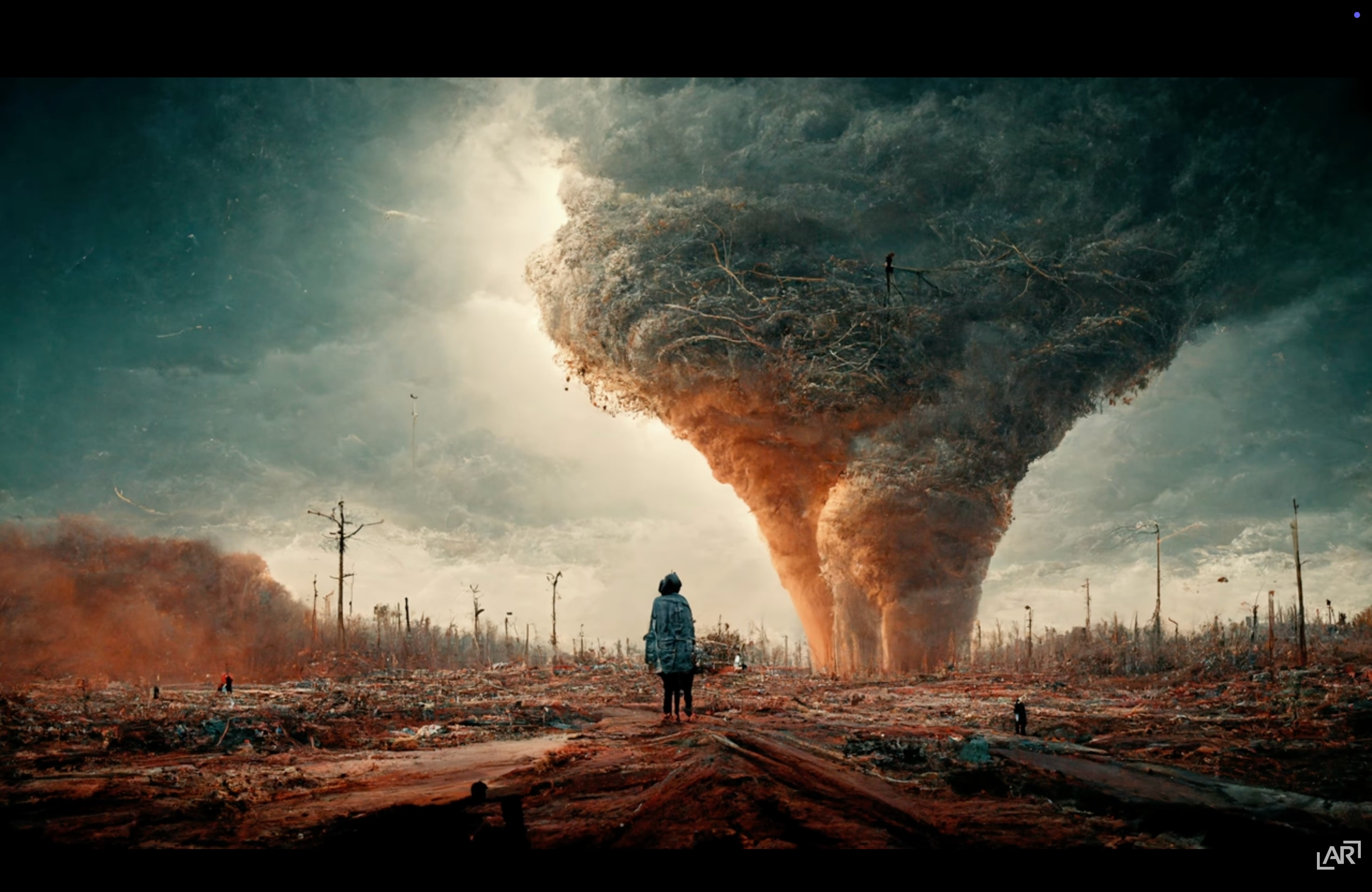
Midjourney is one of the most popular tools for dramatic visual art. With a clear prompt, it can generate towering funnel clouds, rotating supercells, and lightning that cuts across a dark sky. The images often feel cinematic and have a clear sense of mood.
- High-impact tornado and storm visuals
- Dark, atmospheric weather scenes
- Creators who want strong output from simple prompts
Midjourney is very good at shaping light, shadow, and texture. Cloud layers, highlights, and distant horizons are rendered with depth, so storm scenes look intense without feeling messy. This makes its output suitable for thumbnails, concept art, and any project that needs a strong visual hook.
2. Stable Diffusion XL + ControlNet
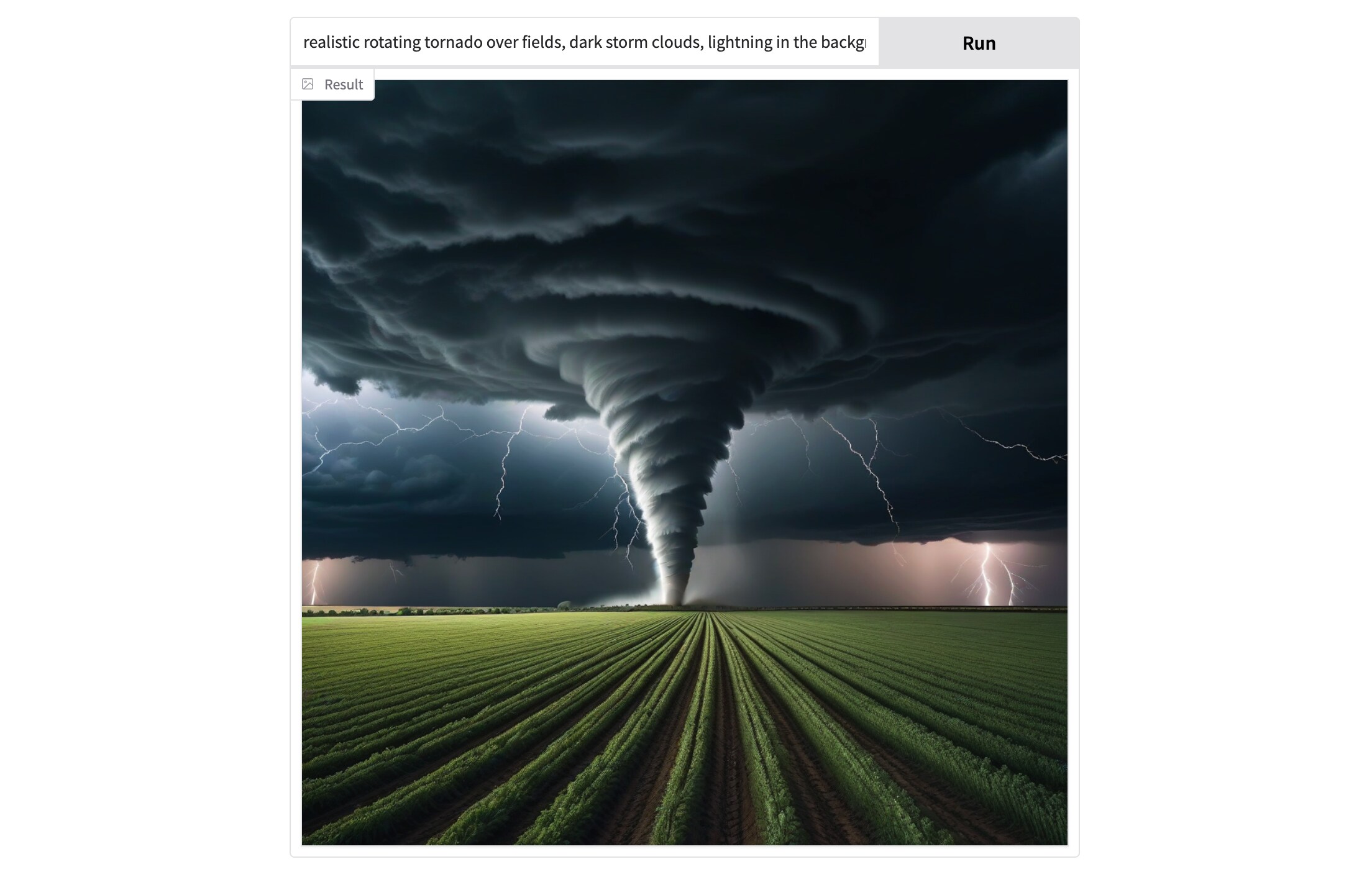
Stable Diffusion XL is a flexible choice for creators who like to fine-tune results. When paired with ControlNet, it allows you to guide composition using sketches, outlines, or depth maps. This is useful when you want a specific tornado angle, location, or scale.
- Creators who want precise control over layout
- Building a sequence of related storm images
- Customizing scenes to match a script or storyboard
You can shape the funnel width, adjust how clouds stack, and control what appears in the foreground or background. That level of control helps you produce multiple images that feel like different moments in the same storm, instead of unrelated random shots.
3. Adobe Firefly (Image 3 Model)
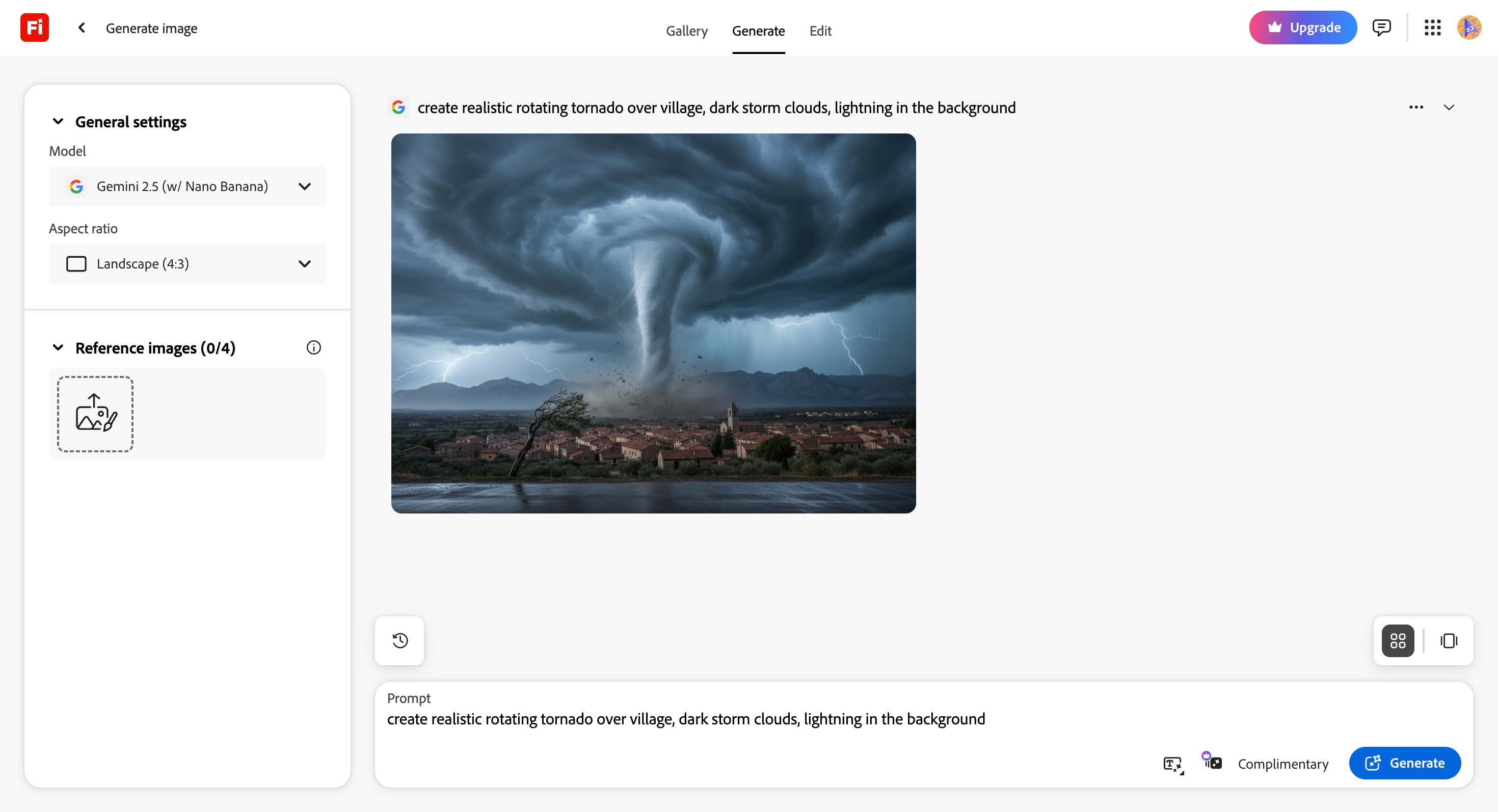
Adobe Firefly focuses on clean, consistent images that are suitable for public-facing content. The Image 3 model handles cloud volume, lightning forks, and glow around the storm with solid realism, without pushing the visuals too far into a chaotic look.
- Educational or documentary-style weather visuals
- Brand-safe content for schools, companies, or institutions
- Users who already work with Photoshop or Adobe Express
Firefly tends to produce balanced images with clear subjects and controlled contrast. Storm elements like clouds, rain bands, and lightning sit well together, which is important when you need visuals that are easy to read at a glance or on smaller screens.
4. Bing Image Creator (DALL-E 3 / MAI-Image-1 / GPT-4o)
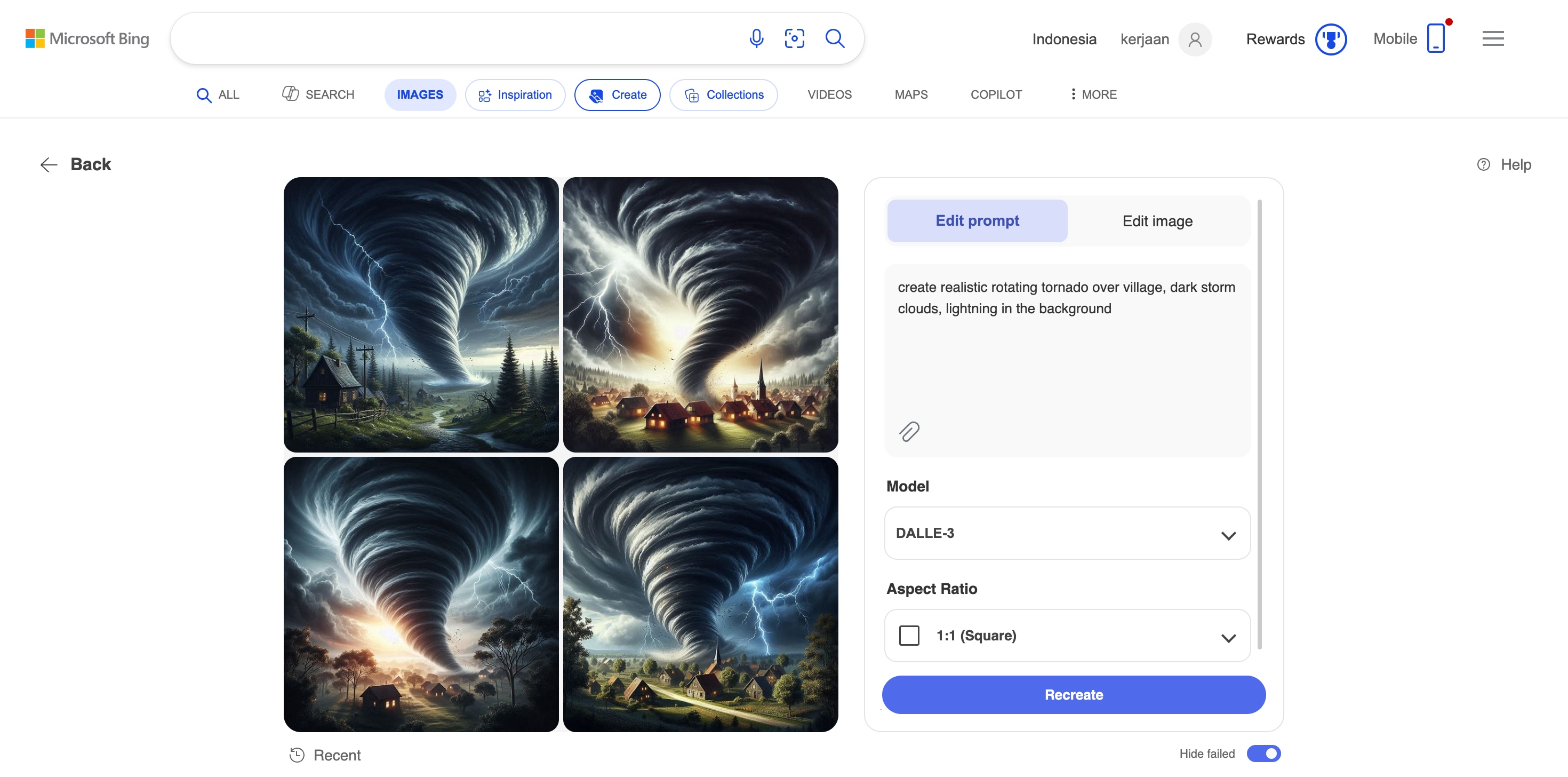
Bing Image Creator is a practical tool for quick generation. You write a prompt, choose from several outputs, and get tornado or thunderstorm scenes that are ready to use in basic designs or short visual experiments.
- Beginners testing AI tornado and artificial thunderstorm prompts
- Fast drafts, sketches, or mood boards
- Creators who prefer free, browser-based tools
It delivers clear, straightforward visuals without much setup. Tornado funnels, storm clouds, and lightning are easy to recognize, so you can focus on picking the angle and intensity that fits your idea. This makes it a good starting point when speed and simplicity matter.
Part 3. Limitations of Image-Only Tornado Tools
AI image generators are impressive, but they still stop at one key point: they only give you a picture. For AI tornado or artificial thunderstorm projects, there are several limits.
- Only produce still images, not real motion: A single image can show a powerful funnel cloud, but it cannot show how the tornado spins, grows, or moves across the landscape. Wind speed, debris paths, and cloud evolution all stay frozen in place.
- Static lightning and atmosphere: You can ask for bright lightning forks or glowing cloud edges, but the strike never flashes, splits, or fades. Rain bands do not move, and the sky does not shift from one color to another as a real storm does.
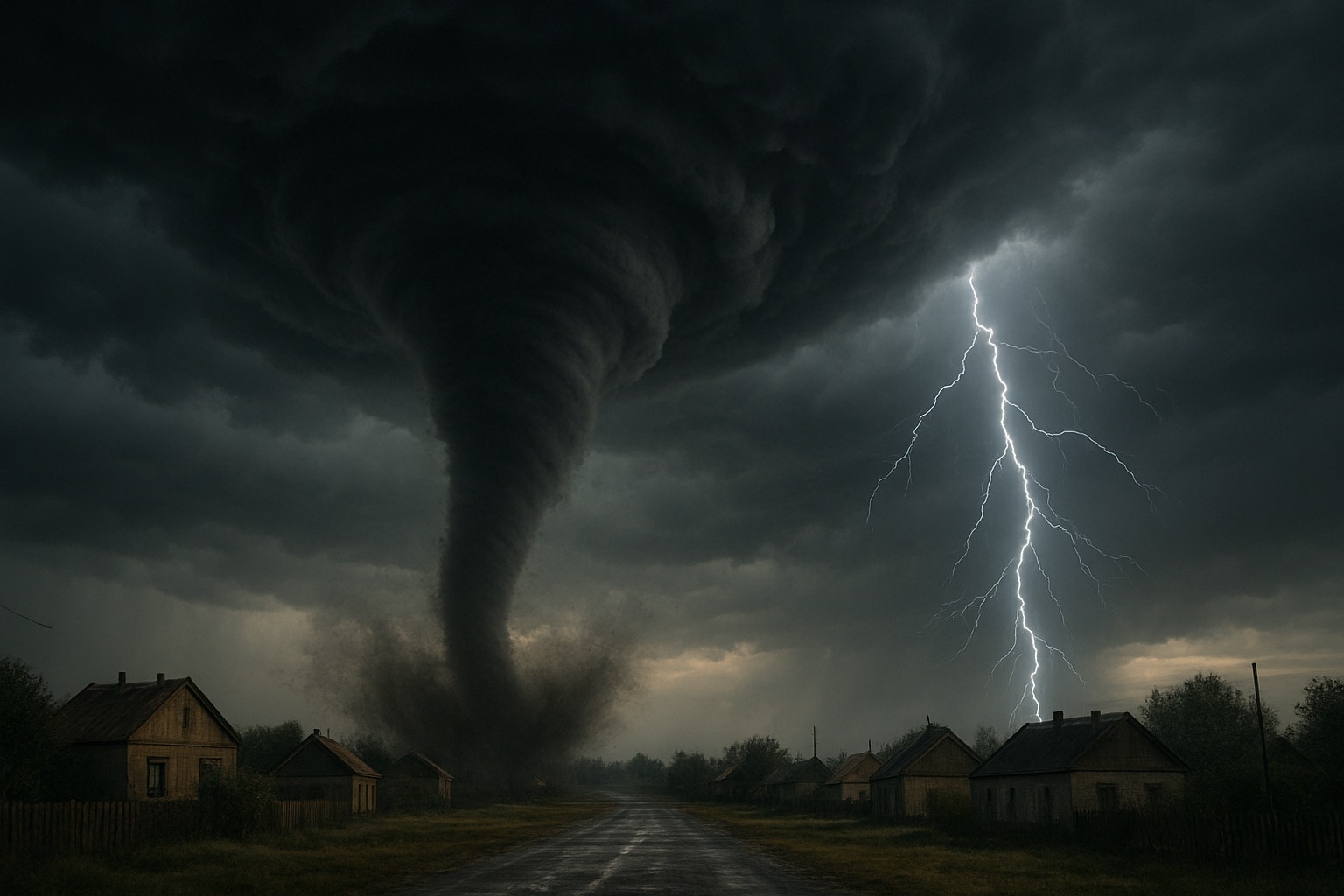
- No sound or audio sync: Image generators do not provide synced thunder, wind, rumble, or ambient storm noise. Without audio, even a detailed storm image feels less immersive.
- Not built for pacing or storytelling: Image-only tools are not built for editing timelines. They are not suited for pacing, transitions, or scene changes. If you want a complete storm video, you need to manage duration, camera movement, and cuts, which go beyond what these generators can do.
The Solution? Make a Dynamic AI Tornado Video!
To produce a truly dynamic and compelling AI tornado video, you must move from static images into a professional video editing workflow. Filmora provides the perfect environment. You can take your high-resolution AI storm images, animate them with camera moves and motion effects, add realistic sound design, and utilize the full potential of the Filmora AI Tornado Video Generator to build a complete, cinematic sequence.
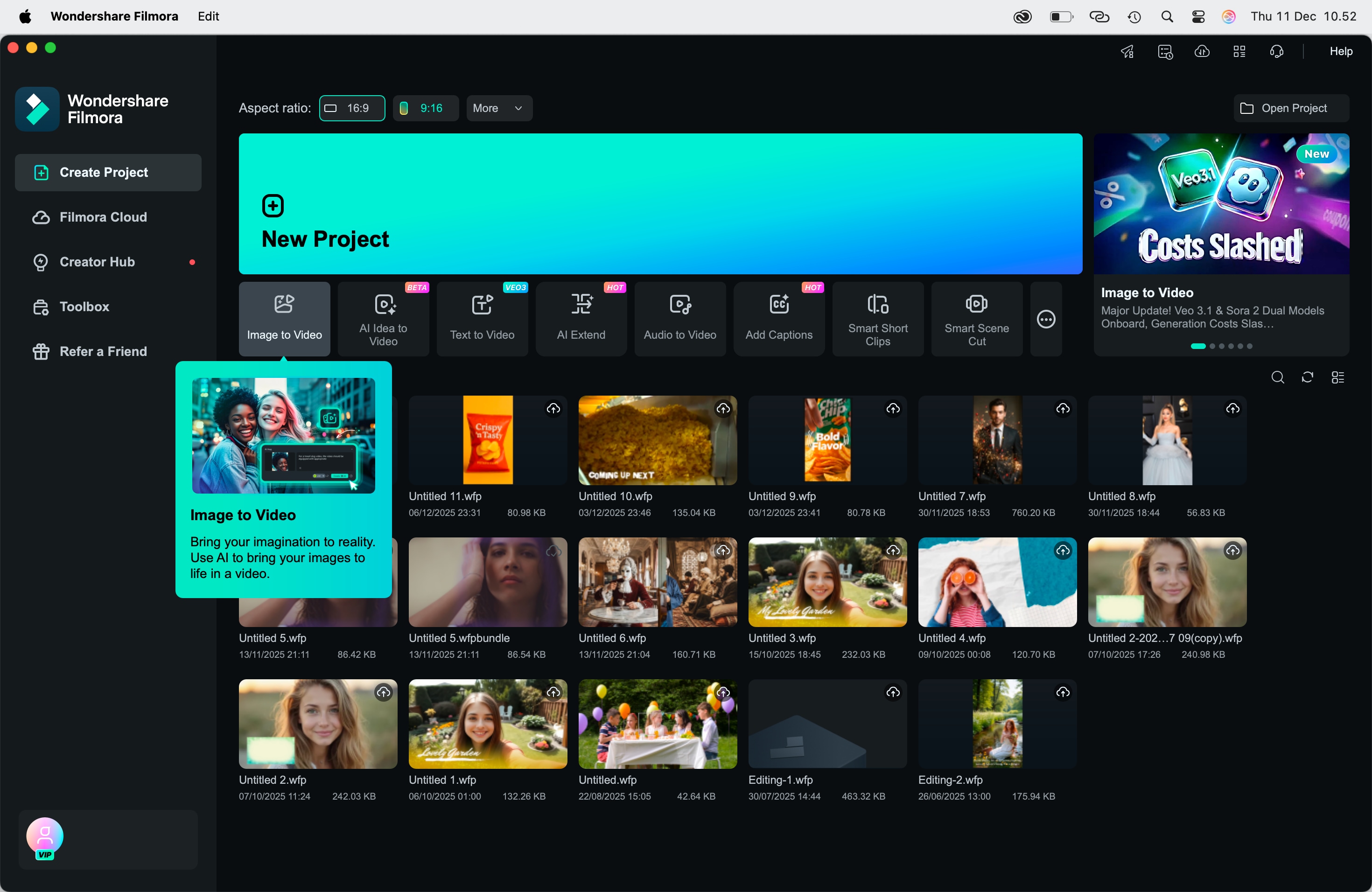
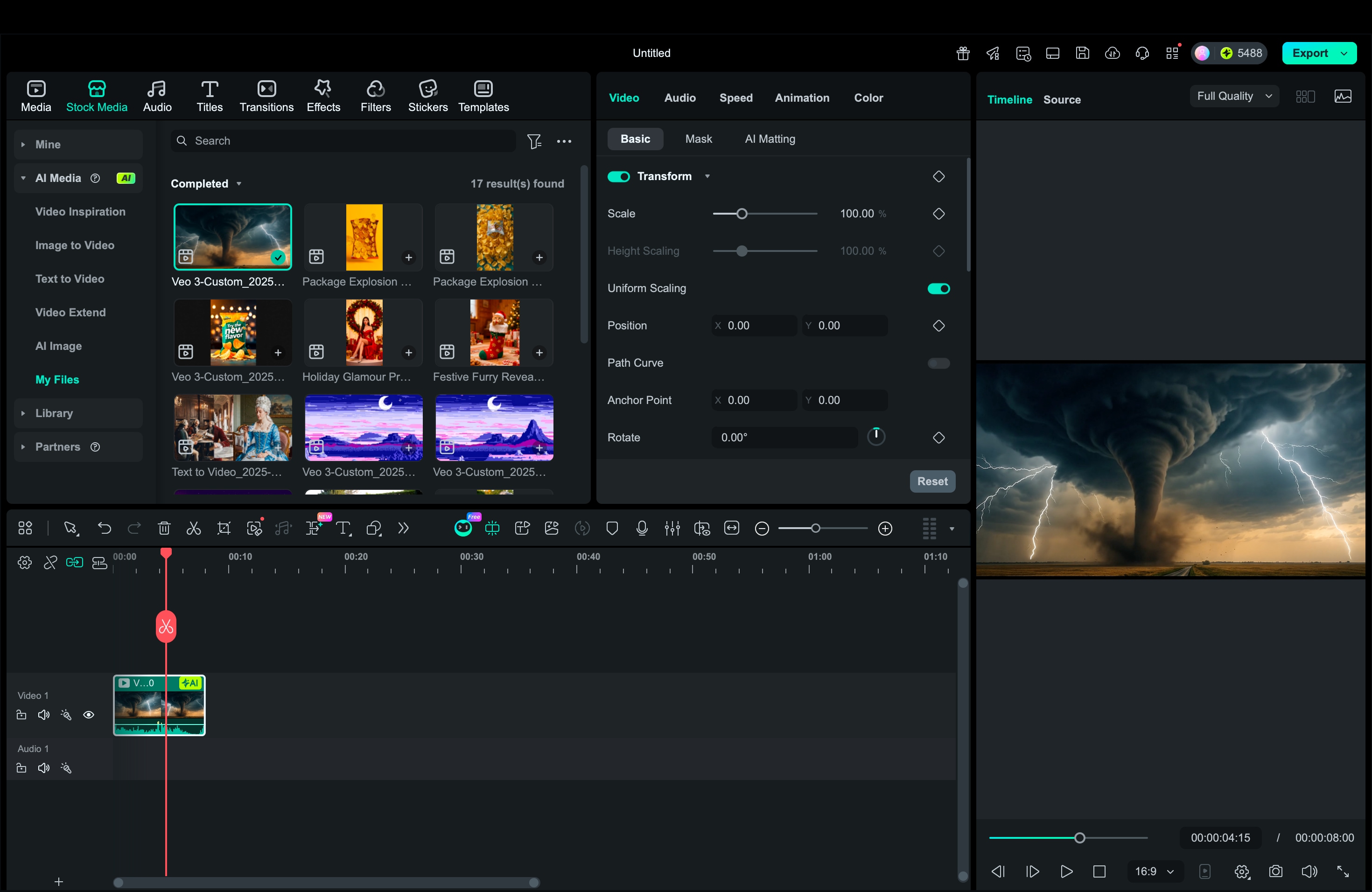
Part 4. Step-by-Step: How to Use the Filmora AI Tornado Video Generator with Veo 3.1
Filmora now integrates Google's powerful Veo 3.1 Model directly inside the editor, transforming the way you create realistic storm scenes in Filmora. You can start from a simple text idea or a static image, let Veo 3.1 create a short, dynamic AI tornado video clip with built-in motion and audio, and then refine that clip on the Filmora timeline. This complete workflow allows you to trim, color adjust, add effects, and polish the scene until it's a perfect part of your video. Check out this impressive Filmora AI tornado video we created:
 Secure Download
Doesn't it look impressive? Check out a simple desktop workflow you can follow for an AI tornado or artificial thunderstorm scene.
 Secure Download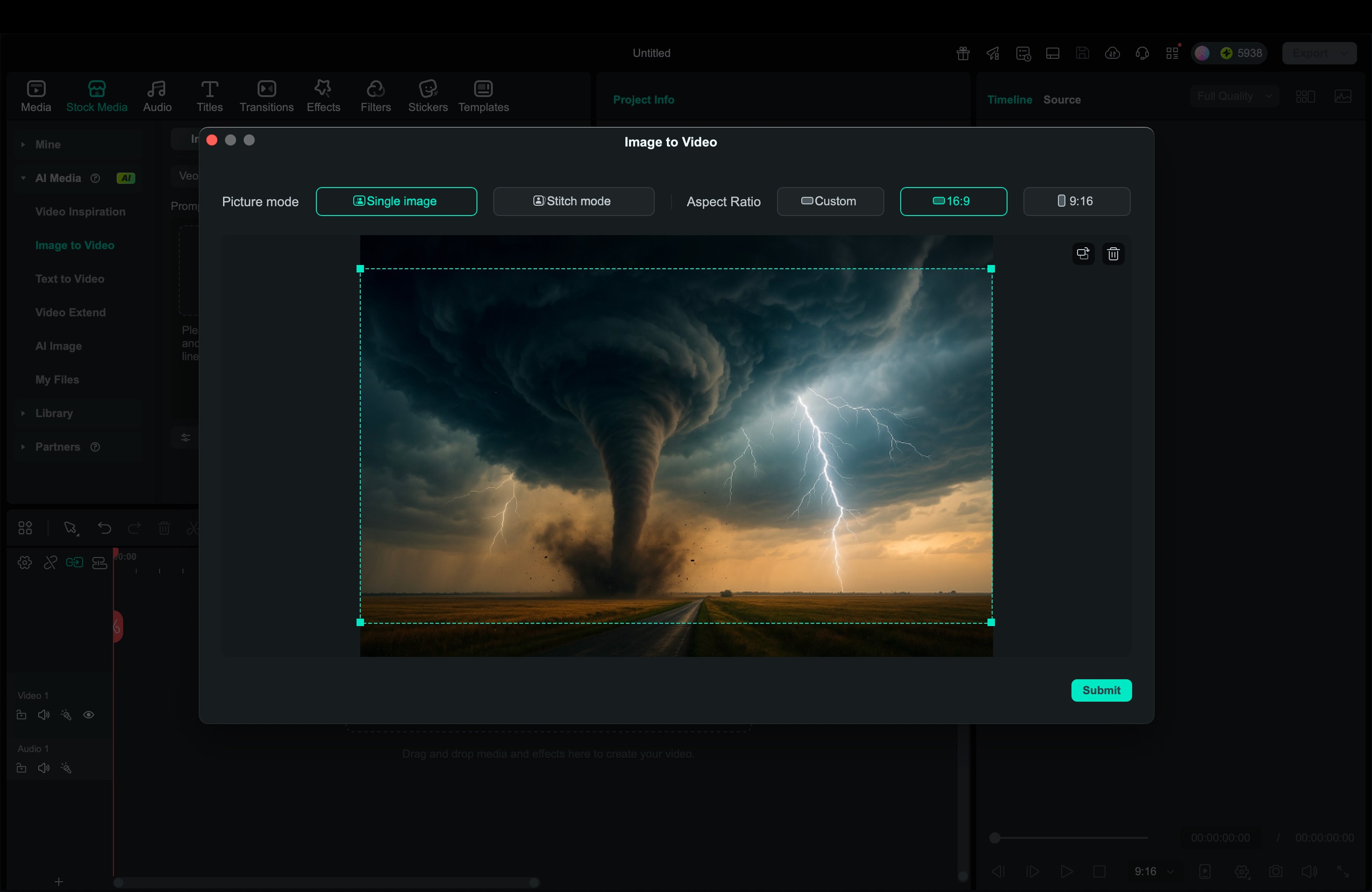
Part 5. Use Cases for AI Tornado Videos
Once you have your AI tornado or artificial thunderstorm clip ready in Filmora, you can use it in many different types of content. Some practical ideas include:
1. Science Education
AI-generated storm clips are useful for explaining how tornadoes and thunderstorms form. Teachers, students, or science creators can show rotating funnels, storm structure, and cloud movement in a clear visual way, without relying on risky real-life footage.
2. Storytelling and POV Scenes
You can use AI tornado videos as part of a short story, a storm chase point of view, or a dramatic opening scene. A few seconds of intense storm movement help set the mood before characters, narration, or text appear on screen.
3. TikTok and Reels Storm Edits
Short vertical videos are perfect for quick storm clips. You can combine your AI tornado video with text overlays, sound effects, and trending audio in Filmora, then publish it as a striking TikTok or Reel that grabs attention in the first seconds.
4. Weather Themed Transitions
Storm scenes also work as transitions between topics or segments. A flash of lightning, a brief view of a spinning funnel, then a cut to the next scene can act as a visual break that feels more interesting than a standard fade.
5. Short Films and Concept Previews
If you are planning a larger project, AI tornado videos help you build concept previews or animatics. You can test how storm scenes fit into your movie, game trailer, or YouTube series before investing in full production or live action shooting.
Part 6. Safety Notes (Important for Storm Content)
AI tornado and artificial thunderstorm videos can look very real, so they need to be used responsibly. A few simple rules help keep your content clear, honest, and safe for viewers.
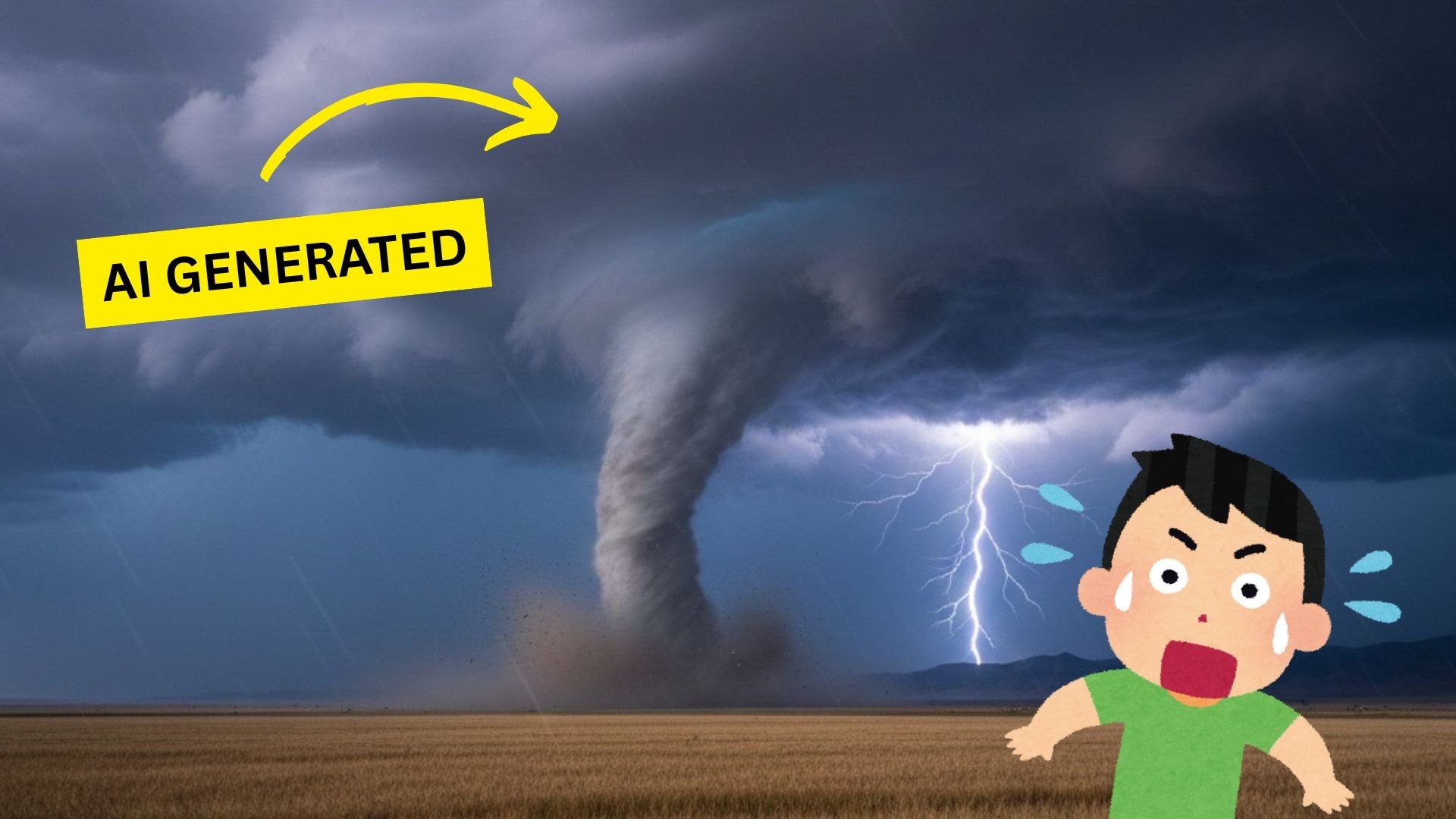
- Do not use AI storms as real news: Avoid sharing AI tornado clips as if they are real events. Do not attach fake locations, dates, or claims about current disasters. This can spread panic and misinformation.
- Do not imitate official agencies: Do not style your video to look like a warning from a weather service or government body. Viewers may mistake your content for a real alert, especially on social media.
- Always label AI-generated visuals: Add a simple note, such as "AI-generated storm scene" in the caption or on screen. This helps viewers understand what they are watching and reduces confusion.
- Be mindful of real disaster victims: Avoid using AI tornado scenes to joke about recent storms or communities that experienced real damage. Treat disaster topics with care and respect.
- Focus on creative, educational, or cinematic use: Use these tools for science explainers, storytelling, mood pieces, or visual experiments. Keep your purpose clear, and avoid anything that could mislead people about real-world weather.
Conclusion
Creating an AI tornado or artificial thunderstorm scene no longer depends on chasing real storms. You can generate detailed images with tools like Midjourney, Stable Diffusion, Firefly, or Bing Image Creator, then turn them into moving, sound-rich clips using Filmora and Veo 3.1.
By combining strong visuals, smart animation, and careful sound design, you can produce storm videos for education, storytelling, or social content. Use these tools responsibly, label AI-generated footage clearly, and let your creativity explore storm scenes in a safe and controlled way.

