Explore AI Gaming Room Image Prompts
Browse AI gaming room prompts for photorealistic PC setups, neon LED lighting, cozy small bedrooms, streamer backgrounds, minimalist desks, racing simulators, and cinematic gaming interiors. Use each idea to create assets for video templates, thumbnails, room inspiration posts, channel covers, and short intros.
Loading more AI gaming room image prompts...
 Category:
 Duration:
 Aspect Ratio:
Why Use AI Gaming Room Prompts for Setup Images?
Gaming rooms look better when the prompt controls lighting zones, desk layout, monitor placement, wall treatment, and cable cleanliness. The best prompts balance atmosphere with practical room detail.
Design RGB Setups With Clear Composition
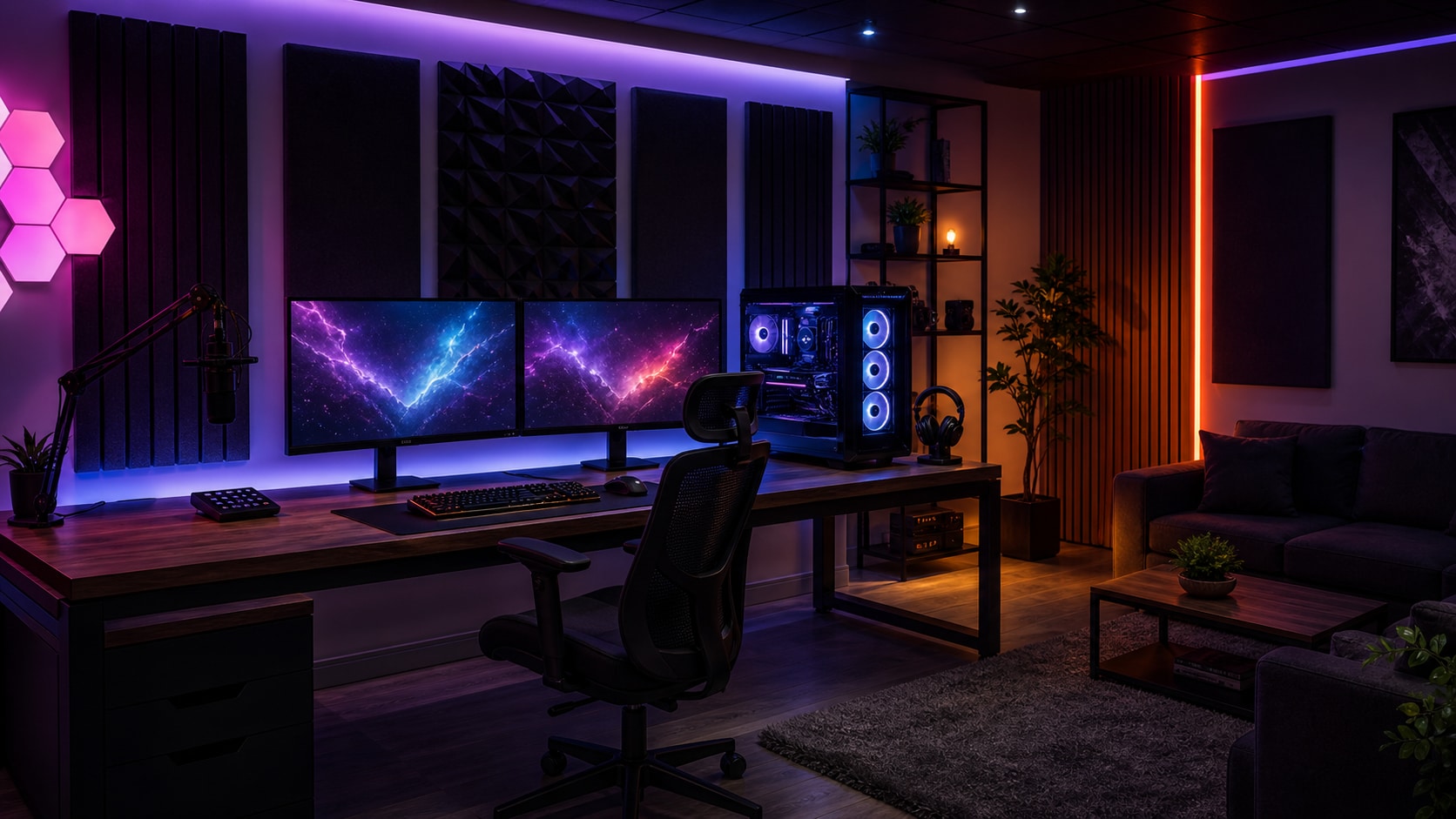
Design RGB Setups With Clear Composition
A strong gaming room prompt sets the desk angle, monitor count, PC placement, LED colors, and background depth. This keeps the RGB look polished instead of visually chaotic.
- Lighting Zones - Use under-desk glow, wall strips, monitor bias light, and PC case lighting.
- Desk Layout - Describe monitor count, keyboard, mousepad, speakers, chair, and shelf placement.
- Camera Angle - Choose wide corner view, straight-on desk view, or cinematic low angle.
Create Cozy Small-Room Gaming Scenes
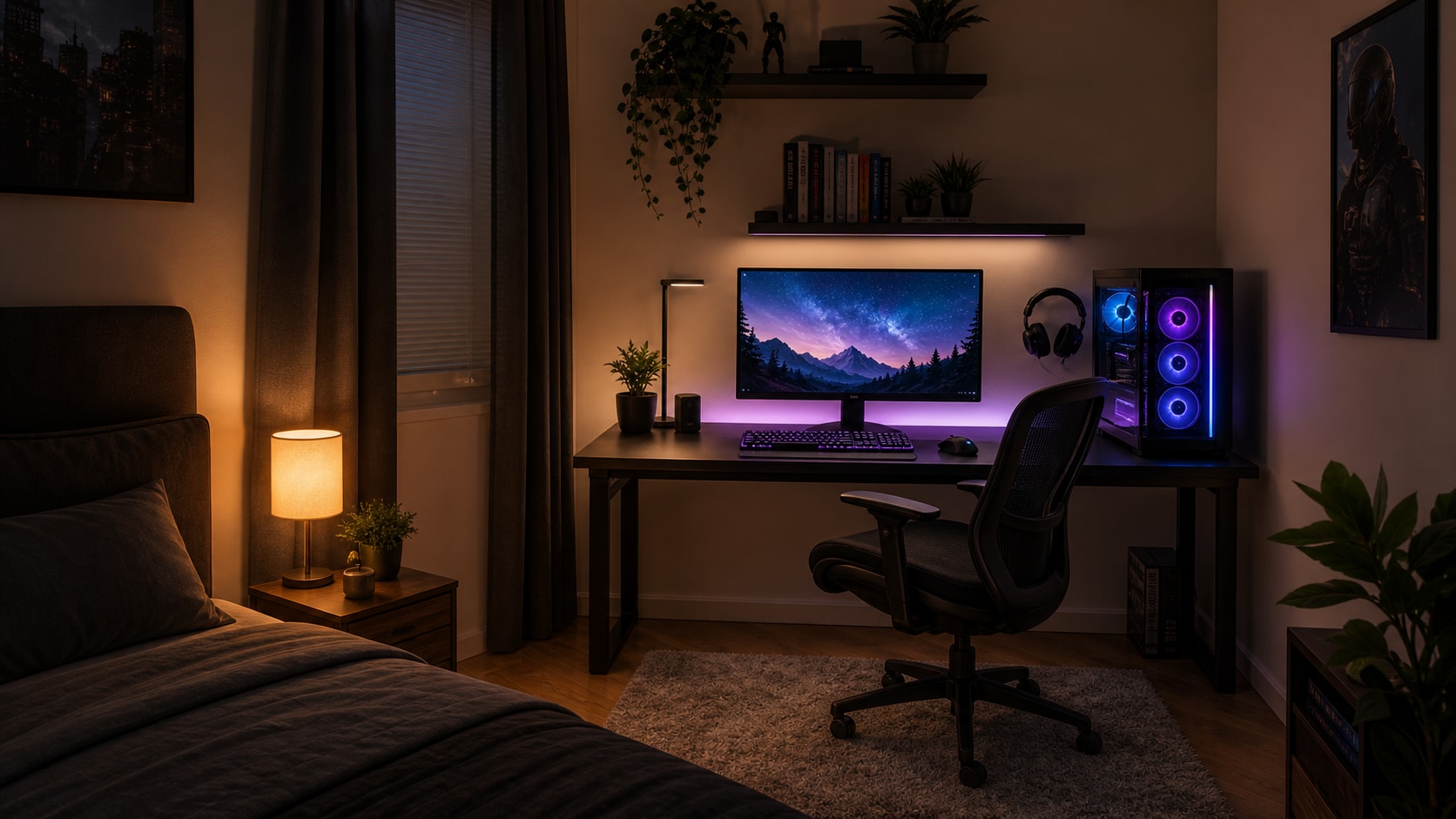
Create Cozy Small-Room Gaming Scenes
For small bedroom gaming setup prompts, mention storage, bed placement, wall shelves, cable control, and warm practical lighting. Cozy details can make a compact room feel intentional.
- Space Planning - Add wall shelves, compact desk, corner PC tower, and tidy cable routing.
- Comfort - Use warm lamp light, soft rug, curtains, plants, or chair texture.
- Scale - Keep furniture proportions realistic for small rooms.
Build Streamer and Creator Backgrounds
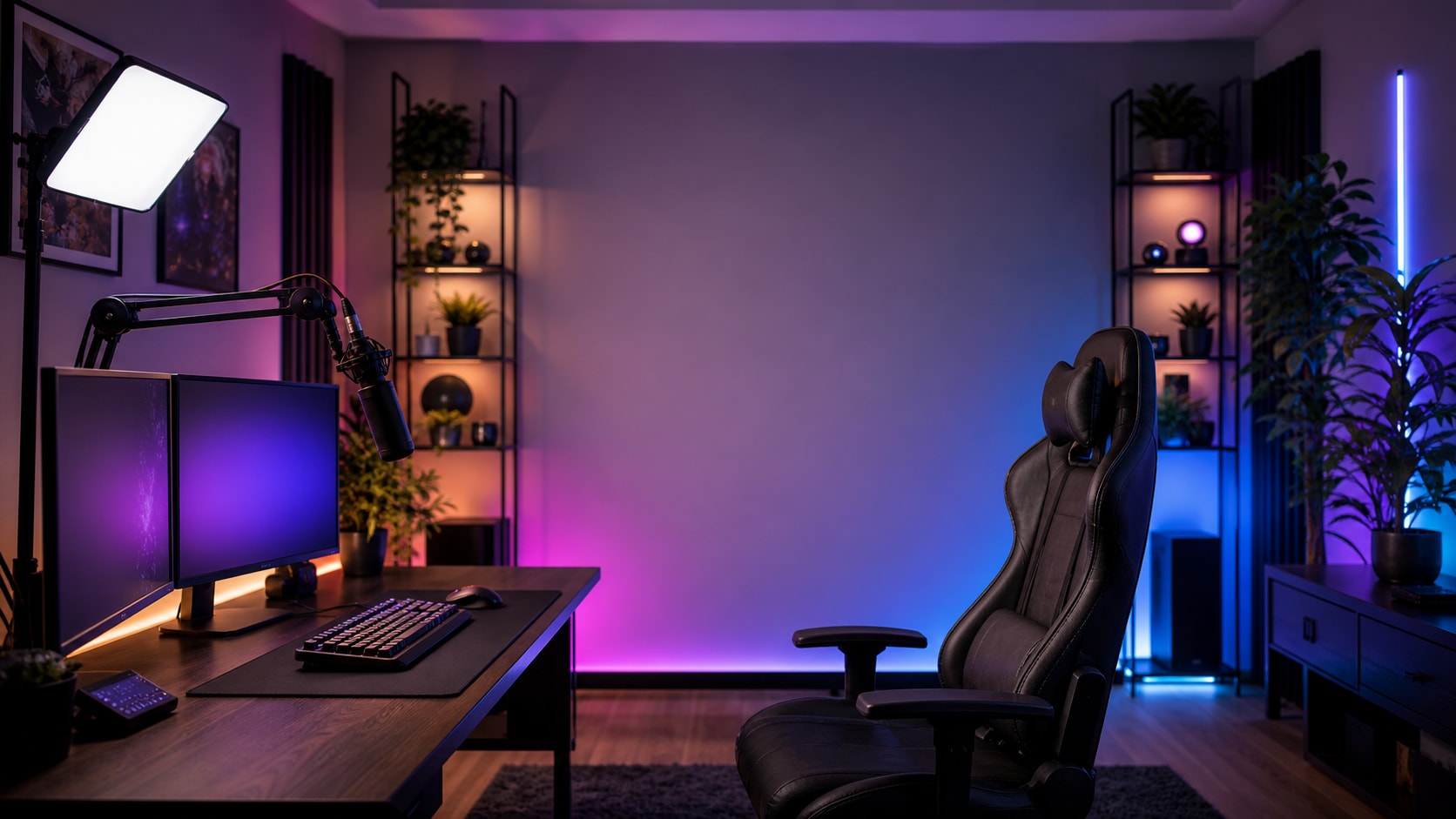
Build Streamer and Creator Backgrounds
A streamer room prompt should create a clean camera background with visible personality. Add shelves, panels, lights, microphone placement, and a screen-safe composition for thumbnails or intros.
- Creator Setup - Include microphone arm, camera light, chair, shelf display, and monitor glow.
- Background - Use acoustic panels, posters without readable text, LED shapes, or clean shelving.
- Recording Fit - Leave negative space for overlays and captions.
Turn Room Images Into Short Gaming Intros
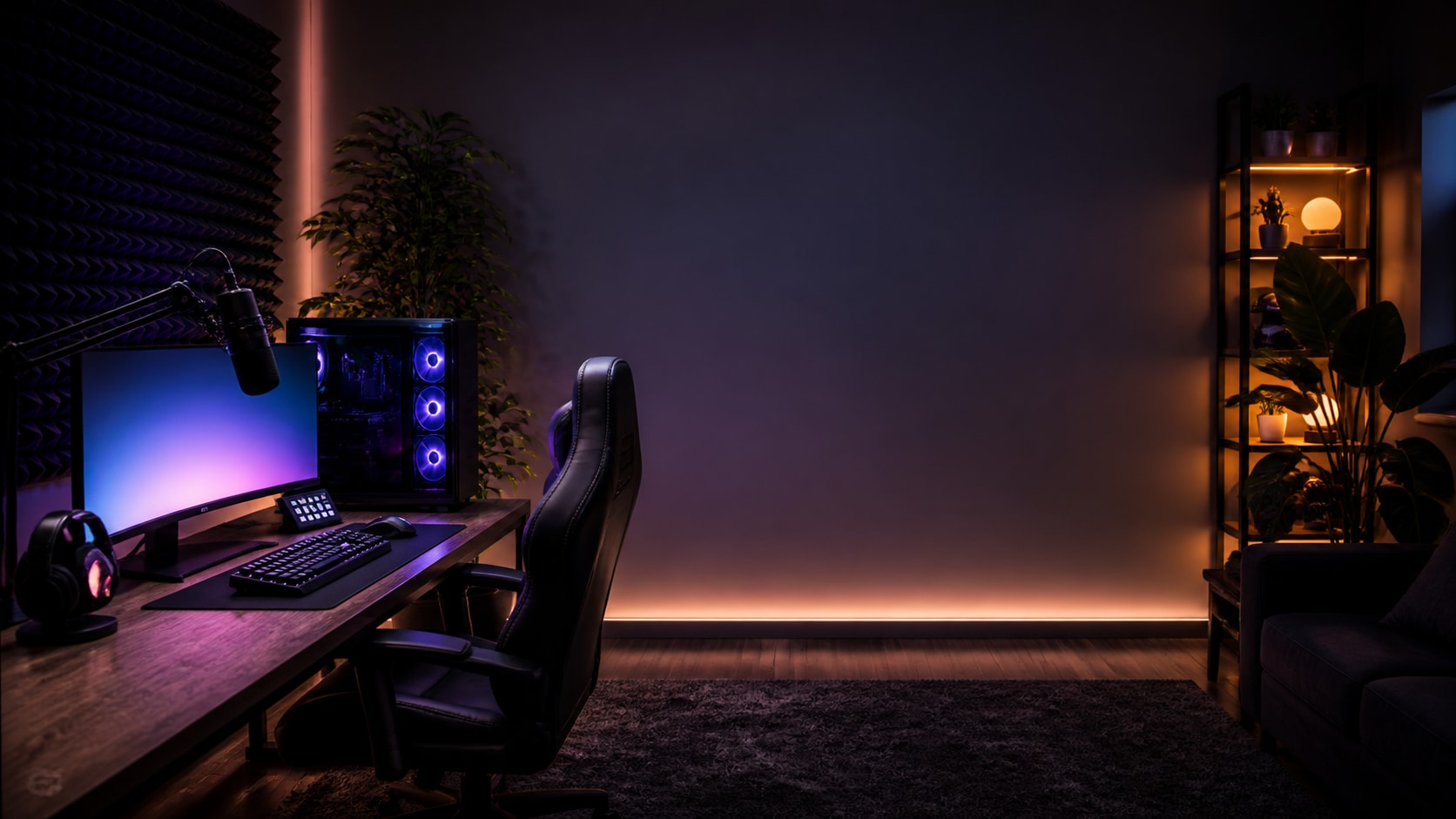
Turn Room Images Into Short Gaming Intros
After generating a room still, use Filmora to add screen glow, camera movement, ambient particles, title overlays, and music. A polished setup image can become an intro, channel header, or reveal clip.
- Motion Ideas - Use slow dolly-in, monitor glow pulse, LED sweep, or subtle parallax.
- Edit Control - Generate without readable text, then add channel titles in Filmora.
- Video Uses - Create setup tours, gaming intros, stream screens, and thumbnail backgrounds.
Frequently Asked Questions About AI Gaming Room Prompts
How to Generate Gaming Room Images With AI Prompts
Create a gaming setup image by defining room size, lighting, equipment, wall details, and camera angle before refining the visual in Filmora.
Step 1 Choose a Setup Style
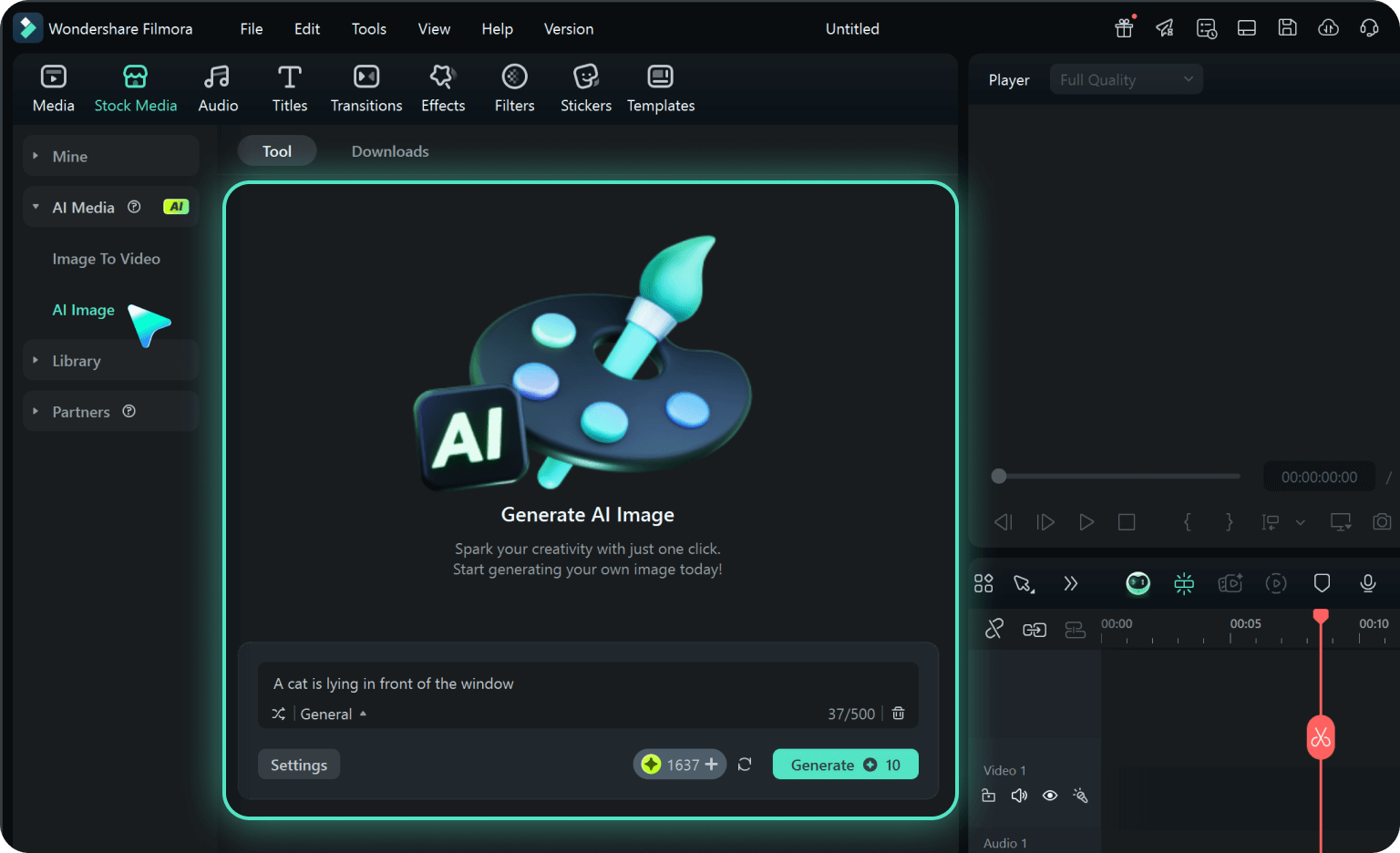
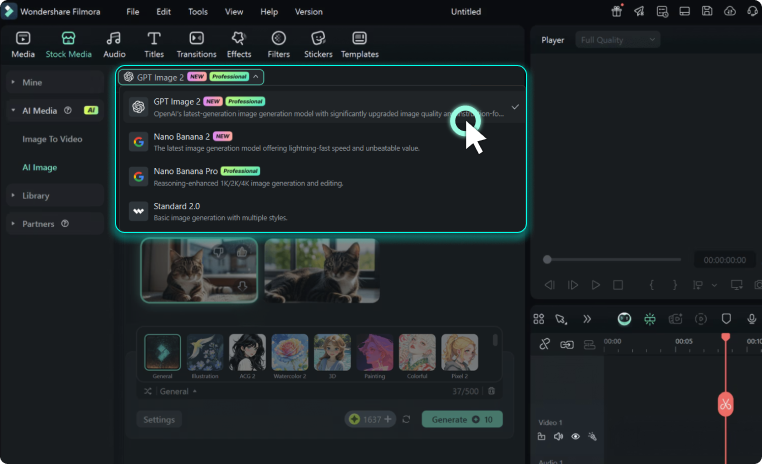
Step 2 Set Room Details and Ratio
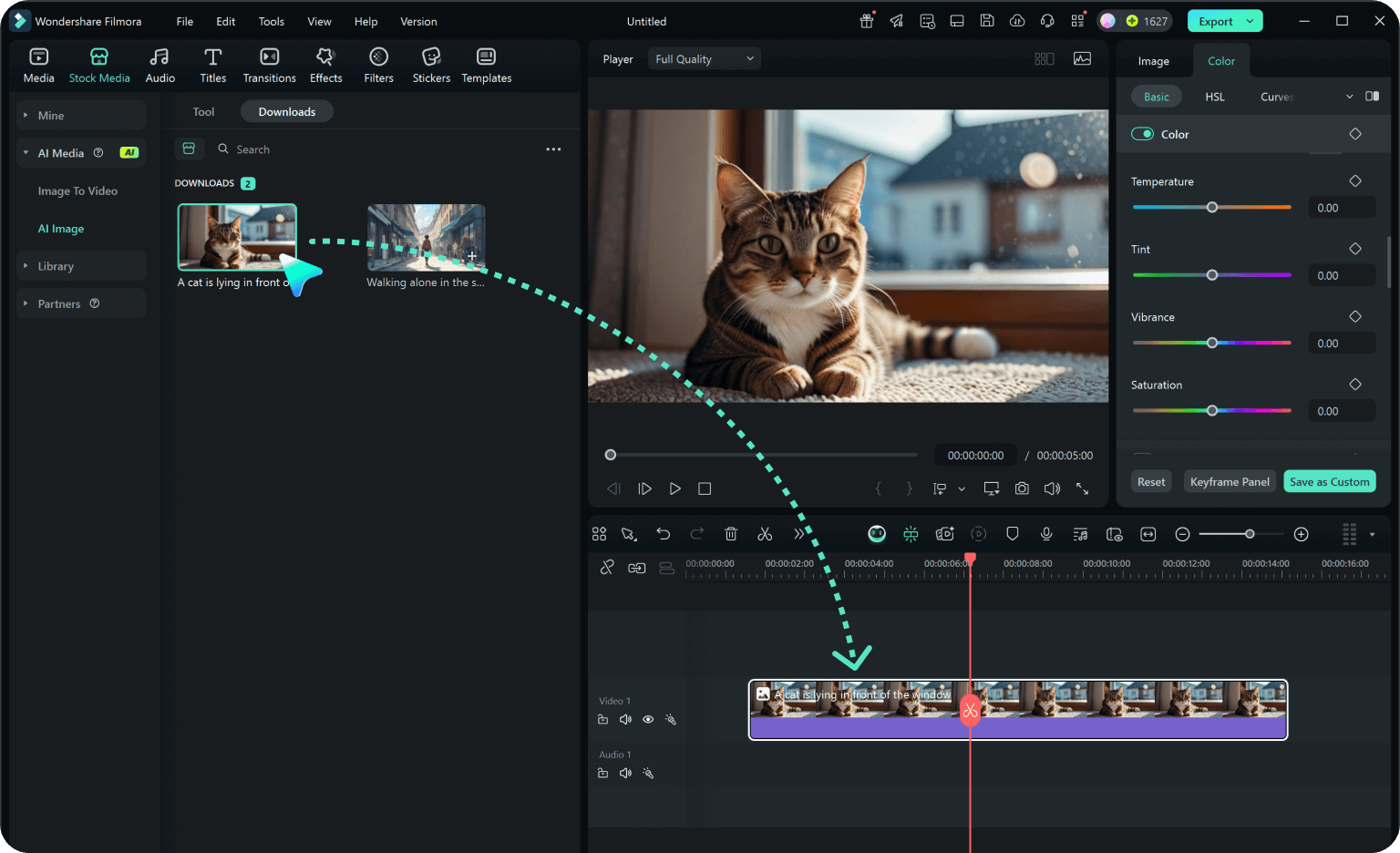
Step 3 Generate, Refine, and Export
-
1: Choose a Setup Style
Pick an RGB battlestation, cozy minimalist desk, streamer room, console corner, small bedroom setup, or racing simulator scene. -
2: Set Room Details and Ratio
Paste the prompt into Filmora's AI Image tool, choose a ratio, and describe monitors, PC, lights, furniture, wall decor, and no readable text details. -
3: Generate, Refine, and Export
Generate the gaming room image, adjust color and crop in Filmora, add motion or channel titles if needed, then export for thumbnails or intros.
AI Gaming Room Prompts: Design Immersive Setup Images
Use AI gaming room image prompts to create neon RGB interiors, cozy desk setups, streamer rooms, small bedroom PC builds, console corners, and cinematic backgrounds ready for Filmora editing.