

 TL;DR:
Converting large, uncompressed WAV files into compressed MP3s enables faster uploading and wider device compatibility, which is best achieved by choosing quick web-based converters for casual tasks or integrated desktop editors like Wondershare Filmora for professional workflows.
● Online platforms such as Convertio are ideal for users needing fast, no-installation conversions for temporary files under the 100 MB free limit, while offline software like Wondershare Filmora is strictly necessary for podcasters and video editors requiring secure batch processing of large files without upload delays.
● To minimize the permanent loss of audio frequencies during compression, always run the conversion directly from the original master WAV file using a bitrate of 256 or 320 kbps for stereo playback, and never convert an existing MP3 into another MP3.
● Always retain the original WAV file as a permanent archive for any future mixing, mastering, or sound design, utilizing the exported MP3 solely as a lightweight distribution copy for client previews, online streaming, or limited mobile storage.
Ask AI for a summary
 ChatGPT
 Perplexity
 Gemini
 Claude
 Grok
Grok
Working with audio files means you've probably encountered WAV and MP3 formats. WAV is an audio format that gives high sound quality but requires a significant amount of storage space, while MP3 keeps file sizes small and makes them easy to share.
So whenever you want faster uploads, smaller file sizes, or better compatibility with different apps and devices, you may be looking for a WAV to MP3 converter to make your WAV audio more manageable.
In this article, you'll learn the key differences between WAV and MP3, how to choose the right WAV to MP3 converters, and the best free online tools you can use right away. Not only that, but you'll also find useful tips for improved audio conversion, examine real-world use cases, and find answers to common questions.
No worries if you're a first-timer. With this article, you'll be converting files smoothly and confidently in no time!
Part 1. WAV vs. MP3: Understanding the Quality and Size Differences
You may still be unclear about what WAV and MP3 are and how they differ. Before choosing the right format for your project or deciding whether you need a WAV to MP3 converter, it's important to understand the main differences between these two file types.
Both are popular audio formats, but they serve different purposes in terms of quality, size, and flexibility.
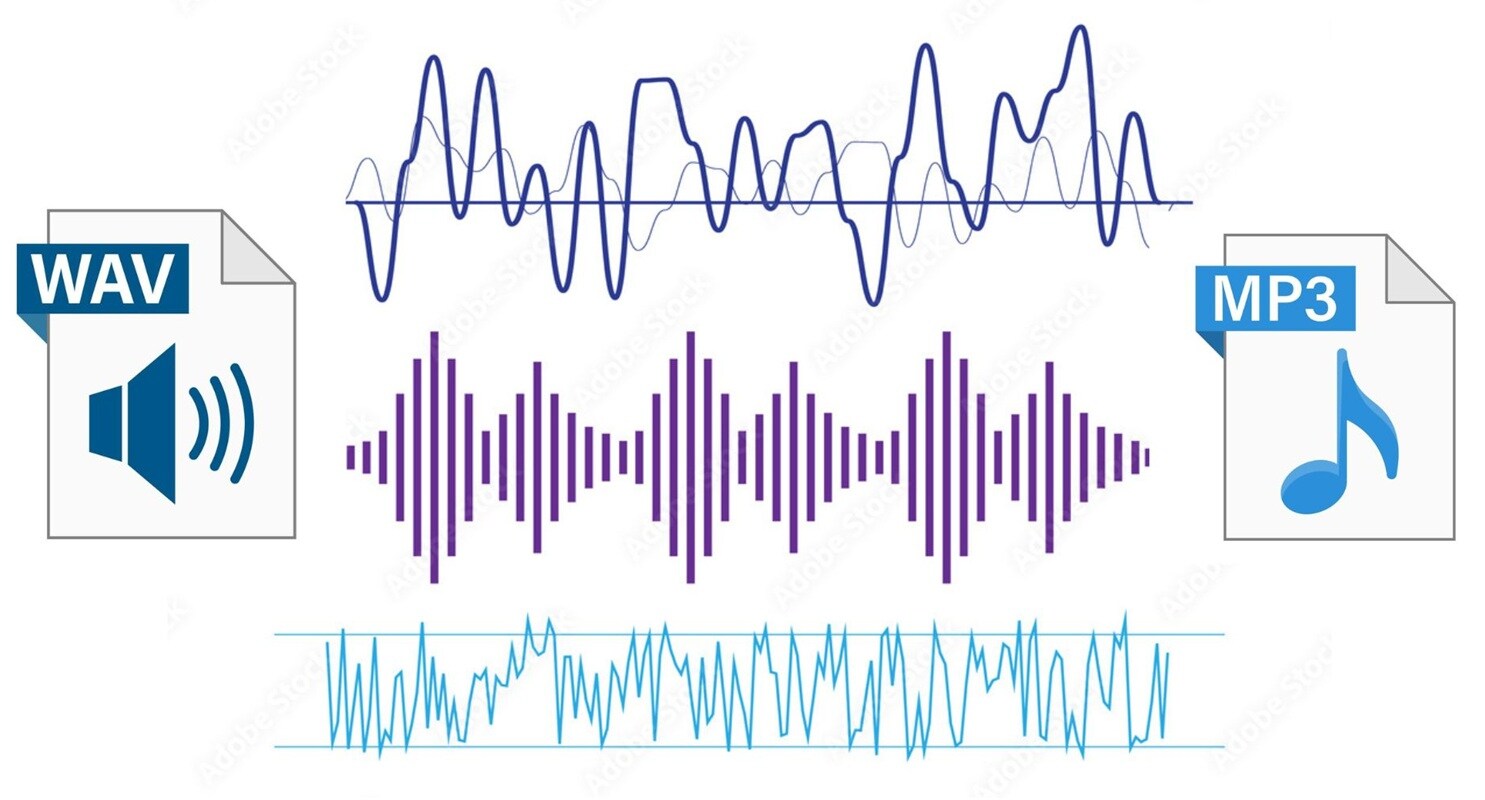
1.1 What is WAV (Waveform Audio File Format)
In simple terms, WAV is an uncompressed audio format that preserves all the details of the original sound. This format is often used in professional environments such as music production, sound design, broadcasting, and video editing.
Key characteristics of WAV:
- Uncompressed audio for maximum sound quality
- Large file sizes
- Ideal for editing and mastering
- Supported by most professional software
1.2 What is MP3 (MPEG-1/2 Audio Layer III)
On the other hand, MP3 is a compressed audio format designed to reduce file size while maintaining clear sound quality, and is pleasant for everyday listening. This format removes frequencies that are less noticeable to the human ear, which makes the file significantly smaller.
Key characteristics of MP3:
- Compressed audio with a significantly reduced size
- Good quality for casual listening
- Highly compatible with almost all devices and apps
- Suitable for streaming, sharing, and playback on mobile devices
1.3 Pros & Cons of Each Format for Different Use-Cases
Both formats have strengths and limitations depending on where and how you plan to use the audio.
Pros and Cons of Using WAV
- Highest audio quality
- Best for mixing, editing, and sound processing
- No compression artifacts
- Huge file sizes
- Not ideal for sharing or uploading
- It may be excessive for simple listening
Pros and Cons of Using MP3
- Small file sizes
- Quick to upload, download, and share
- Compatible with almost all devices
- Lower audio quality due to compression
- Not recommended for professional editing
- Some details may be lost
WAV and MP3 Comparison
| Features | WAV | MP3 |
| Approx. File Size | Very large | Very small |
| Audio Quality | Lossless | Lossy |
| Compatibility | High | Extremely High |
| Editing Flexibility | Excellent | Limited |
| Ideal Use Cases | Production, editing, mastering | Sharing, streaming, casual listening |
|
Show More
Show Less
|
||
1.4 When Should You Convert WAV to MP3?
Using a WAV to MP3 converter makes sense when you need a lightweight and widely compatible format. Some common situations include:
- Online sharing on social media, messaging apps, and cloud storage
- Mobile playback when you want to save storage space on your phone
- Video editing integration when you only need smaller background music or narration files
- Uploading podcasts for easier distribution and faster streaming
- Email attachments where file size limits apply
Part 2. Key Criteria for Choosing a WAV to MP3 Converter
Once you understand the differences between WAV and MP3, the next step is to select the right tool for converting between the two.
2.1 Free vs Paid – What "Free" Truly Means
Many users initially look for free WAV to MP3 converters, but "free" can mean different things depending on the tool used. Some converters truly offer free conversion without watermarks, while others have hidden limitations, such as:
- File size restrictions
- Limited daily conversions
- Slower processing, or
- Advertisements that may clutter the interface
If you frequently convert audio or work with large libraries, upgrading to a paid version can save time and ensure smoother performance, especially for professional use.
2.2 Online vs Offline – Advantages & Compromises
You can choose between online WAV to MP3 converters and downloadable offline software. What sets them apart is that online tools are more convenient because they can be used in any browser and on any device without installation. Offline software, on the other hand, is usually faster, more secure, and better suited for creators who work with large audio files.
| Online Converters | Converter Software | |
| Convenience | Accessible from any browser or device; no installation needed | Requires installation but ready anytime once installed |
| Speed | Can be slower, especially for large uploads | Generally faster processing for big audio files |
| Privacy | Uploading files may raise privacy concerns | More secure since files stay on your device |
| Best For | Casual users who want quick, simple conversions | Creators working with large files or editing offline |
|
Show More
Show Less
|
||
2.3 Quality Control – Bitrate, Sample Rate, Codec Settings, Avoiding Quality Loss
When converting a WAV to an MP3, you will need to select the MP3 bitrate, which directly affects audio quality and file size.
- Higher bitrates, such as 256 or 320 kbps, retain more detail.
- Lower bitrates make files smaller but reduce clarity.
Sample rate and codec settings also affect the final result. For best results, always convert from the original high-quality WAV file rather than a compressed version. Choosing this format minimizes quality loss.
2.4 Batch Processing and Large-File Support – Important for Creators/Editors
If you manage multiple WAV files at once, such as podcast episodes, voice-over projects, or entire video libraries, you may consider WAV to MP3 converters that support batch conversion. They let you drag entire folders, convert multiple files simultaneously in the background, and handle large audio files without errors.
2.5 Platform Compatibility – Windows, Mac, iOS, Android
Different tools work on various platforms, so compatibility matters. Online converters work across all devices since they run in a browser, but offline software may be designed only for Windows or Mac. Mobile apps, on the other hand, may also offer basic conversion features but fewer advanced settings.
Here is a quick overview:
| Tool Type | Windows | Mac | iOS | Android | Notes |
| Online Converters | ✅ | ✅ | ✅ | ✅ | Works in any browser |
| Desktop Software | ✅ | ✅
(depends on tool) |
❌ | ❌ | Best for large files and offline editing |
| Mobile Apps | ❌ | ❌ | ✅ | ✅ | Convenient but limited settings |
2.6 Workflow Integration – Using Conversions in Video, Audio, and Creative Projects
Conversion is much easier when the tool is naturally integrated into your existing creative workflow.
- For Video Editors: MP3 files can be used as background music or voice narration, and having a converter built into your editing software speeds up the process.
- For Podcasters: Smaller MP3 files speed up the process of uploading, sharing, and distributing episodes.
- For Sound Design and Archiving: WAV files are well-suited for preserving high-quality audio, while MP3 exports enable you to deliver final versions for clients or collaborators.
Tools like Wondershare Filmora offer built-in conversion so you can edit, clean up, and export audio in one workflow, which enables the conversion process to run smoothly throughout your creative tasks.

Wondershare Filmora - Mp3 Editor
Part 3. Best Free Online WAV to MP3 Converter Tools Reviewed
WAV to MP3 online converters are the quickest and easiest way to convert WAV files to MP3 without needing to install any software. Check out some of the most reliable free options currently available, along with what you can expect from each.
3.1 FreeConvert – Features, Pros & Cons
The first recommended tool in our list is FreeConvert. This tool offers a clean and simple interface that allows free convert from WAV to MP3 with just a few clicks. It supports various audio formats and offers useful customization options, including bitrate, sample rate, and volume settings.
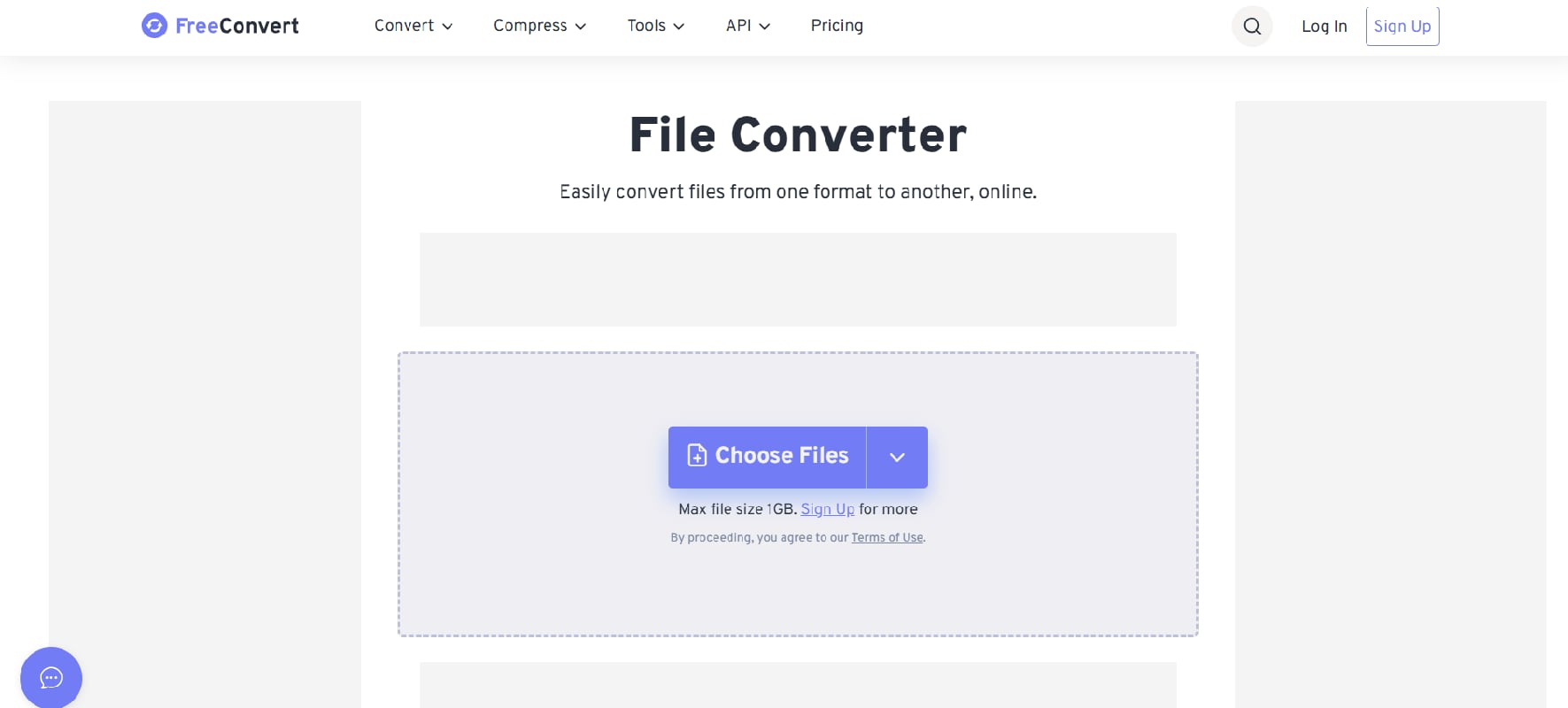
- Supports files up to several GB with a free account
- Custom bitrate selection
- Fast conversions for smaller files
- No watermark
- Works on all devices
- Shows ads in the free version
- Limited daily conversions for free users
- Huge files may require a premium plan
- Automatically detects corrupted or incompatible WAV files and suggests fixes before conversion
- It provides advanced options such as trimming, fade effects, and codec selection
- Clear file size limits are displayed upfront
3.2 Convertio – Features, Pros & Cons
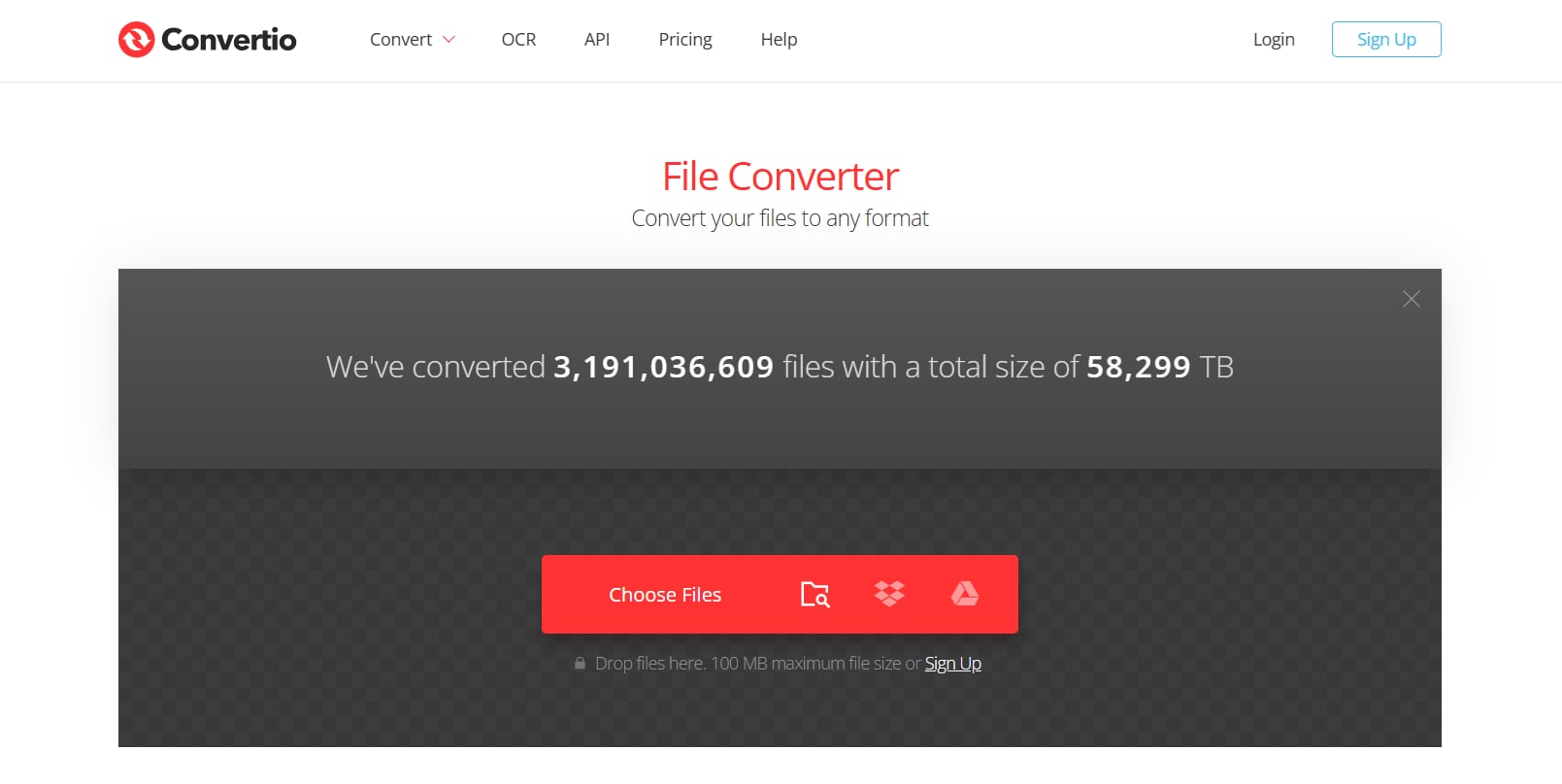
Convertio is a popular free online WAV to MP3 converter known for its modern interface and smooth user experience. This converter supports a wide range of file types, including audio, video, images, and many others, so you can use it for any file type. The audio settings provided include bitrate settings, channel selection, and cropping.
- Excellent UI and fast processing
- Good privacy practices for uploaded files
- Various customization options for MP3 output
- No watermarks in the results
- Free version limits file uploads to 100 MB
- Gear icon settings are available, but advanced features require an upgrade
- Queues during peak hours may delay the conversion process
- Perform all conversions entirely in the cloud, which means not using your device's processing power
- Has one of the fastest upload systems due to optimized compression during file transfer
- Provides seamless file management by allowing users to import and export audio directly between cloud storage services (Google Drive, Dropbox) without downloading
3.3 Online-Convert – Features, Pros & Cons
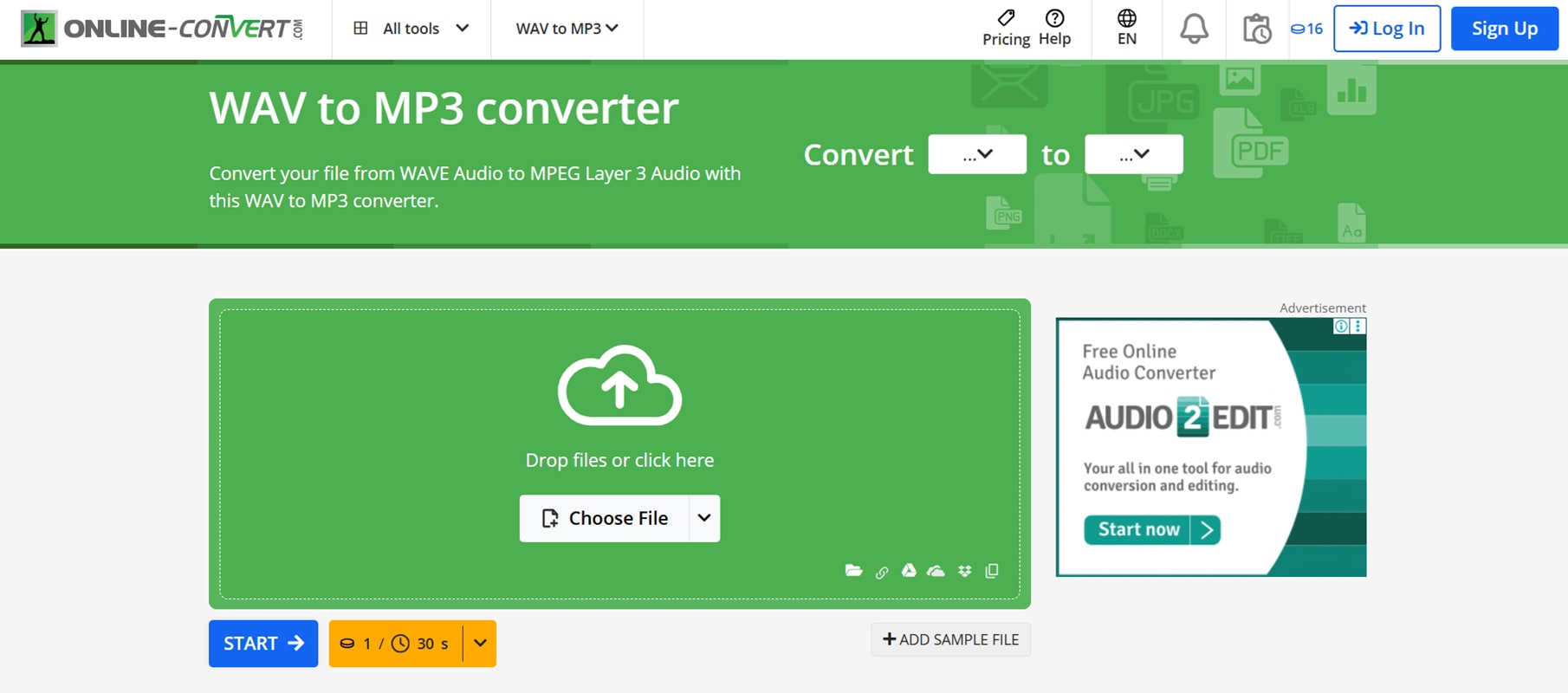
Online-Convert offers a WAV to MP3 converter tool with a more technical interface, but it provides some of the most detailed customization options available in a free converter. Users can adjust the bitrate, sample rate, audio channels, volume normalization, and even apply audio filters.
- Highly flexible for professional users
- Supports large files, depending on the plan
- Fast conversion speed
- Watermark-free results
- The interface is not entirely beginner-friendly
- Some advanced features are locked behind a paid subscription
- The free version has stricter file size limits depending on the category
- Provides the most detailed control over audio processing, including customizable filters, normalization, and advanced codec parameters
- Supports device-specific output presets, which let users convert WAV to MP3 optimized for phones, smart speakers, or web players
- Includes built-in metadata tools that let you rewrite artist names, album titles, or track info before exporting
3.4 Table Comparison
For easier comparison, below is a table comparison of online WAV to MP3 converters:
| Tool | Max File Size (Free) | Bitrate Control | Files per Conversion | Watermark | Notes on Privacy |
| FreeConvert | Up to several GB | ✅ | Single or batch (limited) | None | Deletes files after the conversion window |
| Convertio | 100 MB | ✅ | Single file | None | Files stored temporarily on cloud servers |
| Online-Convert | Varies (around 100 MB free) | ✅ | Single file | None | Offers a detailed privacy policy and manual deletion |
3.5 Online Converter vs.Offline Software: When to Use Which
Online converters are ideal when:
- You need to convert small WAV files quickly
- You prefer a no-installation solution
- You are working on casual projects, such as sharing audio with friends
- You only need basic MP3 settings
Offline software is better used when:
- You are working with large WAV files that take a long time to upload
- You have many audio files and need batch processing
- You need faster and more stable performance
- You are handling sensitive or confidential audio, such as client recordings, interviews, or project assets
- You want conversion integrated into a larger editing workflow
Creators who regularly edit videos, podcasts, or voice-over projects often rely on offline tools because they offer better speed, privacy, and flexibility. You can try tools like Filmora to simplify this process by combining audio editing and exporting within a single platform. It allows you to clean up, trim, and convert audio without needing to switch between platforms.
Part 4. Seamless Filmora Audio Workflow: Convert WAV to MP3
If you frequently work with audio in videos, podcasts, reels, or short content, having a converter integrated into your editing software can significantly speed up your workflow.
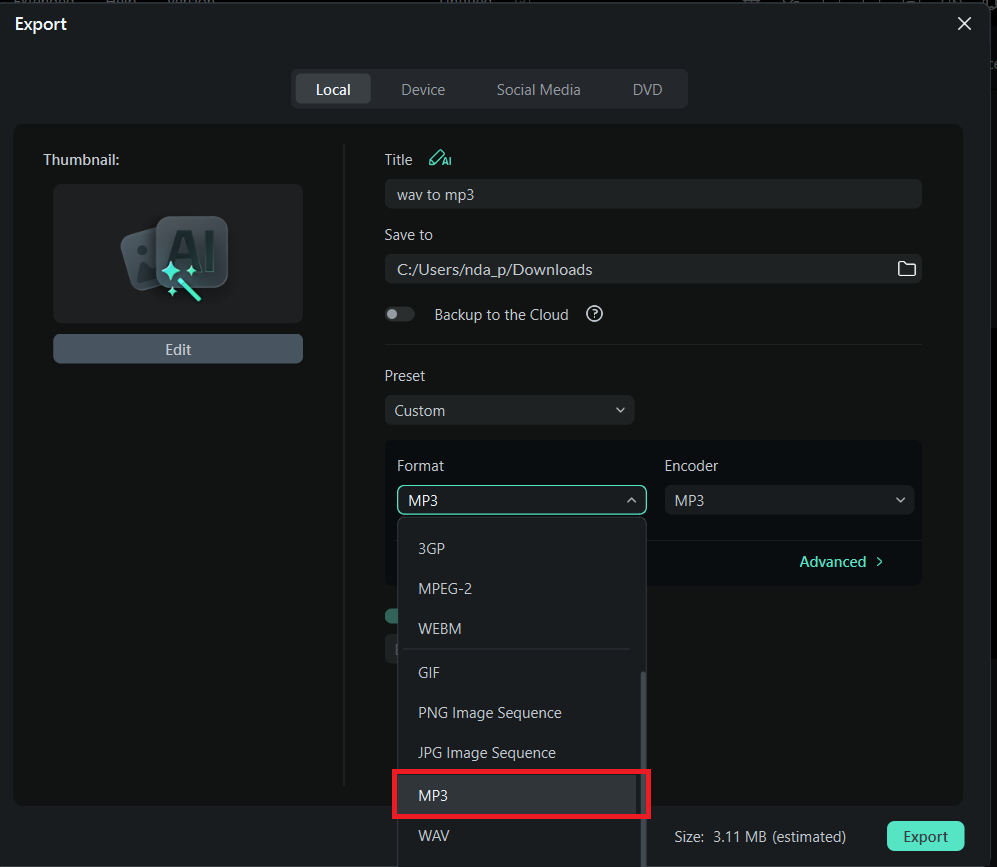
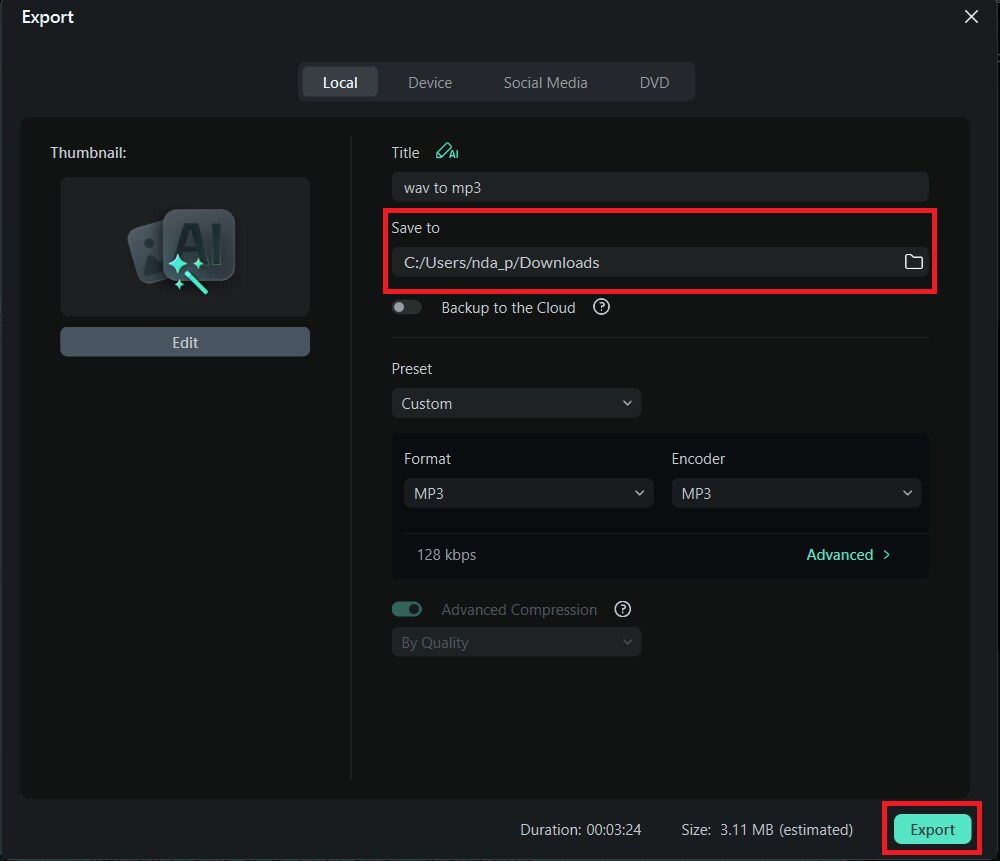
Wondershare Filmora is designed for creators who want to edit, clean up, and export audio in one place without having to switch between tools. Since Filmora supports exporting in WAV and MP3 formats, it also functions as a WAV to MP3 converter, so you can change audio formats seamlessly while working on your editing projects on a desktop.
 Secure Download
- Use AI Audio Denoise to eliminate background noise from your recordings.
- Try Equalizer to improve clarity, strengthen vocals, or adjust the tone.
- Cut out unwanted silent sections at the beginning or end of your audio.
- Use Fade In and Fade Out to make your audio sound smoother.
- Combine multiple audio clips and export them simultaneously.
Filmora is not just a basic converter; it's recognized as a video editor that anyone can use, and even beginners can edit like an expert. This all-in-one video and audio editing software supports high-quality audio export, batch processing for multiple clips, and a smooth interface designed for creators.
Since Filmora already supports exporting to common audio formats such as MP3 and WAV, you don't need a separate WAV to MP3 converter. This makes Filmora ideal for:
- Editors preparing audio for YouTube videos
- Podcasters editing voice recordings
- Creators handling background music, sound effects, and voice-over narration
- Anyone wanting to do quick and accurate audio conversion within the same software they already use for editing
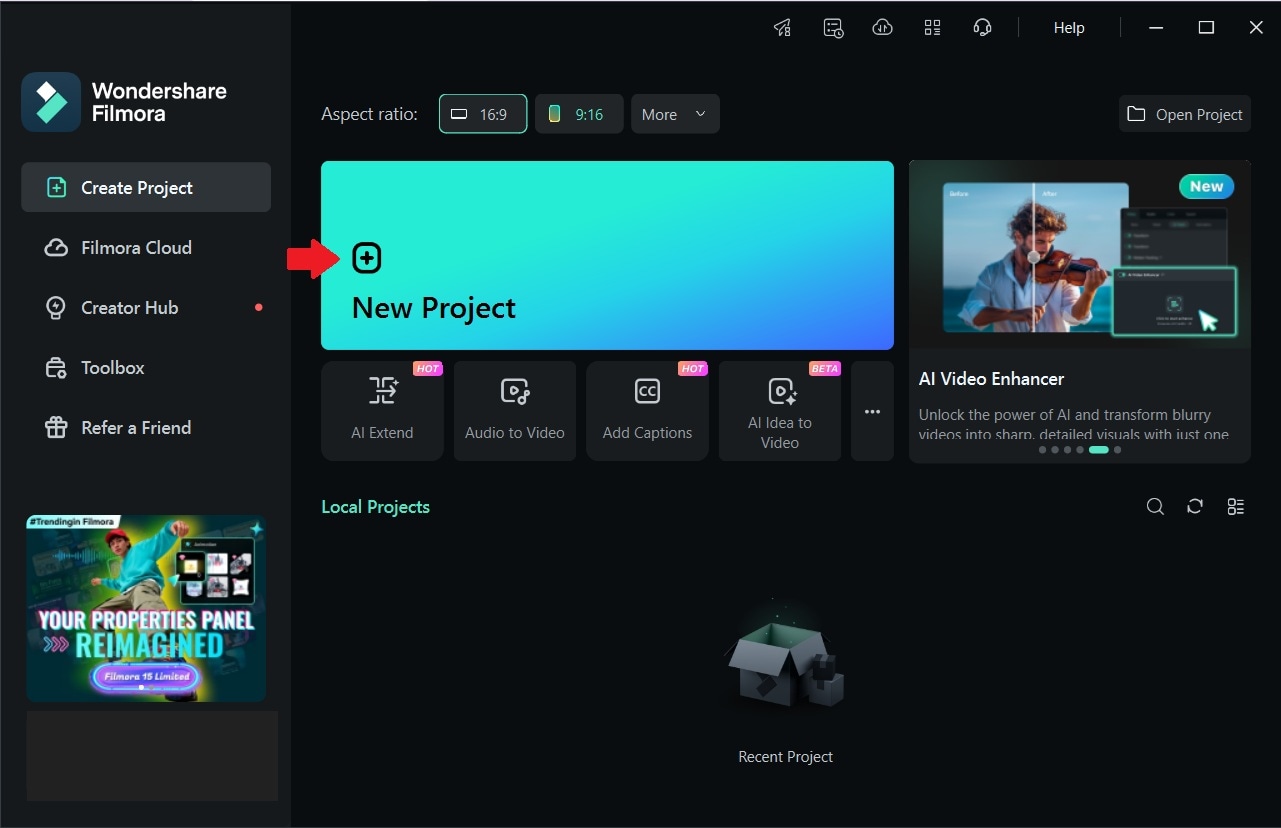
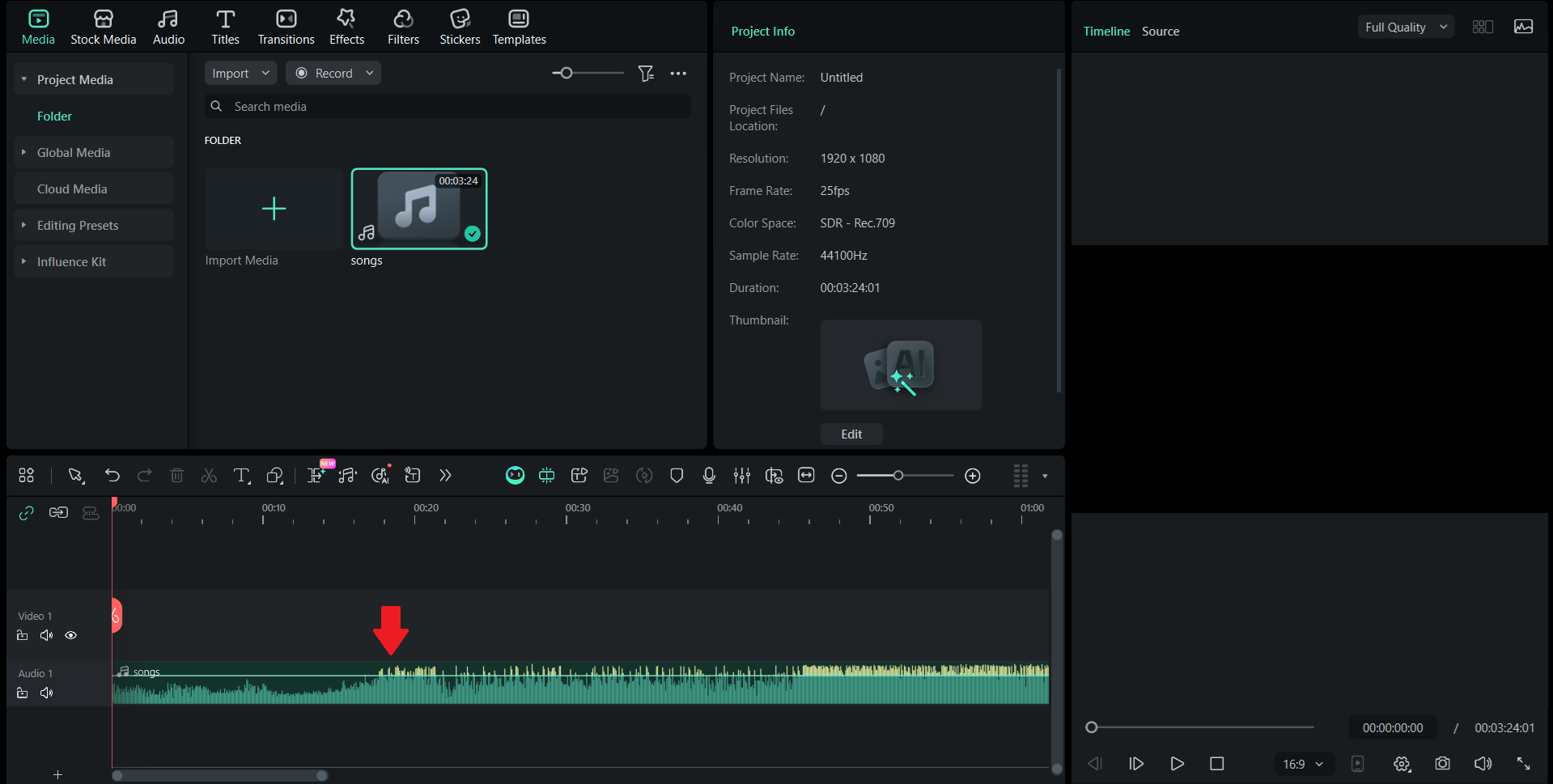
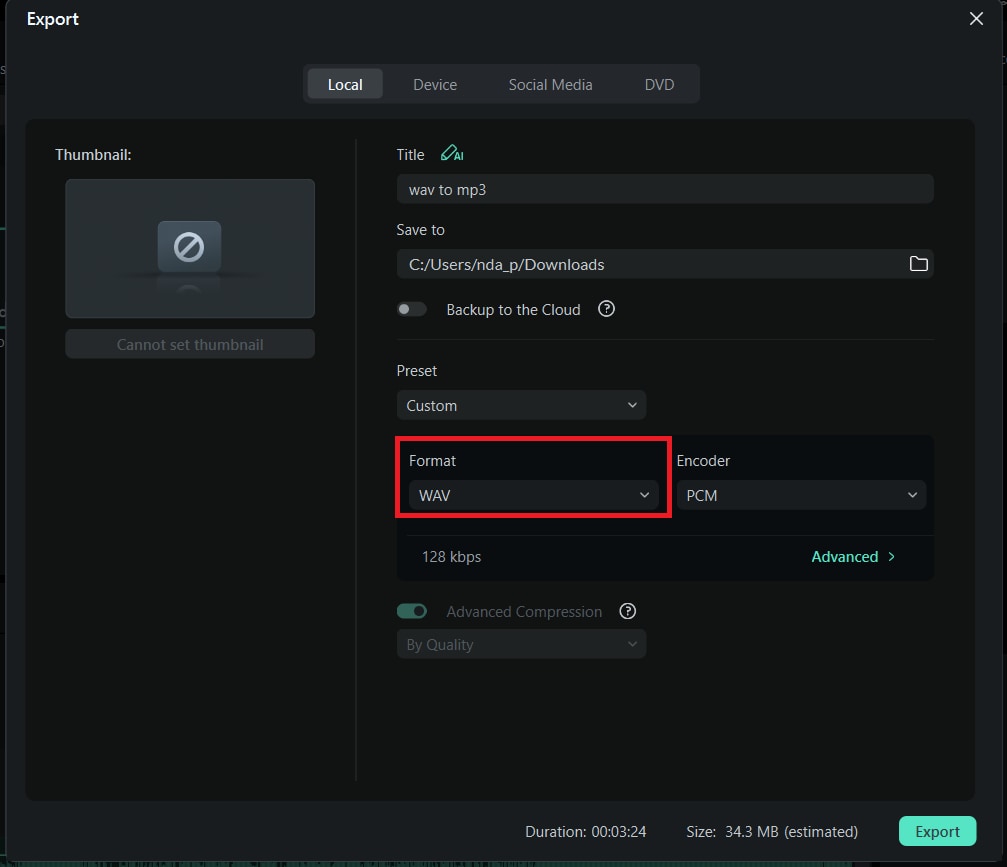
4.2 Step-by-Step: Convert WAV to MP3 on Filmora (Desktop)
Follow these simple steps to convert WAV to MP3 using Filmora on your computer:
 Secure Download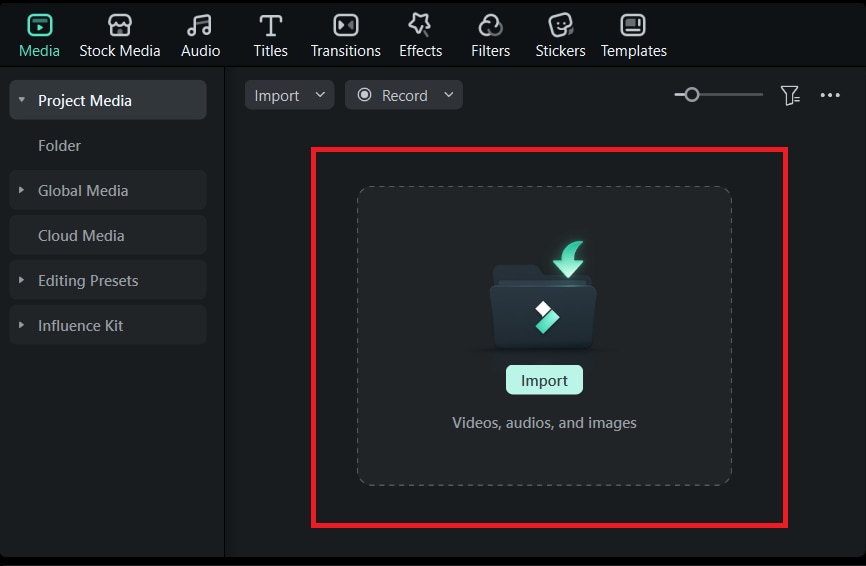

Part 5. Advanced Tips for High-Quality WAV to MP3 Conversion
We've discussed the basics of WAV to MP3 converters and the conversion steps using Filmora. Next, we'll optimize your settings so that your MP3 files sound as clean and clear as possible. Although MP3 is a compressed format, choosing the right settings and workflow can help you maintain excellent audio quality.
5.1 Choosing the Right Bitrate and Sample Rate
Bitrate:
| Bitrate | Best For | Notes |
| 320 kbps (High) | Music, high-quality narration, and audio | Richer sound, larger file size |
| 160 kbps (Medium) | Casual listening, general voice recordings | Balanced quality and size |
| 128 kbps (Low) | Basic speech, small files, quick uploads | Lower quality but lightweight |
Sample rate:
| Sample Rate | Best For | Notes |
| 44.1 kHz | Music, standard audio projects | Industry standard for music |
| 48 kHz | Video production, film audio | Common for video workflows |
Audio Channel:
| Audio Channel | Best For | Notes |
| Mono | Voice-only content, podcasts, small files | Reduces file size; no stereo depth |
| Stereo | Voice-only content, podcasts, small files | Adds space and depth to the audio |
5.2 Avoiding Multiple Successive Conversions – Quality Degradation
MP3 is a lossy format; hence, every time you convert it, audio data will be lost.
To maintain quality:
- Convert your WAV files to MP3 only once.
- Avoid converting MP3 to MP3 because each conversion will reduce sound clarity.
- Always keep the original WAV files in an archive if you need to re-export them in the future.
5.3 Ensuring Compatibility Across Devices – Stereo vs Mono, Channels, Bit Depth
Different devices handle audio differently, so adjusting your MP3 settings to the target platform is important.
For mobile playback or voice recordings:
- Use mono to reduce file size without sacrificing clarity.
- Bitrates between 96 kbps and 160 kbps are usually enough.
For music and richer audio:
- Use stereo to preserve the dynamics of the music.
- Use 256 kbps or 320 kbps for the best results.
Some older devices, smart speakers, or in-car systems may only support specific bitrates or sample rates. Ensuring compatibility before exporting can prevent playback issues.
5.4 Common Mistakes to Avoid – Upload Size Limits, Privacy of Online Tools, Unsupported Codecs
With advanced tips covered, you also need to be aware of potential problems you might encounter. Here are some things to watch out for when converting WAV to MP3:
- Upload size limits: Online converters may have a file size limit, making it difficult to process large WAV files.
- Slow upload speeds: Large audio files can take a considerable amount of time to upload, especially when using mobile data or a slow connection.
- Privacy concerns: Sensitive recordings, such as client work, interviews, or internal audio, are safer to convert offline.
- Unsupported WAV formats: Some WAV files use uncommon encodings that some online tools cannot read. Offline editors such as Filmora handle these more reliably.
- Incorrect MP3 settings: Ensure that the bitrate, sample rate, channels, and other settings meet the requirements of the platform to which you are uploading.
- Mobile device limitations: Converting large files on mobile devices can reduce either battery life or performance, so plan carefully to avoid this issue.
6. WAV to MP3 Use-Cases: Choosing Your Ideal Conversion Workflow
Every creator uses audio differently, which means the ideal workflow for using a WAV to MP3 converter can vary. Here are some common real-life scenarios to help you decide which format to keep, when to convert, and how to optimize your process.
6.1 For Music Listeners – Building Portable Libraries, Sharing With Friends
Creating a portable music library and sharing it with friends
Music lovers often convert WAV files to MP3 to save storage space and make playlists easier to manage across devices. MP3 keeps the audio clear enough for everyday listening while remaining small enough for smartphones or offline playlists.
Example:
You downloaded a high-quality WAV track from a digital store. To save space on your phone, you convert them to MP3 with a bitrate of 320 kbps and import them into your music app.
6.2 For Podcasters & Voice-Over Artists – Reducing Size, Maintaining Clarity
Reducing file size while maintaining clarity
Podcasters and voice artists often need clear sound, but they also need manageable file sizes for uploading to hosting platforms. Converting WAV to MP3 is ideally done after editing, EQ, and noise removal are complete.
Example:
You record your podcast in WAV format to ensure high-quality audio. After cleaning up background noise in Filmora or another editor, you export the final episode as an MP3 with a bitrate of 128 or 192 kbps to speed up the upload process.
6.3 For Video Editors – Integrating Audio into Video Projects, Exporting MP3 for Background Music
Integrating audio into video projects and exporting MP3s for background music
Video editors typically mix background music, voice-over, and sound effects. WAV files are best used during the editing process, while MP3s are useful when exporting music for uploads, social media posts, or client previews.
Example:
You are editing a travel vlog in Filmora. You use WAV for narration to maintain clear sound. Once finished, you export the background music track in MP3 format to upload to your phone or reuse in short content.
6.4 For Sound Engineers – Archiving WAVs and Converting to MP3 for Deliverables
Archiving master WAV files and converting MP3 for final output
Sound engineers save WAV files as masters because they contain complete audio details. MP3 files are often created for clients who only need a distribution copy for streaming or playback.
Example:
You finalize a soundtrack in WAV as an archive. Your client requests an MP3 version to check on different speakers. You convert the file once and never convert MP3 back to WAV, since the original quality cannot be restored.
6.5 Choosing the Right Workflow for Your Goal – When to Keep WAV, When to Convert to MP3
Last but not least, when should you save WAV files and when should you convert to MP3? To choose the best workflow, consider how the audio will be used.
- Save WAV files if you plan to edit, mix, or master the audio. WAV is the best choice for high-quality production.
- Convert to MP3 if you plan to distribute, share, or upload the audio online. MP3 is ideal for quick playback and smaller storage needs.
- Use the WAV to MP3 converter in Filmora or another trusted tool when you want to export quickly without switching applications.
- When archiving, save both formats. Save the WAV file as the master and use MP3 as the distribution copy.
- For mobile app workflows, MP3 keeps phone storage healthy while maintaining clear sound.
Conclusion
After understanding the WAV to MP3 converter in detail and how it works, converting WAV to MP3 becomes much easier. Each format has its own characteristics and is suited to different creative workflows. WAV provides the highest audio quality for editing and storage, while MP3 offers convenience, smaller file sizes, and wide compatibility.
Once you know when to keep WAV and when to convert WAV to MP3, you can manage your audio projects effectively and produce results that sound great on any device.

FAQs
-
What's the difference between WAV and MP3?
WAV is an uncompressed format that retains full audio quality. MP3 is compressed and smaller in size, so it's easier to share and store.
-
Does converting WAV to MP3 reduce sound quality?
Yes. MP3 removes some audio details to reduce file size. Using a higher bitrate can help maintain clear sound quality.
-
Are online WAV to MP3 converters safe to use?
Most are safe, but it depends on the website. Avoid uploading personal or sensitive audio. Use offline software if you want full privacy.
-
Can I convert multiple WAV files to MP3 at once?
Yes. Many tools support batch conversion. Online tools may have limits, while offline software like Filmora offers more freedom for flexible batches.
