

Is Procreate worth buying? Many artists we know use it, which made us curious enough to take a closer look. Procreate is a digital drawing and painting app designed for artists and illustrators who work on an iPad, and it's one of the most popular choices in its category.
However, Procreate is a paid app, and you cannot fully test its features before purchasing it. To help you decide whether you should buy it, we put together this Procreate review to examine its features and see how well it performs in practice.
Part 1. What Is Procreate?
Procreate is a raster illustration app founded in 2011 by Australian software developer, Savage Interactive. You draw on a canvas with layers, brushes, and selection tools, much like a traditional painting setup.
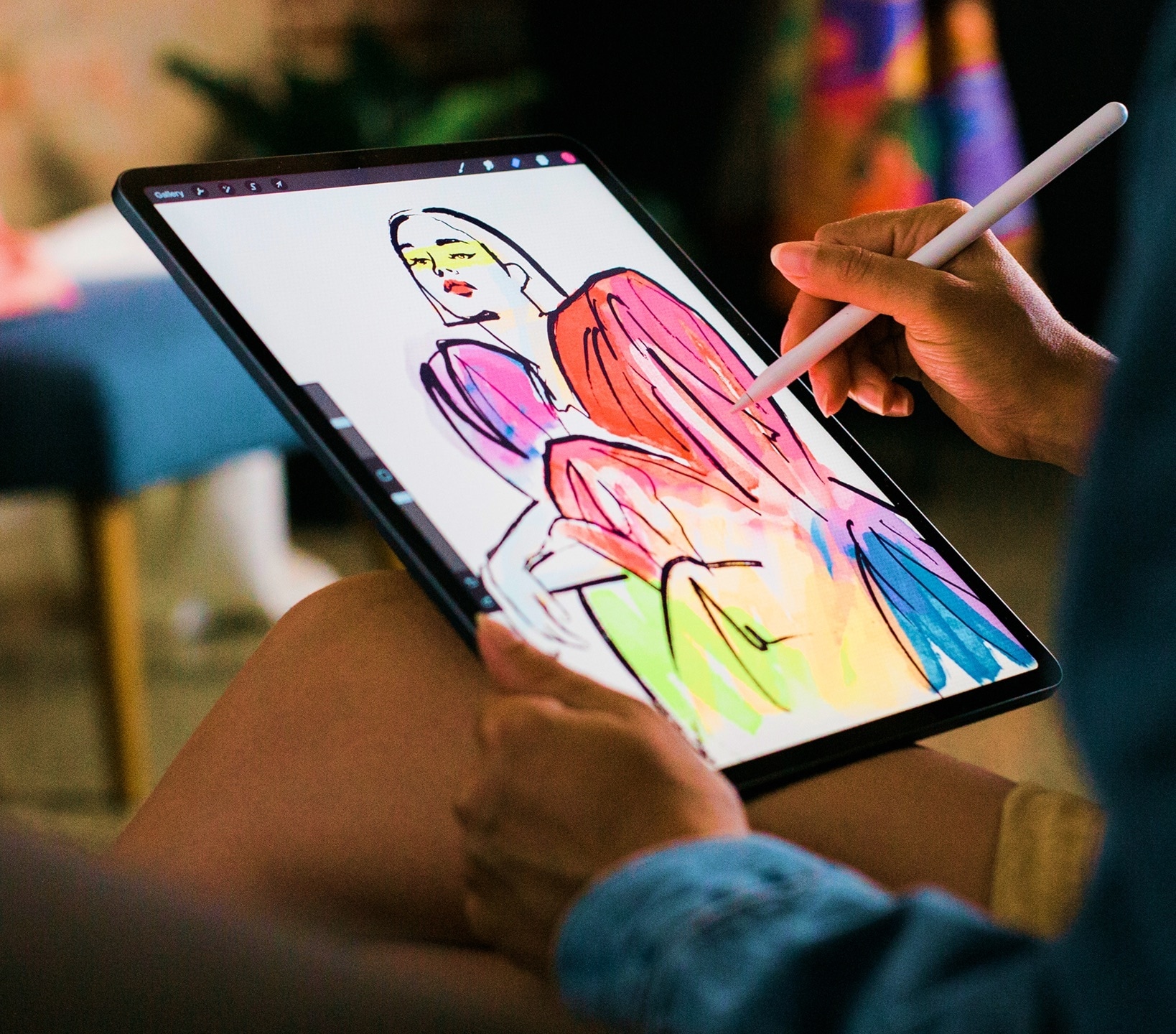
Most of Procreate's users are digital artists, illustrators, concept artists, tattoo designers, and hobbyists. Apple Pencil support is a big part of the experience, though the app is usable without one. The app reads pressure, tilt, and speed, so a light touch gives a thin, soft line and a heavier press gives a darker, wider one.
Is Procreate Only for iPad?
Procreate is made for iPad. But there is also a separate iPhone app called Procreate Pocket, which is a sister product rather than the same app.
| Procreate | Procreate Pocket | |
| Device | iPad | iPhone |
| Price | $12.99 | $5.99 |
| Apple Pencil | Supported | Not supported |
One thing worth noting is that Pocket files don't sync with the iPad app, but you can export a Pocket file as a Procreate file and open it on an iPad.
Part 2. Procreate Features and Capabilities
Procreate packs a full illustration toolkit into an app that opens fast and stays out of your way. Below is an overview of its main features and what you can do with each one.
1. Brushes and Drawing Tools
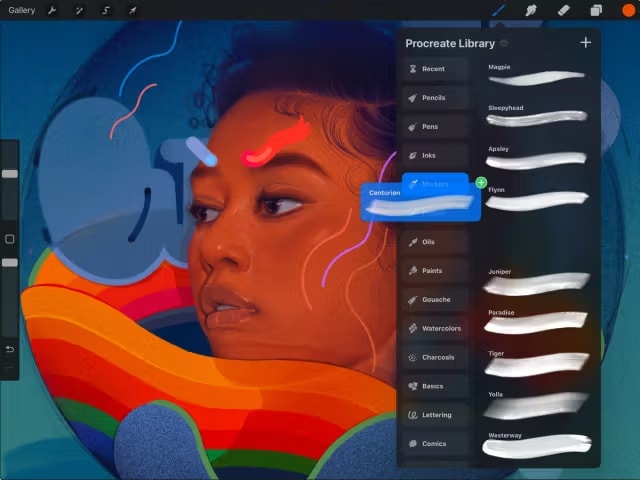
The brush library is the main reason people buy the Procreate app. Even without installing any brush packs, Procreate's brush library already has enough variety for most drawing and painting styles, from pencils and inks to oils and watercolor. Moreover, its Brush Studio lets you edit almost any setting of a brush, such as shape, grain, taper, and how it reacts to pressure and tilt.
2. Layers and Editing
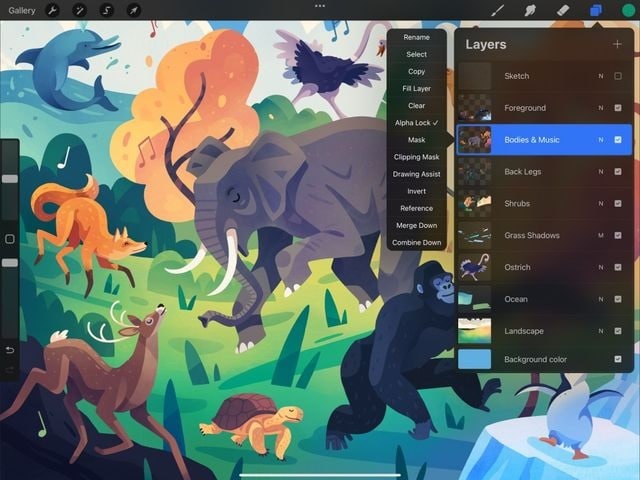
Layers in Procreate work the way they do in most image editors or drawing apps. You get blend modes, layer masks, clipping masks, Alpha Lock, layer groups, and a Reference layer for tracing or color picking from another layer.
However, the number of layers you can have depends on your canvas size and your iPad's memory. A large canvas on an older iPad gives you fewer layers than a small canvas on a recent iPad Pro.
3. Animation
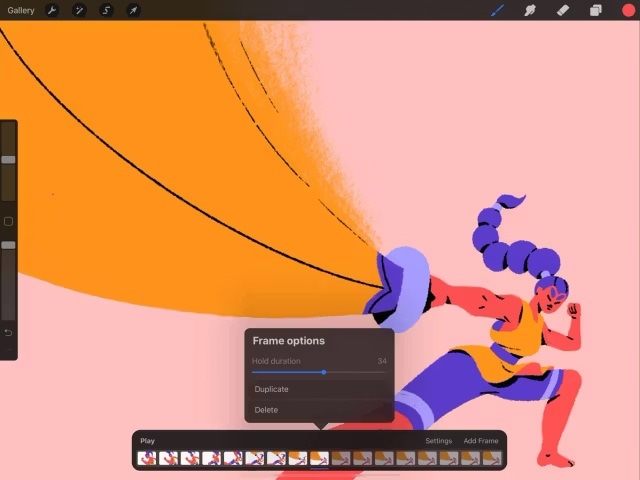
Animation Assist in Procreate turns your canvas into a frame-by-frame animation. You get onion skinning, adjustable frame rates, and export to GIF, animated PNG, and MP4. It suits short loops, character animation tests, and animated stickers. For more detailed animation, Procreate has a separate app called Procreate Dreams, priced separately at $19.99.
4. 3D Model Support
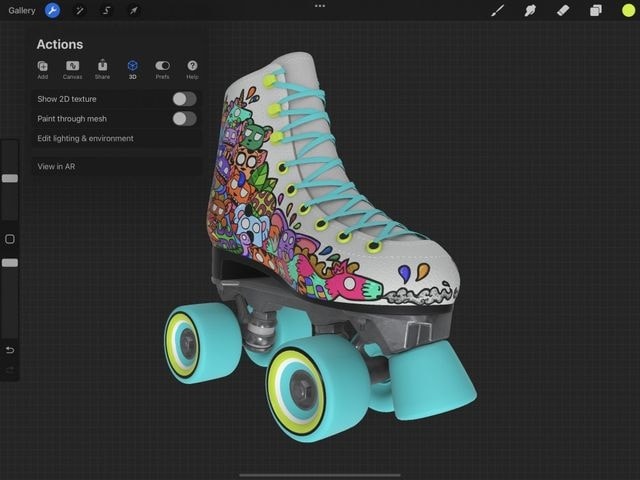
Although Procreate is a 2D painting app, you can import 3D models (USDZ and OBJ files) and paint directly on their surfaces. It's useful for texturing simple models or for planning how a design wraps around an object. On iPads with a LiDAR scanner, you can preview the model in a real room through the camera. It is a painting tool for textures, not a 3D modeling program, so you cannot build or sculpt models in it.
5. Other Useful Creative Features
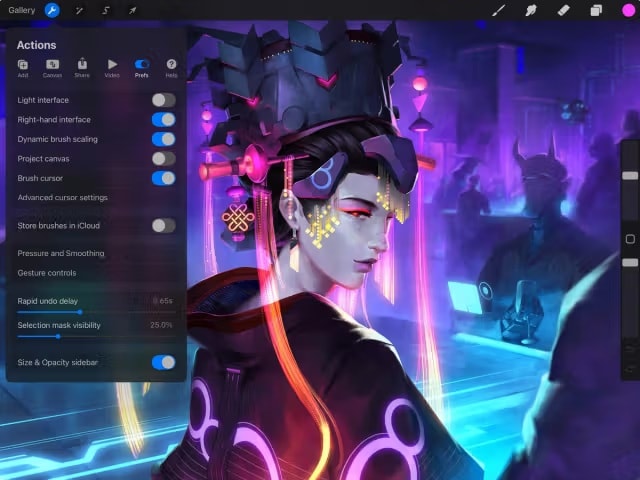
Beyond the main tools above, there are other features that most Procreate users find useful. Some save time while you draw, and others help you correct or organize your artwork.
- QuickShape: Draw a rough circle, line, triangle, or rectangle and hold your pen down. Procreate snaps it into a clean shape.
- Drawing guides and symmetry: 2D grid, isometric, perspective, and symmetry guides help with architecture, characters, and patterns. You can adjust the grid to fit your canvas.
- Text tools: Add text with built-in or imported fonts. As of March 2026, Procreate has added 25 new fonts, including options for Arabic, Hindi, Thai, and Japanese. The options are basic compared with a layout app.
- Liquify: Push, pull, twirl, and pinch parts of your artwork, which is useful for fixing proportions.
- Time-lapse: Procreate records your drawing sessions automatically, and you can export a video of the whole process. It is a common way to share art on social media.
Part 3. Procreate Pricing: Is It a One-Time Purchase Only?
Is Procreate free on iPad? The answer is no. Procreate is a one-time purchase. It has no free plan and no free trial, so you need to pay before downloading it. If there's a website or listing claiming a Procreate price per month, it isn't referring to the official app.
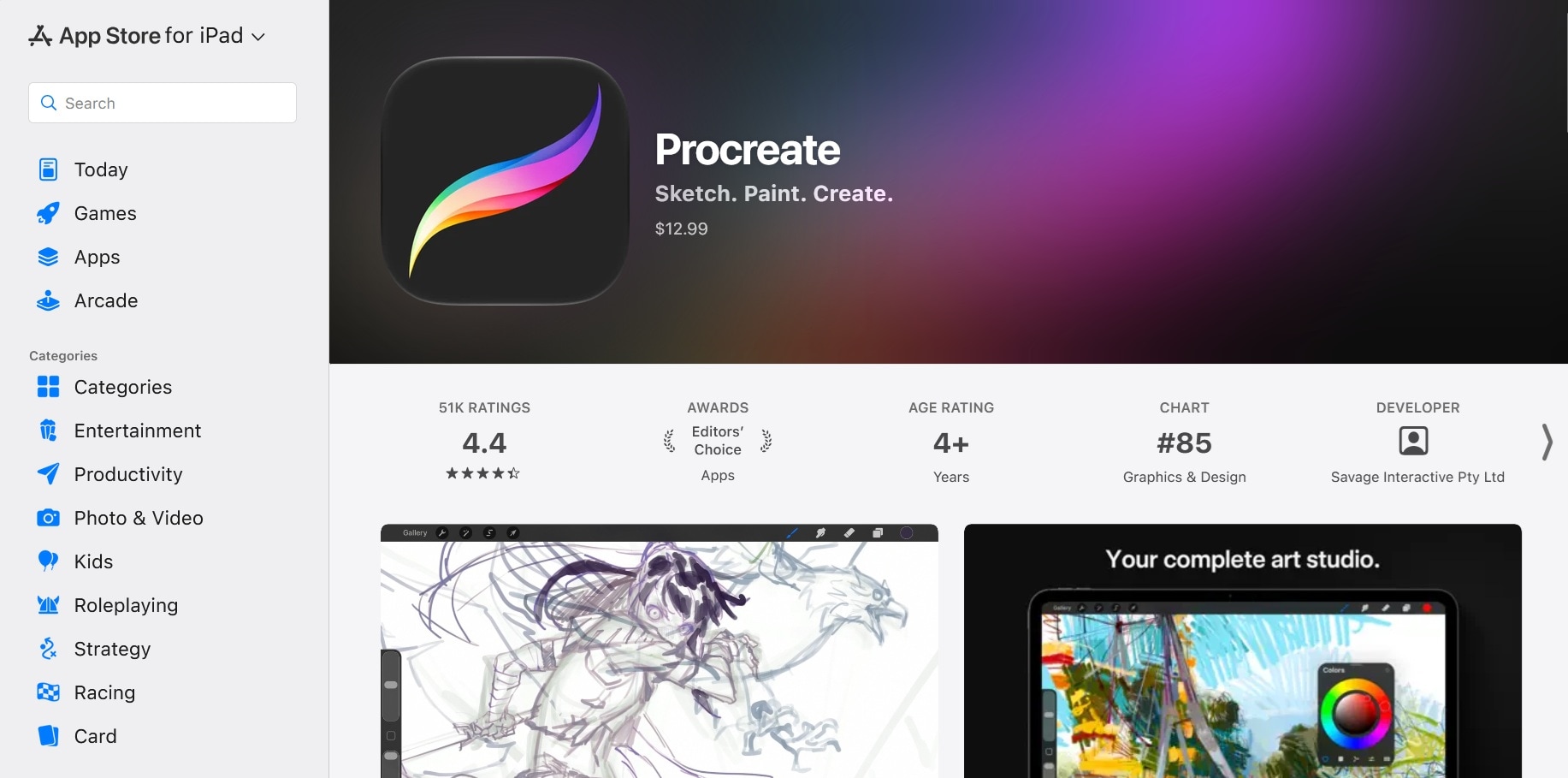
Once you buy the app on the App Store, you get free updates after that. There's no subscription and no in-app purchases for features either. The price may vary by region. In the US, the Procreate app costs $12.99.
Part 4. Procreate App Review: Pros and Cons
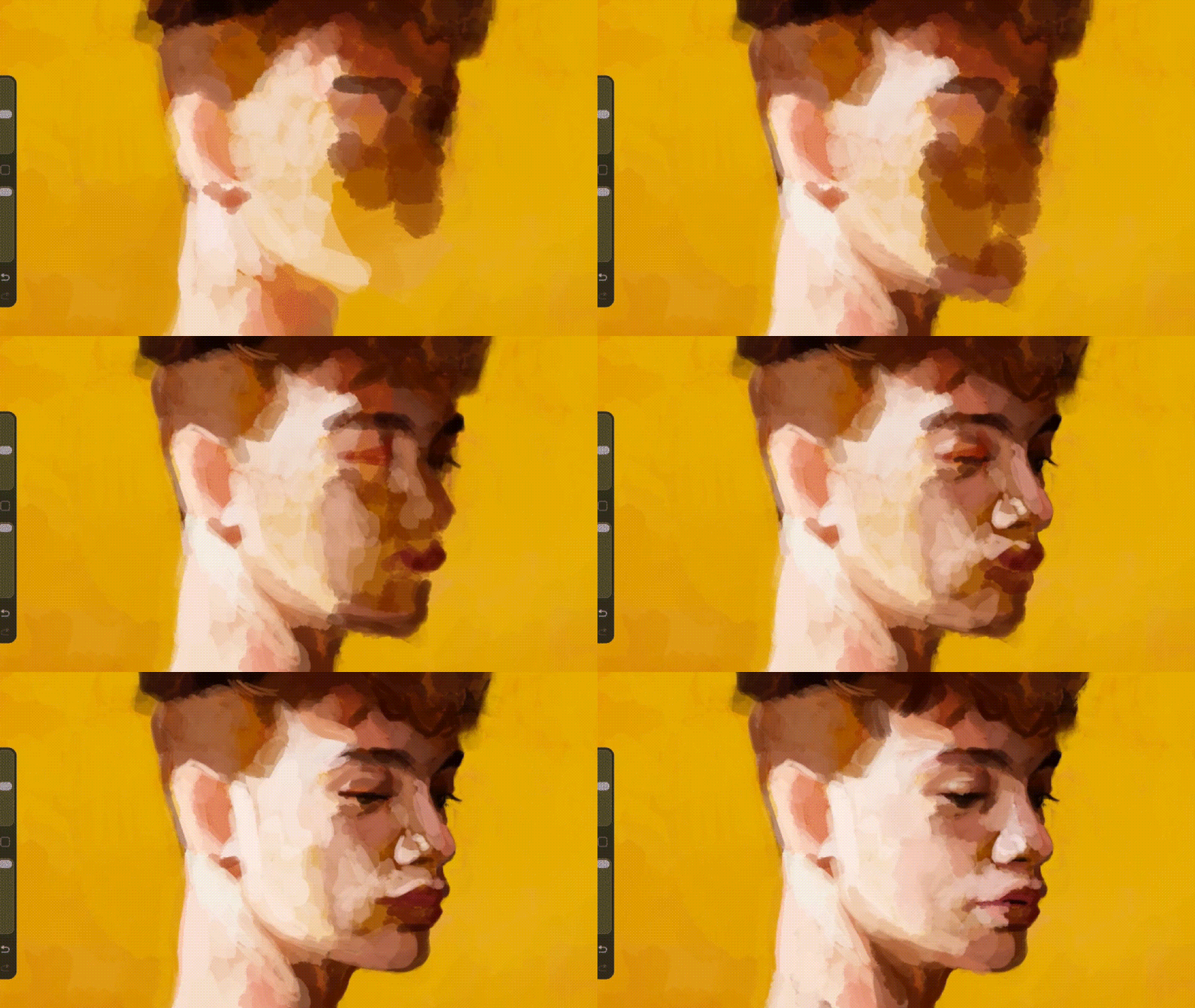
For drawing, illustrating, and design work on an iPad, Procreate is one of the strongest apps you can buy. Illustrators like it for its brush quality and speed, while designers often use it for hand-drawn assets, lettering, and mockups. It's less suited to work that needs vector graphics, heavy photo editing, or cross-platform teamwork, though.
Is It Easy to Use?
For drawing and illustrating, Procreate is pretty easy to use. The interface is deliberately minimal. Your canvas takes up most of the screen, and the tools sit in a thin top bar and a sidebar. It's also intuitive thanks to the gestures that save a lot of time, for example:
- Tap with two fingers to undo
- Tap with three fingers to redo
- Pinch to zoom and rotate the canvas
- Touch and hold on the canvas to pick a color with the eyedropper
Even so, it still takes a bit of practice to get used to all of the features. Some tools like Animation Assist take some time to learn, and a few menus aren't obvious until you look up a tutorial.
Procreate Pros and Cons
- One-time purchase app with free updates and no subscription
- Excellent brush engine, with 150+ default brushes and full customization in Brush Studio
- Smooth response with the Apple Pencil, including pressure and tilt
- Clean interface with useful touch gestures
- Layers, masks, blend modes, and PSD support
- Time-lapse recording is automatic
- Includes drawing guides, symmetry, QuickShape, Liquify, and 3D model painting
- Large community of brush makers and tutorial creators
- Works offline
- Works on iPad only
- No free trial or free version
- Raster only, and no vector tools for logos that need to scale
- Limited layers, depending on your iPad's memory and canvas size
- More complex, longer animations require a separate app
- Text tools are basic compared with design software
- Some features, like the barrel roll brushes, need newer Apple Pencil hardware
Part 5. Turning Your Procreate Art Into a Video With Filmora
Finishing a piece is only half the job if you want people to see it. Short videos tend to get more reach on TikTok, Instagram, and YouTube, and a video editor like Wondershare Filmora is a good pair for Procreate when you want to turn finished artwork into posts people can watch.
Filmora is pretty easy to pick up, even for first-time editors. That helps when you've already spent hours in a drawing app like Procreate and don't want another tool that takes another week to learn a new tool. You can use Filmora to create speedpaints, show your drawing process, add music and captions, or turn several pieces into a short promotion video.
 Secure Download
Why Filmora Is a Good Pair for Procreate Art
Filmora is backed by video-editing tools that cover the steps Procreate doesn't. Some useful examples are keyframe animation, dynamic captions, Creative Assets, the Pen Tool, and Text and Titles.
1. Keyframe Animation
You can use keyframes to add movement to your still illustration. Set a start and end point for position, scale, or rotation, and Filmora fills in the motion between them. You can zoom into a small detail, pan across a large scene, or slowly drift across the frame.
2. Text and Titles
Since Procreate has only basic text tools, Filmora gives you more ready-made title styles and animations to put into your video or artwork. It also features Perspective Text that can add a sense of depth to your text.
3. Dynamic Captions
If you decide to talk through your process or the story behind a piece, Filmora includes dynamic captions, which are often used in short videos to keep viewers following along, even when they watch with the sound off. You can edit the wording and style afterward.
4. Pen Tool
With Filmora's Pen Tool, you can draw your own lines or shapes over your footage, and even let an element follow it. It's a good way to add hand-drawn touches like circles, arrows, and underlines, or guide a viewer's eye to a specific part of your illustration.

5. Creative Assets
In need of a soundtrack, an overlay, or a sound effect? Filmora's Creative Assets cover music, videos, images, stickers, sound effects, and more that you can add to a time-lapse or an artwork reveal without searching other sites.

Conclusion
We hope this Procreate review has answered your biggest questions about the app. Procreate is one of the best apps for drawing on iPad thanks to how intuitive and smooth it is to draw and paint there.
When your piece is done, Filmora can help you make a video from your artwork, time-lapse, or animation to share on TikTok, Instagram, or YouTube.
Secure DownloadFAQs
-
1. Can I use Procreate without an Apple Pencil?
Yes, you can still draw on Procreate with your finger or a third-party stylus. But without an Apple Pencil, you may lose pressure and tilt sensitivity, so brushes won't respond as naturally to how hard you press or how you hold the pen. -
2. Can Procreate replace Photoshop?
For illustration and painting, many artists find that it can. For photo retouching, vector work, and some print workflows, Photoshop is still better. Procreate imports and exports PSD files, though. You can make use of it to move work between the two apps. -
3. What file formats does Procreate support?
Procreate saves in its own .procreate format. But it can export to PSD, PNG, JPEG, TIFF, PDF, GIF, animated PNG, and MP4, plus USDZ and OBJ for 3D models. For import, it supports common image formats and PSD files. -
4. Is Procreate on Android?
No. There is no Procreate Android version, and no Windows or Mac version either. If you use an Android tablet, you can try Procreate alternatives like ibisPaint, Krita, Clip Studio Paint, or MediBang Paint. -
5. Can you transfer Procreate files to another iPad?
Yes. To transfer Procreate files, you can export the .procreate file through AirDrop, the Files app, or iCloud Drive, and then open it in Procreate on the other iPad. The second iPad needs Procreate installed.
