
- • VR/360 video user guide
- 1. What's VR
- 1.1 What's VR
- 1.2 360 degree video user guide
- 2. How to create 360 video
- See more
- 3. VR Players and headsets
- 3.1 VR player for Android
- 3.2 VR player for PC
- 3.3 VR palyer for iOS
- 3.4 Oculus rift tips
- 4. VR resources
- 4.1 Donwload 360 degree video
- 4.2 Top 10 VR games review
- Enhance videos with 300+ stunning effects
- Auto crop and pan & zoom photos to fit the project ratio
- Multiple tracks to add photos, videos, music, titles and transitions
- Make creative videos with various speed controls


Top 5 iOS 360° Video Player Apps

Nov 03, 2026• Proven solutions
 TL;DR:
iPhone users can explore spherical and stereoscopic media by swiping their screens or using Cardboard headsets with apps like Mobile VR Station and PViewer, while converting interactive 360-degree footage into standard flat videos requires a dedicated reframing tool.
● PViewer is designed for extreme high-resolution playback up to 16K and VR180 formats, whereas VRPlayer specifically handles MP4, MOV, and DRM-free M4V files, and Homido users must verify app availability based on their specific iOS version and App Store region.
● Physical VR headsets are not mandatory for exploring basic 360-degree scenes, but viewing side-by-side or over-under 3D content requires mounting the iPhone inside a compatible Google Cardboard-style headset.
● Transforming a spherical recording into a conventional landscape or vertical video for social media requires using a reframing editor like Filmora to manually establish the field of view, camera distance, and virtual keyframe movements on an editing timeline.
Ask AI for a summary
 ChatGPT
 Perplexity
 Gemini
 Claude
 Grok
Grok
360-degree and VR video have changed the way viewers experience immersive content. Instead of watching a scene from one fixed angle, 360 video allows you to look around the recorded environment, while VR headsets can make the experience feel even more immersive.
If you want to watch 360 or VR videos on an iPhone, choosing the right video player is important. Some apps support spherical 360 video, VR180, side-by-side 3D content, head tracking, Cardboard-style headsets, and high-resolution playback. Below are five VR and 360 video players you can consider for iPhone.
If you are looking for similar options on another mobile platform, see our guide to VR players for Android.
1. Homido 360 VR Player
Homido 360 VR Player was designed as a companion VR player for Homido headsets and iPhone users. It provides a way to watch compatible 360 and VR content from a mobile device and can be used with headset-based viewing for a more immersive experience.
Users can import compatible media into the app and explore spherical content by changing their viewing direction. Availability and supported features may vary depending on your App Store region and iOS version, so check the current App Store listing before downloading.

2. Mobile VR Station
Mobile VR Station is a VR media player for iPhone and iPad that supports several types of immersive content. In addition to conventional 2D video, it supports side-by-side and over-under 3D formats as well as spherical 360 video.
The app includes head tracking and configurable viewing environments, making it suitable for users who want to watch local media through a compatible mobile VR headset. It can also display panoramic content and provides multiple projection options for different viewing experiences.
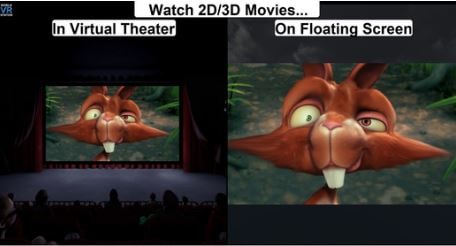
3. PViewer - The 360 Video Player
PViewer - The 360 Video Player is designed specifically for high-resolution panoramic and 360-degree video playback. You can change the viewing direction by swiping or moving your device, making it easier to explore different parts of the spherical scene.
PViewer supports high-resolution 360 video playback up to 16K through its proprietary data-compression workflow. It also supports the VR180 3D panorama format and can be used with compatible VR viewing setups.

4. Simple 360 Cardboard VR Player
Simple 360 Cardboard VR Player provides a straightforward way to watch 360°, 180°, and 3D photos and videos on iPhone. You can open immersive media from your Photo Library, swipe or move the phone to change the viewing direction, and switch between several viewing modes.
The app also supports Cardboard-style VR viewing, allowing you to place your iPhone inside a compatible headset for a more immersive experience. It is a practical option for users who want a simple interface for viewing personal 360 media without a complex setup.

5. VRPlayer: 2D 3D 360° Video
VRPlayer: 2D 3D 360° Video is a media player that supports conventional 2D video, side-by-side or over-under 3D video, and 360-degree content.
The app supports formats such as MP4, MOV, and DRM-free M4V and can be used with Google Cardboard-style viewing. Depending on the content, you can explore different viewing directions and use the app as a general-purpose VR media player on iPhone.
If you are new to immersive video, see our guide to what 360° video is and how spherical footage works.

These apps provide different ways to watch 360 and VR content on an iPhone. The best option depends on the type of video you want to play, whether you use a VR headset, and which playback formats and controls matter most to you.
Want to Turn Your 360 Footage into a Standard Video?
Watching an interactive 360 video and creating a conventional video from 360 footage are two different workflows. A VR player lets the viewer look around the spherical scene. 360 video reframing, by comparison, lets the creator decide which part of that scene appears in the final video.
This can be useful if you recorded footage with a 360 camera but want to publish a normal landscape or vertical video on YouTube, TikTok, Instagram Reels, Shorts, or another platform.
Reframe 360 Video with Filmora
With Filmora's 360° Video Reframing tools, you can import compatible 360 footage, choose a viewing angle after recording, adjust the perspective, and create virtual camera movement directly on the editing timeline.
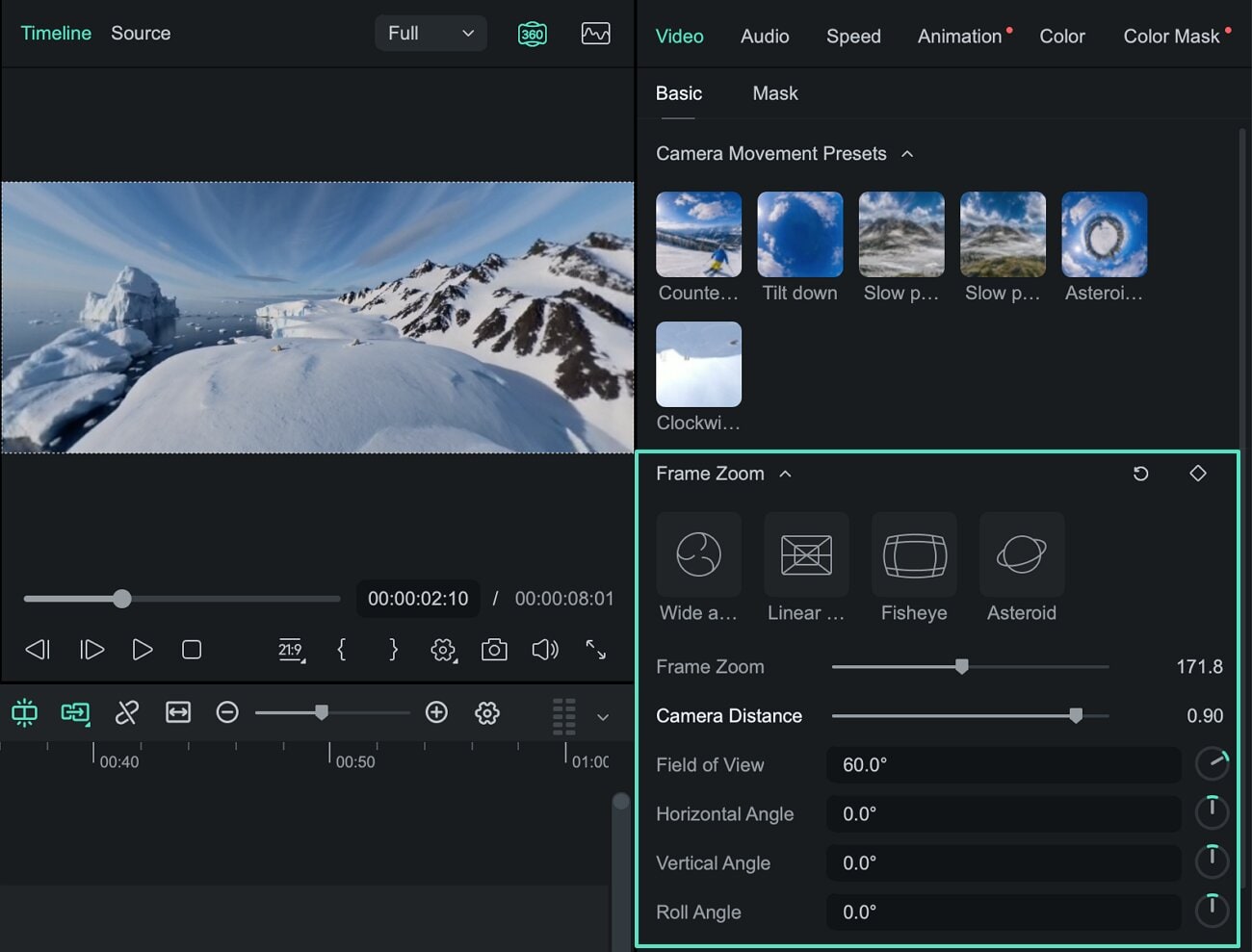
You can adjust controls such as the field of view, horizontal angle, vertical angle, frame zoom, camera distance, and roll. This allows you to decide exactly which part of the spherical scene appears in the final frame.
- Choose the viewing direction: Explore the 360 scene and select the angle you want viewers to see.
- Adjust the field of view: Zoom in or out to create tighter or wider framing.
- Change the perspective: Switch between Wide Angle, Linear, Fisheye, and Tiny Planet-style views.
- Create camera movement: Use motion presets or keyframes to animate pans, zooms, rotations, and other viewpoint changes.
- Continue editing: Trim clips, adjust speed, add titles, audio, effects, and other edits on the Filmora timeline.
- Export a standard video: Turn the reframed 360 footage into conventional content that is easy to share on mainstream video platforms.
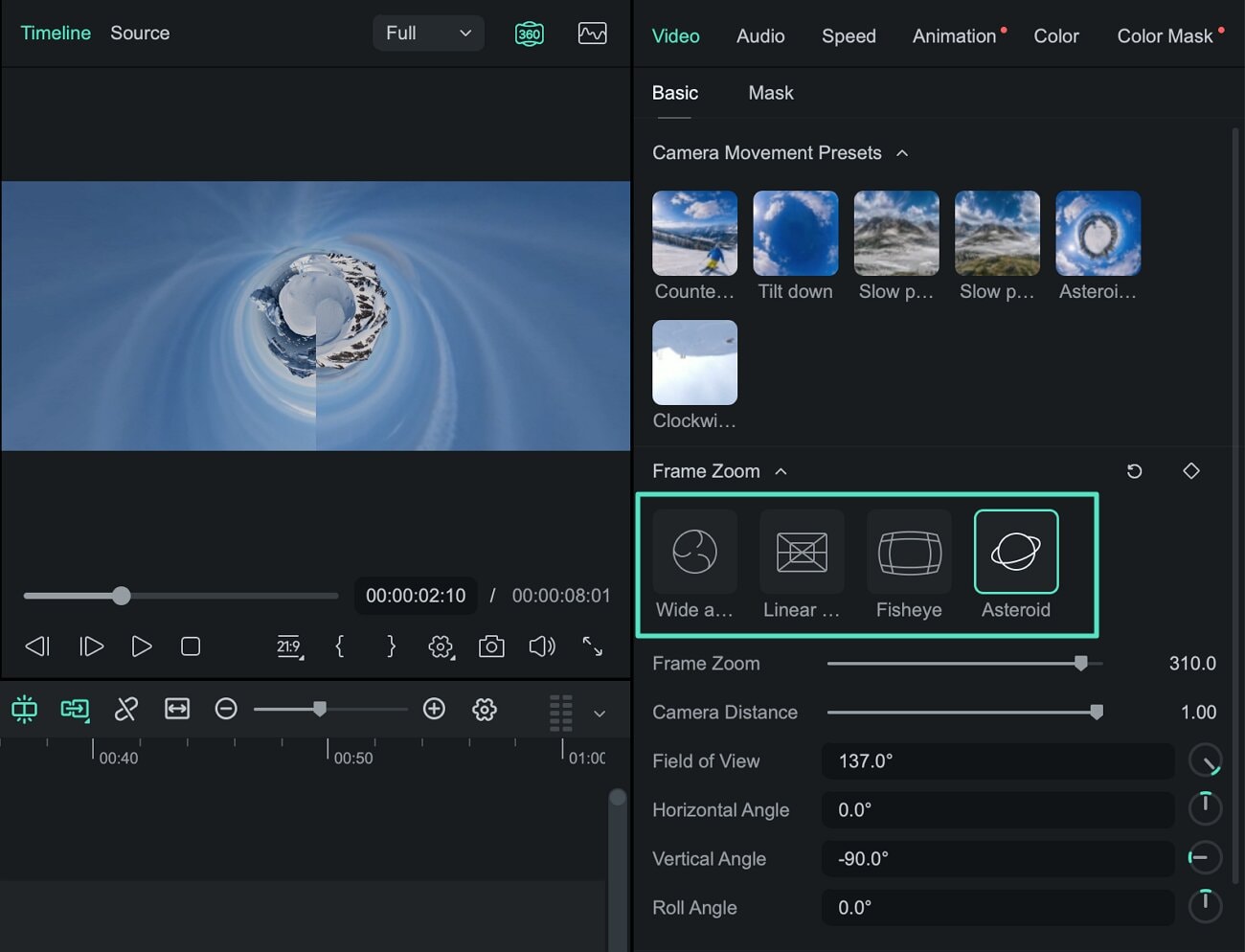
For example, instead of asking viewers to manually look around a full 360 scene, you can use reframing to guide their attention from one subject to another. A single spherical recording can therefore become a conventional edited video with controlled camera movement.
Explore Filmora's 360 Video Editing Tools →
For detailed instructions, see the 360° Video Reframing Guide for Windows or the 360° Video Reframing Guide for Mac.
Frequently Asked Questions About VR Video Players for iPhone
Can an iPhone play 360-degree videos?
Yes. An iPhone can play compatible 360-degree videos through apps that support spherical video playback. Depending on the app, you may be able to change the viewing direction by swiping the screen, moving the phone, or using a compatible VR headset.
Do I need a VR headset to watch 360 videos on iPhone?
No. Many 360 video players let you explore the scene directly on the iPhone screen by swiping or moving the device. A compatible VR headset can provide a more immersive experience, but it is not required for basic 360 video playback.
What is the difference between 360 video and VR180?
A 360 video captures the surrounding scene in every horizontal direction and can provide a spherical viewing experience. VR180 focuses on the 180-degree area in front of the viewer and is often used for stereoscopic 3D experiences.
Can I convert my 360 video into a normal video?
Yes. With 360° video reframing, you can select specific viewpoints from spherical footage and convert them into a standard flat video. You can also animate the viewpoint over time to create pans, zooms, rotations, and other virtual camera movements.
Can Filmora reframe 360 camera footage?
Yes. Filmora supports compatible 360 footage for video reframing. You can adjust the viewing direction, field of view, and perspective, add motion using presets or keyframes, and export the reframed result as a standard video.
Where can I find royalty-free sound effects? Read this article to know the 3 types of sound effects and the 7 best sites to get royalty-free sound effects.
by Liza Brown Nov 03, 2026 07:02 AM
Liza Brown
chief Editor
