


 TL;DR:
Wondershare Filmora is the top recommended AMV maker for desktop and mobile because it utilizes AI Beat Detection and Auto Music Sync to automate timing cuts alongside built-in anime effects.
● Professional desktop alternatives like Adobe Premiere Pro and Vegas Pro offer precise waveform matching and multi-camera editors for experienced animators, but both require a paid subscription.
● Online browser editors such as Animaker, Flexclip, and VEED.io accommodate low-end devices but limit capabilities through manual-only audio syncing, lower export resolutions, and free-tier watermarks.
● Publishing AMVs is a copyright violation without explicit permission from the music's record label, but creators can optimize their discoverability by keeping edits under 60 seconds and applying trending audio on TikTok and YouTube Shorts.
Ask AI for a summary
 ChatGPT
 Perplexity
 Gemini
 Claude
 Grok
Grok
Anime music videos, or AMVs, have become increasingly popular over the years. They allow fans to showcase their creativity and love for their favorite anime series through the use of music and video editing. However, creating a high-quality AMV requires the right software.
In this article, we will introduce you to the best AMV maker software available on the market.

Part 1: Best AMV Maker for Computer
If you would like to create the AMVs on your computer, the following are some of your best options;
1. Filmora
- Best For: Vloggers, teachers and social media users
- Supported OS: Windows 11/10/8/7 and macOS
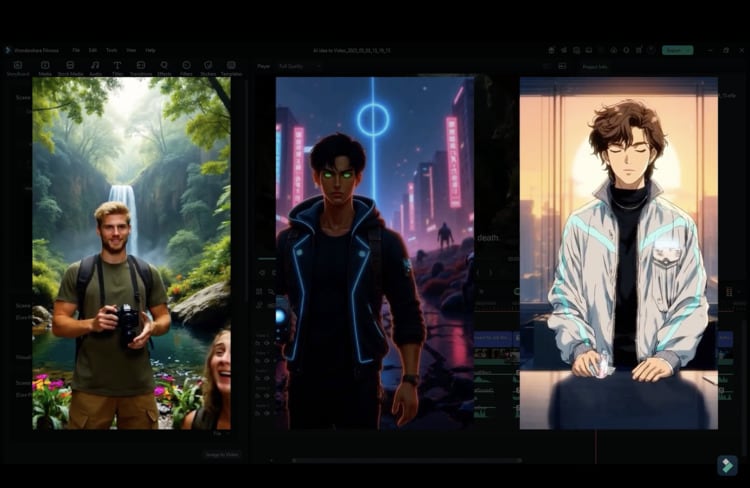
Speaking of the best AMV video maker, I would recommend Filmora as the first choice. It is easy to learn and use for beginner, and come with rich video editing features: split screen, key framing, motion tracking, speed ramping, instant mode, speech to text, audio ducking and more.
Meanwhile, it also helps teachers or business people to record tutorials, files or PowerPoint from their screen wit no limit. For vloggers and other advanced users, Filmora provides green screen, AI Protrait, colorful video effect templates, color match and so forth. You can directly share the video to YouTube, Vimeo and other social media platforms.
 Secure Download
Key Features:
- Transitions: Choose from a wide variety of cinematic and anime-style transitions to make your scene changes smooth and dynamic. Great for matching energy shifts in the music.
- Video Effects: Add personality with filters, glitch overlays, light leaks, and other cartoon or anime-inspired effects. These effects help set the mood and boost visual impact.
- AI Beat Detection: Filmora automatically analyzes your music and highlights beat points on the timeline. This helps you time your cuts and scene changes perfectly without manual syncing.
- Auto Music Sync: Drop your clips into the timeline and let Filmora match them to the rhythm of your audio. It saves time and keeps your video in sync, even for fast-paced edits.
- Lyrics and Captions:: Filmora has an AI-powered Speech-to-Text feature to convert dialogues into stylish subtitles with a single click. You can adjust the font, size, placement, and style to get dynamic captions. You can also manually enter lyrics and completely customize the look to match your edits through Auto Caption or Lyric Video Maker features.
- Smart Cutout: Instantly remove backgrounds or isolate characters in your scenes. No green screen needed. This is perfect for layering anime characters over custom backgrounds or effects.
 Secure Download
How to Create an Anime/Cartoon Music Video with Filmora
Filmora now features AI Idea to Video. It lets you turn written concepts into fully edited anime or cartoon music videos—complete with visuals, captions, music, and voiceovers. Here's how to use it:
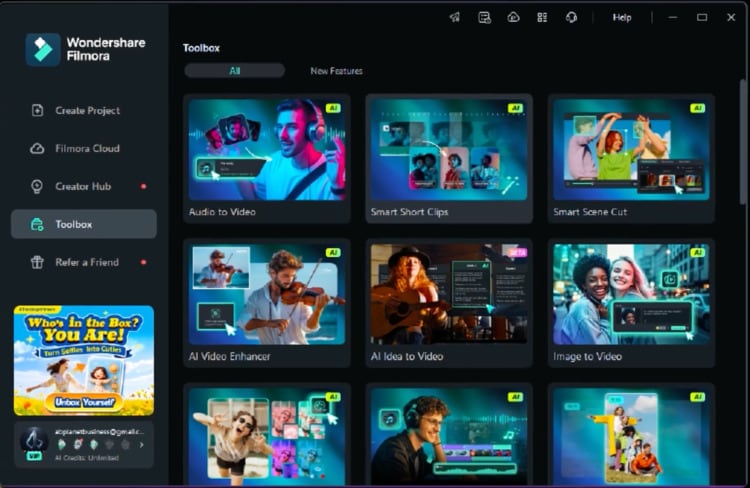
- Open Filmora, go to the Toolbox, click on the New Features tab, and launch the AI Idea to Video tool.
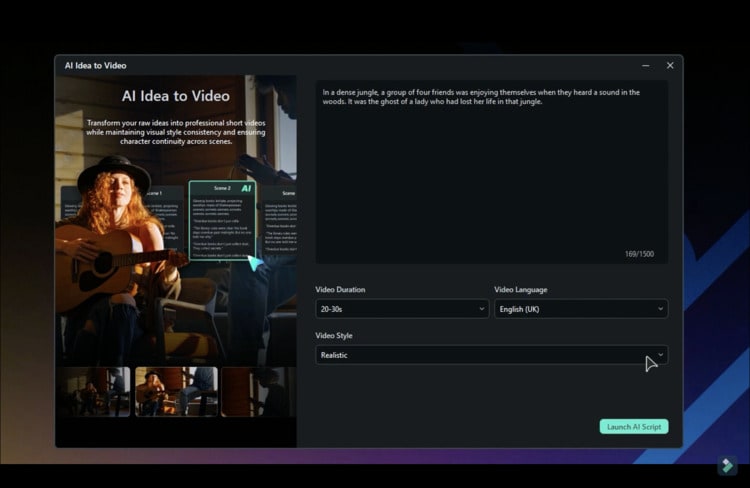
- Paste your idea or script into the text box, or briefly describe your video concept. Set the duration (Auto, 10–20s, or 20–30s), choose a language, and select Anime as the video style. Click Launch AI Script to begin generating your video.
- Review the generated scenes. Click Edit to modify individual scenes. Use AI Generation to create a single image or generate all scene images at once. Then click Generate to let the AI build your visuals.
- Your video will appear on the timeline, complete with background music, captions, and voiceover. Use the storyboard panel to refine the plot, adjust visuals, replace or upload images, switch styles, and enhance quality. You can also modify the voiceover or regenerate the entire video based on your changes.
Secure Download2. Adobe Premiere Pro
- Best For: Animators, professional cartoonists, and marketers
- Supported OS: Windows and Mac
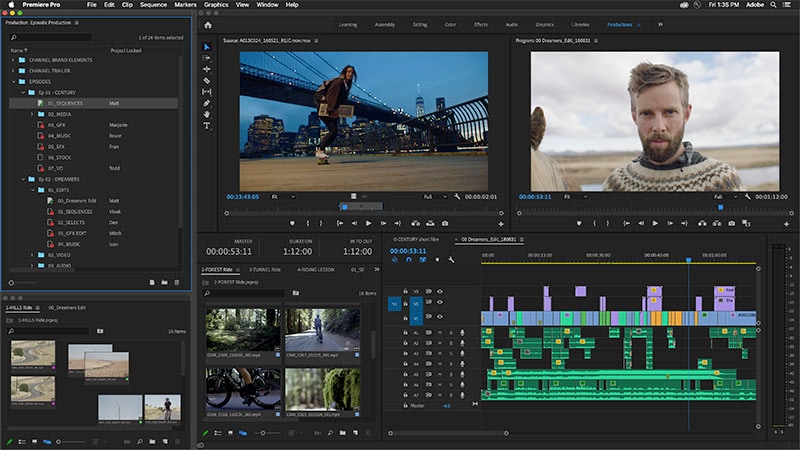
Adobe Premiere Pro is a video editing program that can be used to create and edit all types of video projects including AMVs. It has numerous features that can make it very easy to come up with the most professional video that you want to create. Because of these very many, but very useful features, using Adobe Premiere can be difficult at first. But once you gate a hang of it, it is one of the best ways to create any video including AMVs.
Adobe Premiere can be used on both Mac and Windows operating systems and it is compatible with most video and audio formats. But like most Adobe software it is not a free solution. You do get a 7-day free trial that you can use without limitation, but you will need to pay a subscription fee to continue using it.
3. Apple iMovie
- Best For: Marketers, freelancers, YouTubers, Bloggers
- Supported OS: Mac
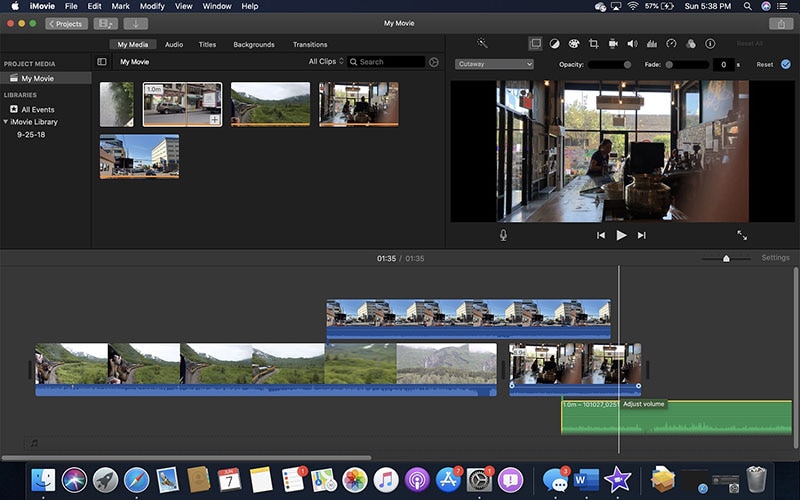
Apple iMovie is one of the best video editing programs for Mac and is therefore one of the best tools to choose if you will be creating your AMV on a Mac. It has all the basic video editing features that you need for a project of this magnitude including the ability to merge videos and apply filters.
This makes it the most ideal tool for creating AMVs since you typically need to break a file into various sections for your AMV. You can then add audio to the video and choose one of the effects and filters to add to it. Once the video is complete, you can then export it in 4K resolution or upload it to YouTube directly.
4. Vegas Pro
- Best For: Animators, Marketers, Video Editors and Bloggers
- Supported OS: Windows and Mac
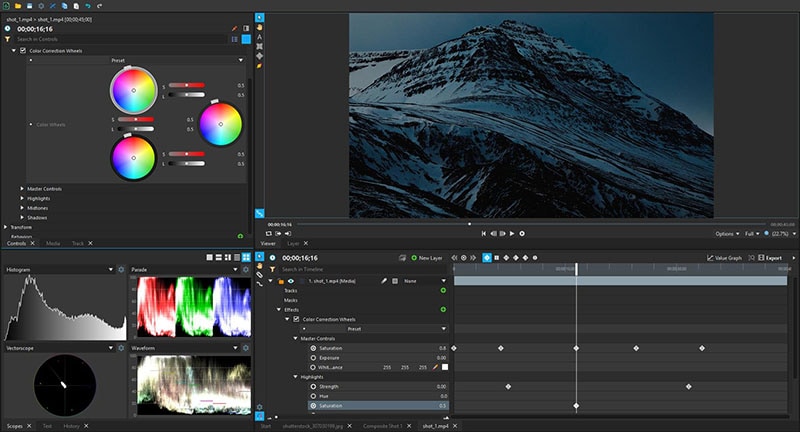
If you are looking for a program that is designed with AMVs in mind then Vegas Pro might be a good choice. Its main purpose is to help users create stunning anime videos and it has all the necessary features to make that happen.
Vegas Pro comes with a universal editor that allows you to create your video using the multi-cam editing feature or crossfades. You can also add various effects to the video including various colors and other special effects. But as you can probably guess, Vegas Pro may be a bit complicated for the beginner user, although there are numerous tutorials to help you through this process.
5. Final Cut Pro
- Best For: Marketers, Animators, YouTubers, Freelancers, and Professional video editors
- Supported OS: Windows and Mac
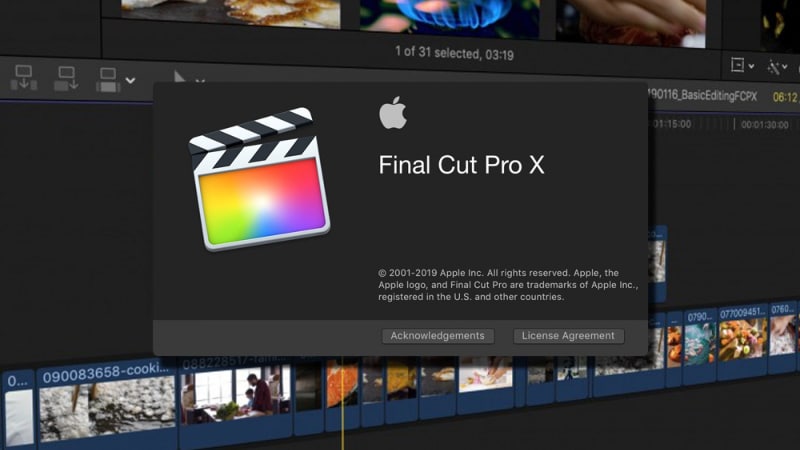
Final Cut Pro is another professional and highly effective video editor that you can use to create AMVs. It has very many video editing capabilities, allowing you to edit your video in numerous ways including cropping, rotating, blending, and more. It also has over 100 different transitions and more than 149 different visual effects to create your video any way you want to.
But perhaps the best feature that Final Cut Pro has when it comes to creating and editing AMV videos is the ability to organize and crop videos easily. The “Compounding Clips” feature, in particular, will come in handy when combining footage, soundtracks, and effects into one perfect AMV.
6. Lightworks
- Best For: YouTubers, Freelancers, Bloggers, and Marketers
- Supported OS: Windows and Mac
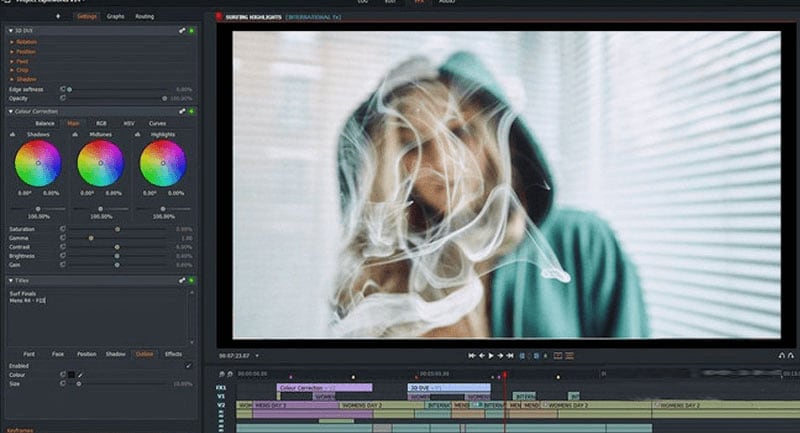
Lightworks is an easy-to-use solution that you can use to create stunning AMV videos. The drag and drop interface makes it the most ideal solution even for beginners and it offers a lot of options for designing and customizing the videos. One other major benefit of choosing Lightworks is that it does come with a free version that is not as limited as you would expect.
The timeline is easy to use, allowing you to create AMVs from scratch or merge clips to create the video. You can also use numerous effects on the video and even add music to the video.
Part 2: Best AMV Maker for Mobile Phones
If you want to make AMVs on your mobile device, the following are some of the best options;
1. Filmora
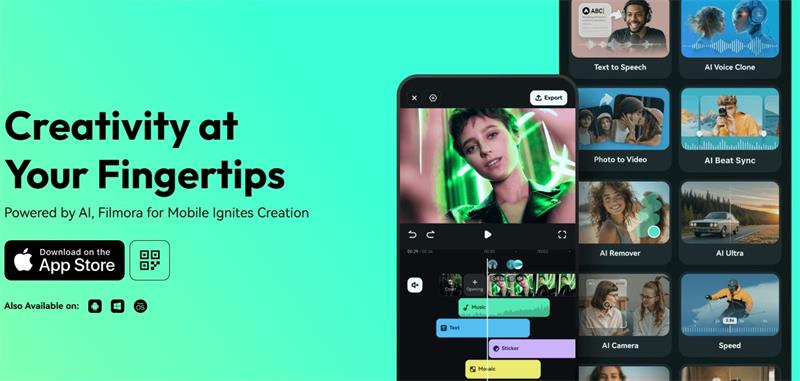
Filmora is one of the best video editing apps that you can download. It somehow manages to offer tools and video editing features that can otherwise be found only on desktop tools. Some of the features that can you can expect when using Filmora include reverse play, transitions, cropping, rotating, adding voiceovers, audio mixing, color tuning, and even picture-in-picture.
Filmora further simplifies the editing process by providing you with premade templates and themes that you can use to customize your AMV in many ways. It will also let you add music to the video from a huge library of licensed audio tracks.
Secure Download2. KineMaster
- Best For: Professional Animators, Bloggers, Marketers, and YouTubers
- Supported OS: iOS and Android
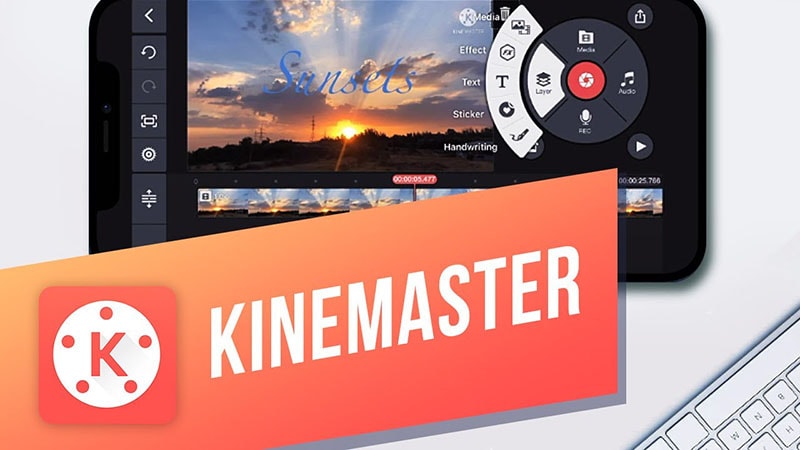
KineMaster is a video editing app that is designed for professionals but is easy enough to use that it can be useful to you even if it is your first time using it. It has a lot of very useful video editing features including frame-by-frame editing, instant previews as well as support for up to four audio tracks that you can add to the video project.
This app also allows you to work with two video layers that you can animate in various ways including chroma key compositing, precise color adjustment, speed control, and keyframe animation.
3. VivaVideo
- Best For: YouTubers, Freelancers, and Marketers
- Supported OS: iOS and Android
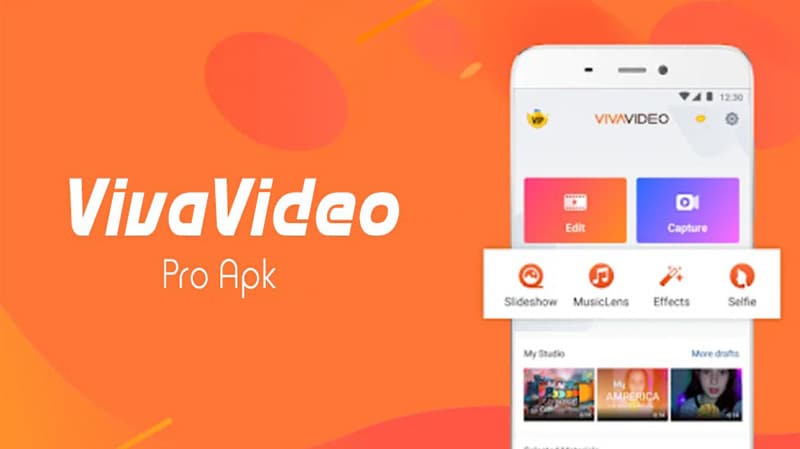
VivaVideo is another very easy-to-use app that you can install on your device to create AMVs. It has hundreds of features to choose from including stickers, filters, special effects, and animated clips. It also features slow/fast motion control, a huge library of background music that you can add to the video, and premade templates to make everything easier.
It allows you to share your creation with more than 200 million users of the app or even directly share the video on social media platforms.
Part 3: Top Anime Music Video Makers Online (Free and Paid)
Prefer to edit online without installing any software? We’ve reviewed and handpicked the best anime music video makers you can use right in your browser. These tools are great for quick edits, basic AMVs, or when you're working on a device with limited storage.
Below are five top-rated online cartoon music video makers—each with its own strengths, features, and limitations.
1. Animaker
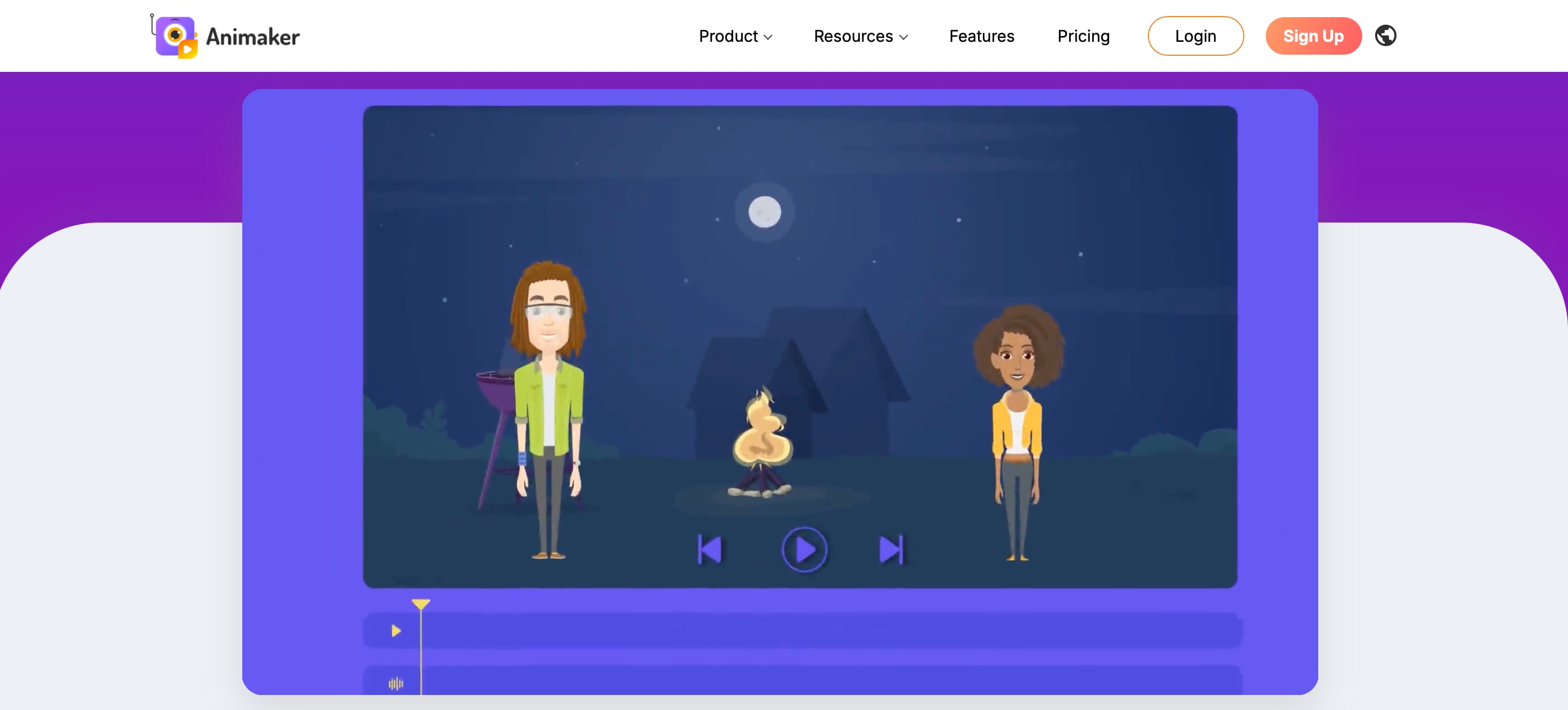
Animaker is designed for animation and explainer videos, but it also works well for cartoon music video creators. It offers a wide selection of cartoon characters, props, and backgrounds that you can drag and drop into your scene. The interface is simple, and everything runs in your browser.
Key Features:
- Pre-made cartoon video templates
- Customizable characters and backgrounds
- Music library, transitions, and text animations
- Great for beginners and non-editors
- Huge library of cartoon assets and effects
- The autosave feature keeps your work safe
- Limited audio syncing tools for music videos
- Watermark on free plan
- Requires account to export videos
2. Flexclip
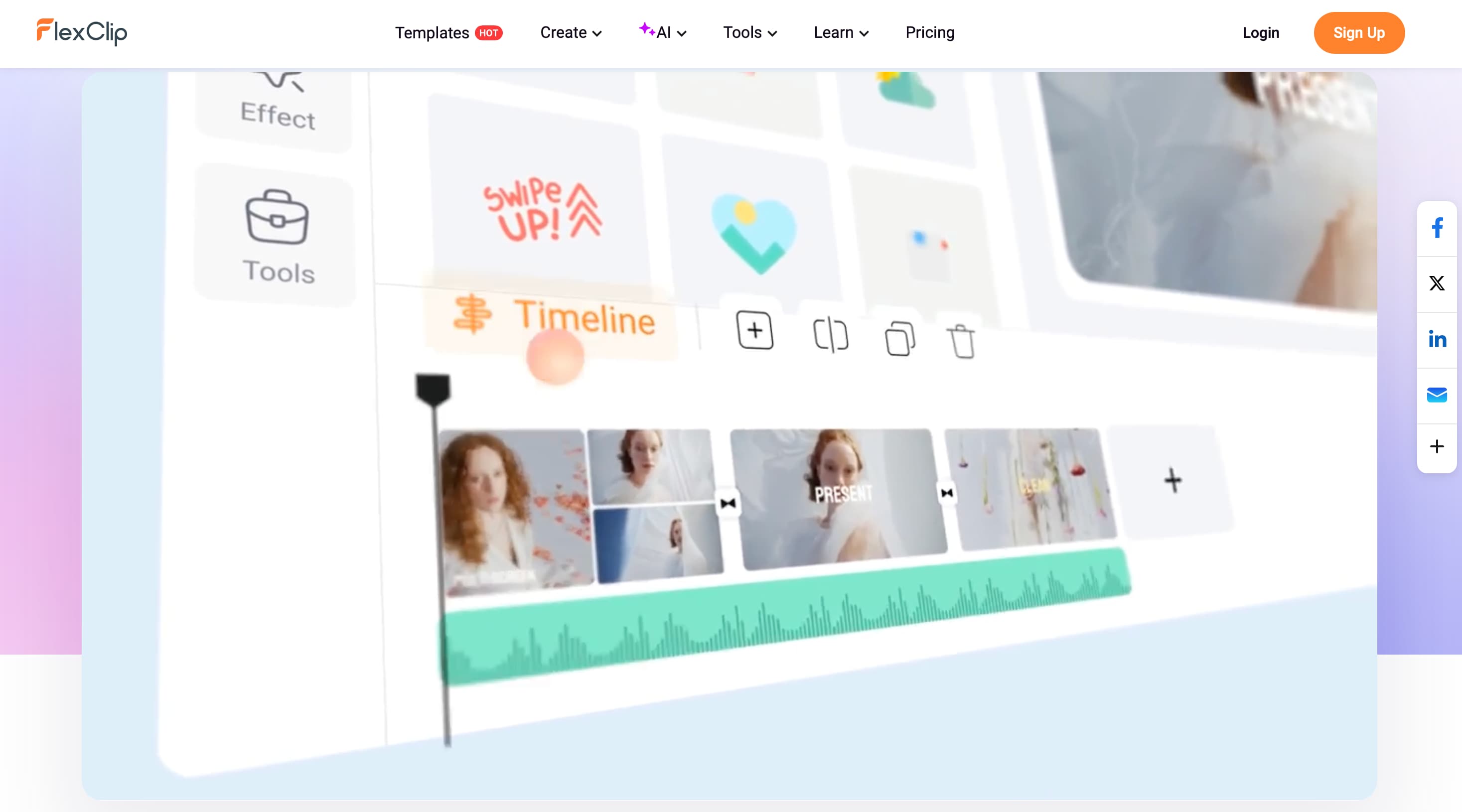
FlexClip is an online video editor built for simple, fast editing. While it’s popular for business and marketing content, it also works for basic cartoon or anime-style music edits. Its clean interface and template library help speed up the process as an anime music video maker.
Key Features:
- Drag-and-drop timeline editor
- Stock video and music library
- Pre-set aspect ratios for all major platforms
- Easy to learn, even for first-time users
- Built-in templates make syncing music easier
- Supports direct export for TikTok, YouTube, and Instagram
- Limited animation controls
- Some features are locked behind paid plans
- Free plan exports in lower resolution
3. Simplified
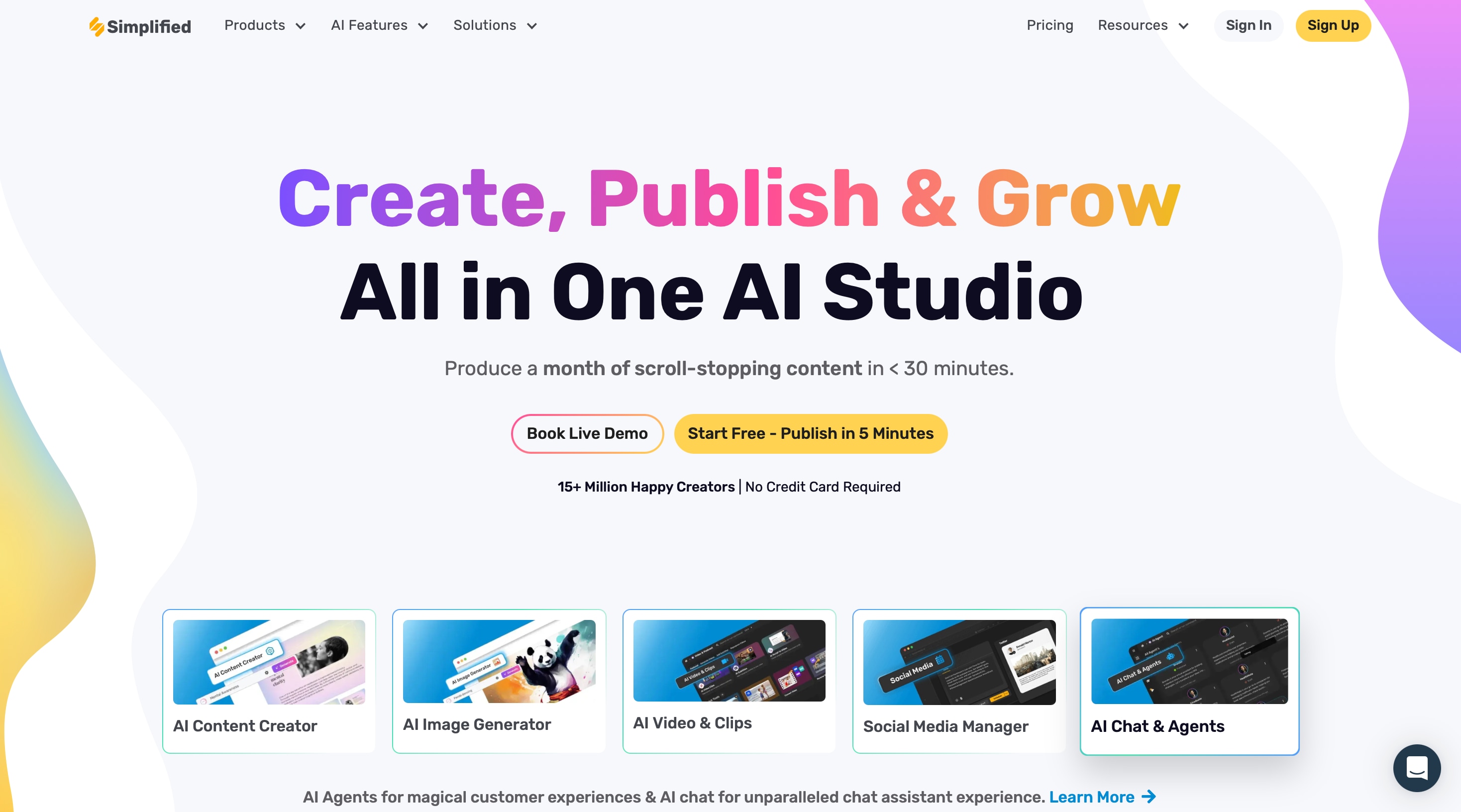
Simplified is a creative suite for marketers and content creators. Its video editor isn’t focused on anime or cartoons, but it supports essential features like auto subtitles, music import, and drag-and-drop video creation. It works well for lyric-style edits or storytelling videos with simple visuals.
Key Features:
- AI-powered subtitle generation
- Royalty-free music and sound effects
- Simple text and video editing timeline
- Good for adding lyrics or captions quickly
- Works well on low-end systems
- Includes collaboration tools for team projects
- No cartoon effects or anime transitions
- Editing tools are basic
- Cluttered interface can be confusing at first
4. Vibetoon
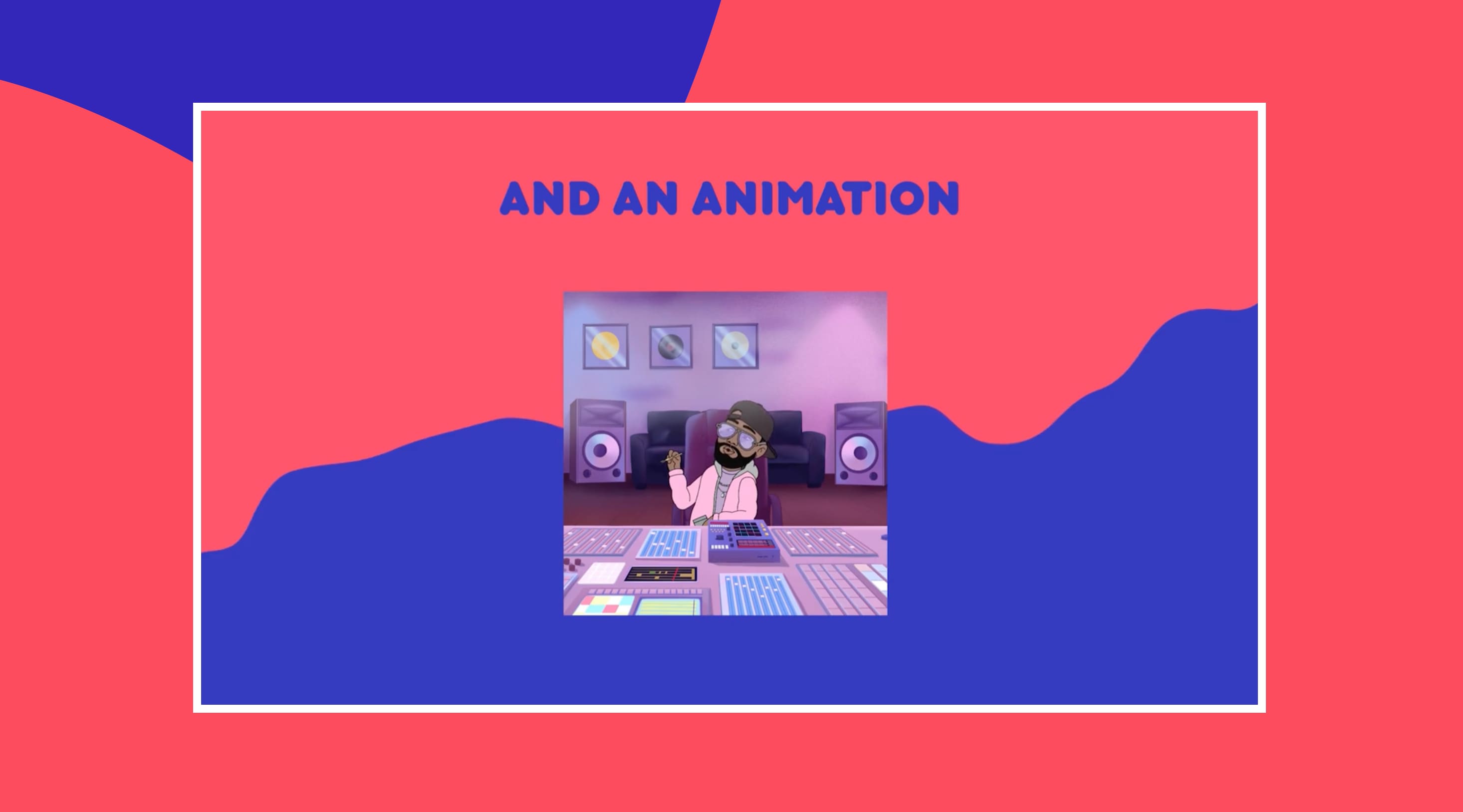
Vibetoon is a creative platform focused on animated storytelling. It allows you to build short cartoon videos using avatars, preset animations, and music. While it doesn’t support imported anime clips, it’s fun to use for stylized cartoon music video maker with voiceover or music sync.
Key Features:
- Avatar builder and character lip-sync
- Storyboard-based editing
- Built-in music and background scenes
- Great for character-based cartoon music videos
- Auto lip-sync with music or voiceover
- Easy to build full scenes in minutes
- No upload support for external anime clips
- Limited animation customization
- Account required for full access
5. VEED.io
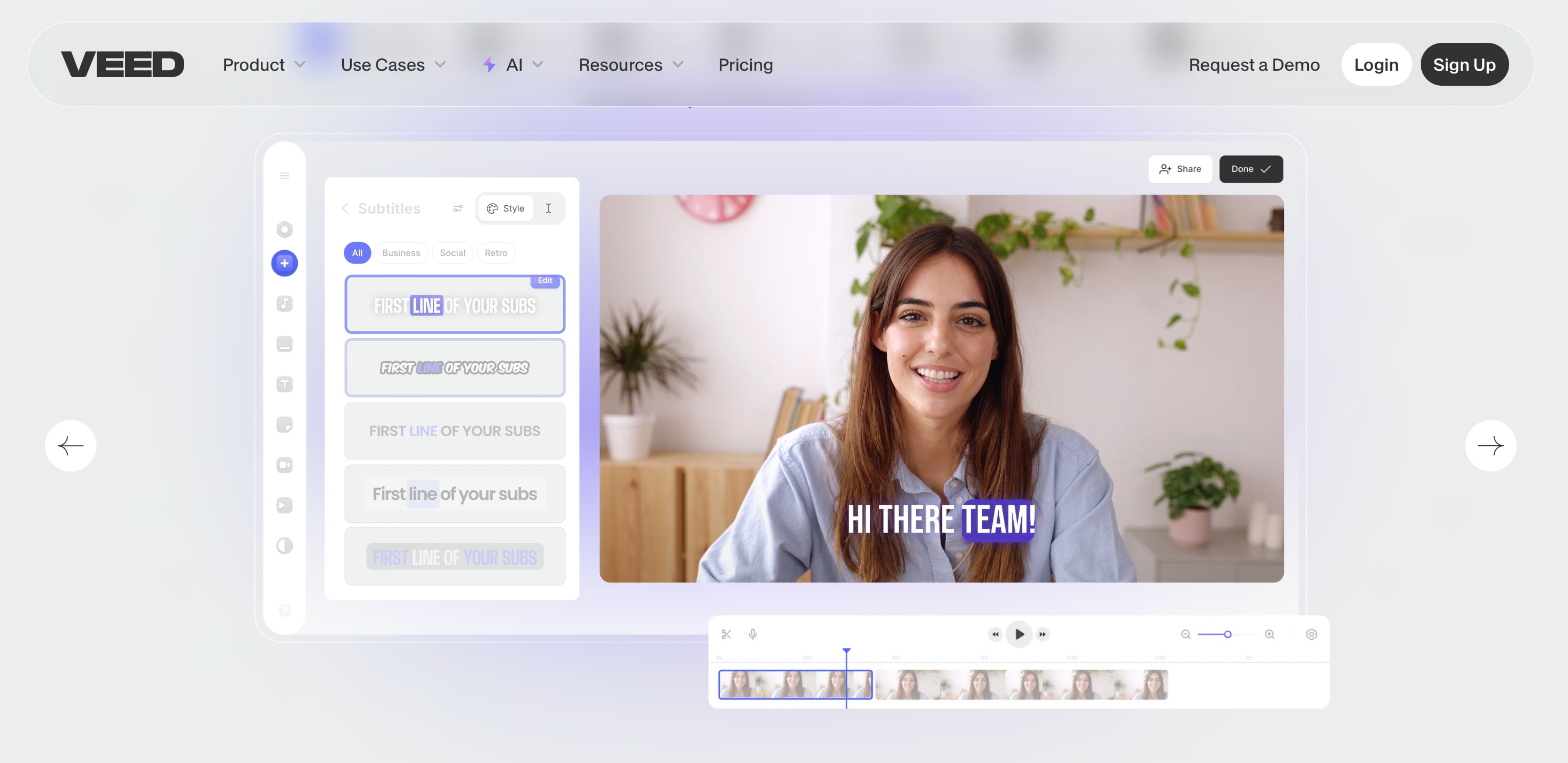
VEED.io is a flexible online video editor with strong support for subtitles, captions, and social video formatting. While it doesn’t have cartoon assets built-in, it supports custom uploads and basic editing features needed for anime music video makers or cartoon music edits.
Key Features:
- Auto subtitle and translation
- Audio waveform and beat visualization
- Multiple export resolutions and formats
- Smooth editing in-browser with no setup
- Great for subtitle-heavy lyric videos
- Supports YouTube, TikTok, and Reels formatting
- Watermark on free plan
- Cartoon or anime effects must be uploaded manually
- Limited built-in animation tools
Part 4: Comparing the Best Cartoon Music Video Makers
Each tool we reviewed has its strengths, but not all are built with anime or cartoon music video makers in mind. Some are great for animation, while others focus more on basic social media content. To help you decide, we compared the top tools based on the key features that matter most for AMV and cartoon edits.
| Anime Music Video Maker | Anime/Cartoon FX Presets | Auto Sync Music & Beat Detection | Text & Subtitles Feature | Compatibility |
|---|---|---|---|---|
| Filmora | Built-in anime filters, cartoon overlays, and transitions | AI Beat Detection, AI Auto Music Sync | AI Auto Captions, AI Lyric Video Maker | Desktop and mobile |
| Adobe Premiere Pro | Requires third-party plugins/templates or manual effects like Posterize Time, Leave Color, etc. | Precise Audio Waveform Matching, Multi-Camera Sync (via audio) | Professional Essential Graphics Panel, supports various subtitle file import/export | Desktop (Windows, macOS) |
| Apple iMovie | Basic filters and themes, Green/Blue screen keying | Smart BGM (dynamically adjusts to video length), No professional built-in beat detection | Basic titles, lower thirds, and credits | Desktop (macOS), Mobile (iOS/iPadOS) |
| Vegas Pro | Advanced video effects chaining, Chroma Key, extensive third-party FX/transitions | Audio Sync Tool (aligns clips by audio waveform), Beat-matching scripts | Powerful ProType Title Tool, supports advanced text animation | Desktop (Windows) |
| Final Cut Pro | Requires Motion or third-party plugins. AI Magnetic Mask for complex isolation. | Magnetic Timeline for easy manual beat alignment, built-in audio analysis/sync | Professional 3D/2D Titles, can import/create/edit subtitle files (e.g., SRT) | Desktop (macOS) |
| Lightworks | Paid add-on effects (e.g., NewBlue TotalFX), Chroma Key | Basic manual waveform alignment, No automatic beat detection | Basic subtitling tool, Pro version supports SRT import | Desktop (Windows, macOS, Linux) |
| KineMaster | Large Asset Store for effects, stickers, transitions, and VFX, Chroma Key | AI Music Match (music recommendation), precise manual audio editing | AI Auto Captions, AI Text-to-Speech | Mobile (iOS, Android), Desktop (ChromeOS, macOS, Windows) |
| VivaVideo | AI Effects, filters, AI Video Generation (text/image to video) | AI Beat-Sync (automatic beat detection), waveform editing | Auto Captions, GIF text styles | Mobile (iOS, Android) |
| Animaker | Cartoon templates and animated characters | No automatic sync | Animated text and speech | Online only |
| Flexclip | Basic video filters | Manual sync only | AI Lyric Generation | Online only |
| Simplified | No visual FX presets | Basic drag-and-drop sync | AI Subtitle Generator | Online only |
| Vibetoon | Cartoon avatars and scenes | No music sync tools | Limited subtitle support | Online only |
| VEED.io | Upload-only effects | Manual timing or waveform-based sync | AI Video Script Generator | Online only |
|
Show More
Show Less
|
||||
Our Favorite Cartoon Music Video Maker: Filmora
Compared to the rest, Wondershare Filmora offers the most complete package for cartoon music video creators. You get everything you need to make anime or cartoon music videos, without jumping between apps or using complicated tools.
- Filmora includes anime-style video effects, cinematic transitions, and cartoon overlays built right in.
- You can sync your clips with music using AI Beat Detection and Auto Music Sync, saving you hours of manual adjustments.
- The Auto Captions feature lets you turn lyrics or dialogue into styled text in seconds
- Filmora includes Smart Cutout, which makes it easy to remove backgrounds or isolate characters for dynamic edits.
All these features are available on both desktop and mobile, so you can edit wherever you are. If you're serious about creating cartoon or anime music videos that stand out, we recommend you to use Filmora.
Secure DownloadPart 5: Tips for Going Viral with Your Cartoon Music Video
Creating a great cartoon or anime music video is just the beginning. To reach more viewers and increase the chances of going viral, you need to pair strong editing with smart publishing strategies. A mix of creativity, timing, and consistency can make a huge difference in how your video performs on platforms like TikTok, YouTube Shorts, and Instagram Reels.
Here are some tips to help your edits stand out and get noticed.
Creative Ideas for Editing
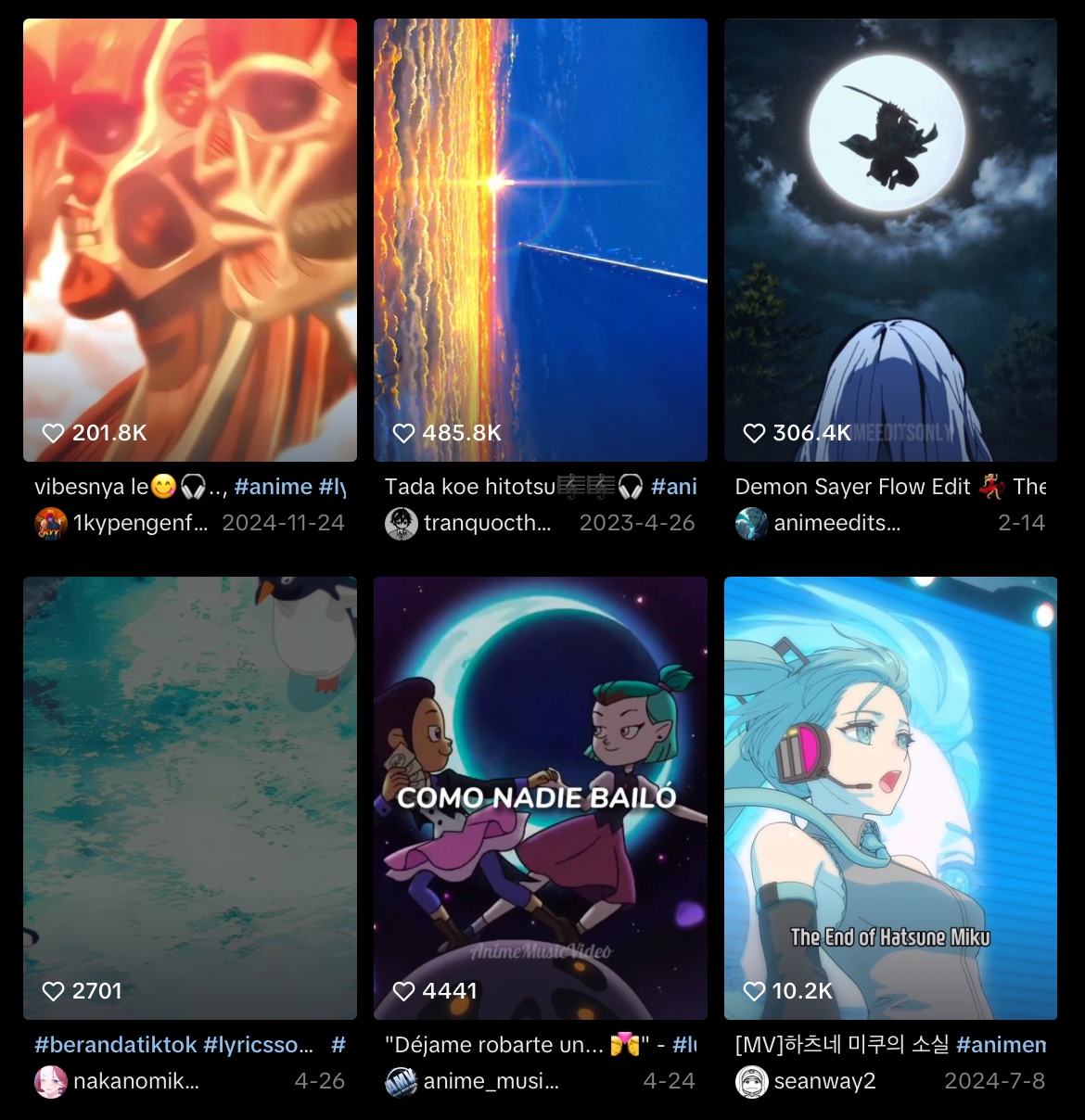
- Mashups: Blend clips from different anime or cartoon series with trending music. Unexpected combinations often grab attention and spark comments.
- Emotional Edits: Use slower scenes with soft transitions and meaningful lyrics to create a mood. These edits connect deeply with viewers and are often rewatched and shared.
- Action-Packed Montages: Use fast-paced scenes with quick cuts and beat drops. Add energetic transitions and effects to match the rhythm of the music.
- Cartoon Lip Sync Videos with Subtitles: Sync character mouth movements with a song or dialogue. Add stylized subtitles or lyrics to boost engagement and help viewers follow along.
Upload Tips
- Choose Trending Audio: Use songs that are currently popular on TikTok or YouTube Shorts. This can help your video appear in algorithm-driven feeds and audio-based searches.
- Optimize Video Length for TikTok and Shorts: Keep your video short and engaging, ideally under 60 seconds. Hook viewers in the first few seconds and keep the pacing tight.
- Add Subtitles and Hashtags: Adding subtitles or lyrics of your AMV with Filmora’s Auto Captions can make your content more accessible and help with retention. Hashtags increase discoverability, especially when you include trending tags and keywords.
- Maintain High Quality Visuals: Export your video in HD or 4K for crisp visuals. Filmora supports up to 4K export, helping your edits look professional on any platform.
- Upload Frequently and Analyze Performance: Post consistently and use each upload to learn what works best. Monitor views, likes, and retention to refine your editing and content strategy.
Conclusion
Anime and cartoon music videos are more popular than ever, and the right tools help you create standout edits with less effort. From mashups to lyric videos, strong visuals and synced audio can boost your reach across platforms. Filmora offers everything you need to make high-quality content, from transitions and beat detection to speech-to-text captions and AI-generated visuals.
You can work on desktop or mobile and produce videos ready for TikTok, YouTube Shorts, or Instagram Reels. If you're aiming to go viral or build a creative portfolio, having the right anime music video maker is the first step.
Secure DownloadRelated FAQs
-
1. Is Making AMV illegal?
If you don’t have permission from the copyright owner of the song you are using to create the AMV, then you violate the law. And considering that it can be very difficult to get permission from the copyright owner, usually the record label, most AMVs are not exactly legal.
-
2. How Do You Make an AMV?
It depends on the kind of AMV that you want to make. But several steps are common to all AMVs. The first thing you want to do is pick the subject of your video, which usually means choosing the character or characters that will make up your video. Then, you will want to pick the song that you will use for the AMV, and finally, choose a video editor that will allow you to put the two together.
-
3. What Program is Used to Make AMVs?
AMVs are made using video editing software with the necessary features to put together different video components and animate them. We have provided you with various options above.
