


 TL;DR:
Genspark Clip Genius automates video editing entirely through text prompts by extracting and assembling key moments, but current stability issues make it strictly suited for users wanting quick, automated grid-style compilations rather than precise manual control.
● The tool reliably processes Grid layout edits with highly accurate auto-captions and natural-sounding AI commentary, but the Single Clip layout is currently unstable and processing times are significantly delayed.
● While the free plan provides 100 daily credits and 1 GB of storage for creating speaker-specific or topic-based cuts, users cannot customize the AI voiceover or layout styles, often resulting in repetitive video formats.
● Wondershare Filmora is the recommended alternative for creators requiring traditional timeline editing combined with AI capabilities, offering manual customization alongside features like Smart Scene Cut and Veo 3 powered Text-to-Video generation.
Ask AI for a summary
 ChatGPT
 Perplexity
 Gemini
 Claude
 Grok
Grok
AI tools just keep offering new ways to speed up how we work and create. One tool you might want to check out is Genspark Clip Genius, one of Genspark AI’s intelligent tools that lets you edit videos instantly from a single prompt.
If you’re curious about how it actually performs, we’ve tested it ourselves and prepared this comprehensive Genspark Clip Genius review to answer all of your questions before you give it a try.
Part 1. What is Genspark Clip Genius? How Does It Work?
Even though making video content is one of the most effective ways to engage audiences today, many people still hesitate to do it. The main challenge often lies in the editing process, which can be hard and time-consuming.
Seeing this struggle, Genspark offers a smart solution that speeds up and eases the editing process through Clip Genius. Just by typing what you want to create, Genspark Clip Genius can understand your idea, process it, and automatically edit clips that fit your prompt. It saves you hours of time usually needed to get it done manually.
How Genspark Clip Genius Works
Since Genspark Clip Genius focuses on the editing process itself, it studies existing footage and edits it intelligently instead of starting from scratch. There’s a multi-layered process behind that:
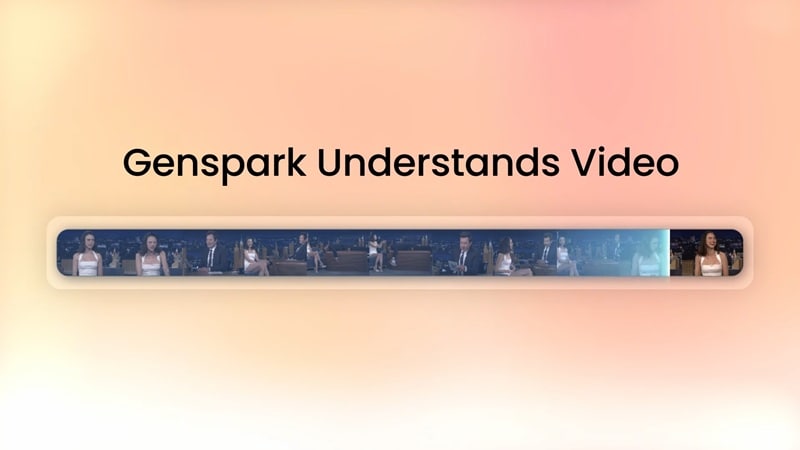
1. Intelligent Content Analysis
Genspark Clip Genius starts by analyzing the entire footage you uploaded. Using advanced AI transcription and speaker detection, it identifies who’s speaking, what they’re talking about, and the emotional tone behind their words to help the tool recognize the key moments.
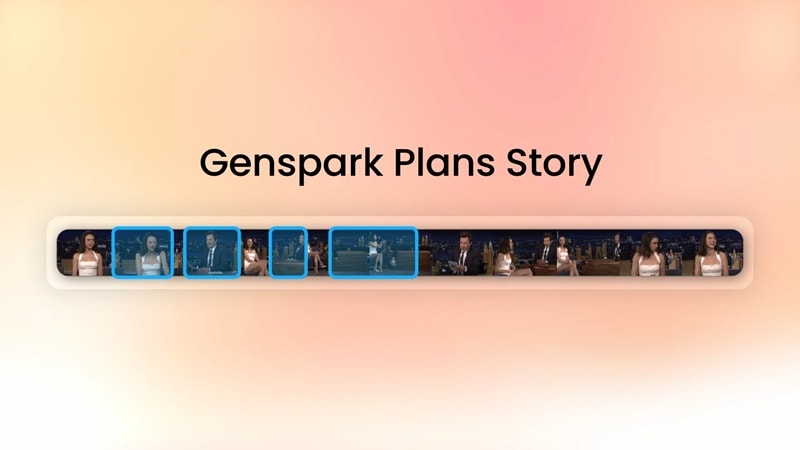
2. Smart Story Planning
After understanding the content, the AI determines how to structure it based on your prompt. It arranges scenes so they flow naturally and keep viewers hooked. It figures out which parts should come first, how long each moment should last, and where to make clean transitions.
3. Precision Editing & Optimization
Once the key parts are in place, Clip Genius polishes them up. It trims awkward pauses, balances the timing, smooths transitions, and can even focus on specific speakers or scenes if you want.
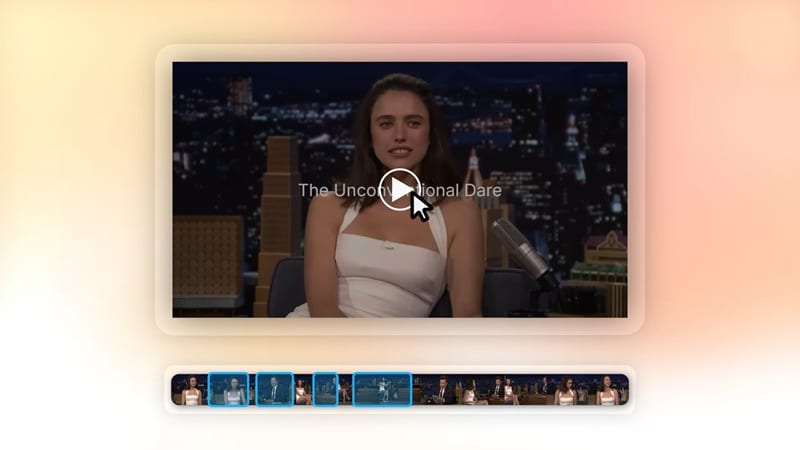
4. Professional Assembly
Finally, the AI puts it all together into a video ready to share anywhere. It adds subtitles, transitions, intros, and background music, then formats it for your chosen platform. Every step is done within minutes.
Part 2. What Can You Do with Genspark Clip Genius?
While Genspark Clip Genius works automatically based on your prompt, there are certain things it’s especially good at. You can use it to:
- Highlight and cut key moments: For long videos like live streams or webinars, you don’t have to waste hours scrubbing through the footage. Just tell Clip Genius what you need, and it will automatically find the most engaging or emotional moments and trim them for you.
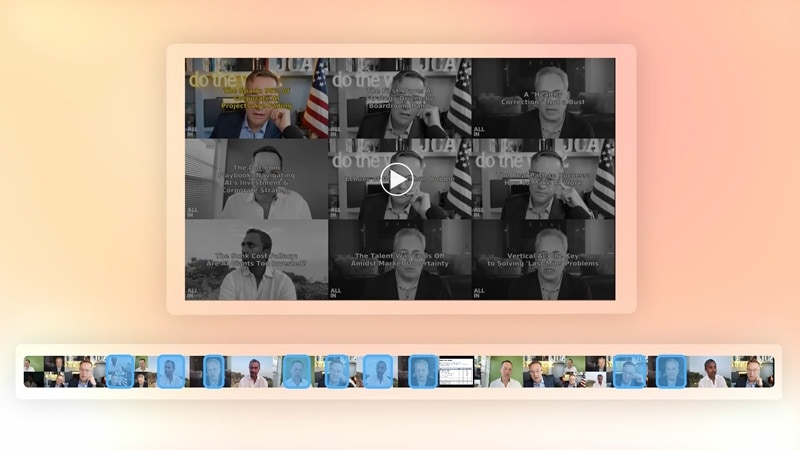
- Create topic-based compilations: You can ask Clip Genius to automatically generate themed edits, such as best moments, funniest clips, or key takeaways, where it identifies recurring topics and connects them into one smooth sequence.
- Generate speaker-specific edits: Using speaker detection technology, Clip Genius can focus on a single person using voice or face recognition to create guest-only or host-only versions of your video.
- Combine multiple clips and scenes into a cohesive video: Instead of manually piecing everything together by yourself, Genspark Clip Genius can merge multiple clips, complete with transitions, background music, and captions, and deliver a final video that feels professionally edited.
Is Genspark Clip Genius Free?
Yes, the Greenspark Clip Genius is free to use. Though you may need to subscribe to a paid plan to add more storage, and if you want to enjoy more features.
| Free Plan | Plus | Pro | |
| Monthly Fee | $0 | $24.99 | $249.99 |
| Annual Fee | $0 | $239.99 | $2,399.99 |
| Credits | 100 credits/day | 10,000 credits/month | 125,000 credits/month |
| Storage (AI Drive) | 1 GB | 50 GB | 1 TB |
| AI Access | Limited | All AI agents | All AI agents |
Part 3. How to Edit a Video with Genspark Clip Genius
To get started with Genspark Clip Genius, you can follow the steps below.
Step 1: Go to the Genspark Clip Genius website and sign in using your Google, Microsoft, or Apple account. You’ll see two layout options to choose from:
- Single Clip Layout if you want to generate one main video or highlight reel.
- Grid Layout if you want to create a collage or side-by-side format.
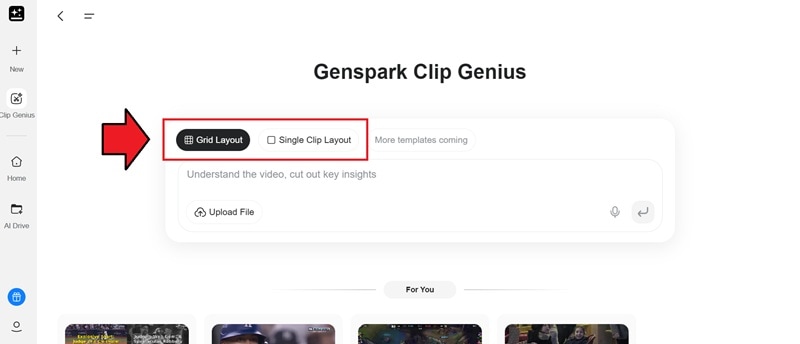
Step 2: In the text box, describe what you want the AI to do. For example, you can type something like, “Create the funniest moments from this podcast.” The more specific your prompt, the better your results.
Step 3: Click Upload Files to upload a video from your device. If your content is on YouTube, you can paste the link directly into the prompt box.
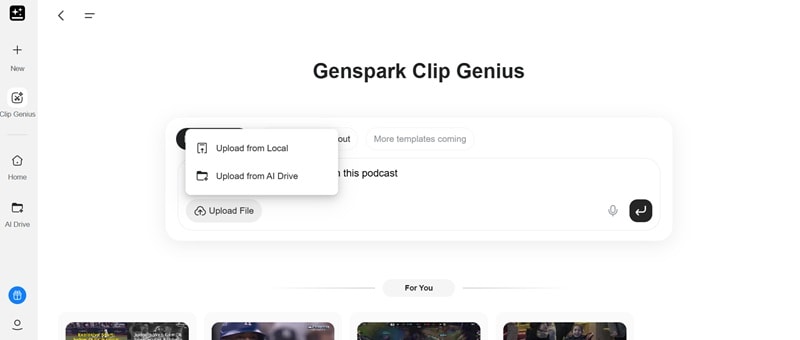
Step 4: Once everything is set, press Enter to start the process. The AI will analyze your video, find the best parts, and generate an edited version based on your prompt.
After your video is ready, you can use Genspark’s built-in editor to refine it further. You can:
- Add audio or background music
- Import or create captions manually
- Insert texts, logos, or stickers

When you’re happy with the results, simply export your video in your preferred format.
Part 4. Reviewing Genspark Clip Genius Real Performance and Results
As much as we have heard about the capabilities of Genspark Clip Genius, you might be curious about how it actually performs in real life.
After testing it firsthand, it looks like the tool can only do the Grid layout at the moment, while the Single Clip layout is still taking forever to work. It might be a feature still in development or one that needs further optimization.
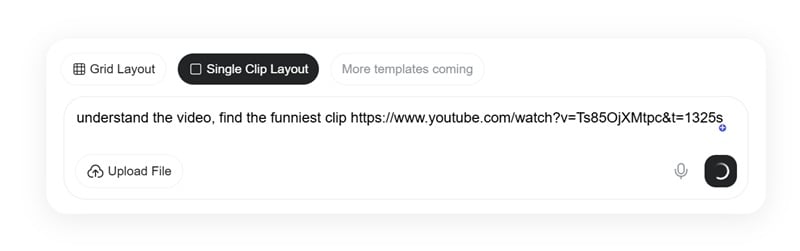
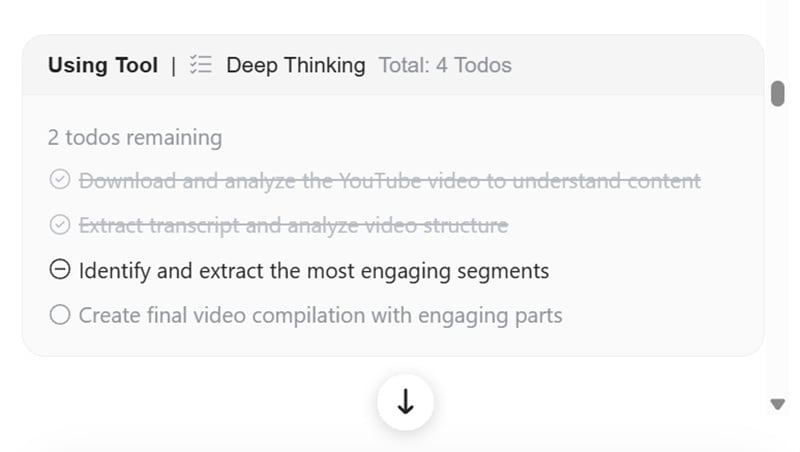
And once the video starts processing, Clip Genius will display a clear to-do list showing each step of the editing workflow. You can know at which stage it currently is, which is a great feature to help users know how close the process is to finishing.
Does It Deliver on Its Promise?
In terms of core functionality, Genspark Clip Genius does a pretty good job at selecting and compiling the most engaging moments from a video. It also understands and summarizes the overall context surprisingly well.
Interestingly, if you are using the Grid layout, it often adds narration or commentary between the clips to give more context first. The voice sounds natural and far from being robotic, though, unlike most AI tools.
However, at times it can feel a little too dramatic or unnecessary, especially if you prefer a minimalist edit. In that case, you may need to trim them manually in post-production.
Also, the auto-captioning is another highlight. The timing is sharp and the accuracy is high. But if you don’t make a few manual adjustments, your videos will end up the same. To sum up, here’s where Genspark Clip Genius shines and where it could still improve:
Part 5. More Advanced AI Tool That Makes Editing Video Fast
If you’re interested in exploring more AI tools that speed up video editing but still let you edit and customize your work manually, you can try Wondershare Filmora. Unlike Genspark Clip Genius, which edits videos mainly based on prompts, Filmora combines AI automation with its video editing tools.
So while its AI features can take care of time-consuming tasks, like cutting, adding captions, or cleaning up audio, you can still use its built-in video editor to fine-tune everything the traditional way.
Filmora features basic to advanced video editing tools, like motion tracking, multicam editing, and masking, that are designed to be intuitive. As for its AI features, Filmora offers several smart assistants that make your editing workflow faster.
 Secure Download
Get Your Own Editing Assistant with AI Mate
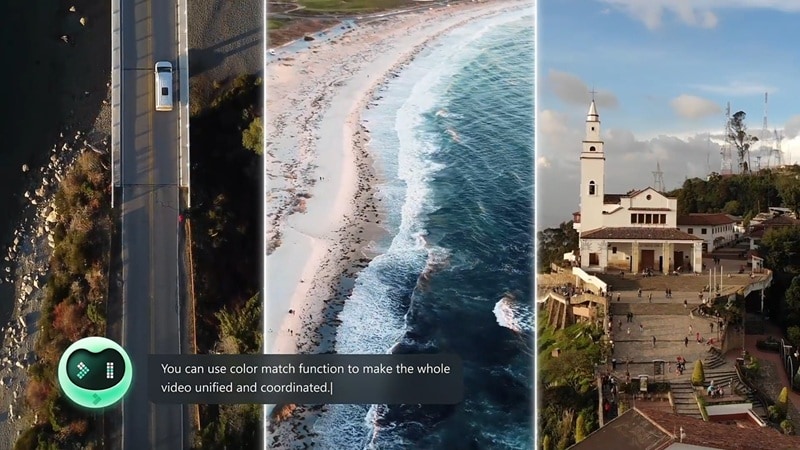
Given the vast features of Filmora, AI Mate works like a built-in assistant that helps you navigate and create more efficiently. You can chat with AI Mate directly inside Filmora to ask for effect recommendations, editing tips, or even content inspiration.
Automatically Create Clip Highlights with Smart Scene Cut
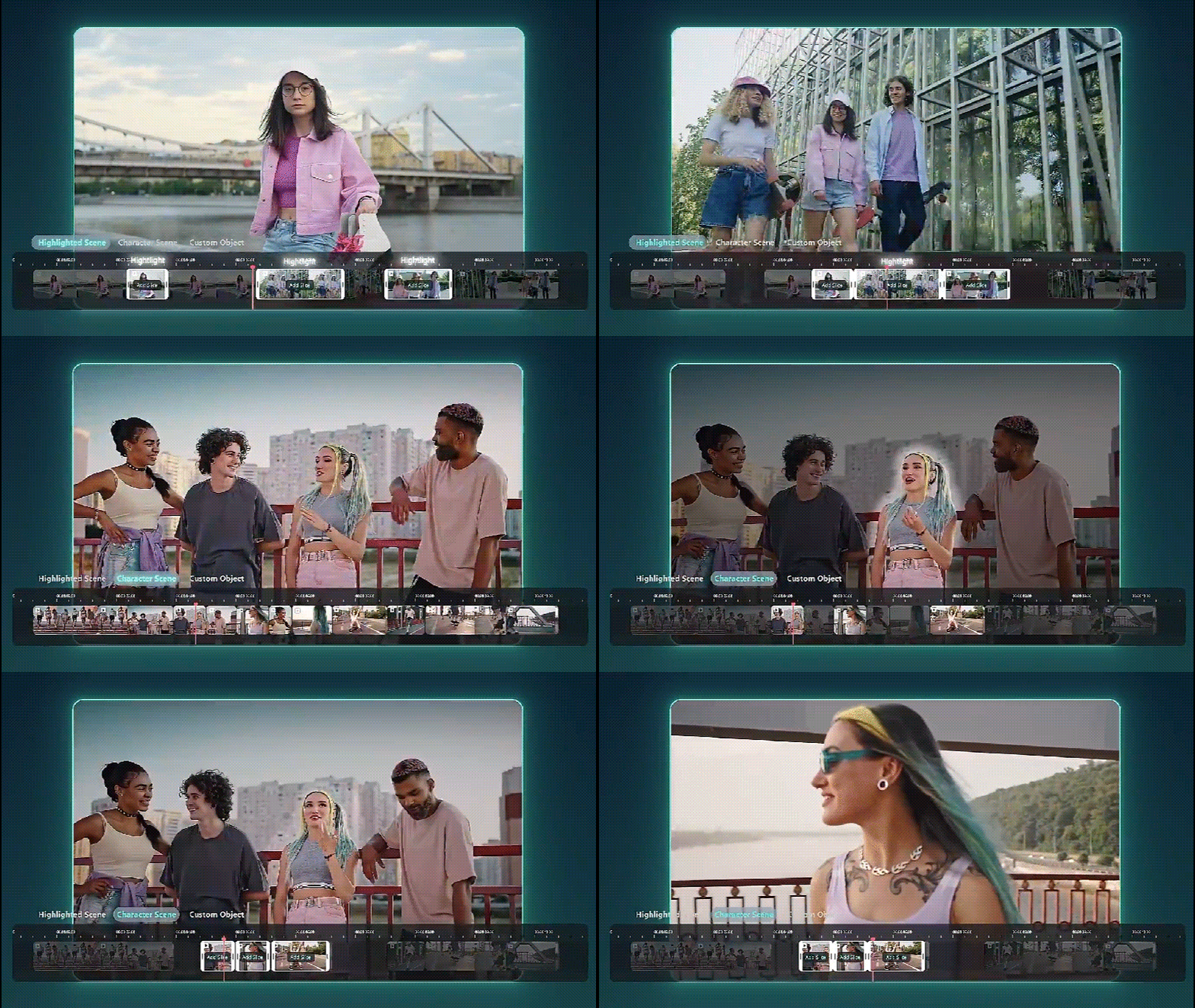
When you want to make a highlight of a long video, the Smart Scene Cut feature in Filmora can automatically detect scene changes based on scenes, objects, or people in the frame. Then, it helps break your footage into clear sections. From there, you can easily review and choose which parts to keep before moving to the final edit.
Shorten Long Videos with Smart Short Clip
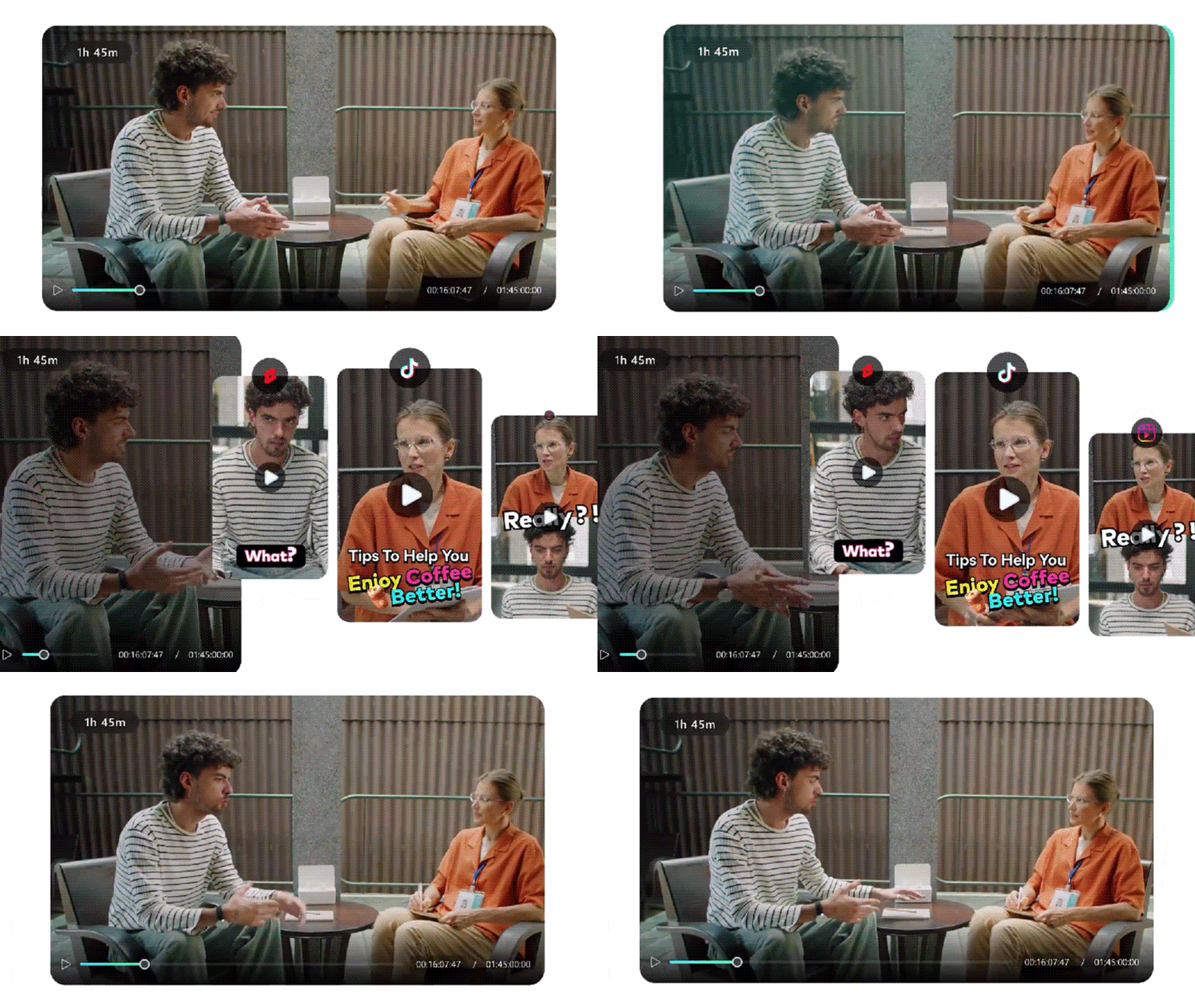
With the growing popularity of short-form content, you can rely on Filmora’s Smart Short Clip feature to turn long videos into reels that are ready to share on platforms like YouTube Shorts, TikTok, or Instagram.
Once your clips are generated, Filmora presents several versions for you to choose from, each scored with a virality rating that estimates how well it might perform on social platforms.
Generate Videos with AI
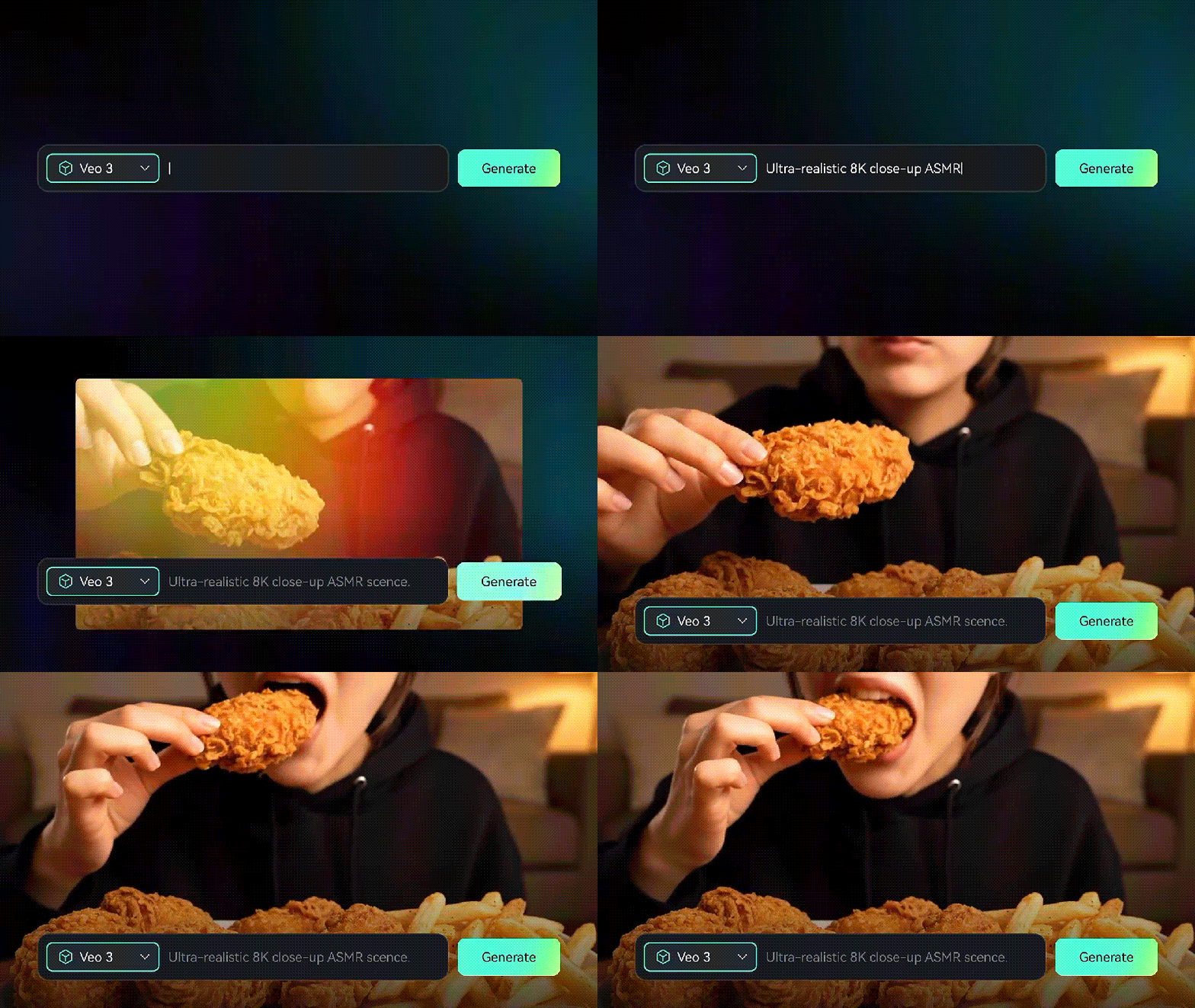
Besides editing videos, Filmora has the power to generate videos based on text, images, or even audio. This is made possible through its advanced AI generation features that make content creation faster and more flexible.
- Text-to-Video: Powered by Veo 3 and other AI models, Filmora can turn simple text prompts into ultra-realistic videos complete with matching sound.
- Image-to-Video: You can transform still images into dynamic video sequences by choosing from ready-made templates or generating new motion from scratch. Filmora also lets you refine the output by adding a text prompt to describe the motion or mood you want.
- Audio-to-Video: Filmora’s AI can visualize your audio tracks by creating video sequences and turning them into engaging visual stories.
More AI-Powered Editing Tools
Several other features in Filmora are also powered by AI to help you edit faster and with more precision, including:
- Smart Cutout & AI Portrait: Easily remove backgrounds or isolate subjects without using a green screen.
- AI Video Enhancer: Improve the quality of your footage by sharpening details, enhancing colors, and upscaling the resolution in one click.
- Auto Caption: Filmora can instantly generate accurate captions synced with your dialogue, both standard subtitles and dynamic subtitles that follow each word.
- AI Translation: Automatically translates your videos into multiple languages, helping you reach a wider audience without the need to switch platforms.
Secure DownloadConclusion
We’ve tried Genspark Clip Genius for you, so you can get a real sense of what this AI video editor can do. In short, it lets you edit faster just by giving the tool a prompt to analyze, cut, and assemble your clips automatically.
We hope our Genspark Clip Genius review gives you a clear idea of what to expect and helps you decide if it fits your workflow. And if you’re looking for an AI tool that combines automation with manual control, Filmora is another AI-powered video editor you can also try next.
