

 TL;DR:
Choose Krita if you need a free, specialized tool with natural brush emulation for digital painting and comics, but opt for Adobe Photoshop 2026 if your professional workflow requires advanced photo compositing, Adobe Firefly AI tools, and broad industry standardization despite the monthly subscription cost.
● Krita provides a dedicated frame-by-frame animation system and built-in storyboard templates tailored for illustrators, whereas Photoshop focuses its updates on AI-driven image manipulation tools like Generative Fill and Content Aware Fill.
● Photoshop requires a $22.99 to $69.99 monthly subscription and heavier hardware with at least 8GB of RAM and 10 to 100GB of storage, while Krita is completely open-source and runs smoothly on lower-spec budget laptops requiring only 4GB of RAM and 1GB of storage.
● Both applications export transparent PNG files for video animation in Wondershare Filmora, with Krita being optimal for hand-drawn character assets and Photoshop excelling at creating overlays and composited thumbnails.
Ask AI for a summary
 ChatGPT
 Perplexity
 Gemini
 Claude
 Grok
Grok
For decades, Adobe Photoshop has been the industry standard for digital art and photo editing. However, the recurring subscription cost has many artists searching for the best free Photoshop alternative. Enter Krita, a powerful, open-source digital painting software. In this Krita vs Photoshop 2026 guide, we'll compare their features, AI tools, and performance to help you choose the right canvas for your creativity.
Part 1. Core Philosophy: Why the "Feel" Matters
Both Photoshop and Krita can be used for drawing, and they share similar concepts like filters, layers, and masking. But at their core, their purpose and approach are actually different, which affects how the tools behave, how the interface works, and how it feels when you are using them for drawing.
Krita vs Photoshop: Specialized Digital Painting vs. All-in-One Image Editing
As you may be aware, Photoshop is not a one-purpose tool. It's designed as an all-around image editing software that handles everything, including:
- Photo manipulation
- Graphic design
- Digital illustration
- Compositing
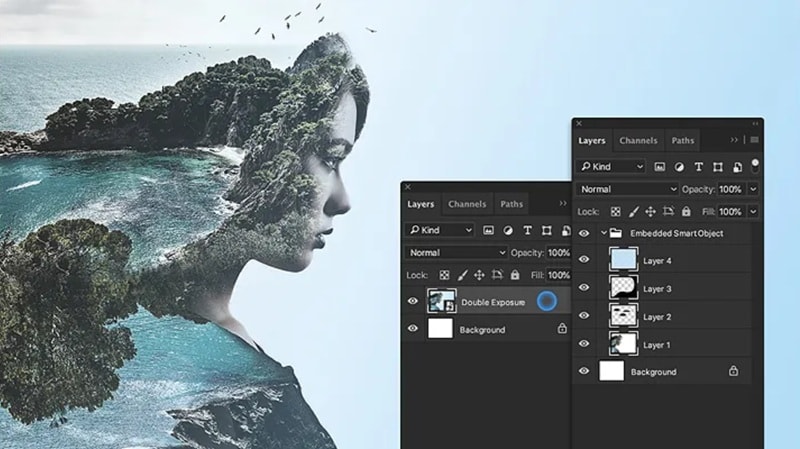
Some of its features, like brush, are useful for drawing, but they are part of a broader system built mainly for editing and visual production.
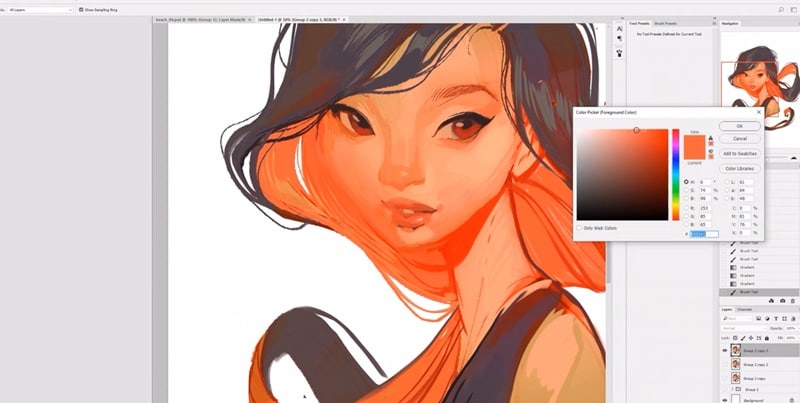
Art by: Lois van Baarle (via Adobe)
Krita, on the other hand, is built specifically for digital painting and illustration. It's developed by artists for artists, which is why it remains open source and community driven.
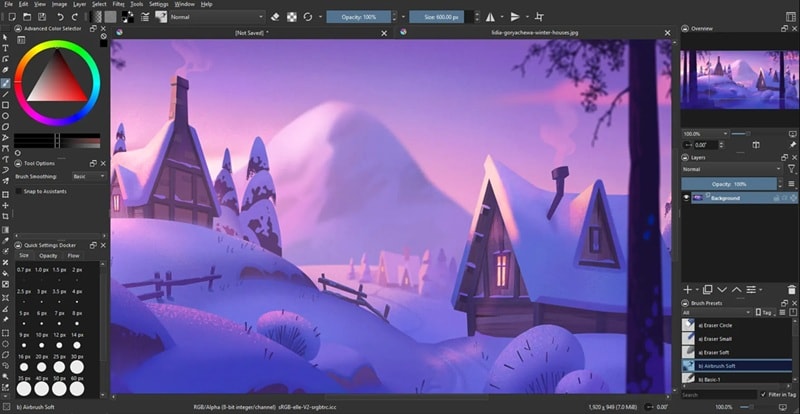
Art by: Sad-tea (via Krita)
Krita vs Photoshop for Drawing
Even though Photoshop wasn't built specifically for digital painting, it has been used by artists to create digital art for years. It offers brush tools and all the basic features needed for drawing, and many artists already have years of experience and established workflows built around it.
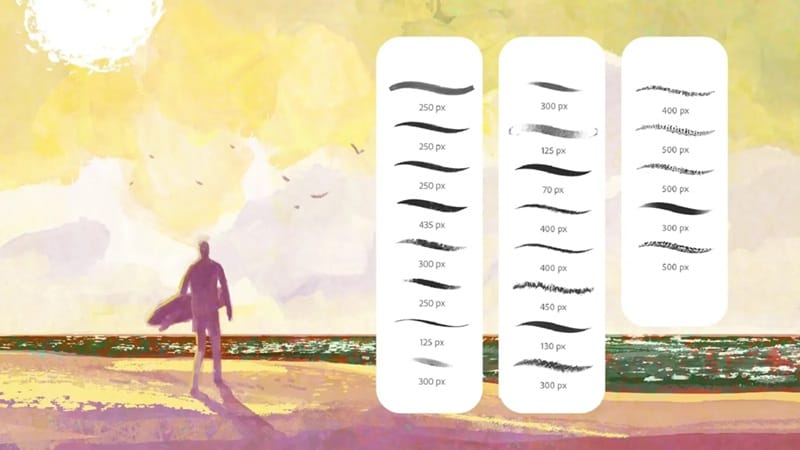
Because of this, Photoshop often feels more familiar and comfortable for those who are already used to the program. Not many users favor the idea of learning a new software or rebuilding their workflow, though feature-wise, Krita feels more focused and fluid for drawing compared to Photoshop.
Part 2. Key Feature Showdown: Digital Art & Beyond
When comparing Photoshop vs Krita, you can see the differences when you look at what artists actually use daily. Photoshop clearly has more overall features. But if your main focus is digital art, some of those extra tools may not matter much.
Brush Performance: Why Krita Feels More Natural for Digital Painting
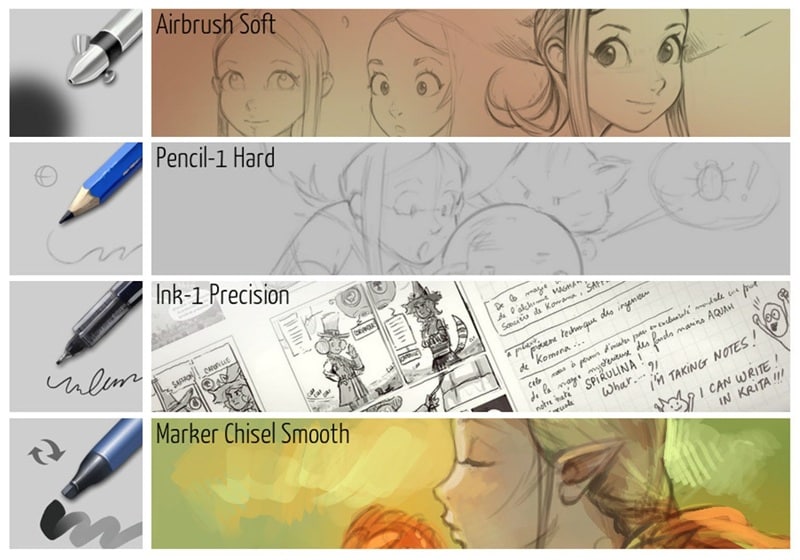
When comparing Krita vs Photoshop for drawing, Krita's brush engine often feels more intuitive. It's designed specifically for concept art and illustration, offering advanced stabilization tools and natural media emulation (like watercolor and oil) that are sometimes more accessible than Photoshop's deep but complex brush settings. The brush response is smoother, and it comes with a larger default brush library right from the start. Though you can also install custom brushes in Krita, just like in Photoshop, many users find that Krita's built-in brush set already covers most needs.
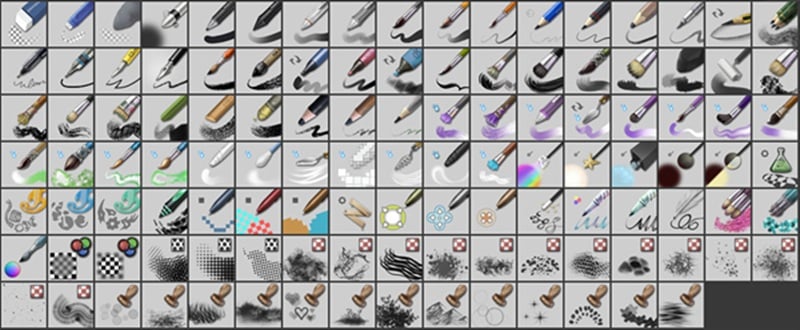
On top of that, Krita performs better in natural media emulation. Depending on how you do it, you can recreate oil paint, watercolor, charcoal, and other traditional textures in a way that feels closer to real world painting. The brushes are highly customizable for you to tweak them to match your style.
Storyboard and Templates
Krita is a great option for comic and storyboard artists. You can open a document using built-in comic strip templates and start drawing right away. There are also different templates for various drawing styles, so setup takes less time.
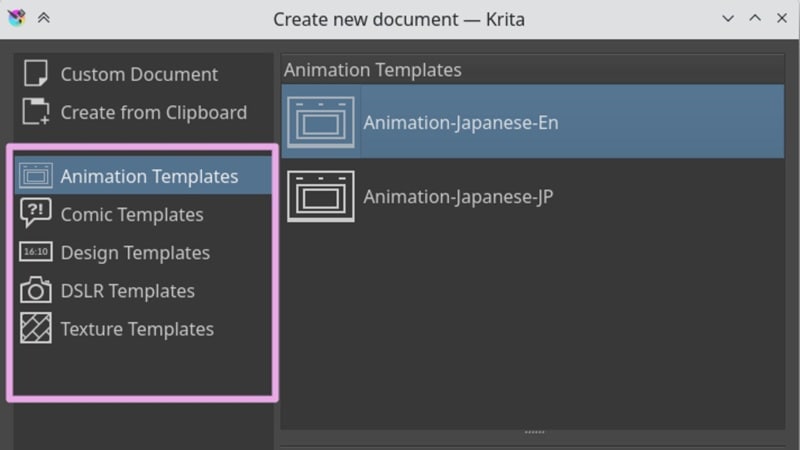
While you can also create comics and storyboards in Photoshop, it doesn't offer the same ready-made templates by default. You usually need to set up layouts manually or rely on external resources.
Photoshop vs Krita AI Integration (The 2026 Update)
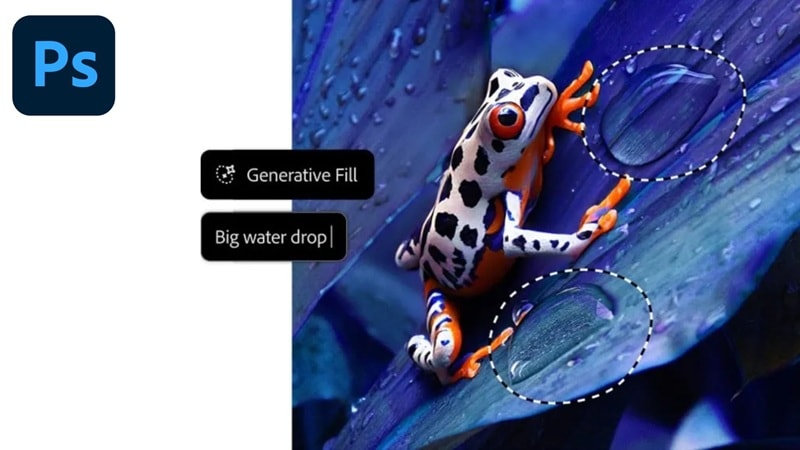
With almost every major creative tool today using AI to speed up workflows and automate complex tasks, Photoshop takes a big step forward with its AI integration, powered by Adobe Firefly. It now comes with features like:
- Generative Fill: Add, remove, or expand elements using simple text prompts.
- Text to Image: Turns written prompts into visual assets directly inside Photoshop.
- Content Aware Fill: Automatically replaces selected areas by analyzing the surrounding image.
These AI tools are mostly useful for photo editing, rather than digital painting.
As for Krita, it doesn't offer many built-in AI features. But since the software is open source, you can extend its capabilities through custom integrations. There are also plugins available, such as Krita AI Diffusion for image generation.
Animation Tools
Photoshop does support animation, but it's not most artists' first choice. It uses the layer panel and timeline to create animations, which works fine for simple GIFs but can feel limited when working with more complex illustrated work.
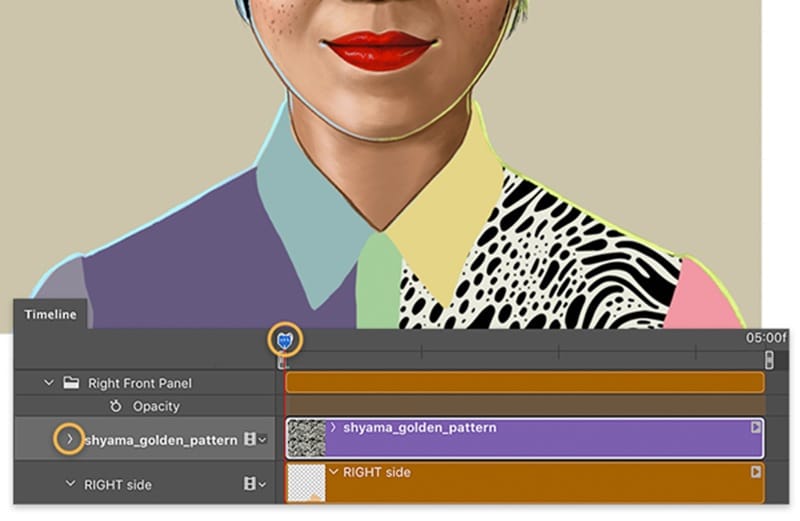
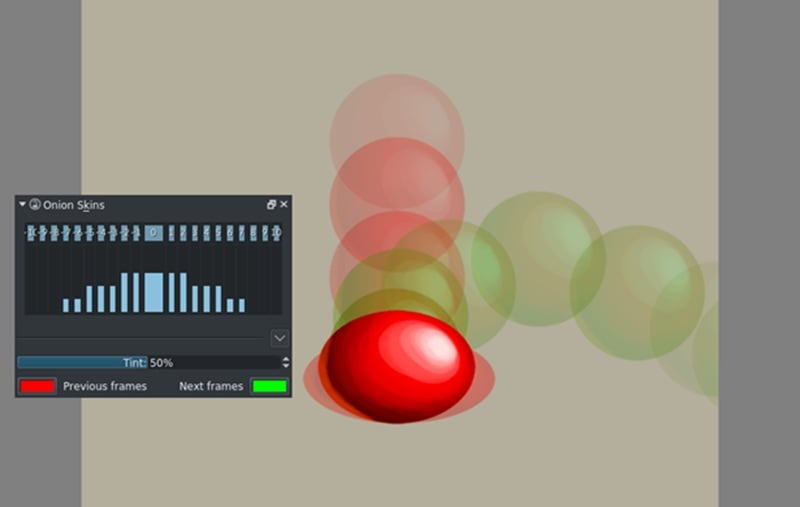
Krita offers a dedicated frame by frame animation system. You can use vector layers to keep lines clean and take advantage of tools like the Animation Timeline, Onion Skin, Animation Curves, and Storyboard panels.
Part 3. Pricing & Accessibility: Subscription vs. Open Source
As mentioned earlier, one of the biggest differences between Photoshop and Krita comes down to pricing. It's a key factor that can strongly affect your decision, depending on your budget and long term plans.
Photoshop uses a subscription model. You can get it on its own or as part of an Adobe Creative Cloud plan. New users usually get a 7-day free trial. After it ends, a paid plan is required, with pricing details listed below.
| Photoshop (standalone app) | Creative Cloud Pro | |
| Price | $22.99/month | $69.99/month |
| Platforms | Desktop, mobile, web | Desktop, mobile, web |
| Cloud Storage | 100GB | 100GB |
| Generative credits | 25/month | 4,000/month |
| Access to 20+ Adobe's apps | ||
|
Show More
Show Less
|
||
Is the "Adobe Tax" still worth it for professionals?
If you check discussions about Krita vs Photoshop on Reddit, you'll often see people debating whether the Adobe tax or cost is really worth paying. Afterall, Adobe's pricing model is infamous for being "overpriced."
Not to mention the company has faced complaints over its subscription practices, including early termination fees that some users said were not clearly disclosed.

Even so, many professionals still stick with Photoshop because of its advanced editing tools, industry standard workflow, and strong integration with other Adobe apps. For studio or professional work, the cost can still make sense.
But for artists and hobbyists who mainly focus on drawing and painting? Paying a monthly subscription may feel unnecessary when a free tool like Krita already covers most of their needs.
Is Krita 100% free?
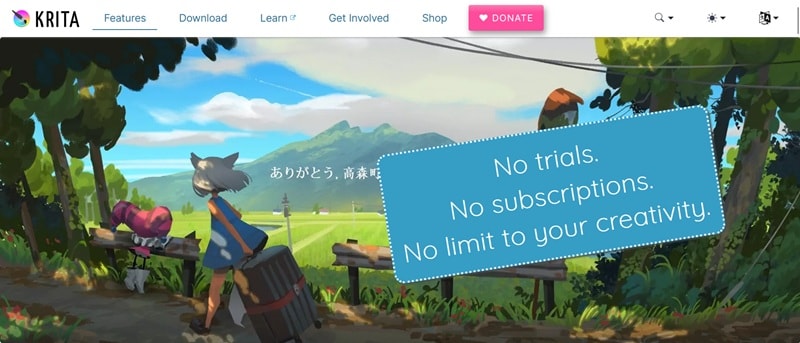
Yes. Krita, on the other hand, is completely free to use with no hidden fees. You can donate to the developers, but it's not a must. For all the features it offers, it's quite rare to find a tool this capable at no cost.
But since the software is open source, updates may not come as frequently. Some performance issues or feature requests can take longer to be resolved. While the core tools are pretty reliable for most artists, many users often find Krita less polished compared to a larger commercial software like Photoshop.
Part 4. The Video Editor's Perspective (Filmora Synergy)
Digital art today rarely exists on its own. With many creators also turning their illustrations into videos, social media content, or animated projects, the choice between Krita vs Photoshop also connects to how easily your artwork fits into a larger content creation workflow.
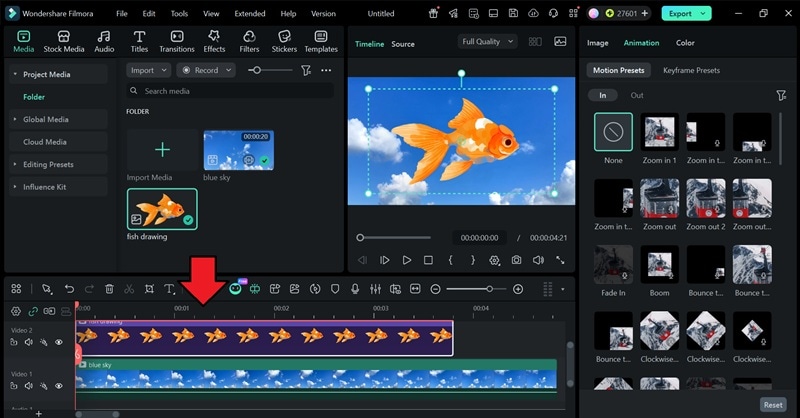
Whether you create detailed characters in Krita or complex composites in Photoshop, you can easily bring your assets into Wondershare Filmora. Use Filmora's AI Image Cutout to refine your layers or Keyframing to animate your digital paintings into engaging video stories.
When you need to turn your artwork into motion, you need to move into a video editor. In this case, we can take Wondershare Filmora as an example. Filmora is an accessible video editing software that is capable of turning static artwork into video content with features like keyframe animation, video effects, and AI editing tools.
 Secure Download
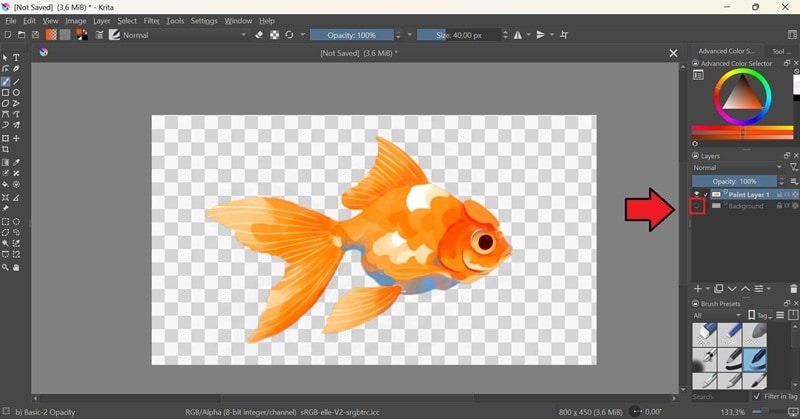
Both Krita and Photoshop can be paired with Filmora to create assets for video projects. But Krita is more suitable for hand drawn and illustration based assets, such as:
- Illustrations for explainer videos or animated scenes
- Backgrounds for YouTube videos, presentations, or social media clips
- Textured artwork like watercolor, oil paint, or sketch style visuals
- Character designs for animation or storytelling videos
Meanwhile, you can use Photoshop for adding:
- Visual elements like icons, overlays, and decorative graphics
- Thumbnails and title graphics for video covers and intros
- Composited graphics that combine multiple images
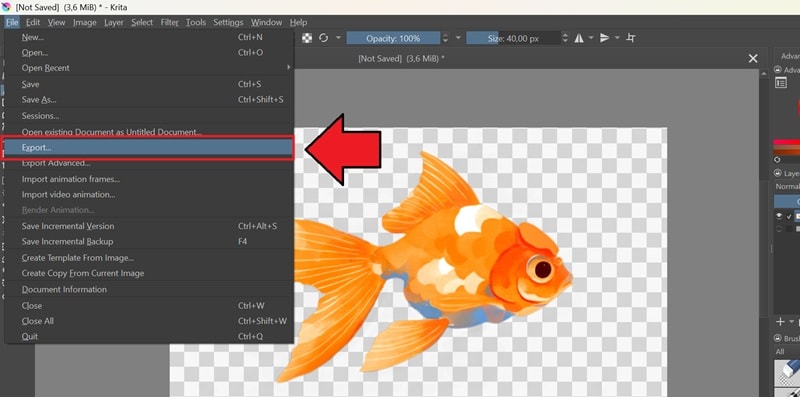
These assets can be exported and then animated, enhanced, or combined with other media inside Filmora.
How to Export Assets from Krita for Use in Filmora
 Secure Download
How to Export Assets from Photoshop for Use in Filmora
The steps for exporting assets from Photoshop are pretty similar to those in Krita. You just need to export it in the right format and import it into Filmora for animation or editing.
To export your work in Photoshop:
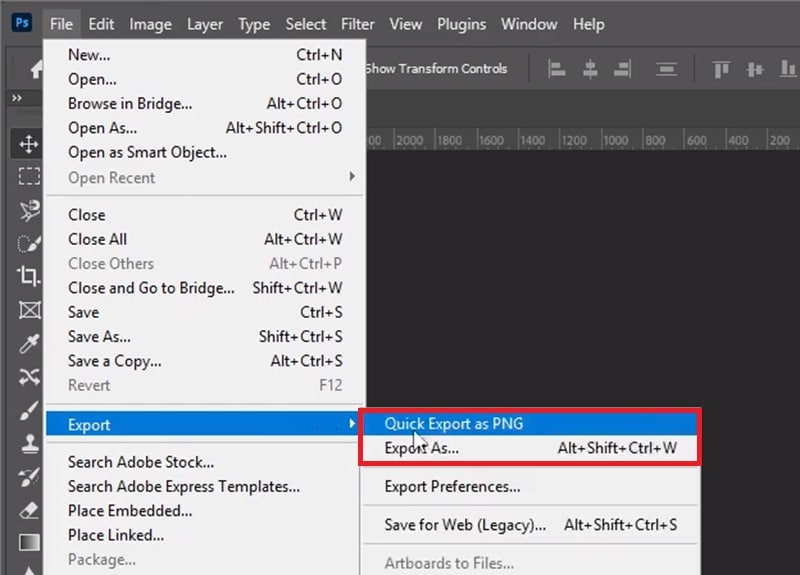
After that, follow the same steps to import the assets to Filmora. Or, if you want to use it in your video thumbnail, you can click Export after editing.
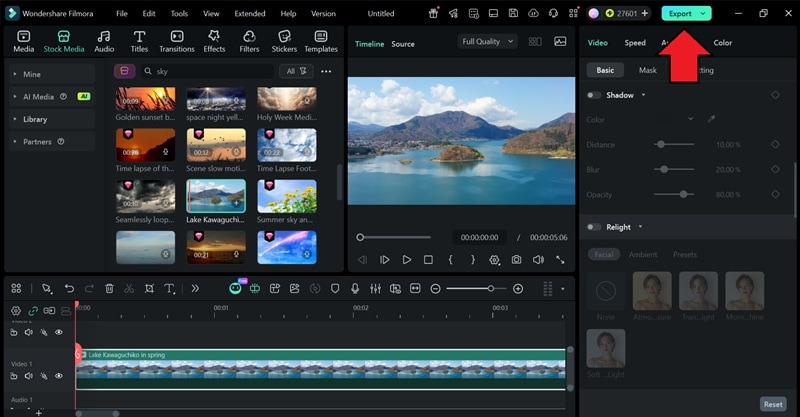
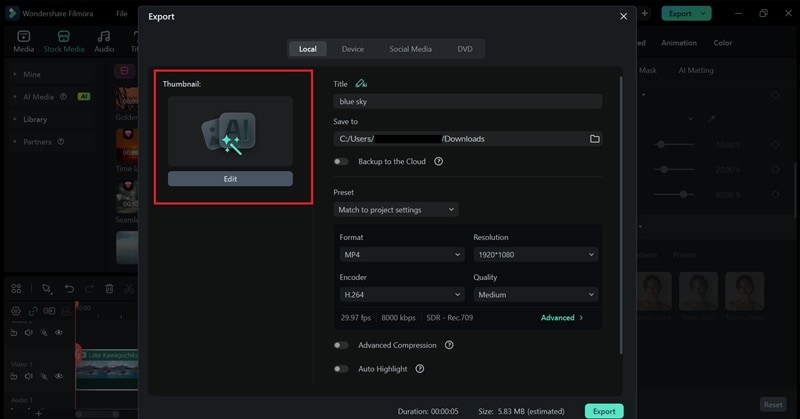
Then, select Edit under the Thumbnail section.
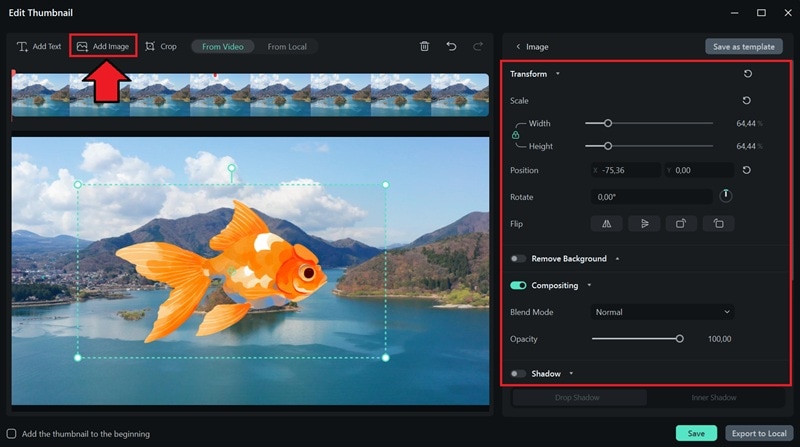
Choose Add Image, upload your artwork, and adjust its position or size to fit your thumbnail design before saving.
 Secure Download
Part 5. Performance & Hardware Requirements
Another important factor to consider when deciding between Photoshop vs Krita for digital painting is performance and hardware requirements. No matter how powerful a tool is, it'll be meaningless if it doesn't run smoothly on your system.
| Krita | Photoshop | |
| Operating System | Win 8.1 or later / macOS v10.14 or later / 64-bit Linux | Windows 10 or later / macOS Monterey (v12.0) or later / web-browser |
| RAM | 4 GB minimum, 16 GB recommended | 8 GB minimum, 16 GB+ recommended |
| GPU Requirement | OpenGL 3.0+ or Direct3D 11 support | DirectX 12–compatible GPU or GPU newer than 7 years |
| Storage Space | At least 1 GB free space | Around 10–100 GB available hard disk space |
Krita vs Photoshop: Which software runs smoother on a budget laptop?
Looking at the comparison above, Krita is usually the lighter option if you're working with a lower-spec or budget laptop. However, Adobe also released Photoshop for the web in 2023, which can be an alternative if you still prefer using Photoshop. Since it works in a browser, it puts less strain on your device.
Still, the web version is not as powerful as the full software. Some advanced features, brush controls, and customization options are still limited.
Part 6. Summary Table: Which One Should You Download?
Everything we've discussed so far about Krita vs Photoshop can be summed up in the comparison below.
| Krita | Photoshop | |
| Platform | Windows, macOS, and Linux | Windows, macOS, web browser |
| Pricing | Free and open-source | $22.99 to $69.99/month |
| Learning Curve | Easier to learn | Takes time to master |
| Performance | More lightweight, runs well on lower-spec devices | Heavier, needs stronger hardware for smooth performance |
| Integration | Limited | Great integration with Adobe Creative Cloud |
| Community Support | Active open source community and forums | Large global user base with official Adobe support |
| Primary Use | Designed for illustration, concept art, comics, and painting tools | Supports digital art alongside photo editing, design, and image manipulation |
|
Show More
Show Less
|
||
Conclusion
We hope this Photoshop vs Krita detailed comparison has helped you get a clearer picture of what each software offers.
Photoshop may have a long legacy as the industry standard for digital art and image editing, but your options are not limited to just one software. Krita proves that a free tool can still give you robust drawing capabilities for digital painting, illustration, or comic making.
Once your artwork is ready, don't forget to complete your content creation with Filmora and share your work as videos or social content to reach a wider audience.

