


 TL;DR:
Pika AI is a straightforward web and iOS video generator ideal for creating quick social media clips up to 30 seconds, though users requiring precise manual post-editing will need an alternative platform.
● The Pika 2.5 update delivers up to 1080p resolution and more stable motion across specific functions like Pikaframes for animating still images, Pikaswaps for object replacement, and Pikascenes for environmental background alterations.
● The platform operates on a credit-based system where the free tier provides 80 monthly credits, but it restricts outputs to watermarked, non-commercial use while limiting generation speed compared to the paid Standard, Pro, and Fancy plans.
● Because Pika AI lacks a built-in timeline editor and forces users to waste credits re-prompting to fix minor generation errors, Wondershare Filmora is recommended for creators who need manual trimming and transition controls alongside AI models like Google Veo 3.1 and Sora 2.
Ask AI for a summary
 ChatGPT
 Perplexity
 Gemini
 Claude
 Grok
Grok
AI has made video creation much easier than it used to be. You no longer need hours of editing skills to turn text, photos, or short clips into videos. With the right tool, it only takes a few clicks.
One of the crowd’s favorite tools for generating AI videos is Pika AI. What makes it stand out is how simple and easy the website and app feel when you use them. With Pika Art AI, you can turn your imagination into playful, unexpected, and sometimes surreal videos in just a few taps.
But is it really as good as they say? Well, you can keep reading as we break down what Pika AI is and its key features. You’ll also find step-by-step tutorials on how to use Pika on the web and the Pika AI app, along with an honest review of its strengths and limitations.
Part 1. Pika AI At A Glance
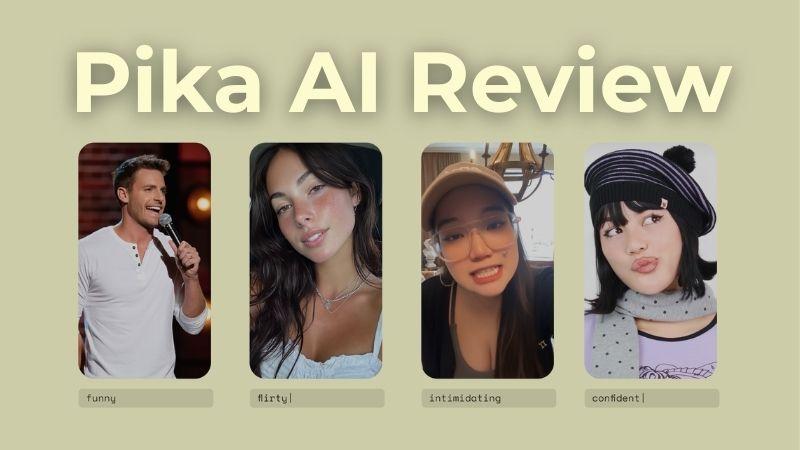
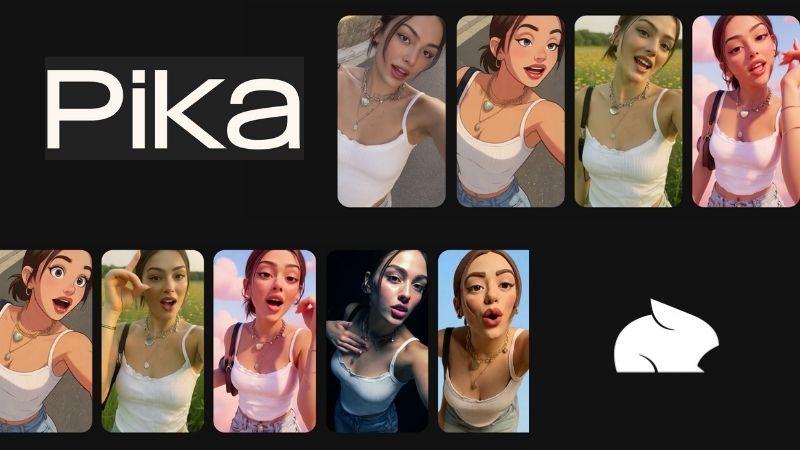
Pika AI, also known as Pika Labs, is an AI-powered tool for generating short videos. With simple prompts, you can add effects, replace objects, modify scenes, or apply different visual styles. Pika Art AI also comes with ready-made styles, so you can go playful, animated, or cinematic without much setup.
Before going deeper into how the Pika AI tool works, here’s a quick breakdown of its specifications and capabilities.
| Category | Details |
| Key Features | Convert text, images, and videos into AI-generated videos using prompts |
| Max Video Length | 30 seconds |
| Video Resolution | 480p, 720p, 1080p |
| Video Aspect Ratio | 5:2, 16:9, 4:3, 1:1, 4:5, 9:16 |
| Platform Availability | Web, iOS Mobile App |
| Suitable For | Beginners and social media creators |
| Best Use | Short clips to upload on TikTok, YouTube Shorts, or Instagram Reels |
| Pricing | Free & paid plans available |
The Latest Pika Version: What Changed?
Pika AI Video Generator continues to develop its model with ongoing updates. The platform has grown from Pika 1.0 to the latest Pika 2.5. Below is a closer look at what has changed from Pika 2.2 to Pika 2.5.
| Aspect | Pika AI 2.2 | Pika AI 2.5 |
| Update Focus | Feature addition | Quality improvement |
| Key Improvement | Introduced Pikaframes to improve scene consistency | More realistic visuals, smoother motions, and improved prompt interpretation |
| Motion Quality | Good, but occasional glitches may occur | More natural and stable motion |
| Resolution | Up to 1080p | Up to 1080p with sharper details |
Part 2. Pika AI Pricing Plans
Now, here comes the real question; is Pika AI Video Generator free to use? Yes, but with limitations. Pika AI Video Generator uses a credit-based system, which means you need credits each time you generate a video. The free plan includes 80 monthly credits, which is suitable for users who want to try the platform before committing to a paid subscription.
For paid plans, Pika AI offers three options: Standard, Pro, and Fancy. Take a look at the Pika AI Pricing below to see which plan fits your needs.

As you can see, these plans mainly differ in the total monthly credits you get, video generation speed, watermarks, and commercial usage rights.
Part 3. Core Features of Pika AI Video Generator
Once you’re inside the platform, you’ll notice that Pika is packed with creative options. Here are several features you can use on Pika Art AI.
Pikaffects
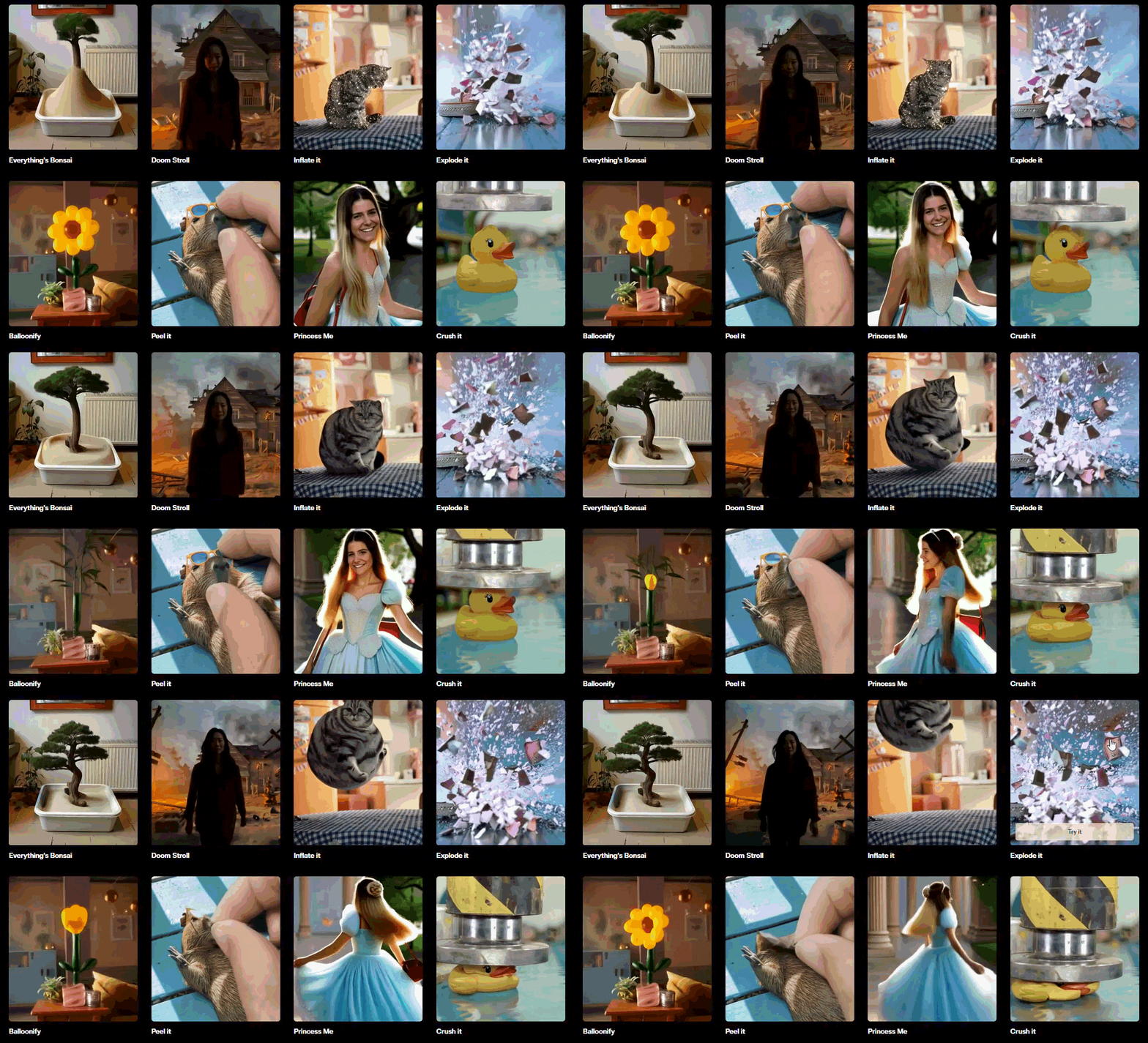
With Pikaeffects, you can creatively transform a photo into something unexpected. For example, a simple selfie can be turned into a 90s-style portrait, a princess version, or even a bag charm or animal form. Some effects go further by applying animated distortions, such as exploding or inflating.
Pikaframes

Pikaframes bring motion to a still picture using the Pika AI image-to-video. Like in the scene above, the woman begins in a casual outfit, then turns around as her clothing shifts into traditional attire. At the same time, the background transitions from a wooden interior to a waterfall setting.
Pikadditions

Pikadditions uses Pika AI video-to-video and lets you place new objects or characters into your clip. For example, let’s say you are on vacation and recording the view. And with Pikadditions, you can add a flying cow, which gives a weird and fun touch to your video.
Pikaswaps
Pikaswaps lets you replace objects in a video using prompts through Pika AI text-to-video. You just need to upload a clip, describe what you want to change, and Pika handles the swap. A car can turn into a shoe, a bag, or something completely unexpected based on what you type.

Pikatwists
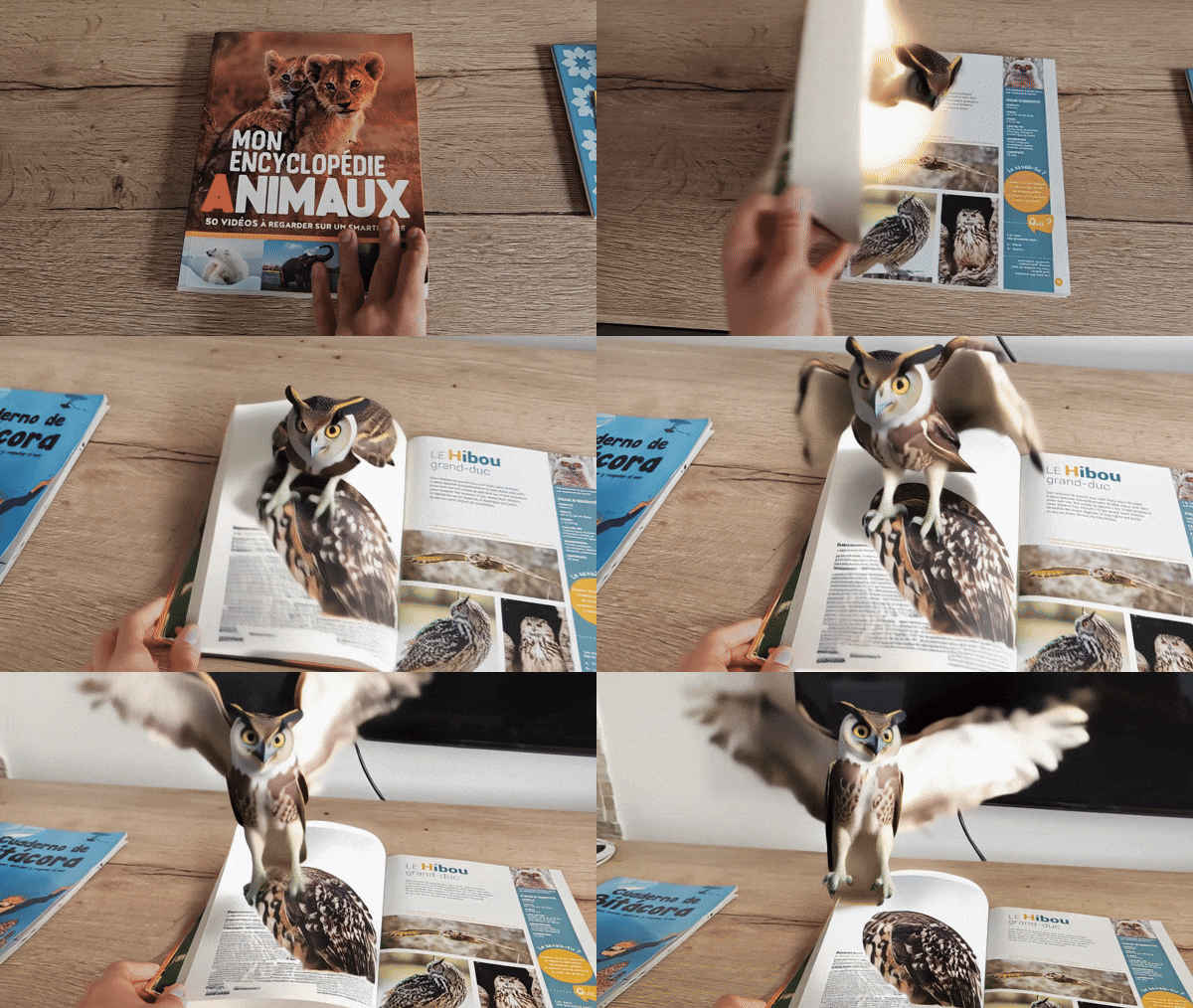
Pikatwists is about changing how a scene plays out. So, you start with a normal image or clip, then add a prompt to give it a creative turn. With these capabilities, a flat drawing can become animated, or a calm moment can suddenly feel more alive and dynamic.
Pikascenes

Pikascenes lets you upload an image and place it in a completely different setting using the Pika AI text-to-video. A regular portrait of you or your pet can turn into a red carpet moment, a dreamy fantasy scene, or even something darker and dramatic. The background and overall atmosphere adjust based on the genre you choose.
Part 4. Pika AI Review: Interface & Usability
A tool can have great features, but if the interface isn’t clear, it won’t feel easy to use. So for this section, we’ll see how the Pika AI tool actually works in a real workflow. Before wrapping up with our final take, we’ll first go through how to use it.
Pika AI on Web
Since Pika is available online, users can access it anywhere as long as they have an internet connection. It’s also more comfortable to use on a larger screen, especially when browsing templates, writing prompts, and reviewing the results. Follow the steps below to use Pika on the web.
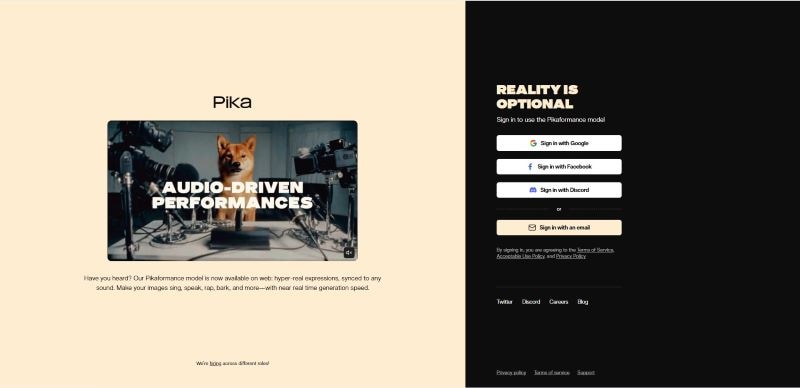
- Log in to your Pika AI account using your Google, Facebook, Discord, or email.
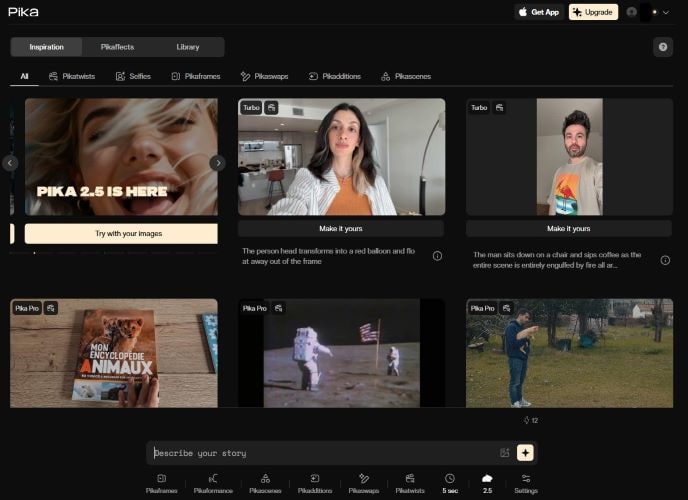
- Scroll through different styles like effects, object swaps, and scene changes.
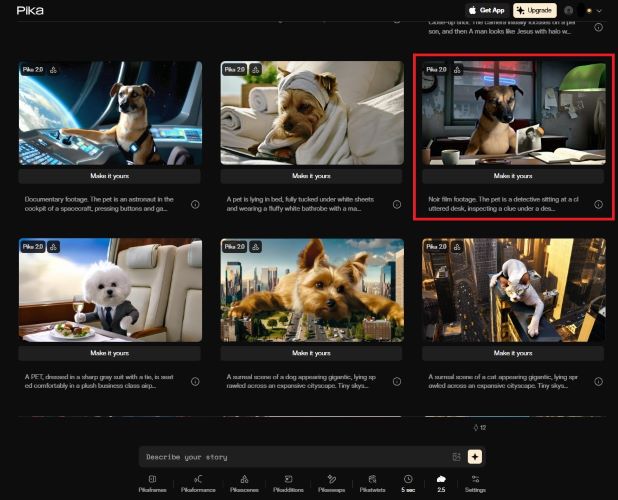
- This opens the generation screen with a pre-filled prompt and settings.
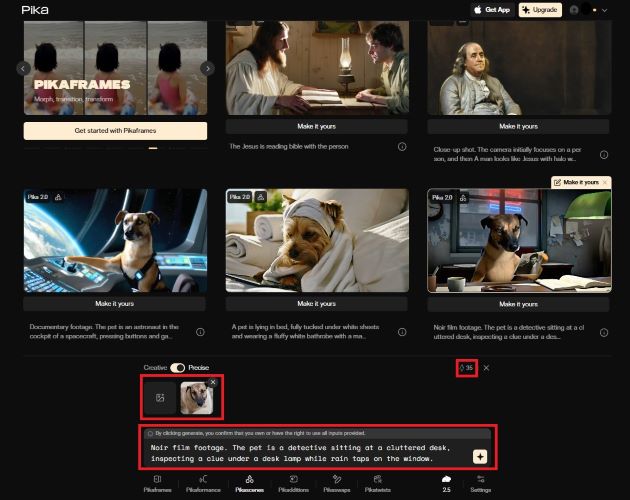
- Edit the prompt if needed or write your own from scratch.
- Click Generate to start the process.
- Download it or share the link directly to X, Facebook, or Discord.
- If the result isn’t right, use Retry or Reprompt to generate a new version.
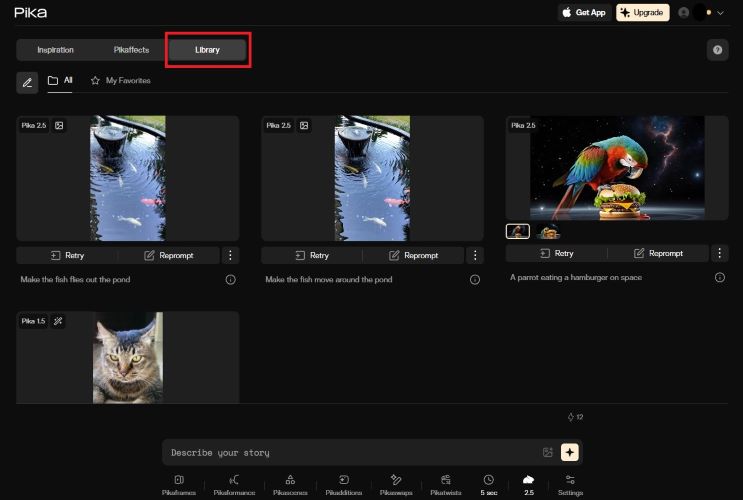
Now, check out the final result below. The original image of a dog was transformed into a cinematic detective scene. The dog is styled as a detective, placed in an office setting with a desk, appearing to inspect clues from a case.

Pika AI on iOS
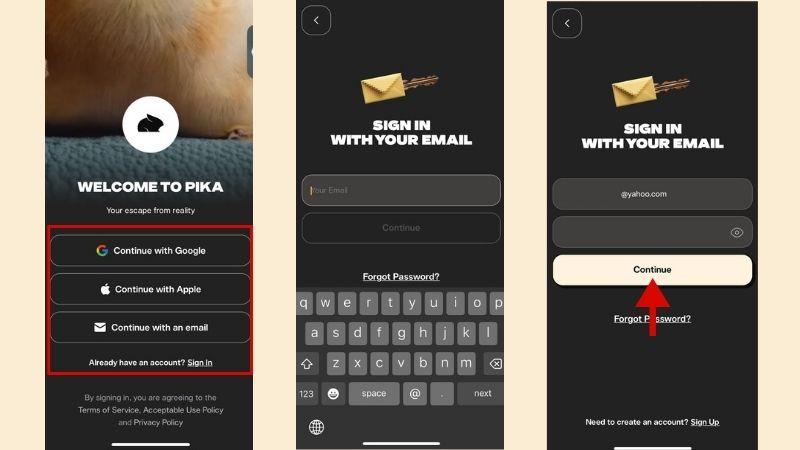
If you’re using iOS, you actually get two versions of the Pika AI App. The first one, Pikaeffects by Pika, is where you generate videos. The second, Pika: AI Video & Trend Maker, is a social feed where users can share their creations. It’s like a TikTok, but for the Pika community.

For users who prefer something more practical, the Pika AI App is a convenient option. You can access it directly from your phone and create quick edits anytime, even while you’re on the go. Here’s how to use it on iOS devices.
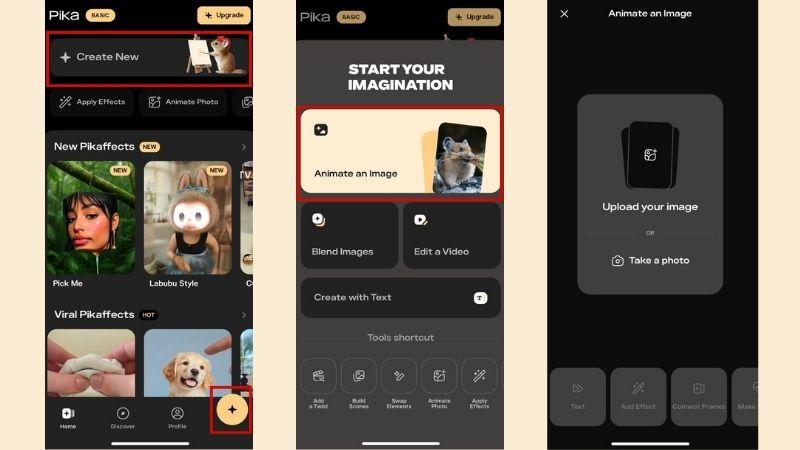
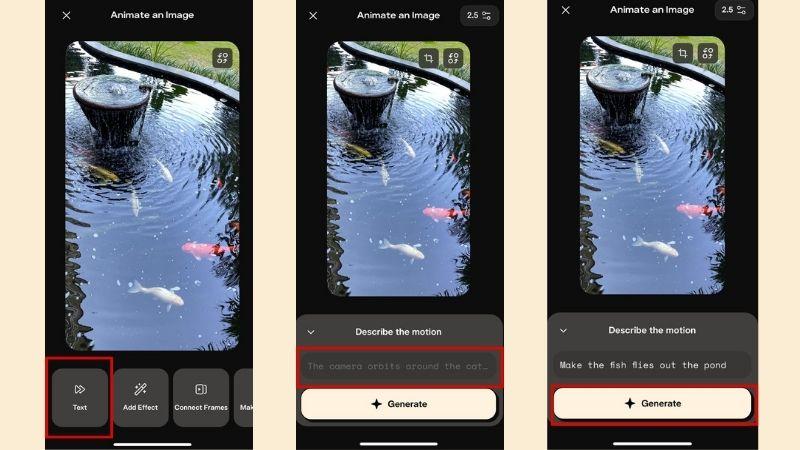
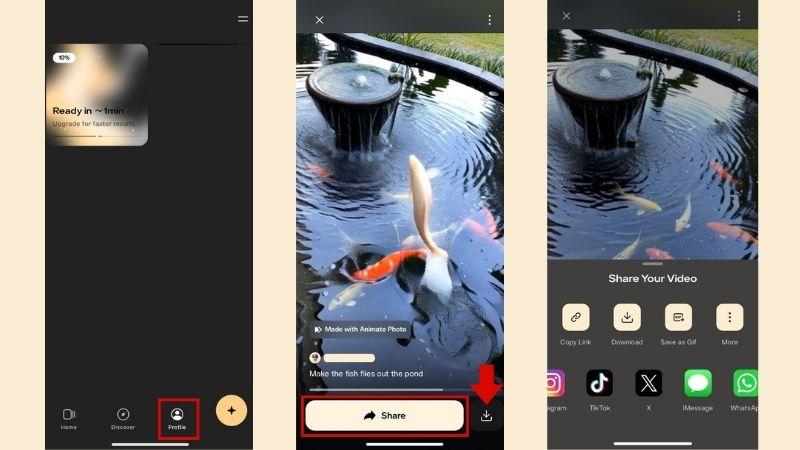
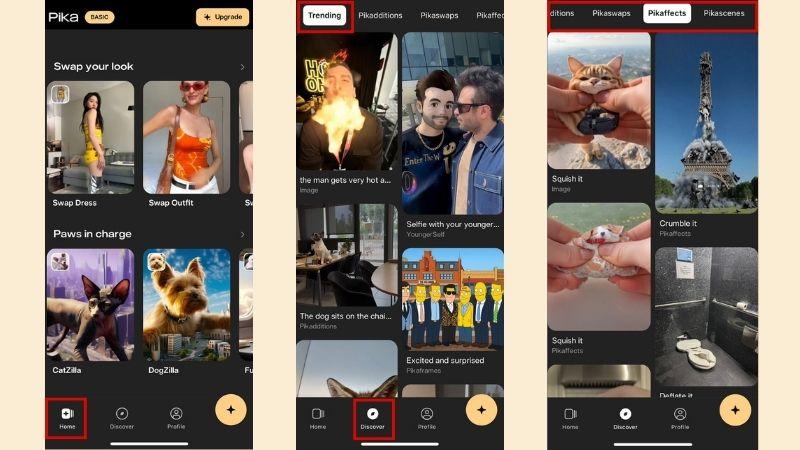
Now, let’s see the final result!
As you can see, Pika 2.5 does a solid job turning a still pond image into motion. The water and fish movement look smooth overall, though the animation still feels AI-generated if you watch closely.

Our Take on Pika AI
After using Pika AI on both web and mobile, everything feels simple and easy to navigate. The tools are laid out clearly, and most of the work happens in the prompt box, so there’s not much to learn.
The workflow follows the same pattern across features. You select a tool, enter your prompt, and then wait for the results. After a few tries, the process starts to feel familiar.
Part 5. How Pika AI Performs
After trying out Pika AI yourself, the real question is whether it holds up once you start generating clips back to back. After all, some tools out there look impressive at first but fall apart with longer waits or uneven results.
And during our tests, Pika Labs Pika AI feels stable for everyday use and continues to improve over time. The platform is still actively developed, with regular updates to fix bugs and refine the overall experience.
Here’s how Pika AI performs in everyday use, from speed and stability to the quality you get at the end.
| Area | What to Expect |
| Stability | Runs smoothly on web and mobile with no major bugs |
| Speed | Generation takes time, but performance stays consistent |
| Output Quality | Up to 1080p, clear enough for short-form content |
| Ease of Use | Simple workflow with very little learning curve |
| Community | Active Discord for support, sharing, and challenges |
Part 6. Pika AI Pros & Cons
After breaking down how Pika Art AI works, its features, and overall performance, let’s sum it up with key advantages and drawbacks. This gives a clearer picture of whether Pika fits your creative needs.

- No Professional Skills Required: There’s almost no learning curve. Just describe what you want or use the available tools, and let the AI generate it.
- Generous Free Plan: Even on the Pika AI free plan, users can access most of the core features. You can experiment with different features first before deciding whether it’s worth upgrading.
- Good Output Quality: The results are clear enough to share on TikTok, Instagram Reels, and YouTube Shorts.
- Watermark and Limited Commercial Use: Videos generated under the free plan include a “Made with Pika AI” watermark. Commercial usage is also restricted unless you upgrade to the Pro or Fancy plan.
- Rendering Time Can Be Slow: Video generation takes a few minutes. Also, it only generates one video at a time.
- No Built-In Video Editor: What you generate is what you get. To make adjustments, you need to re-prompt or re-generate the video.
Bonus: Wondershare Filmora: From AI to Full Editing
So, Pika AI works great to create quick and short videos. However, Pika AI doesn’t include a built-in video editor, which limits you from editing the result when you’re not happy with it. You have to keep prompting to fix small mistakes, and it ends up wasting credits.
If Pika AI Video Generator doesn’t fully meet your needs, Wondershare Filmora is worth considering. Filmora offers AI models such as Google Veo 3.1 and Sora 2. This Pika AI alternative enables you to generate videos from prompts, text, images, a storyboard, or videos. Once the AI does its part, you can refine, adjust, or clean up the output manually in the same app.
 Secure Download
Why Filmora Is More Than Just An AI Tool
1. Generate and Edit In One Workflow
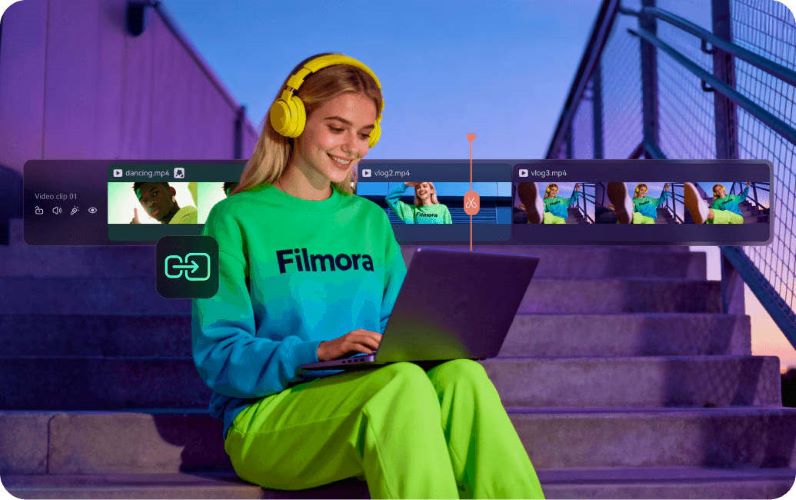
Filmora gives you more control over the final result instead of relying purely on AI output. Plus, you don’t need to spend extra credits just to fix small issues. You can trim clips, adjust colors, refine transitions, and polish the overall look without starting from scratch. This gives a balance between automation and control.
2. AI Tools That Go Beyond Video Generation
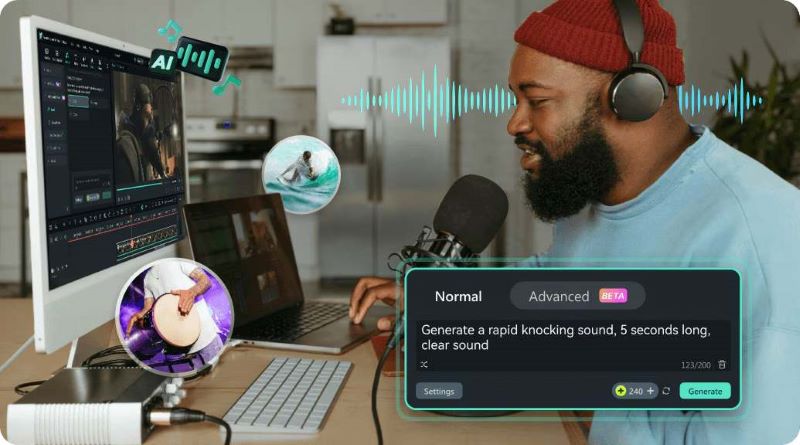
You can do much more with Filmora’s AI features. It helps you refine and enhance your content. For example, you can reduce background noise, generate custom sound effects, or create music that matches your video’s mood using AI Sound Effect Generator and AI Music Generator. If you’re working on longer content, Smart Short Clips helps extract highlights you can easily share on social media.
3. A Large Built-In Media Library
If you prefer working with ready-made assets, Filmora offers a wide collection of music, effects, and stickers. Easily improve your content without generating everything from scratch. It’s a practical option when you just need to add finishing touches quickly.
4. Works Across Desktop and Mobile

You can use Filmora on Windows or macOS. It’s also available on Android and iOS. You can start a project on your phone and finish it on your computer. The transition between devices feels seamless.
Secure DownloadConclusion
It’s no surprise that Pika AI, or Pika Labs, has gained so much attention. The platform makes creating short videos fast and simple, whether you’re posting for social media or just experimenting for fun. The free version is generous enough for occasional users or beginners who simply want to test the features. Still, having to regenerate videos for minor changes may not suit everyone.
That’s where Filmora stands out. Beyond AI generation, it gives you a full editing workspace. You can adjust, trim, enhance, and finalize your video without starting over or switching tools, making the overall process more efficient.
