


 TL;DR:
Qcut is a completely free, locally-processed browser utility ideal for quick, isolated video fixes like trimming or compressing without watermarks, while Wondershare Filmora is recommended for complex projects requiring timeline sequencing and creative effects.
● Because Qcut lacks a project timeline and processes tasks individually, you must export and re-import your video file between each specific edit, and closing the browser tab will permanently erase your session.
● The platform relies entirely on your device for local processing, which guarantees complete data privacy without server uploads but can result in slower performance when handling large video files on mobile browsers.
● Wondershare Filmora serves as a necessary upgrade for creators who need multi-track audio editing, AI-powered auto-captions in over 30 languages, and transitions, though its free tier applies a watermark to exported files.
Ask AI for a summary
 ChatGPT
 Perplexity
 Gemini
 Claude
 Grok
Grok
A simple video editor that lets you edit videos for free, without watermarks, sign-ins, or software downloads, sounds almost too convenient. But that is exactly what the Qcut video editor is built for.
Qcut is built for quick browser-based video editing, so it works best when you only need a fast fix instead of a full editing workspace. But is it enough for your video project, or will you still need a more complete editor later? In this review, we’ll look at what Qcut can do, where it feels limited, and who should use it.
Part 1. Qcut: A Simple Video Editing Tool in Your Browser
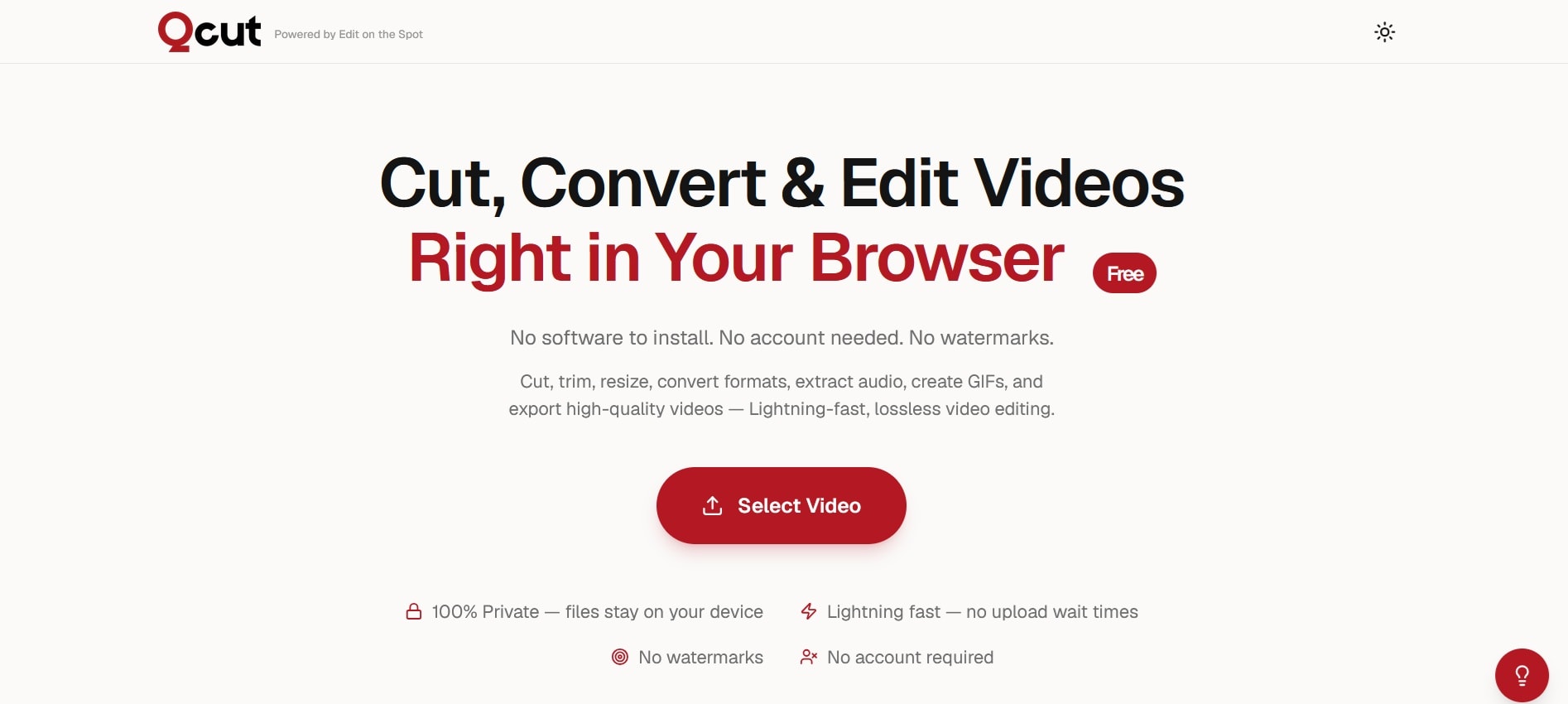
Qcut is a free, browser-based video editor made for quick, single-task editing jobs. The official site describes it as a tool that lets you cut, convert, and edit videos right in your browser, with no software to install, no account to create, and no watermarks added to your output.
Qcut video editor was launched in February 2026 by Edit on the Spot, a San Francisco-based developer of media tools. The idea was to create something fast, simple, and trustworthy. As the co-founder Martin Renaud put it, “Editing a video shouldn’t require installing software, creating an account, or giving up your privacy.”

Is Qcut Safe and Private to Use?
When you edit a video online, especially a free one, the natural worry is that your footage is being uploaded to and stored on someone else's server. With Qcut, that is not how it works.
According to the official Qcut website, the tool uses a local-processing architecture, meaning all the editing happens directly in your browser on your own device. Your video files are never sent to an external server. After your session ends, the video data is cleared from the browser.
Part 2. What Can You Do with Qcut Video Editor?
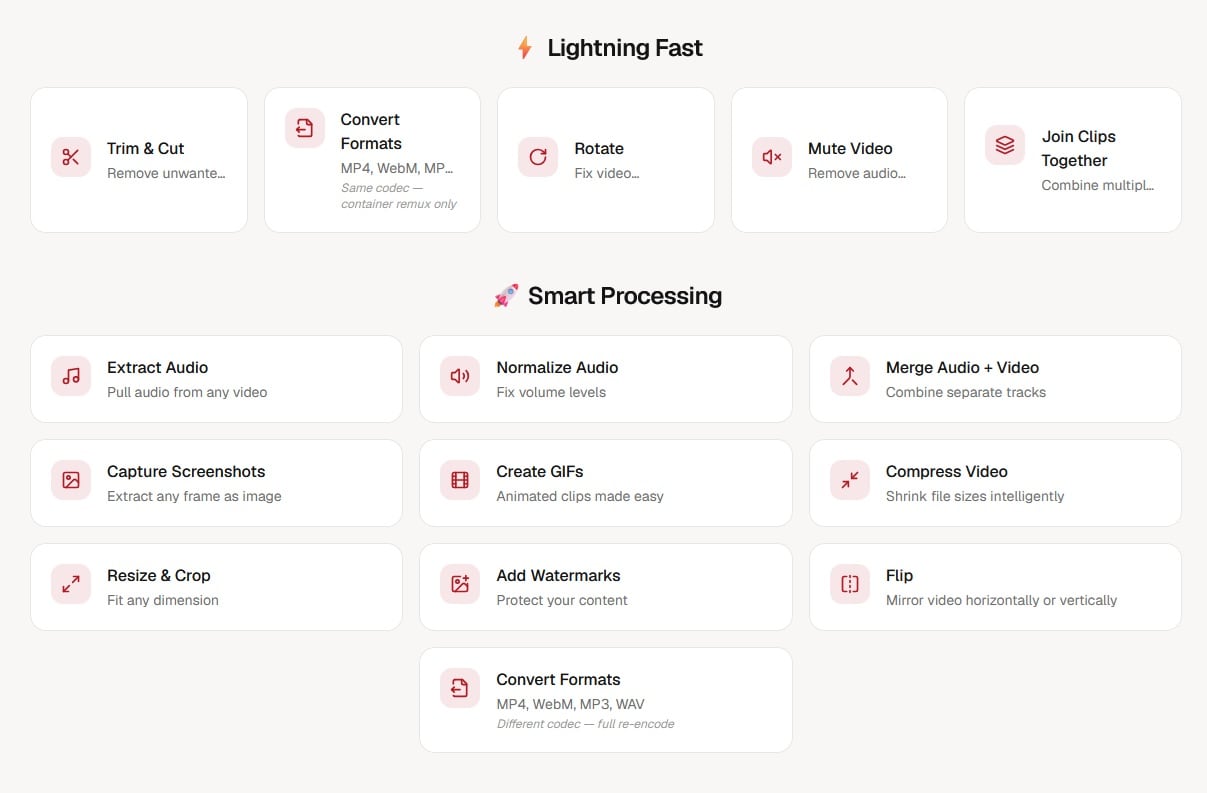
Since Qcut is a simple browser-based editor, the tools it covers are pretty straightforward but still useful for everyday video editing.
1. Basic Video Editing
- Trim/Cut Video: Remove unwanted parts from the beginning, middle, or end of your video.
- Rotate Videos: Fix sideways or upside-down footage.
- Flip Videos: Mirror your video horizontally or vertically.
- Resize & Crop: Change the frame size or crop out unwanted areas.
- Add Watermark: Place a watermark on your video for branding or ownership.
2. File Conversion and Compression
- Convert Videos: Change your video into another format so it works better on different devices, apps, or platforms.
- Compress Video: Reduce the file size to make your video easier to upload, send, or store.
3. Audio Tools
- Mute Videos: Remove the original audio from a clip.
- Extract Audio: Pull the audio track from a video and save it separately.
- Normalize Audio: Balance the volume so the sound feels more consistent.
- Merge Audio and Video: Add or replace audio in a video file.
4. Clip Combining and Media Creation
- Join Clips: Combine multiple video clips into one file.
- Capture Screenshots: Grab still images from your video.
- Create GIFs: Turn part of a video into a short animated GIF.
Part 3. How Qcut Video Editing Works in the Browser
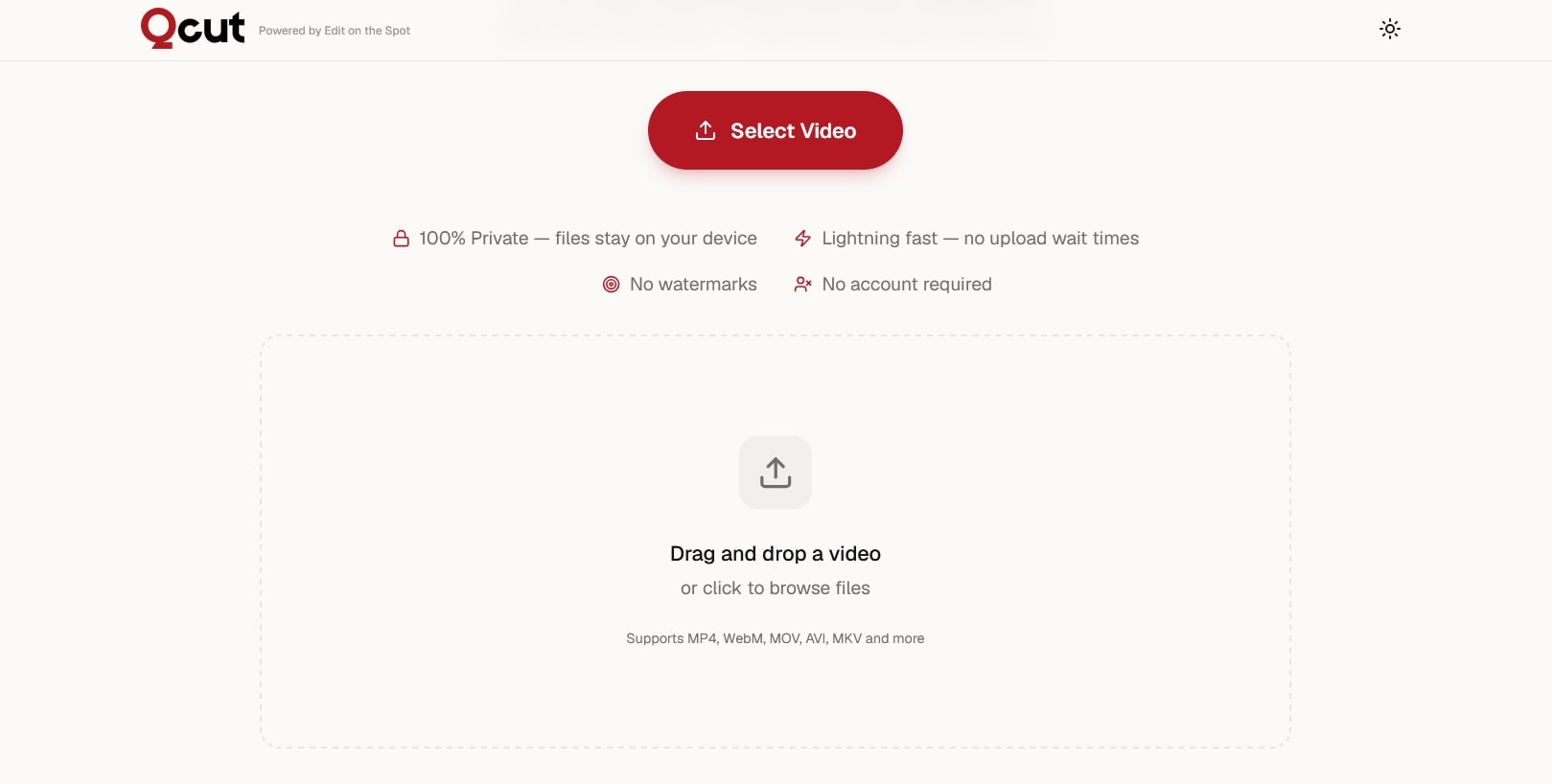
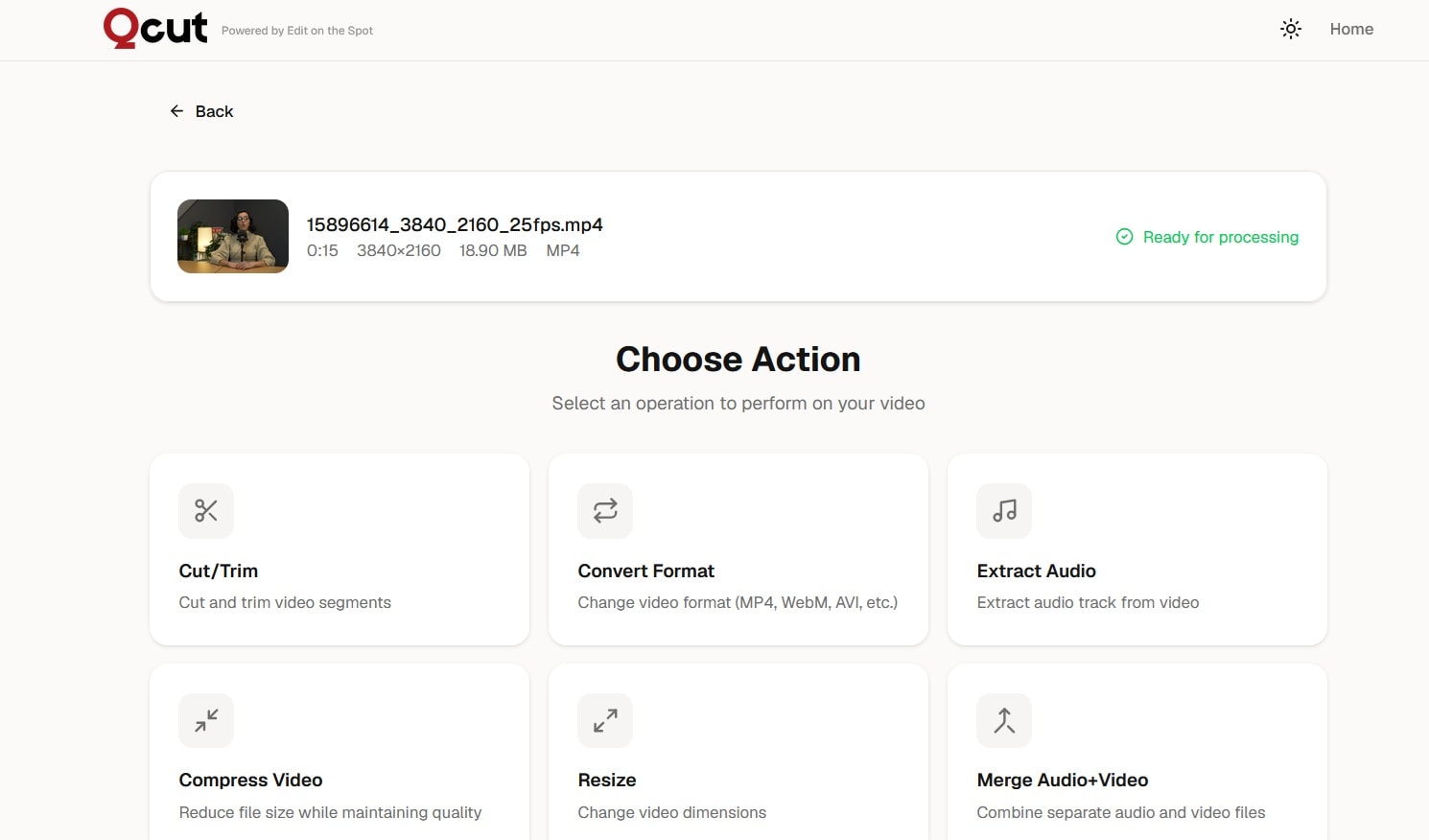
Since Qcut is a task-focused editor, there is no timeline to build a project on. You pick a task, run it on your file, and export. This is what the basic workflow looks like:
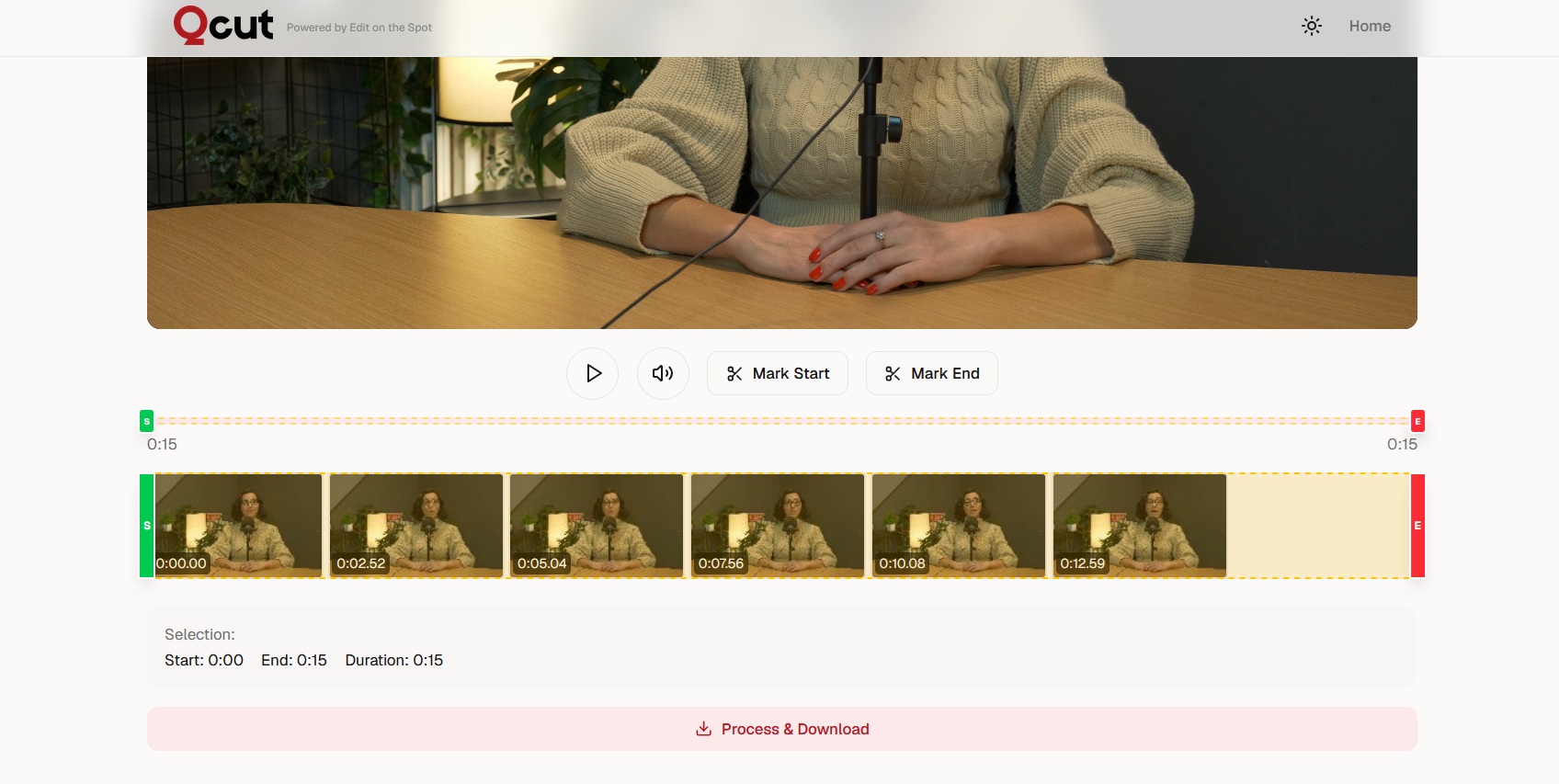
Qcut is 100% Free to Use
Qcut has no paid plan, no free tier with locked features, and no hidden cost. All of the tools are available for free to anyone who opens the site. There is no watermark added to exported files, and you don’t need to create an account or provide an email address.
Part 4. Qcut is Best for Quick Fixes, Not Full Edits
Qcut delivers on its promise for what it was built to do. When you need to trim a clip, mute a video, extract audio, convert a format, or compress a file before uploading, Qcut video editing tools handle all of that without making you install anything or even create an account. The process is direct. You do one thing, get the file, and done.

However, Qcut is not a replacement for a video editor in any meaningful sense. It has no timeline. You can’t layer clips, add transitions, insert text, apply color corrections, or sync multiple audio tracks. Each task runs in isolation, so if you need to do three or four things to the same video, you need to export after each step and re-import for the next one.
Qcut’s Pros and Cons
- Completely free with no hidden costs, no account, and no watermarks.
- No software installation required; it works entirely in the browser.
- Processes video locally, so your files stay on your device.
- Clean interface with no ads that is easy to understand and use immediately.
- Covers the most common one-off video tasks well.
- Processes basic video tasks quickly, especially for short clips.
- No timeline editor; you can’t build or sequence a project.
- Each edit is its own separate operation.
- No text overlays, captions, transitions, effects, or color tools.
- No multi-track audio editing.
- No project history, so if you close the tab, your session is gone.
- Most tools don’t offer a preview before exporting.
Part 5. A Better Fit for Simple Edits and Bigger Projects – Filmora
Qcut video editor works well as a utility for isolated tasks, but once your project requires more than one operation or needs any kind of creative layer, such as captions, transitions, overlays, or audio mixing, you need a proper video editor.
Wondershare Filmora is one of the better options for users who want something more capable than a basic browser editor, but not as overwhelming as professional editing software. It gives you a full timeline-based editor with multi-track support, designed to be accessible to people who are not professional editors. At the same time, it has enough depth to grow into as your skills build.
 Secure Download
When you are ready to move past basic edits, what you get in Filmora is much more than what the Qcut video editing tools offer:
- Full timeline editing. You can drag, arrange, split, and layer multiple clips across a proper timeline. Audio and video tracks can be managed independently, and you can have multiple layers open at once.
- AI-powered captions. Filmora includes an auto-caption generator with speech-to-text technology that supports over 30 languages. You can style captions with templates, animate them, highlight active words, and translate your content for international audiences within the editor.
- Effects, transitions, and titles. Filmora has over 13,000 built-in effects, plus drag-and-drop transitions and title templates that are perfect for anyone creating content for YouTube, Instagram, or TikTok.
- AI tools. Filmora includes AI background removal, AI video enhancer, text-to-speech, and AI-generated scene detection. They cut down time on tasks that would otherwise take a lot of manual effort.
- Format and export flexibility. Filmora supports many different video formats, handles 4K resolution, and gives you platform-specific export presets for YouTube, TikTok, and similar platforms.
Filmora is free to download on desktop and mobile, and it has a free version with watermarked exports. There is also a 30-day free trial available if you want to test the full feature set before committing.
Secure DownloadConclusion
Qcut sounds almost too good to be true — a free, private, browser-based video editor with no watermark is quite a rare find. But for simple edits, it delivers exactly that. Qcut is a practical option for quick tasks like trimming, compressing, converting, muting, or extracting audio. Since it runs locally in your browser, your files stay on your device.
Still, Qcut works best for one-off edits. If your project calls for a more complex edit, such as adding captions, layering clips, using transitions, adjusting colors, or mixing multiple audio tracks, a fuller editor like Filmora fits your needs better.
FAQs
-
Can I use Qcut on mobile?
Yes. Qcut is browser-based, so it opens on mobile browsers without any app to install. However, using it on a desktop gives you a more comfortable editing experience, especially with larger files. Since Qcut processes videos on your device, editing big videos on a phone can also feel slower. -
Can I use Qcut to add subtitles or captions?
No. Qcut video editing tools don’t include any subtitle or caption tool. It is not built for adding text or overlays to your video. If you need captions, a tool like Filmora handles that with an AI-powered auto-caption feature that supports over 30 languages. -
Is Qcut good for YouTube videos?
It depends on what you need to do. If you are trimming a clip, compressing a file before upload, or converting to a compatible format, Qcut can do it just fine. But if you need to add titles, captions, transitions, or music, which most YouTube videos require, Qcut doesn’t have those tools. You would need a full editor like Filmora for that. -
Does Qcut have AI video editing tools?
No. Qcut video editor doesn’t include any AI features. It is powered by FFmpeg, which handles standard video processing tasks reliably, but there is no AI-assisted editing, scene detection, background removal, or auto-captioning.
