

 TL;DR:
Because Google does not support direct video uploads for reverse searching, you must capture screenshots of the clip and run them through Google Images on a desktop or the Google Lens app on Android and iPhone.
● Capture two to four screenshots containing distinctive elements like faces, logos, or visible text, and crop out watermarks or black bars to improve image match accuracy.
● Use Wondershare Filmora and its AI Video Enhancer to sharpen blurry footage, adjust lighting, or slow down fast-moving scenes to extract a clear frame before performing the search.
● The search will only return results for publicly available content, meaning it cannot track down the original source if the video was uploaded to a private social media account.
Ask AI for a summary
 ChatGPT
 Perplexity
 Gemini
 Claude
 Grok
Grok
Find the original source of any clip! Learn how to reverse search a video on Google using screenshots and Google Lens. Get better results by enhancing your frames with Wondershare Filmora.
Thankfully, you don't need a direct video upload tool. This complete guide shows you exactly how to reverse search a video on Google using simple yet powerful methods: the Google Images screenshot trick and the Google Lens app on your phone. Learn the step-by-step process and discover how Wondershare Filmora can help you enhance blurry frames for a better match.
Part 1. What is Reverse Video Search and Why Find the Original Source?
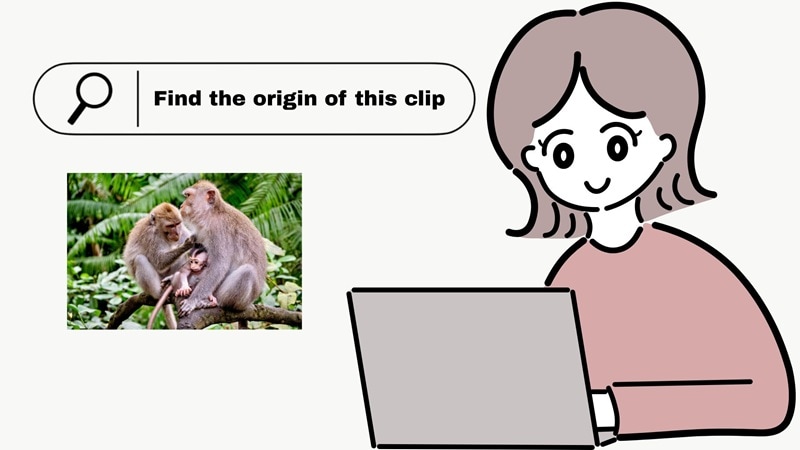
So, how do you do a reverse search on Google? Well, before we go ahead with that, we need to understand the idea behind it. Reverse search is really just you handing Google a picture and saying, "Hey, check this out and show me anything that looks like it."
Google then tries to match whatever is inside that frame, whether it's a face, a building, a logo, a sign, or even a small detail in the background. And once Google recognizes those elements, it can lead you to reposts, longer versions, or even the original upload.
Why People Do It (and Why You Probably Should Too)
Reverse search comes in handy more often than you'd think, because there is always that moment when you see a clip online and want to know the real story behind it. Here are some of the most common reasons people turn to this method.

- Find The Original Uploader: Many people use it to track down the real creator, whether it is a TikToker, YouTuber, or someone from another platform.
- Unlock The Full Version: A lot of clips online are cropped or shortened, so reverse search helps you locate the complete video.
- Check If The Video Is Real: It is useful for testing whether a viral or news clip is genuine or manipulated.
- Identify What You See: People use it to figure out places, objects, brands, or products shown in the clip.
- Follow A Trend Back To The Start: It helps you trace how a viral moment began and understand the story behind it.
Part 2. How to Reverse Search a Video on Google: The Screenshot Method (Desktop)
So, can you reverse Google search a video? Unfortunately, not in the way you hope. Google still doesn't offer a direct reverse video search feature, so you can't just upload a whole clip and let it work its magic.
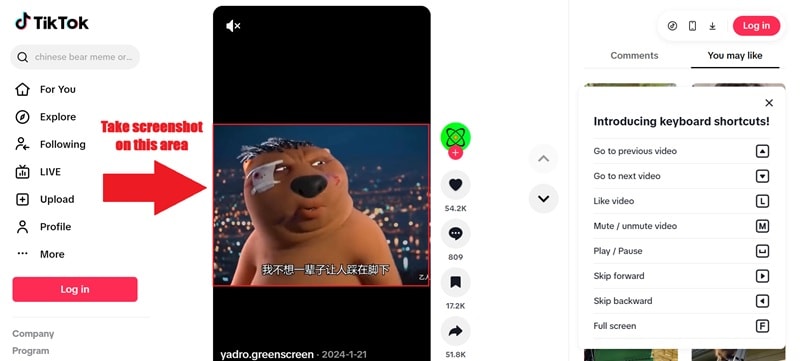
What you can do is grab a few screenshots from the video, especially the parts with clear details, and use those frames to run the search instead. It's a simple workaround and it gets the job done most of the time.
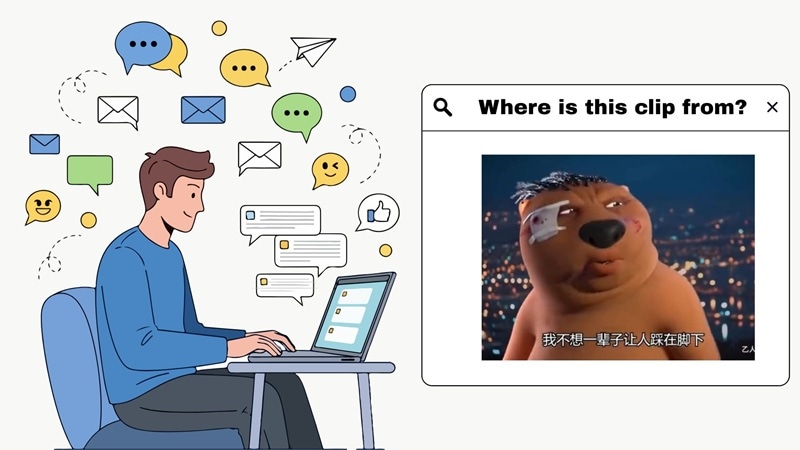
Step-by-Step: How to Reverse Search a Video Using Google Images
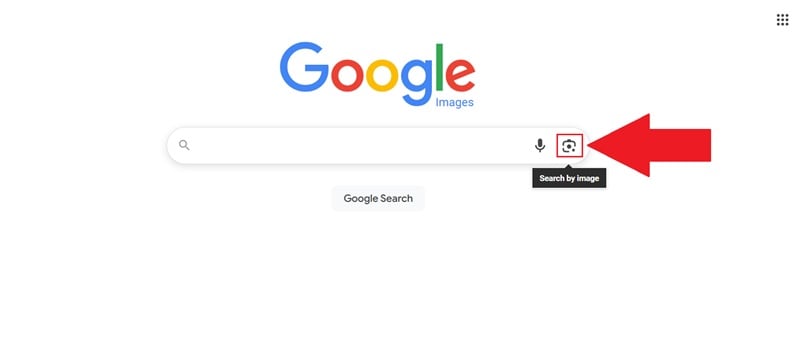
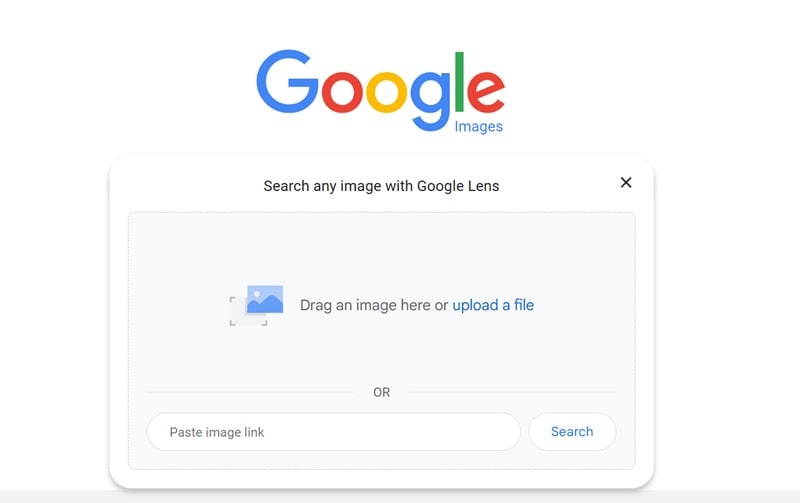
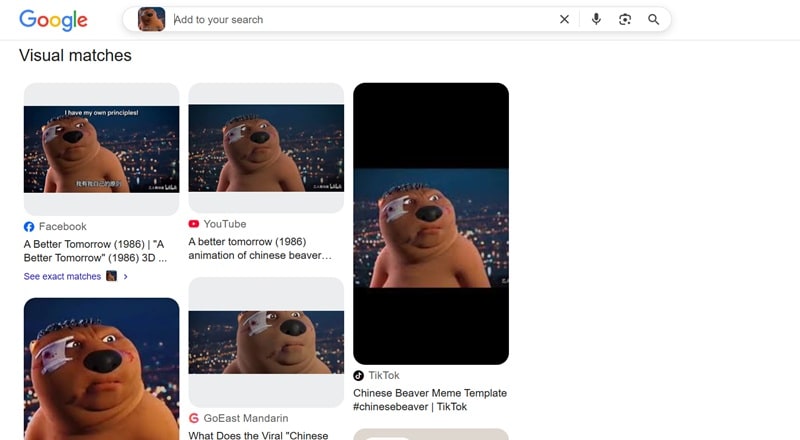
Alright, so let's get into the actual process. If you want to learn how to reverse search a video using Google Images, the steps are pretty simple once you see how it works. Just take your time with each part by following the guide below:
Tips to Make Your Google Reverse Search More Accurate
As you can see from the steps above, learning how to reverse search a video on Google is actually pretty simple. But not every clip is easy to find, and some need a bit more effort. So to make your search work better, check out these helpful tips:
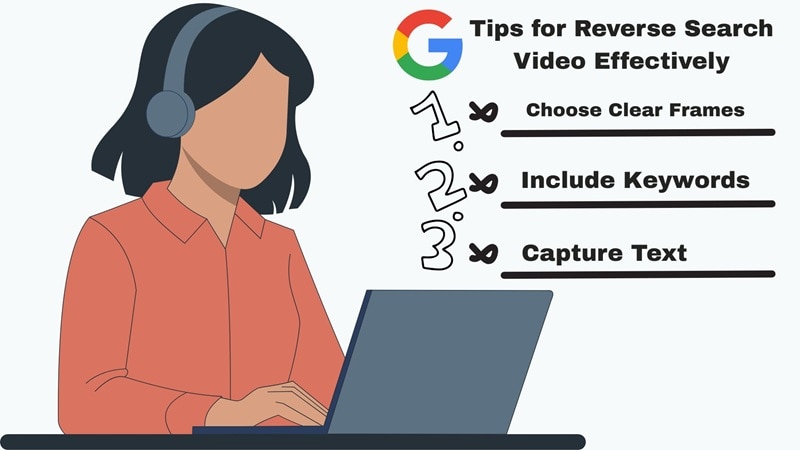
- Choose Clear Frames: Pick screenshots that look sharp and steady. Blurry or fast-moving scenes usually give weaker results.
- Use Any Visible Text Or Logos: If the frame has words, signs, or a logo, keep them in the shot because Google matches those faster.
- Add A Helpful Keyword: After uploading your screenshot, type a simple keyword beside it to guide the search. Something like "meme" or "Chinese animal" gives Google more context.
- Check More Than One Page: The best match is not always the first link you see, so scroll a little deeper to make sure you don't miss the real source.
Part 3. Reverse Video Search on Mobile: Using Google Lens on Android & iPhone
You've seen how much screenshots can help when you are trying to track down a video. The nice thing is you can do the same thing on your phone without sitting at your computer.
That's right, learning how to reverse video search on Android or iOS is easy with Google Lens since the app is available on the Google Play Store and already built into many phone cameras. It is also on the Apple App Store, which means iPhone users can use the exact same method without any extra steps.
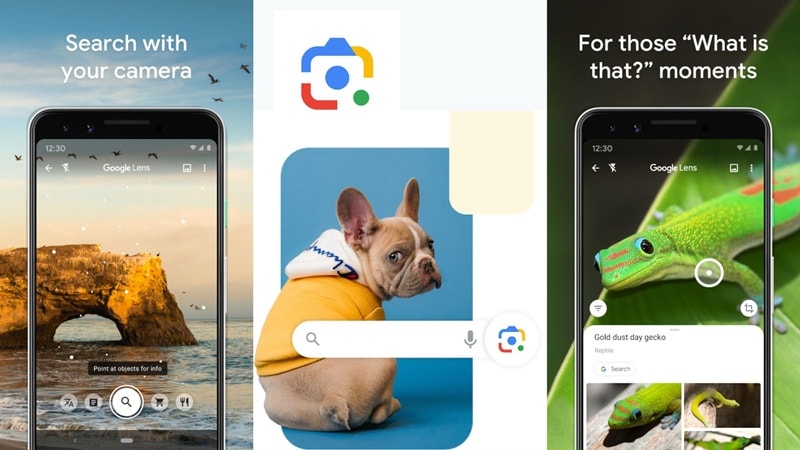
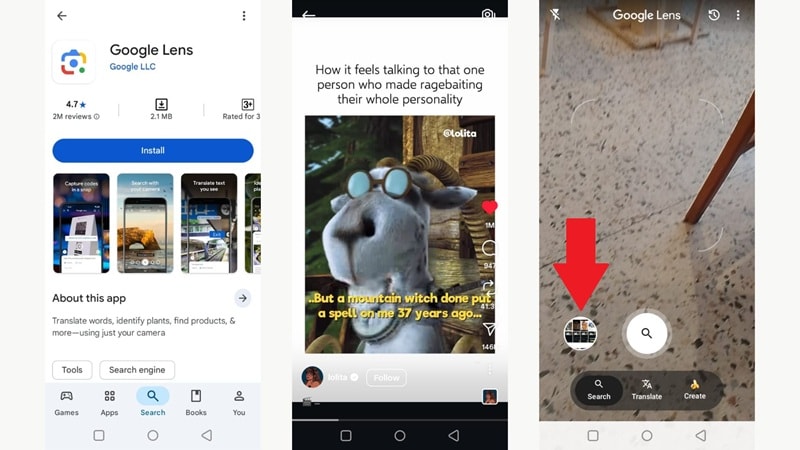
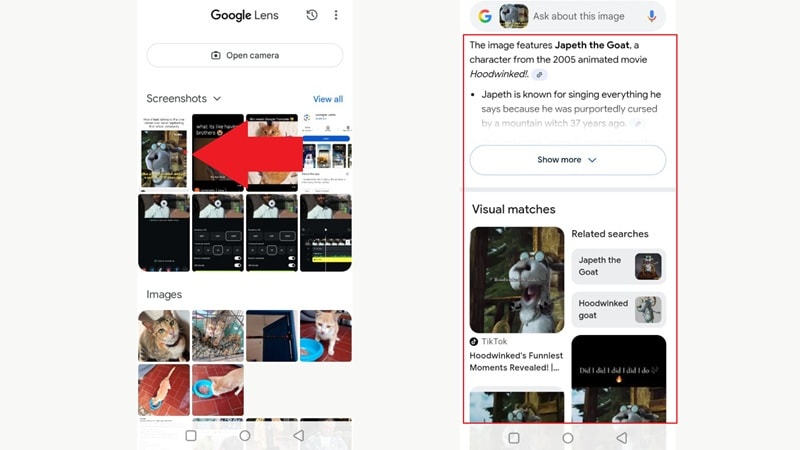
Step-by-Step: How to Reverse Video Search Using Google Lens
Just follow the simple steps below, and you will see how fast it works once you try it.
Tips to Get More Accurate Results When You Reverse Search a Video
From the steps above, you can already see how well this app handles most searches. Still, we tried a few niche photos too, and some of them didn't show the exact answer right away. To make sure your reverse video search on Google Lens gives you better results, here are a few tips that really help:
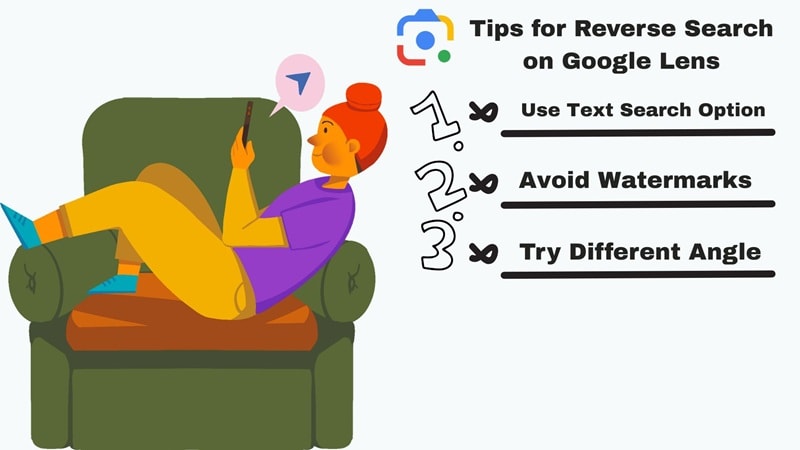
- Keep It Clean: If the clip has watermarks, try to avoid them or crop them out so Lens does not get confused.
- Use Text If You Have It: When the video shows readable words, use the Text Search option to give Lens more clues.
- Try A Few Frames: Upload more than one screenshot. Google Lens gets better with each extra hint you give it.
- Switch Up The Angle: If one frame does not work, pick another moment in the video. A different angle often gives a match.
Bonus: How to Enhance Blurry Frames for Reverse Search with Wondershare Filmora
Now that you know how to do a reverse search on Google, you've probably noticed one thing: the frame you pick matters a lot. And let's be honest, not every video online looks great. Some are dark, shaky, or compressed to the point where you can barely see what's going on.
If you ever run into that kind of clip, Wondershare Filmora can actually help clean things up before you take your screenshots. It is not a reverse search tool, but it gives you simple ways to brighten the video, sharpen the details, and pull out the best possible frames. That little boost in quality can make a huge difference when you upload the image to Google.
 Secure Download
How Filmora Helps in the Reverse Video Search Process
Use Filmora Snapshot for Perfect Screenshots
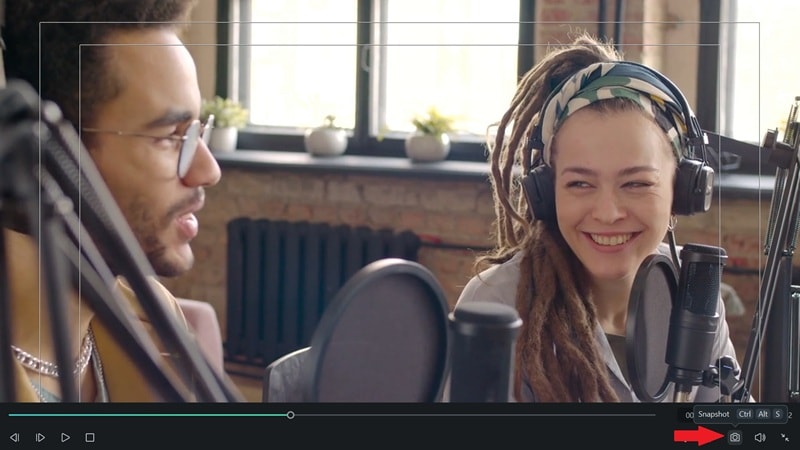
Filmora lets you scrub through the video frame-by-frame. You can pause at the exact millisecond you want and take a crystal-clear snapshot. This helps you upload the most accurate frame to Google or Lens.
Enhance Low-Quality Videos With Filmora's AI Video Enhancer
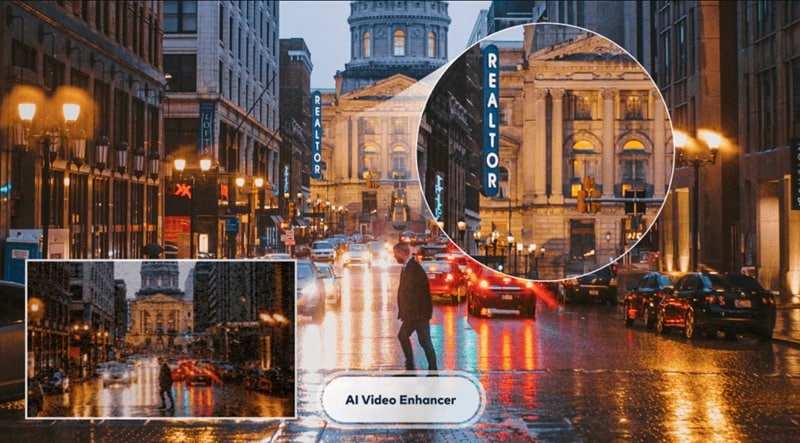
When the clip looks grainy or soft, Filmora's AI Video Enhancer can make it clearer before you take your screenshot. After all, a sharper frame gives search engines a much better chance of finding a match.
Bring Out Hidden Details
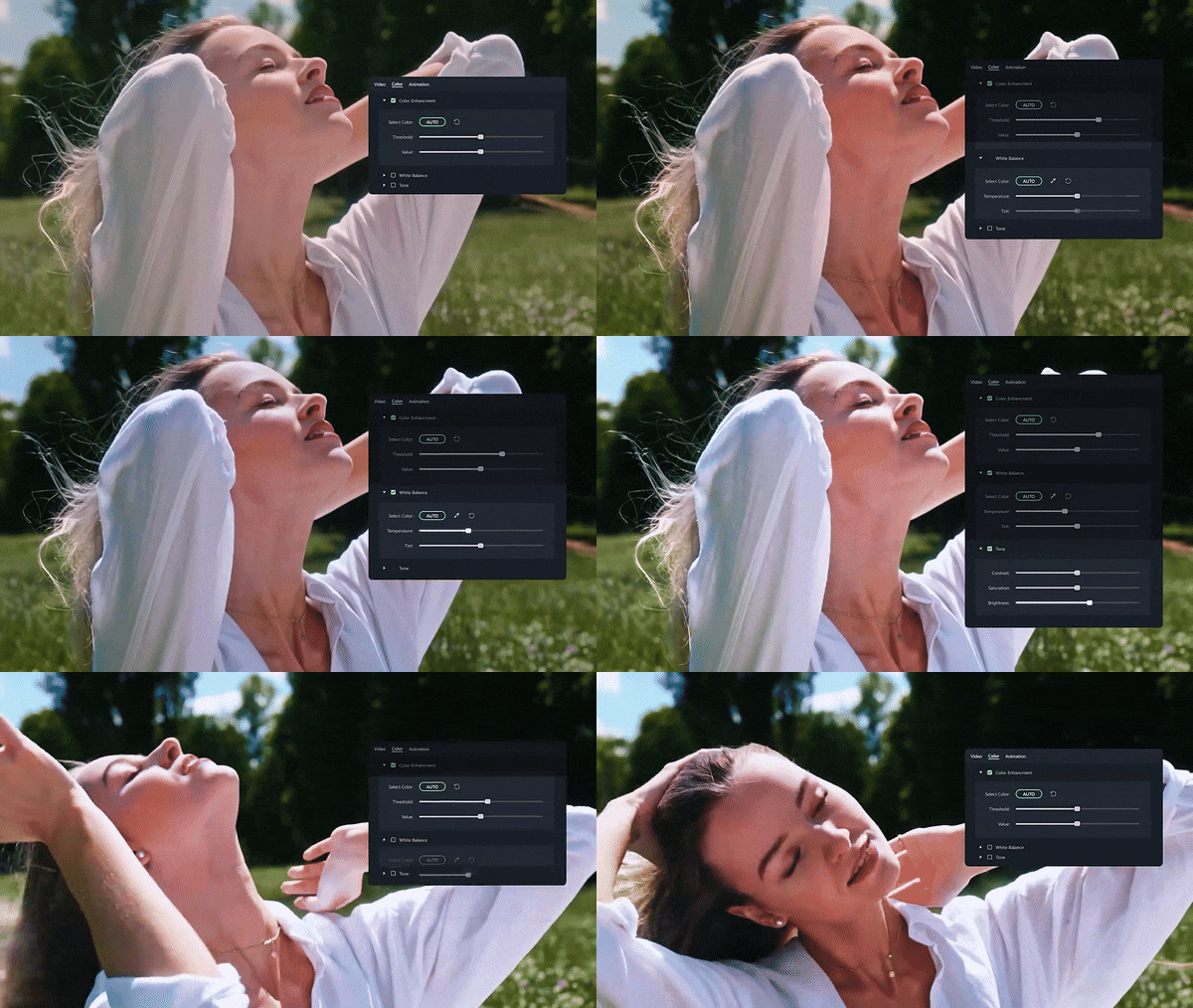
You can brighten, sharpen, or zoom in on parts of the video to make important details stand out. Things like small logos, faces, or text become easier for Google to recognize.
Remove Distractions From the Frame
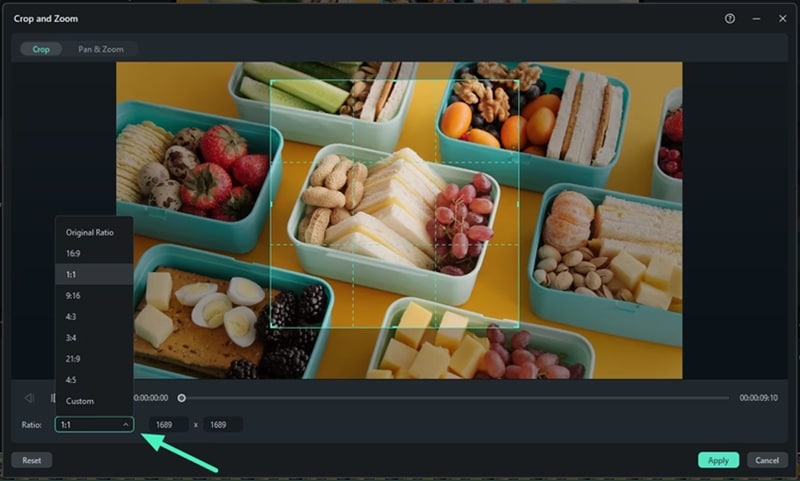
A cleaner image helps the reverse search focus on the actual content. And with Filmora, you can crop out borders, black bars, or random overlays that get in the way.
Slow Down the Video to Catch Clearer Frames
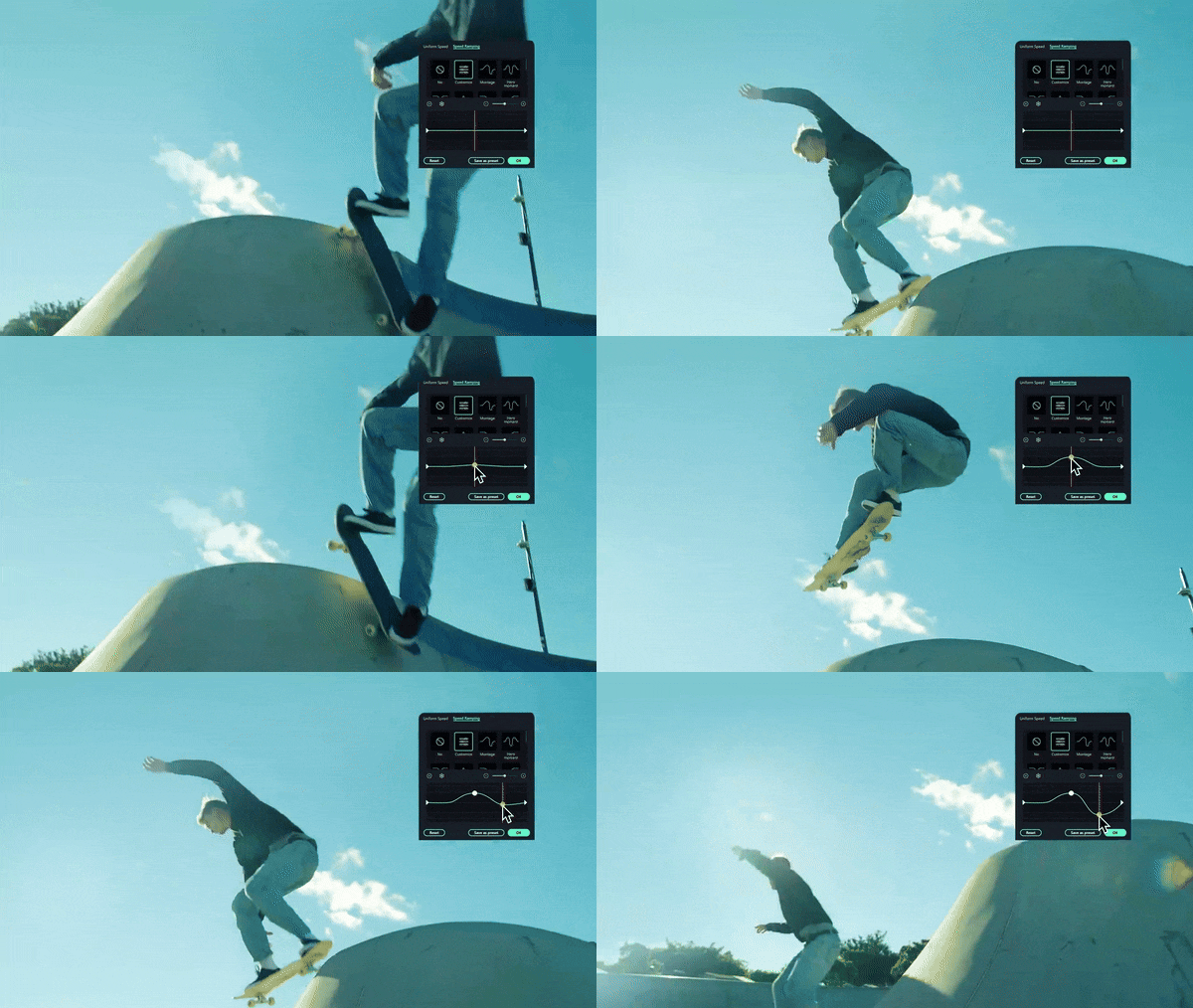
If the video moves too fast, slow it down in Filmora to spot a clearer frame. This is handy for action scenes or shaky clips that are hard to pause at the right second.
Conclusion
Reverse search is a simple process that helps you figure out where a clip originally came from and why it is showing up everywhere. So, we help you to learn how to reverse search a video on a desktop using Google search by image, and how to reverse video search on Android and iPhone with the Google Lens app. Each method comes with its own set of tips, and following them makes the results a lot more accurate and reliable.
When you start learning how to reverse search a video on Google, you will notice that clear frames make a huge difference. If the video you are working with looks blurry or too dark, Filmora can help you fix that before taking your screenshots. You can sharpen the clip, brighten it, slow it down, or zoom in on important details. Filmora makes it much easier to grab the perfect frame, which helps your reverse search work even better.

FAQs About Reverse Searching Videos
-
Can I reverse search a video directly without taking any screenshots?
Not at the moment. Google does not let you upload a full clip for a reverse video search, so screenshots are still the easiest way to trace a video back to its source.
-
Does reverse video search work if the original clip is from a private social media account?
Reverse searching will not find anything from a private account. Google can only show results from content that is publicly available, so the clip needs to exist somewhere outside that private profile.
-
How accurate is reverse image search for finding AI-generated video content?
AI video content can be tricky since many scenes do not exist in real life. Reverse image search can still catch small clues like text or familiar objects, but the accuracy depends on how realistic the AI content looks.
-
Can I successfully reverse search a heavily blurred, cropped, or edited version of a video?
It is possible, but the results depend on how much detail is left in the frame. If the clip is too distorted, you may need to enhance it first on Filmora so Google has enough information to work with.
