


 TL;DR:
The ideal Chrome screen recorder extension depends on your use case: Screenity delivers unrestricted, open-source recording for privacy-conscious creators, while Loom and Screencastify excel at instant cloud sharing for teams and educators but cap free users at 5-minute videos.
● Vidyard and Berrycast are specifically designed for sales and remote management, providing direct CRM integrations and ChatGPT-powered meeting transcriptions in over 60 languages.
● Screencastify and Nimbus Capture are among the few extensions that support offline recording, whereas most other tools strictly require an active internet connection to upload and generate shareable links.
● Browser extensions are limited when handling long tutorials, gameplay, or professional content with transitions, requiring a switch to desktop software like Wondershare Filmora for unlimited 4K recording and multi-track audio editing.
Ask AI for a summary
 ChatGPT
 Perplexity
 Gemini
 Claude
 Grok
Grok
It's now much easier to record your screen within Chrome. A lightweight screen capture for Chrome can capture your browser activity, tab workflows, online classes, or quick demonstrations.
On top of that, everything is available from a single browser tab, so you don't need to install a full desktop program. That’s because modern Chrome screen recorder extensions now deliver smooth video, synced audio, and fast sharing.
Each screen capture extension has its own style and workflow, so you can easily decide which one fits the way you record, explain, and share your content. So, let's take a look at ten great options worth trying in 2025.
How We Test Chrome Screen Recorder Extensions
- Recording Quality & Sync Accuracy: How cleanly the tool records video and audio, and whether lips (or a mouse or slides) stay in sync.
- Ease of Use & Accessibility: How simple it is to begin recording, pause or trim your music without reading a manual.
- Feature Variety: Options such as webcam overlay, annotation, noise reduction, and editing tools that enhance usability.
- Browser Performance & Stability: Whether Chrome slows down, crashes, or overheats during long recordings.
- Privacy & Data Control: How each extension handles local storage, permissions, and whether uploads are encrypted or optional.
- Collaboration & Sharing Workflow: The extent to which videos can be easily shared with others through links, cloud integration/share, or team dashboards.
- Pricing & Value for Features: What you actually get for free, and when the jump to premium is worth it.
Part 1. Our Top 10 Chrome Screen Recorder Picks
Here are 10 screen recording Chrome extensions that creators and professionals actually use this year. Each one was tested for clarity, speed, and ease of sharing.
1. Screencastify
Screencastify is popular with educators and tutorial makers alike. It can turn any Chrome tab into a high-powered recording environment. This tool captures your tab, desktop, or webcam feed. It saves recordings directly to Google Drive or sends them to e-mail as MP4 attachments.
- Capture browser, desktop, or webcam in one click.
- Trim, merge, or add overlays instantly without leaving Chrome.
- Turn videos into quizzes or feedback lessons.
- Built-in workflow for students or collaborators.
- Smart video suggestions and auto-generated summaries.
- Ready-made templates and visual aids for educators.
- Stream and interact in real time.
- Quick integration with Google Workspace.
- Polished interface that works right after install.
- An offline recording option is available.
- Free plan limits recording length (5 minutes max).
- Watermark on free exports.
Educators, tutorial makers, or students who want to create some quick annotated clips.
Free tier + Pro plan starting at $10 per month.
3.9 / 5 (Chrome Web Store)
https://chromewebstore.google.com/detail/screencastify-screen-vide/mmeijimgabbpbgpdklnllpncmdofkcpn
2. Loom
A favorite for professionals and remote teams, Loom's Chrome recorder lets you record your screen and camera together. Videos are shareable immediately with a link perfect for feedback, walkthroughs, or client updates.
Today, over 25 million people use Loom to slash their meeting time, break feedback loops, and keep communication personal.
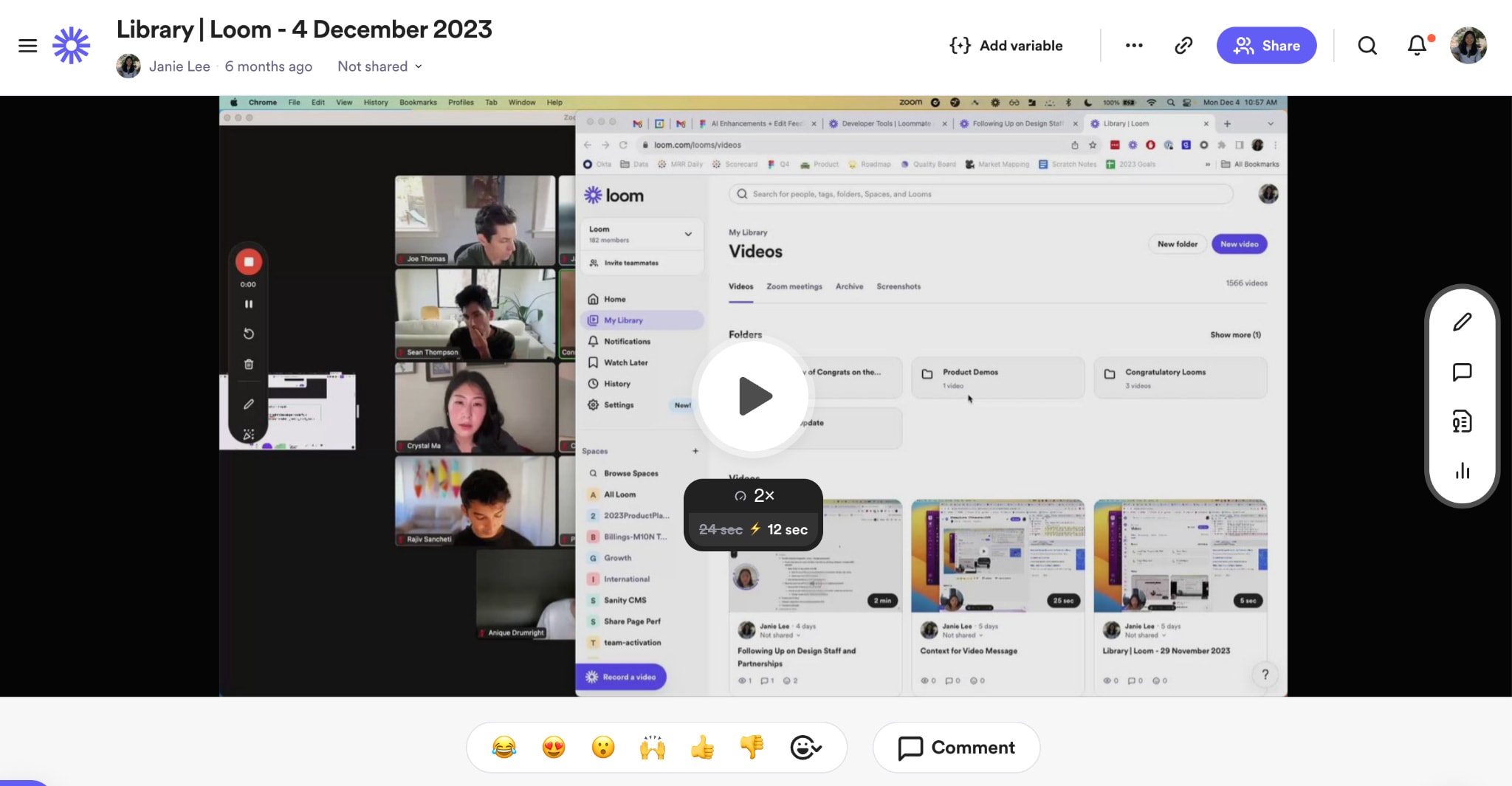
- Record Screen and Audio on Mac, Windows, Chrome, iOS, and Android.
- Record with webcam overlay or full-screen display.
- Built-in browser and mobile editing tools for trimming and splicing.
- Add drawings, highlights, or annotations for emphasis.
- Insert external links or embed videos in emails, docs, or websites.
- Collect feedback and emoji reactions from viewers.
- Auto-generate closed captions for accessibility.
- Supports up to 720p in the free plan, HD/4K with upgrades.
- Elegant interface with near-zero learning curve.
- Instant link sharing with no upload or export wait times.
- Real-time collaboration with comments and reactions.
- Works seamlessly across browsers and mobile devices.
- The free plan limits videos to 5 minutes.
- Requires online access for most features
- Branding and higher resolutions are locked behind paid tiers.
Professionals, educators and teams that are replacing long meetings with quick visual updates.
Free tier (720p, 5-minute limit); Business plans from $15/month for HD and collaboration tools.
4.6 / 5 (on Chrome Web Store)
https://chromewebstore.google.com/detail/loom-%E2%80%93-screen-recorder-sc/liecbddmkiiihnedobmlmillhodjkdmb
3. Screenity
Screenity is an open-source, no-login-required screen capture extension for Chrome. It offers annotation tools, zoom, and trimming with the ability to keep recordings private on your device. Screenity delivers a polished recording experience that puts privacy first and keeps every feature free. You just need to click, record, and create.
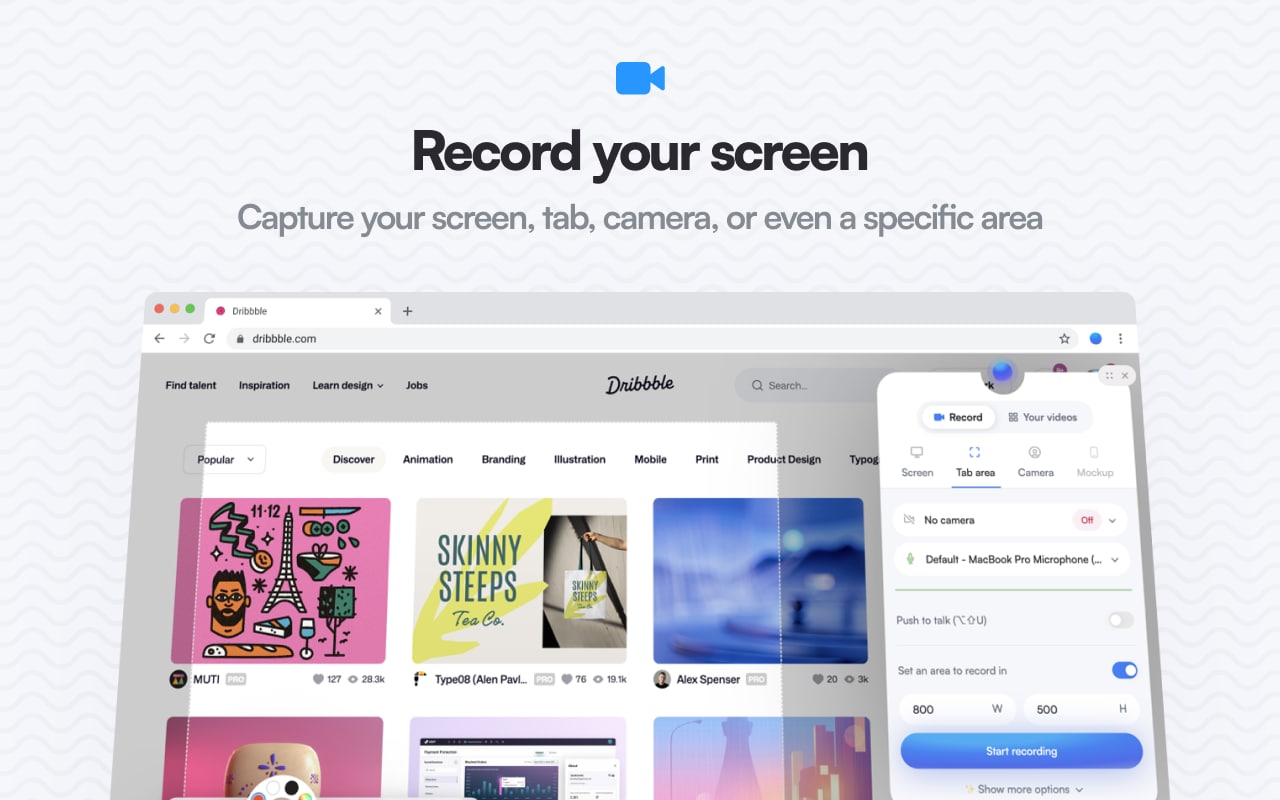
- Record your tab, window, desktop, or camera with audio.
- Annotate live: draw, highlight, or add text, arrows, and shapes.
- AI-powered backgrounds and blur for professional focus.
- Highlight clicks, spotlight the cursor, and use zoom-on-focus.
- In-browser editing (trim, crop, remove or replace audio).
- Export in MP4, GIF, or WebM, or save directly to Google Drive.
- No time limits and no watermarks.
- 100% private and open source, you can even self-host from GitHub.
- The optional Pro plan adds templates, captions, and 50GB cloud storage.
- Free forever, with no data collection or usage tracking.
- Surprisingly powerful editing options for a browser extension.
- Streamlined, efficient recording on any processor, even with ordinary systems.
- Indie-developed and actively maintained.
- Cloud storage and templates are locked behind the Pro plan.
- Share analytics or collaboration features are not available.
Creators, teachers, or anyone else who is concerned about privacy and doesn’t want to log in.
Free (basic version); Pro plan is available at $8 per month.
4.4 / 5 (on Chrome Web Store)
https://chromewebstore.google.com/detail/screenity-screen-recorder/kbbdabhdfibnancpjfhlkhafgdilcnji
4. Nimbus Capture
Nimbus does more than recording, it is also a screenshot and annotation powerhouse. You can record a specific tab, a window, or the entire screen. You can also pin additional content, such as text notes, files, or tables, alongside recordings. Nimbus also lets you trim, crop, and adjust play speed right after recording. This saves a lot of time when quick edits are needed.
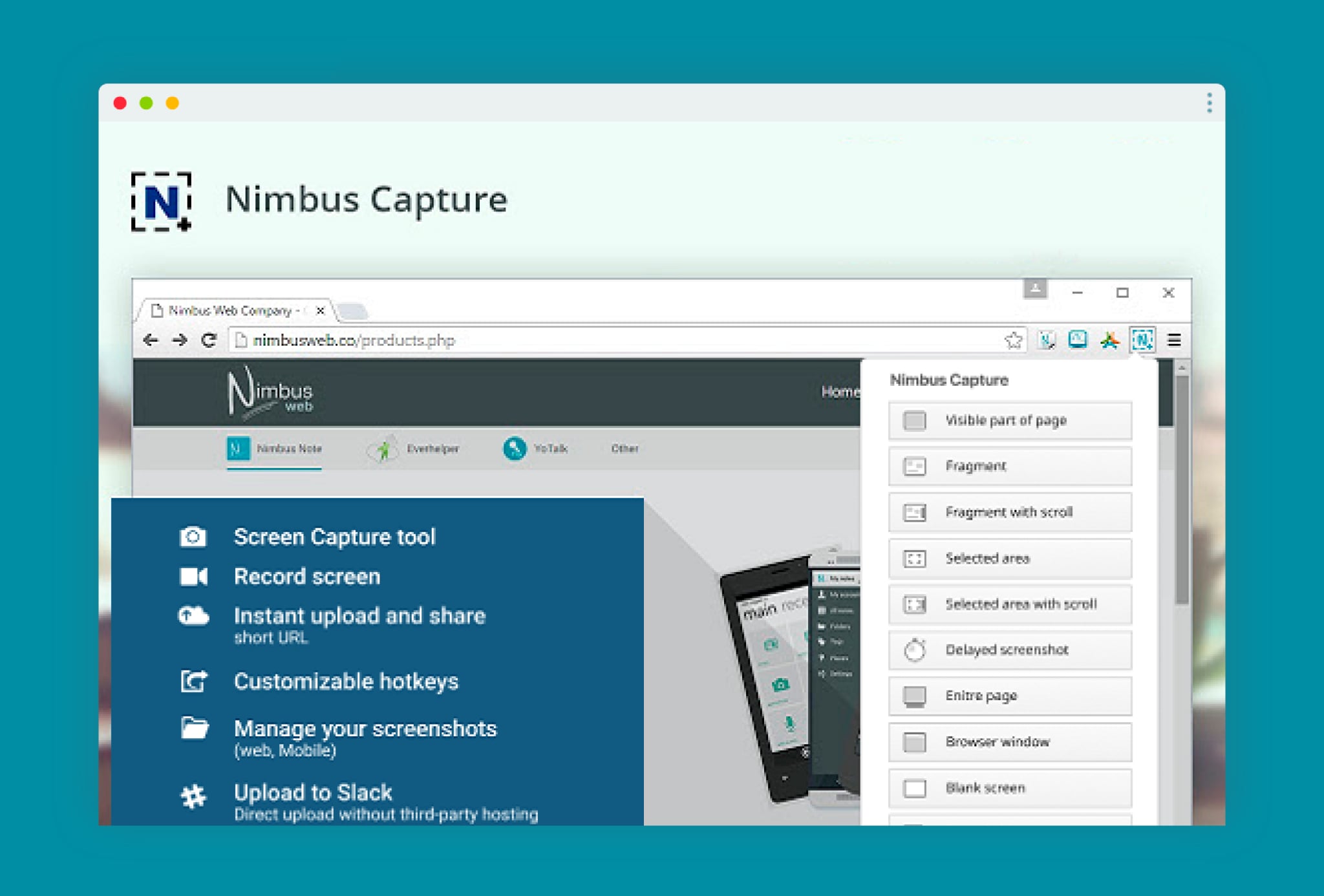
- Record your screen, webcam, or both with audio.
- Screenshot full pages, specific areas, or upload existing images for annotation.
- Blur sensitive data and add text, arrows, or highlights.
- Trim and crop videos right after recording.
- Add watermarks and control playback speed (1x to 2x).
- Export in MP4, GIF, or share instantly with a link.
- Attach supporting files or notes to screenshots.
- Work together on comments, tasks, and dashboards.
- Send to Slack, YouTube, Google Drive, or Dropbox easily.
- Optional password-protected links and branded sharing pages.
- Combines screenshots, video, and collaboration in one extension.
- Smooth, integrated editor for instant post-recording cleanup.
- Great for teams needing shared visual documentation.
- The interface can feel dense for casual users.
- Full team collaboration requires the paid workspace plan.
Teams or educators who require elaborate visual reports, lightning-fast annotated feedback or online collaboration.
Free or with other plans available for business starting at $32/month/user.
4.4 / 5 (on Chrome Web Store)
https://chromewebstore.google.com/detail/fusebase-clarity-capture/enhjjhkhjenjnanplmdkahkbkoeeljjp
5. Awesome Screenshot
A long-standing veteran in the Chrome Store, Awesome Screenshot offers two full tools in one: screen recording and screenshot editing. It's designed for people who explain things for a living, educators, support teams, designers, and QA testers who need to share clear visual answers without friction.
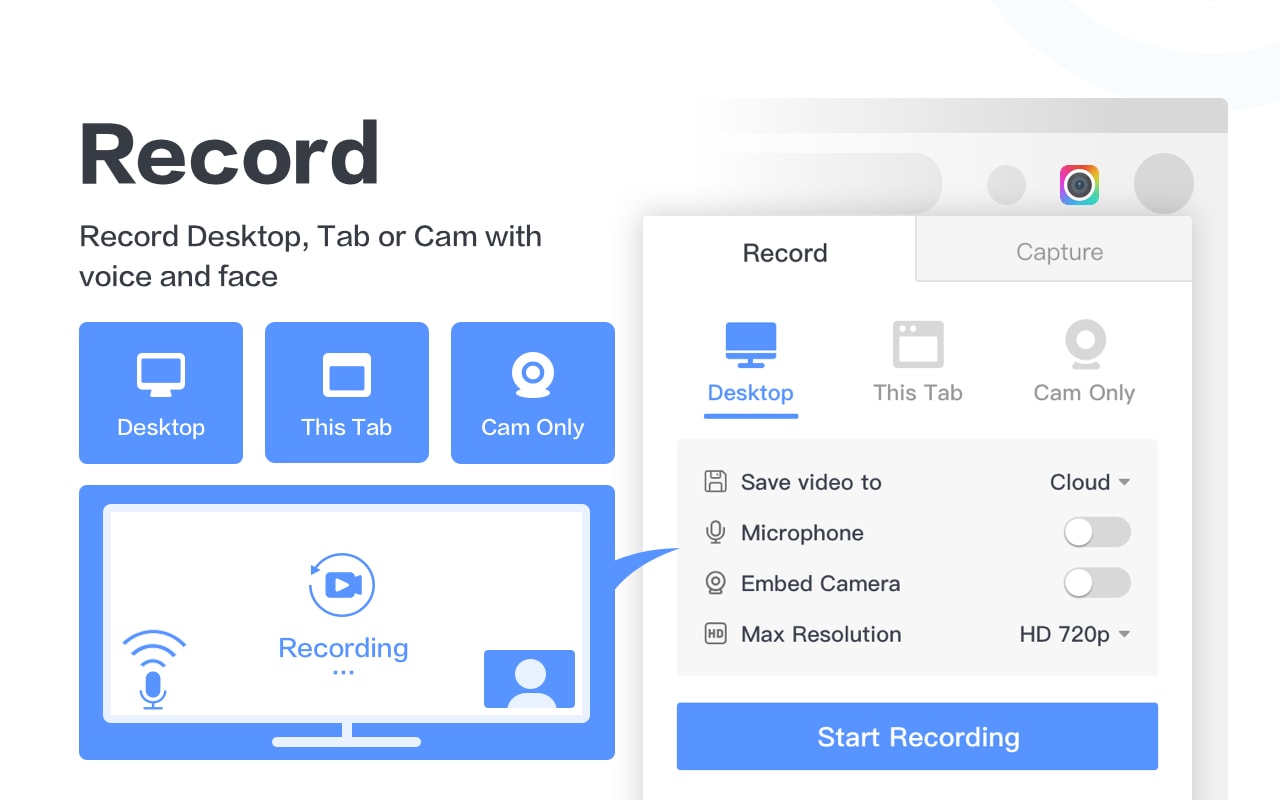
- Record tab, desktop, or camera, with a microphone and webcam overlay.
- Choose resolutions up to 4K, or export in WebM / MP4.
- Annotate videos during or after recording.
- Capture a screenshot of the entire page, area or visible portion.
- Shape, arrow blur, and text overlay on the screenshot.
- Save locally or upload to your Awesome Screenshot cloud for instant links.
- Integrate directly with Trello, Asana, Jira, Slack, and GitHub.
- Password-protect or brand shared links for client work.
- Works ad-free and collects minimal data.
- Dual-mode tool (screen recorder + screenshot editor).
- Long-term stability and trusted performance.
- Fast link generation and tight integration with workflow apps.
- Supports high-resolution output with no watermark.
- The free plan limits cloud storage and upload size.
- The interface feels slightly dated compared to newer minimalist tools.
People who work in customer support and use screenshots/screen recordings for communication daily.
Free with basic features; $6 per month for unlimited uploads and 4K recording and more.
4.7 / 5 (on Chrome Web Store)
https://chromewebstore.google.com/detail/awesome-screen-recorder-s/nlipoenfbbikpbjkfpfillcgkoblgpmj
6. Vidyard
This is a work-based video recording Chrome extension designed to seamlessly hook into Gmail and LinkedIn. You can record personalized sales videos or explainer clips and share them immediately on branded pages. When you're done, clip and strip or polish your clips directly in the browser, then share the link instantly.
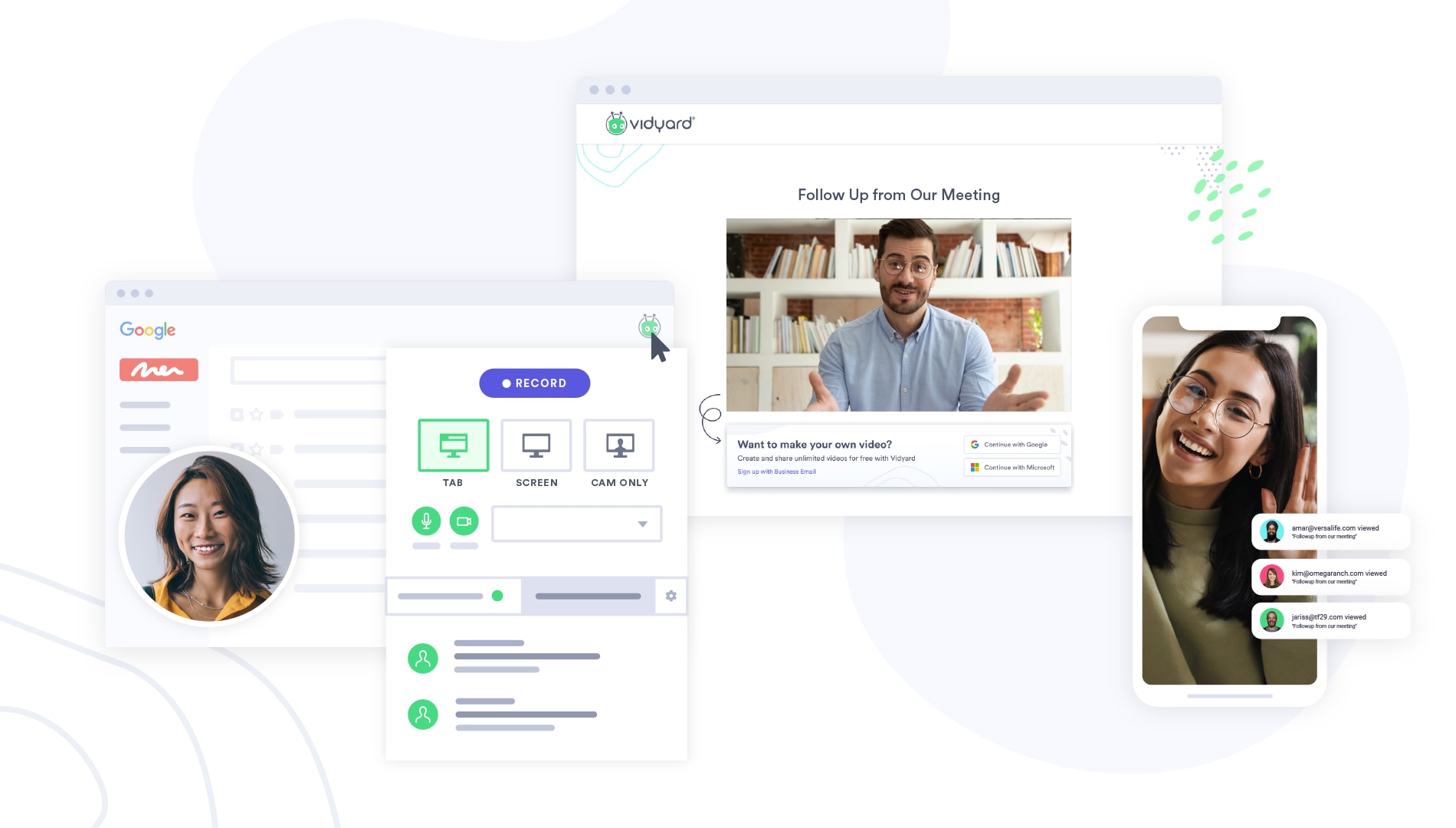
- Record screen, webcam, or both directly from Chrome.
- AI-assisted speaker notes for smoother delivery.
- Edit videos: trim, stitch clips, and choose animated thumbnails.
- Unlimited Ad-free Plays with no bandwidth restrictions.
- Share directly with everyone you know via the link, in an email, or on your favorite social media platforms.
- Embed Videos on websites, CRMs, or sales pages.
- Viewer insights and engagement metrics on an analytics dashboard.
- Integrates with Salesforce, HubSpot, LinkedIn and Marketo (to name a few).
- Works on Mac, Windows, iOS, and Android.
- Seamless video analytics and CRM integration.
- Professional-grade recording with reliable cloud hosting.
- Perfect for asynchronous communication and sales pitches.
- Clean, ad-free playback experience.
- More business-oriented than casual-user-friendly.
- Some advanced analytics features are locked to paid plans.
Sales, marketing, and customer-success teams who depend on personalized videos for outreach, follow-ups, or demos.
Free to use with limited features; the Pro plan with analytics and team collaboration costs $19/month.
4.2 / 5 (on Chrome Web Store)
https://chromewebstore.google.com/detail/vidyard-screen-recorder-s/jiihcciniecimeajcniapbngjjbonjan
7. Fluvid
Fluvid is a lightweight Chrome extension that also doubles as a webcam and video recorder. What sets Fluvid apart is its asynchronous communication focus. You can record a walkthrough, tag a teammate, or even stream live to YouTube or Facebook with no extra setup or software needed.
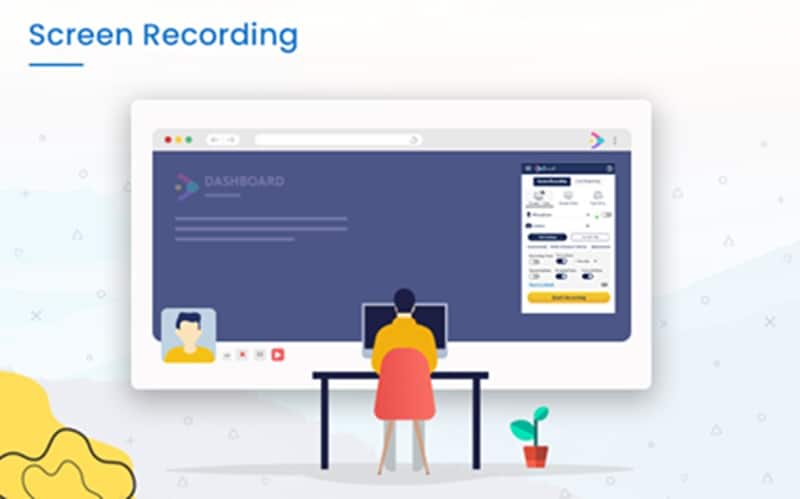
- Record screen + webcam + audio with sync
- Records and captures in full-screen, window, or tab mode.
- Live stream to YouTube, Twitch or Facebook.
- Include branding, logos, personalised thumbnails, and call-to-action buttons.
- Unlimited cloud storage and folder management
- Password protection and two-step authentication for shared links
- Crop, trim, and edit videos without external software
- Integrated Gmail sharing and group access control
- Built-in analytics and viewership tracking
- Watermark-free recording (even on the free plan)
- All-in-one recorder and live streamer for free
- Strong privacy and branding controls
- Ideal for asynchronous communication and remote work
- Supports HD recording and direct publishing to social platforms
- The interface is less polished than Loom or Vidyard.
- CPU usage can spike on older devices during long recordings
Teams and educators who rely on Chrome screen recorder extensions for training, walkthroughs or marketing explainers.
Free plan forever ( 50 videos per month, 1 hour each)
4.2 / 5 (on Chrome Web Store)
https://chromewebstore.google.com/detail/fluvid-screen-video-recor/hfadalcgppcbffdnichplalnmhjbabbm
8. Hippo Video
Hippo Video is a full-featured screen recorder extension for Chrome that combines recording, editing, and sharing in your browser. The extension lets you record HD screen and webcam (or both at the same time), with no watermark, and provides instant editing via its integrated "Quick" or "Pro" editor.
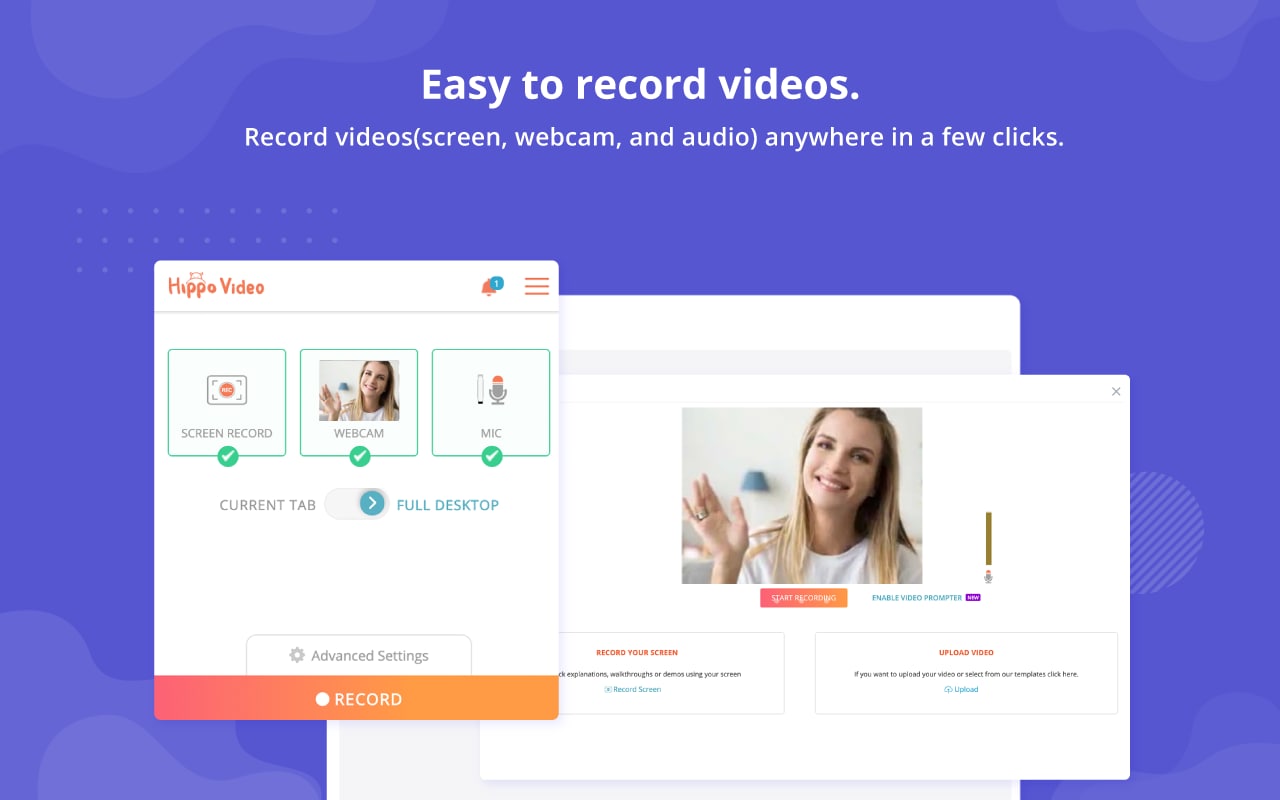
- Record your screen, webcam, or both with HD quality.
- No watermark in the recordings (either free version).
- Clip, crop, apply blur effects, or stitch clips using the clip editor included in the video player.
- Customise your intros, outros and thumbnails.
- Use your own branding: logos, colours, and CTAs.
- Work as a team and keep roles in check.
- Get detailed viewer analytics and engagement insights.
- Export GIFs, add emojis, and tag clips.
- Works well on Chrome, Windows, Mac, and mobile devices.
- Feature-rich yet beginner-friendly interface.
- In the free version, there are no watermarks or time limits.
- Advanced editing and branding tools built in.
- Great collaboration and analytics for teams.
- The interface can feel cluttered for first-time users.
- Some editing options (like Pro Edit) are reserved for paid plans.
Marketers and educators who require Chrome extensions for screen capture need editing options and custom branding.
Free; unlimited videos, 100GB bandwidth, Pro plans starting at $20/month offer enhanced editing and analytic functionality.
4.2 / 5 (on Chrome Web Store)
https://chromewebstore.google.com/detail/hippo-video-video-and-scr/cijidiollmnkegoghpfobabpecdkeiah
9. Berrycast
Berrycast is a Chrome browser screen recorder for modern teams, supercharged by AI. Built to feel as easy as speaking, it lets you record your webcam and screen simultaneously, transcribe meetings, and even automatically generate AI summaries. After you're done, it will use AIWriter (powered by ChatGPT) to summarize the conversation into action items and read through any voice transcript, reducing each video to a search-friendly record.
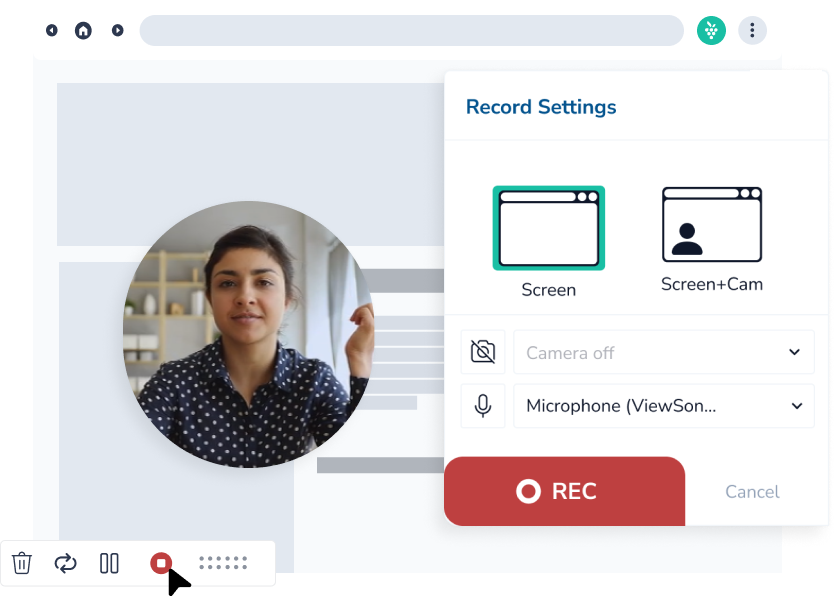
- Screen + webcam recording with HD quality.
- Automatic transcription in 60+ languages.
- ChatGPT-powered AIWriter for meeting summaries, key points, or to-do items.
- Instant sharing via link, email, or embeds.
- See who viewed your video and collect feedback.
- Trim recordings directly from the browser.
- Add CTAs, custom thumbnails, and brand styling.
- Email integration (Gmail & Outlook).
- Option to record even when you're not the meeting host.
- AI-driven meeting notes and summaries built right in.
- Cloud-based recording with quick sharing options.
- Accurate multilingual transcription.
- Great for async teams that rely on meetings and follow-ups.
- No mobile app yet.
- Heavier on CPU during long recordings.
Managers, creatives, and remote teams who are looking for a Chrome video recording extension that saves time with AI-generated notes.
Free 14-day trial with all features; paid plans starting at $18/month, enabling unlimited recording and AIWriter access.
4.6 / 5 (on Chrome Web Store)
https://chromewebstore.google.com/detail/ai-meeting-notes-taker-sc/pdcdbpcmjffmfmcolgnnigdadkhiadlo
10. Droplr
Droplr is a straightforward, fast screen-capture extension for Google Chrome designed to facilitate instant communication. You can record your screen or webcam, talk over the video, trim it, and save it as a GIF or MP4. You can also take instant screenshots and highlight anything you need. Once you're done, Droplr gives you a link you can share immediately.
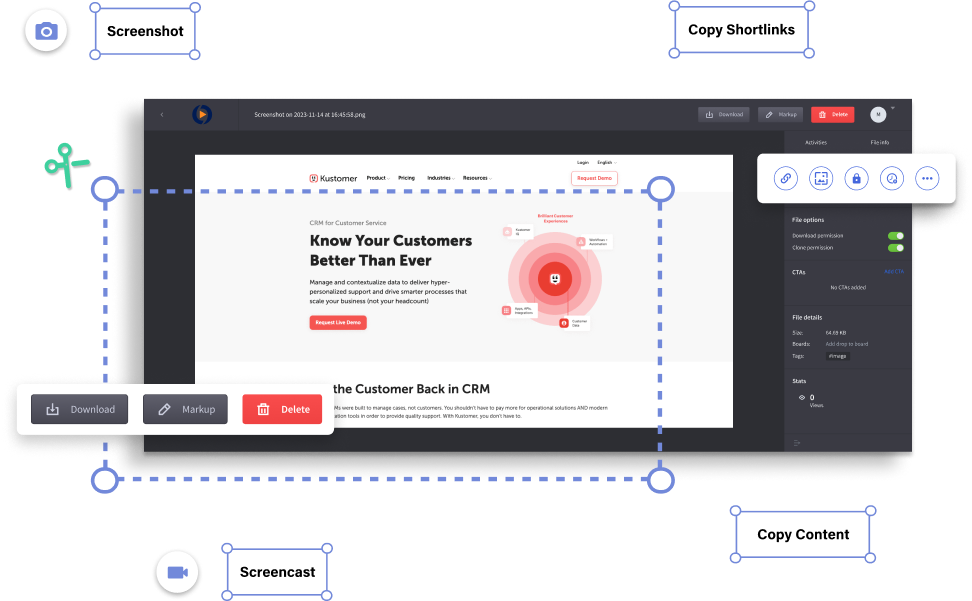
- Take screenshots (Full Screen, Window – including Windows 10, Region).
- Add text, arrows, shapes, highlights, and emojis to your screenshots.
- Record screen and webcam together as an HD video or GIF.
- Unlimited GIF recording duration.
- Automatic upload to the cloud with an instant shareable link.
- File sharing up to 10GB with a built-in URL shortener.
- Access all media from your personal Droplr cloud dashboard.
- Works with AppSlack, Trello, Asana, and Jira.
- MAC, Windows, Chrome, and Chromebook support.
- Fastest workflow from recording to sharing.
- Reliable cloud sync and link-based sharing.
- Excellent for quick bug reports, tutorials, or design reviews.
- Simple interface suitable for teams and solo users alike.
- Lacks advanced editing or trimming tools.
- Cloud dependency may not suit users needing full offline storage.
Professionals who need a free screen recorder Chrome extension for visual communication and quick feedback.
Free (Pro plans with more storage and analytics start at $6 per month).
4.0 / 5 (on Chrome Web Store)
https://chromewebstore.google.com/detail/screenshot-screen-recorde/oncaapliomaamlbopdmhmdompfemljhm
Part 2. Comparison Chart
Now that you’ve seen some of the best screen recorder Chrome extensions, here’s a quick comparison to help you figure out which one fits the way you like to work. It gives you a clear look at how these Chrome screen recording extensions stack up, so choosing the right one feels a lot easier.
| Extension | Unique Edge | Free Plan Limit | Privacy & Data | Collaboration | Best For |
| Screencastify | Google Drive integration, interactive quiz builder for education | 5-minute videos, watermark on free exports | Data stored via Google Drive; compliant with FERPA/COPPA | Allows sharing via Drive links and student feedback tools | Teachers, trainers, and tutorial creators |
| Loom | Instant shareable links + reactions system | 5-minute limit per video in free tier | Cloud-stored; secure with enterprise-grade encryption | Real-time reactions, threaded comments, and viewer analytics | Teams, educators, and professionals |
| Screenity | Open-source and no login required; full editing built in | Unlimited recording, no watermarks | 100 % local storage by default; can self-host | No built-in team sharing, but exportable links are supported | Privacy-focused users, educators, indie creators |
| Nimbus Capture | Combines screenshots, video, and annotation in one tool | Free version supports limited uploads | Optional password-protected links; internal storage or Google Drive | Task boards, comments, and dashboards for teams | Project managers, educators, and teams |
| Awesome Screenshot | Dual-mode (record + screenshot) with 4 K support | Free tier limited uploads and storage | Minimal data collection; ad-free | Share to Trello, Slack, Jira, Asana, GitHub | Designers, QA testers, and support staff |
| Vidyard | CRM integration + ad-free playback | Unlimited uploads; basic editing only | Encrypted cloud hosting, no ad tracking | Team dashboard with analytics + CRM sync | Sales, marketing, and outreach professionals |
| Fluvid | Record + livestream + brand in one extension | Up to 50 videos / 1 hour each | Password protection + 2FA + private sharing links | Group sharing, viewer analytics, and lead forms | Educators, marketers, and remote teams |
| Hippo Video | Full in-browser editor with watermark-free exports | Unlimited videos, 100 GB bandwidth | SSL-secured domain; optional custom branding | Multi-user roles, collaboration on edits | Businesses, trainers, and marketing teams |
| Berrycast | AI-powered summaries + transcripts (60 + languages) | 14-day full-feature trial | Secure cloud; GDPR-compliant; AI processing via OpenAI | Shared workspace + email integration | Remote teams, managers, and note-takers |
| Droplr | One-click capture with instant link + cloud sync | Free plan with limited storage | Files are encrypted and stored in a private cloud | Integrates with Slack, Trello, and Asana for team sharing | Designers, QA, and fast-moving creative teams |
Part 3. Chrome Extensions vs Desktop Screen Recorders
A screen recorder Chrome extension is ideal if you: Only want to capture short clips, tutorials, or browser-based walkthroughs. But when you’re making tutorials, gameplay videos, or professional content that needs editing power, transitions, and effects, the best Chrome screen recording extensions begin to feel limited.
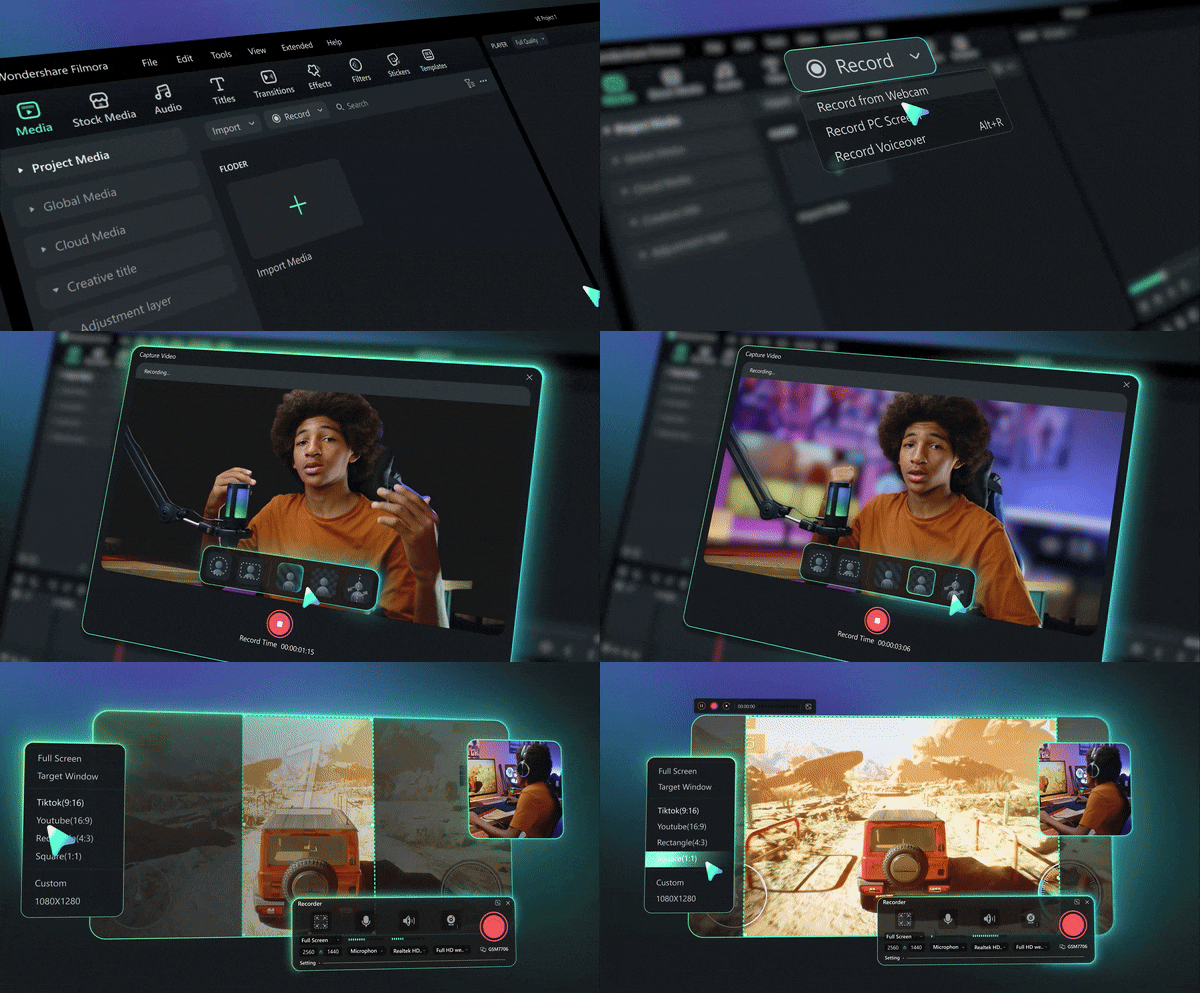
This is where a full desktop screen recorder makes a big difference. Thankfully, Wondershare Filmora fills that gap for anyone who wants something easy to use but still powerful. Unlike typical extensions, Filmora doesn’t stop at capture. It gives you everything from recording to post-editing in one clean, intuitive interface.
 Secure Download
3.1 Why creators upgrade to Filmora (Key Features)
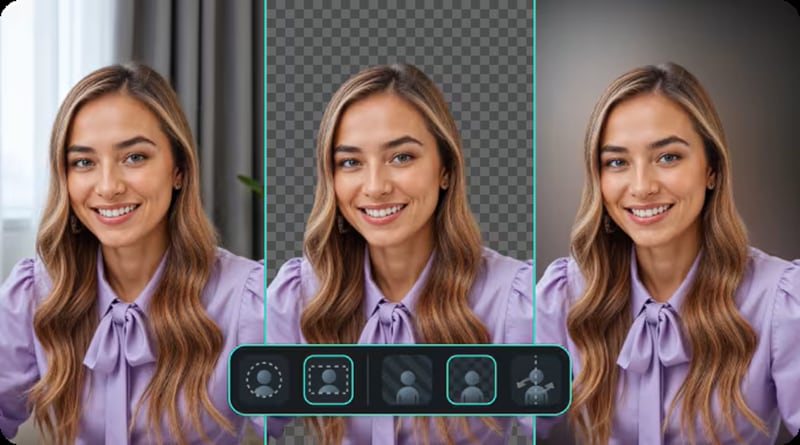
Filmora sits between a lightweight Chrome screen recorder extension and a full-fledged desktop editing suite. It is an interface that combines lightweight recording tools with professional-level editing at AI-powered speed, allowing creators to stay creative without being tied down by endless knobs or faders.
Key Features:
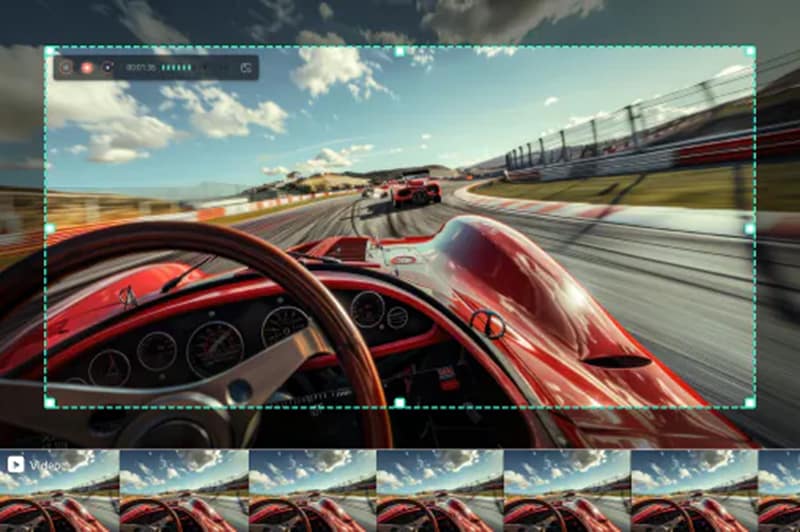
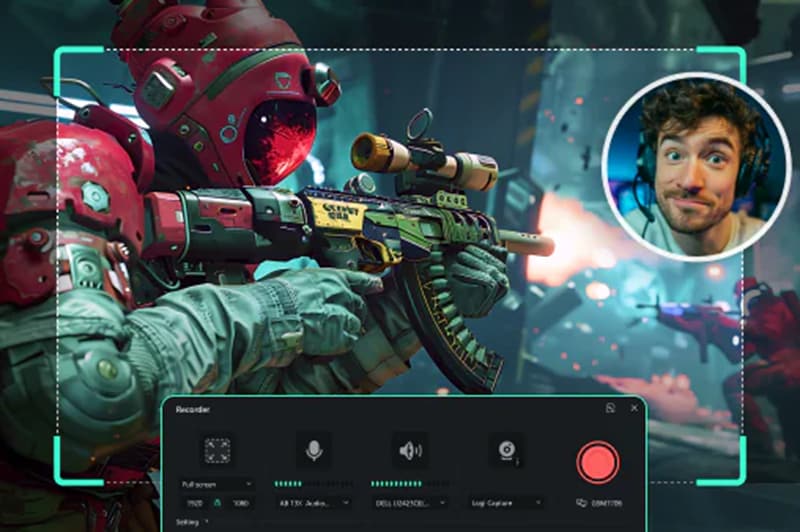
- Unlimited Recording: No recording time limits, no watermarks ever! Great for presentations, analysis articles, or step-by-step diagram instructions.
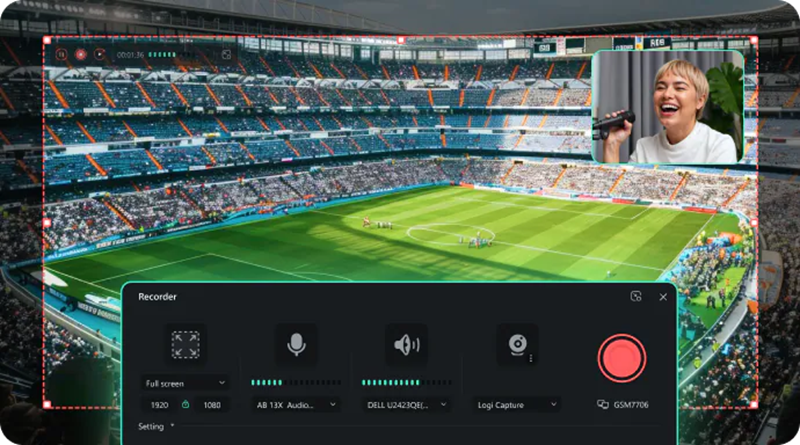
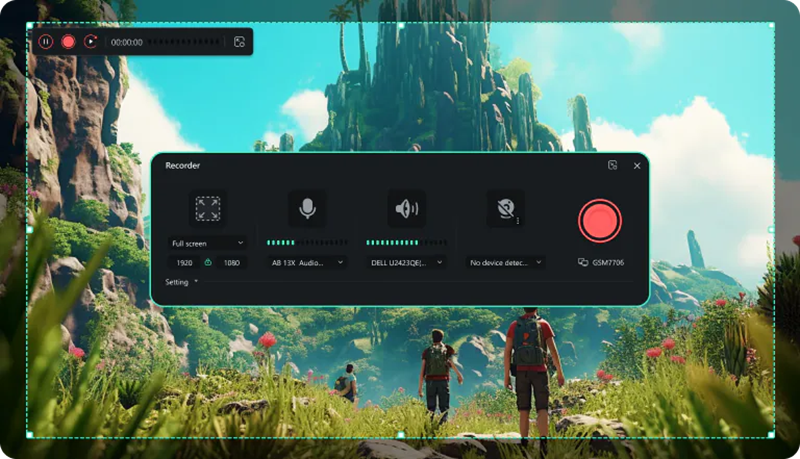
- 4K Smoothness: Record in 100% 4K ultra HD at high frame rates and fluid onscreen performance for picture-perfect video that’s perfect for gaming, design, or engineering software or product demos.
- Multi-Track Audio: Mix audio from several different tracks, and it automatically synchronizes them to the timeline for hassle-free audio editing.
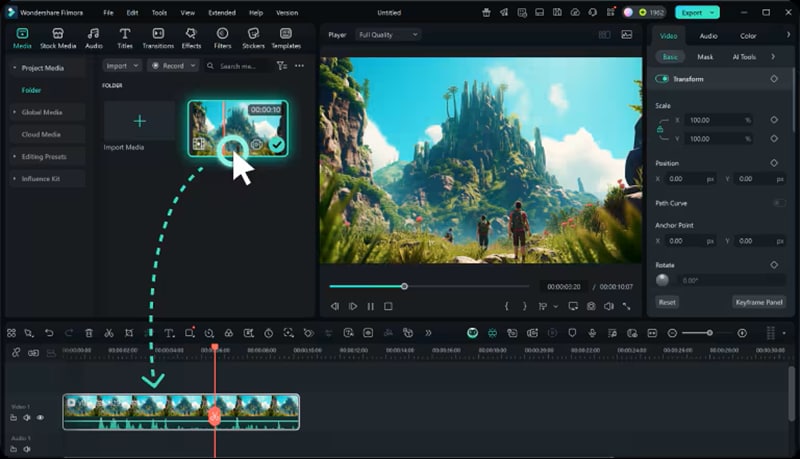
- Easy Drag-and-Drop Editing: Filmora’s timeline is intuitively designed to be easy for anyone to use. Simply drag clips, images, and sound (music, sounds & SFX) to the timeline and create your story.
- Audio Tools: Fade, Reduce Noise, Sync: Fine-tune your sound with audio recording options, including fade-in/fade-out features and an optional tone to indicate the beginning or end of a recording session.
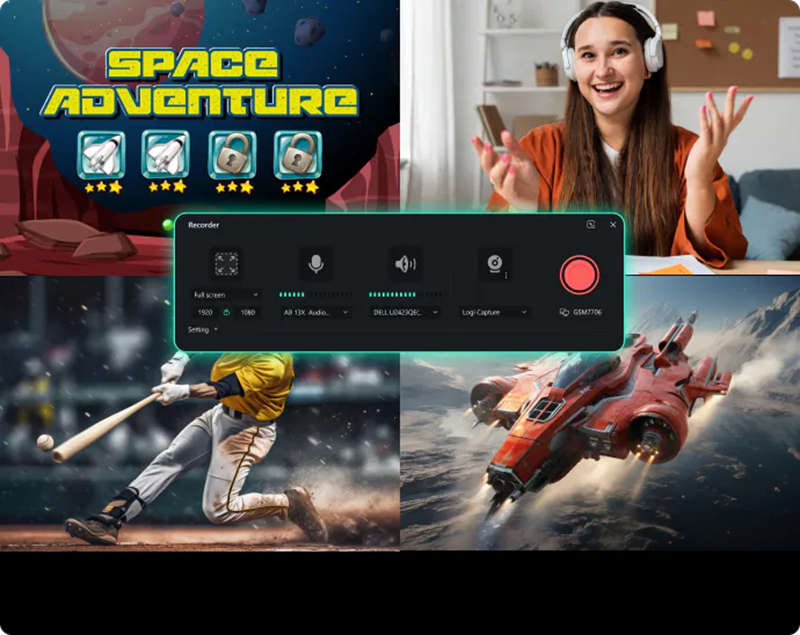
- Split-Screen and Picture-in-Picture: Show multiple angles at the same time (such as your webcam and screen recording), monitor or compare footage, and more with split-screen effects.
- Dozens of Text Styles and Motion Titles: Create text titles, captions, or lower-thirds to help tell your story or brand your video with full control over font size, color, positioning, and rotation.
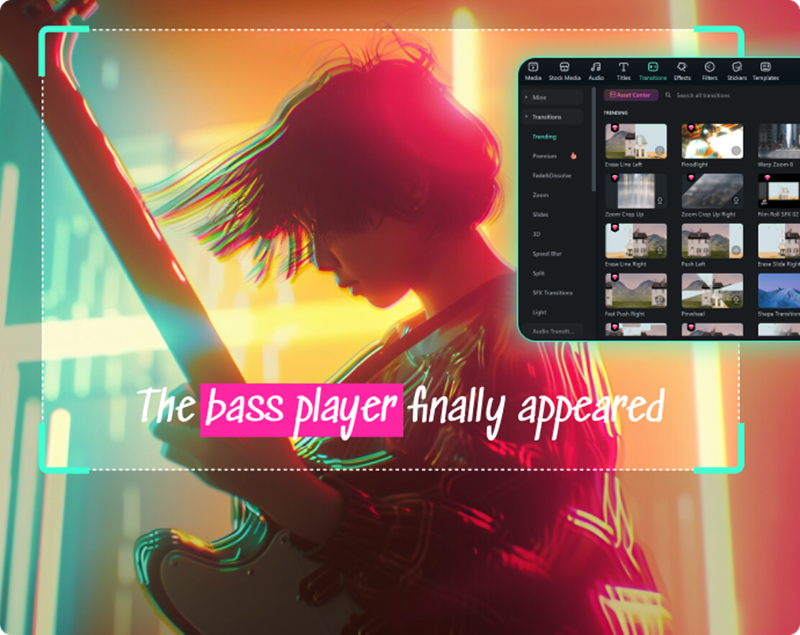
- Built-in Effects, Transitions, Filters, and Music: Take advantage of an amazing range of visual effects and transitions; add blockbuster style to your project with royalty-free background music.
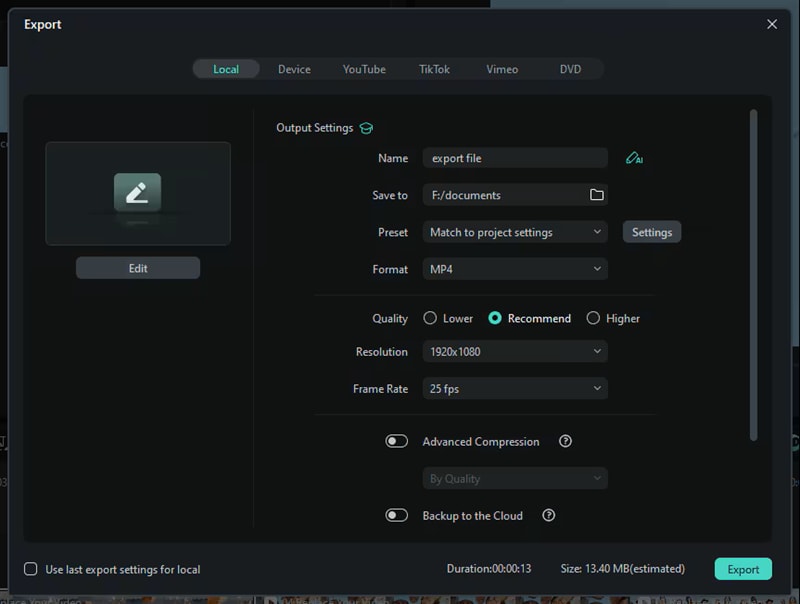
- Export in Multiple Formats and Resolutions: Available in MP4, MOV, WMV, or GIF format with different resolutions on your needs; Perfect support for YouTube or any social media.
- Intuitive interface suited for beginners and pros alike.
- Advanced editing tools are integrated into the recorder.
- Smooth 4K performance without lag.
- AI tools for quick video enhancement and subtitle generation.
- Heavier system load compared to browser extensions.
- Limited free plan exports with a watermark.
Creators, educators, YouTubers, and any professional who wants screen recording and advanced video editing capabilities all in one space.
Free with a watermark; payment plans begin at $9.99 per month or $34.99 per year (Filmora Individual Plan).
4.6 / 5 (based on user reviews across Trustpilot and G2).
Secure Download3.2 When to Switch from Chrome Extensions to Desktop Tools
If you’re doing particularly long tutorials, gameplay sessions, or professional presentations, there are features that simply can’t be matched by extensions: full-resolution capture, advanced editing, and smoother playback.
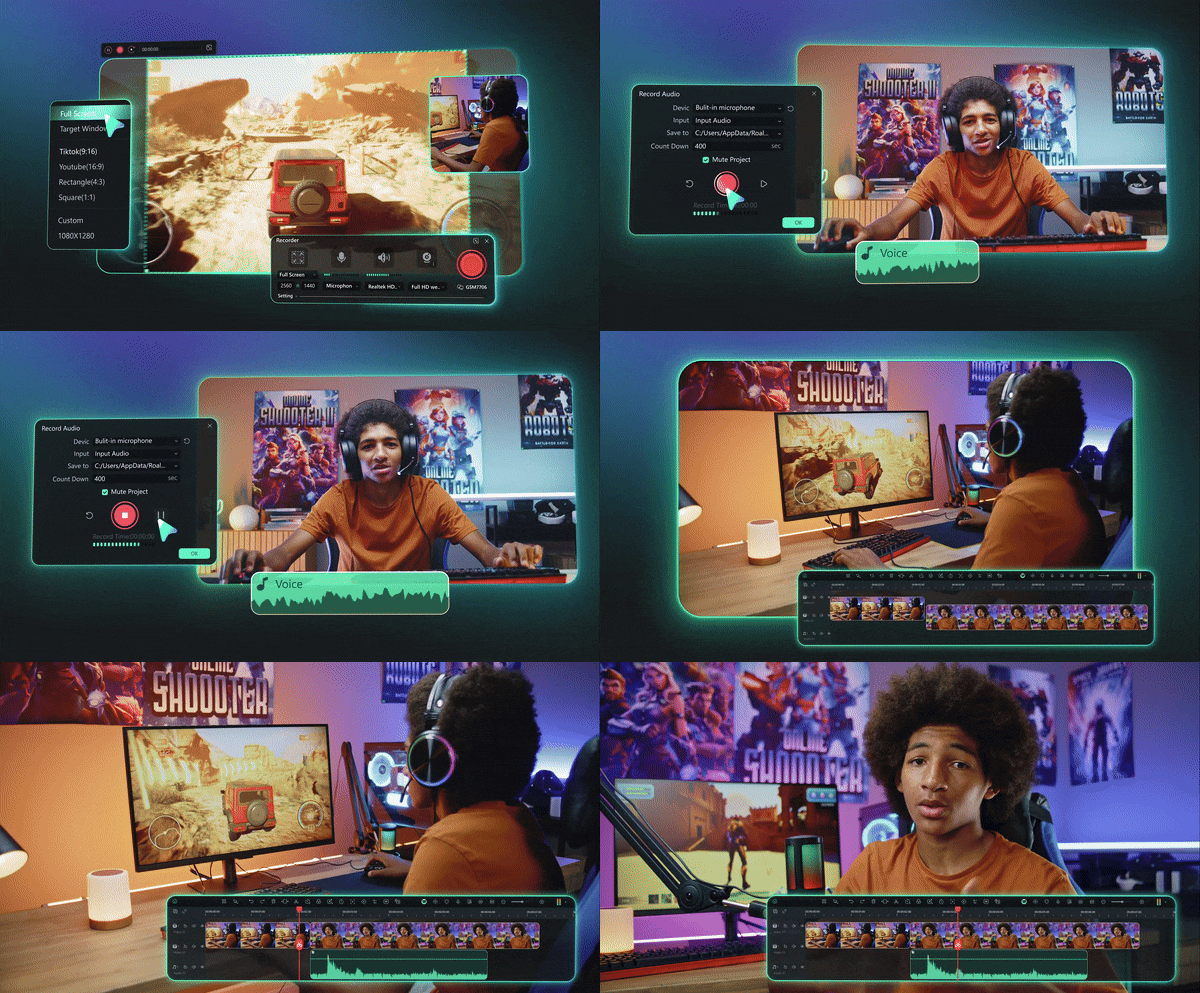
Creators frequently begin with Chrome extensions such as Loom or Screenity for fast communication clips, yet as their workflow matures, they come to understand the necessity of more powerful tools. Here, Filmora screen recorder and video editor become essential for maintaining visual consistency, audio clarity, and production-level polish.
3.3 Smart Hybrid Workflow (Best of Both Worlds)
You don’t have to choose just one. Many professionals record quick drafts using Loom or Screenity, then polish them later in Filmora for color, effects, and sound polish. It’s the best of both worlds: fast recording and full editing power.
Part 4. How to Choose the Right Chrome Screen Recorder (Buying Guide)
Not every screen capture for Chrome fits every purpose. Some are for rapid one-take messages, others for teaching, collaboration, or in-depth editing. The right tool depends on what you’re recording, how often you’re doing so, and what you want to do after hitting “Stop.”
Here’s what kind of extension (or desktop tool) to use with your workflow:
For Classrooms and E-Learning

Look for:
- Drawing tools and on-screen highlights.
- Instant link sharing with no login hassle.
- Options to turn recordings into quizzes or feedback sessions.
- Secure cloud storage for student access.
Screencastify or Nimbus Capture are strong choices since they integrate smoothly with Google Classroom and Drive.
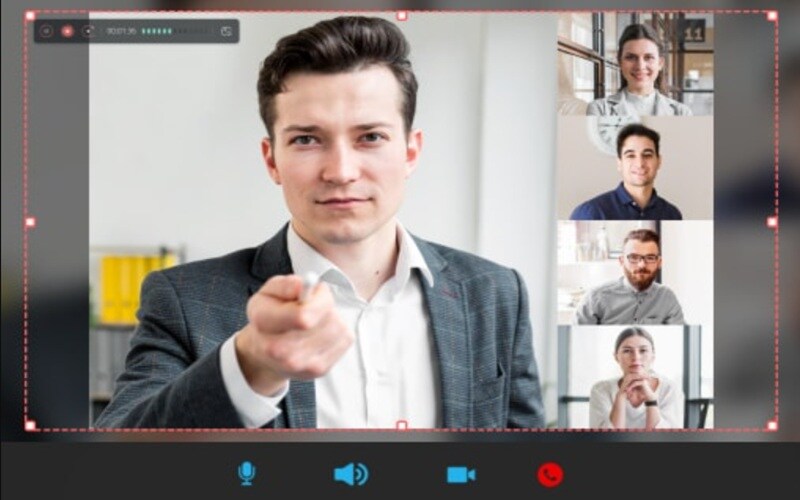
For Teams and Clients
Look for:
- Built-in collaboration or commenting tools.
- Real-time feedback and viewer tracking.
- Secure links with password protection.
- CRM or email integrations (e.g., Gmail, HubSpot, Slack).
Loom, Vidyard, and Berrycast shine here. They let you record updates, share via one link, and even track who’s viewed your video.
For Documentation and Handbooks
Look for:
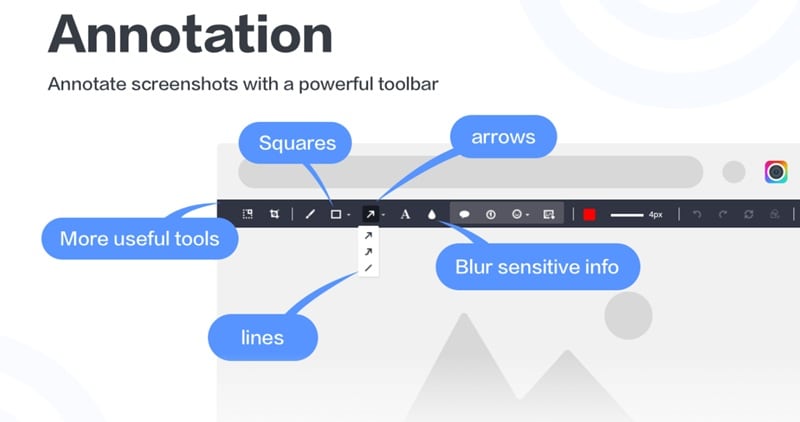
- Full-page capture for step-by-step guides.
- Annotation tools: arrows, blur, text, and numbering.
- Folder management or tagging.
- Cloud-based version control.
Nimbus Capture and Awesome Screenshot are ideal as they let you capture, mark up, and categorize everything in one structured workspace.
For Speed and Bug Reporting
Look for:
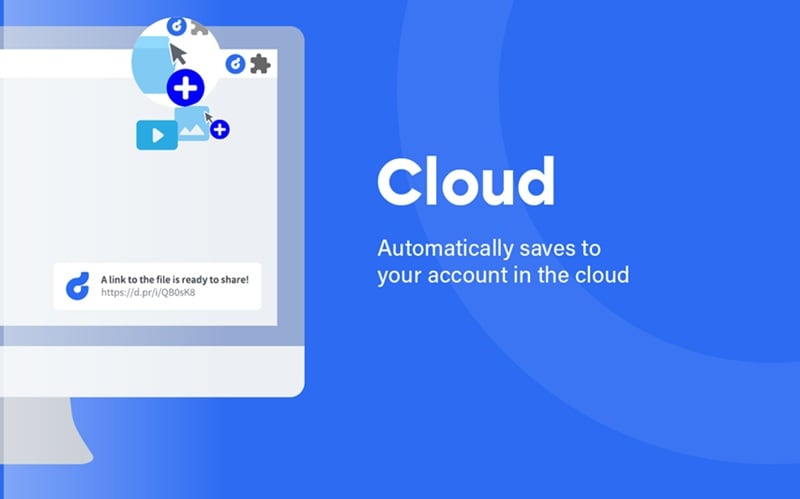
- One-click recording and link generation.
- Built-in blur and highlight tools.
- Instant upload with minimal lag.
- Short, shareable clips optimized for quick feedback.
Droplr and Screenity are made for that. They’re lightweight, fast, and save straight to the cloud without setup delays.
For Long Sessions, 4K Recording, and Editing
Look for:
- No recording time limits.
- High-resolution output (1080p–4K).
- Audio sync and background noise reduction.
- Full editing suite with transitions, text, and effects.
You’ll need a desktop-level recorder like Filmora for unlimited recording, multi-track editing, and 4K exports.
Secure DownloadConclusion
The finest screen recorder Chrome extensions give you speed, simplicity, and some powerful tools to play with, enabling you to record, share, and teach without even having to leave your browser. If you only need quick snippets, there are tools like Screenity or Loom that will fit the bill nicely.
But if your job calls for extended sessions, smoother playback, or just a tiny bit of extra polish, combining your favorite Chrome recorder with a desktop editor like Filmora helps you achieve that next level. In the end, the best setup is simply whatever makes it possible for you to express ideas plainly, whether it’s a little tutorial or an entire creative project.
Secure DownloadFAQs
-
1. Are Chrome screen recorder extensions safe to use?
Yes, most of the popular recorders, such as Loom, Screenity, and Nimbus, are safe when downloaded directly from the official Chrome Web Store. Always check the permissions before downloading, and do not use third-party links. -
2. Which is the best free screen recorder extension for Chrome?
It depends on your goal. If you want to record on an unlimited basis for free, Screenity is fantastic; Screencastify is excellent if you’re a teacher; and Loom has team collaboration nailed. -
3. Can I record both the screen and the webcam at the same time?
Yes. The vast majority of extensions (including Loom, Vidyard, and Nimbus) support both full-screen and webcam recording with audio. -
4. Do Chrome screen recorders work offline?
There are a couple of exceptions to this since both Screencastify and Nimbus Capture can capture screencasts offline; however, the vast majority of extensions will require you to be online when it comes time to upload and share. -
5. How long can I record using a Chrome extension?
Free plans usually limit videos to around 5 minutes, while advanced versions (or desktop tools) offer unlimited recording. -
6. Can I edit videos recorded with these extensions?
Yes, but normally, the editing apps are developed for simple features like trim, crop, and annotation. For advanced editing, transitions, and multi-track audio, it is a good idea to use a dedicated video editor like Filmora for post-production.
