

 TL;DR:
Freemake Video Converter is a beginner-friendly Windows application for basic video conversion and DVD ripping, but its free tier heavily restricts users with an unavoidable export watermark and throttled processing speeds that require a paid, in-app upgrade to bypass.
● While free of severe malware, the setup process frequently includes potentially unwanted programs (PUPs), requiring users to select Custom Installation to manually decline bundled third-party adware.
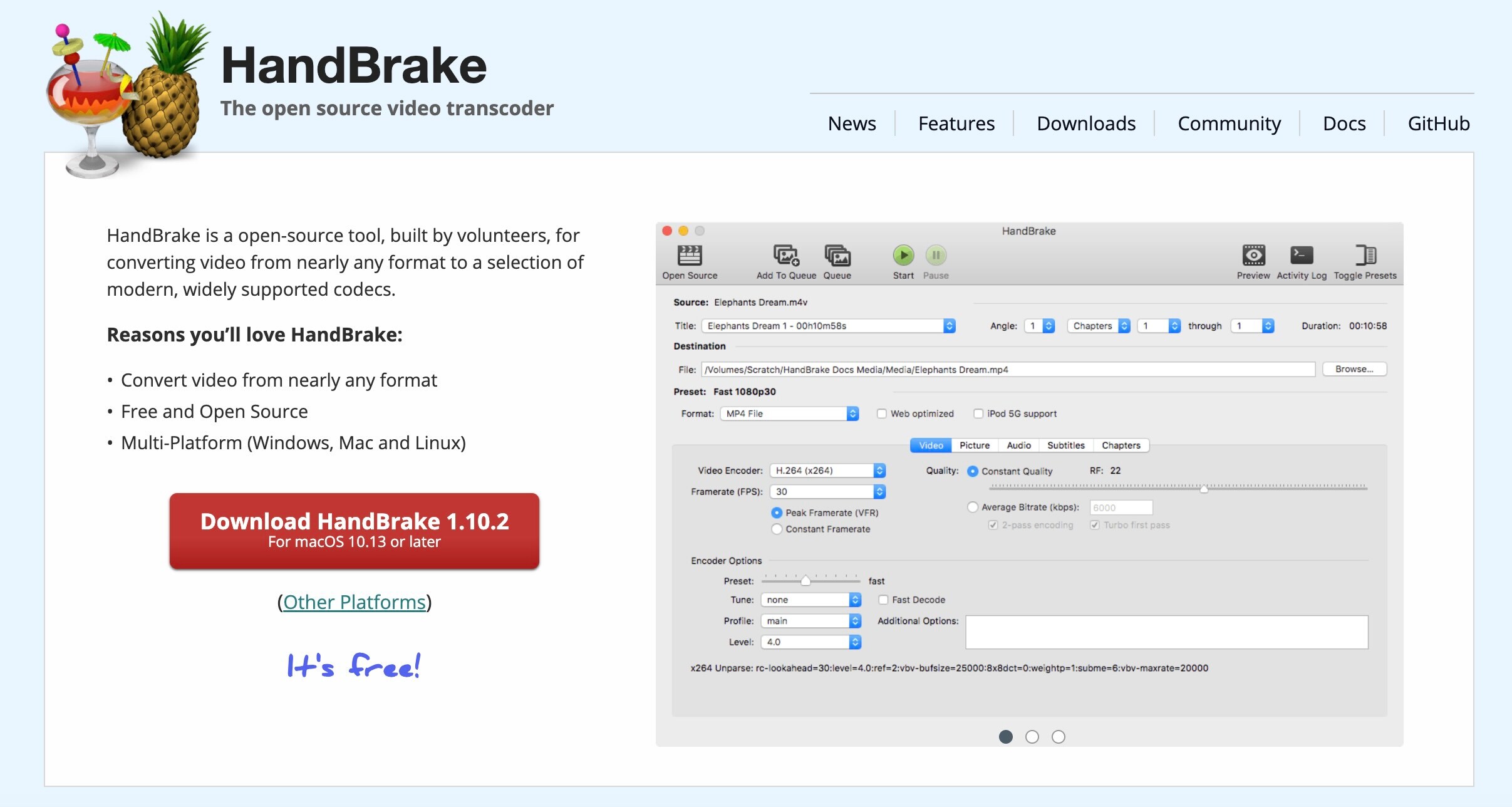
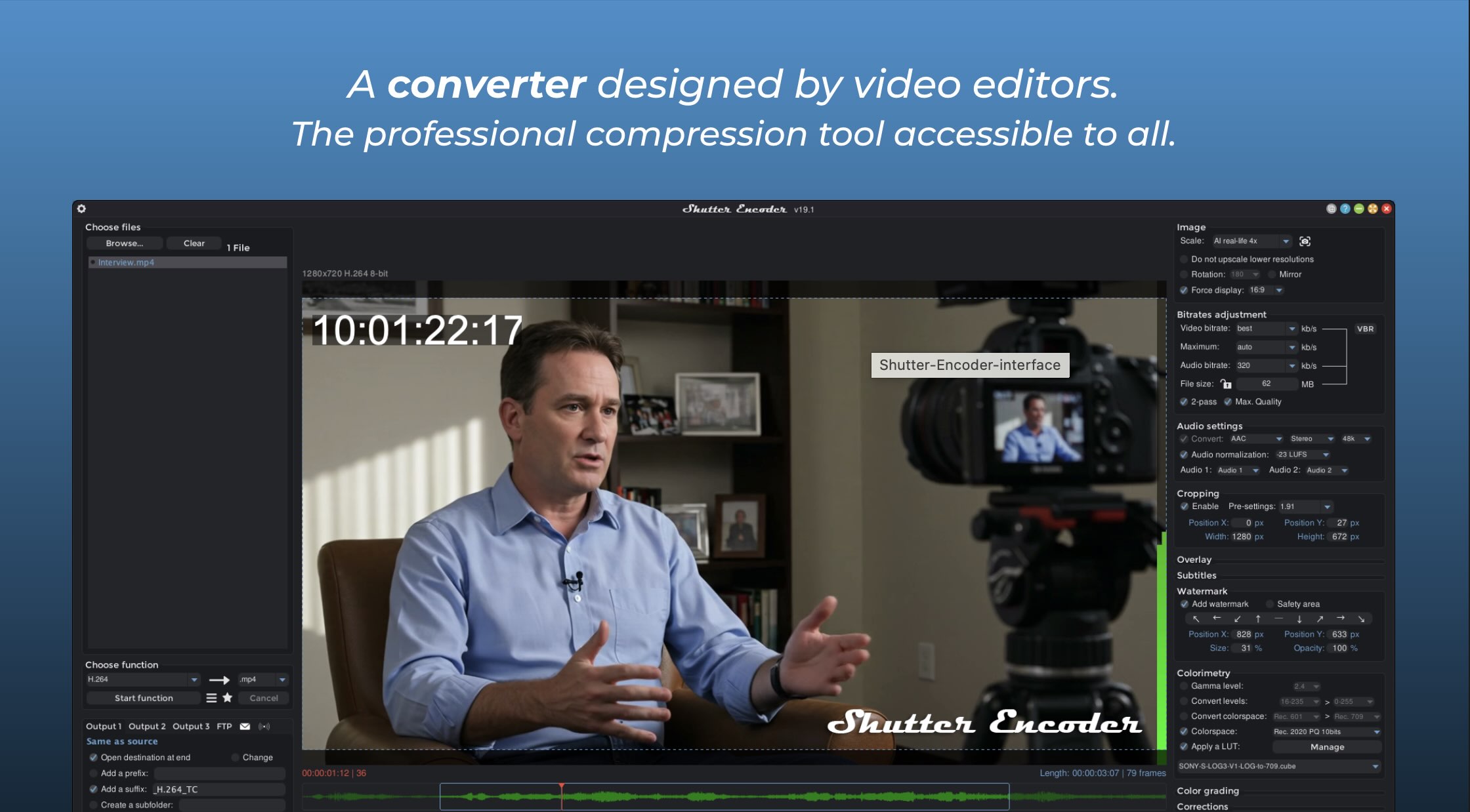
● Users seeking completely free, watermark-less exports without adware should use open-source alternatives like HandBrake for straightforward MP4/MKV compression or Shutter Encoder for advanced format and codec controls.
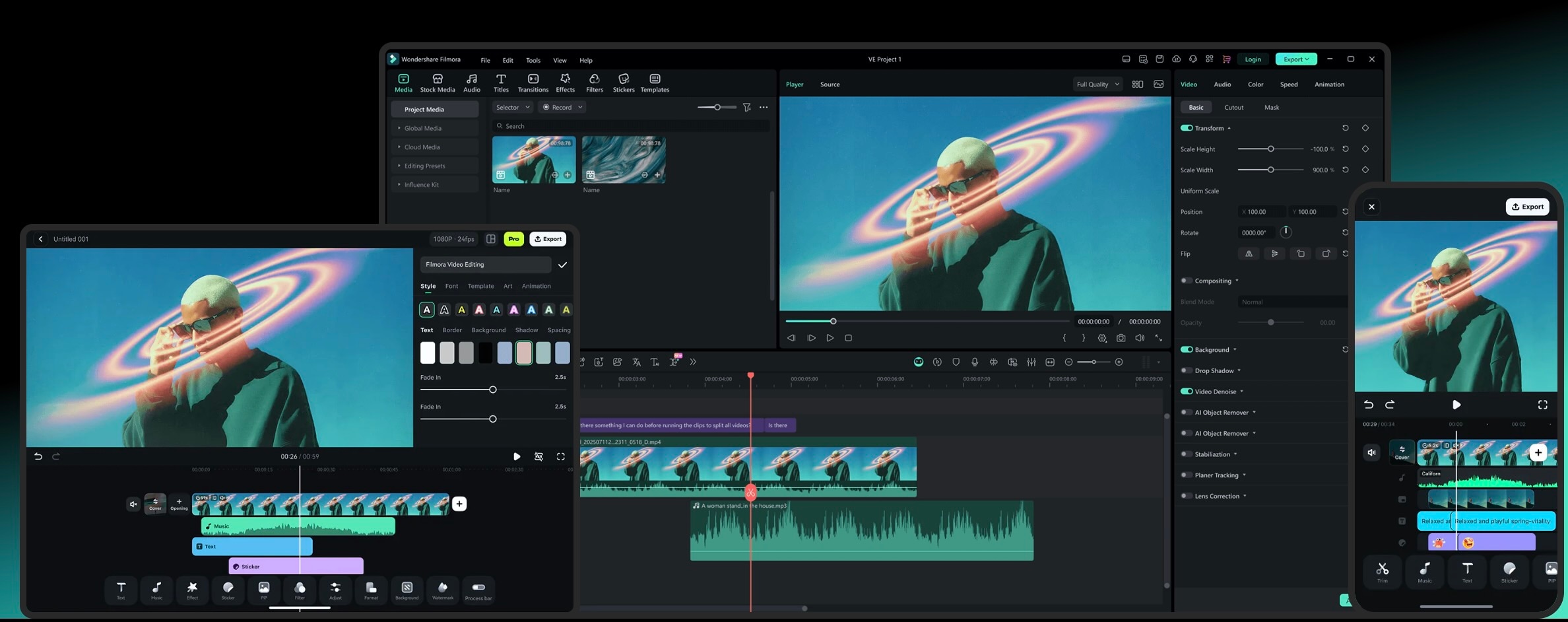
● Because Freemake lacks macOS compatibility and timeline editing, Mac users or creators needing 4K/8K hardware-accelerated editing workflows are better suited using premium alternatives like Wondershare Filmora.
Ask AI for a summary
 ChatGPT
 Perplexity
 Gemini
 Claude
 Grok
Grok
Freemake Video Converter is one of those names that refuses to disappear when talking about videography. Launched over a decade ago, it has survived waves of newer, flashier tools by sticking to a simple promise: convert almost any video into almost any format with minimal effort.
But longevity does not automatically mean relevance. The software still markets itself as "free," which immediately raises doubts in an era where free tools often come with hidden terms and conditions. Watermarks, feature restrictions, and upgrade prompts have become part of Freemake's reputation, leaving many users wondering what "free" really means in 2026.
In this Freemake Video Converter review, we take a fresh look at what the tool offers today, how safe it is to use, where it still performs well, and whether modern alternatives might be better for you.
Part 1. What is Freemake Video Converter?
Freemake Video Converter is a Windows-based media conversion tool that has been part of the video software landscape since the early 2010s. Originally launched as a lightweight solution for converting videos between common formats, the tool quickly gained popularity for its straightforward interface and wide format support at a time when many converters were either too technical or locked behind paywalls.
Over the years, Freemake expanded into more than just simple conversion, adding DVD ripping and burning, basic trimming, subtitle handling, and ready-made presets for phones, tablets, and gaming devices. This long history is a big reason the software still shows up in search results and user discussions today, even as newer AI-powered tools enter the market.
Supported Formats and Compatibility
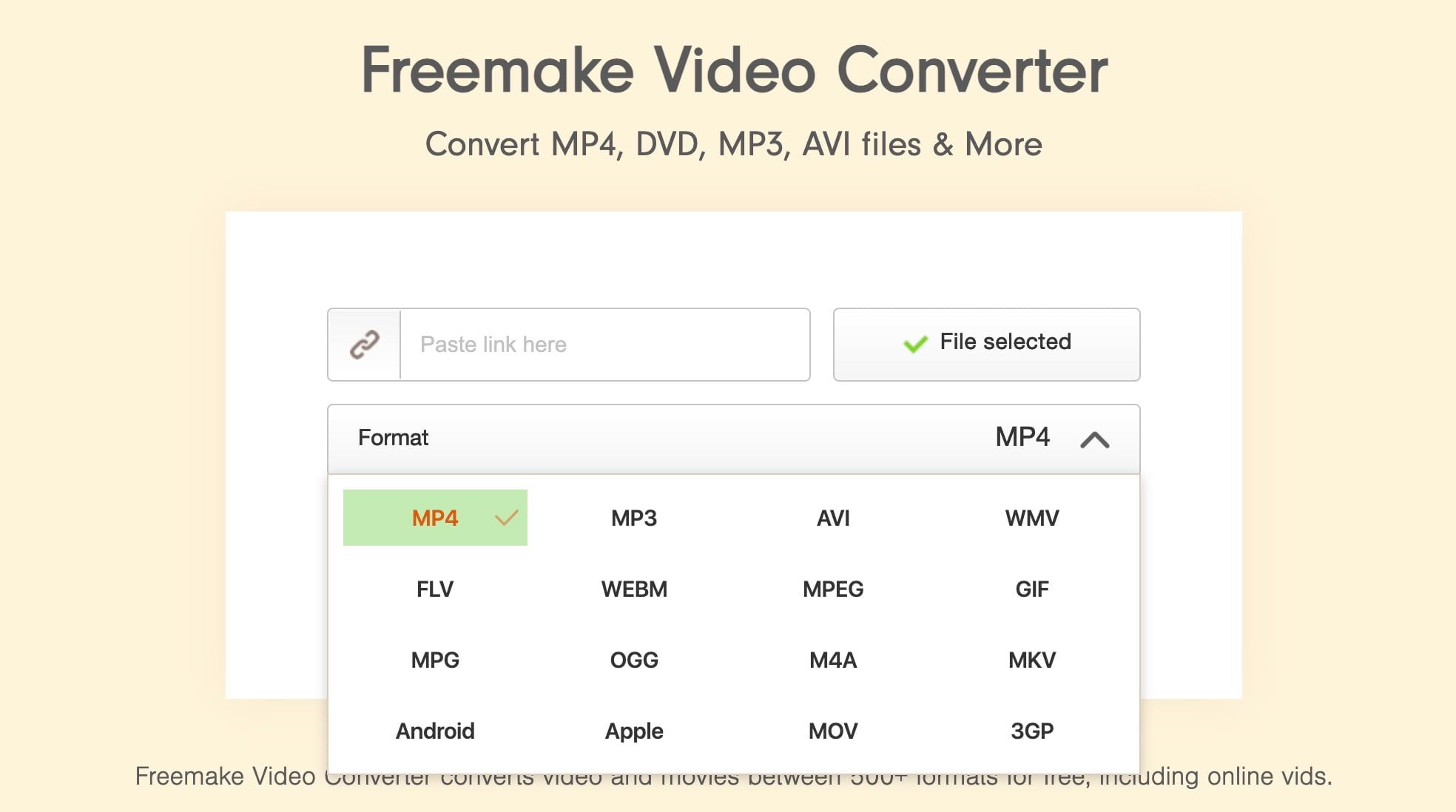
One of the main strengths of Freemake Video Converter has always been its wide format compatibility. The software supports a variety of input and output formats, which makes it suitable for everyday conversion tasks, old files, and playback needs on simple devices.
Commonly supported video formats include:
- MP4 (H.264, H.265)
- AVI
- WMV
- MKV
- MOV
- FLV
- 3GP
- MPEG, MPG
- TS, MTS, M2TS
Disc and physical media support:
- DVD (video to DVD and DVD to video conversion)
- ISO image files
Audio and image compatibility:
- MP3, AAC, WAV, WMA
- FLAC
- JPG, PNG, BMP (for slideshows or video creation)
Device presets and use cases:
- Smartphones and tablets (Android, iPhone, iPad)
- Gaming consoles
- Smart TVs
- YouTube-ready exports
Part 2. Is Freemake Video Converter Safe? Adware and Security Analysis (2026 Update)
Safety is one of the most common concerns around Freemake Video Converter, and the answer is not a simple yes or no. The software itself is not considered malware, but its installer and business model raise a few red flags for users.
Installer and Adware Concerns
Freemake Video Converter is a legitimate program, but it has a long history of bundling optional third-party offers during the installation process. These extras are not viruses, yet they are often classified as potentially unwanted programs (PUPs) by antivirus software. If users rush through the default installation, they may end up with additional software they did not intend to install.
The latest versions are generally cleaner when downloaded from the official website, but the safest approach is still to choose Custom Installation and carefully decline all optional offers.
Recent User Feedback (Reddit and Trustpilot)
- On Trustpilot, many users say Freemake works fine for basic video conversion, but complain about confusing licensing, watermarks, and unexpected upgrade prompts.
- On Reddit, discussions often focus on frustration rather than security threats. Users frequently mention aggressive upselling, leftover files after uninstalling, or disappointment with the "free" version's limitations.
Serious malware reports are rare, but trust issues remain due to past installer behavior and unclear boundaries between the free and paid versions.
Part 3. Key Features and How to Use It
Freemake Video Converter focuses more on ease of use than advanced controls. Most features are designed so that first-time users can get results within minutes, which makes it appealing for basic conversion and disc-related tasks.
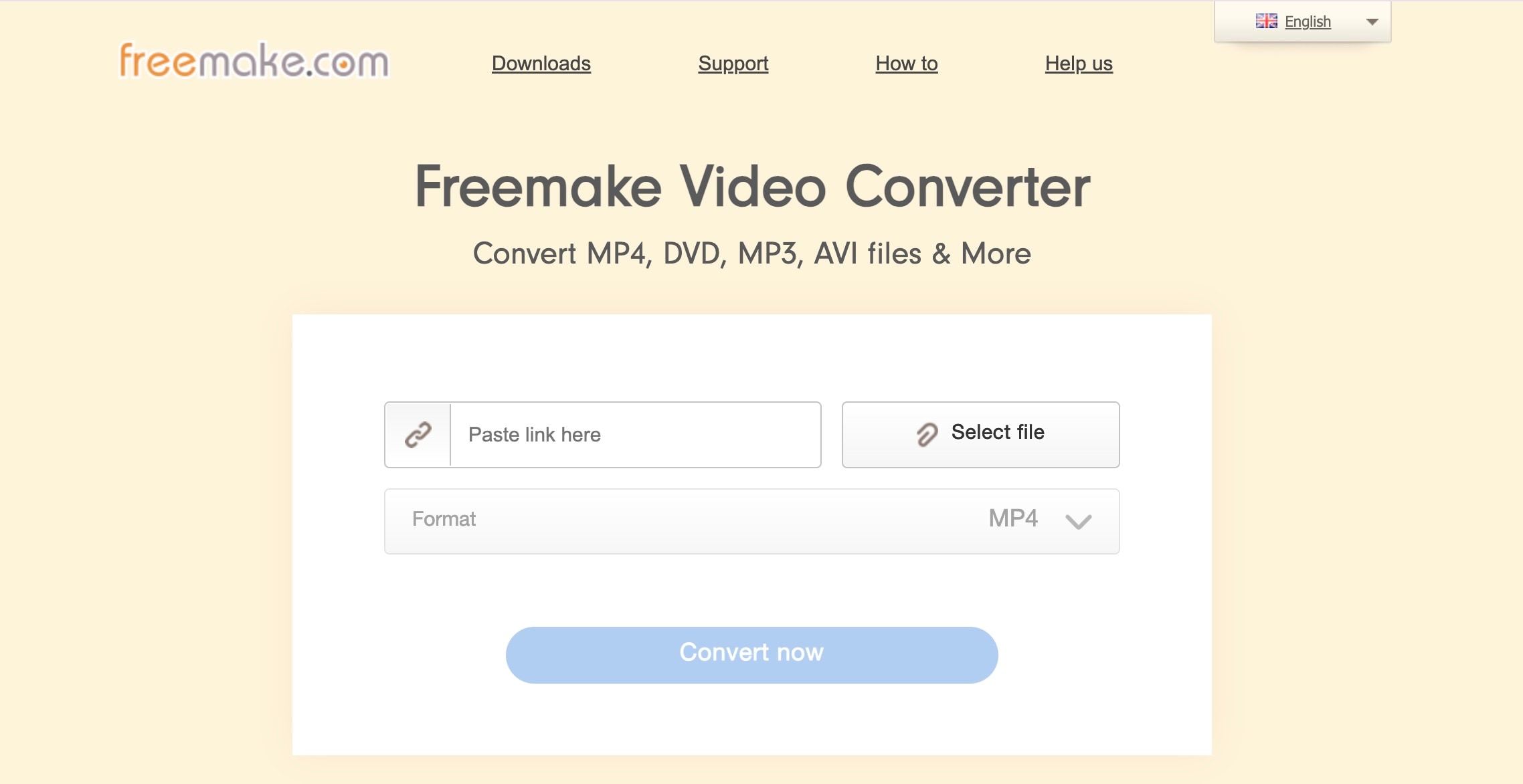
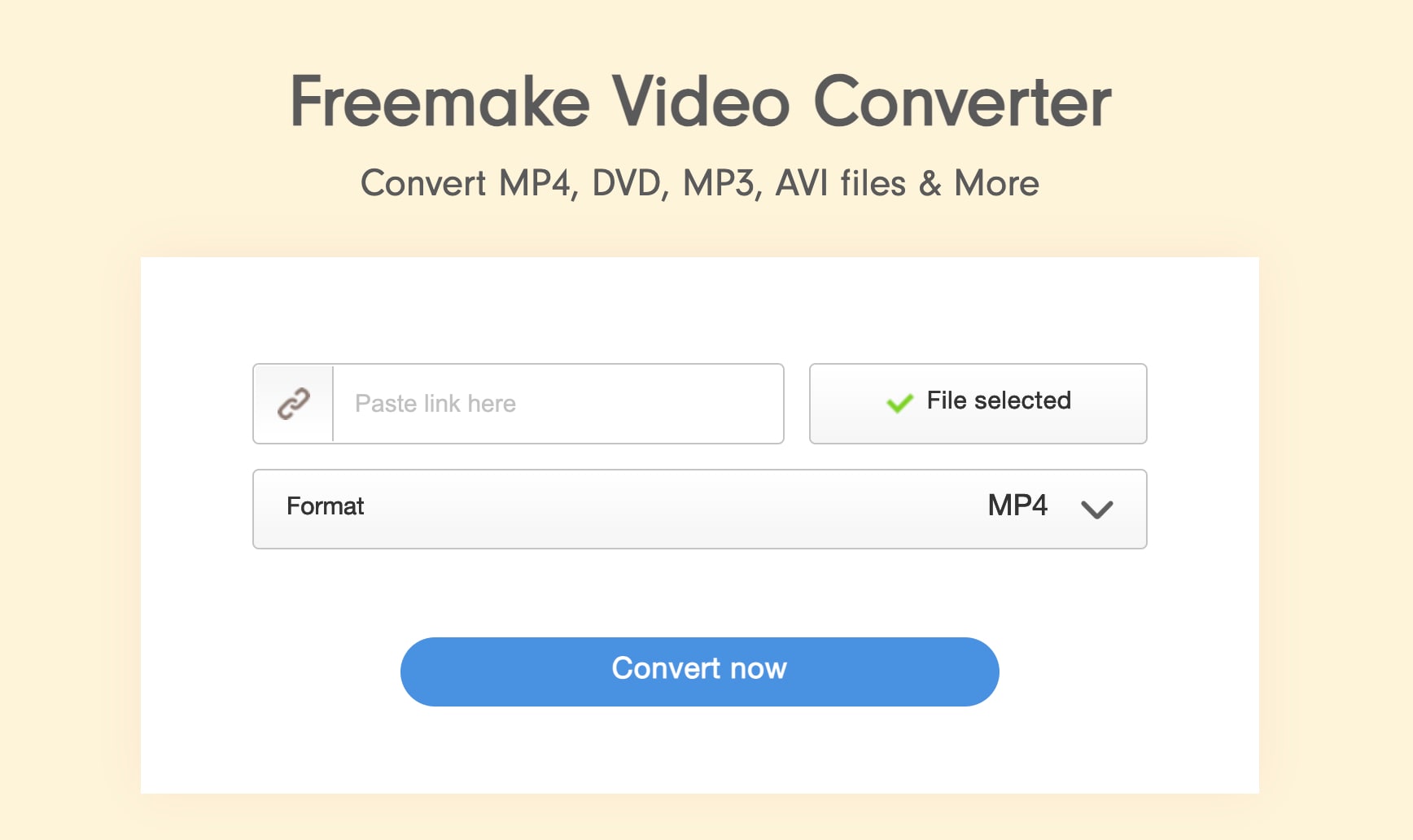
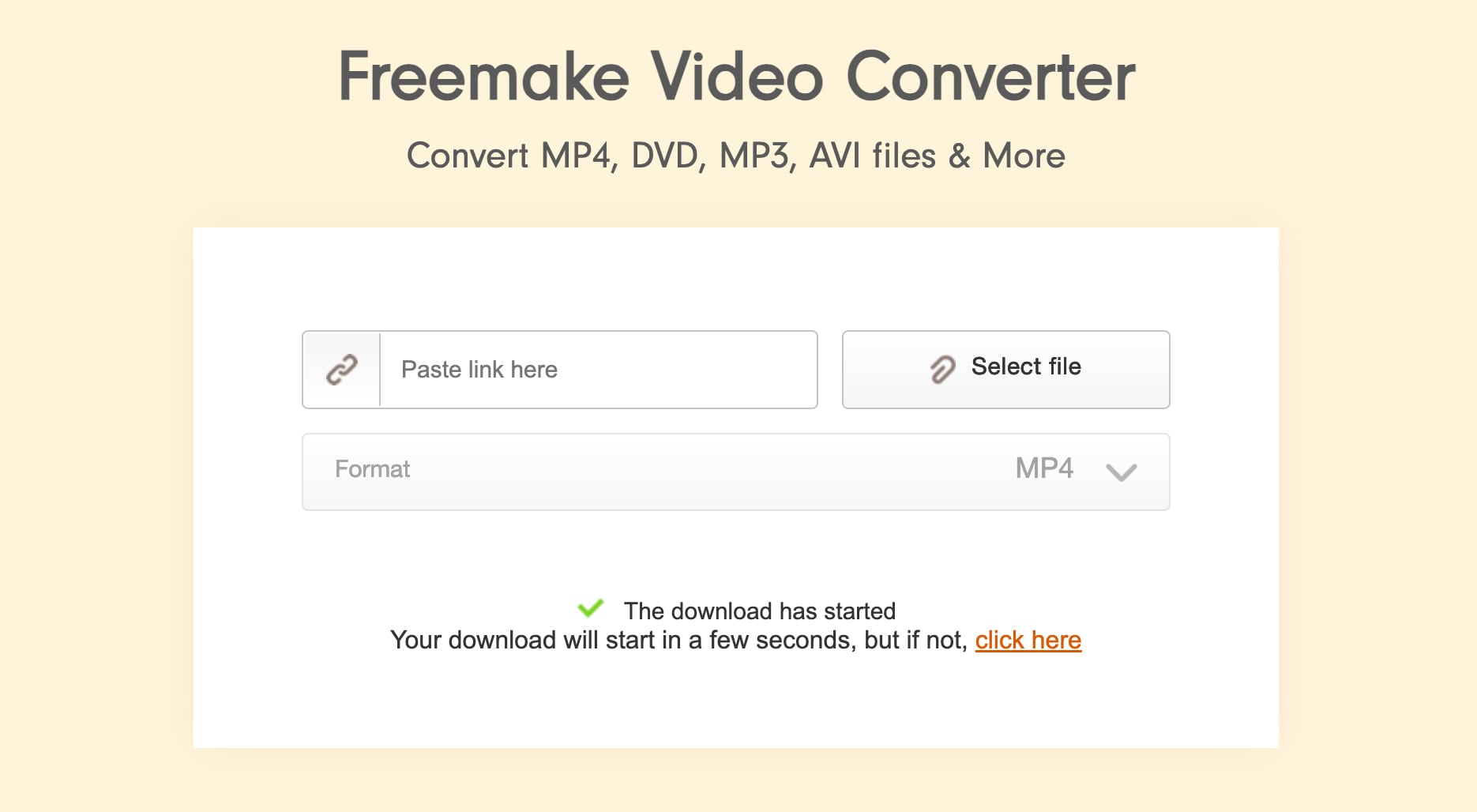
Video Conversion with Freemake (Step by Step)
DVD Ripping and Burning
Freemake also includes tools for working with DVDs, which is one of the reasons it has stayed relevant for so long:
- DVD ripping: Convert DVDs or ISO files into digital video formats like MP4 or AVI.
- DVD burning: Turn video files into playable DVDs with simple menu templates.
- Subtitle handling: Import or preserve subtitles when ripping discs.
These features are useful for archiving old DVDs, but many options are restricted or watermarked unless you upgrade to the paid version.
Basic Video Editing Tools
Freemake offers light editing features meant for quick fixes rather than full edits:
- Trimming: Cut unwanted parts from the beginning or end of a video.
- Rotating: Fix videos recorded in the wrong orientation.
- Simple adjustments: Merge clips or remove black bars in some cases.
These tools are functional but limited. If you need advanced effects, transitions, or precise timeline control, Freemake is not designed for that level of editing.
Part 4. The Freemake Watermark: Is the Free Version Really Worth It?
This is where most Freemake Video Converter reviews start to split. While the software is free to download and install, the experience quickly shows that "free" comes with significant limitations.
Free Version Limitations
In the free version, Freemake allows you to convert videos, but with restrictions that are hard to ignore:
- Large watermark on exported videos, often covering a noticeable portion of the frame
- Limited conversion speed, especially for longer or higher-resolution videos
- Locked premium features, including some formats, DVD tools, and presets
- Frequent prompts encouraging users to upgrade
These limitations are the main reason many users feel misled after their first export.
What Happened to Gold Pack and Mega Pack?
In earlier versions, Freemake clearly offered upgrades like Gold Pack and Mega Pack. Today, these names are no longer prominently displayed on the official website.
Instead, Freemake now focuses on feature-based upgrade packs, such as:
- Remove Branding Pack – removes the watermark and unlocks clean exports
- Mega Pack – still available, but is mostly promoted inside the app rather than on the homepage.
This shift makes pricing less transparent, as users often discover upgrade options only after exporting a video or clicking "Remove Watermark" inside the software.
Why Users Search for "Freemake Video Converter No Watermark"
Because the watermark is large and unavoidable in the free version, many users search for "Freemake Video Converter no watermark". In reality, there is no official way to remove the watermark for free.
Attempts to avoid it often involve outdated versions or unofficial downloads, which can lead to security risks. To export videos, users must purchase one of Freemake's premium packs. If you need watermark-free videos without unclear pricing or aggressive upselling, this is often the point where you may want to start exploring alternatives.
Part 5. Pros and Cons: A Quick Breakdown
Before deciding whether Freemake Video Converter is worth using this year, it helps to look at its pros and cons side by side.
The breakdown below highlights where Freemake performs well and where it may fall short compared to modern video converters.
- Easy to use: The interface is simple and beginner-friendly, making basic video conversion quick and intuitive.
- Wide format support: Freemake supports common formats like MP4, AVI, WMV, MOV, and FLV.
- DVD features included: The software can extract and burn DVDs, which is useful for working with older discs.
- Basic editing tools: Users can trim and rotate videos without installing a separate editor.
- Light system requirements: Freemake runs smoothly on most Windows PCs without needing powerful hardware.
- Watermark in free version: All free exports include a large watermark that can't be removed without paying.
- Limited conversion speed: Free users experience slower processing, especially with long or high-resolution videos.
- Aggressive upselling: Frequent upgrade promotions interrupt workflow and feel pushy.
- Unclear pricing structure: Premium options like Remove Branding or Mega Pack are mainly shown inside the app, not clearly on the website.
- No advanced editing: The software lacks timeline editing, effects, and modern video enhancement tools.
Part 6. Top 3 Alternatives to Freemake Video Converter (Non-Adware)
If watermarks, additional offers, or Freemake installer issues feel too distracting, the good news is that there are solid alternatives in 2026 that offer cleaner installations and more transparent value. These tools focus on powerful editing, true free conversion, or professional-level control without bundled software.
Conclusion
Freemake Video Converter still does what it has always done best: convert videos in a beginner-friendly way.
For quick format changes and basic DVD tasks, it can get the job done without a steep learning curve. However, in 2026, you can start to feel that it's getting a bit dated. The heavy watermark, limited free features, and unclear upgrade structure make the experience feel restrictive, especially when many users expect "free" to mean usable without strings attached.
For casual users who only need occasional conversions and don't mind the limitations, Freemake may still be acceptable. But for anyone who values clean exports, transparent pricing, and modern workflows, alternatives like Filmora or truly free tools like HandBrake offer a smoother and more trustworthy experience.

 Secure Download
FAQs
-
How to remove the Freemake watermark for free?
You can't remove the Freemake watermark for free. The watermark is built into the free version, and removing it requires a paid upgrade. Free solutions found online are unsafe and not recommended.
-
Is Freemake Video Converter a virus?
No, Freemake Video Converter is not a virus. It is a legitimate program, but it may show ads or upgrade prompts. As long as you download it from the official website and pay attention during installation, it is generally safe.
-
Does Freemake work on Mac?
No, Freemake Video Converter only works on Windows. If you are using a Mac, tools like Wondershare Filmora are better options since they support macOS and offer both video conversion and editing features.
