


 TL;DR:
Following its April 2026 rebranding from Freepik, Magnific AI operates as a strictly paid, cloud-based multimodal platform designed for creative teams to generate, upscale, and organize AI campaign assets.
● The studio environment divides production into Image, Video, Audio, 3D, and node-based Spaces workspaces, utilizing rotating models like Flux.2 Pro, Veo 3.1, and Kling 2.5 to maintain visual consistency across workflows.
● There is no free trial or offline capability, requiring users to purchase a subscription starting at €6 per month for 8,000 credits and strictly avoid compromised mod APKs claiming to bypass payment.
● Because the web interface lacks multi-track timeline slicing and audio synchronization, creators must export their generated raw materials into a dedicated editor like Wondershare Filmora for frame-by-frame assembly, sound polishing, and final social media formatting.
Ask AI for a summary
 ChatGPT
 Perplexity
 Gemini
 Claude
 Grok
Grok
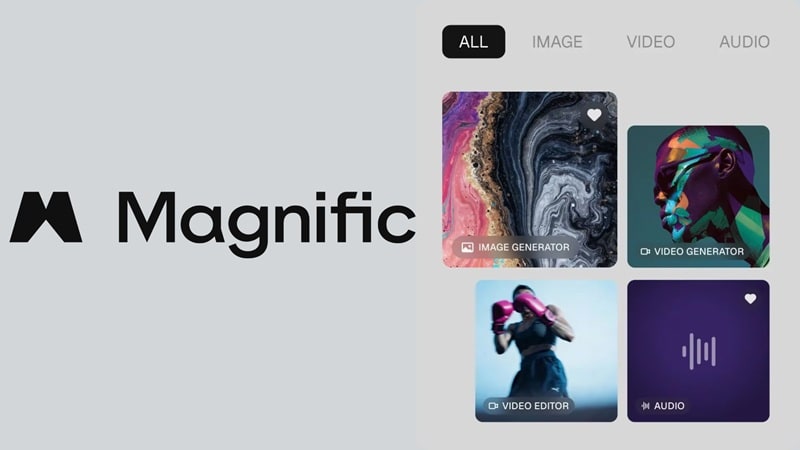
If you like to hunt royalty-free images or footage, you must have heard of Freepik. Now, that platform has turned into Magnific AI following a massive April 2026 rebranding, and it offers an entirely revamped multimodal studio built from the ground up.
They don’t play when it comes to this deployment cycle either. According to EU-Startups, Magnific also launched a €10 million fund to help marketing, advertising, and in-house creative teams move from AI experiments to production-ready campaign workflows.
So in this review, we will break down what Magnific offers, how Magnific AI pricing works, and look at the real-world value it brings to your studio setup.
Part 1. From Freepik to Magnific: What Is Magnific AI?
Freepik Magnific AI essentially combines Freepik's deep stock-content roots with newer, heavy-duty AI tools for generating, editing, enhancing, and organizing creative assets. This combination can be useful for designers, marketers, agencies, content creators, e-commerce teams, and anyone who needs a lot of creative assets quickly.
Notable AI Models Available in Magnific
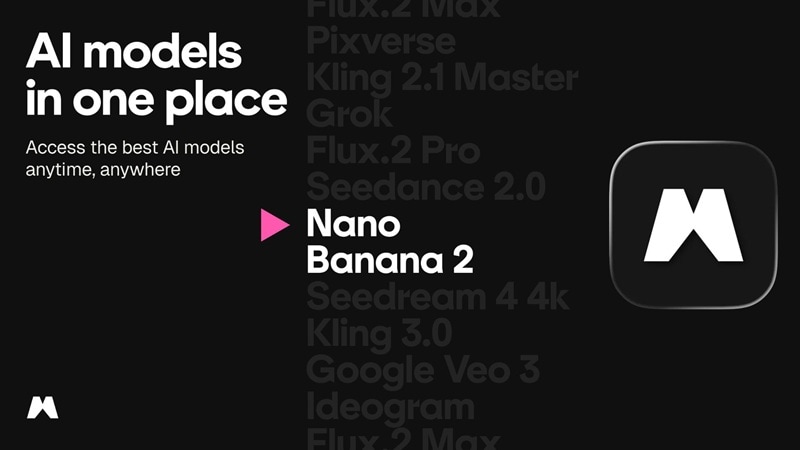
One of Magnific's biggest selling points is its model variety. You get access to a rotating lineup of top models across image, video, and audio, and here are some notable models you may see inside the platform:
| AI Model | Main Use | Why It Matters |
| Flux.2 Pro | Image generation | Good for detailed, high-quality visuals and creative concepts |
| Nano Banana 2 | Image generation | Useful for fast visual ideas, social graphics, and stylized image creation |
| Veo 3.1 | AI video generation | Useful for cinematic shots, motion clips, and campaign-style video ideas |
| Kling 2.5 | AI video generation | Consistent cinematic quality and smooth motion control |
| ElevenLabs | Voice and audio | Useful for voiceovers, narration, dialogue, and audio generation |
Part 2. Getting Into Magnific: How to Access and Sign In
Magnific AI is mainly used online through a browser. So, there's no need to search for a Magnific AI free download because there's nothing to install.
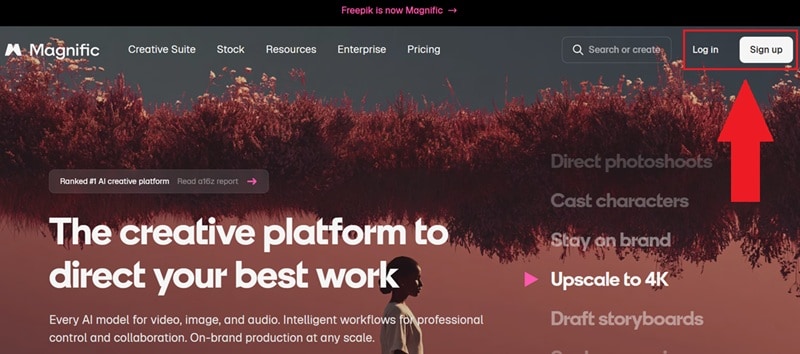
To access it, you just need to sign in to Magnific AI by visiting https://www.magnific.com/, click Log In or Sign Up to register an account, and you’re in.
Magnific on Mobile
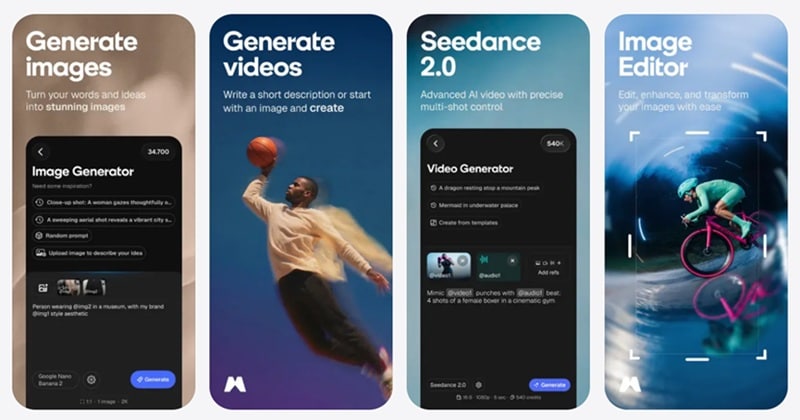
Magnific AI is also available as a mobile app for Android and iOS. You can download the verified, secure utility directly through the official Google Play Store or Apple App Store links found on their main landing page.
A Critical Security Notice on Modified Files
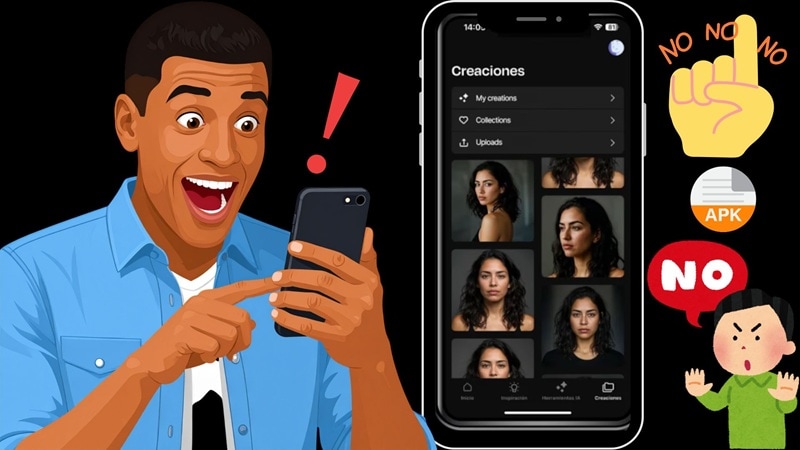
You might see links floating around claiming to offer a "Magnific AI mod APK" or a cracked offline installer that bypasses the subscription. Stay away from those. Magnific’s AI tools depend on online accounts, cloud processing, and server-side access. If a random file claims to unlock premium AI features for free, that is already suspicious.
Stick to the official channels to keep your machine safe. And if you are looking for a Magnific AI free alternative, choose a real alternative instead of gambling with cracked apps.
Part 3. Magnific AI Features: Touring the Five Core Capabilities
Magnific AI has a lot going on, so let’s not overcomplicate it. The platform can be divided into five main creative areas: Image, Video, Audio, 3D, and Spaces. This makes it incredibly easy to seamlessly bounce between flat assets, motion files, and audio syncs. Let's break it down.
🎨 Image Workspace
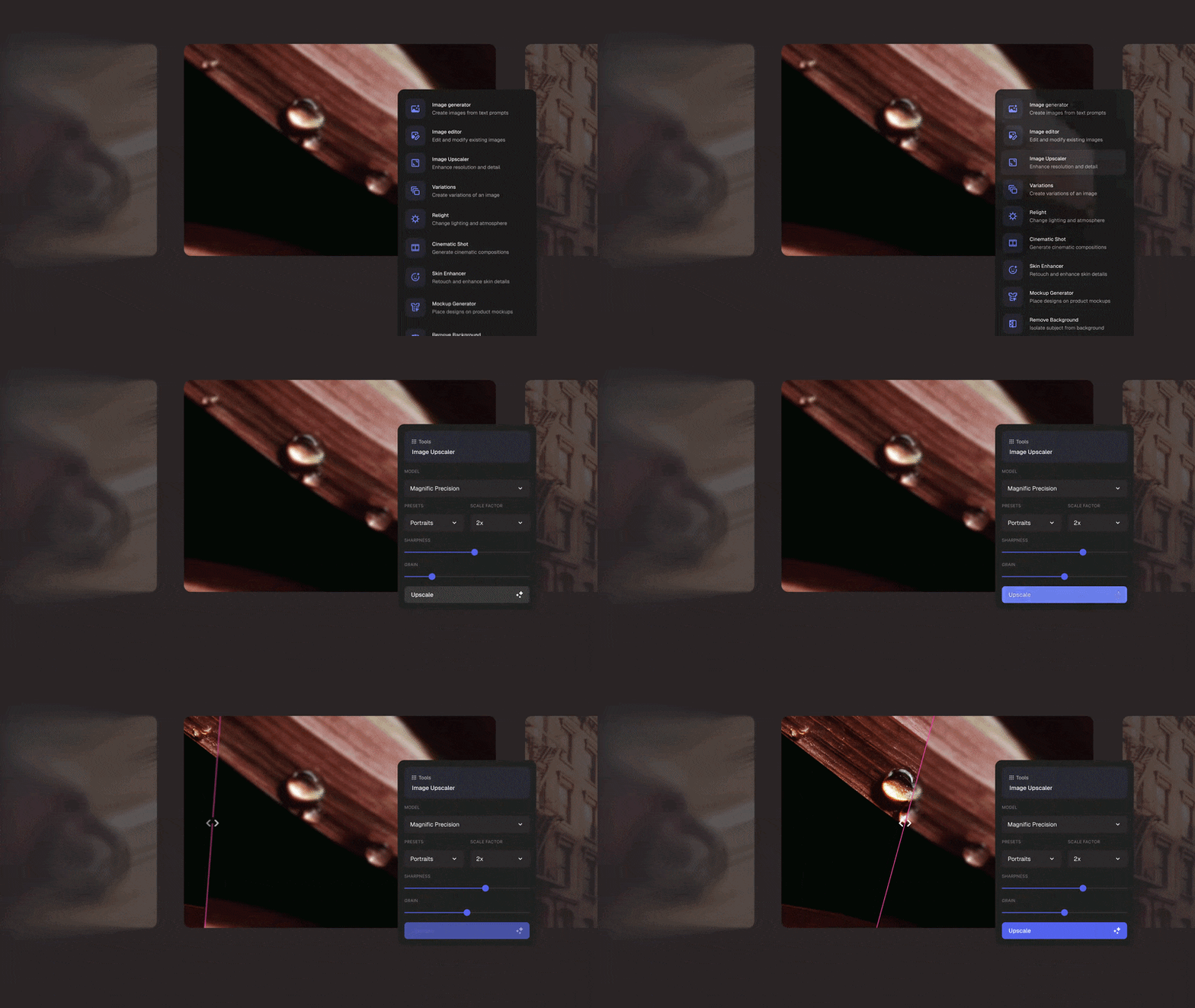
You can generate images from prompts, edit existing ones, resize assets for different uses, and run them through the Magnific AI upscaler. The upscaler doesn't just make things bigger. It adds genuine detail: fabric texture, skin pores, architectural grain, realistic lighting.
🎬 Video Workspace
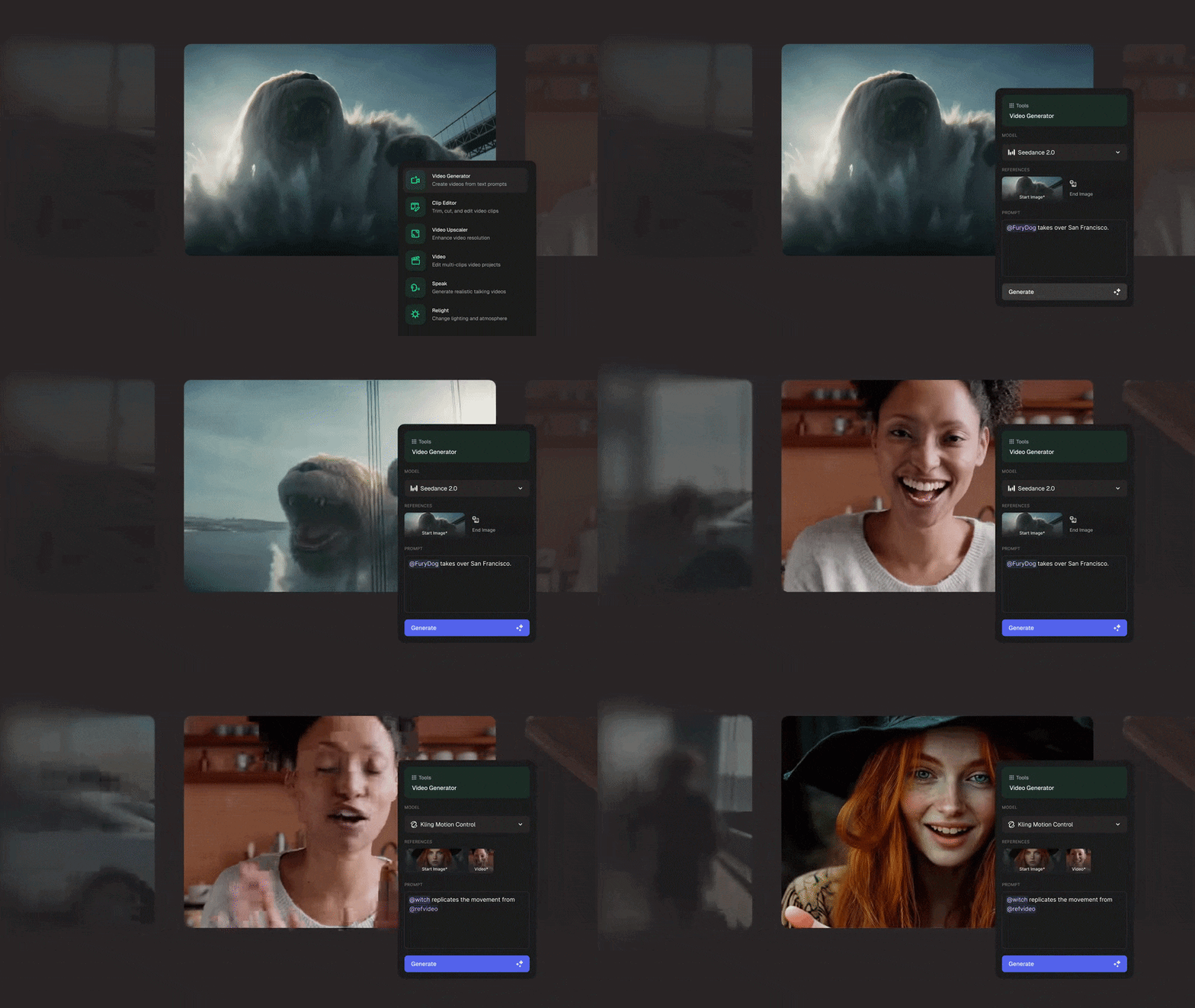
The Magnific AI video generator allows you to generate video from text prompts, control specific shots and scenes, and maintain character and style consistency across frames. With these capabilities, there is plenty of content you can create. That includes:
- Product teasers
- Short ads
- Motion posters
- Visual concepts
- Social media clips
- Cinematic experiments
- Campaign previews
🎵 Audio Workspace
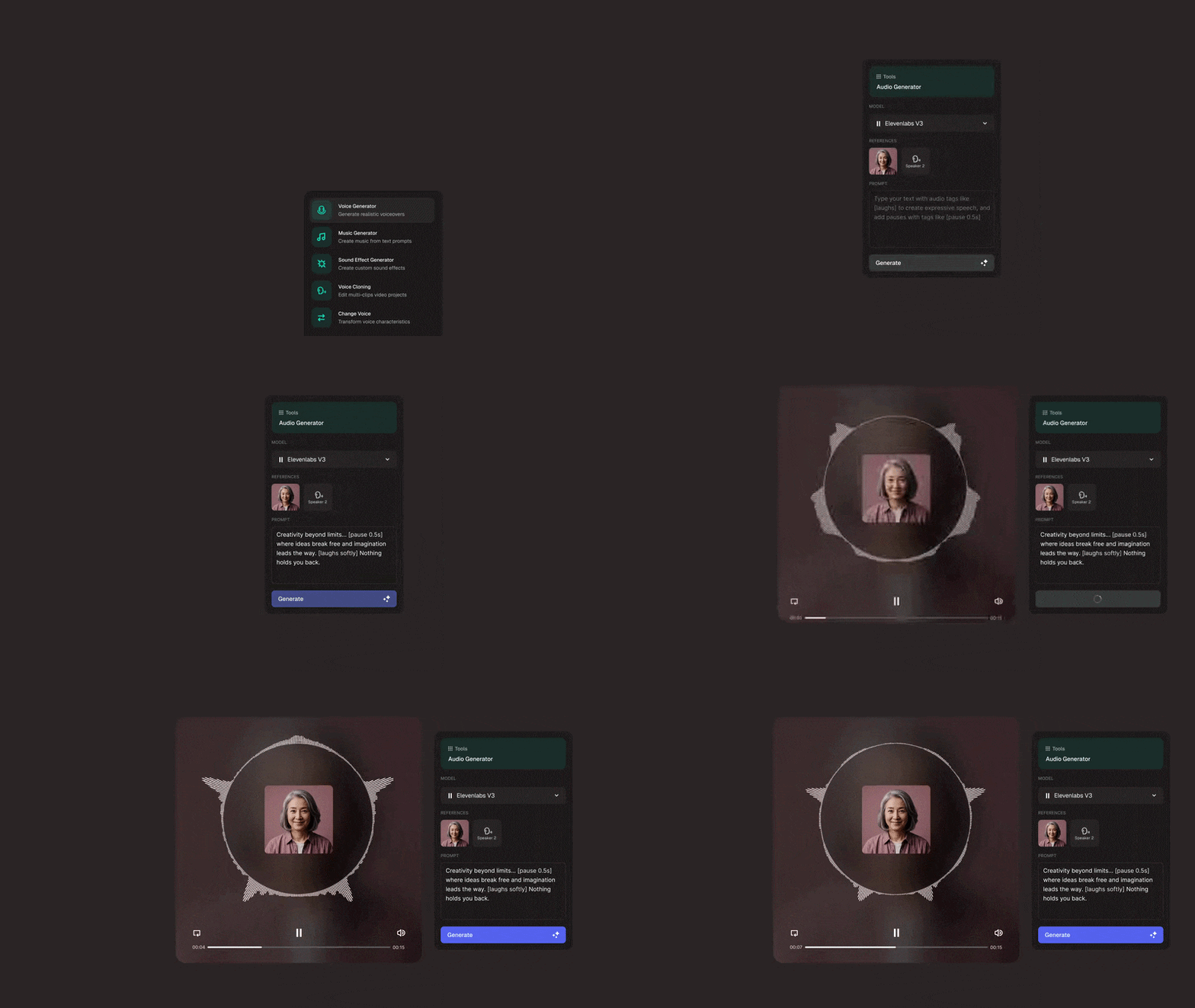
No need to jump out to another program to score your project. Magnific AI also lets you generate original music, voice-overs, and sound effects without recording anything. The platform integrates with leading audio AI models for voice synthesis, giving you results that actually sound usable in real projects.
🧊 3D Workspace
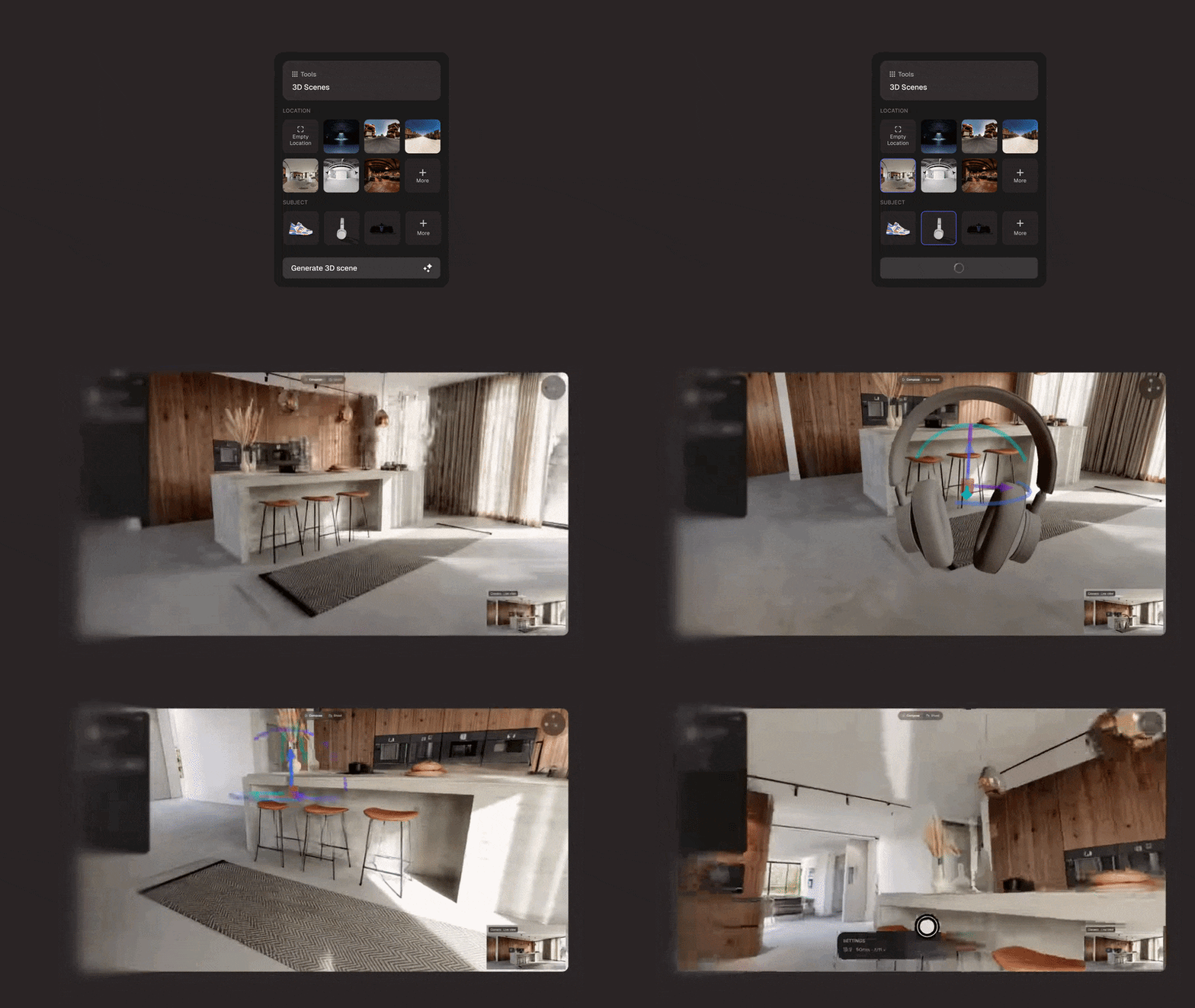
The 3D workspace is a newer addition from Magnific AI that lets you work with three-dimensional creative direction. You can take any flat image and build a workable 3D scene around it, letting you adjust lighting and perspectives on the fly. It's particularly useful for product visualization, packaging mockups, and concept development.
🔗 Spaces
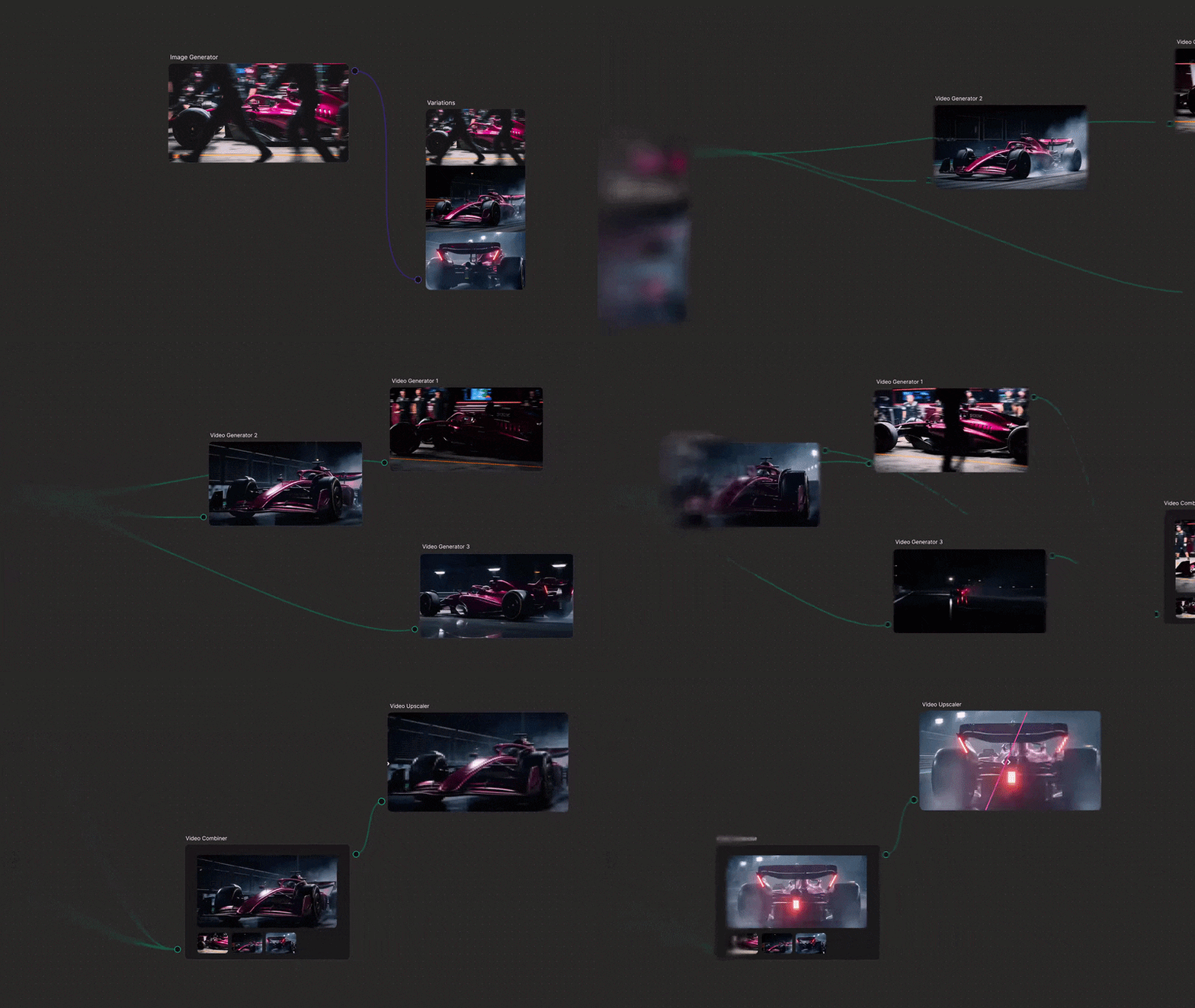
Magnific AI’s Space is the ultimate node-based canvas where your team explores, automates, and collaborates. It lets you build reproducible workflows, connect your image plates to video modules, and ensure consistent visual results across an entire campaign. For example, a team might create a workflow for:
- Product image generation
- Background changes
- Upscaling
- Ad variations
- Social media versions
Part 4. Magnific AI Pricing: Powerful Tools, But Not Exactly Free
There is no Magnific AI free option. Magnific uses a subscription and credit-based system, and your plan determines both what you can access and how much generation capacity you get per month.
Note: Magnific bills in euros (€), so the exact dollar amount varies slightly by region and billing cycle.
| Plan | Monthly Price | Monthly Credits | Best For |
| Essential | €6/month | 8K credits/month | Creators just getting started with AI tools |
| Premium | €15/month | 20K credits/month | Individuals exploring AI tools and stock content |
| Premium+ | €34/month | 45K credits/month | Creatives who need unlimited generations + full AI access |
| Pro | €215/month | 300K credits/month | Professionals scaling content production at volume |
All plans include access to the full suite of image, video, and audio models; Spaces; pro editing tools; commercial AI license; and the stock asset library. The difference mostly comes down to how many credits you get.
Magnific AI promo code
You might have heard about a Magnific AI promo code circling around online. However, according to an active user on Reddit who thoroughly tested the platform's features, Magnific no longer relies primarily on manual promo code entry for its biggest discount. Instead, a verified access link triggers an exclusive promo system.
Part 5. Magnific AI Pros and Cons
- Strong AI Upscaling: The Magnific AI upscaler is still one of its biggest strengths, especially for stylized images, product concepts, posters, and campaign visuals.
- Huge Asset Library: Since Magnific comes from Freepik, users get access to a large collection of stock images, vectors, templates, mockups, PSDs, icons, and videos.
- Mobile Access Available: The Android and iOS apps make it easier to create and test ideas from a phone or tablet.
- Team-Friendly Spaces: Spaces can help teams build repeatable workflows and keep creative output more consistent.
- Credit System Can Feel Unclear: Magnific does not always make it easy to understand how many credits each generation will cost before you start using a tool.
- No Generous Free Trial: Users looking for “Magnific AI free” or “Magnific AI free trial” may be disappointed because serious AI use requires a paid plan.
- Occasional Model Disconnects: Switching an asset from a Flux 2 plate to a Kling 3 video can sometimes create jarring shifts in style.
- Lack of Precise Timeline Splicing: You cannot easily perform tight, multi-track audio and video editing within the web interface.
Part 6. Bridging the Gap with Wondershare Filmora
While Magnific AI is phenomenal for generating jaw-dropping creative assets, it is not built like a traditional video editor. If you want to trim clips, layer multi-track videos, match music beats perfectly, or add custom stickers, you will need a proper timeline editor.
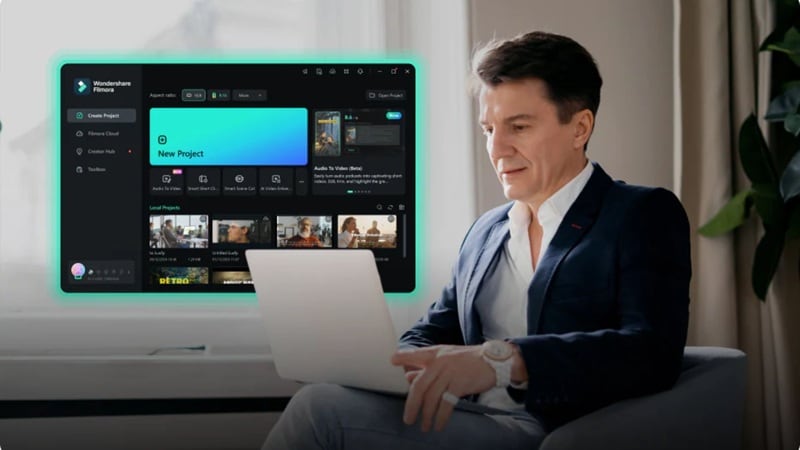
In that case, Wondershare Filmora provides a flawless desktop and mobile setup to take your raw AI generations and assemble them into a proper project. You can use Magnific to create images, videos, or campaign visuals, then bring those assets into Filmora to finish the real edit.
 Secure Download
Why Filmora Fills the Gap
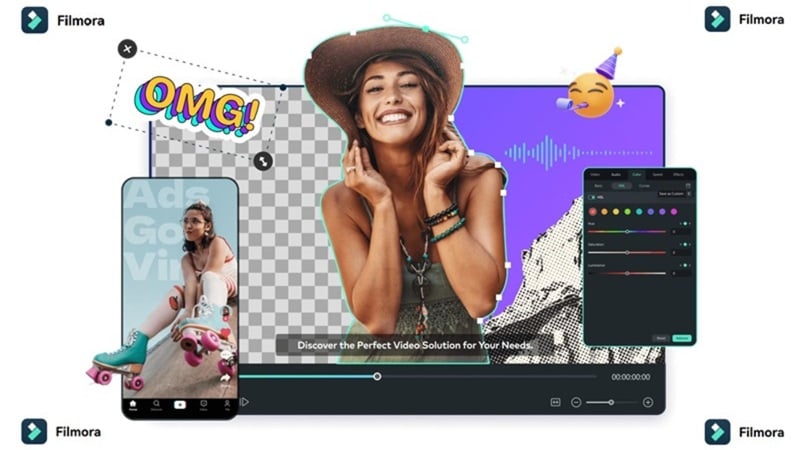
Filmora is a good Magnific AI alternative for users who care more about finished videos than AI asset generation alone. You get several benefits with Filmora that Magnific doesn't cover:
- Full Timeline Editing: You get a proper multi-layer editing timeline, allowing you to split footage, stack effects, and adjust timing frame by frame.
- Audio Polish: Voice enhancement, denoise, music tools, sound effects, and full voiceover workflows are useful when your AI-generated clip still needs better sound.
- Cross-Platform File Syncing: Filmora runs seamlessly on Windows, macOS, Android, and iOS. You can rough-cut your footage on a tablet while traveling and open the project file natively on your desktop later.
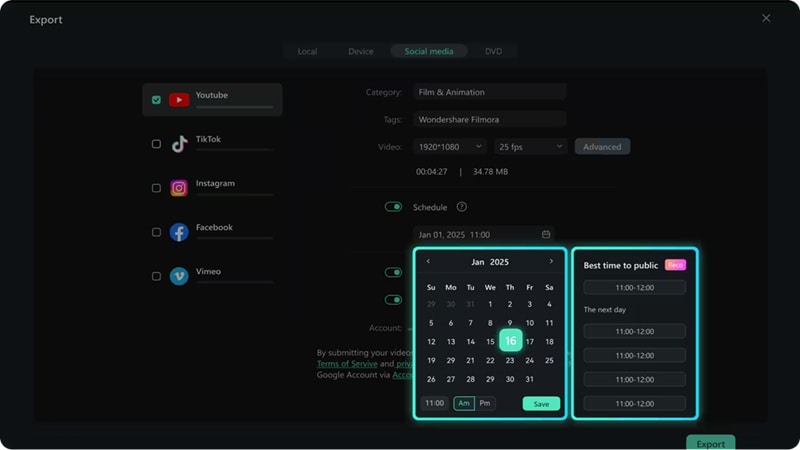
- Built for Social Media: Features like Auto Reframe, caption generators, and a built-in Social Content Planner make it incredibly easy to adapt a single video for TikTok, YouTube Shorts, or Instagram Reels.
Best Way to Use Both
Magnific and Filmora do not have to compete directly. A smart workflow could look like this:
- Use Magnific AI to generate visuals, product concepts, posters, or AI video shots.
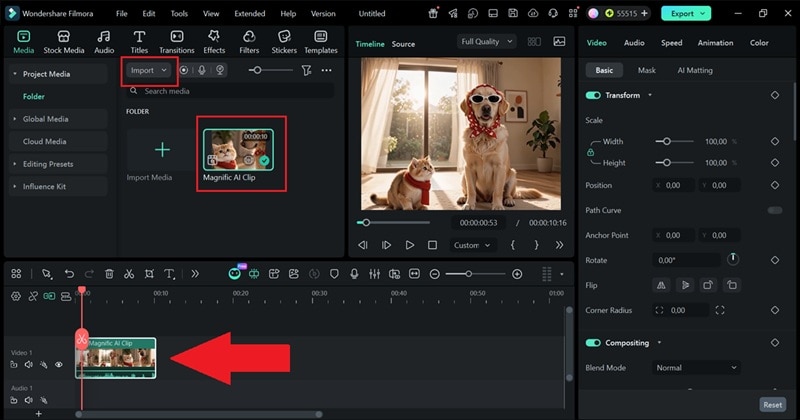
- Download the assets you like and import them into Filmora.
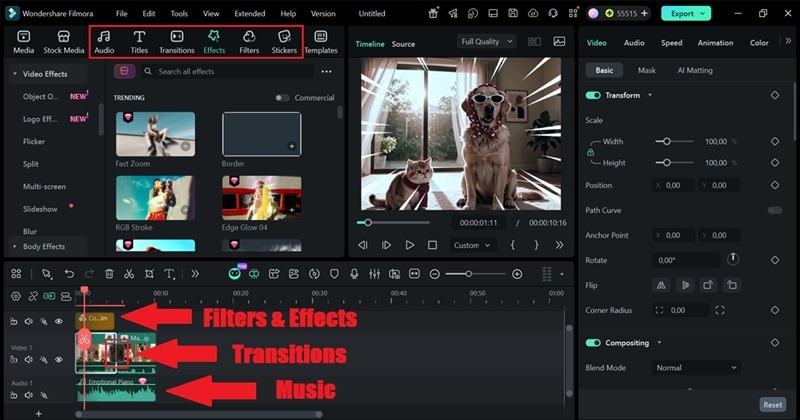
- Add filters, music, transitions, voiceover, effects, and final edits.
- Export the finished video for TikTok, YouTube, Instagram, or campaign use.
This workflow gives you the creative power of Magnific and the editing control of Filmora.
Secure DownloadConclusion
Magnific AI has successfully transformed from a basic stock library into an incredibly powerful visual engine. For agencies, marketers, and creative teams, that makes it a serious tool for campaign production.
But for creators who need finished videos, the Magnific AI video generator may not be enough on its own. To take those gorgeous visuals to the next level, using Wondershare Filmora is the smartest move. It gives you the precise timeline tools, audio polishing, and social media export features needed to turn raw AI generations into viral content.
FAQs About Magnific AI
-
Is Magnific AI the same as Freepik?
Yes, as of April 2026, Freepik completely rebranded its entire ecosystem under the Magnific AI name, merging its massive stock catalog with advanced generative AI tools. -
Can I use Magnific AI for commercial projects?
Absolutely. All paid subscription tiers include a full commercial AI license for the images, video assets, and audio clips you generate. -
Can teams share a single credit pool across the node-based Spaces dashboard?
Yes, the Business plan is specifically built for creative teams, letting multiple users collaborate inside the same Spaces canvas and pull from a shared annual credit balance.
