
Smart Audio Adjustment: Improve Your Video Sound in Seconds
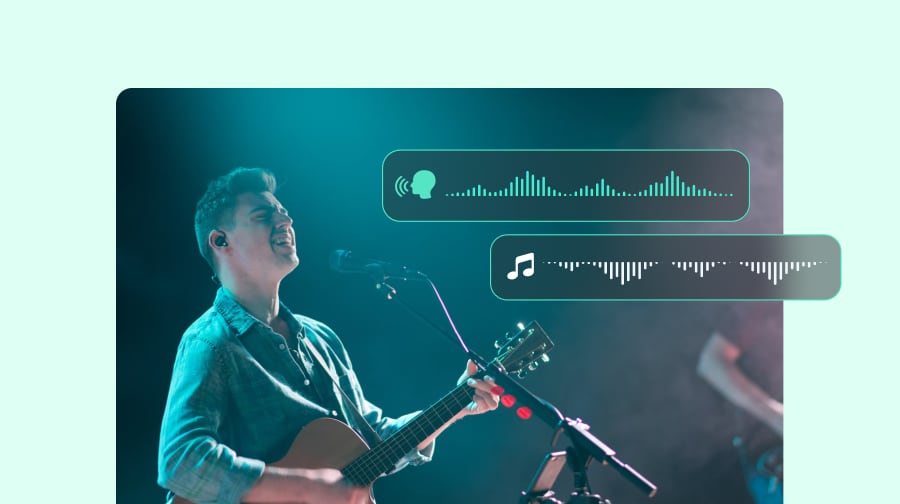
Clean and clear audio sets the tone for your video. Filmora's smart audio adjustment tools help you fix uneven sound, boost low recordings, sharpen voices, and clean up noise without dealing with complex sound settings. Whether you record with a camera, phone, or microphone, Filmora lets you improve your audio quickly so your video sounds clear and balanced from start to finish.
 4.7
(15746 reviews)
4.7
(15746 reviews)
Win 11 /Win 10 / Win 8 / Win7 (64 bit OS) | System Requirements
macOS 10.15 or later (Using macOS 10.14 or earlier? Click here) | Compatible with Apple Silicon
Clean and clear audio sets the tone for your video. Filmora's smart audio adjustment tools help you fix uneven sound, boost low recordings, sharpen voices, and clean up noise without dealing with complex sound settings. Whether you record with a camera, phone, or microphone, Filmora lets you improve your audio quickly so your video sounds clear and balanced from start to finish.
Fix Common Audio Problems with AI-Powered Audio Tools

Is your volume too low?

Do your scenes
sound inconsistent?

Is your voice unclear or
covered by noise?
You don’t need complex audio skills to solve these challenges.
Filmora's smart audio adjustment combines powerful audio tools so you adjust sound quickly and improve your mix without learning advanced audio editing.
Filmora's smart audio adjustment combines powerful audio tools so you adjust sound quickly and improve your mix without learning advanced audio editing.
Auto Loudness Normalization — Match Volume Across All Clips
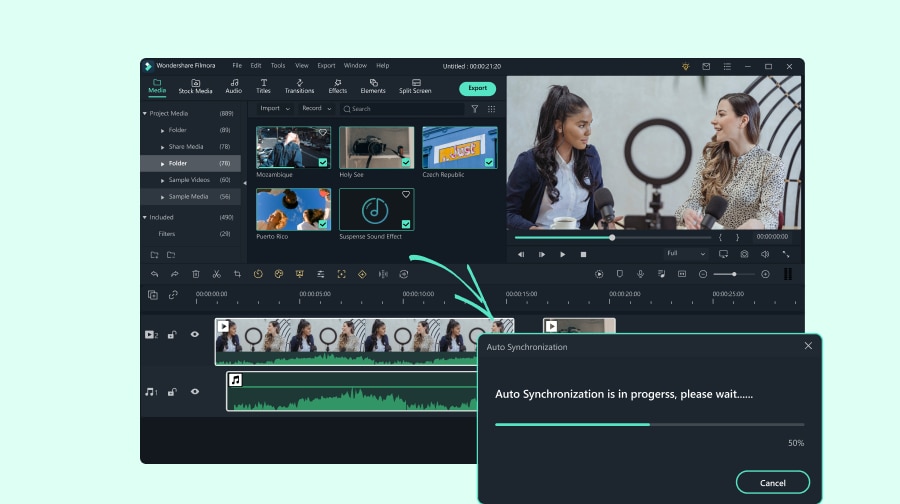
Filmora makes loudness control simple. Auto Loudness Normalization adjusts your audio loudness to match common platform standards (LUFS/LKFS) with one click. You select a preset or set your own loudness value anywhere from –10 to –23 LUFS.
The tool analyzes the selected clips, unifies their loudness levels, and prepares them for publishing — without complex settings or the steep learning curve found in traditional editing tools like PR. You get consistent, balanced sound across all your scenes, even when your audio comes from different devices.
Audio Gain Control — Increase Volume or Normalize Peaks
Audio Gain gives you precise control when you need to raise low recordings or balance clips from different sources. Set a fixed gain value, apply relative adjustments, or normalize peak levels (max peak or all peaks) to keep your sound clean and even. Whether you edit one clip or many at once, fast processing helps you boost volume, fix uneven audio, and create a smooth, unified mix with minimal effort.
AI Voice Enhancer — Sharpen Speech and Add Warmth
AI Voice Enhancer improves voice clarity and tone with simple sliders that brighten speech and make it easier to understand. It helps your voice stand out in screen recordings, commentary, podcasts, and online courses by adjusting presence, warmth, and articulation without technical steps.
AI Audio Denoise — Clean Up Background Noise Fast
AI Audio Denoise removes hiss, hum, wind, and room noise with one quick toggle, giving you cleaner and more focused audio. It keeps your message clear in busy or imperfect environments, making it easier to clean up audio and improve overall sound quality.
Audio Ducking — Lower Music When You Speak
Audio Ducking detects speech and lowers background music automatically, helping you balance voice and music without manual mixing. Your dialogue stays clear while your soundtrack supports the mood, making it simple to adjust background sound in any project.
Audio Equalizer — Shape Your Sound with Flexible Presets
The Equalizer gives you easy ways to adjust voice tone, music depth, and overall sound character. Choose from beginner-friendly EQ presets or fine-tune frequencies manually to match your style and shape your sound with more control.
How To Adjust Audio in Filmora
You can adjust sound and improve clarity in minutes. Follow this simple workflow to clean, balance, and enhance your audio.
Step 1. Select Your Clip and Open the Audio Panel
Import your video and audio files into Filmora, drag them to the timeline, then click the clips and open the Audio panel on the right.
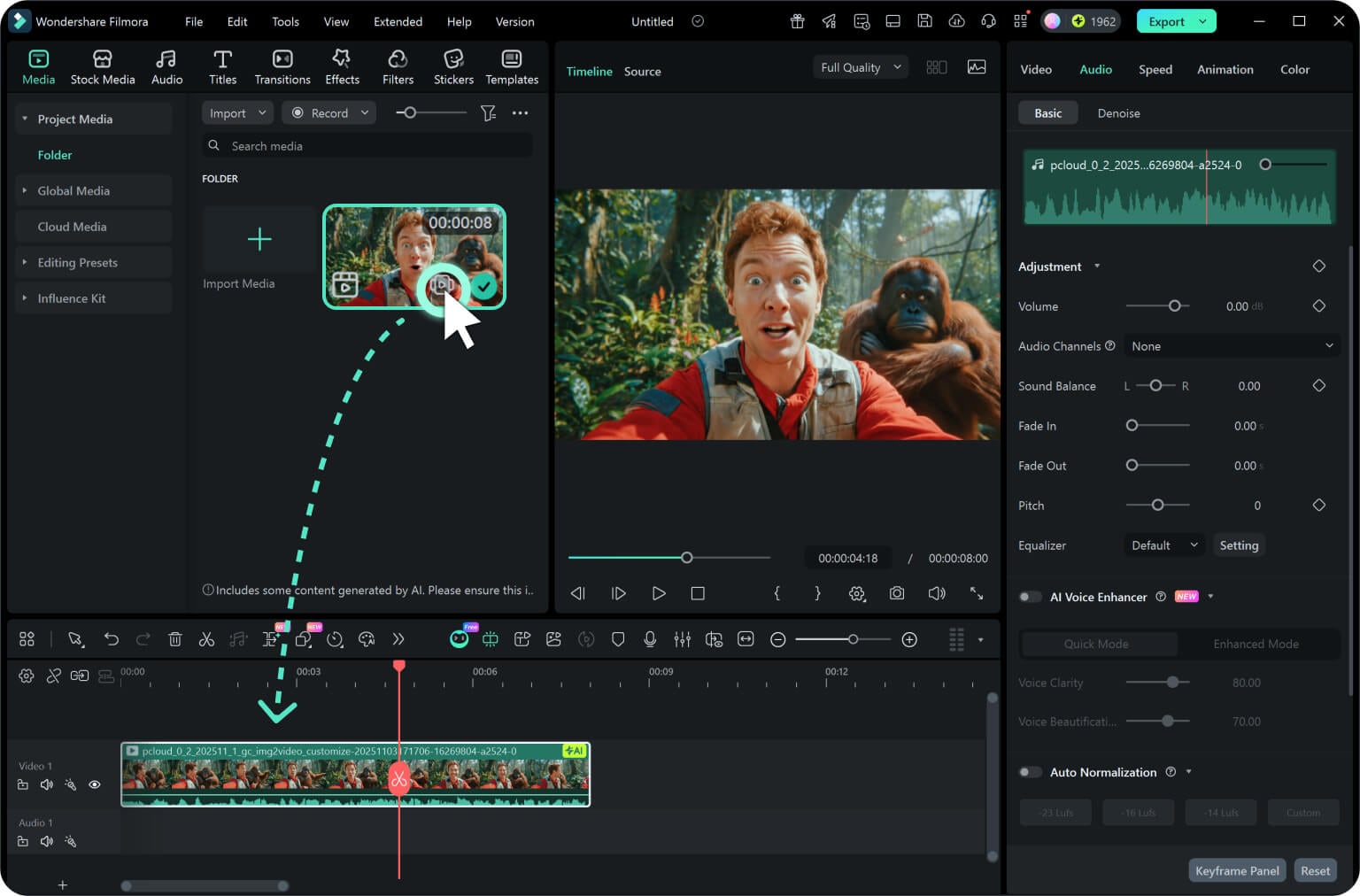
Step 2. Adjust Volume and Enhance Voice
Use the Basic tab to normalize loudness, adjust gain, enhance your voice, fine-tune tone with the EQ, and apply audio ducking. These tools help you balance volume and shape your sound quickly.
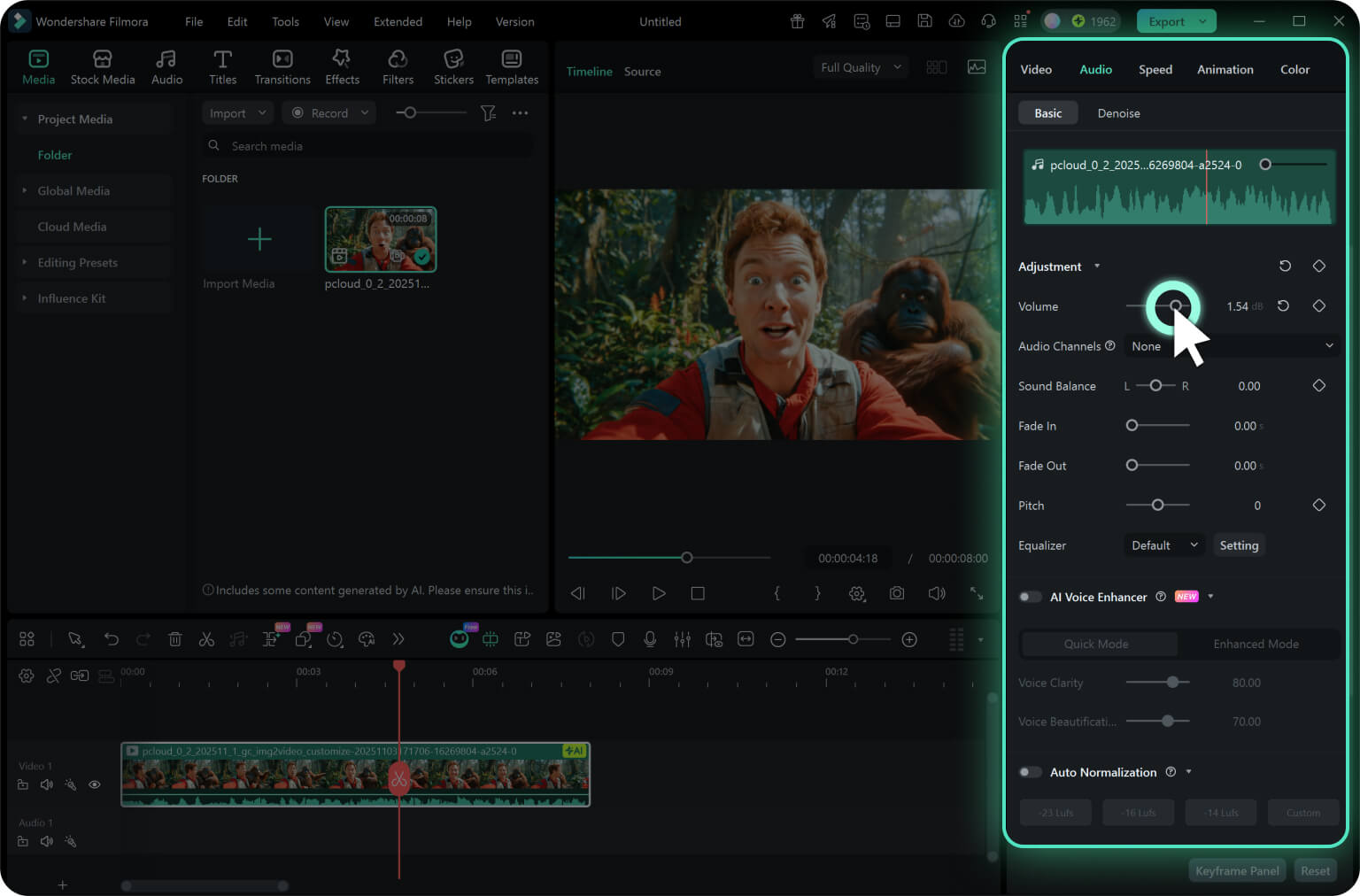
Step 3. Reduce Noise in the Denoise Tab
Switch to the Denoise tab to clean up background noise such as hiss, hum, wind, or room sound. Use noise reduction controls to make your audio clearer and more focused.
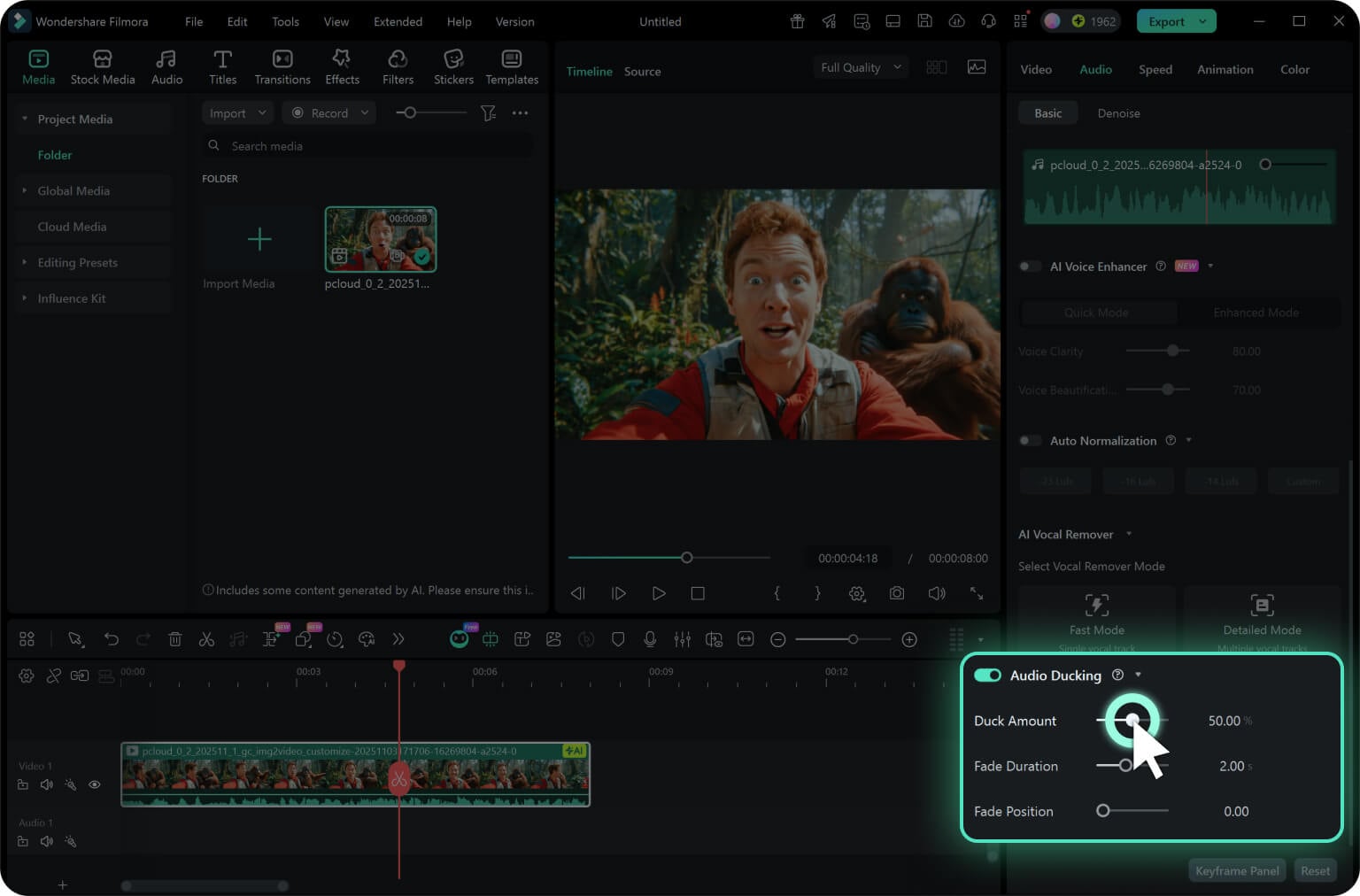
Step 4. Continue Editing or Export Your Video
Preview your changes, keep editing as needed, or export your video once your audio sounds clean and balanced.
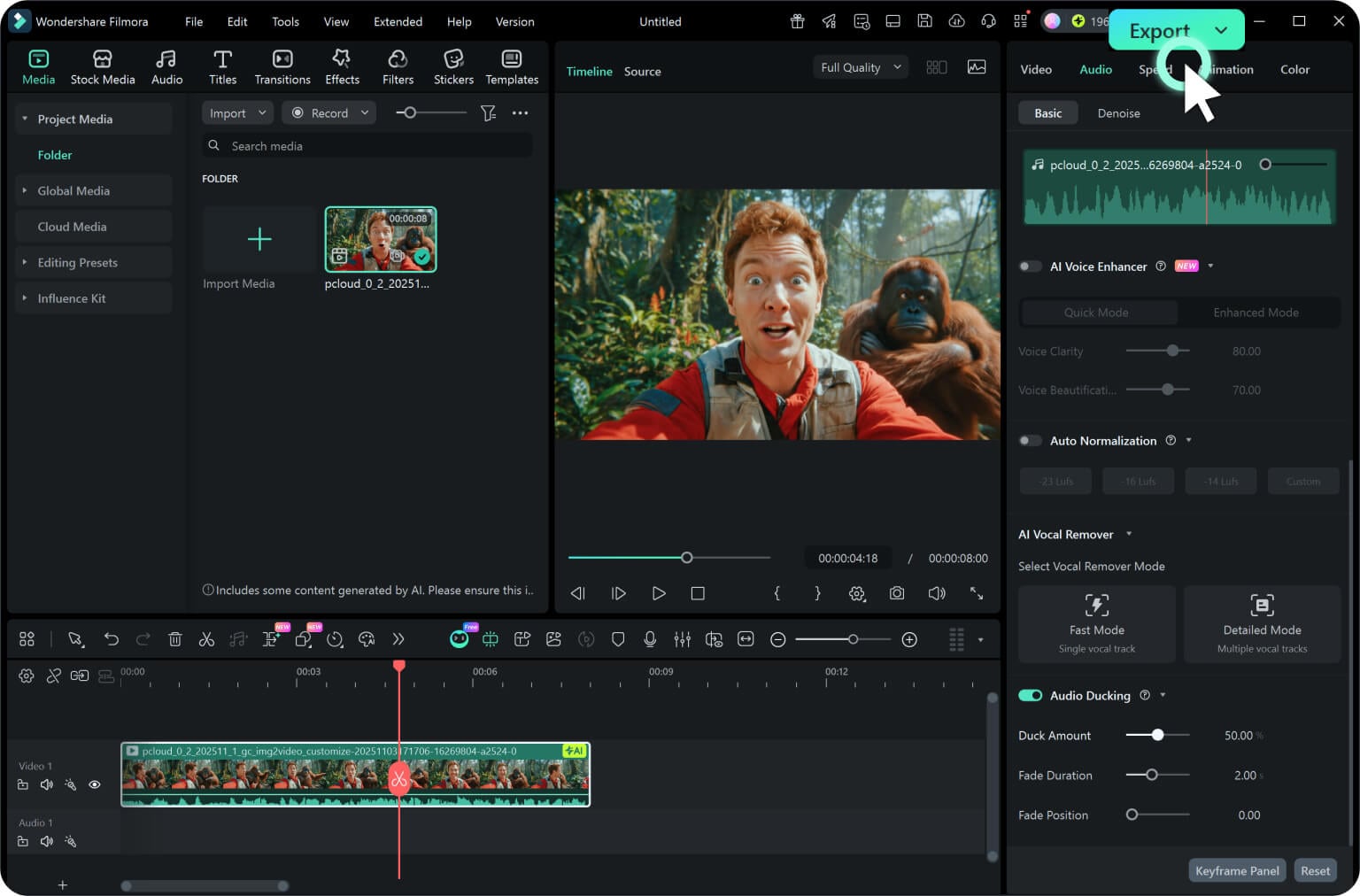
-
Step 1: Select Your Clip and Open the Audio Panel
Import your video and audio files into Filmora, drag them to the timeline, then click the clips and open the Audio panel on the right. -
Step 2: Adjust Volume and Enhance Voice
Use the Basic tab to normalize loudness, adjust gain, enhance your voice, fine-tune tone with the EQ, and apply audio ducking. These tools help you balance volume and shape your sound quickly. -
Step 3: Reduce Noise in the Denoise Tab
Switch to the Denoise tab to clean up background noise such as hiss, hum, wind, or room sound. Use noise reduction controls to make your audio clearer and more focused. -
Step 4: Continue Editing or Export Your Video
Preview your changes, keep editing as needed, or export your video once your audio sounds clean and balanced.
Great for All Creators Who Want Better Sound
Whether you make content for fun or work, Smart Audio Adjustment solves common audio problems and helps your videos sound cleaner and more professional.
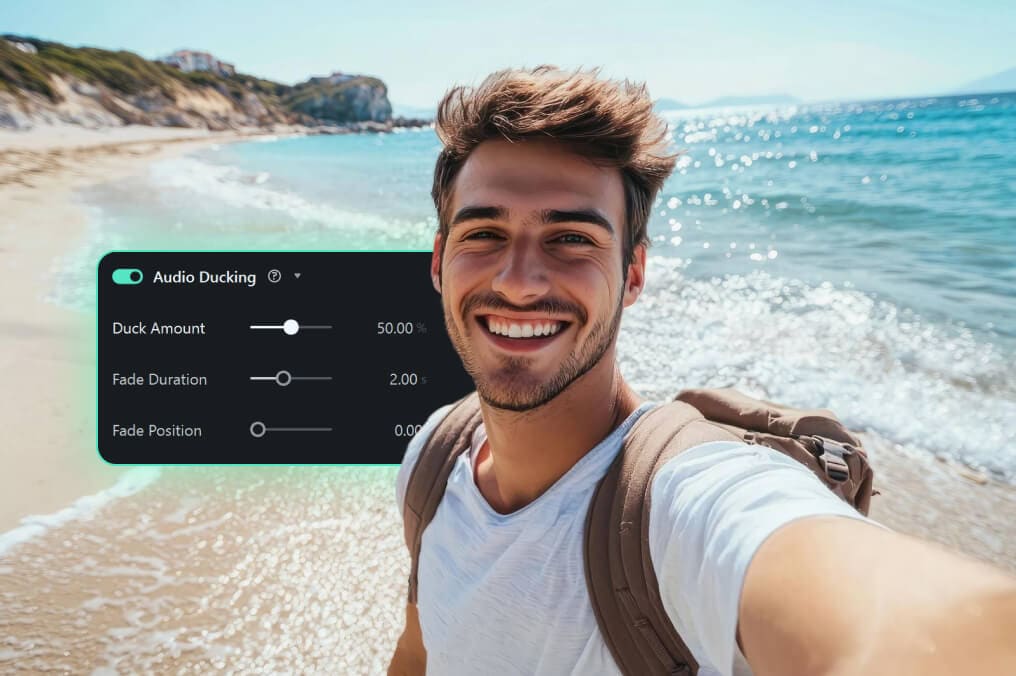
YouTube & Vlog Creators
Many vloggers record in loud streets, cafés, or outdoor locations, which creates uneven volume and unclear speech. Filmora helps you fix these issues by normalizing loudness, boosting quiet recordings, and using noise reduction to clean up busy environments.
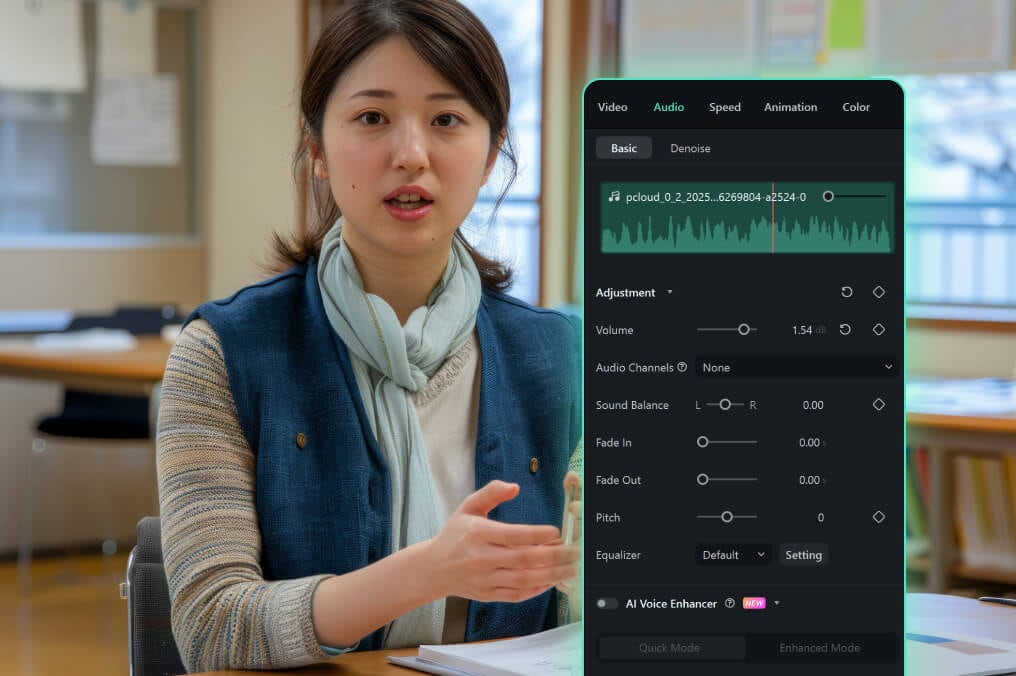
Educators & Online Course Makers
Home studios often produce echo or muffled voices. Filmora improves your lessons by enhancing clarity, reducing room noise, and lowering background music so your explanations stay easy to follow.
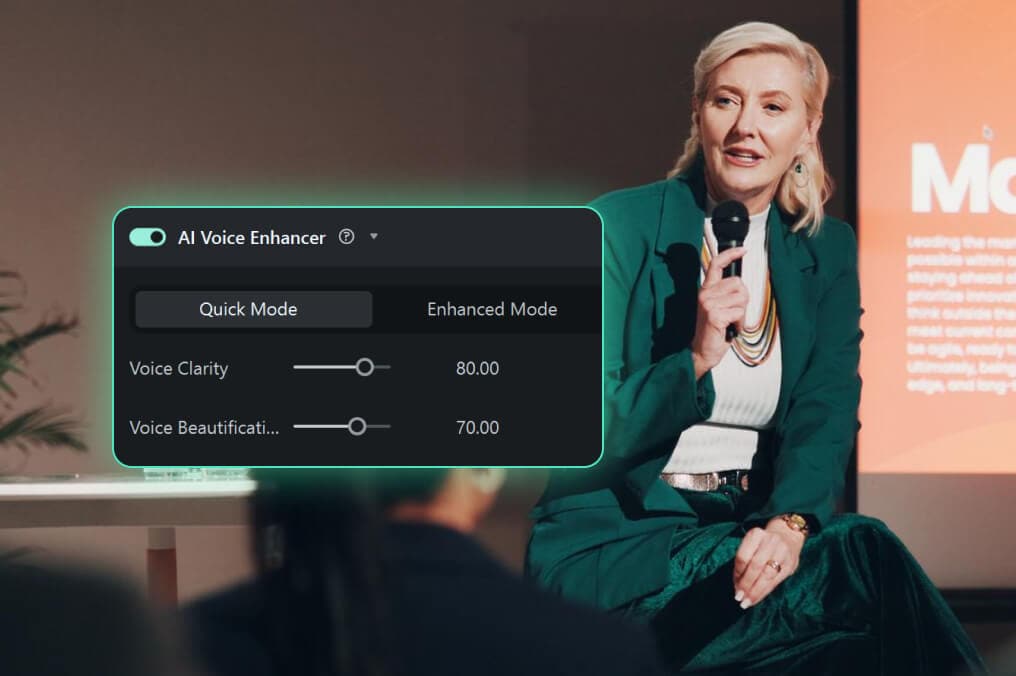
Business Presenters & Screen Recorders
Office noise, keyboard taps, and low microphone levels can distract viewers. Filmora raises quiet voice tracks, removes ambient noise, and shapes tone so your message sounds confident and clear.
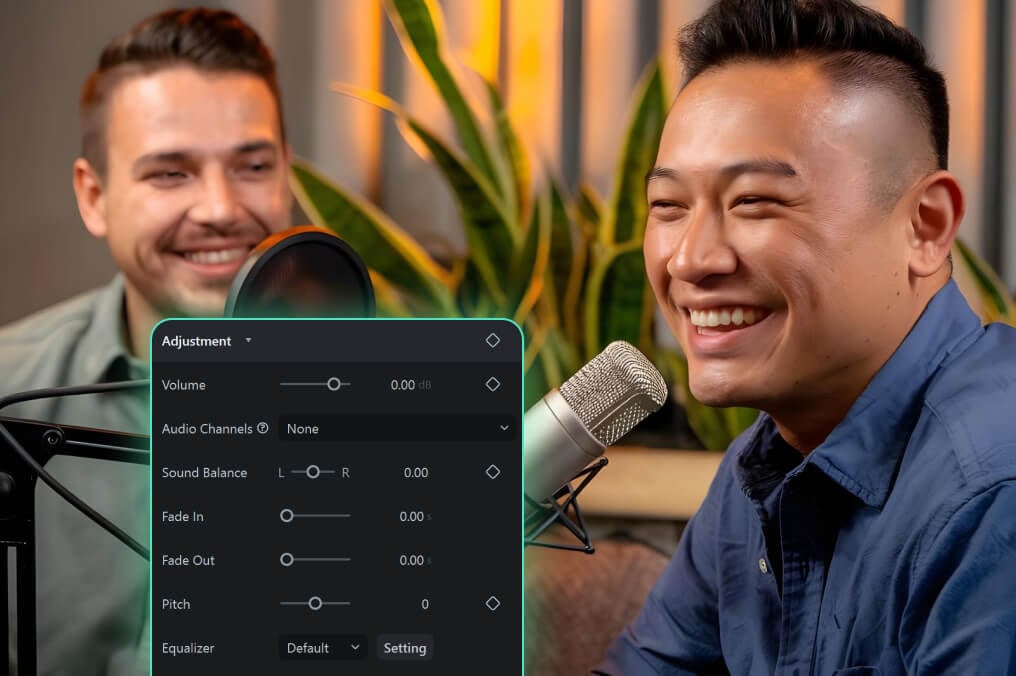
Podcasters & Interview Editors
Different guests produce different volumes and tones. Filmora evens out loudness, removes hum or hiss, and enhances speech so every participant sounds consistent in your final mix.
Why Filmora Makes Audio Adjustment and Editing Simple
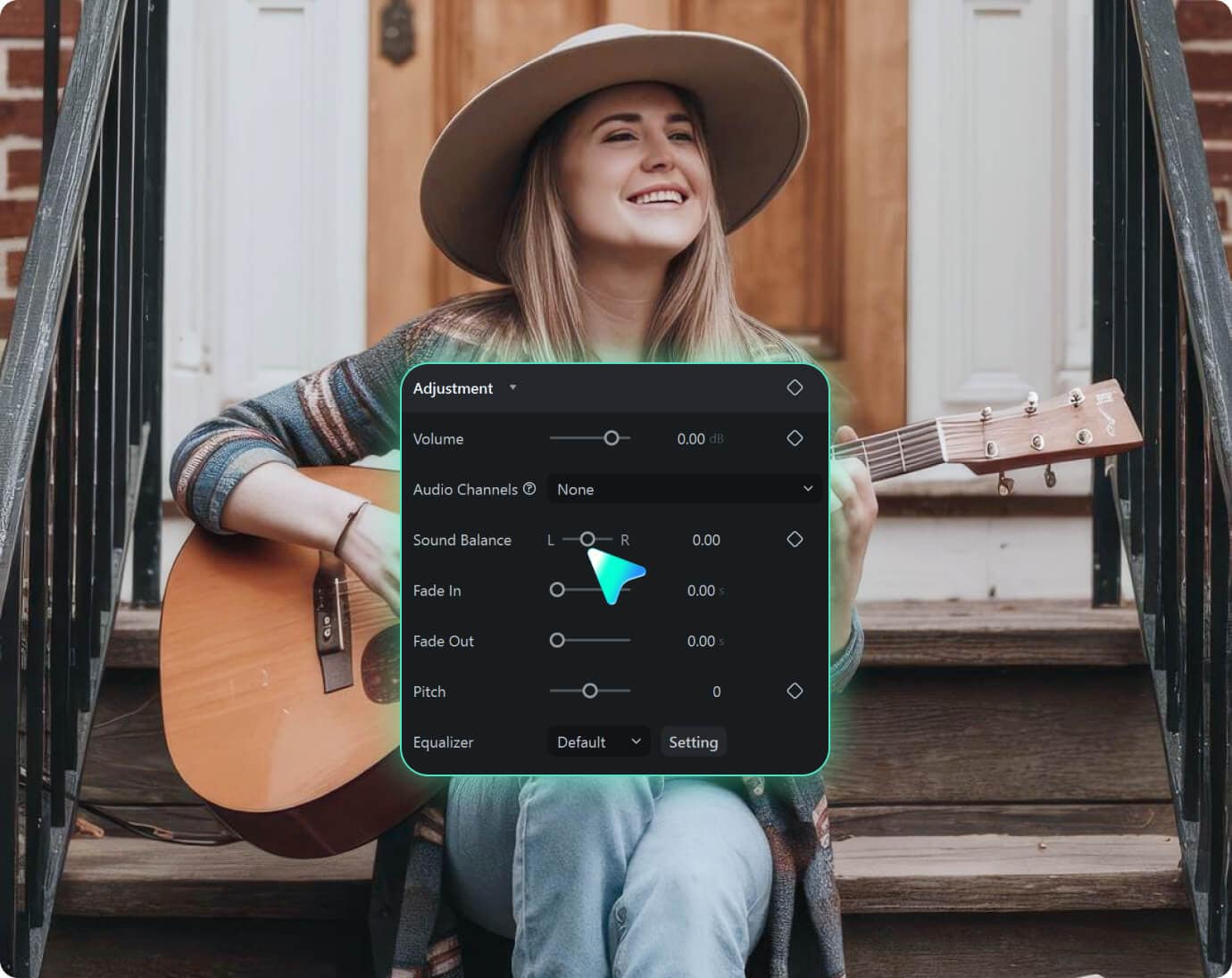
Smart Tools That Solve Real Audio Problems
Smart Tools That Solve Real Audio Problems
Fix low volume, uneven loudness, unclear voices, and noisy recordings with fast, intuitive tools.
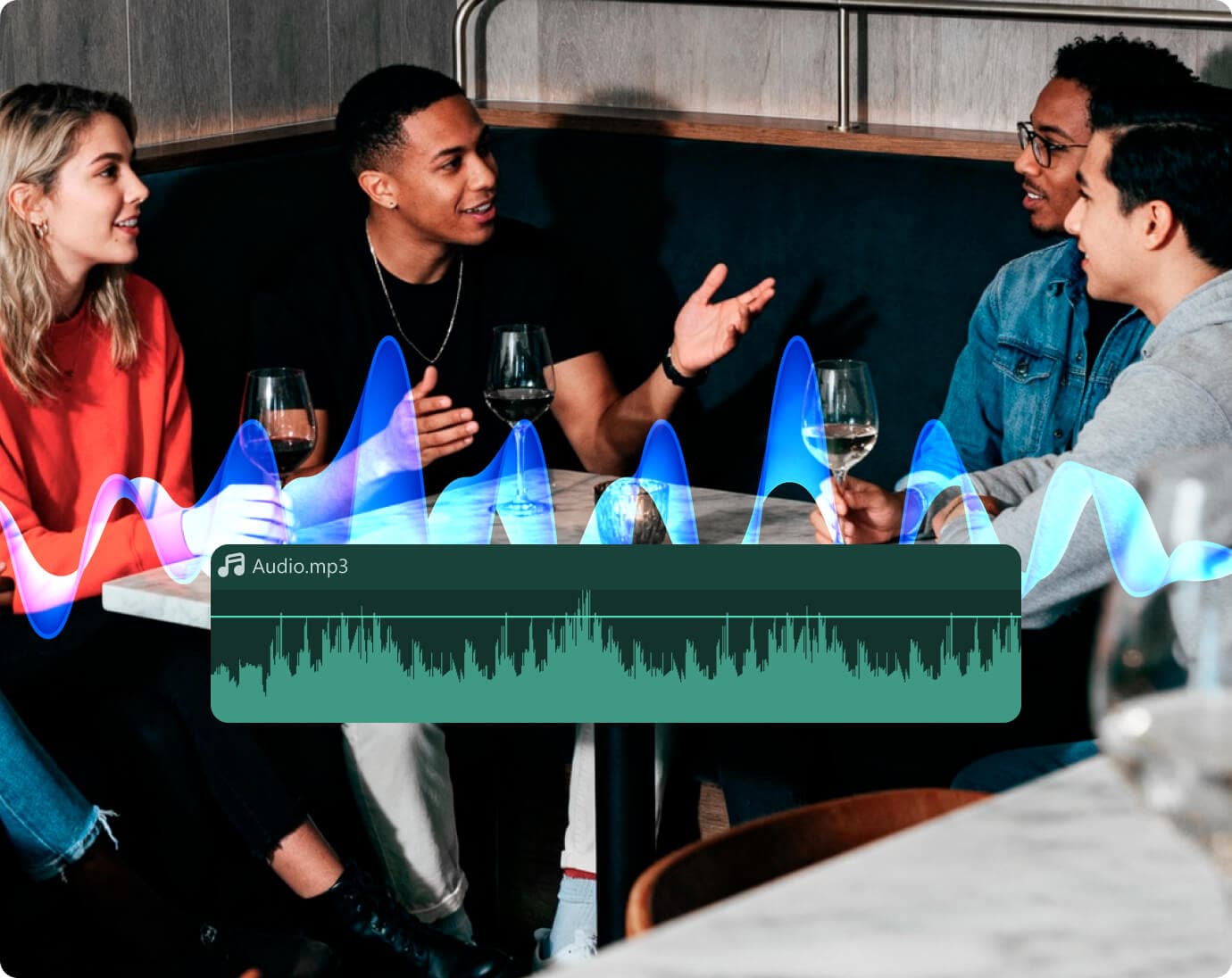
Complete Sound Control from Basic to Advanced
Complete Sound Control from Basic to Advanced
Work with gain, EQ, noise cleanup, ducking, voice enhancement, loudness tools, and more — all in one place.
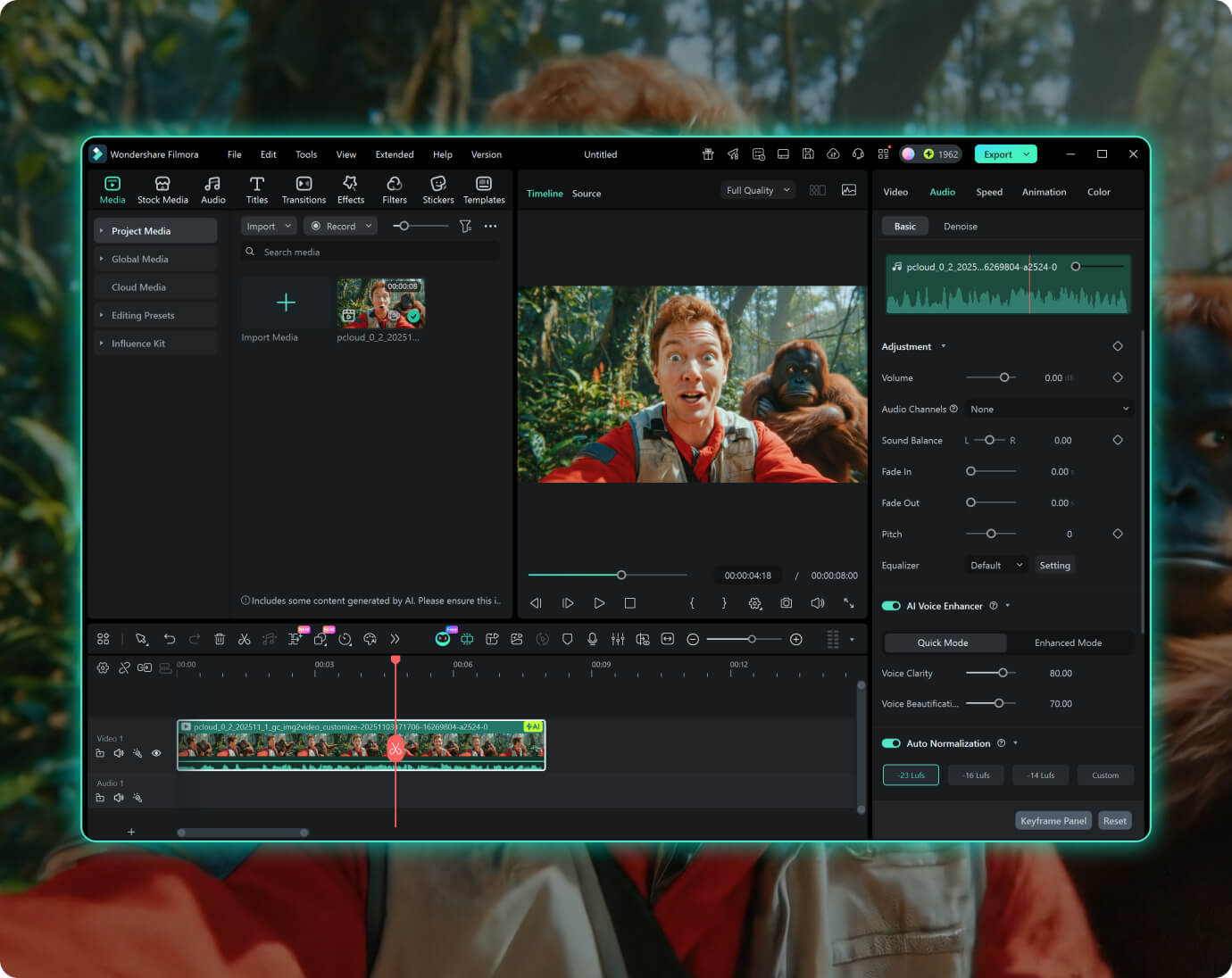
All-in-One Video Editor with Built-In Audio Tools
All-in-One Video Editor with Built-In Audio Tools
Edit video and audio together without switching programs. Filmora gives you a clean workspace for everything you need.
Learn More Tips & Tricks About Audio Adjustment
Frequently Asked Questions
1. What is Smart Audio Adjustment in Filmora?
Smart Audio Adjustment is a set of tools that help you improve audio fast. You can normalize loudness, adjust gain, enhance voices, reduce noise, and balance your mix with easy controls.
2. Can I fix low or uneven volume?
Yes. You can normalize loudness or boost volume with gain control.
3. How do I clean background noise?
Turn on AI Denoise in the Audio panel. It reduces hums, hiss, wind, and room noise.
4. Do I need experience with audio editing?
No. Filmora keeps all tools simple so you adjust sound quickly and improve clarity without advanced skills.
5. Can I use these tools for voiceovers and dialogue?
Yes. They work well for narration, podcasts, screen recordings, interviews, and any content with speech.
What Creators Say About Their Audio Results
Discover More Powerful Editing Features in Filmora
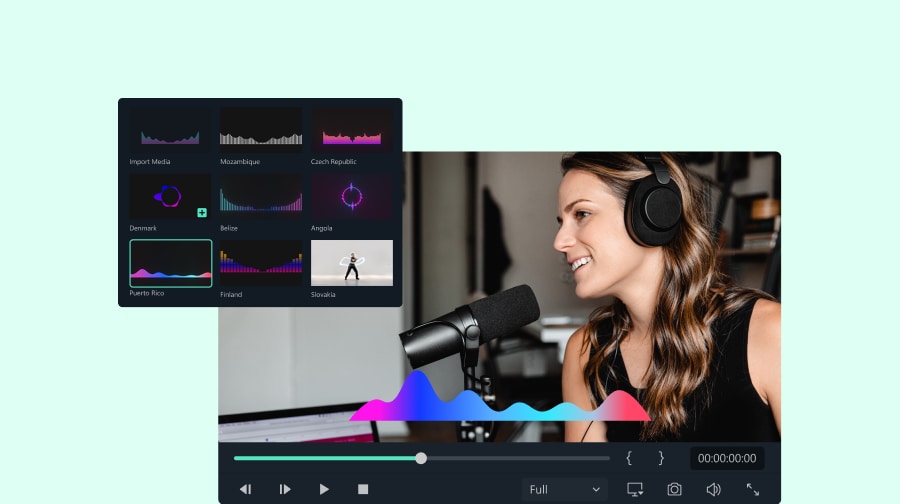

A video editor for all creators.

Emily Carter
Jason Hall
Mia Rodriguez
David Kim