


 TL;DR:
Google Mixboard is an experimental AI moodboard tool powered by Gemini 3 and Nano Banana that allows users to generate, modify, and blend original visual concepts using text prompts and personal file uploads.
● Unlike Pinterest's passive curation of existing web content for aesthetic inspiration, Mixboard functions as an active co-creation canvas best suited for designers and marketers building original storyboards or concept art.
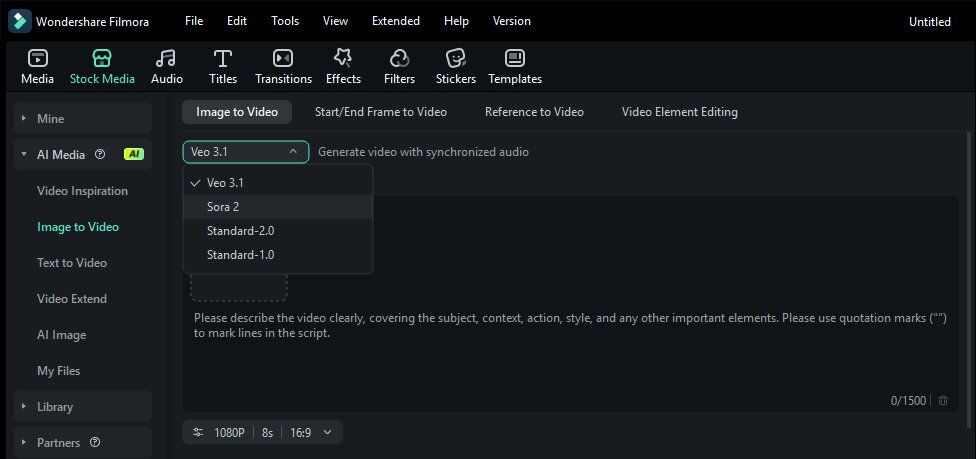
● The platform enables advanced edits like blending uploaded images, drawing to apply targeted text-based modifications, and converting boards into presentations using Nano Banana Pro, with the option to export visual assets into Wondershare Filmora to animate them into videos using Veo 3.1 or Sora 2 models.
● Access is restricted to users aged 18 and older with a personal Google account outside the EU and UK, features a canvas that can only be scrolled rather than dragged, and imposes daily usage limits on advanced AI capabilities unless using an AI Ultra Access plan.
Ask AI for a summary
 ChatGPT
 Perplexity
 Gemini
 Claude
 Grok
Grok
If you usually spend hours hunting across the internet to create a moodboard for your project, those days are over. Google has introduced Mixboard which lets you build a full visual concept board just by describing your idea.
Google Mixboard works like Pinterest, but instead of scrolling and saving other people's images, you just describe what you're imagining. Sounds cool? Let's find out more about what Google Mixboard actually is and how you can start using it today.
Part 1. What is Google Mixboard?
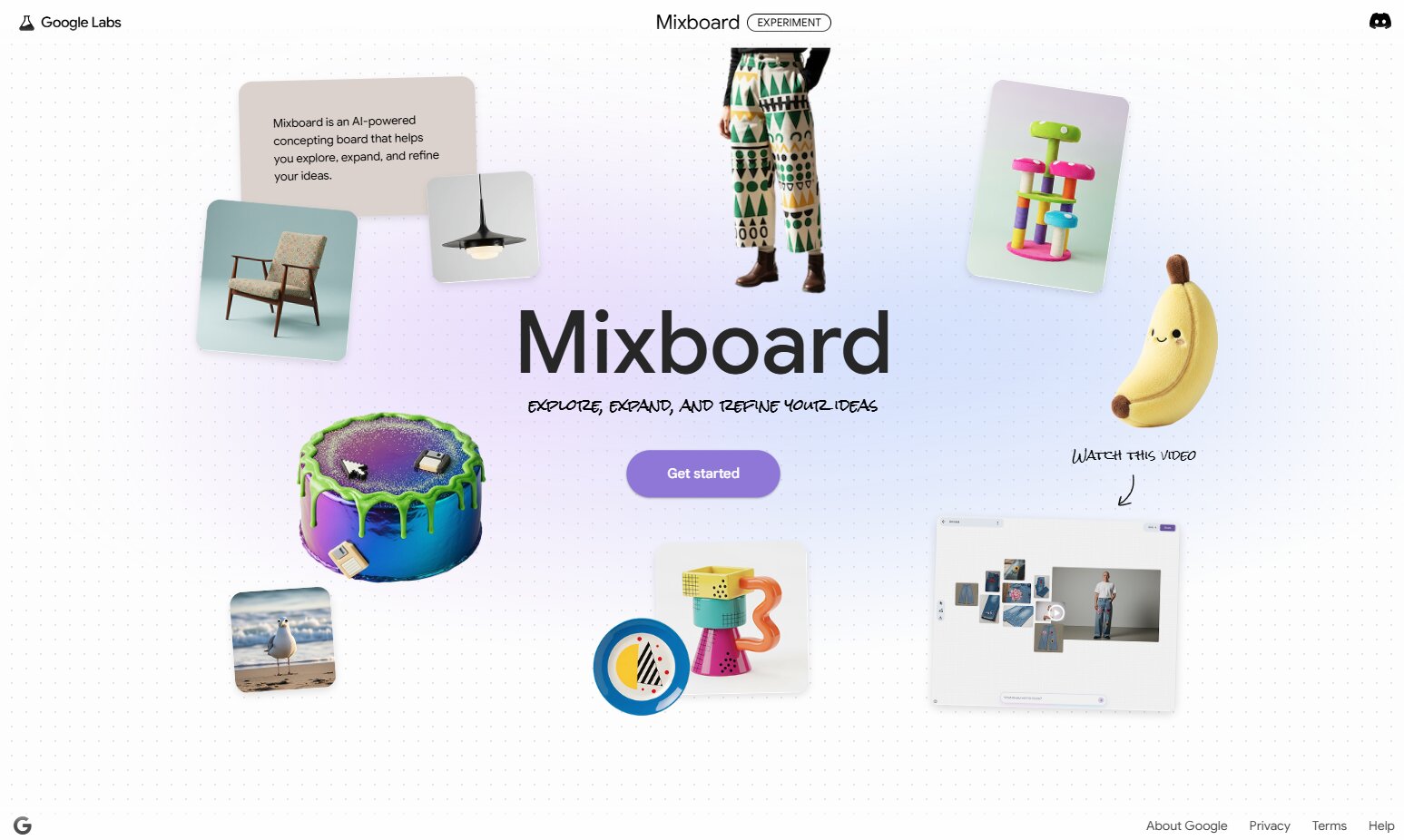
Mixboard is one of the experimental products from Google Labs that gives you a fresh way to create moodboards using AI. It helps you explore ideas, expand on them, or even redefine what you already have in mind.
Just like Pinterest, you can discover all kinds of visual ideas with just a single search. For example, if you’re working on an interior design project and want to build a moodboard, you simply type a basic prompt and let Mixboard generate the images for you. Pretty easy, right?
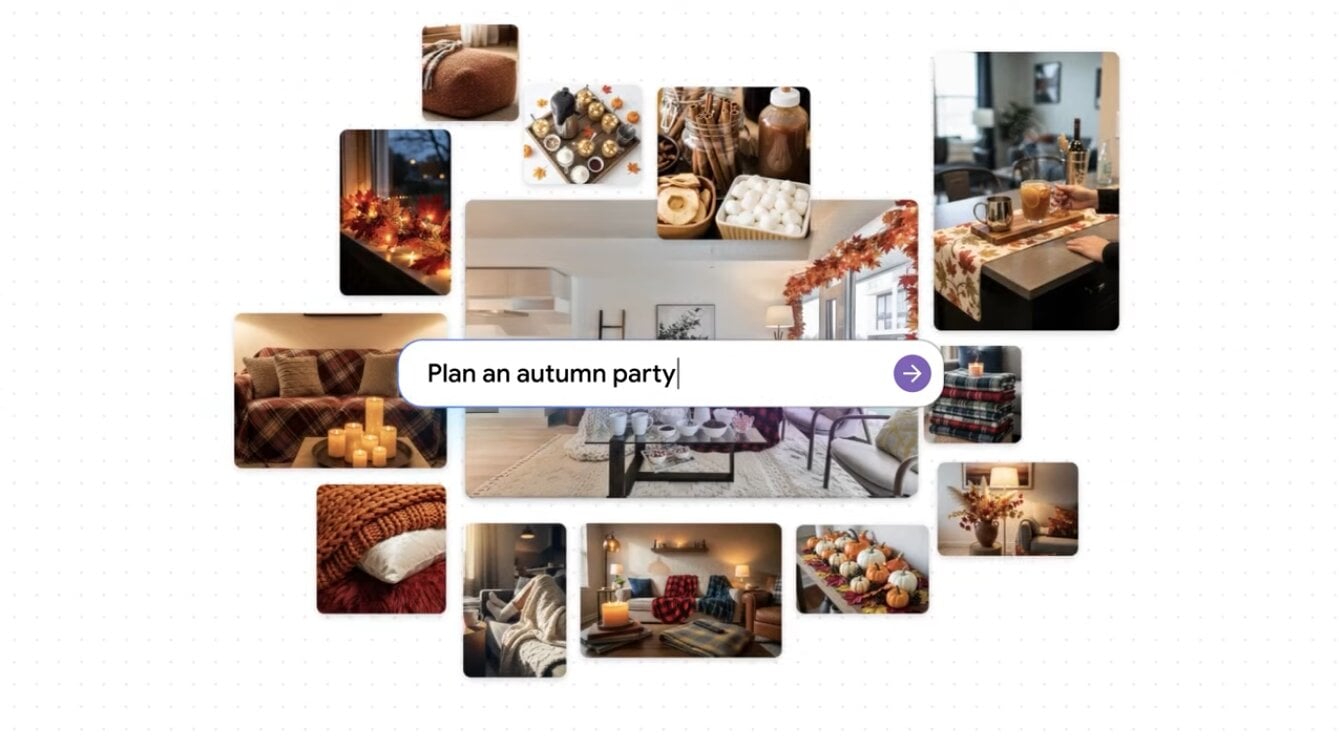
And it’s not just about creating images from text based prompts. You can also upload your own images and transform them using AI, plus a bunch of other cool features that we are going to discuss later.
If we put it next to Pinterest, you can see that Google Mixboard does a lot more than just inspire you.
Pinterest VS Google Mixboard
| Feature | Google Mixboard | |
| Core Purpose | Visual discovery, bookmarking, and curating existing content from the web. | AI-powered creative canvas for generating and editing new visual ideas. |
| Primary Technology | Recommendation algorithms based on user behavior and tags. | Gemini 3.0 (Reasoning) & Nano Banana (Image Generation/Editing). |
| Content Source | Pre-existing images and videos uploaded by users or linked from websites. | Original AI-generated content and user-uploaded assets. |
| Image Editing | Minimal (basic cropping or filtering within the app). | Advanced AI editing; Modify specific parts of an image via text prompts. |
| Ideation Style | Browsing what others have already created (Passive Discovery). | Co-creating with AI to visualize something that doesn't exist yet (Active Creation). |
| Collaboration | Shared boards for pinning existing ideas together. | Real-time collaborative brainstorming with integrated AI suggestions. |
| Text Integration | Descriptions and "Notes to self" on pins. | Gemini 3 Flash can write scripts, captions, or explanations directly on the board. |
| Best For | Finding aesthetic inspiration, recipes, and shopping links. | Storyboarding, concept art, science communication, and architectural drafting. |
Technology Behind Google Mixboard
Speaking of Mixboard, it wouldn’t feel complete without mentioning the AI behind it. Mixboard AI is powered by Nano Banana and Gemini 3.
- Nano Banana handles image editing and visual modifications based on text commands
- Gemini 3 acts as the brain that organizes the ideas and understands the relationship between images and text, so everything in your moodboard stays relevant to your prompt.
Part 2. Mixboard Features: What You Can Actually Do
There are at least five basic things you can do using Google Mixboard:
- Start a new project using a text prompt, or choose from one of the popular moodboards already available on Mixboard.
- Use your own images to transform them or add new elements and characters with AI.
- Edit your moodboard using simple language to make small changes or combine images using Nano Banana.
- Create new variations of your ideas using the "regenerate" and "more like this" options.
- Generate text based on the context of any images on your board.
From these capabilities, you can also take your board a step further and present your ideas in a more structured format.
Turn your Mixboards into Presentations
You can take things further by turning your entire board into a full presentation. Mixboard pulls context from your board and your input, including the format, presentation focus, and preferred visual style, to build out the slides for you. It runs on Nano Banana Pro, so both the visuals and text come out at a higher quality than the standard model.
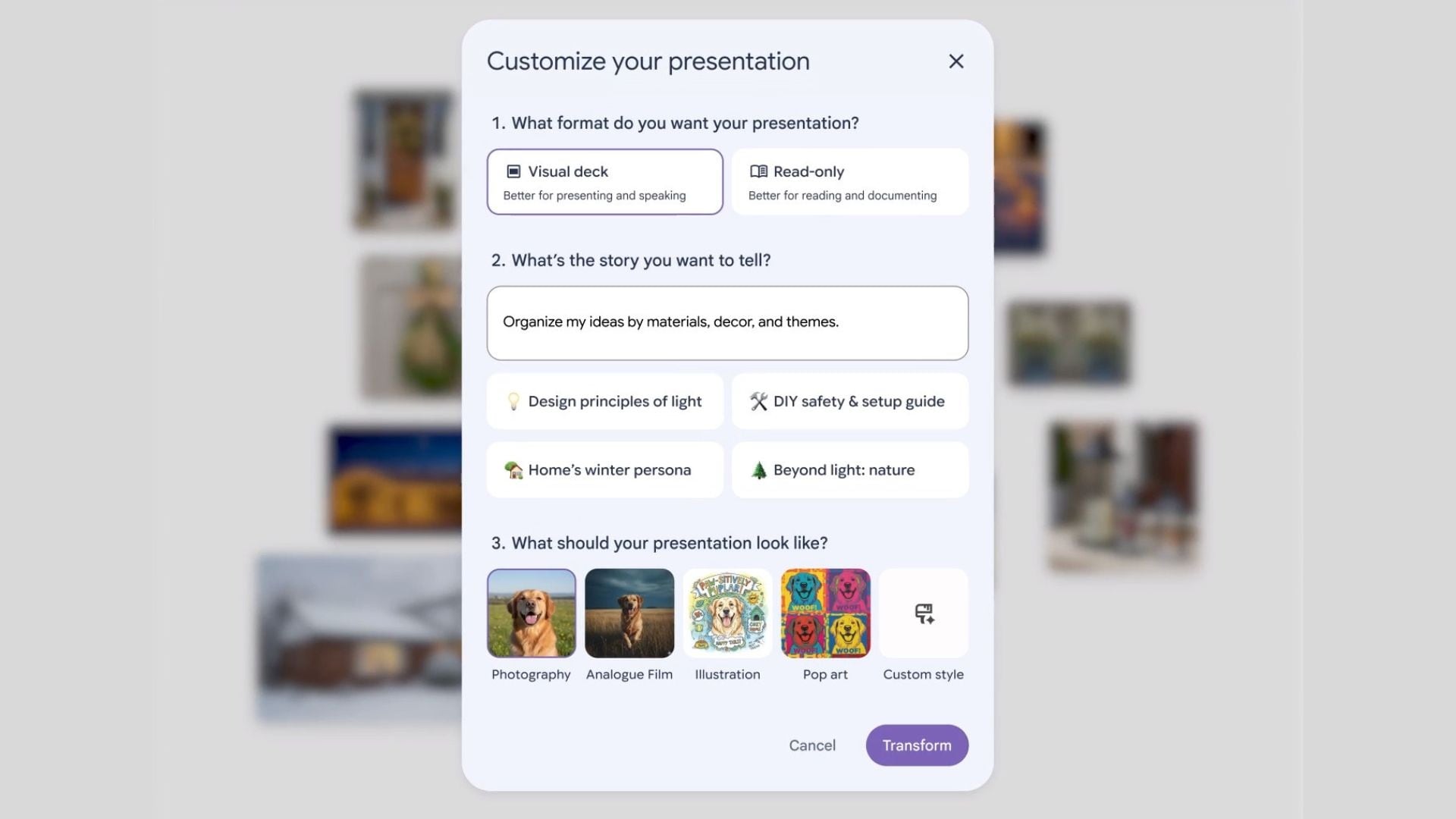
Beyond text prompts and photo uploads, Mixboard also supports a few other input methods. There's a built-in selfie camera so you can snap a photo of yourself and drop it straight onto your board. PDFs, HEIC, and TIFF files are also supported to use as a reference. On top of that, you can draw directly on any image to mark a specific area, describe your edit, and let the AI apply the change.
Create Across Multiple Boards
Got a lot of ideas to sort through? You can create multiple boards within the same project to keep everything organized. Use the "Combine" command to select any two images and see how the AI blends their styles together. Each board can serve a different purpose. For example, one for brainstorming, one for odds and ends, and one for your final vision.
Part 3. How to Use Google Mixboard (Step-by-Step)
Using Mixboard is super easy. Let’s walk through it together.
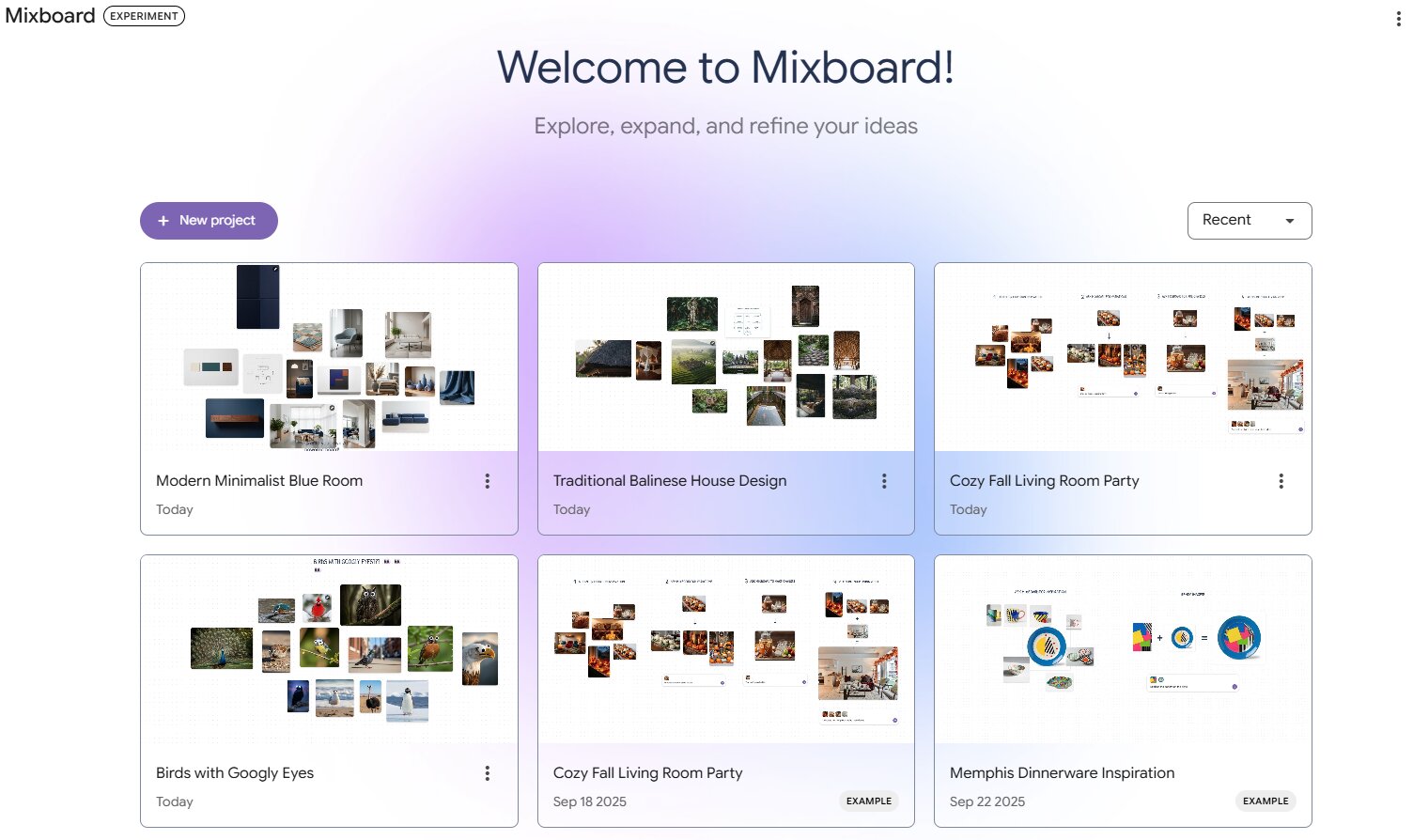
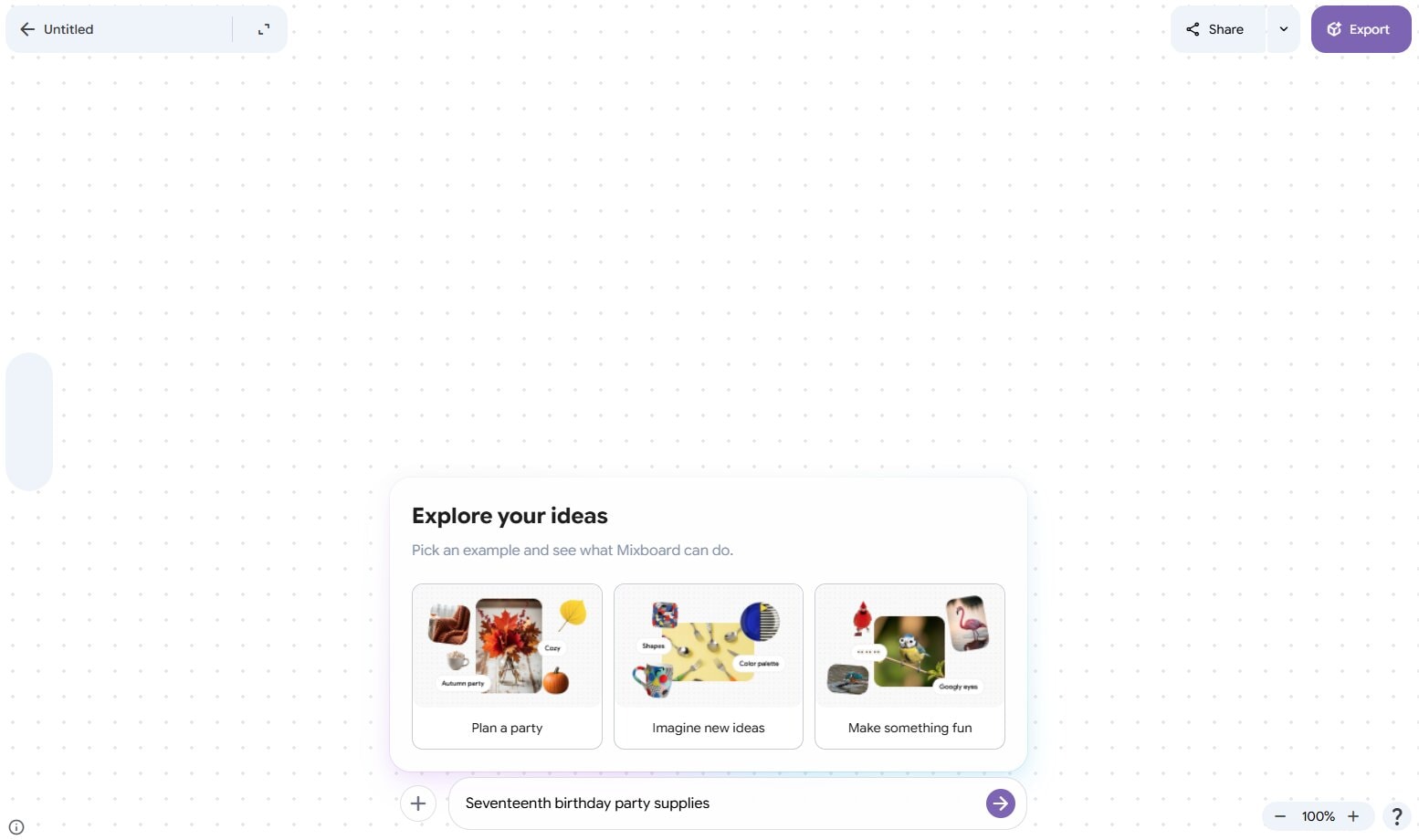
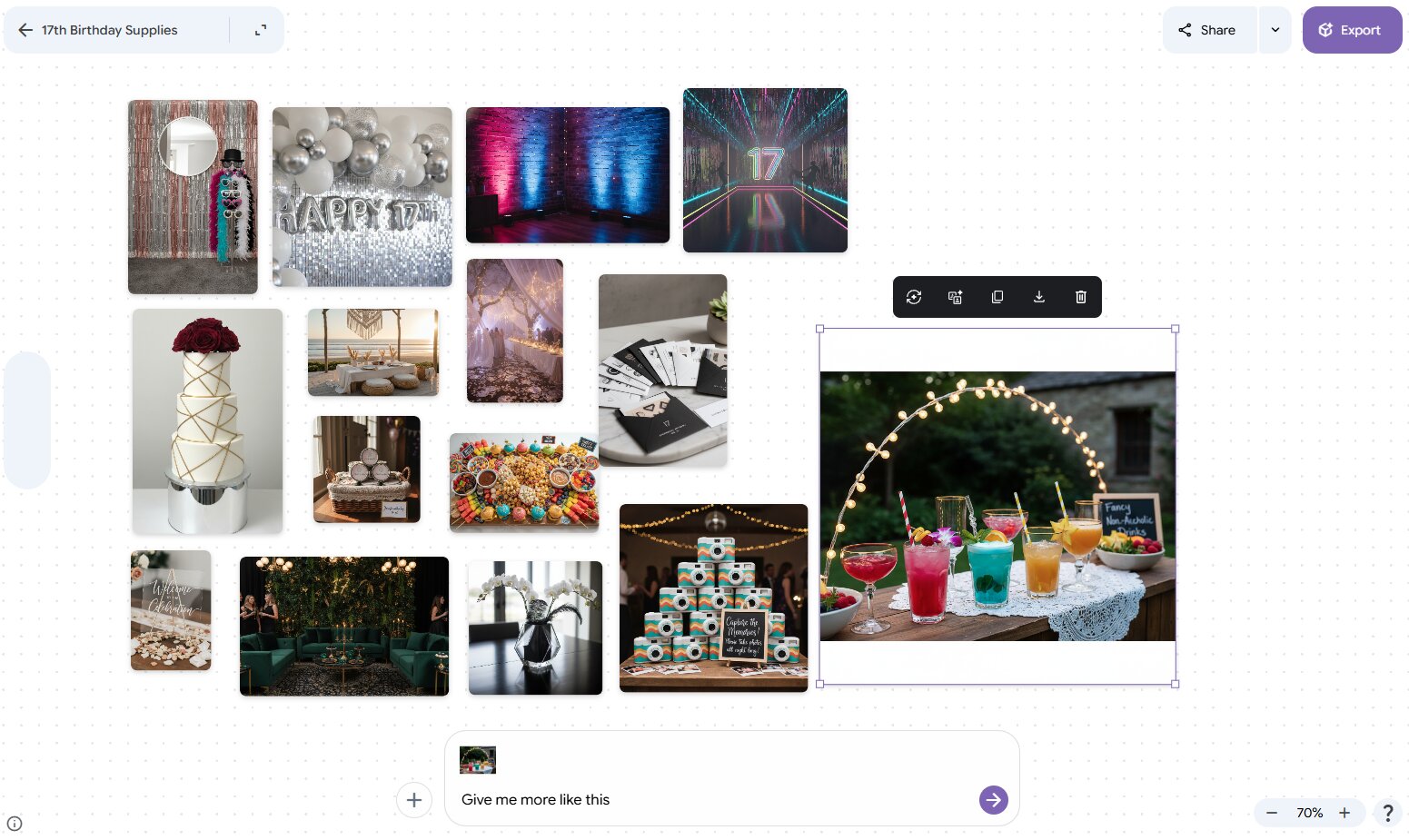
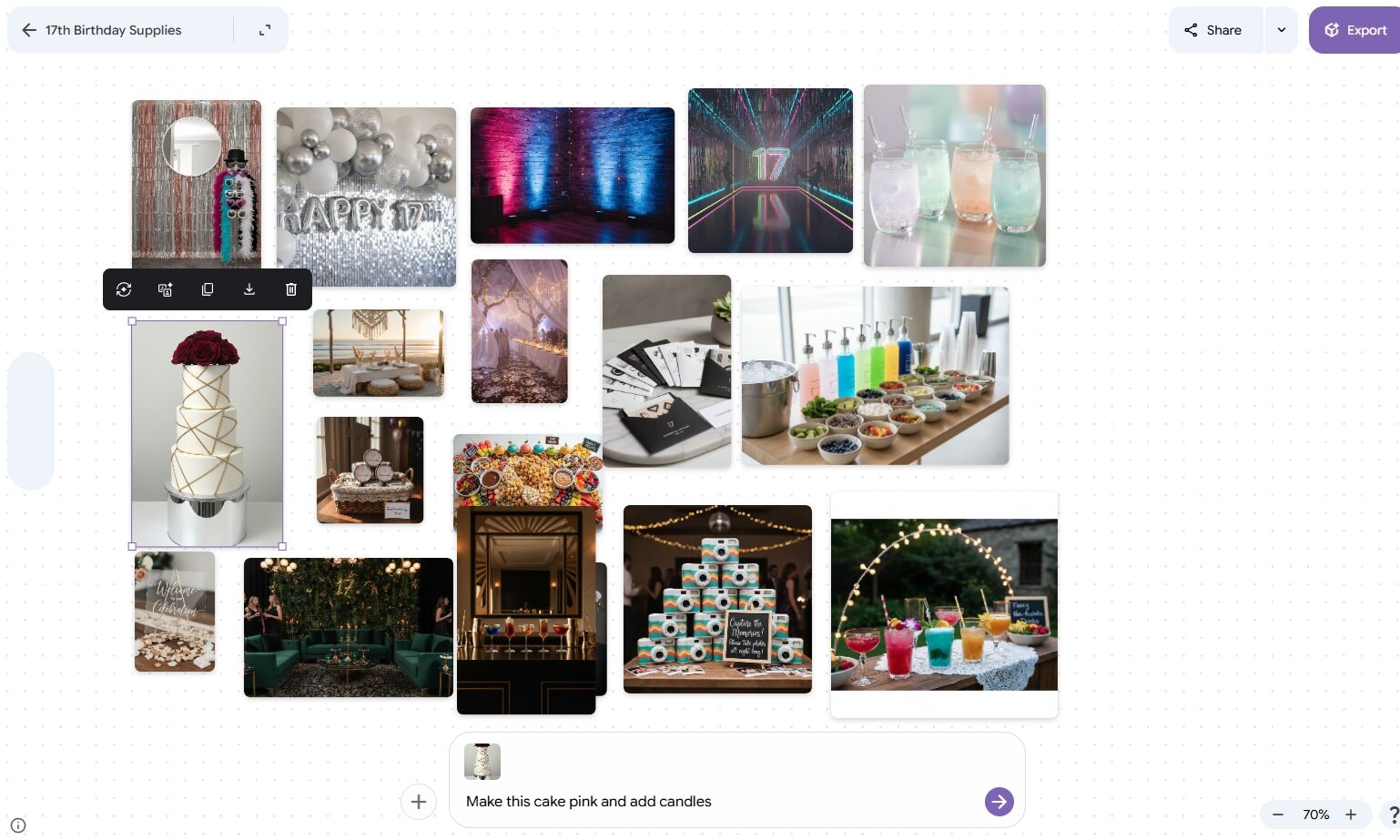
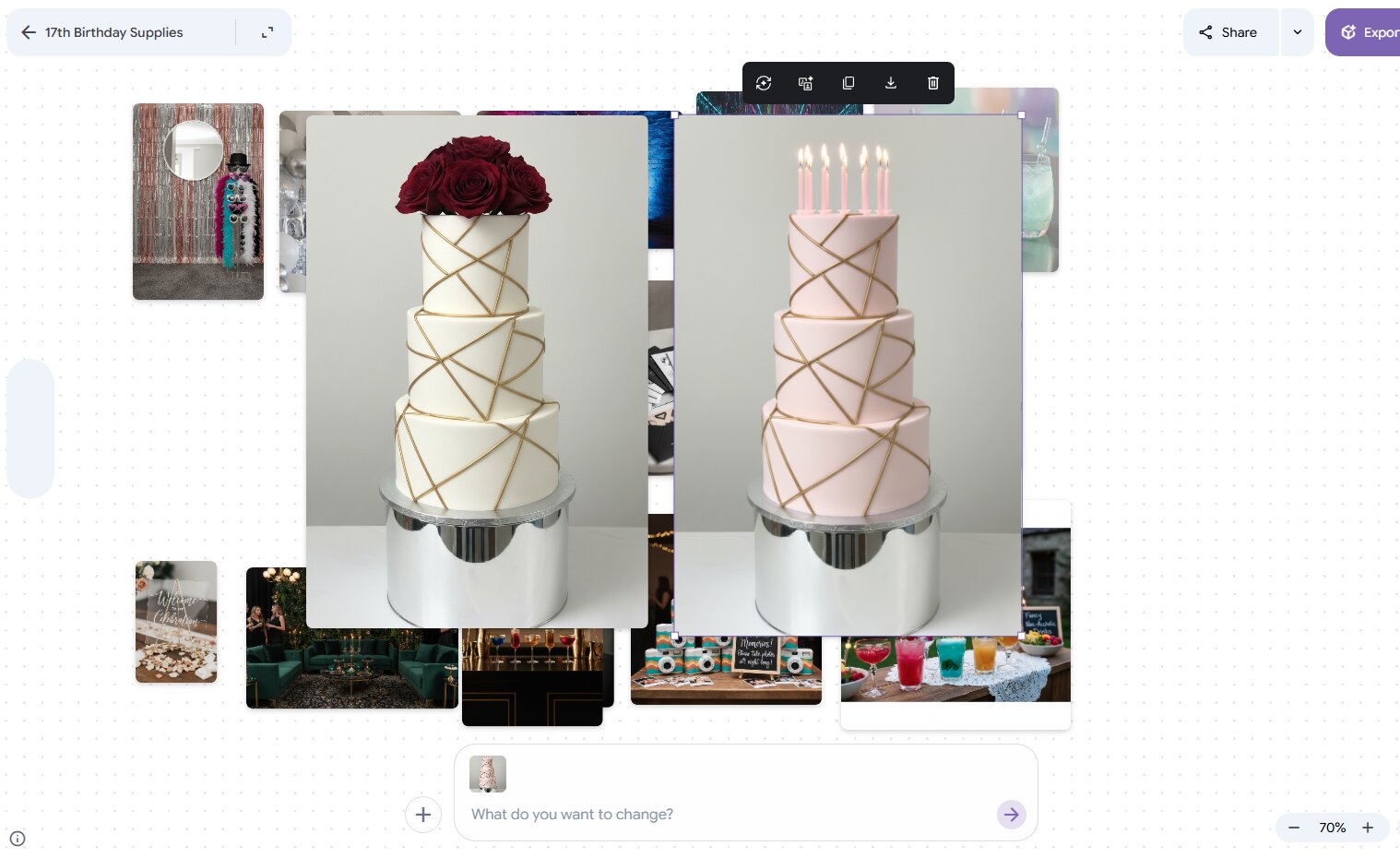
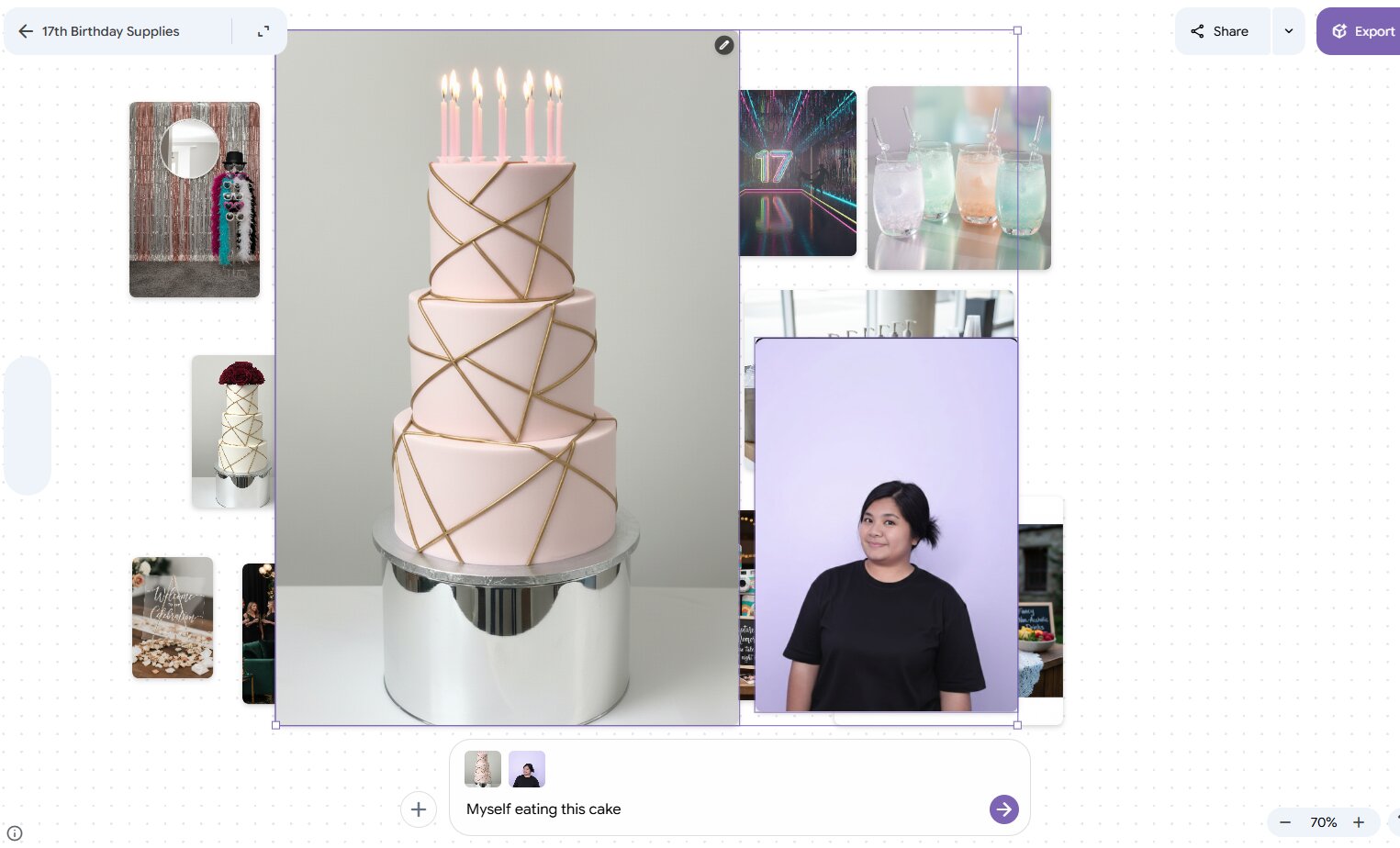
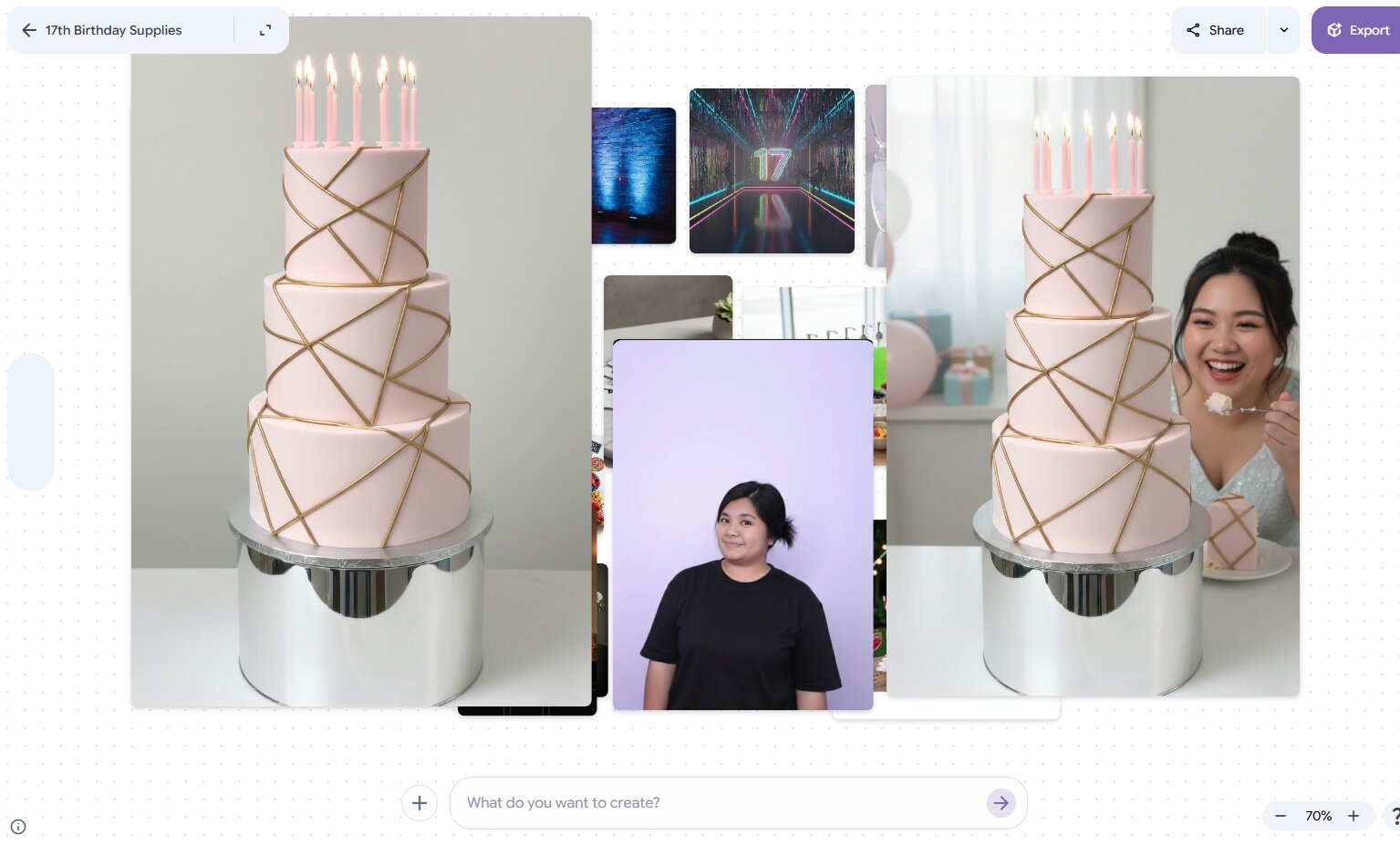
So overall, Google Mixboard is a great tool for exploring ideas using AI. That said, it does have a small drawback: you can’t drag the canvas to move around (up, down, left, or right). However, you can still use your mouse cursor to scroll up and down.
And also, even though there are a few drawbacks, likely because Mixboard AI is still in its experimental stage, you can join Google’s Discord community to stay updated on the latest developments of Google Mixboard AI.
Part 4. Who Should Use Google Mixboard? Best Use Cases
Google Mixboard AI can be used by anyone. It’s not limited to people with specific types of ideas. However, it’s especially useful for certain professions, such as:
- Social Media Creators: Creators can produce content using images generated by Mixboard. On top of that, they can also use it for brainstorming ideas that require visual exploration.
- Designers and Artists: Designers and artists can build their own studio Mixboard using Google Mixboard, giving them a dedicated space to brainstorm and develop ideas for their creative projects.
- Marketers and Writers: Marketers and writers can also take advantage of Google Mixboard to support their research process for projects or written content.
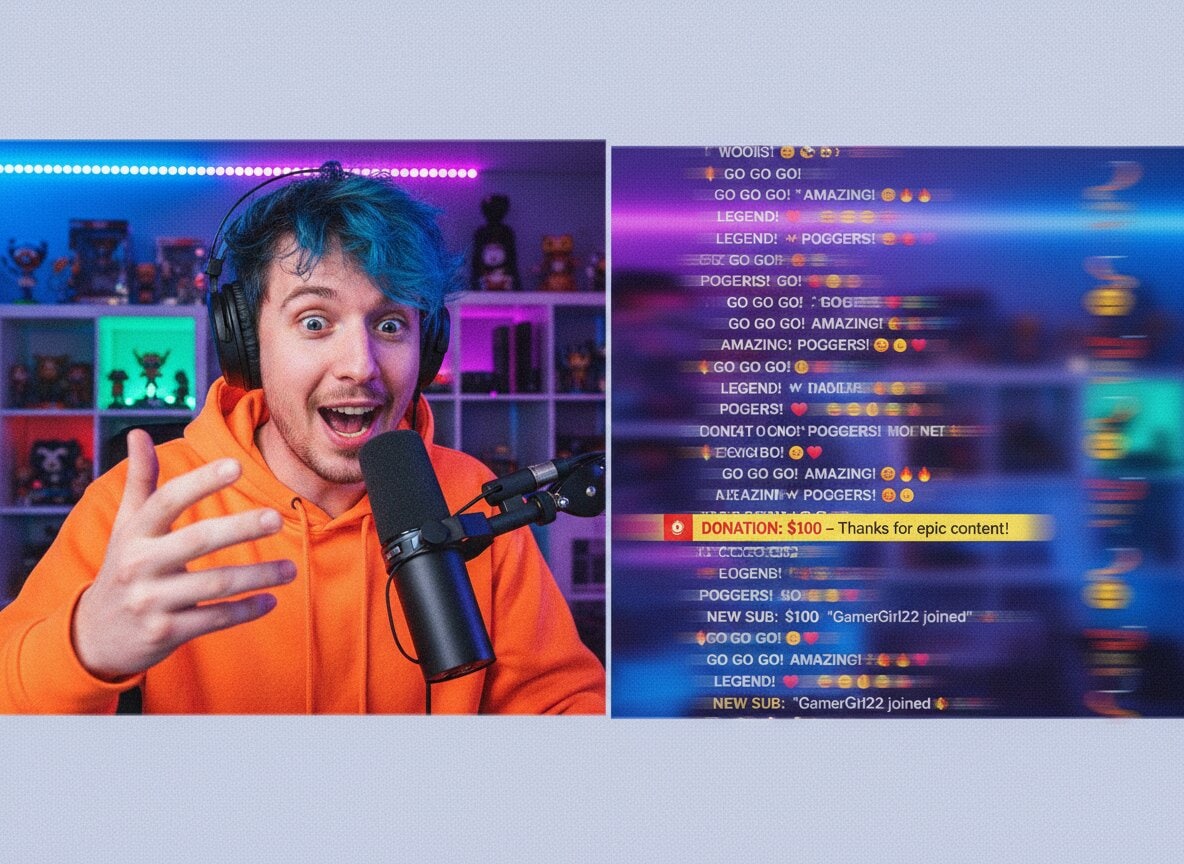
Part 5. Putting Your Moodboard into Real Video Projects
A moodboard is only useful if you actually do something with it. Once your Mixboard is ready, you can bring that visual direction straight into Wondershare Filmora and use it as your creative blueprint for the entire video.
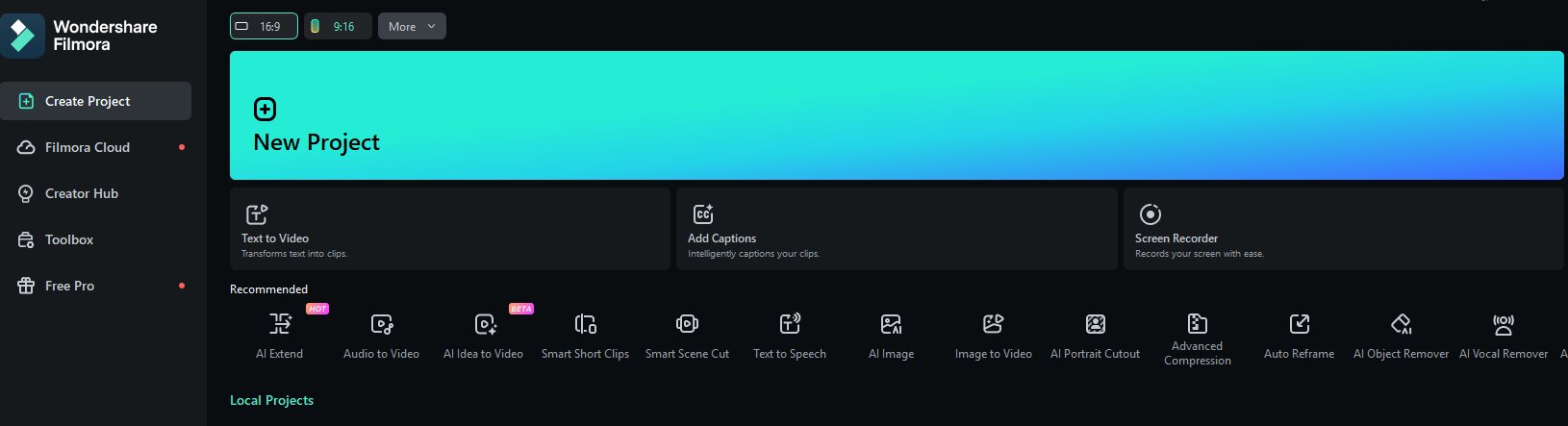
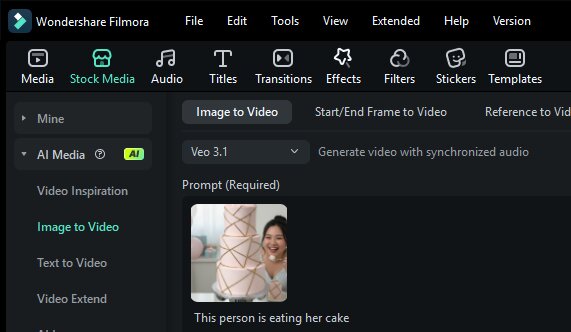
Filmora is available on Windows, Mac, iOS, and Android. It’s a video editing app that works for both beginners and experienced editors, with AI features built right into the workflow. Among the most useful is its Image to Video feature, which can take images from your Mixboard and animate it into a full video clip.
Turn your Mixboard images into videos using Filmora

 Secure Download
Bring Your Moodboard's Color Palette into Your Video
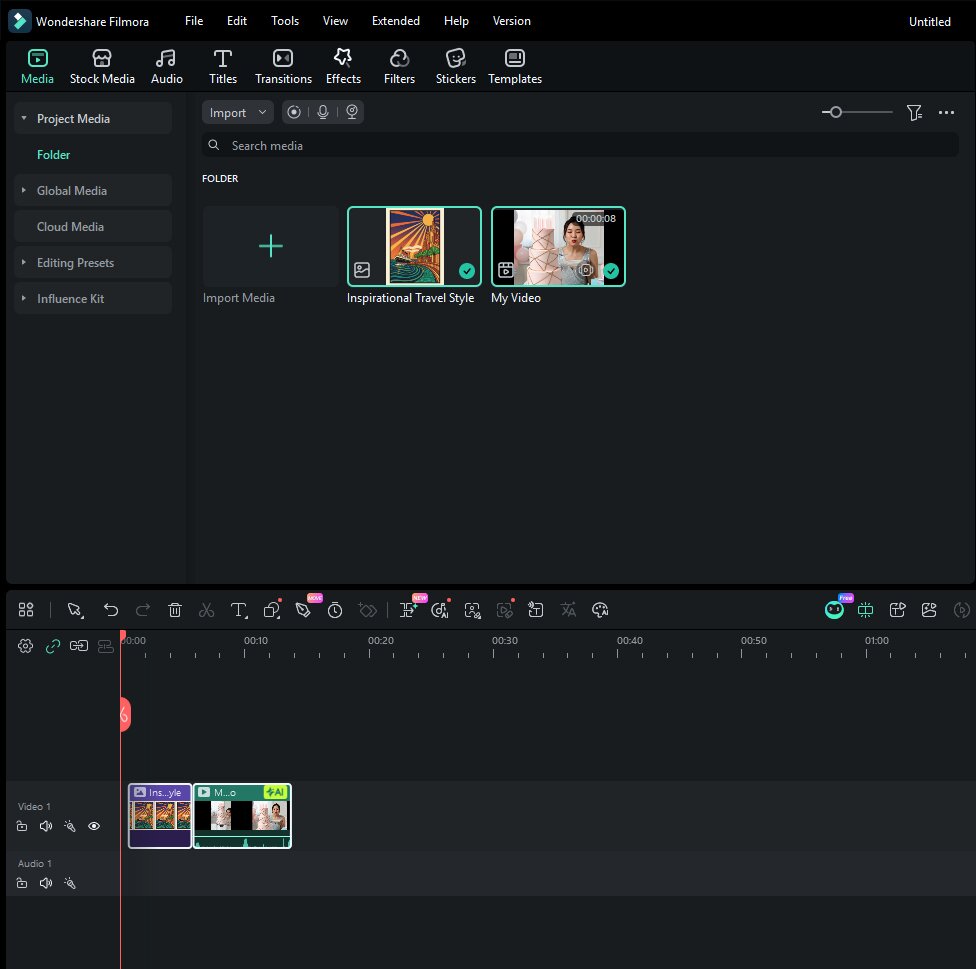
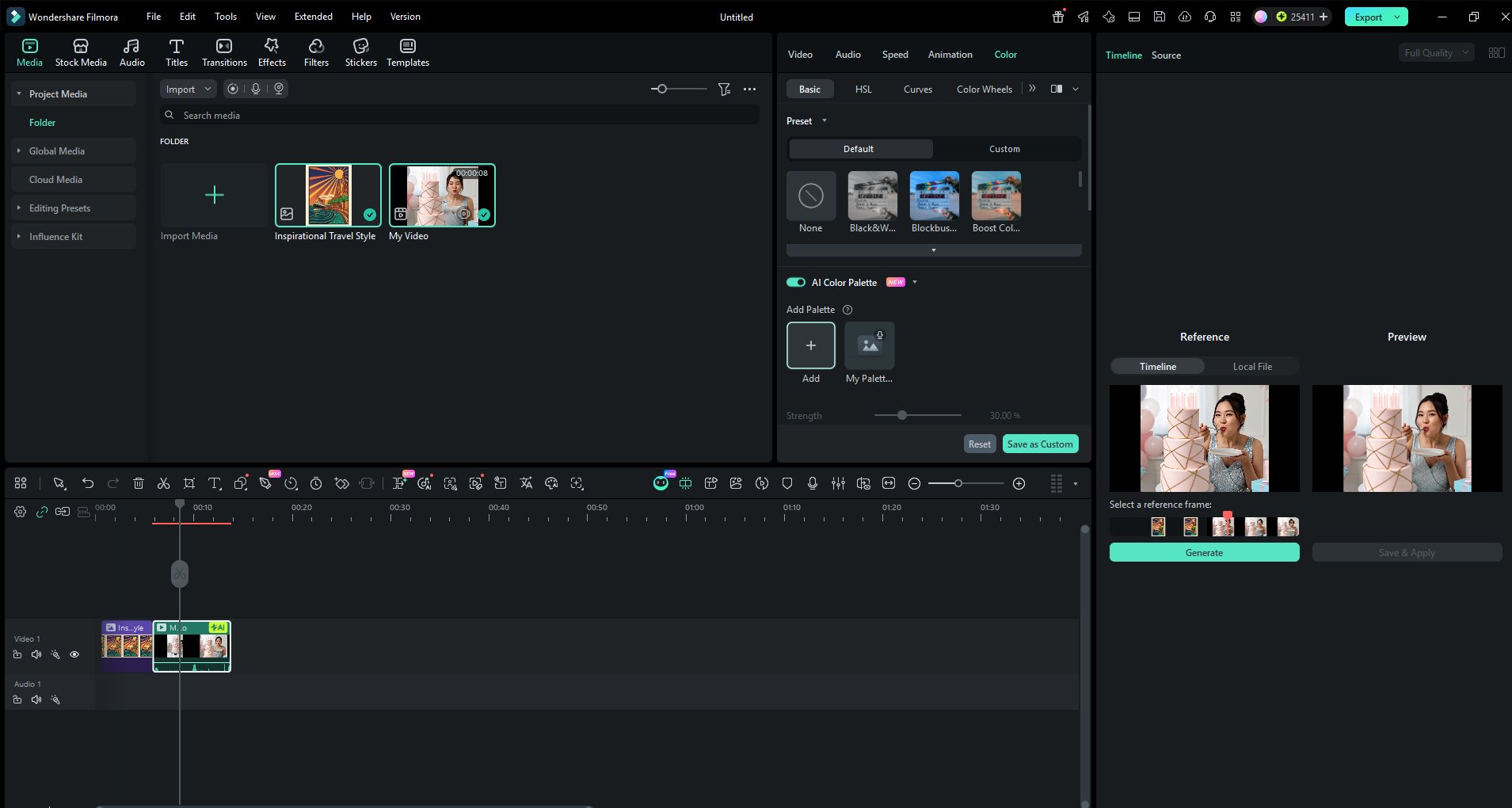
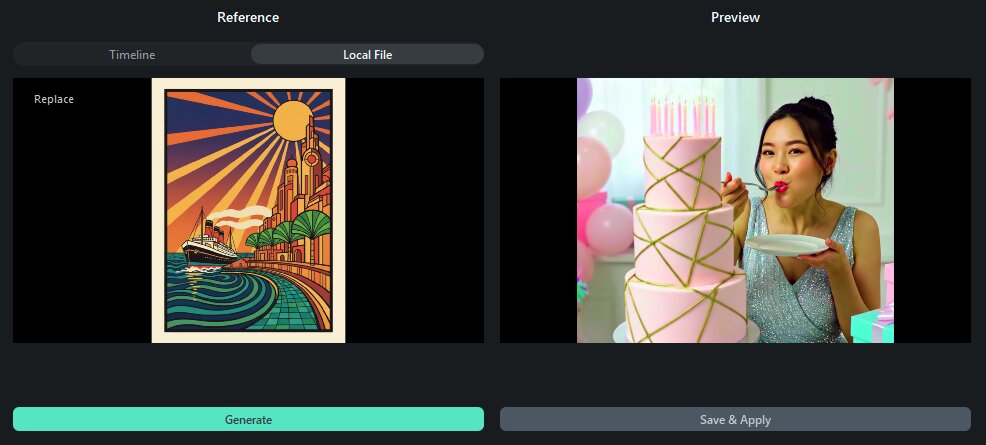
You can even change the color palette of your video using Filmora’s AI Color Palette feature! Pick any image from your Mixboard, use it as a reference, and Filmora shifts your video's color tones to match it automatically. Here’s how:
In the Reference section, click "Local File" and upload the image you want to use as the color palette for your video.
 Secure Download
Conclusion
Google Mixboard AI offers a fresh and intuitive way to explore ideas through visual storytelling. By combining text prompts, image generation, and smart AI understanding, it allows users to build moodboards faster and more creatively than ever before. Whether you’re a creator, designer, marketer, or just someone looking for inspiration, Mixboard provides a flexible space to experiment and refine concepts.
Even though it still has a few limitations as an experimental product, its potential is clear. With continuous updates from Google, Mixboard AI could easily become an essential tool for turning ideas into real creative projects.
FAQs
-
1. Is Google Mixboard free to use?
Yes, for now Mixboard is still free to use.Since it’s part of an experimental project from Google Labs, the main goal is to collect user feedback. But keep in mind that:
- There’s a daily usage limit for high-level AI features like Nano Banana Pro or Gemini 3.
- Google also offers an AI Ultra Access plan for users who need higher limits for professional projects. -
2. Do I own the images I create on Mixboard?
Legally, based on Google’s policy (as of early 2026), Google does not claim ownership of the original content you create using their AI tools. However, there are a few things to note:
- Usage Rights: You’re free to use the images for personal projects, presentations, or social media content.
- Copyright: Under current laws, fully AI-generated content often doesn’t get the same copyright protection as human-made work.
- License to Google: By using the platform, you give Google permission to host and use your content to operate and improve their services. -
3. Why can’t I access Google Mixboard?
If you’re having trouble accessing it, it’s usually because of one of these reasons:
- Region: Even though it’s available in 180+ countries (including Indonesia), Mixboard still isn’t available in the EU, the UK, and some other regions due to strict privacy regulations.
- Account Type: You need to log in with a personal Google account (@gmail.com). Work or school accounts (Google Workspace) often block access to "Labs" features unless your IT admin allows it.
- Age Limit: This service is only available for users aged 18 and above. -
4. Can I use my own photos in a project?
Yes, absolutely! This is actually one of Mixboard’s best features. You can upload your own photos (like sketches, product shots, or visual references) and combine them with AI-generated elements.
