


Video has become the default way businesses connect with people. As reported by Wyzowl's 2026 State of Video Marketing survey, 91% of businesses now use video as part of their marketing strategy, and around 89% of consumers say watching a video has convinced them to buy a product or service.
But making a useful business video still means dealing with recording tools, editing, sharing, and all that. Well, that is the problem Vidyard tries to solve. The platform promises easy screen recording, quick sharing, and AI features to help you close deals faster. However, with so many new tools popping up, is this video recorder really worth your time and budget? Let us dive into Vidyard recording and see what it actually brings to the table.
Part 1. About Vidyard
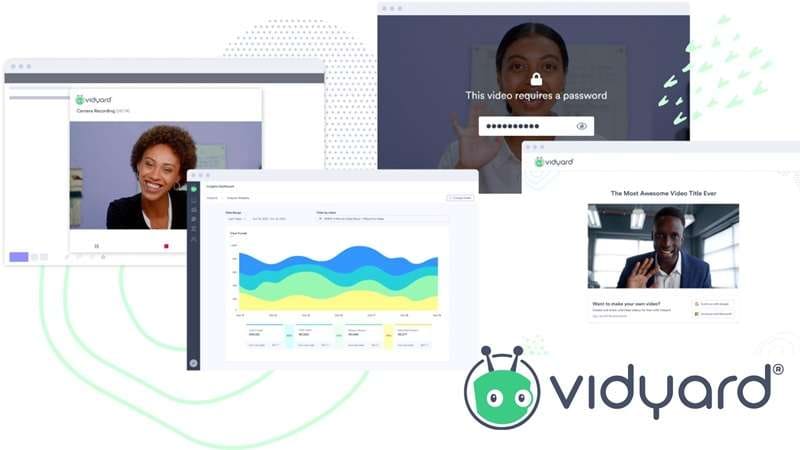
At its core, Vidyard is a video messaging and screen recording platform designed specifically for sales, marketing, and customer-facing teams. You can record your screen, webcam, or both, then share the resulting video through a link, email, embedded player, or other supported channels.
This makes Vidyard screen recording particularly useful for things like:
- Customer onboarding
- Internal updates
- Training and tutorials
- Marketing videos
- Customer communication
- Screen-recorded explanations
- Follow-ups after sales calls
Where You Can Actually Use It
For those looking for ways to download Vidyard, you're in luck. Vidyard isn't locked to one platform, which is honestly one of its stronger selling points.
Here's where it shows up:
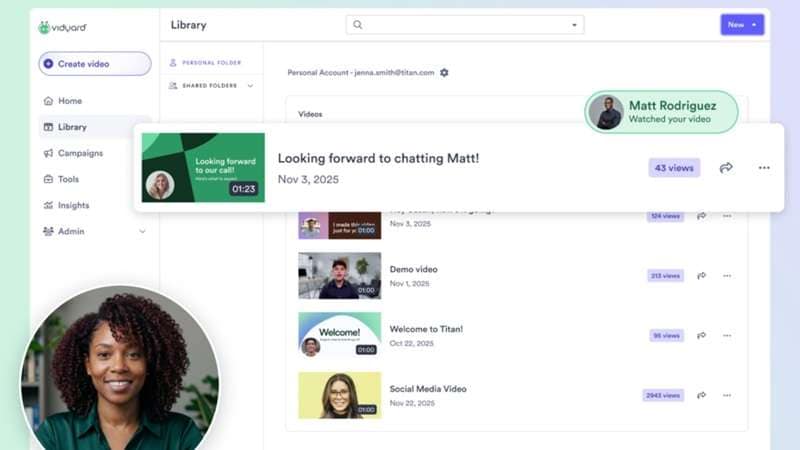
- Web: Complete the Vidyard log in to access the full dashboard where your video library, analytics, and settings all live.
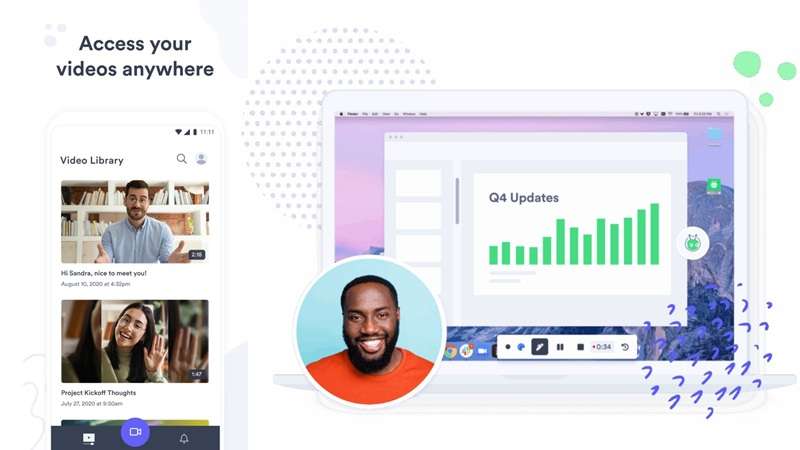
- Vidyard Desktop App: Vidyard for Mac and Windows are free to download for recording without needing a browser tab open.
- Vidyard App Mobile: Available on iOS and Android, to record or check analytics on the go.
- Vidyard Extension: The Vidyard Chrome Extension is free to access. It’s the fastest way to record and fire off a video without leaving Gmail, Outlook, LinkedIn, or your CRM tab.
Part 2. Vidyard Features: What Does It Offer?
Vidyard becomes more interesting once you look past the basic record button. This is the part most people care about most, so let's go feature by feature.
Screen Recording and Webcam Recording
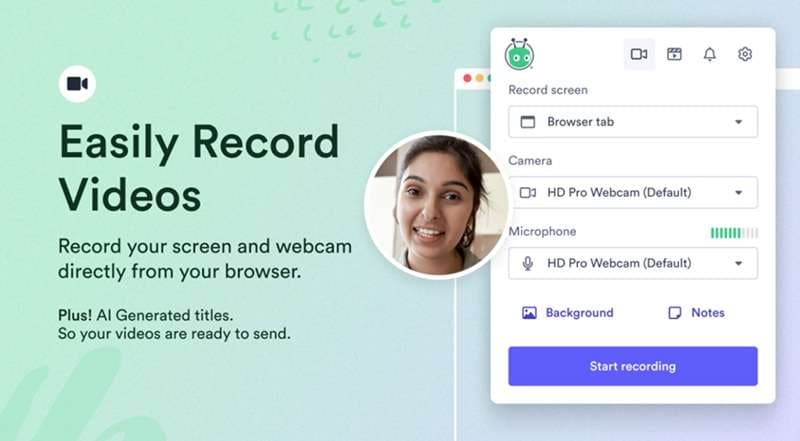
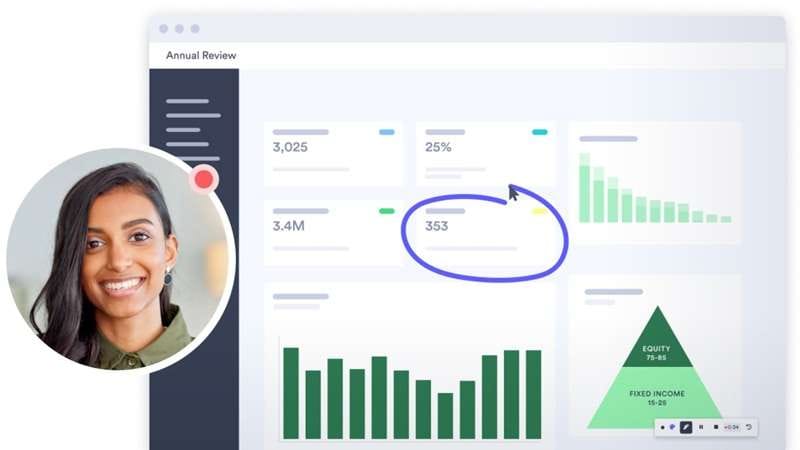
Screen recorder in Vidyard allows you to capture your screen, your webcam, or both at once (with the little bubble overlay you've probably seen in a hundred sales videos). It's high-definition, works right in the browser, and doesn't require you to install anything heavy just to hit record.
Chrome Extension for Quick Video Capture
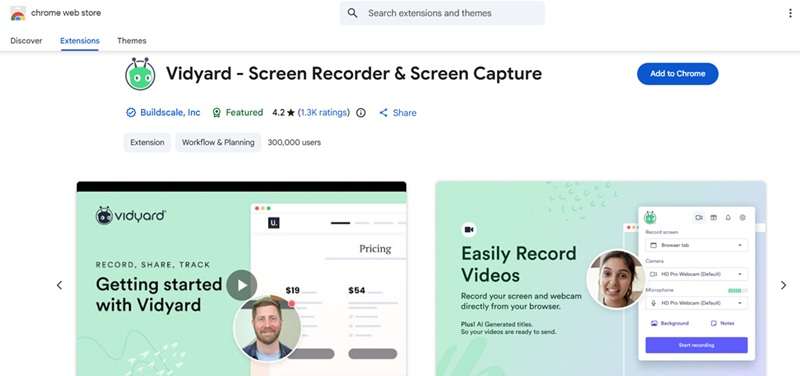
The Vidyard chrome extension is arguably the most-used piece of the whole platform. Once it's added to your browser, you can launch a recording from basically anywhere: your email, a CRM record, a LinkedIn message, and the finished video link drops right where you need it.
AI Features
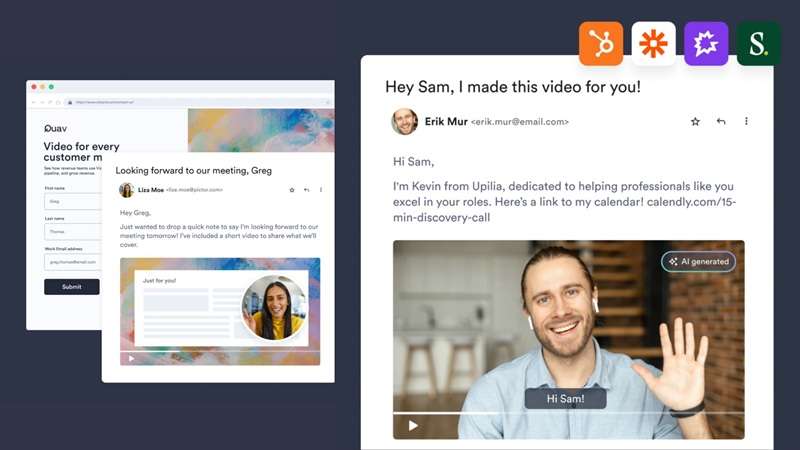
Vidyard AI has evolved over the past couple of years, and it shows. The AI Script Generator writes a starting script for you based on a prompt, and AI Avatars can train a digital version of yourself once, then generate new videos just by typing a script.
Video Hosting and Sharing
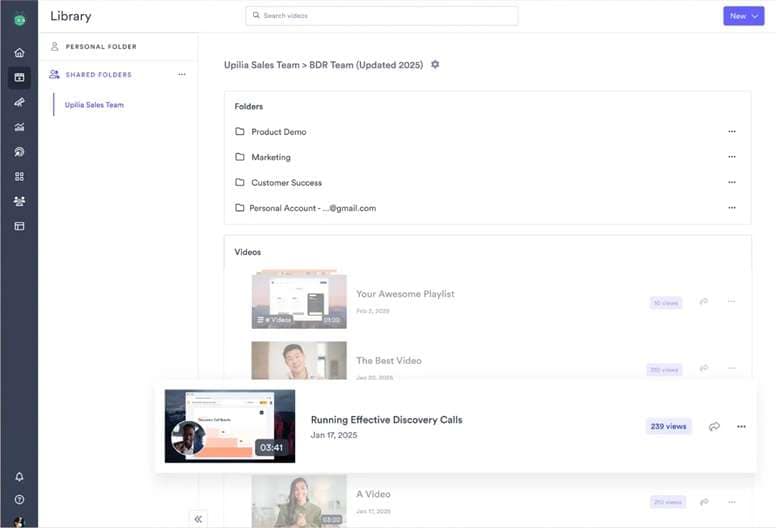
Every video you record gets hosted on Vidyard's own servers, so you're not clogging up email attachments or dealing with awkward file transfers. It also offers ad-free hosting, customizable video landing pages, and interactive call-to-action buttons.
Video Agent
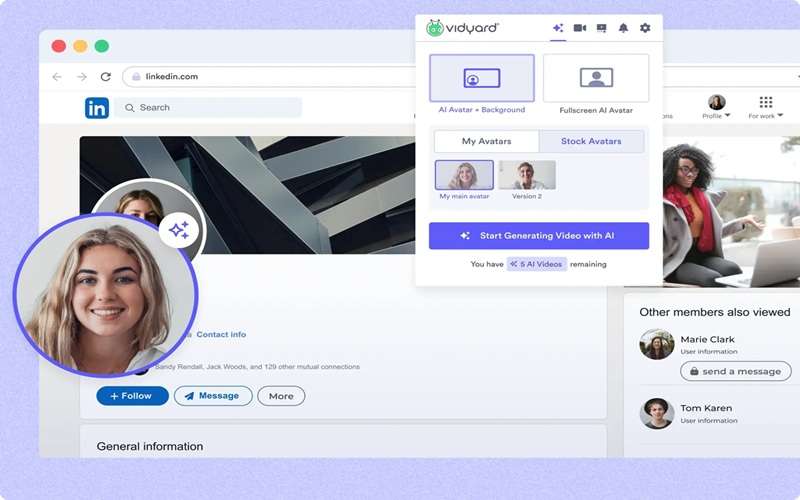
This is Vidyard's more recent, more ambitious feature: an AI-driven system that automatically sends personalized videos triggered by signals from your CRM, like a prospect visiting your pricing page or opening a previous email. It's meant to scale up personalized outreach without a human having to manually trigger every send.
Quick Editing
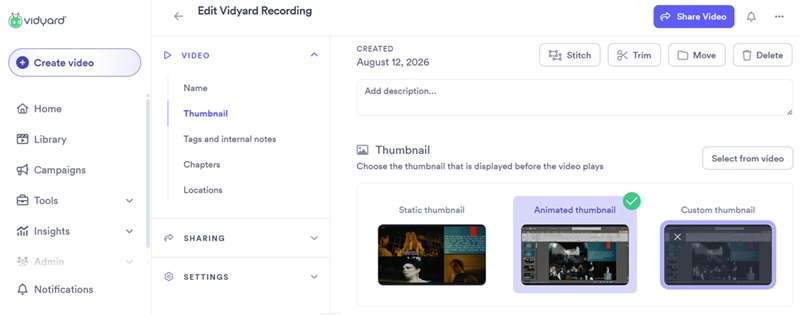
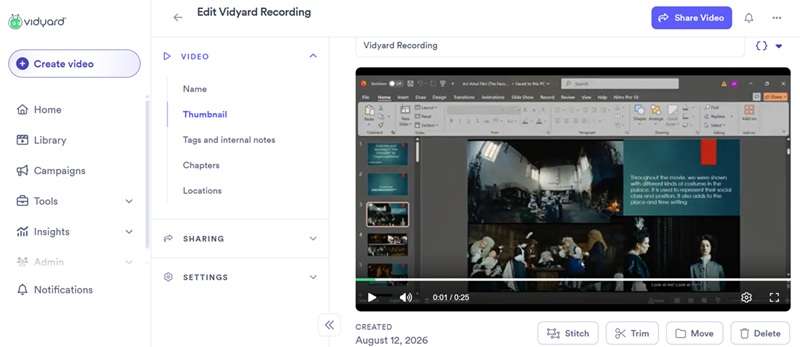
The Vidyard video recorder is optimized for speed of sending, not post-production polish. So, editing inside Vidyard is intentionally light. You can trim the start, middle, or end of your recordings right in your browser to remove awkward pauses before hitting send.
Integrations with CRM and Productivity Tools
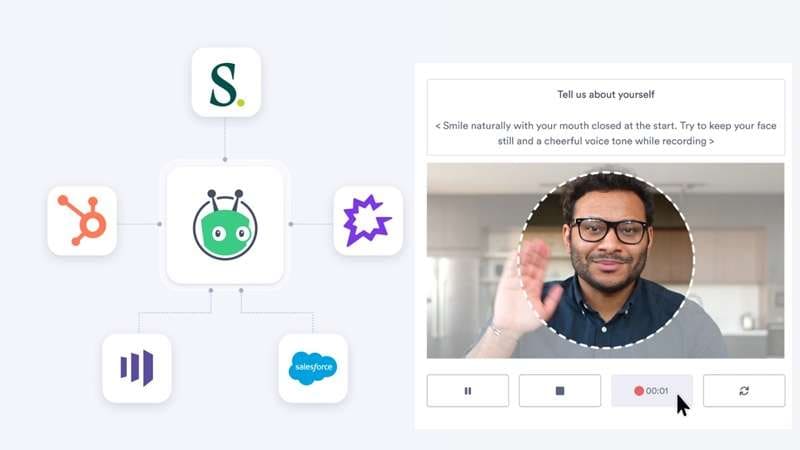
Vidyard connects with Salesforce, HubSpot, Marketo, Outreach, SalesLoft, and Gong, plus Gmail and Outlook for sending directly from your inbox. When it's set up right, viewer engagement data flows straight back into your CRM records, so reps can see who watched what without switching tabs.
Part 3. Vidyard Pricing: Free vs Paid Plans
Vidyard cost is honestly one of the more debated parts of this platform, so let's lay it out plainly, tier by tier. So, there is a Vidyard free plan, and it doesn't require a credit card to sign up. And this is what the free plan gets you:
- 5 recorded videos a month (each capped at 30 minutes).
- Basic screen and webcam recording.
- The AI Script Generator.
- Standard sharing links.
- A library that holds up to 25 videos at once.
Once you outgrow that, you can upgrade your plan to Starter. It removes the monthly recording cap entirely and unlocks full analytics and branded sharing pages.
Vidyard Pricing (2026)
| Feature | Free | Starter |
| Monthly Price | $0 | $89 |
| Monthly Recordings | 5 videos (30 min max each) | Unlimited |
| Video Library | Up to 25 videos | Unlimited |
| Viewer Analytics | Basic | Full engagement analytics |
| Branded Sharing Pages | ||
|
Show More
Show Less
|
||
Now, if you're running a bigger team and CRM data actually matters to your workflow, that's where Teams and Enterprise come in. Pricing on both is negotiated directly with Vidyard's sales team rather than published outright, but based on third-party benchmarking and buyer data, here's roughly what separates them:
| Feature | Teams | Enterprise |
| Starter Packs | Included | Included |
| CRM & Marketing Automation Sync | Yes (Salesforce, HubSpot, Marketo) | Yes, plus advanced routing |
| Folder & Content Organization | Yes, with admin controls | |
| Team Performance Reporting | Yes, advanced dashboards | |
| Security & Compliance | Standard (SOC 2, GDPR) | Advanced controls, SSO, dedicated support |
|
Show More
Show Less
|
||
Part 4. How to Get Started with Vidyard
Our Vidyard review wouldn't be complete if we didn’t try it ourselves. Below is the basic flow if you're setting it up for sales or marketing use for the first time.
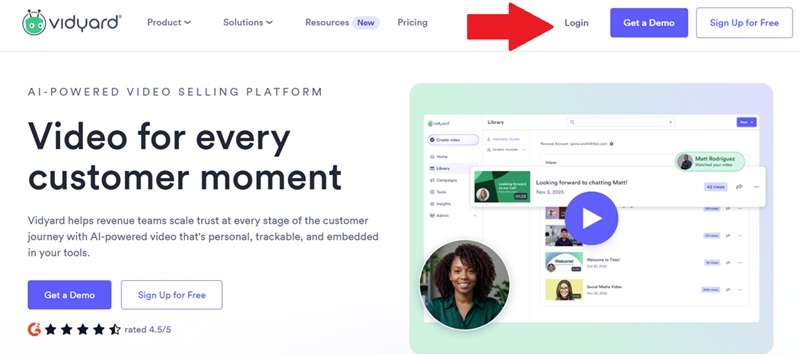
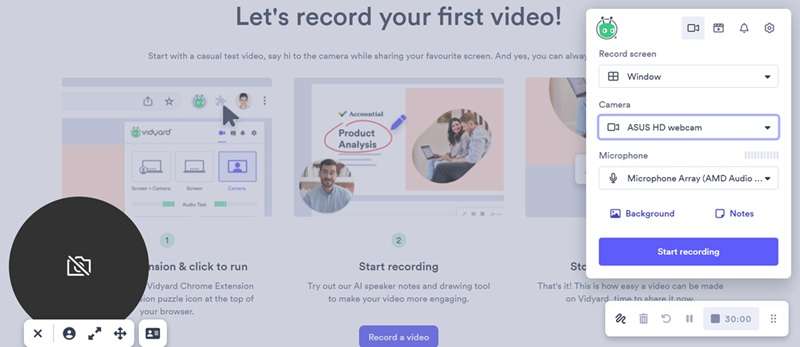
Pick your recording mode: screen only, webcam only, or both, and hit start recording.
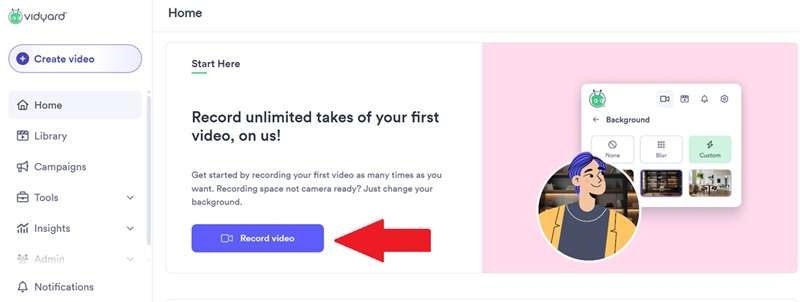
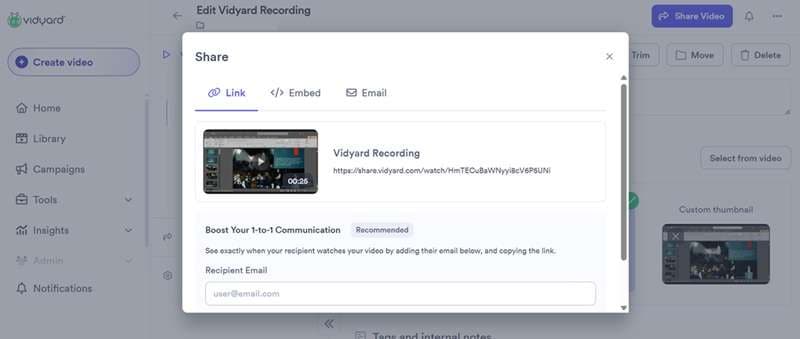
Copy the share link directly into your email or CRM, then keep an eye on real-time view notifications to see when your prospect watches.
Part 5. Hands-on Testing: Is Vidyard Easy to Use?
Now that we've tried it ourselves, we can say that Vidyard's free video recorder is about as smooth as it gets. The extension opens fast, the countdown before recording gives you a second to get ready, and switching between screen and webcam mode takes one click.
That said, the analytics and library sections have a bit of a learning curve, especially for admins setting up team folders or permissions for the first time. It's not confusing exactly, just not as instantly intuitive as the recording flow itself.
What Users Say About Vidyard
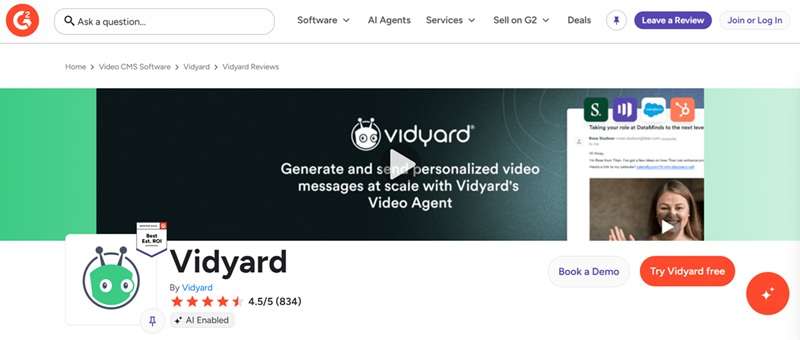
Across G2, Vidyard holds a strong 4.5 out of 5 rating from 800+ reviews, with reviewers frequently pointing to its integrations with tools like HubSpot and Outlook as a standout strength. However, the Vidyard app has poor ratings at 3.0 out of 5 on the Apple Store and 3.2 out of 5 on the Google Play Store.
Let’s break down their good and bad:
- The free plan is genuinely usable.
- The analytics are some of the most detailed in the category, it tells you exactly who watched your video and for how long.
- CRM and sales integrations make Vidyard more useful than a standalone recorder.
- AI Avatars let you scale personalized outreach without recording a new take every single time.
- Video editing options are limited to basic trimming.
- Desktop apps can occasionally lag during high-resolution screen capture.
- Advanced features like custom CTAs are locked behind higher tiers.
- Downloading your own videos isn't available on the free plan, only from Starter and up.
Part 6. Vidyard Alternative for Recording and Editing Videos
While Vidyard does a solid job with quick messages and sales tracking, it falls short if you want complete creative control over your videos. And because of that, some people start to look for Vidyard alternatives.

Why Some Users Look for Alternatives
- Confusing: Folder structures and team permissions take some getting used to.
- Limited Editing: You cannot easily add custom transitions, text overlays, sound effects, or multi-clip timelines.
- Basic AI Tools: No auto captions, no background removal, no real creative AI toolkit.
- Pricing Concerns: Costs scale up quickly as soon as you need basic analytics or CRM features.
So what do you do if you like the idea of personal, trackable video, but need something with more editing muscle behind it? Well, there's Wondershare Filmora as one of the best alternatives to Vidyard.
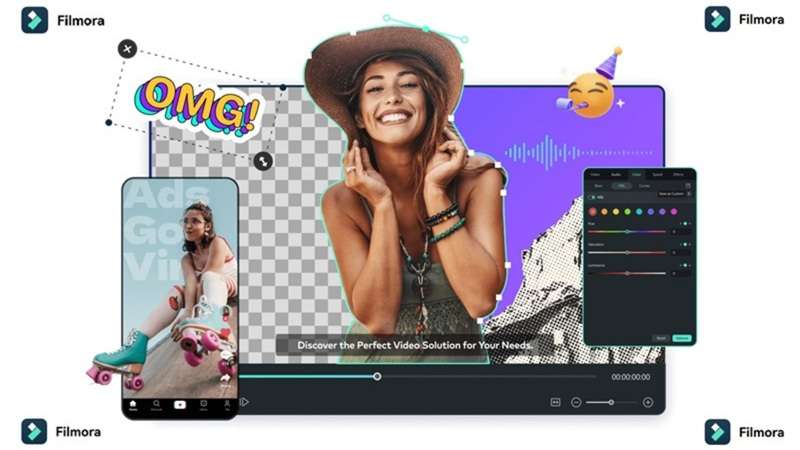
While Vidyard focuses almost entirely on recording, sharing, and tracking business videos, Filmora lets you take things further. You can actually edit your recordings into something polished, build out tutorials, produce full marketing videos, create social content sized for every platform, record presentations, and export a finished, professional-looking video, all from one app, available on both desktop and mobile.
| Feature | Vidyard | Filmora |
| Screen Recording | Simple screen & webcam capture | Flexible screen, webcam, & system audio recording |
| Editing Capabilities | Basic trimming only | Full timeline: transitions, effects, layers, AI tools |
| AI Tools | AI avatars & sales script generation | AI Copilot, text-to-speech, auto captions, background removal, etc |
| Export Options | Hosted links & video embeds | Local file exports (MP4, MOV, 4K), social uploads, & links |
| Best For | Sales reps sending quick pitch clips | Content creators, educators, & marketing video editors |
|
Show More
Show Less
|
||
Looking at the comparison above, it's safe to say that if your primary goal is tracking view times for sales pitches inside your CRM, Vidyard works well. But if you want to record, edit, and publish high-quality marketing videos or tutorials without hitting creative brick walls, a dedicated editor like Filmora gives you far more value for your money.
 Secure Download
Conclusion
Vidyard remains a reliable tool for sales reps who want to send quick personalized screen recordings, keep their communications human, and track prospect engagement. Vidyard extension and CRM integrations make standard outreach fast and efficient. However, its limited editing capabilities and pricing tiers might feel restrictive over time.
So, when you need to go beyond basic messaging and create truly captivating video content, having a full-featured recorder and editor makes all the difference. Tools like Filmora allow you to record your screen and transform raw footage into polished, professional videos with intuitive AI tools, dynamic effects, and total creative freedom.
FAQs
-
What is the difference between the Vidyard app and the Chrome extension?
The Vidyard Google Chrome extension is lightweight and built for fast recording right inside your web browser or email client. The desktop app provides a more stable recording environment for longer screen captures, higher resolution output, and smoother system performance. -
Does Vidyard add a watermark to free videos?
No, Vidyard videos do not have a huge watermark even on the free plan. Watermarking is actually an optional branding feature you can turn on yourself if you want your logo showing on your content. -
Can I download videos from Vidyard?
Only on paid plans. Vidyard downloading isn't available on the free tier at all, but once you're on Starter or above, you can grab the original media file or a compressed copy in different resolutions straight from your video library.
