

 TL;DR:
Wondershare Filmora is the optimal choice for animating curved text and custom paths in videos, while template-driven online generators like Canva and VistaCreate are faster for creating static circular logos and promotional banners.
● Unlike basic template apps, Photopea provides advanced path-based text-on-curve precision directly in the browser, and the Phonto mobile app offers specialized manual kerning controls to maintain readability.
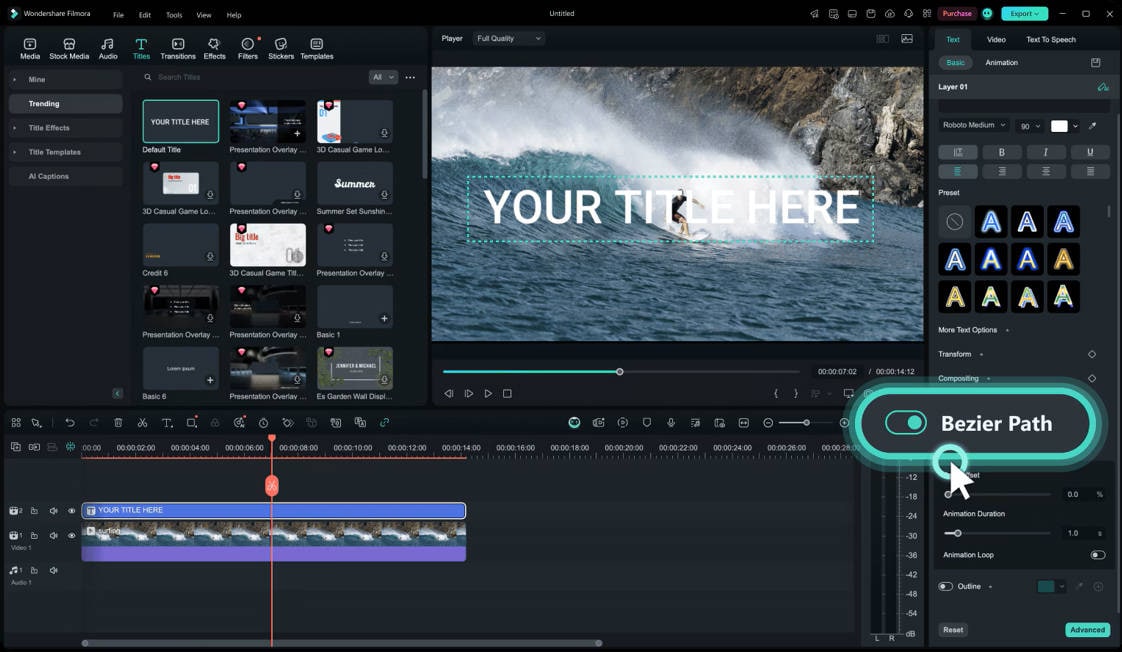
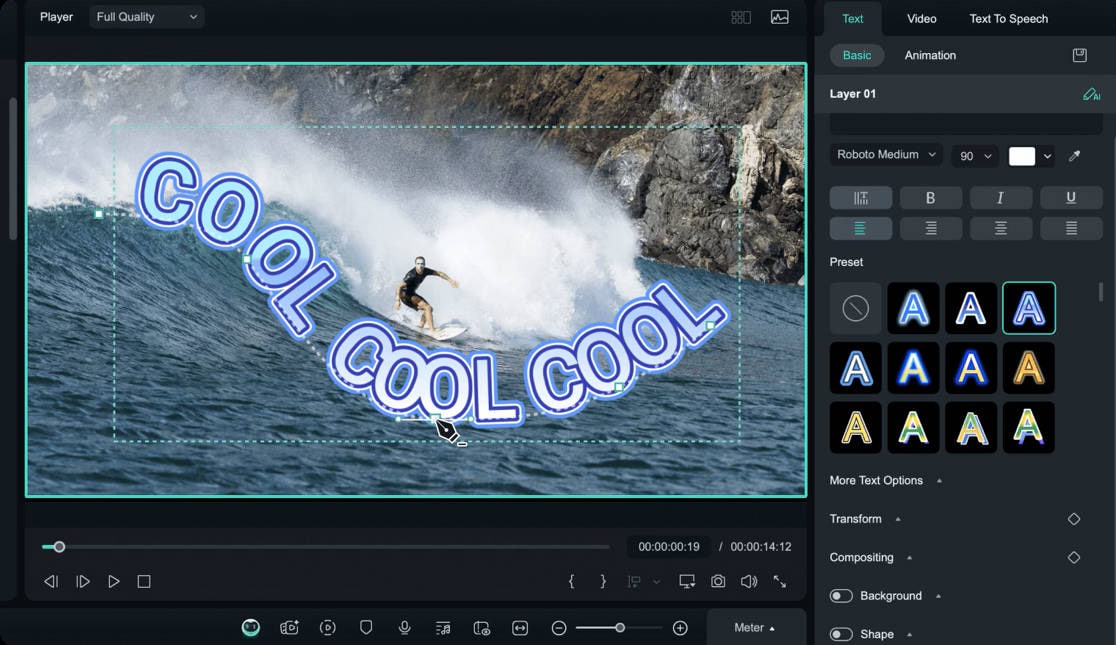
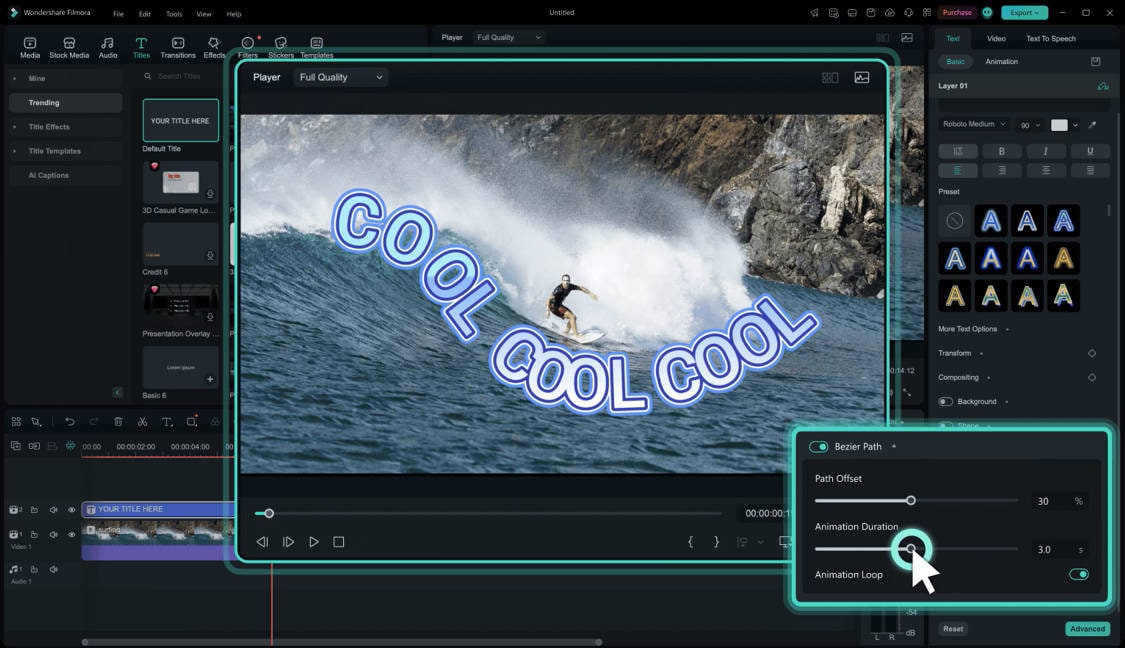
● To animate custom shapes in video projects, Filmora users must enable the Bezier Path option to draw custom lines, snap the text to the path, and configure the movement duration and start points.
● Because curving text inherently squeezes characters together, designs require manual increases in letter spacing, the use of bold sans-serif fonts, and gentle arcs instead of tight circles to prevent unreadable distortion on mobile screens.
Ask AI for a summary
 ChatGPT
 Perplexity
 Gemini
 Claude
 Grok
Grok
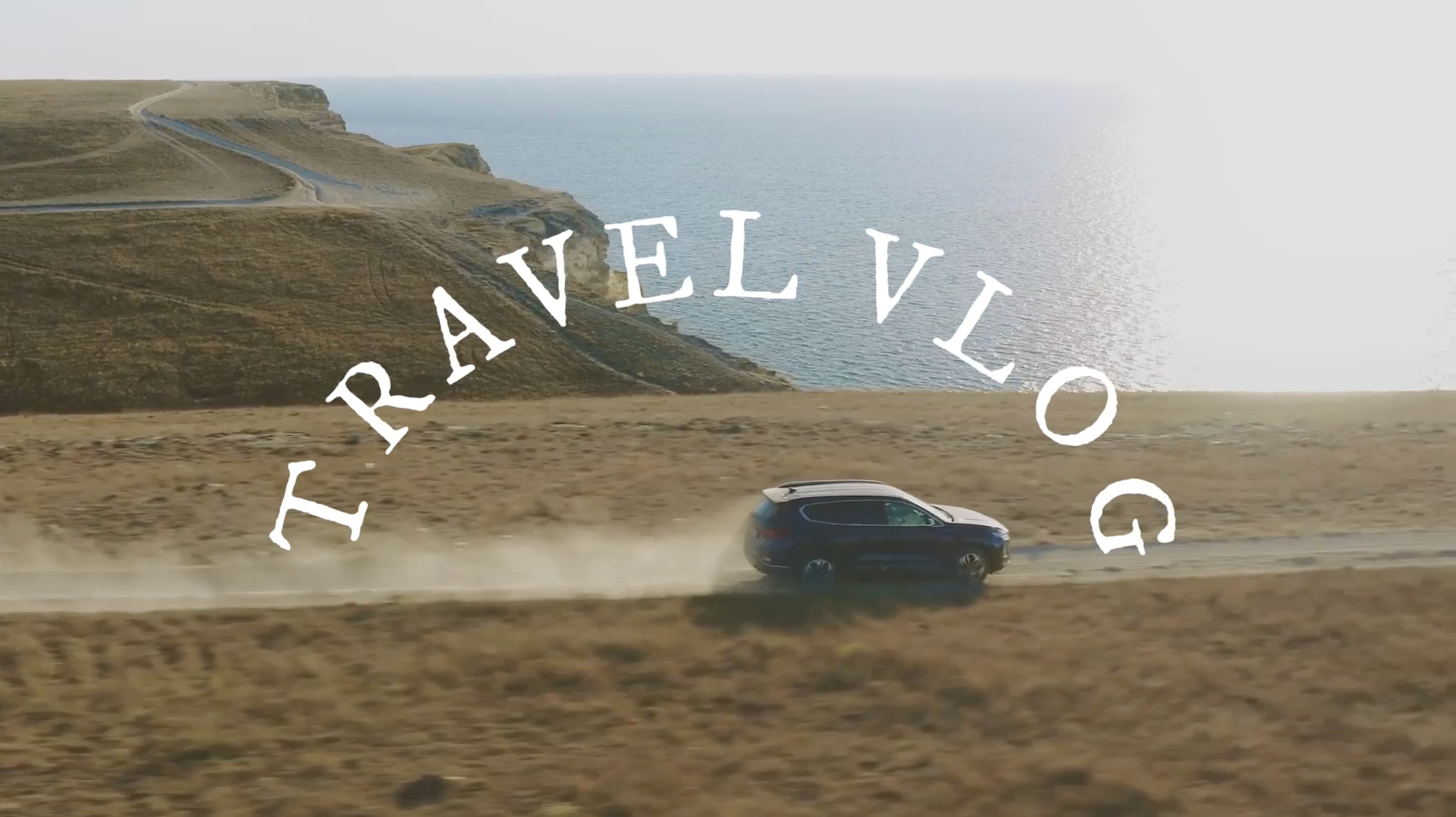
Finding a reliable curved text maker can be frustrating when the final result looks distorted. Whether you need a curved text generator online, a mobile app, or a professional video editor, this 2026 guide provides the best tools to create perfect circular text and curved ribbon banner text effortlessly.
Part 1. Top 5 Online Curved Text Generators for Quick Designs
If you just need curved text fast for a logo badge, sticker, poster, or thumbnail, these tools get it done with minimal setup. They work as a curved text generator online, so you can start from a template, type, curve, export, and move on.
1) Canva
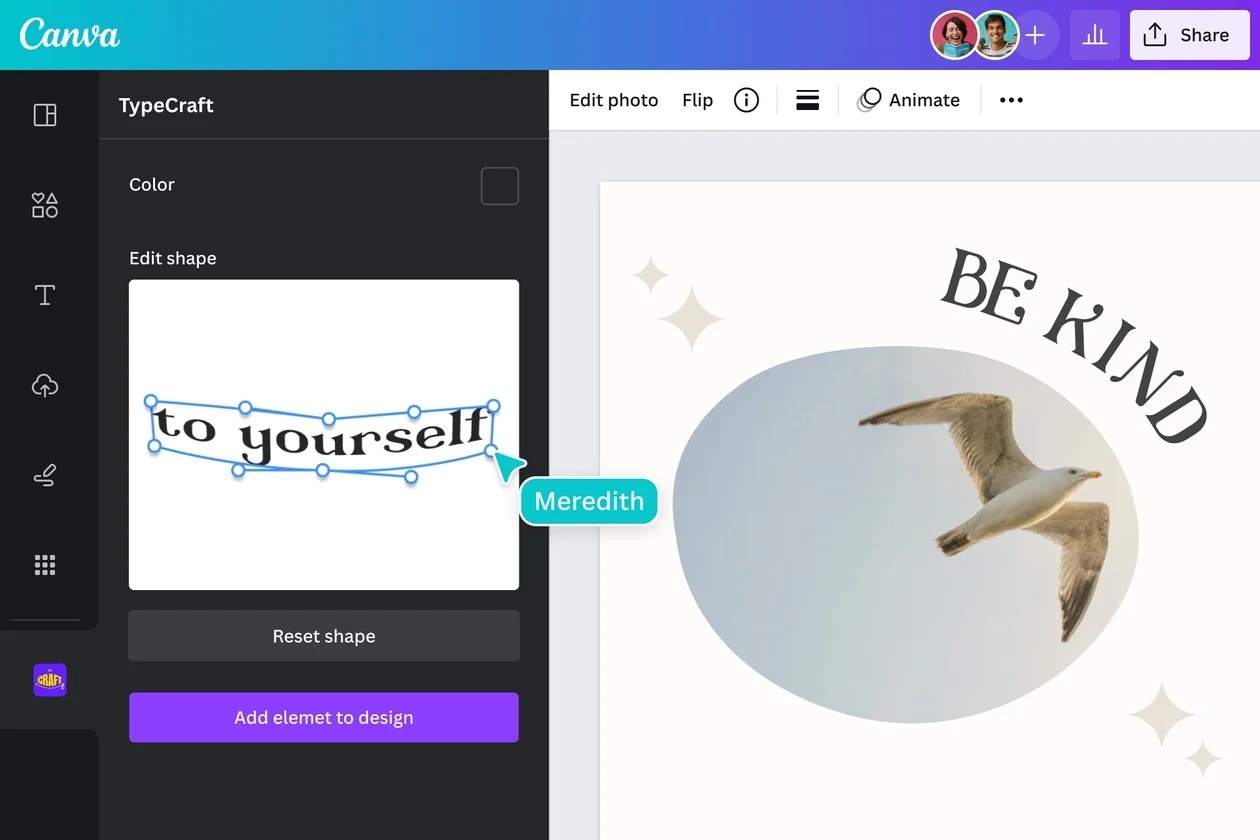
Canva is the go-to curved text maker when you want results in minutes. The curved text generator Canva workflow is simple: add text, apply an effect, then adjust the curve amount until it fits your layout. Canva also supports lots of ready-made layouts for logos, Instagram posts, and YouTube thumbnails.
- Huge template library for quick designs
- Easy curve control, great for circular badges and seal-style logos
- Works well as a curved text generator online free option for basic exports (premium elements may be restricted)
- Some fonts, elements, and exports depend on plan and asset licensing
- Fine kerning control is limited compared to pro typography tools
- Open a design, add a text box, and type your text.
- Select the text, go to Effects, and choose Curve.
- Adjust the curve slider and spacing, then export.
2) Adobe Express
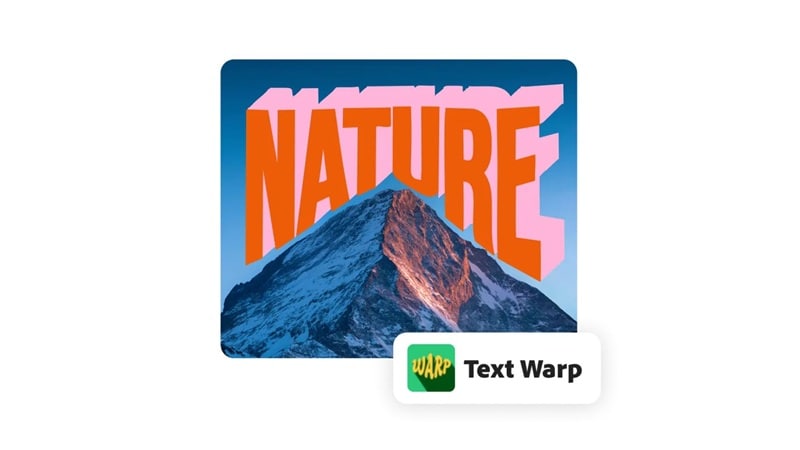
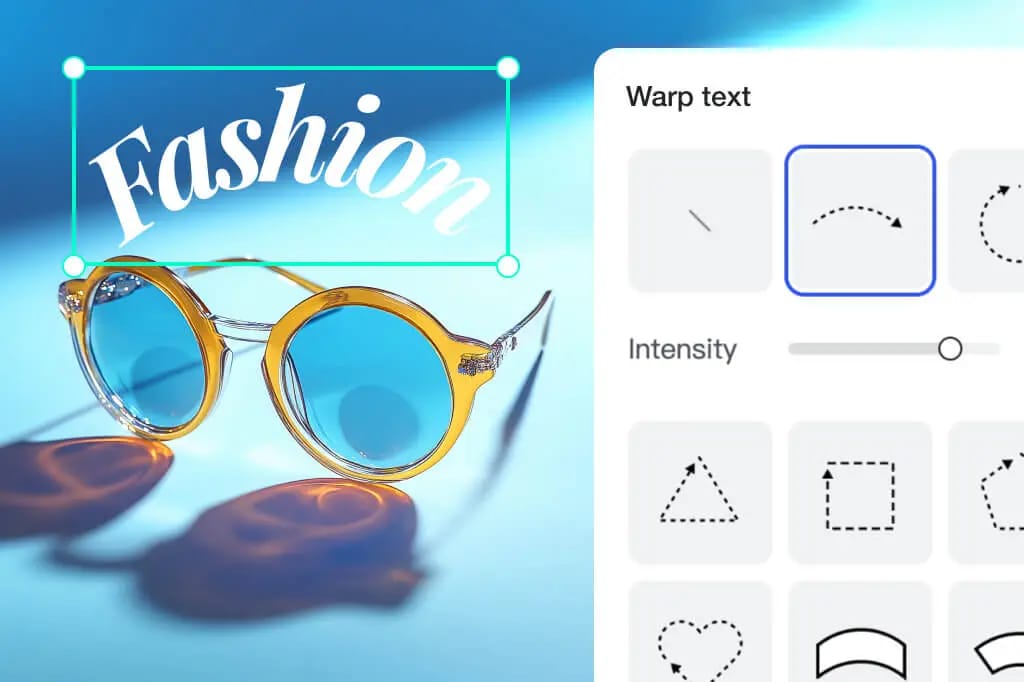
Adobe Express is a strong curved text generator app option, especially if you like designing on your phone and finishing on a desktop. Its curved text feature is available through a "Text Warp" workflow, so you can bend and shape text without jumping into heavy design software.
- Smooth workflow on mobile and desktop
- Fast for posters, covers, and simple brand assets
- Works well if you already use Adobe tools
- The exact curve controls can feel different than most tools
- Some features and assets can be plan-dependent
- Start a design, add text, open Text effects or a warp-style option.
- Apply a curved or arc warp, then adjust the intensity.
- Resize, align, then export for social or print.
3) VistaCreate
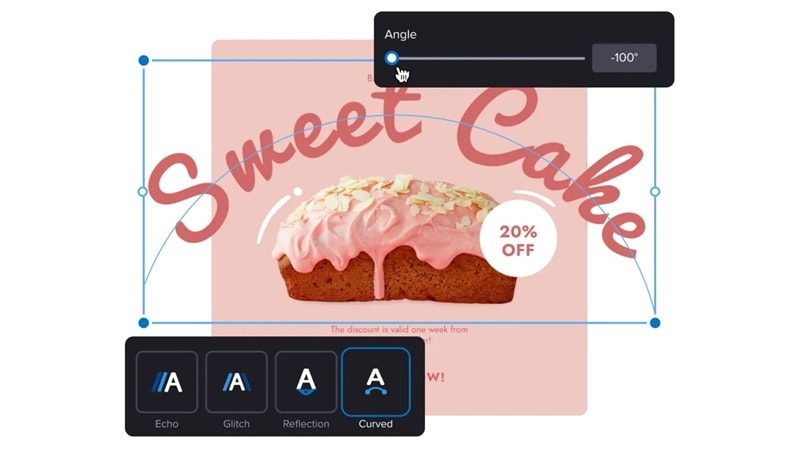
VistaCreate is great when your design goal is promotional: sales posters, event flyers, and social ads. It includes a Curved text effect built into its text tools, which makes it a practical curved ribbon banner text generator alternative when you want arched headlines over shapes or banners.
- Built-in Curved effect inside text tools
- Lots of marketing templates for ads and promos
- Easy to make arched headlines and badge-style labels
- Text effect options are more "preset-style" than advanced typography controls
- Free tier can have export/asset limits depending on what you use
- Pick a promo template, add a banner shape (optional), then add text.
- Apply a Curved text effect and tweak the curve.
- Adjust spacing and placement to match the banner, then export.
4) insMind
insMind leans into speed and automation. It's a curved text generator free option that's useful for quick image edits like product photos, stickers, and simple social creatives. You can apply curved, circular, and other curved text styles, then tweak the direction and intensity.
- Very fast, minimal design learning curve
- Handy presets for curved and wavy text
- Good for simple sticker-like designs and product labels
- Results can look "template-like" if you do not customize fonts and spacing
- Export limits may apply depending on the plan and usage
- Upload your image, add a text layer.
- Choose a curved preset (arc, circle, wave) and adjust direction.
- Fine-tune size and spacing, then export.
5) Photopea
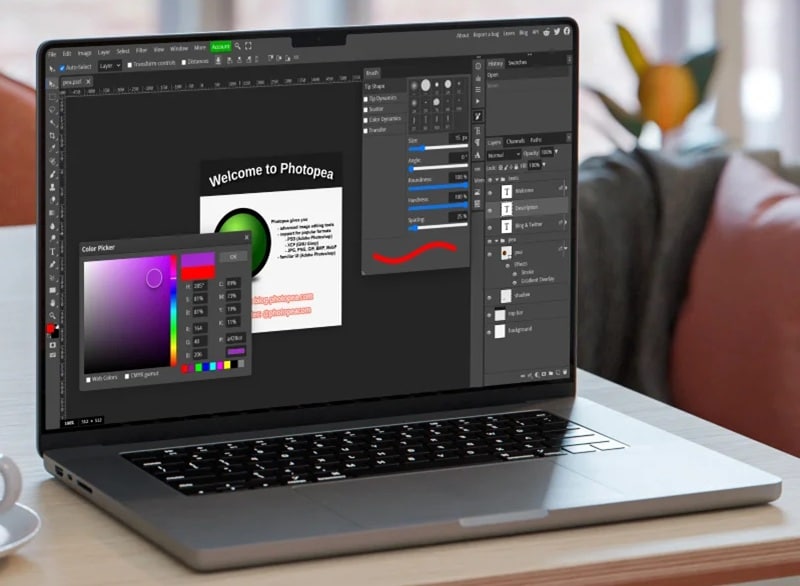
Photopea is a Photoshop-style editor that runs in your browser. It's a strong pick when you want curved text that looks clean and precise, especially for logos, badges, and seal designs. It also supports text on a curve.
- Powerful curved text maker in the browser, no install needed
- More flexible path-based control than many quick curved text generator online tools
- Great for precise circular text and curved banner-style typography
- Takes a bit more effort than template-based tools
- Interface can feel advanced if you only need a quick curve once
- Open Photopea, create a new file, add a text layer.
- Draw a circle/curve path, then place your text on the curve (text-on-curve).
- Adjust font and spacing, then export as PNG.
Part 2. How to Create Curved Text in Video: Best Curved Text Video Editing Software
Online tools may be great for a quick logo or poster, but they stop at static text. A curved text video editing software, on the other hand, is different. Motion gives your words timing, rhythm, and presence.
You can use it to make curved titles that can reveal a brand name as the beat drops, wrap around a product for a "360°" moment, or circle a face in a vlog intro. The result looks more premium because the text feels designed for the footage, not pasted on top.
 Secure Download
Why Curved Text in Videos Looks Better Than Static Designs
- It guides the eye. The curve naturally frames a subject, like a badge around a logo or a halo around a product.
- It adds motion and emotion. Text that bends and moves can match music, beats, and scene cuts.
- It increases clarity. You can animate in, hold, then animate out, so viewers actually read it.
Filmora as Your Curved Text Maker
If you are looking for the best curved text video editing software, Wondershare Filmora is the ultimate solution. Beyond static graphics, Filmora allows you to animate circular text and customize text on a path with professional precision.
Filmora also supports Text Path if you want to create more advanced designs with manual control. You can draw a custom path using a Bézier tool, then animate your text along that path with controls like duration, starting point (Path Offset), and looping.
Secure DownloadStep-by-step: Create curved text in Filmora (quick method)
Use this when you want circular text, arched titles, or a curved ribbon banner style over a clip.
Secure Download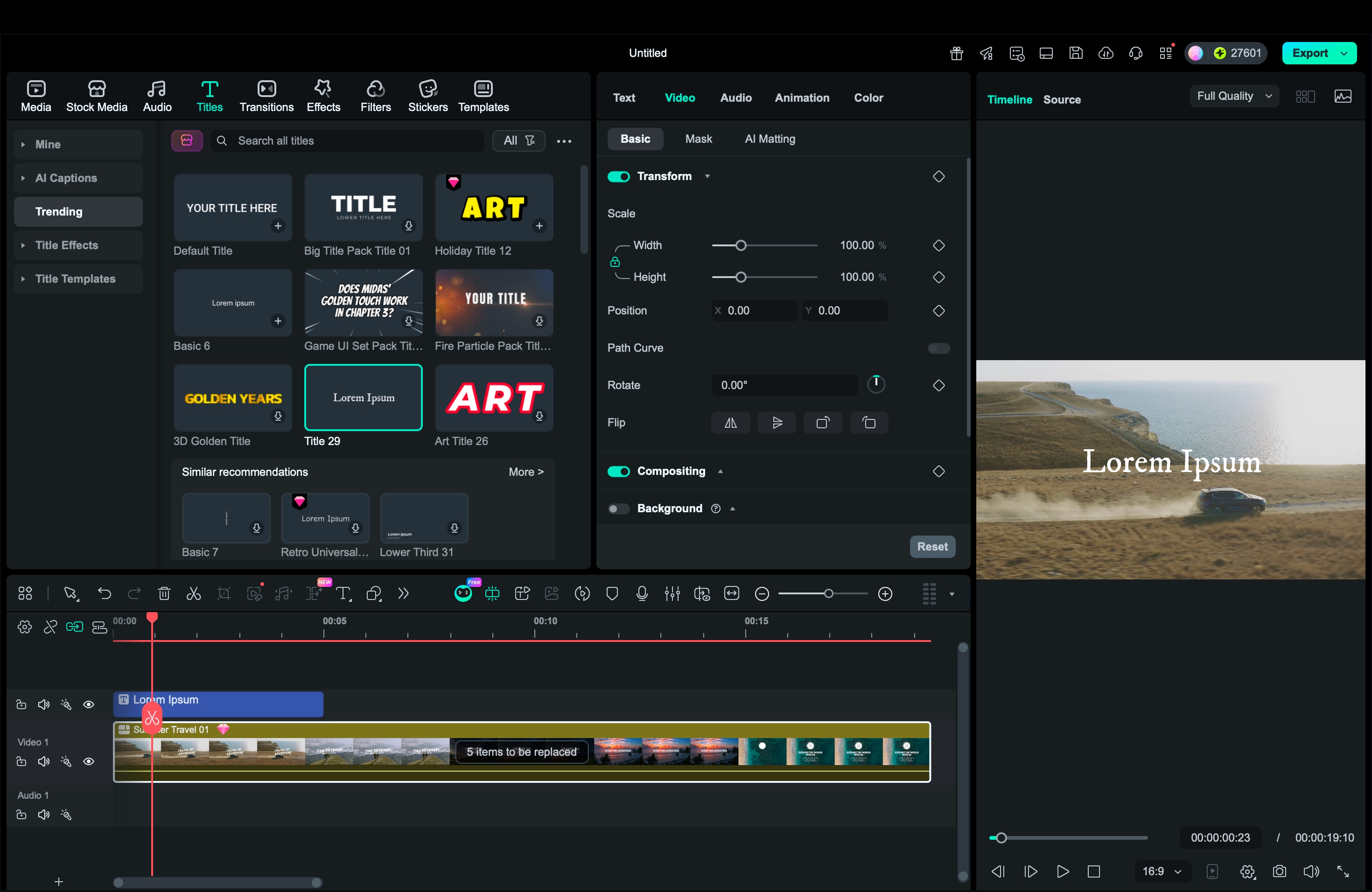
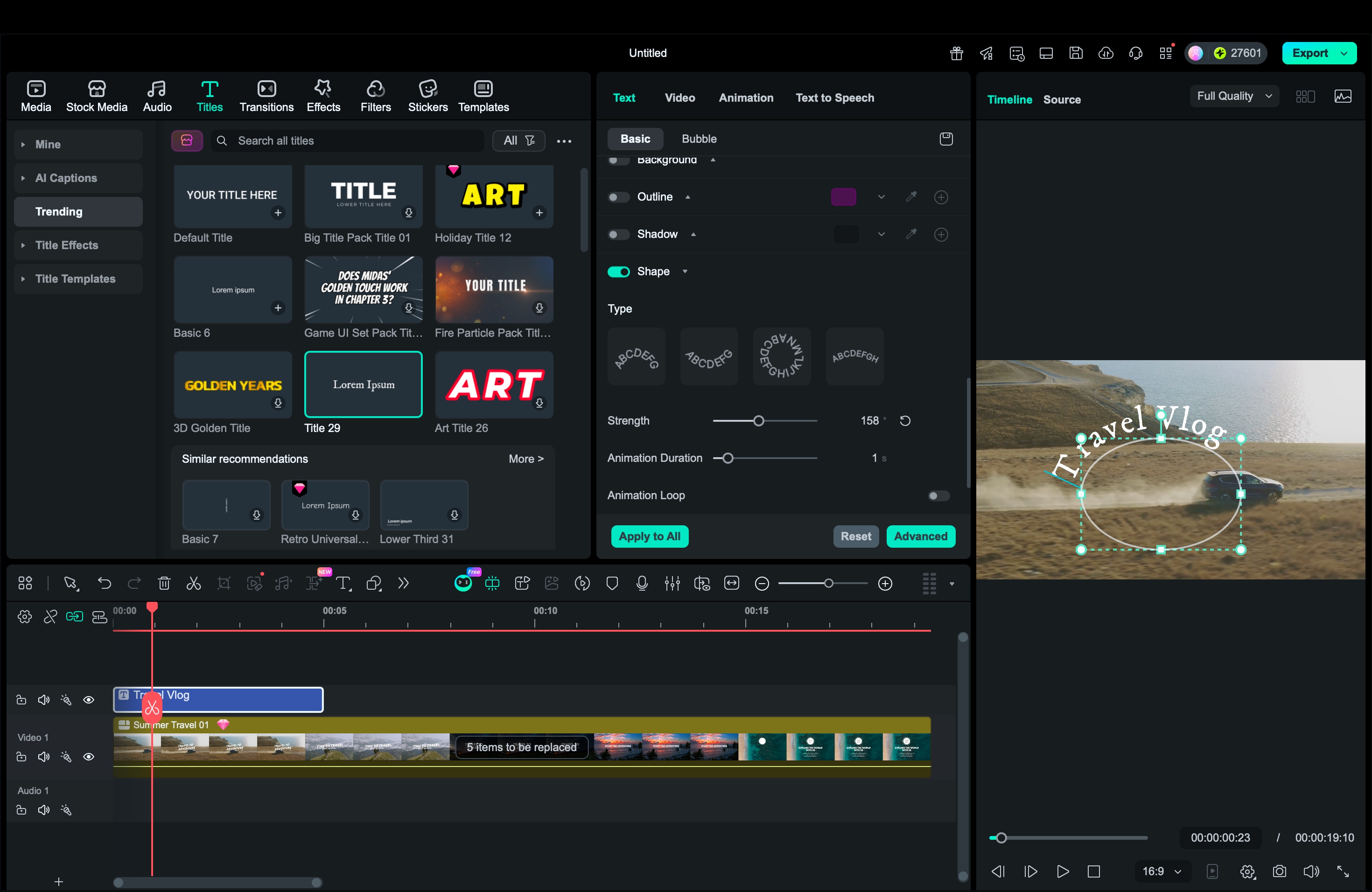
Step-by-step: Make animated curved text with Text Path (advanced)
This is the upgrade when you want text that moves along a custom curve, like a swirl, circle, wave, or outline around an object.
Part 3. Best Curved Text Generator Apps for Mobile Users
Mobile creators usually need two things: a fast way to bend text into a circle, arc, or ribbon, and an easy way to place that text on a photo or video without losing quality. The apps below cover both.
You will see options that act like a pure curved text generator app, plus editors that help you animate curved titles for Reels and TikTok.
1) Filmora Mobile (iOS, Android)
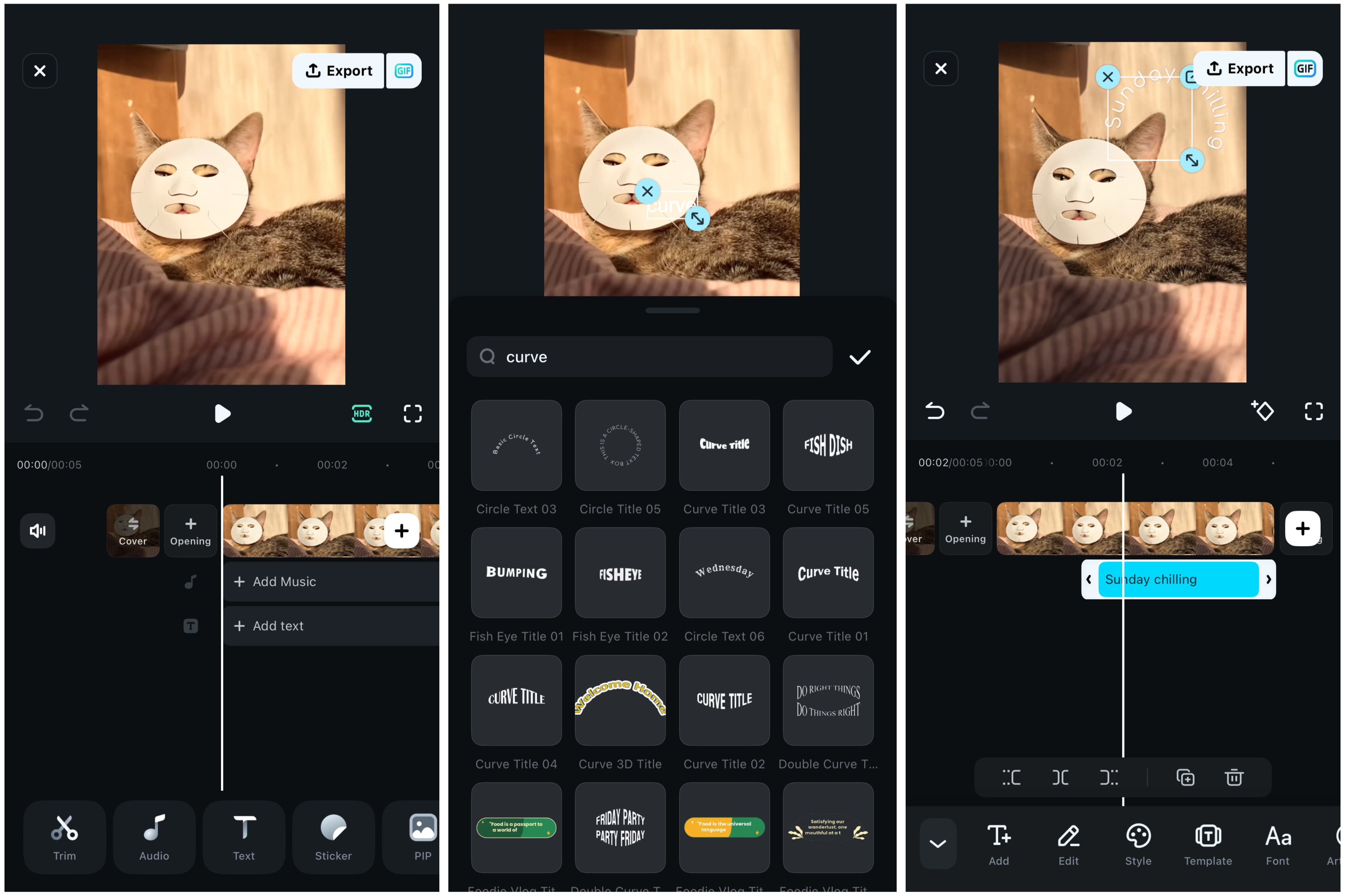
Filmora Mobile makes this simple because curved text is already available in its template library. You can add curved titles directly on your timeline, then fine-tune timing and motion like any other video element.
- All-in-one workflow, curved text, and video editing live in the same place
- Template search is fast; you can test multiple curved looks in seconds
- Easy to make curved titles feel premium with timing, motion, and transitions
- If you need a very specific custom curve shape, template-based options may feel limiting
- Open your project, tap Text, then tap Add Text.
- Go to Template, then use the search bar to type "curve".
- Pick a curved text template, edit the wording and style, place it on screen, then adjust duration and animation before exporting.
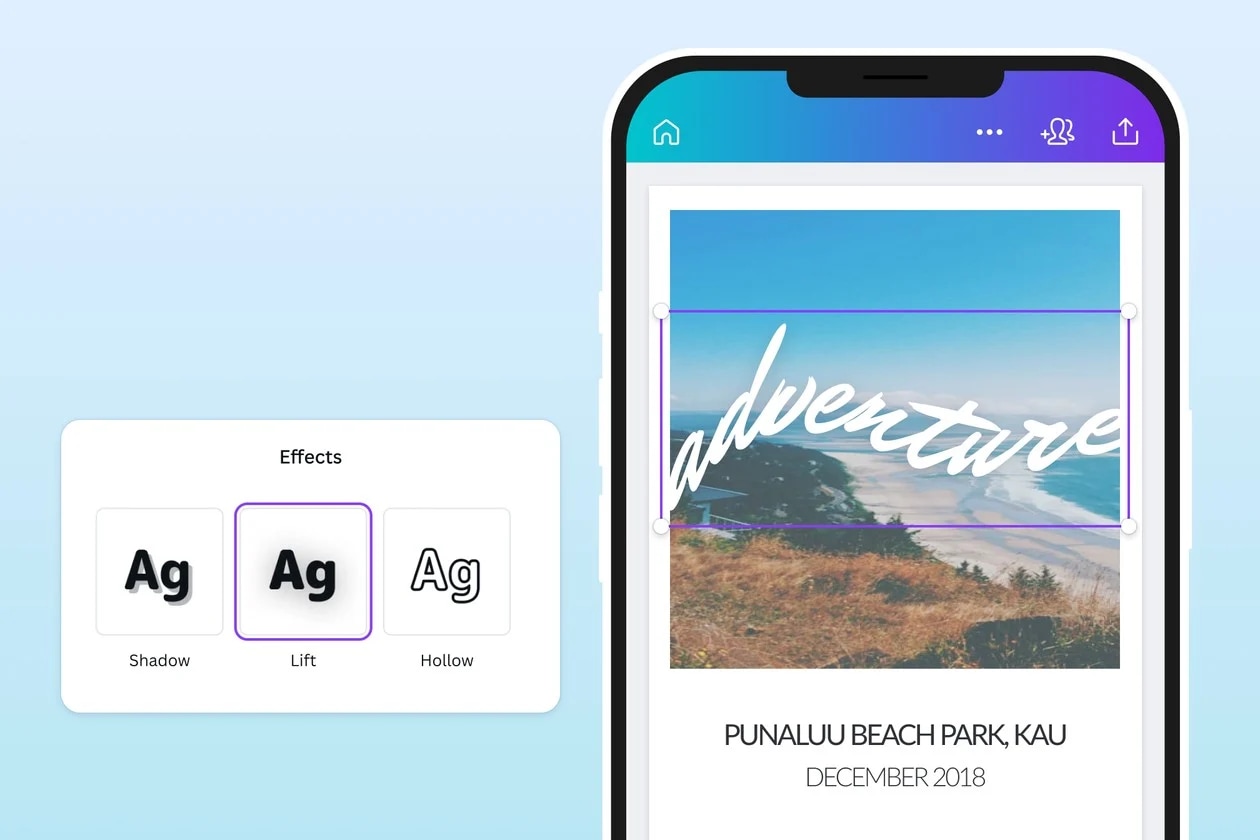
2) Canva (iOS, Android)
Many creators use Canva as the "design layer" in their workflow, then move the result into a video editor.
- Very beginner-friendly, quick results with minimal setup
- Templates help you build circular logo text and curved ribbon banner text layouts fast
- Works as a curved text generator online too, so you can continue on desktop
- Limited fine kerning control compared to typography-focused apps
- Transparent background export can require a paid plan, which matters for overlays
- Create a design, add a text box, type your title.
- Tap Effects, choose Curve, then adjust the curve slider.
- Export as PNG or JPG, then use it on a post, or import it as an overlay in your video editor.
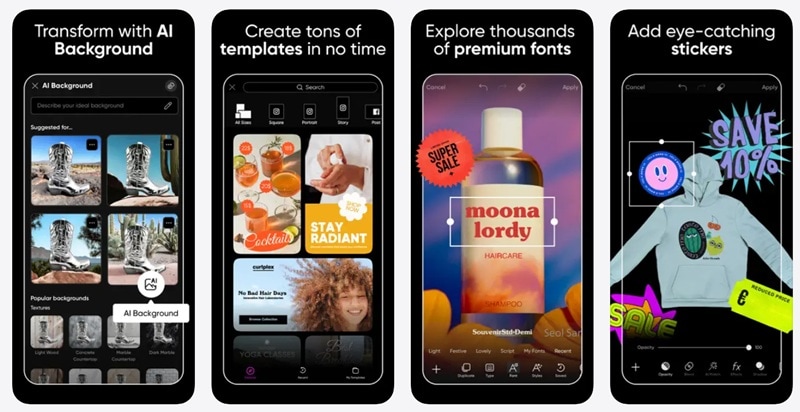
3) Picsart (iOS, Android)
Picsart is great for punchy and playful curved text. If you like sticker aesthetics and attention-grabbing titles, this is a strong curved text generator app choice.
- Fast and fun, strong for sticker-like curved labels and callouts
- Easy to make wavy and curved headline styles that pop on social feeds
- Good for quick edits when you do not want templates to decide the layout
- Curved text can look messy if spacing is not adjusted carefully
- Export quality and some tools may depend on plan settings
- Open a photo or blank canvas, then add text.
- Apply the curved text tool and bend the text up or down.
- Customize font, size, and spacing, then export your design.
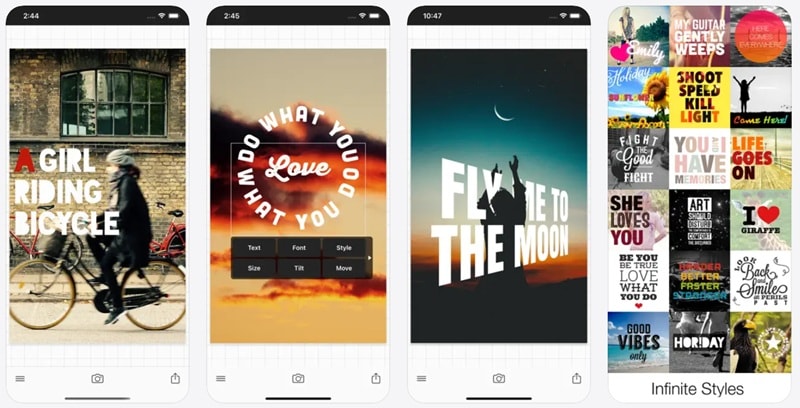
4) Phonto (iOS, Android)
Phonto is a lightweight text-on-photo app. It is a solid pick when readability matters, because you can control spacing more precisely than many template-first tools.
- Useful spacing controls for clean curved text that stays readable
- Lightweight app, quick to create circular text for badges and seals
- Less template dependence, you control the look directly
- Fewer modern templates and effects compared to Canva or Picsart
- Focused on images, so you still need a video editor for animation
- Open an image, add a text layer.
- Turn on curved text, then adjust the curve direction and placement.
- Fine-tune letter spacing, line spacing, and size, then export.
Part 4. Creative Styles You Can Make with a Curved Text Maker
Curved text works because it acts like a design shape, not just a caption. It can frame a subject, guide attention, and make a title feel branded. Here are three styles that creators use the most.
Circular Text for Logos and Seals
Circular text is the classic "badge" look. You see it on coffee logos, community stamps, podcast cover art, and profile icons. It instantly feels official because the circle creates a strong frame around a center element, like a logo mark, photo, or icon.
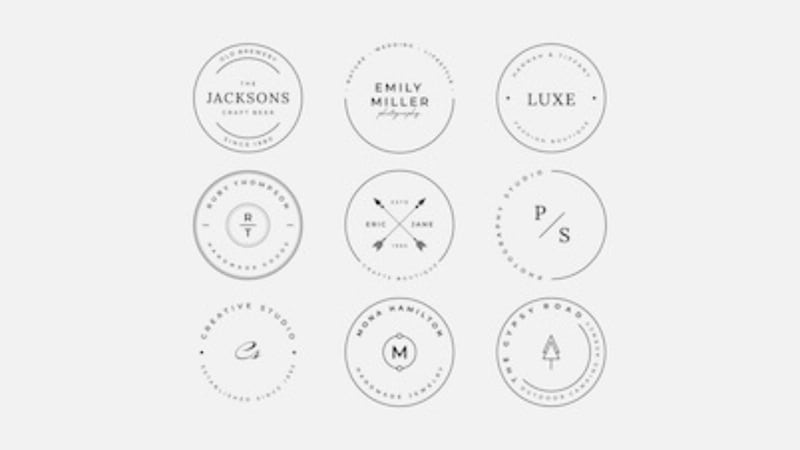
This style also scales well. It stays readable on small screens when you keep the words short and use a thicker font.
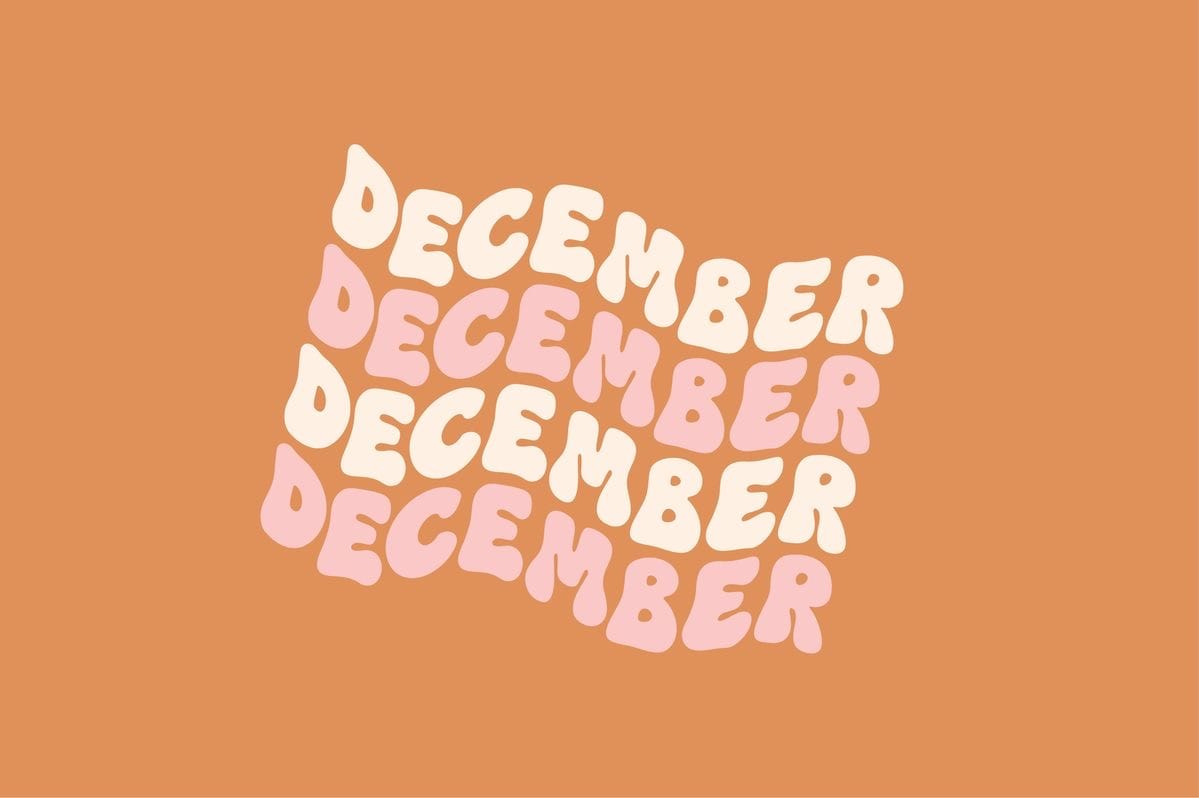
Wavy Text Effects for a Retro Vibe
Wavy curved text gives instant retro energy. It feels playful, bold, and a bit chaotic in a good way. This is why it shows up in music edits, streetwear promos, gaming clips, and throwback posters. The curve adds movement even before you animate anything, so it grabs attention faster than straight text.
Curved Ribbon Banner Text for Promotional Ads
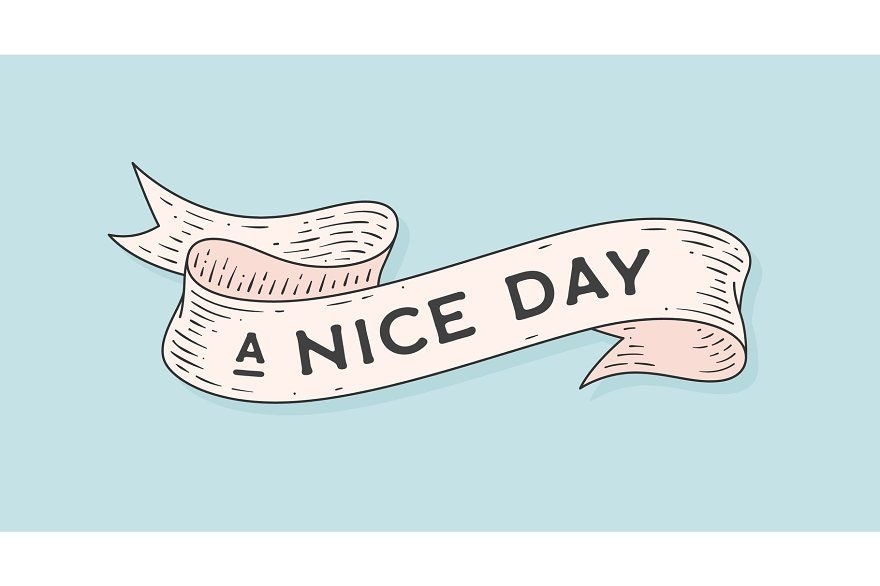
Curved ribbon banner text is made for promos. Think "SALE," "NEW," "LIMITED," "GRAND OPENING." The slight curve makes the headline feel like a label or sticker instead of plain text. This style is popular because it creates hierarchy fast: the ribbon headline catches the eye, and the smaller details (price, date, CTA) can sit below in straight text for clarity.
Part 5. Pro Tips for Using a Curved Text Generator
Curved text looks simple, but tiny choices decide if it feels "designed" or "off." Use these tips to keep your curved titles clean across photos and videos.
Tip #1: Choose fonts that stay clean after curving
Bold sans-serif fonts usually curve better than thin or overly decorative fonts. Curving can make skinny strokes look uneven, especially on small screens. Keep your text short and avoid all-caps if the letters start to feel cramped.
Tip #2: Reduce distortion with a gentler curve
A tight curve looks cool, but it can warp letter shapes and hurt readability. Use a mild arc for longer phrases, and reserve full circles for short logo-style text.
Tip #3: Control kerning so letters do not collide
Curving often squeezes letters together. Increase letter spacing a little, then check the tight spots (like "AV," "To," or "RY"). If your tool supports manual kerning, fix problem pairs first before changing the whole line.
Tip #4: Keep it readable on mobile
Test your curved text at phone size. If you can't read it in one second, simplify the phrase, increase font weight, or add an outline/shadow for contrast.
Tip #5: In videos, let motion do the work
Curved titles look best with simple timing: quick entrance, short hold, clean exit. Avoid stacking too many effects; the curve is already the "style."
Conclusion
Curved text helps your designs look more branded and scroll-stopping, from circular logo badges to curved ribbon banner headlines. For quick graphics, a curved text generator online can handle the basics in minutes.
But when you want curved titles that feel polished in motion, Filmora is the smarter pick. You can add curved text directly, control timing, and animate it to match your footage. Keep fonts bold, spacing clean, and curves gentle for better readability.

FAQs
-
Is there a free online curved text generator without a watermark?
Sometimes. Many tools stay watermark-free for basic exports, but templates, premium assets, or higher-quality downloads can add limits. If your goal is video, Filmora can be easier since you create curved titles inside the editor and export the finished video without moving assets between tools.
-
How to make curved text in Canva vs Filmora?
If in Canva you curve text by using Effects > Curve on a text box, Filmora can be simpler and more flexible: you can pick a ready curved text template and animate it on the timeline, or use Text Path to make the text follow a custom line and move along it for more advanced looks.
-
Can I use a curved text maker for commercial projects?
Usually yes, but check licensing. Fonts, templates, and graphic elements may have different commercial-use rules depending on the tool and your plan.
