

 TL;DR:
To generate and refine clean audio in OpenAI's Sora 2, explicitly define sound textures, volumes, and unwanted noises in your prompt, and utilize an editor like Wondershare Filmora to fix the model's inevitable audio artifacts and unbalanced mixes.
● Direct Sora's baked-in dialogue and cinematic sound design by prompting for exact audio textures, specifying the loudness or emotional tone, and explicitly instructing the model to exclude distracting elements like heavy wind or strong reverb.
● Address common Sora audio limitations such as fuzzy artifacts, muffled tones, or overpowering ambient noise by applying post-generation features like AI Audio Denoise, AI Voice Enhancer, and vocal separation tools.
● Wondershare Filmora integrates the OpenAI Sora 2 model directly into its Text to Video interface, enabling you to generate the clip and immediately apply Audio Ducking or add supplementary sound effects within a single workspace.
Ask AI for a summary
 ChatGPT
 Perplexity
 Gemini
 Claude
 Grok
Grok
Sora 2 is blowing up right now, not only because of its hyper-realistic visuals but also because of its surprisingly believable audio. For the first time, creators get Sora sound that includes ambience, Sora voice, and even Sora AI music baked directly into the video.
But since Sora 2 is still new, many people don't fully understand what the Sora audio system actually does or how to control it. So, we'll break down how Sora AI sound works, what you can control, what you can fix, and how to make your Sora clips sound cleaner and more cinematic.
Part 1. The Real Deal Behind Sora Audio (And Why It Matters)
The latest video generation model by OpenAI, Sora 2, doesn't treat sound as an afterthought anymore. OpenAI Sora sound now builds a full audio world around your video, and the details are way more impressive than what people expect from an AI model.
To make it easier to see what's actually happening, check out the explanation table below that breaks down how Sora builds the whole atmosphere around your video in a way that feels surprisingly intentional.
| Sora's Audio Skill | What It Produces | How It Comes Across |
| Character Dialogue and Lip Sync | Generates Sora voice lines that match your prompt and syncs mouth movement. | Feels like the character is actually speaking. |
| Environmental and Object Sounds | Adds footsteps, wind, rain, fabric rustle, crowd noise, and small object sounds. | Makes the scene feel alive instead of silent. |
| Cinematic Sound Design | Blends ambience, AI audio, and sound effects into one smooth mix. | Comes through as a polished, natural soundtrack. |
Control Your Sora Sound With the Right Prompt
The three main "sound jobs" in the table above come straight from whatever you type in your prompt. One important thing to note here, Sora really pays attention to the little things, so the clearer you describe the scene, the cleaner your Sora AI audio turns out.
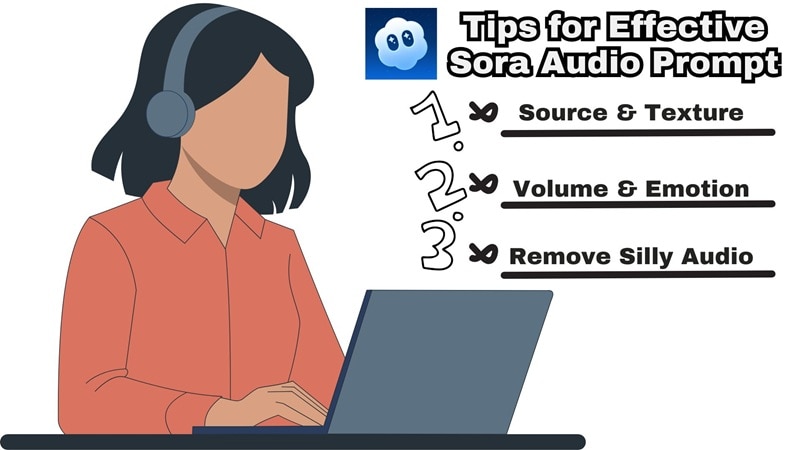
To help you out, here are the three principles that really help your Sora audio land the way you want:
- Principle 1: Describe the Source and Texture of the Sound
You can mention things like soft footsteps on wooden floors, light rainfall on leaves, a warm indoor hum, or a gentle rustling of clothes. Sora uses these little details to build the whole atmosphere.
- Principle 2: Set the Volume and the Emotion
Give Sora a sense of loudness and attitude. You can go with quiet ambience, soft-spoken dialogue, excited chatter, a calm voice, or a low rumble in the background. These cues help shape the mood of your Sora AI voice and sound.
- Principle 3: Remove Anything You Do Not Want
If something would ruin the moment, simply say it. You can rule out heavy wind, loud music, strong reverb, or anything that feels distracting. This helps Sora music and sound effects stay closer to the feeling you want.
Part 2. Clean Up Your Sora Audio Inside a Smart Editor
Now that you know how to guide the sound with your prompts, here is the honest part. Even with clear instructions, Sora AI sound does not always land perfectly. Sometimes the ambience comes in too strong, the voice feels a bit soft, or the whole audio mix ends up a little messy. It happens because everything Sora creates is based on text, so the model fills in the gaps on its own.
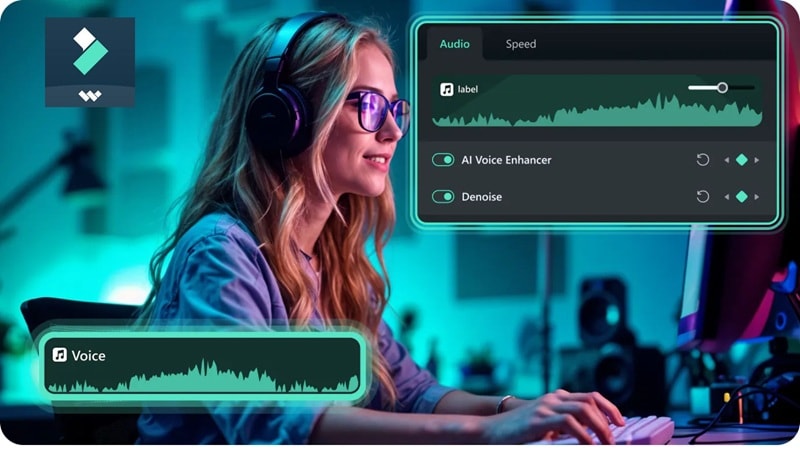
When that happens, you do not have to fight the prompt forever. It is much easier to drop the clip into Wondershare Filmora and fix the rough parts right away. It's an all-in-one video editor that lets you take what Sora gave you and shape it into something cleaner and more polished without overthinking anything.
 Secure Download
Why Filmora Helps Fix Sora Audio Fast
Once you drop your clip into Filmora, everything just feels easier. You do not need to be an audio expert to clean up your Sora sound effects, dialogue, and music. Here are a few things you can do right away:
Smooth Out The Volume
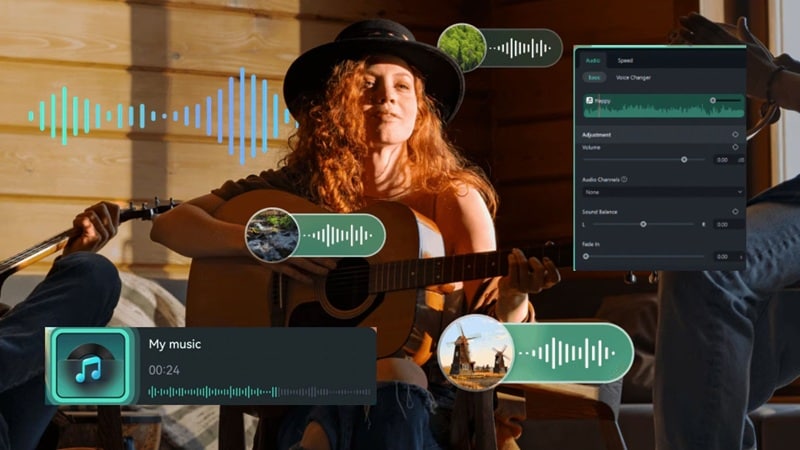
Filmora lets you fix uneven sound in a really simple way. You can bring the Sora voice forward, calm the ambience, or settle down any effects that come in too strong. Everything feels balanced once you adjust it.
Clear Out The Unwanted Noise
The AI Audio Denoise tool removes the tiny hums and fuzzy sora artifacts that sometimes sneak into your clip. It leaves the sora sound cleaner so the scene feels more natural.
Build a Richer Sound Layer
If your Sora audio feels a bit thin, you can add your own touches. Drop in AI music, extra ambience, or AI sound effects to fill out the moment and make the whole scene feel fuller.
Give the Voice A Boost
The AI Voice Enhancer helps the Sora AI voice feel clearer and more present. It brings out the details and fixes any muffled tones without making it sound artificial.
Separate and Rebuild the Audio
If you want to keep the background but change the voice, the AI Vocal Remover can split them apart. It gives you room to replace the sora ai audio or rework it however you like.
Part 3. Build Your Sora 2 Clips Smarter Inside Filmora
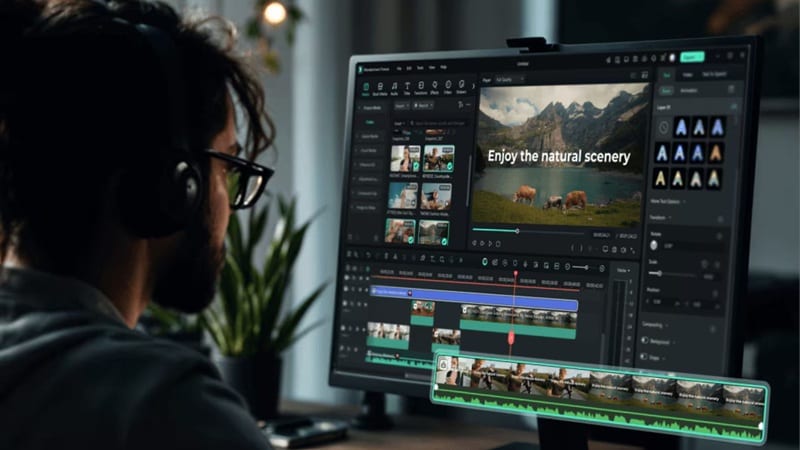
On top of everything we already covered, there is one more thing that makes Filmora really handy. Sora 2 is now built right into Filmora's Text to Video and Image to Video features. This means you can:
- Create Your Sora Clip Inside The Editor: You can generate a full Sora video right away, complete with Sora AI music and voice.
- Adjust the Audio as Soon as It Loads: Once the clip appears in the timeline, you can clean up the Sora sound, lift the voice, or calm the ambience with a few quick edits.
- Save Your Finished Video Right Away: When everything looks and sounds good, you can export the final result instantly. No extra steps and no switching to another platform.
 Secure Download
Filmora keeps the whole process smooth from generation to finishing touches, which makes working with Sora 2 feel a lot more natural and a lot less busy.
Step-by-Step: How To Create and Edit Sora 2 Clips in Filmora
- Install the newest Filmora version on your computer.
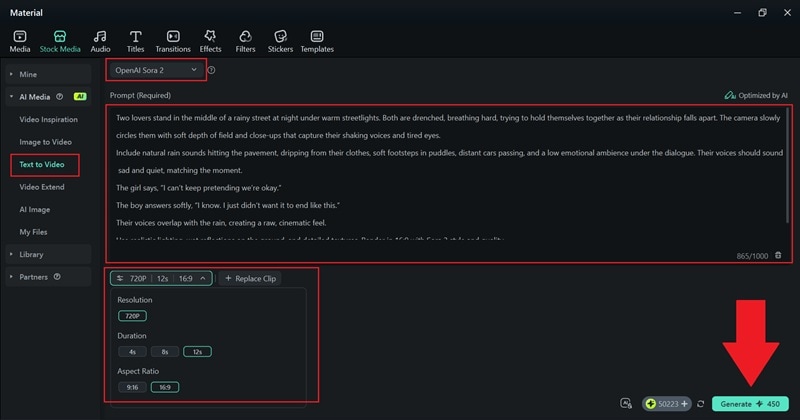
- Launch the software and head over to "Toolbox" > "Text to Video" to begin setting up your scene.

- Switch the mode to "OpenAI Sora 2" on the feature page.
- Type your prompt in the description box with the details you want.
- Pick the resolution, aspect ratio, and duration, then press "Generate."
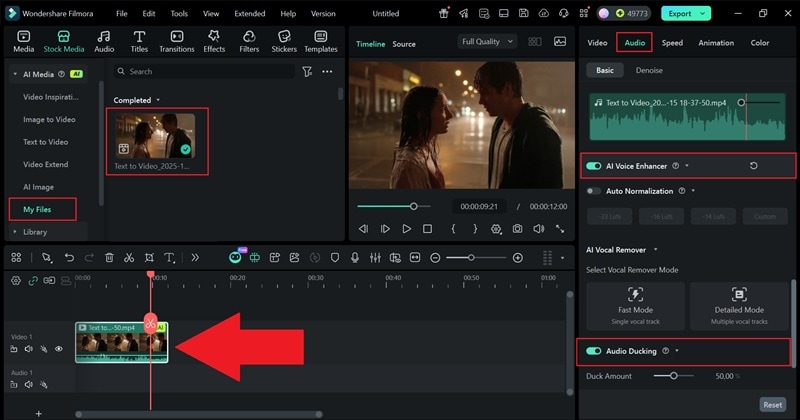
- Find the result inside the "My Files" section.
- Drag the video onto the timeline and preview the clip.
- Open the "Audio" panel on the right to refine the audio.
- Turn on the AI Voice Enhancer to make the dialogue clearer or use Audio Ducking to lower the background sound when the voice comes in.
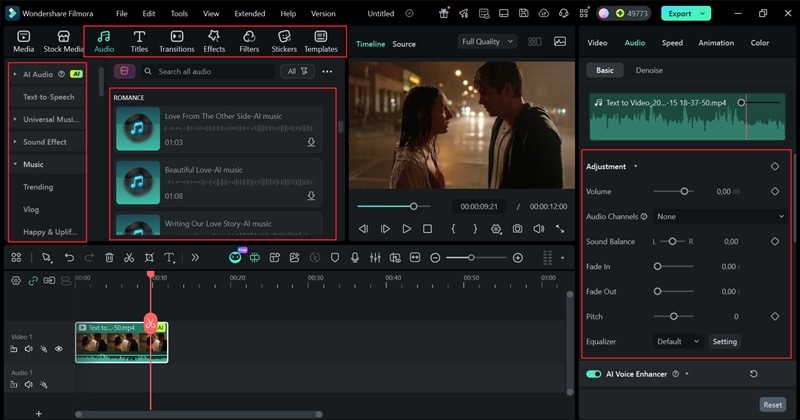
You can also add more sound from Filmora's library of royalty-free music and sound effects. If you want to tweak the look, you can use Filmora's filters, effects, and AI tools to shape the visuals your way.
- Click "Export" in the top right corner.
- Choose "Local" to save the video on your device.
- Set the resolution and file folder, pick your preferred format, and press "Export" again to complete the process.
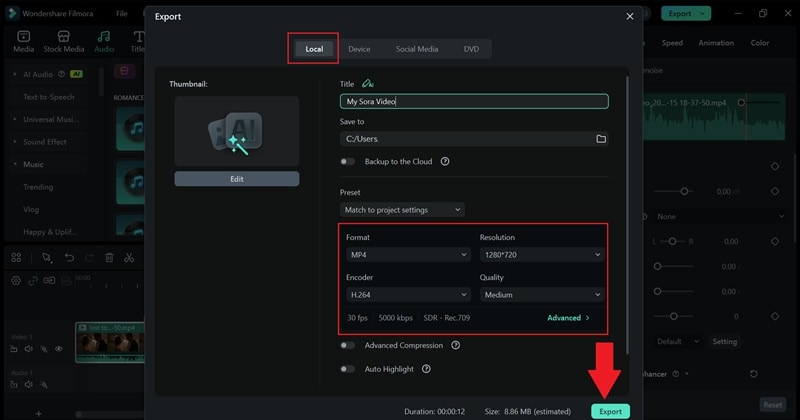
And that's really all you need to do! The whole workflow in Filmora feels simple and smooth, especially since you can use Sora 2 right inside the editor. You can adjust the Sora audio and sound effects with the built-in AI tools and keep the visuals looking clean at the same time.
Now, let's take a look at the final result below.
Conclusion
Controlling your Sora sound is a big part of getting a video that actually feels complete, especially when the visuals from Sora 2 already look so real. So, we walked through everything you need to shape your Sora audio, from understanding how the system works to writing a solid Sora AI audio prompt that brings out the mood you want.
When you want even cleaner and more detailed results, Filmora steps in as the easier and more advanced way to enhance your Sora AI music, voice, and sound effects. It gives you plenty of AI tools to polish every layer of your audio, and since Sora 2 is already inside Filmora, you can build and refine your entire scene in one smooth workflow. Filmora keeps the whole process simple so your final video sounds as good as it looks.

FAQs About Sora Audio and Sora AI Sound
-
Does Sora 2 let me remove all audio and use my own?
Yes, you can mute everything. Sora 2 gives you the Sora sound by default, but you can clear it out and build your own mix in Filmora with new music, fresh ambience, or a completely different voice track.
-
Can Sora generate singing or music with vocals?
Sora can make simple ambience and light Sora AI music, but it does not really sing. If you need a vocal track, it is better to add your own audio inside the editor.
-
Can I choose a specific voice style for the Sora AI voice?
You can guide the mood through your prompt. Sora follows tone and emotion pretty well, so you can push it toward calm, excited, gentle, or serious, but it does not offer custom voice profiles yet.
-
Does Sora support multitrack audio outputs?
Sora creates one mixed track for everything. If you want separate layers, you can break the Sora audio apart in an editor like Filmora and rebuild the moment however you want.
-
Why does my Sora audio sometimes feel too quiet or too loud?
Sora reads whatever you describe in the prompt, so if the volume is not mentioned, it fills in the space on its own. A few extra words about loudness and mood usually guide the Sora sound in the right direction.
