Featured Cinematic Titles
Browse cinematic title effects for trailers, vlogs, documentaries, and story edits
Loading more cinematic title templates...
 Category:
 Duration:
 Aspect Ratio:
Why Choose Filmora For Cinematic Titles?
Build atmosphere with cinematic title templates, controlled motion, and clean typography
Cinematic Titles For Video: Intros, Chapter Cards, And End Slates
Cinematic Titles For Video: Intros, Chapter Cards, And End Slates
Cinematic video titles aren't about being loud—they're about being intentional. Use them to open a vlog like a short film, introduce a documentary segment, or add a trailer-style chapter card. Start from cinematic title templates, then shape the pacing so the title breathes with your edit.
- 🎞️ Film-like pacing - smooth in/out motion that doesn't feel "template-y".
- 🧭 Story-first structure - perfect for chapters, locations, dates, and scene breaks.
- 🧩 Repeatable branding - save cinematic title presets for a consistent series look.
Shape The Mood: Typography, Spacing, And Subtle Cinematic Title Effects
Shape The Mood: Typography, Spacing, And Subtle Cinematic Title Effects
The "cinematic" feel often comes from small choices: font pairing, letter spacing, and restrained motion. In filmora, you can refine alignment, scale, and timing, then add gentle blur, fade, or light texture for atmosphere. Build a cinematic title pack for your projects—one set for openers, one for lower thirds, one for end cards.
- 🔤 Typography control - adjust weight, tracking, and layout for a premium look.
- 🌫️ Subtle effects - soft blur, grainy texture, and clean fades for mood.
- ⏱️ Timing that feels editorial - match titles to cuts, music, and pauses.
- 📦 Save and reuse - keep your best cinematic title presets ready to drop in.
Make Captions Feel Cinematic: Highlight Only What Matters
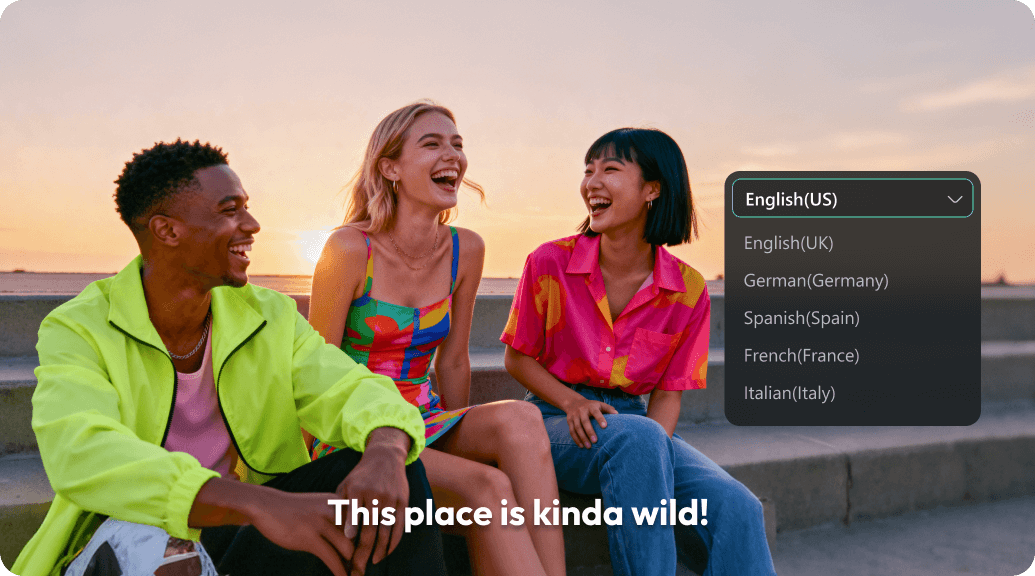
Make Captions Feel Cinematic: Highlight Only What Matters
For interviews, travel stories, and tutorials, you can keep most captions simple—then elevate the key line into a cinematic title. This approach keeps readability high while adding a premium "film" moment when the message needs emphasis.
- 🧠 Auto captions + Subtitle translation - create and localize text quickly.
- 🎯 Selective emphasis - turn one line into cinematic titles for video impact.
- 📦 Consistent look - reuse cinematic title templates and presets across episodes.
- 📤 Export anywhere - ready for tiktok, instagram, youtube, and more.
Frequently Asked Questions About Cinematic Titles
How to Create Cinematic Titles in Filmora
Open filmora, pick a cinematic title template, refine typography and timing, then export a polished video title sequence.
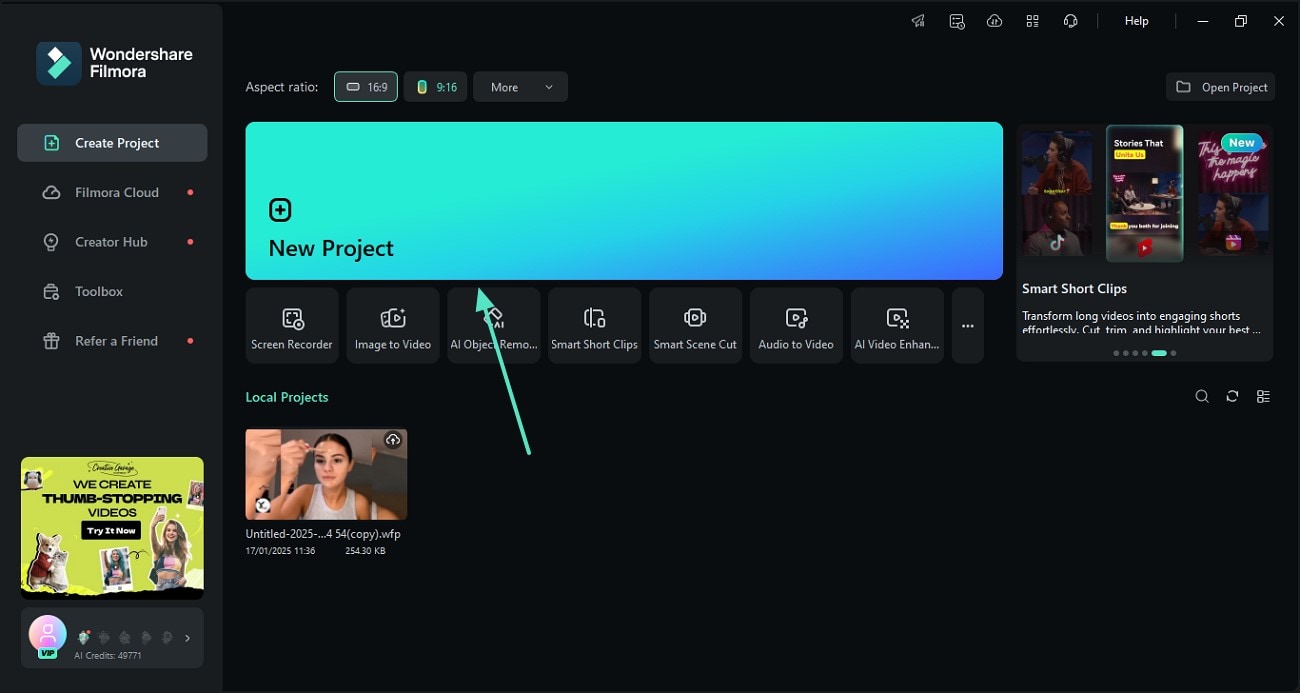
Step 1 Open Filmora and Start a New Project
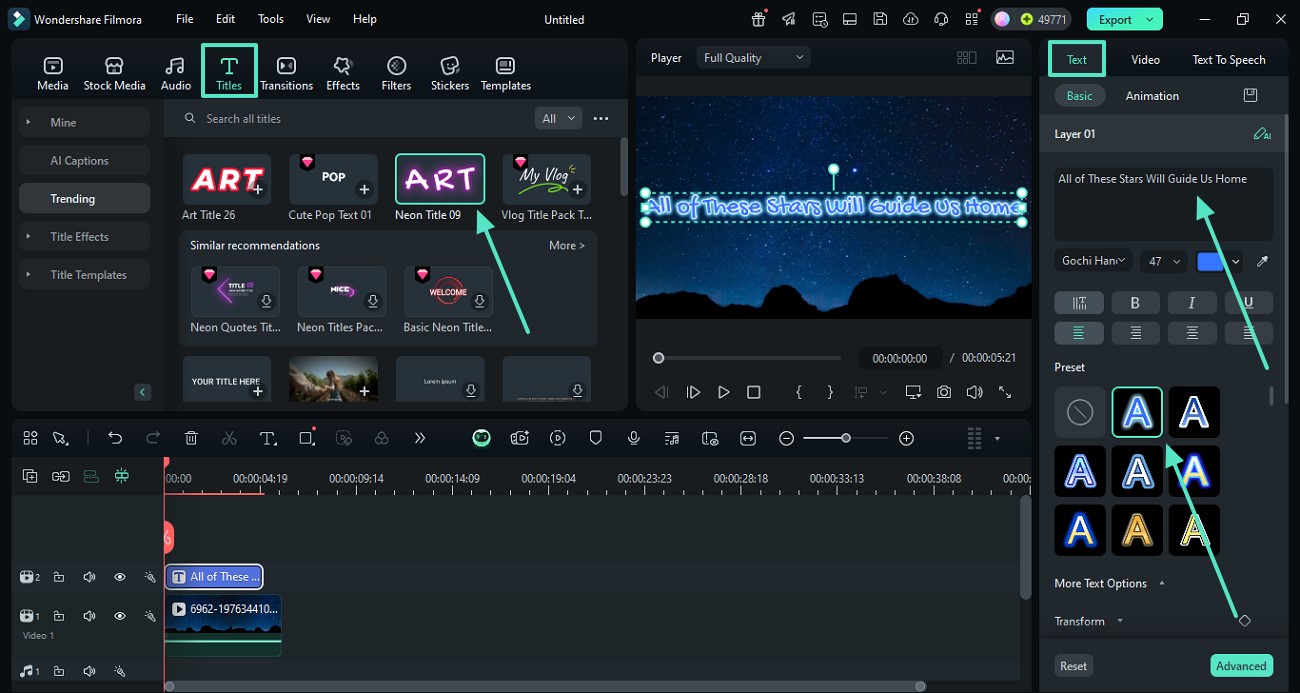
Step 2 Choose Cinematic Title Templates
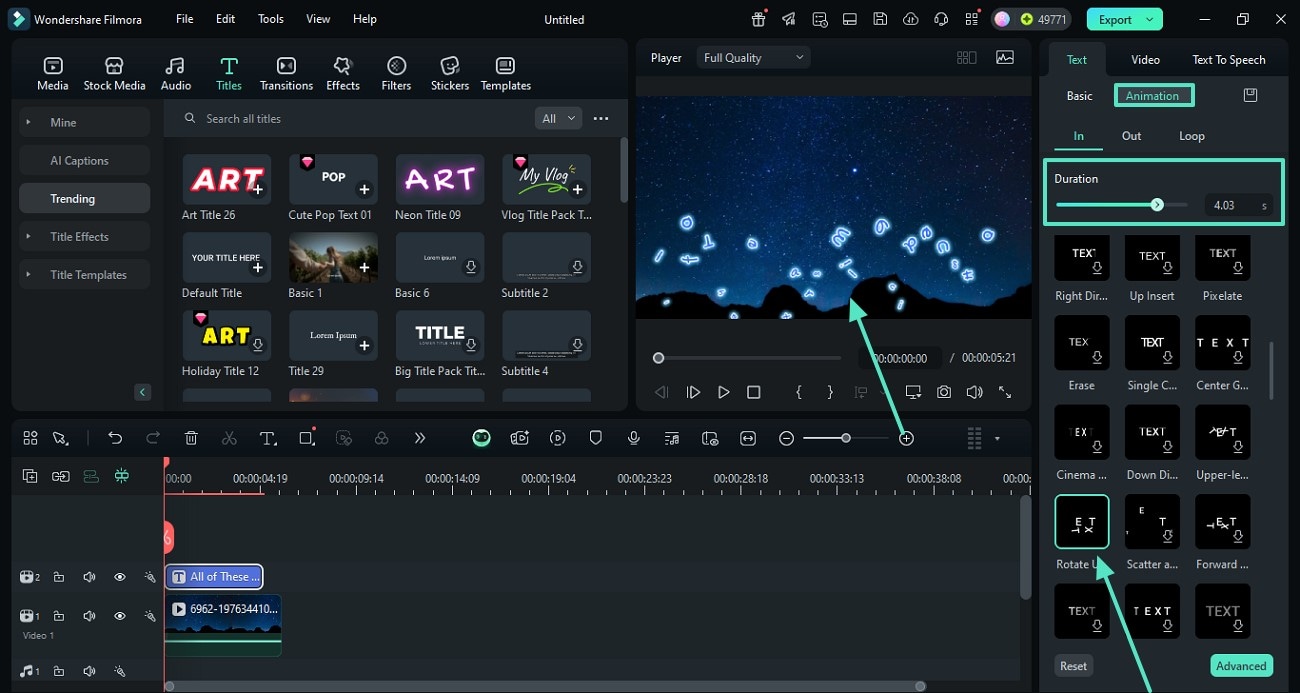
Step 3 Customize and Export Your Video
-
1:Open Filmora and Start a New Project
Create a new project, import your footage, and open the "titles" panel. -
2:Choose Cinematic Title Templates
Pick a cinematic title template and place it on the timeline. Enter your text for an intro, chapter card, or end slate. -
3:Customize and Export Your Video
Refine typography and timing, then export with cinematic title presets for TikTok, Reels, Shorts, or YouTube.
Explore More Video Templates
Discover other template categories for every occasion and platform