

 TL;DR:
To bypass the strict iOS and regional limitations of the native OpenAI Sora app, creators can generate and fully edit Sora 2 videos using the integrated Text-to-Video tools inside Wondershare Filmora V15.1.
● The standalone Sora tool restricts outputs to uneditable 8-10 second clips, requiring editors to use tools like Filmora's AI Video Extender to lengthen scenes and its AI Voice Enhancer to fix muffled audio tones.
● Achieving realistic or cinematic results with the embedded Sora 2, Veo 3.1, and Keling 2.5 models requires highly specific text prompts that explicitly dictate the camera style, subject motion, lighting details, and environmental cues.
Ask AI for a summary
 ChatGPT
 Perplexity
 Gemini
 Claude
 Grok
Grok
Sora 2 keeps making headlines because its videos look too real. Just scroll through social media, and you'd swear it's genuine if that tiny Sora watermark wasn't there.
As more Sora video examples spread around, it's only natural to get curious about how these clips are made. So in this guide, we're checking out some of the coolest OpenAI Sora video examples on the internet. And by the end, you'll know exactly how to make similar videos yourself.
Part 1. 10 Must-See Sora AI Video Examples for Your Creative Inspiration
These ten Sora AI video examples cover different styles from fun and surreal moments to scenes that look like real documentary footage. So, to help you make sense of what makes each one special, we're grouping them based on the specific strength or style they showcase. This way, you can clearly see the range of what Sora 2 is capable of before making your own.
Realistic Animal Motion and Natural Behavior
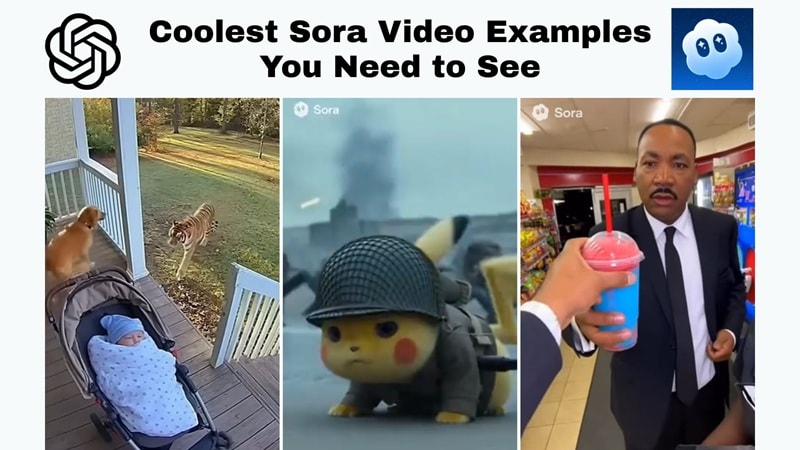
1. Doggy Protecting Baby From Tiger
Sora 2 has made these security camera-style clips super popular because they look so real at a glance. You'll see tons of Sora examples like this, and this one shows a dog jumping in front of a baby and barking at a tiger outside. The movement feels exactly like something you'd see from an actual CCTV video.
2. Doggy Copy What He Watch
This Sora AI video example shows how well Sora handles little natural habits animals do at home. The dog is watching a horse on TV and just starts copying it, and the motions feel so natural that you'd think someone recorded it on their phone. Even the owner's voice makes it feel like a real home video instead of AI.
Cinematic Storytelling and Film-Style Direction
1. Short Film Frostbite
AI has come a long way, and this short film proves it. Dave Clark managed to make a full natural disaster movie called Frostbite using only Sora 2, and the scenes feel surprisingly real. The lighting, the mood, and the way everything is framed look like something you'd see in an actual indie film rather than an AI video.
2. Pikachu in Saving Private Ryan

Watch full video: Saving Private Pikachu
There's a fun trend where people recreate famous movie scenes and drop Pikachu into them. This Sora 2 example does exactly that, but the wild part is how serious the mood still feels. Even with Pikachu in the middle of a war scene, the tone, lighting, and movement look like a real Hollywood moment.
3. Abraham Lincoln is an Avenger
Another one that people keep sharing is where Abraham Lincoln takes the place of Iron Man in a big Marvel-style battle. The idea is so chaotic, but it's a fun Sora AI video example that shows Sora can handle action, emotion, and dramatic camera shots all at once.
High-Stress Situations and Chaos Simulation
1. Storm in Japan
There are a lot of Sora examples showing big disasters, and some of the early ones looked a bit off. But this one feels like something from a real news broadcast. It shows a reporter covering a heavy storm in Japan, and even the small things like a student struggling with a bicycle look natural.
2. Panic in an Airplane
Here's another Sora AI video example that shows how well Sora handles chaotic moments. A passenger starts shouting on a packed flight, and the reactions around them feel almost too real. The faces, the body language, the tension in the room, everything feels like an actual recording from a crowded flight.
Watch full video: Panic in an Airplane
Surreal Pop Culture Mashups and Comedy
1. Jesus Walks on Water
People love using Sora to make funny clips, and this one definitely stands out. It shows Jesus casually walking on water to win what looks like an Olympic swimming race, and the whole thing plays out like a serious sports moment, which makes it even funnier.
2. Martin Luther King Buys a Drink
There are a lot of Sora AI video examples featuring famous people, and this one puts Martin Luther King in a totally unexpected setting. He's trying to run away after grabbing a drink without paying, and the clip even hints at his iconic speech in a light, playful way. It shows how flexible Sora can be with personality and expression.
3. SpongeBob Caught Speeding
This is one of the most shared Sora video examples online. It shows SpongeBob getting pulled over in a realistic police bodycam scene, and the mix of cartoon energy and serious camera style makes it hilarious. If you want more clips like this, we've also got a full article that covers the trend: AI Bodycam Video: Create Your Wildest Scenarios - Filmora.

Watch full video: SpongeBob Caught Speeding
How Do People Even Make Videos Like These? Sora Explained
Right now, getting into Sora is still pretty limited. It only works on iOS, and even then, only a handful of countries can actually use it.
But if you want to see how the whole thing works on the app, Brem has a really clear walkthrough on YouTube that shows the full process in a simple way. You can check it out here:
Once you get the hang of it, you can go back to all the Sora video examples above and use them as inspiration to create your own!
Part 2. Create Your Own Sora-Style Clips from Start to Finish
As you can see from all the OpenAI Sora video examples above, the tool is excellent for generating short scenes, but it does have limits. Including:
- You can only make clips up to a certain length (8-10 seconds).
- You don't get much control when it comes to effects, pacing, color, or audio.
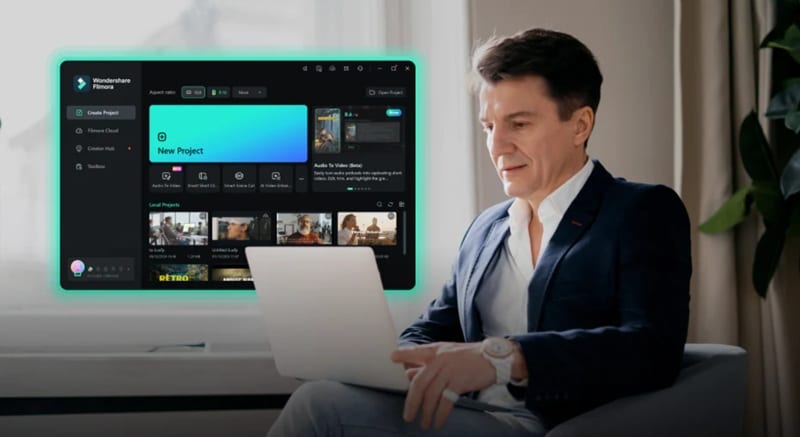
Thankfully, there's a perfect solution that can cover both these problems: Wondershare Filmora. This all-in-one video editor gives you a full editing setup with tons of AI features, and it even includes AI model generation like Sora 2 right inside the app.
 Secure Download
Why Choose Filmora?
Powerful AI Generation Inside The Editor
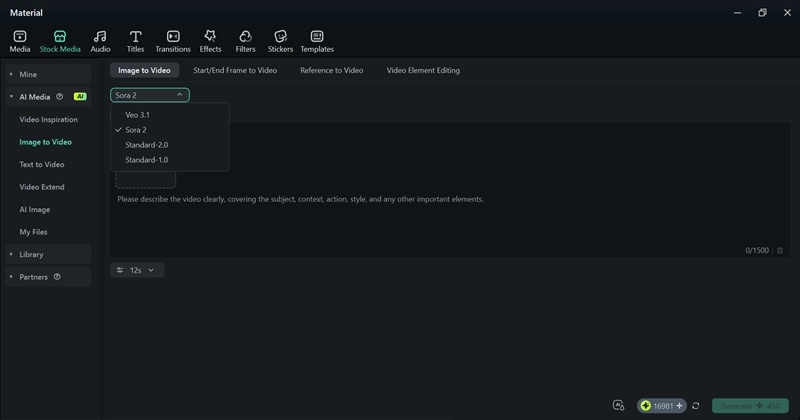
Filmora V15.1 now uses the same tech behind Sora 2, Veo 3.1, and Keling 2.5 for its Text to Video feature, and the Image to Video tool also runs on the updated Sora 2 and Veo 3.1 models. That means you can generate scenes with similar quality, then refine them inside a full editor that's built for real creative work.
Extend Your Clip With More Room To Play

Filmora lets you keep the moment going when your sora clip feels too short. The AI Video Extender creates extra seconds that blend smoothly with your original scene, which helps when you want a longer intro or a clean outro for your Clip.
Fix The Audio So Everything Sounds Clear
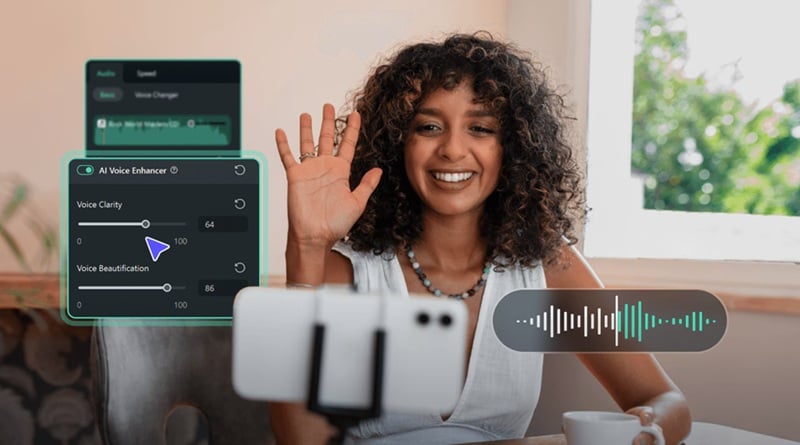
Filmora gives you simple tools to clean up the sound around your clips. Loudness normalization, noise removal, and EQ make the audio feel balanced. You also get an AI Voice Enhancer that lifts speech and removes muffled tones.
Add Effects To Bring The Scene To Life
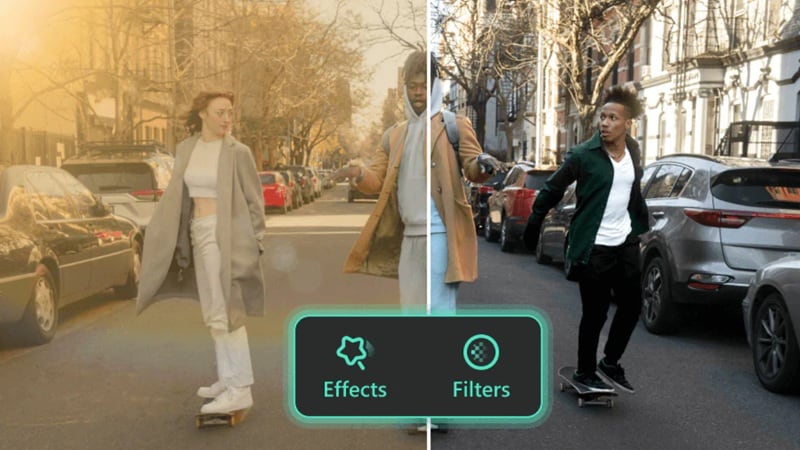
Filmora includes plenty of effects that blend nicely with AI-generated clips. You can add light flares, subtle glows, texture overlays, or cinematic looks that make the Sora examples feel richer and more intentional.
Mix In Stock Footage For Bigger Stories

When your Sora 2 examples need extra context or more visual variety, Filmora has stock footage you can drop right into your timeline. It helps fill gaps, create transitions, or build a bigger world around your AI-generated scene.
Build a Full Sequence Without Leaving The Editor
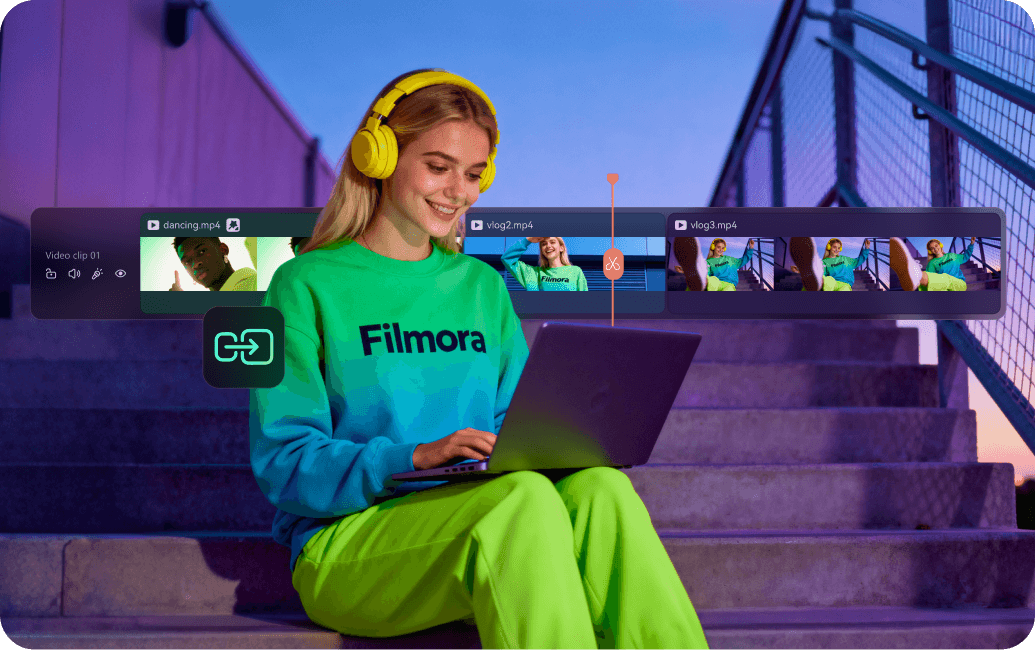
Filmora works as a complete editing space, so you can line up multiple Sora clips, add music, mix sounds, place transitions, and create a full story.
Secure DownloadStep by Step: How to Make a Sora-Style Video Using Filmora
Filmora already gives you everything you need to create and enhance AI clips, so making something that feels like the Sora video examples above becomes a lot easier. Just follow the guide below, and you'll be able to put together your own AI video in no time.
- Update Filmora to the latest version so you can use all the latest AI tools.
- Go to the "Toolbox" section on the left panel.
- Scroll through the tools and click on "Text to Video" to open it.
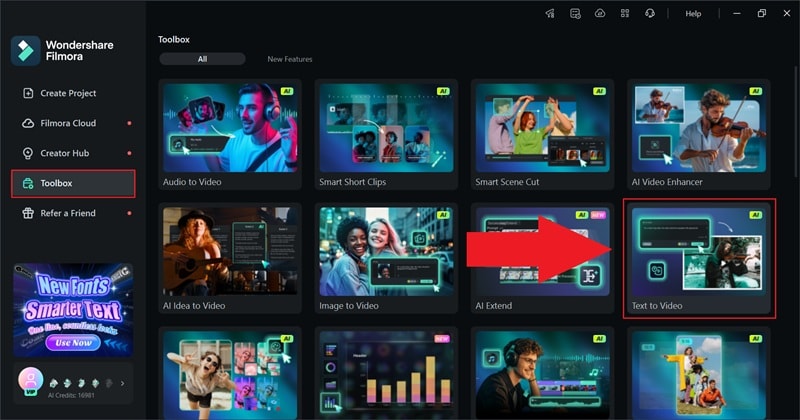
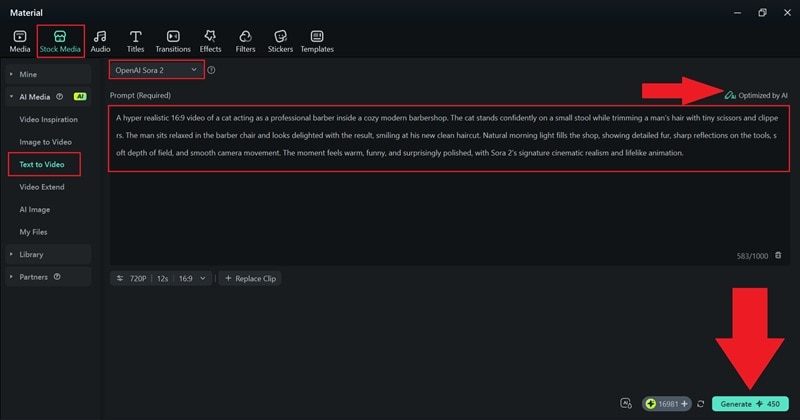
- Type your idea into the description box and explain the scene you want to create.
- Click "Optimized by AI" if you want Filmora to refine your prompt.
- Click "Generate" to create the video.
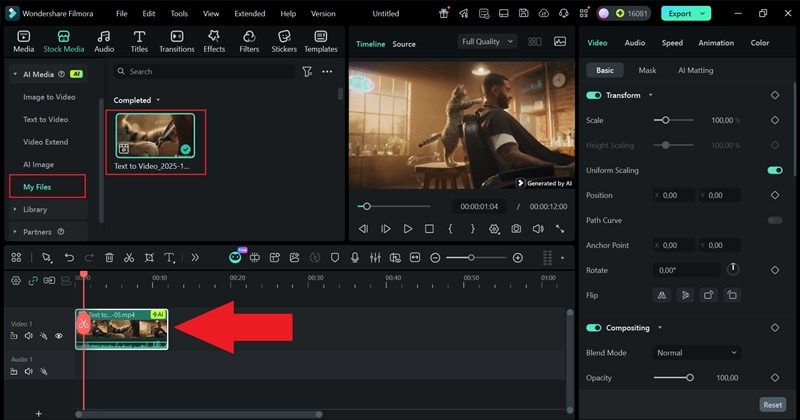
- Go to the "My Files" section to find the video Filmora just created. Play the clip to see how it looks.
- Drag it to the timeline to begin editing.
- Take as much time as you want to add music, filters, stickers, or anything else you want to complete the video.
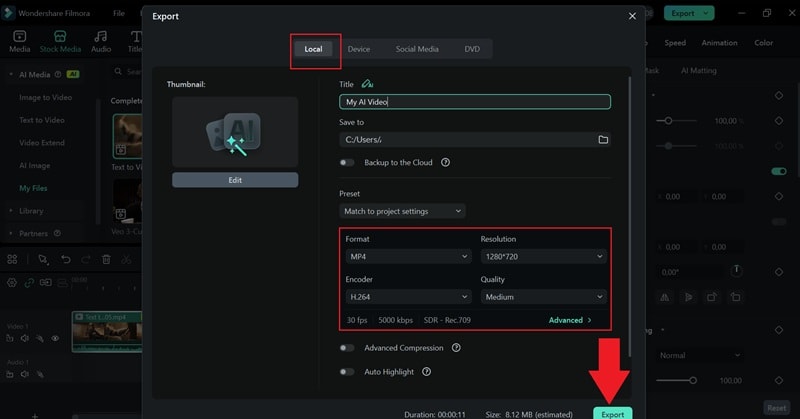
- Click the "Export" button in the top right and set the file name, resolution, and where you want it saved.
That's pretty much all it takes! Now, let's see how the final result turns out.
Part 3. Prompt Tricks & Examples for Mind-Blowing AI Videos
When you're making videos like this, the prompt is everything. Even a simple change in phrasing can completely shift the vibe of your clip. To make things easier, we'll walk through a few easy prompt tips and share some examples you can borrow.
These will help you create high-quality scenes that look just as clean as the OpenAI Sora video examples you saw earlier.
Prompt Tips for Better Sora Videos
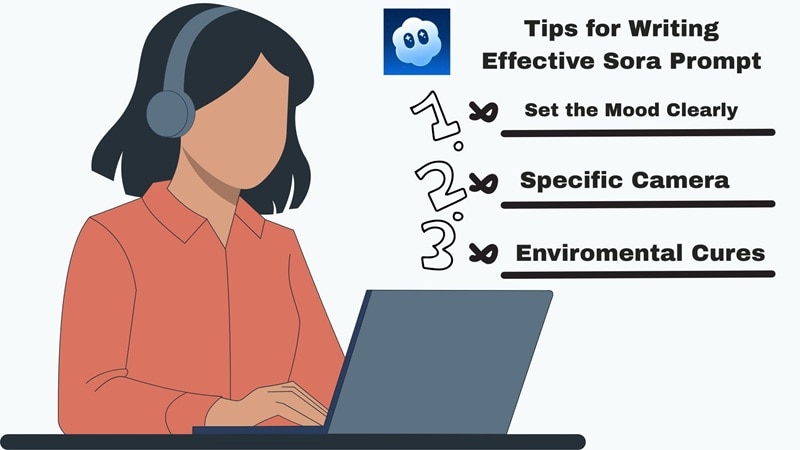
- Set The Vibe Early: Whether it is cozy, dramatic, calm, or playful, setting the tone right away helps the model shape a scene that feels closer to the Sora video examples you want to recreate.
- Be Specific with Motion: Mention how the character walks, how the camera glides, or how the objects react. Small hints help Sora create smoother and more natural movement.
- Add Lighting Details: Lighting changes everything. Soft morning light, neon reflections, golden hour, cloudy skies, warm room tones, any detail like this adds depth and makes your Sora-style scene feel more believable.
- Hint At The Camera Style: Sora reacts really well when you describe the kind of camera look you want. It could be a phone recording, a film camera vibe, a handheld clip, or even a clean studio setup.
- Include Environmental Cues: A few background cues can make your Sora prompt come alive. Mention the sounds, the weather, the crowd, the environment, or even small details like wind or footsteps.
Prompt Examples Based on Video Style
You can try the tips above right away using Filmora's Sora 2 integrated Text to Video feature. The process is super simple, so it's perfect for trying out ideas and seeing what works.

To make it even easier, here are a few easy prompt examples to help you start creating scenes that look as clean as the Sora video examples you saw earlier.
1. Realistic Homemade Footage
Prompt: "A toddler dancing in a kitchen filmed on a slightly shaky iPhone, warm morning light coming from the window, soft shadows, cluttered counter in the background, natural motion, giggles, cozy home vibe."
2. Cinematic Travel Scene
Prompt: "POV walking through a neon street in Tokyo at night, handheld DSLR feel, reflections on wet pavement, crowds passing, soft focus bokeh lights, immersive ambient sound."
3. Cute Animal Videos
Prompt: "A raccoon wearing a tiny apron cooking breakfast in a small cozy kitchen, soft overhead lighting, smooth spoon motions, Pixar-meets-realistic style."
4. Fantasy Creature Clip
Prompt: "A tiny dragon waking up in a mossy forest, wings fluttering, magical dust floating around, soft glowing light, slow-motion cinematic shot."
5. Beauty Shot / Portrait
Prompt: "Studio close-up of a model flipping her hair in slow motion, soft key light, sharp camera details, smooth skin texture, commercial beauty style."
Conclusion
Sora 2 videos keep getting better, and it feels like they pop up everywhere now. That is why we took the time to break down some of the coolest OpenAI Sora video examples and show what makes these clips so fun to watch.
Moreover, with Filmora's integration of Sora 2 inside its AI Text to Video and AI Image to Video features, you can generate clips with the same look and then take them even further. You can edit the pacing, clean the audio, adjust the color, add effects, build full sequences, and shape your video into something complete.

FAQs About Sora Video Creation
-
Why do some Sora videos look like they were filmed with a real phone?
Sora recreates tiny details like natural movement, lens shake, and lighting changes, so the final clip ends up feeling just like something recorded on someone's phone. That is why so many Sora examples look almost too real at first glance.
-
Do Sora videos always include the Sora watermark?
The official app adds the watermark by default, and most creators leave it in when sharing their clips. Some people crop it out during editing, but the original export usually includes it.
-
Can I use Sora videos commercially?
Yes, you can use Sora videos for commercial projects. Just make sure you follow OpenAI's rules by checking their official Sora guidelines before using them in paid work or brand content.
-
Why do some Sora videos have weird hand or motion errors?
Even with all its progress, Sora can still get confused with fingers, fast motion, or overlapping actions. These glitches usually happen when the prompt is unclear or when the scene has too many tiny movements happening at once.
