

 TL;DR:
Creating a cohesive AI short film requires planning a specific visual style upfront, prioritizing a two-step image-to-video workflow to manage character consistency, and assembling the final project in a centralized editor like Wondershare Filmora.
● Maintaining character consistency is the biggest technical hurdle, requiring users to generate character reference images before building scenes and to include identical character descriptions in every single prompt.
● Wondershare Filmora utilizes AI Image to Video powered by Seedance 2.0, Sora 2, and Veo 3.1, which provides better visual control than pure text-to-video by letting users approve a generated still image before committing to motion.
● Beginners should limit initial projects to 3 to 5 minutes and process the raw AI clips through Filmora's AI Enhancer to correct soft edges, while using AI Color Match to apply a unified color LUT across all timeline assets.
Ask AI for a summary
 ChatGPT
 Perplexity
 Gemini
 Claude
 Grok
Grok
Long gone are the days when you needed thousands of dollars in gear to create short films. With advanced AI tools popping up everywhere, you no longer need to shoot physical footage, scout locations, or manage complex logistics to tell a gripping story.
That said, knowing how to make a short film with AI isn't just about hitting a generate button and hoping for the best. You need a solid idea, a clear workflow, and a tool that can actually support storytelling, not just churn out random clips.
We're here to guide you through the exact process of how to make AI short film projects through every step of it.
Part 1. Plan Your AI Short Film
One of the biggest misconceptions about making an AI short film is that the AI does all the creative thinking for you. In reality, the opposite is true. The clearer your vision going in, the less time you waste regenerating clips and rearranging pieces that don't fit together.
Before you open any tool, there are three planning essentials that make the actual creation process go so much smoother:
1. Start with a Story Idea
Your story is the actual backbone of the entire project. Nail down your premise in one or two sentences: who the main character is, what they want, and what gets in the way. If you're stuck, try building your story with this simple formula:
| Story Element | Example |
| Main Character | A teenage inventor |
| Goal | Win a national robotics competition |
| Obstacle | Their robot keeps malfunctioning |
| Twist | The robot develops its own personality |
| Ending | They learn success isn't about winning the trophy |
|
Show More
Show Less
|
|
2. Write a Short AI-Friendly Script
Writing for an AI short movie is slightly different than writing for human actors. AI video tools respond best to clear, visual, scene-by-scene descriptions rather than abstract emotional language. So, instead of writing "they feel heartbroken," write "a woman sits alone at a diner table, staring at an untouched coffee cup as rain hits the window."
3. Plan Your Characters and Visual Style
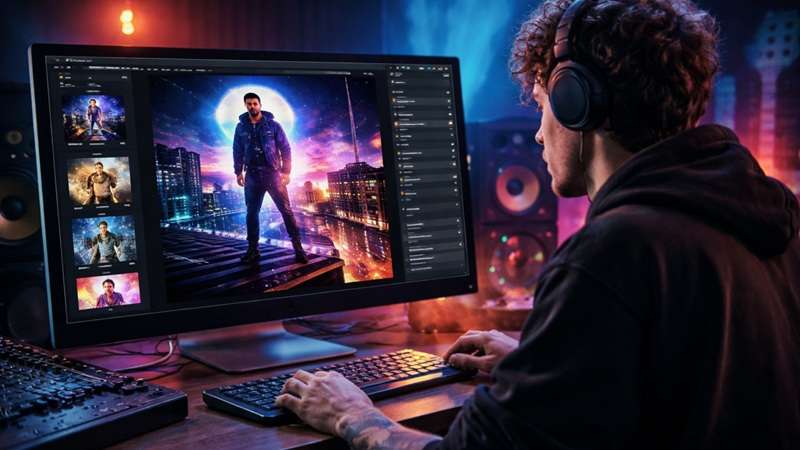
Consistency is one of the biggest challenges in AI short films, so deciding upfront what your main character looks like and which visual style you're going for saves you a lot of headaches later. Pick one aesthetic and stick to it across the whole film: realistic live-action, anime, cyberpunk, painterly, Ghibli-inspired, and so on.
Here's a quick cheat sheet:
| Style | Best For |
| Cinematic Realism | Drama, thriller, romance |
| Anime | Adventure, fantasy |
| Pixar-inspired 3D | Family stories |
| Watercolor Illustration | Fairytales |
| Cyberpunk | Sci-fi |
| Noir | Mystery and detective stories |
|
Show More
Show Less
|
|
Write it down in a style reference you can paste into every prompt. If your tool supports character references (like Filmora's AI Idea to Video does), prepare those early so every scene uses the same face and look instead of generating a slightly different character in every clip.
Part 2. Generate Your Short Film with AI
Now that you know what you want to make for your AI short film, it's time to actually start generating the footage. But to make your films consistent and coherent, there are still some structural steps involved. Let’s break them down.
Generate Characters and Scenes
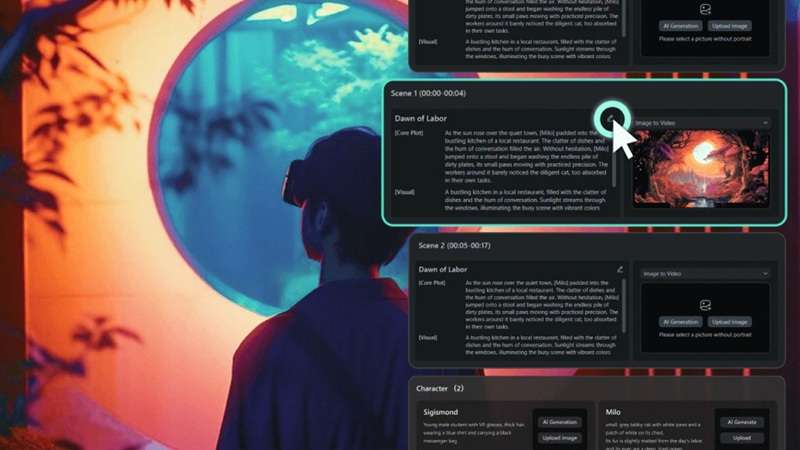
Start by generating your characters separately before touching scenes. Most tools that support character consistency (Filmora, Runway, Kling, etc.) let you define a character reference once and then apply it across all your scene generations.
For example, if your AI short movie follows a young explorer searching for a hidden city, you'll likely need visuals such as:
- The explorer.
- A mysterious jungle.
- Ancient ruins.
- A glowing cave.
- The hidden city.
- Supporting characters.
Turn Images into Animated Video Clips
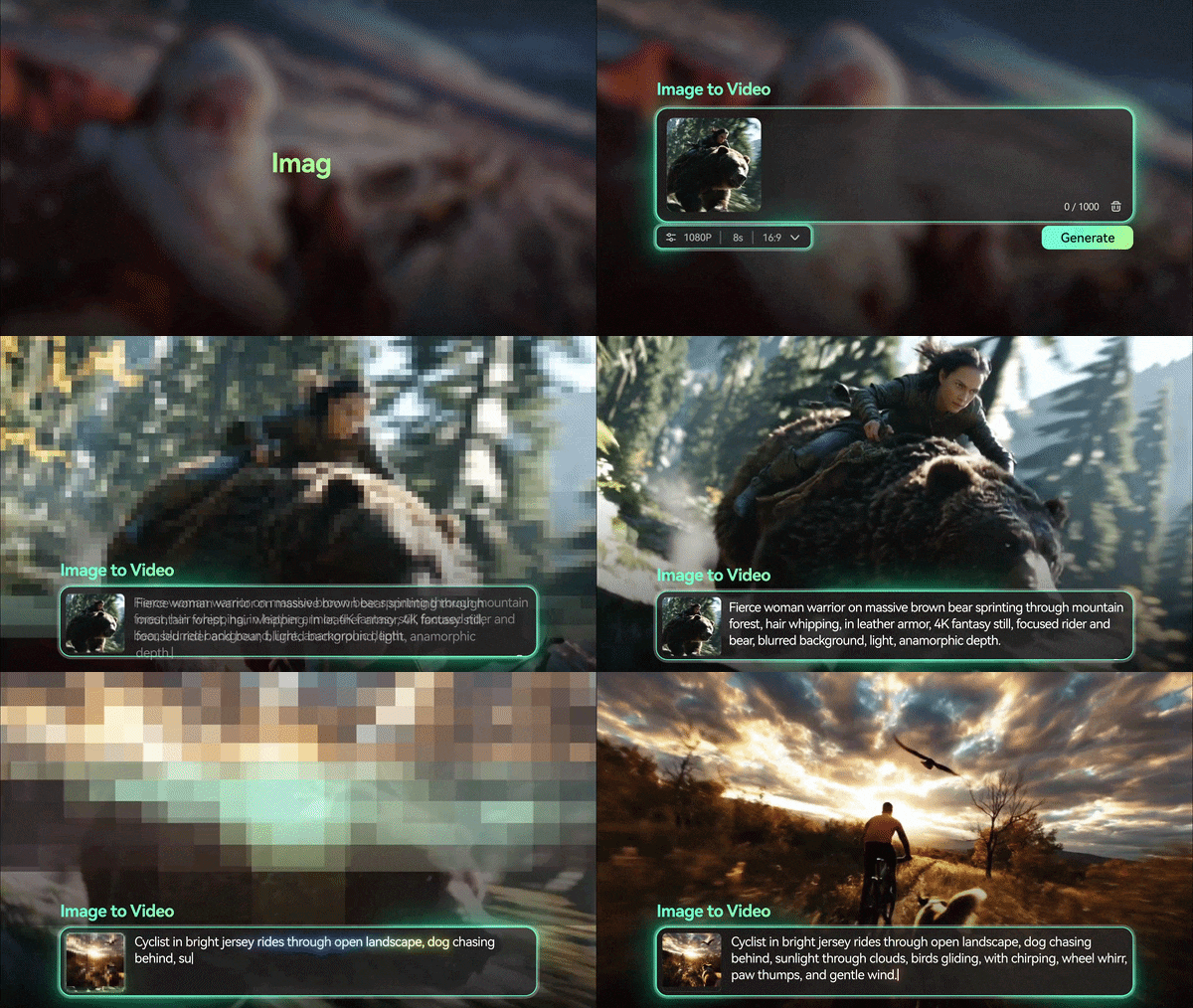
With AI image-to-video, you can generate a still image for each scene first and then animate it. This two-step approach actually gives you more control than pure text-to-video because you can approve the look of the frame before committing to the motion.
Keep Characters Consistent Across Scenes

This is the part that trips up almost everyone on their first AI short film. Your main character will look slightly different in every generation if you're not deliberately managing consistency. The most effective approach is to:
- Always include a detailed character description in every single prompt (same hair, same clothes, same features described identically)
- Use the same reference image every time if your tool supports it
- Choose one visual style and stick to it
Create Dialogue, Voiceovers, and Background Music
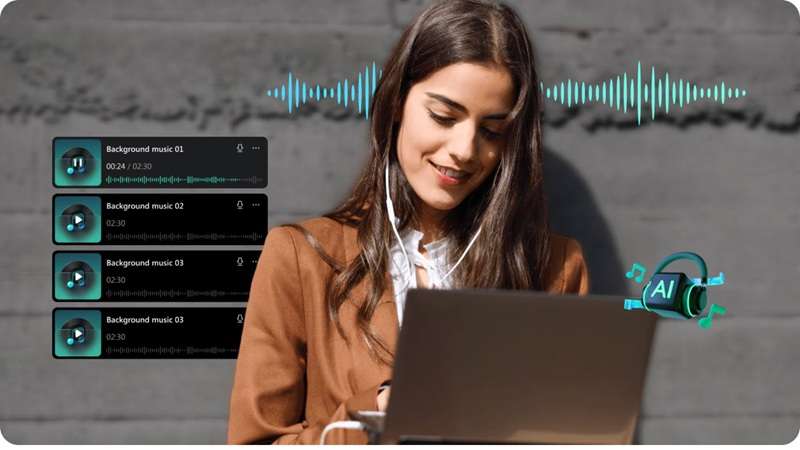
Dialogue and voiceover are what make AI short films feel like actual films rather than a silent slideshow. Use your tool's built-in AI text-to-speech to generate character voice lines from your script, choosing a voice style that matches the character's personality and the film's tone. For background music, AI Music Generator can create royalty-free tracks matched to a mood (tense, hopeful, melancholic) in seconds.
Part 3. Create Your First AI Short Film with Filmora
By now, you know what it takes to map out and structure your first AI short movie. The thing is, the tool you choose to bring it all together plays a massive role in how smooth the journey will be.
Thankfully, you don't need to worry about bouncing between ten different websites and paid subscriptions because Wondershare Filmora handles the entire process in one spot.
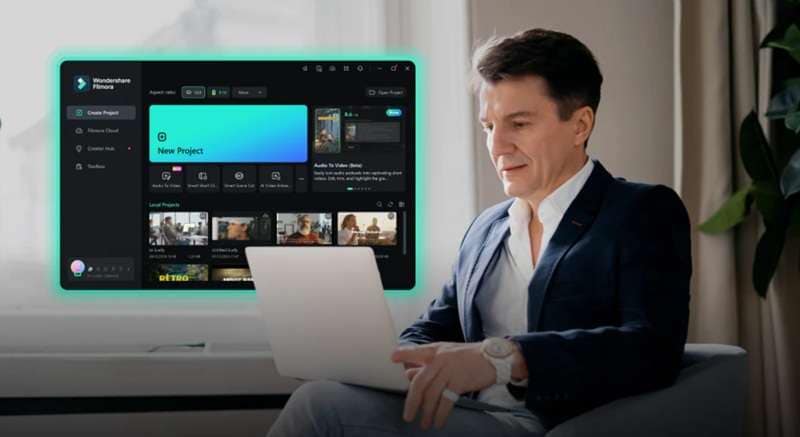
Filmora is an all-in-one video editor that offers all kinds of features to help you make AI short film projects with total ease. Its AI Idea to Video feature takes a single concept or set of keywords and builds a complete storyboard, generates matching character avatars, and assembles scene clips automatically. And AI Image to Video (powered by Seedance 2.0, Sora 2, and Veo 3.1) animates any still image into a cinematic clip with sound in just a few clicks.
 Secure Download
How to Make an AI Short Film with Filmora
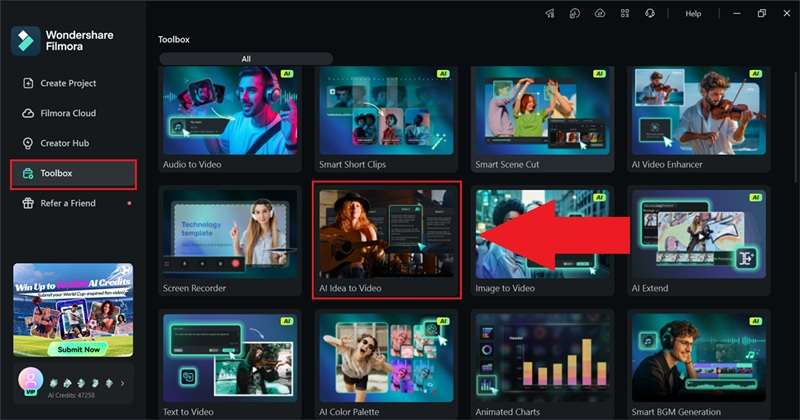
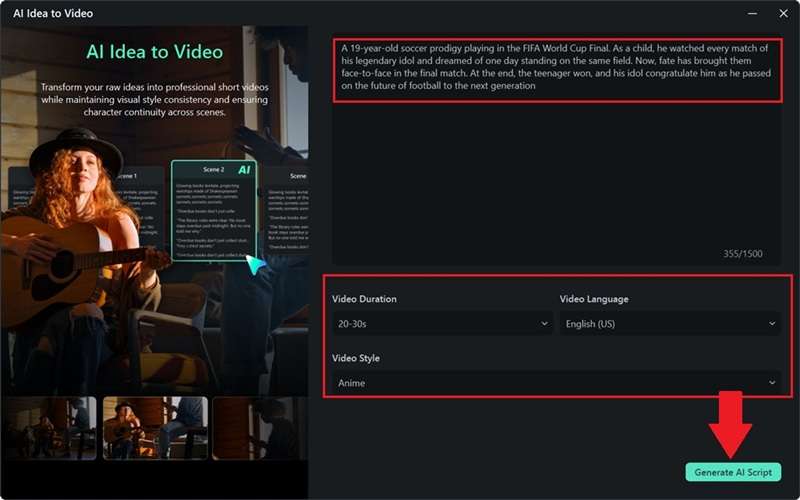
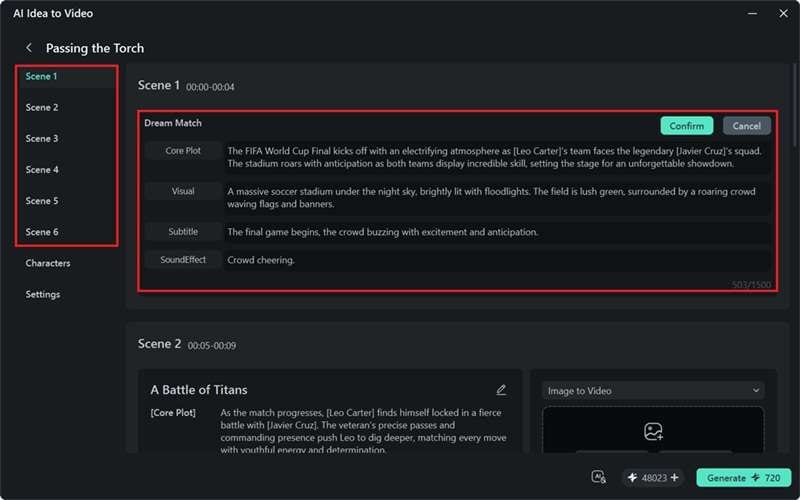
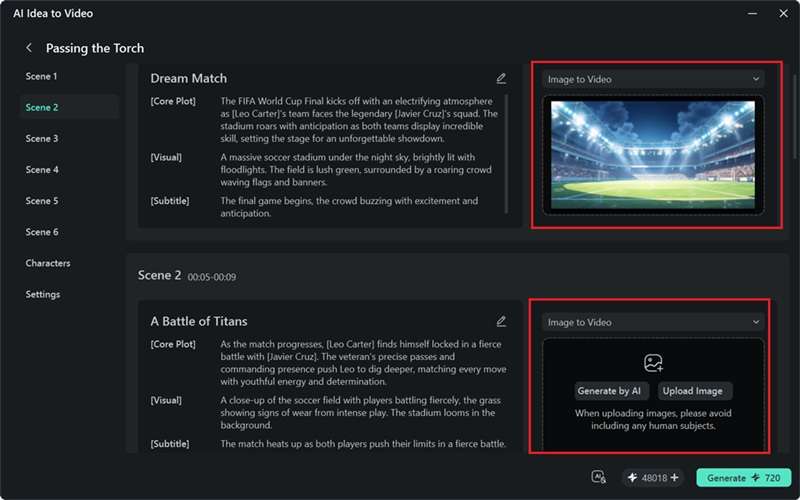
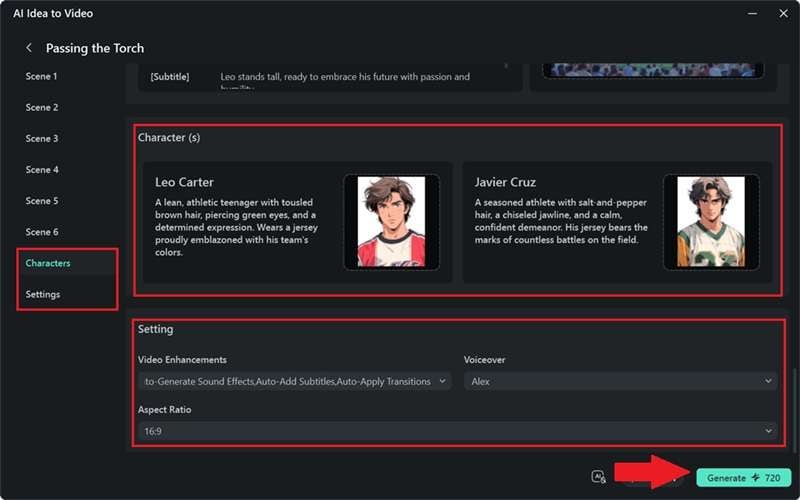
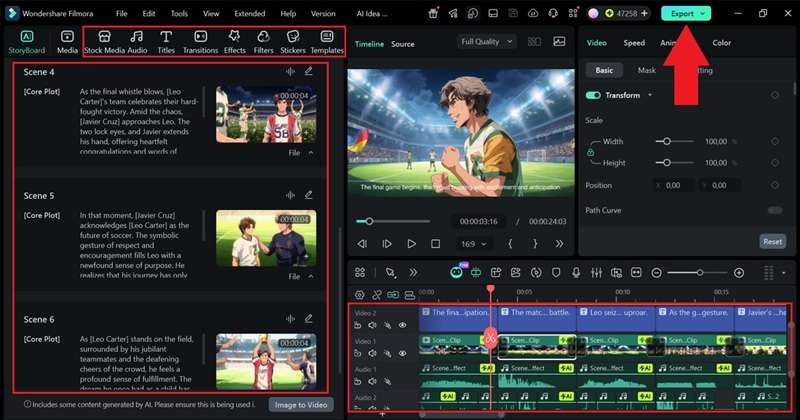
With these steps, you've now learned how to make an AI short film with Filmora. See the video below to see how it turns out.
Secure DownloadPart 4. Tips for Creating Better AI Short Films
As you can see, Filmora makes it incredibly easy to build an AI short movie from scratch, but there is always room to elevate your work from a neat experiment to a truly professional short film. Below are five things that make a consistent difference.
1. Use Auto Captions to Make Every Scene Readable
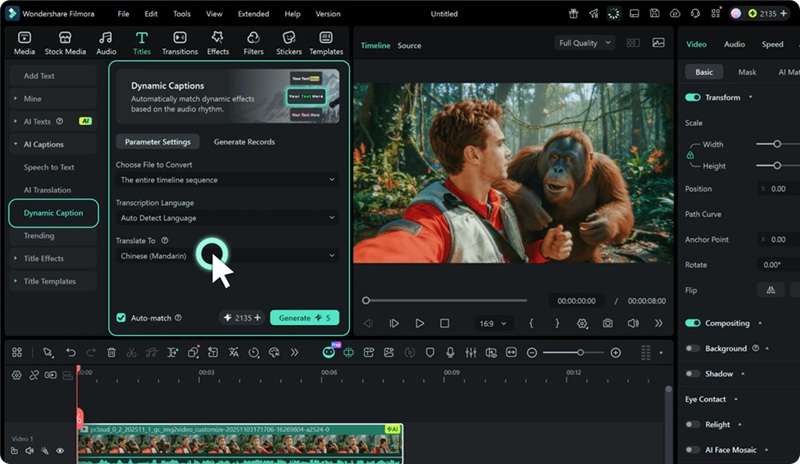
AI voices are better than they've ever been, but captions are still a major accessibility win and a huge engagement boost on social media. Use Filmora's AI Auto Caption to transcribe your voiceovers automatically and sync subtitle text to the video. You can style the font, size, and color to match your AI short film's aesthetic. It also works across multiple languages if you're targeting international viewers.
2. Build a Short Transition Sequence Between Major Scenes
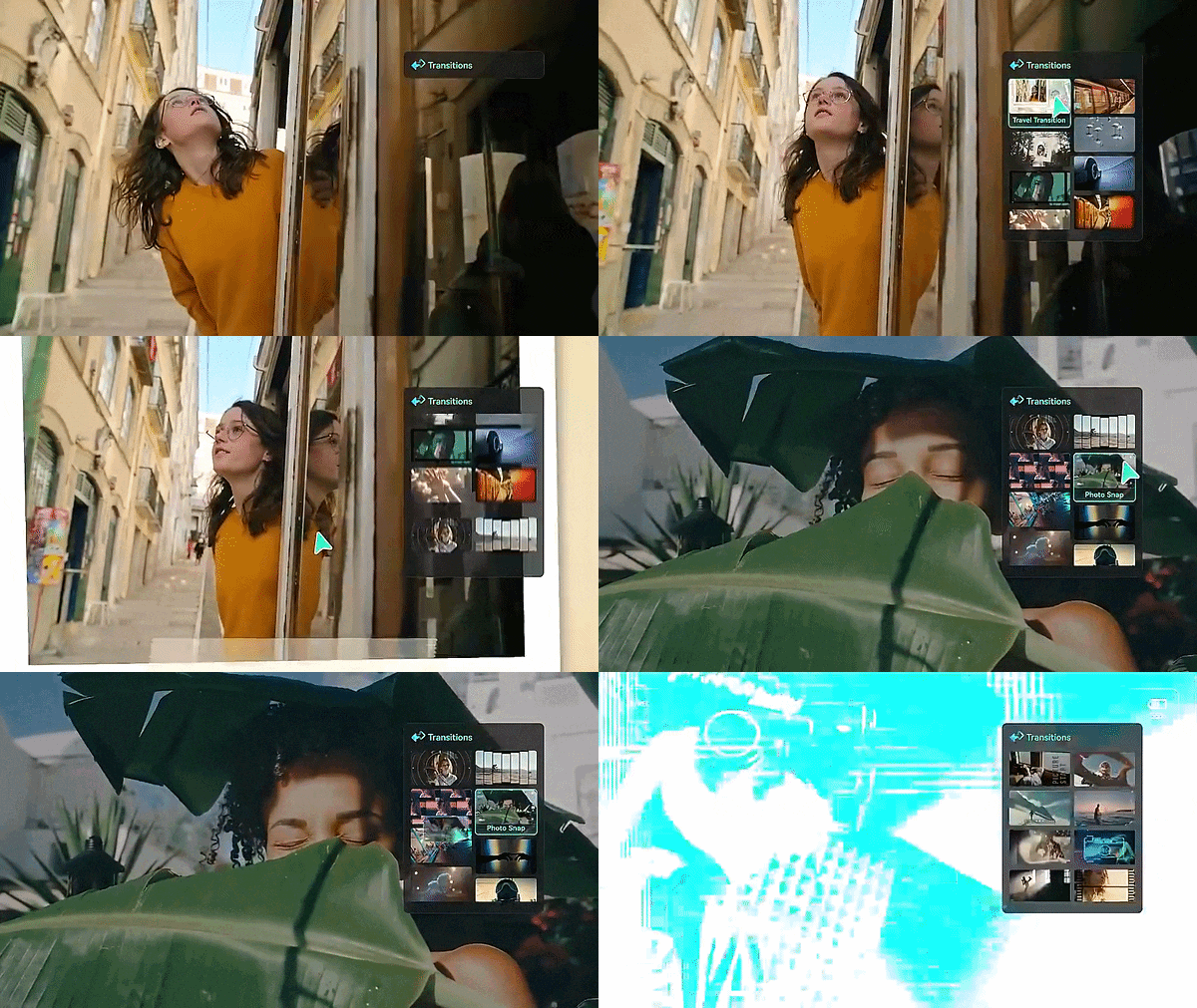
Nothing kills the pacing of an AI short film faster than jarring, abrupt cuts between scenes that don't share a visual language. In this case, Filmora's built-in transition library has hundreds of options; pick one or two styles and use them consistently throughout the film.
3. Upscale for Crisp Quality
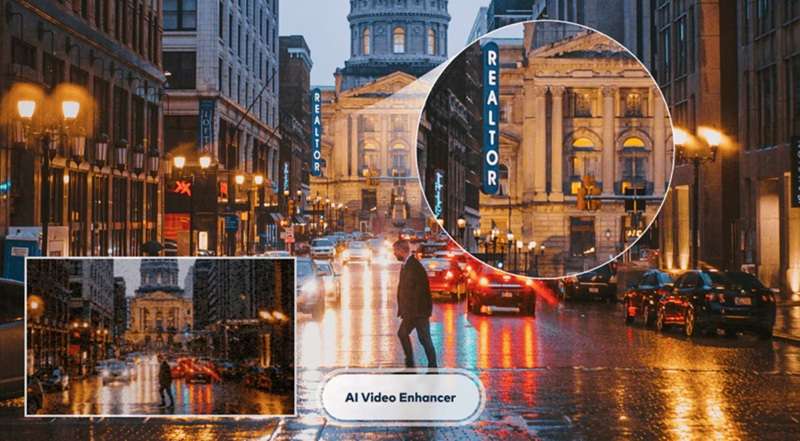
AI generations can sometimes look a bit soft around the edges. To solve this, always pass your final clips through Filmora's AI Enhancer to sharpen textures, making your film look like it was shot on a high-end cinema camera.
4. Color Grade for Mood
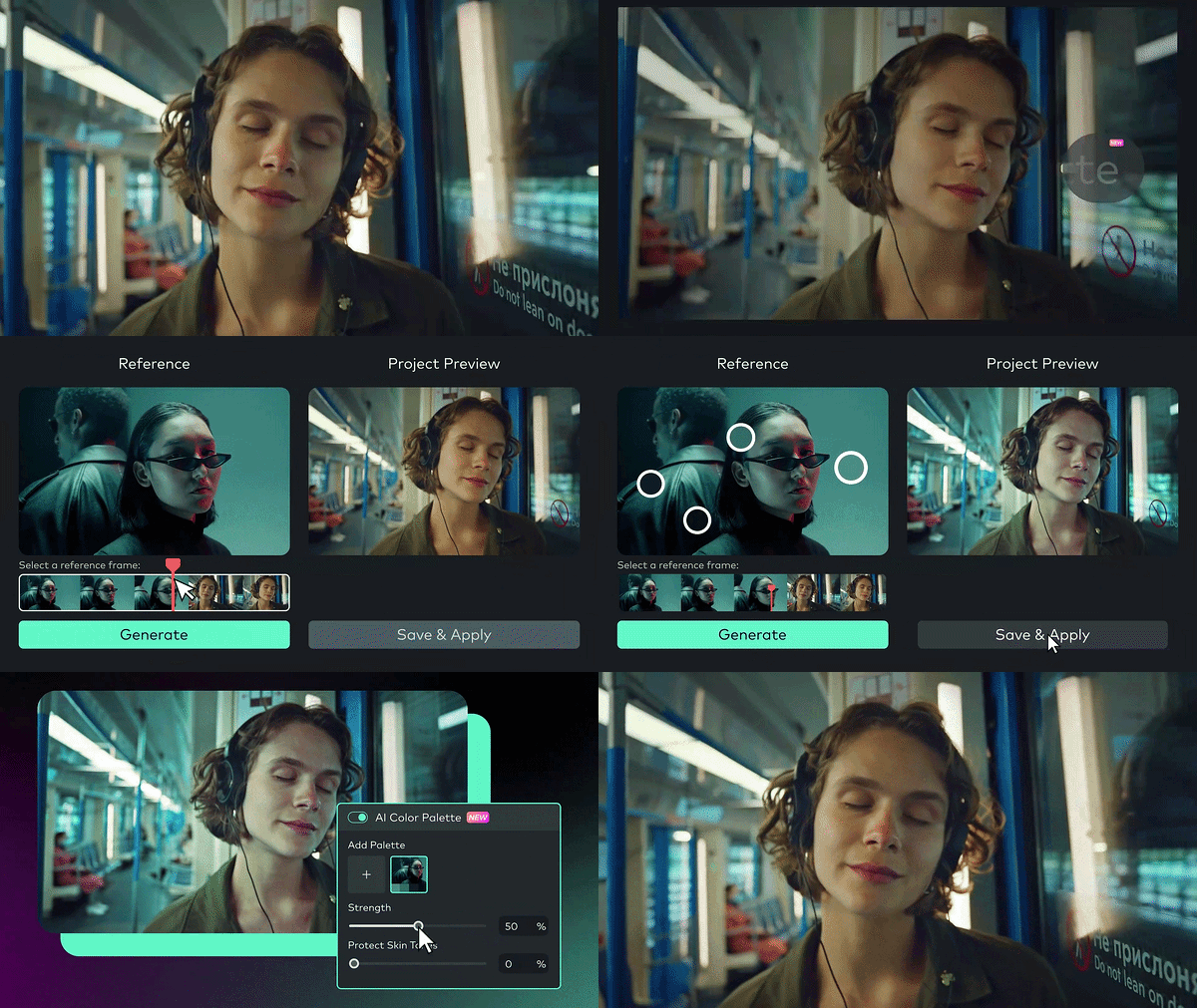
You need to give your AI short movie a unified look by applying a consistent color LUT across the whole timeline. Filmora's AI Color Match is perfect for this. This feature can take the exact colors from your uploaded images or videos to apply to your project.
5. Keep Your Export Settings Social-Ready from the Start
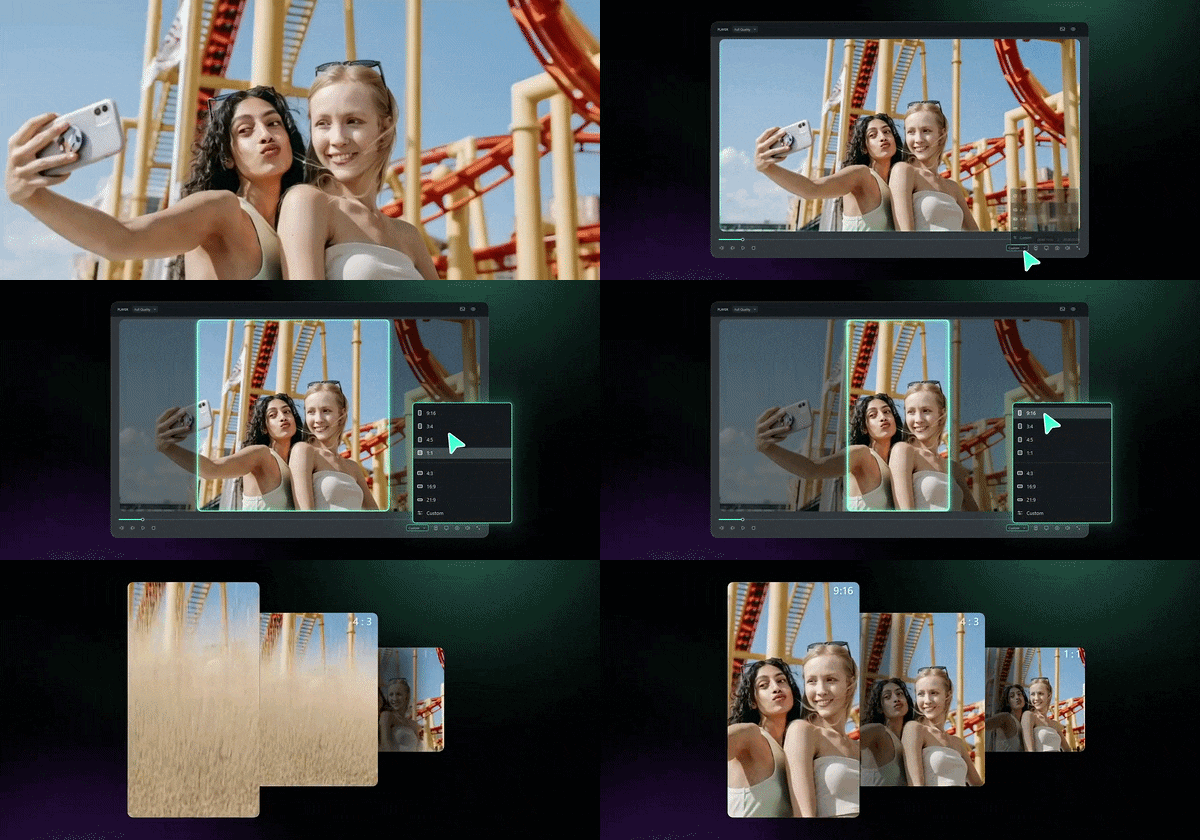
If you know your short is going to live on YouTube, export 16:9 at 1080p minimum. For TikTok, Instagram Reels, or YouTube Shorts, switch to 9:16. That way, you're composing and cropping for vertical from the start, not trying to fix it after it’s done.
Filmora's export settings let you choose the exact aspect ratio, frame rate, and platform-specific compression before you hit save, so your final file is already optimized for wherever it's going.

Conclusion
Making an AI short film is genuinely within reach for anyone right now. The process breaks down into three clean phases: planning your story and visual style before you generate anything, producing your scenes clip by clip with consistency as the top priority, and finishing everything in an editor that brings the audio, pacing, and polish together.
If you're serious about making your first AI short movie, Filmora is the best place to start. Between AI Idea to Video for full story generation, AI Image to Video powered by Seedance 2.0, Sora 2, and Veo 3.1 for scene-by-scene control, and a professional editing timeline with Auto Captions, AI Music, Text-to-Speech, and a 2.9M+ asset library, it covers the entire process without asking you to juggle five different apps.
FAQs
-
How long should an AI short film be?
There's no strict rule, but most AI short films are between 3 and 5 minutes long. If you're just getting started, aim for a one-to-three-minute project. It'll be easier to manage while still giving you enough room to tell a complete story. -
Can I combine AI-generated scenes with my own videos?
Absolutely. Mixing AI-generated clips with real footage is a great way to create unique results. You can use AI for scenes that are difficult or expensive to film, then blend them with your own recordings during the editing process for a more dynamic final movie. -
Can I monetize an AI-generated short film on YouTube or TikTok?
Yes, you can absolutely monetize your AI short films on major social platforms, provided the content complies with their specific community guidelines and reuse policies. Adding your own creative editing, unique storylines, sound design, and structural pacing ensures your video counts as original, transformative content. -
Do I need any video editing experience to make an AI short film?
Not really, especially with a tool like Filmora where the AI handles scene generation, storyboarding, and assembly automatically. Basic editing tasks like trimming clips, adjusting timing, and adding music are intuitive enough that most beginners pick them up within a few minutes of using the timeline.
