


 TL;DR:
Filmora provides the most accessible AI-powered video background blurring across desktop and mobile operating systems, though professionals requiring frame-by-frame precision should choose industry-standard software like Adobe Premiere Pro or Final Cut Pro.
● Adobe Premiere Pro requires a paid subscription and Final Cut Pro is restricted entirely to macOS, making them strictly suitable for advanced filmmakers who need customizable shape masks, object tracking, and heavy integration with color grading tools.
● CapCut and InShot deliver fast automated subject separation optimized for mobile social media creators, but users must tolerate export watermarks or pay for upgrades, whereas LumaFusion provides professional-grade multitrack editing exclusively for iOS devices.
● Browser-based solutions including Canva, VEED.io, Kapwing, and Flixier enable cloud rendering and collaborative team editing without local software installations, but their performance heavily depends on internet connection speeds and their advanced AI tools require premium subscriptions.
Ask AI for a summary
 ChatGPT
 Perplexity
 Gemini
 Claude
 Grok
Grok
Going through an overly busy background is a sure way to spoil a great video completely. A neat appearance is important to your content for social media, online meetings, or professional projects. That's why a video background blur app is a great solution as it removes the distractions, focuses on the subject, and enhances the video's beauty in a few seconds only. Here, we focus on the top free and paid solutions for blur video background easily on any device that you have.
Why Blur Your Video Background?
Video background blur is one of the video editing techniques that in principle centers and emphasizes the main subject thus making it very clear, while the rest of the scene, particularly the background, is slightly changed or made less visible. Over the past few years, this became very popular as one of the fastest ways to enhance privacy, make the video less visually distracting, and overall give your videos a more professional and stylish appearance, especially if you are shooting outdoors in an environment that is not so good.
Major advantages of a blurred background
A blurred background is no longer merely a fashion statement. It is actually very useful in the following ways:
- It gets the viewers' eyes right on the subject and keeps them there
- It helps make a simple video look more professional or even cinematic, just like a camera bokeh effect
- It is a great way to shield one's privacy, specifically in the case of a home office or a public place
- It camouflages a messed up or ugly background without having to change the location
How video background blur technology works
At present, software provides different kinds of background blur effects. A few of them depend on users having to control the blur settings manually; therefore, you get to decide how much and which parts to blur. On the other hand, sophisticated apps leverage machine learning to locate the main subject; hence, they can quickly and precisely differentiate the front scene from the back and even follow the movements smoothly and naturally without any stutter.
Common use cases
Video background blurring can bring value to a lot of nonspecific and professional situations. Below is how the technique is generally applied across different platforms:
- Social media videos: Influencers tend to use background blur to spice up their short-form content visually.
- Zoom and online meetings: It also helps in hiding personal spaces, doubling the level of privacy, and reducing the number of distractions, a very handy secret of people working remotely or attending online classes.
- YouTube videos and vlogs: A blurred background on a video is a clean and cinematic way of storytelling.
- Instagram Reels and TikTok: Since these platforms are so fast, the background blur works great because it instantly spots the subject, raises the visual clarity on small screens, and allows the video to be noticed in a crowd of feeds.
How We Ranked the Best Video Background Blur Apps
To assist you in quickly finding the tool that best fits your needs, we took a close look at each application and rated it according to these key factors:
- Popularity & user base: We looked at the scale and depth of the user base for each app and the extent to which creators, professionals, and ordinary users trust these apps.
- AI subject-background separation accuracy: One of the main factors that determine the success of a blur operation is the ability of an app to accurately identify the subject and separate them from the background, especially when there are moving people or objects.
- Ease of use: Our desire was for interfaces that make it easy to get started, controls that are self-explanatory, and workflows that are both ready-made and beautiful as well as supportive of users with different levels of expertise.
- Supported platforms: No matter where you want to use the tool - on a browser, desktop (Windows & Mac), or mobile (iPhone & Android) - a high platform compatibility score indicates a versatile tool.
- Free vs paid features: A lot of the tools give their users the possibility to implement the core blur features for free, but they keep the more advanced features for the paid plans. We assessed how good the free features are without having to go for the upgrades.
- Export quality & watermark policies: We have also included in the rankings criteria the fact that high-resolution exports and no watermarks on final videos are an absolute necessity for professional-looking results.
The use of these criteria is a guarantee that our list features apps that can consistently deliver the highest quality background blur, no matter the user's needs or devices.
Best Desktop Blur Video Background Software (Mac & Windows)
PC video editors provide the most precise and professional background blur controls, which make them perfect for creators who desire high-quality results, better exports, and advanced AI features. Here is one of the top choices for Windows and macOS users.
1. Filmora
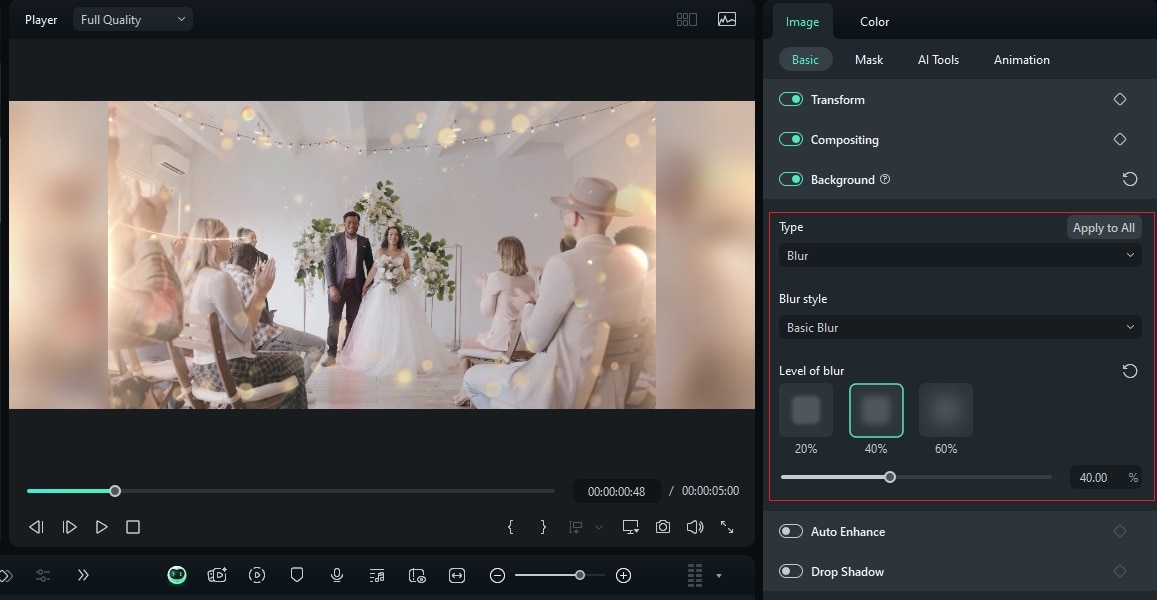
Filmora is a reliable yet very easy-to-use video editor for computer that offers you the ability to easily and professionally blur the backgrounds of your videos. With the help of AI-assisted background recognition, intuitive cutout features, and face/portrait tracking, Filmora allows you to blur, remove or change backgrounds accurately even in moving shots. This is a perfect match for content creators, educators, and business people who want fast results without the hassle of high-end editing software.
 Secure Download
- AI Portrait & Smart Cutout for accurate subject separation
- Adjustable background blur & bokeh effects with intensity control
- Motion and face tracking to keep blur consistent during movement
- Auto face blur for privacy protection in videos
- Keyframe-based blur control for dynamic, scene-specific effects
- High-quality exports up to 4K with customizable formats and bitrates
Windows & macOS
- Clean, intuitive interface suitable for beginners
- Reliable AI background detection with minimal manual masking
- Rich editing toolkit beyond blur (effects, audio, transitions)
- Watermark on exports in the free version
- Some AI features are locked behind paid plans
YouTubers, social media creators, educators, and remote professionals who need professional-looking background blur on Mac or Windows without a steep learning curve.
Secure Download2. Adobe Premiere Pro
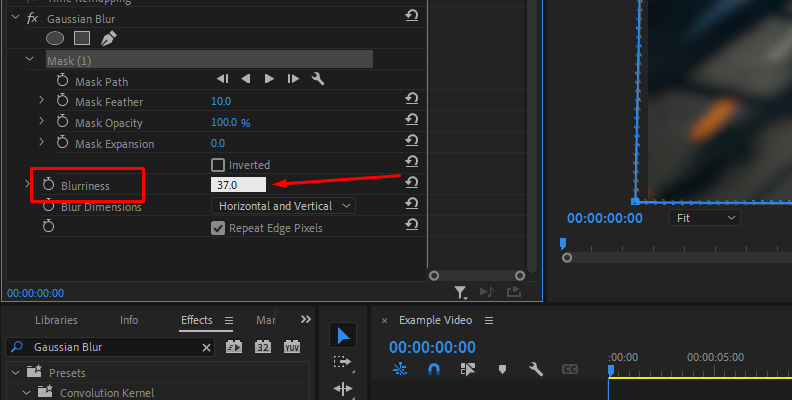
Adobe Premiere Pro is a professional desktop video editing software and a standard-setter in the industry. It is widely used for film, television, and professional content creation. Unlike other simple apps that only offer one-click background blur, this software gives you complete control through advanced masking, tracking and AI-powered tools, which is why it's an ideal match for creators who want very precise and high-quality background blur effects.
- AI Object Masking (Beta): Automatically selects and tracks people or objects, dramatically reducing manual rotoscoping for background blur.
- Advanced shape masks: Apply blur using customizable masks that accurately track motion across frames.
- Gaussian & camera blur effects: Create natural depth-of-field and cinematic bokeh-style backgrounds.
- Frame-by-frame keyframing: Fine-tune blur intensity, position, and transitions for complex scenes.
- Media Intelligence search: Quickly locate clips and scenes where background blur is needed.
Windows & macOS
- Industry-grade precision and creative control
- Excellent AI masking and motion tracking
- Seamless integration with Adobe After Effects, Photoshop, and Frame.io
- Steeper learning curve for beginners
- Subscription-based pricing only (no lifetime license)
- Overkill for quick or casual edits
Professional editors, filmmakers, and advanced creators
3. CapCut
CapCut is a flexible background blur app for video that can be used on computers as well as smartphones or tablets, and provides a mixture of easy-to-use features together with cutting-edge ones powered by AI. Creators who need to change their video backgrounds fast without losing the original quality will find it very handy. Besides, CapCut is packed with tons of effects, templates, and motion tools for making the video more creative.
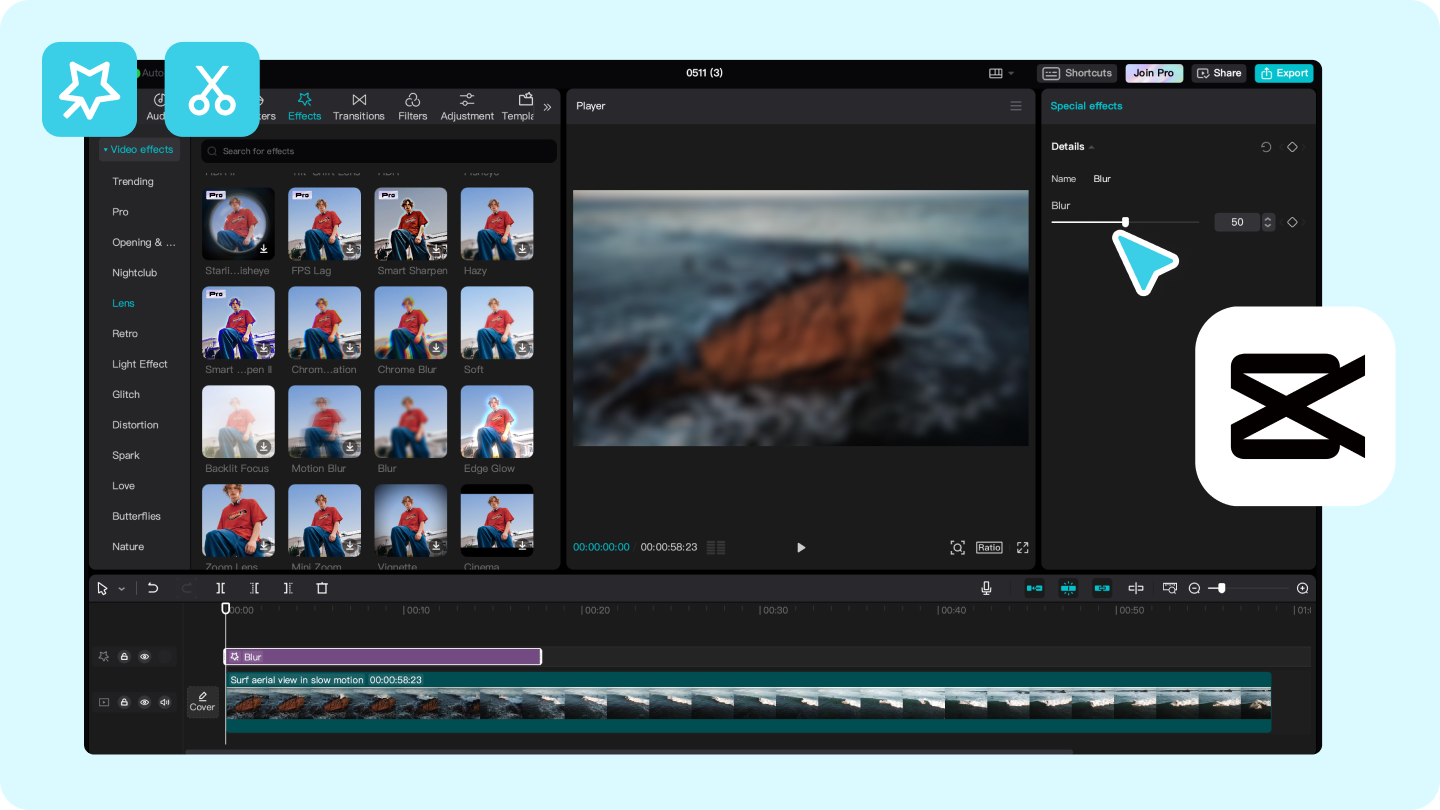
- AI Background Blur: Automatically detects and separates the subject from the background for smooth blur effects.
- Keyframe Animation & Motion Tracking: Precisely control blur placement and intensity, even for moving subjects.
- Color Wheel & Auto Adjust: Professional-grade color correction alongside background blur.
- Green Screen & Background Replacement: Replace or blur backgrounds creatively for dynamic content.
- Cloud Sync & Multi-Device Access: Edit projects anywhere, with seamless project storage across devices.
Windows, macOS, iOS & Android
- Free to use with powerful AI blur and editing features
- Intuitive interface for beginners and quick edits
- Perfect for social media content creation
- The desktop version is less feature-rich than Premiere for complex editing
- Some advanced effects and templates require sign-in or updates
TikTok creators, social media influencers, and casual content creators
4. Final Cut Pro
Final Cut Pro is a professional video editing software from Apple, made specifically for the Mac platform only. It is remarkable for its speed, effectiveness, and AI-assisted features, and thus, it is the perfect tool for users who require thorough control over background blur, sophisticated color grading, and extremely smooth editing of 4K or 8K resolution videos. Thanks to the Apple silicon enhancements, the software can manage heavy projects without any hitch, which is another reason why it is the right tool for both professional and blockbuster movie productions.
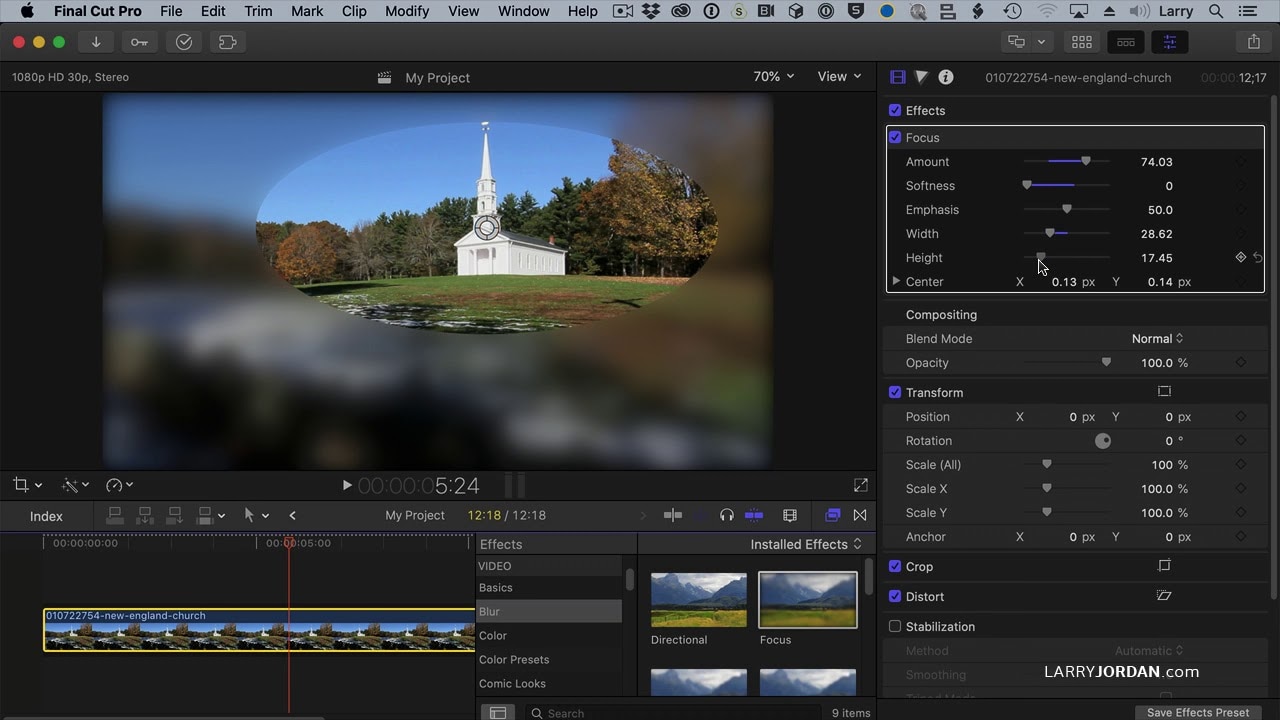
- Magnetic Mask: AI-powered object and subject isolation for background blur without a green screen.
- Keyframe-based control: Adjust blur intensity and tracking dynamically for moving subjects.
- Advanced color grading: Color wheels, curves, LUTs, and HDR support for cinematic visuals.
- Motion & 3D graphics integration: Apply titles, effects, and blurred backgrounds in complex compositions.
- High-performance playback & export: Optimized for Apple silicon, allowing smooth 4K+ editing and fast rendering.
macOS
- Industry-standard for Mac professionals
- Powerful AI masking and motion tracking
- Seamless integration with Motion, Compressor, and Logic Pro
- Only available on macOS
- Steep learning curve for beginners
- Paid software with no free version
Professional video editors, filmmakers, and Mac users
Best Online Blur Video Background Tools
Here are the best online blur video background tools:
1. Canva
Canva is an online design tool that offers a wide range of features. This background blur app for video helps users to make top- notch graphics, videos, and visuals easily. Canva's simple interface, along with AI-based features, is ideal for artists, marketers and teachers who want to create beautiful videos with either blurred or changed backgrounds without any complicated work.
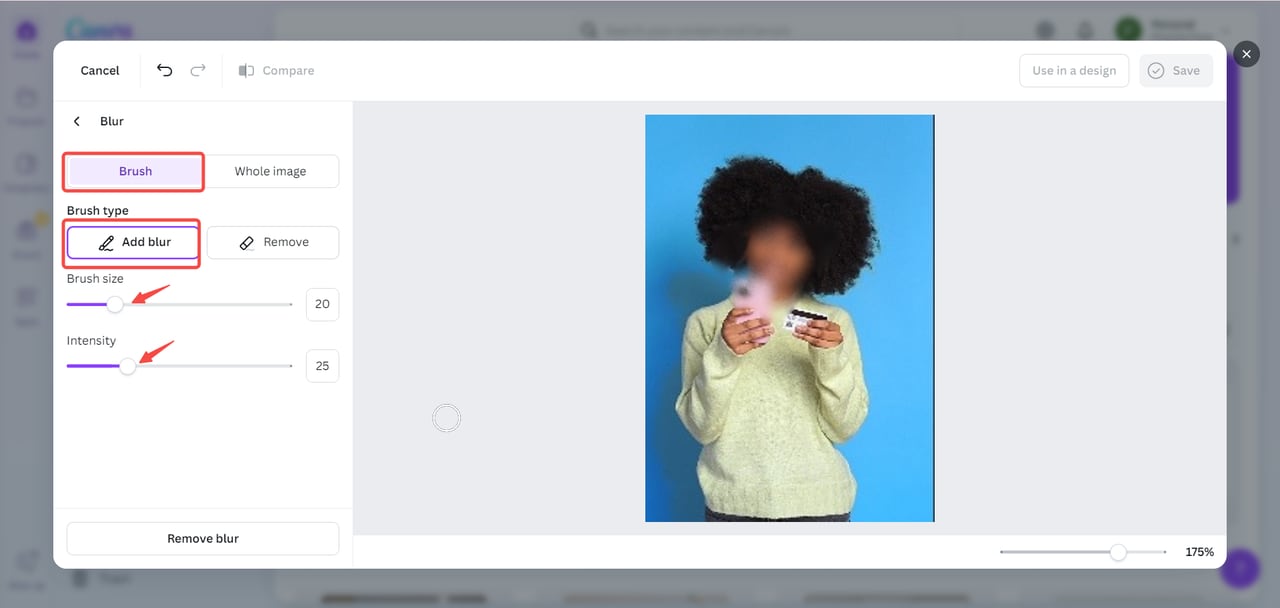
- Instantly remove or blur video backgrounds—no green screen required.
- AI-powered tools to enhance visuals, extend backgrounds, or adjust elements seamlessly.
- Access thousands of templates for social media, marketing, presentations, and more.
- Includes Magic Write, Style Match, and Beat Sync to automate editing, match styles, and sync videos to music.
- Create polls, quizzes, brand kits, and cohesive visuals across projects.
- Multi-language translation: Convert designs into 100+ languages while keeping layout intact.
Web-based
- Simple, beginner-friendly interface
- Powerful AI features for editing and background removal
- Cloud-based collaboration and project access from anywhere
- Some advanced features require Canva Pro subscription
- Web-based, so dependent on internet connection
- Limited precision compared to dedicated video editing software
Content creators, marketers, educators, and social media enthusiasts
2. VEED.io
VEED.io is a versatile web-based video editor for content creators, teams, and businesses to easily create, edit and share their stories. The platform has a full suite of editing tools and utilizes AI technology which enables users to create different types of videos quickly and effortlessly, e.g. videos with blurred or customized backgrounds.
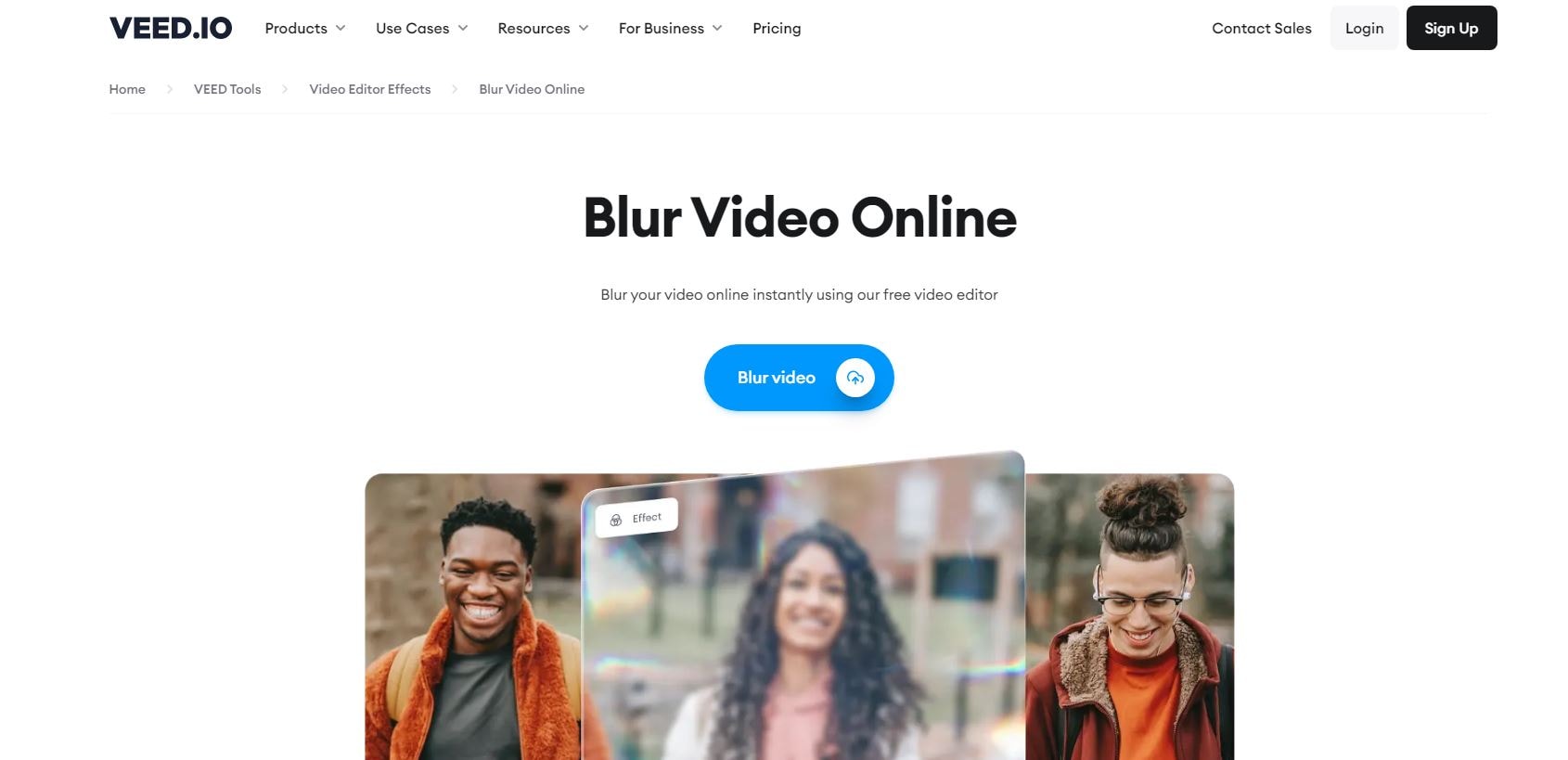
- AI video background remover: Instantly remove or blur video backgrounds—no green screen needed.
- Auto subtitles & captioning: Generate accurate subtitles automatically for your videos.
- AI-powered editing tools: Includes Magic Cut, AI Translate, AI Voice Cloning, Filler Word Removal, and Eye Contact Correction.
- Custom AI avatars & Talking Head videos: Create AI-powered avatars to produce content faster with your digital clone.
- Timeline editor & stock library: Edit videos precisely and access 2M+ royalty-free video and audio assets.
- Brand Kit & collaboration tools: Share fonts, logos, and assets across teams, and streamline feedback with review mode.
- Text-to-video & AI voice tools: Convert text to video, generate speech, and dub videos in multiple languages.
Web-based (Windows, Mac, browser) & mobile apps
- Comprehensive end-to-end video suites for teams and individuals
- Powerful AI features for subtitles, background removal, and avatar generation
- Collaboration-friendly with cloud-based workflow
- Advanced AI tools require subscription
- Web-based performance depends on internet speed
- Mobile apps have some feature limitations compared to desktop
Content creators, marketing teams, educators
3. Kapwing
Kapwing is an up-to-date, browser-based blur video background app for editing and creating videos that mix conventional editing tools with AI-enhanced features. It's aimed at solo creators, teachers, and teams who need to make high-quality videos fast and without complicated software. Besides that, Kapwing makes it a breeze to remove the background and edit videos for blurred or custom backgrounds.
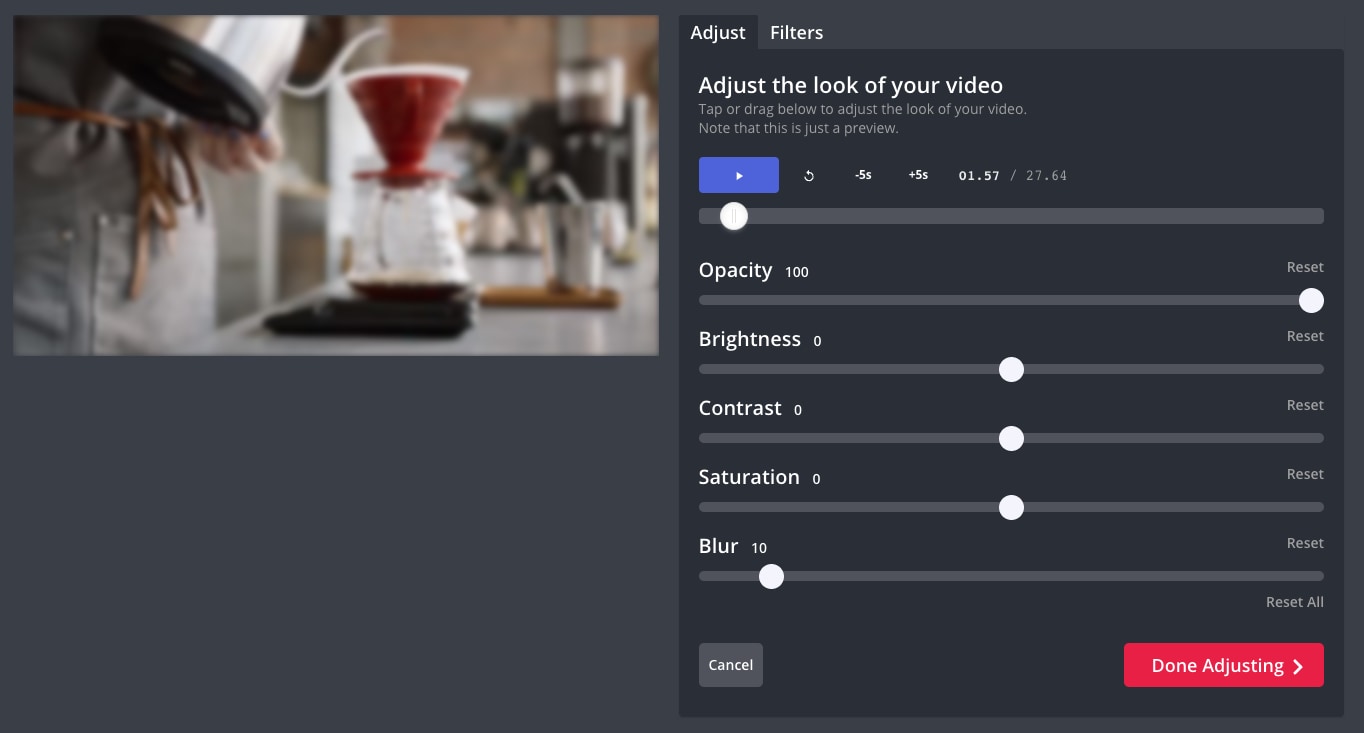
- AI video generator: Turn text prompts into fully edited videos with voiceovers, subtitles, music, and visuals.
- Video editing tools: Drag-and-drop timeline, trimming, overlays, and collaborative editing.
- Auto subtitles & translation: Automatically generate subtitles and translate videos into multiple languages.
- Clean audio & dubbing: Remove noise, enhance voice, and add text-to-speech dubbing.
- Smart Cut & Repurpose Studio: Quickly cut highlights or adapt videos for different platforms.
Web-based (Windows, Mac, browser) & mobile
- Fully web-based, no downloads required
- AI-powered features simplify video creation and editing
- Collaboration-friendly for teams
- Supports subtitles, translation, and multiple AI content tools
- Some advanced features require a subscription
- Internet-dependent performance
- Limited offline editing options
Teams, educators, marketers, and creators
4. Flixier
Flixier is a web-based, AI-driven video editing software focusing on quick turn-around, teamwork, and artistic freedom. It suits creators, teachers, marketers, and groups who desire to make video content with high production value without having to install major software. The highlight of Flixier is cloud editing, quick rendering, as well as AI features such as generating subtitles, doing voiceovers, and translations.
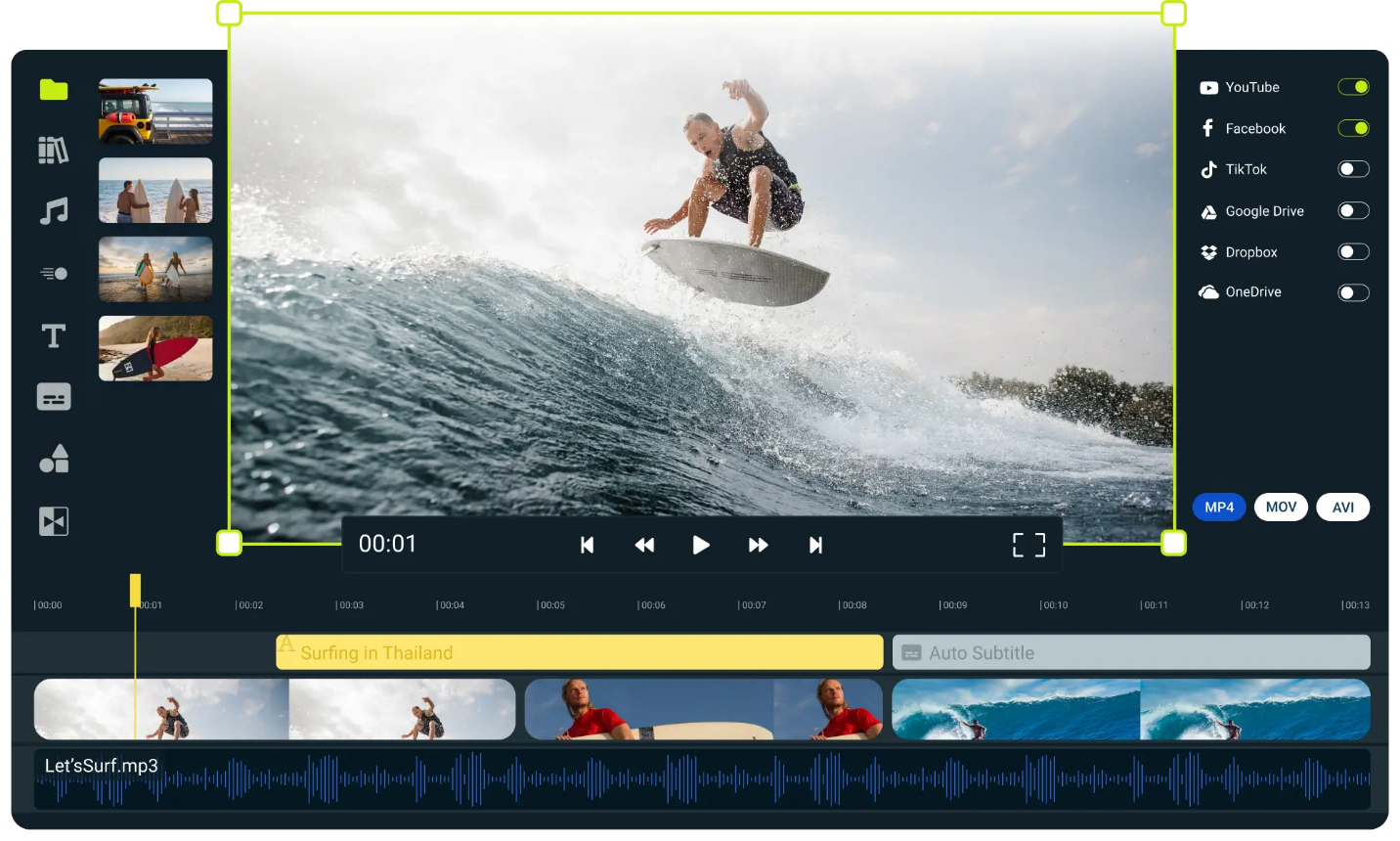
- AI-powered video editing: Generate video drafts from scripts or text prompts.
- Voiceovers & translation: Create lifelike AI voiceovers and translate audio into 130+ languages.
- Auto subtitles: Automatically generate and edit captions.
- Video & audio enhancement: Remove noise, improve audio quality, enhance visuals.
- Collaborative editing: Real-time teamwork for editing, brainstorming, and refining videos.
- Cloud rendering: Fast exports without taxing your computer.
Web-based (works on Windows, Mac, Chromebook, any browser)
- Fully browser-based, no installation required
- Extremely fast rendering even on low-spec devices
- Powerful AI tools for voiceovers, translations, and subtitles
- Real-time collaboration for teams
- Flexible for beginners and pros alike
- Some advanced features require subscription
- Internet connection required
- Limited offline functionality
Content creators, educators, marketers, and businesses who need fast, AI-assisted video editing
Best Mobile Apps to Blur Video Background (iPhone & Android)
When you are editing on the go; mobile apps really help you to easily blur the background of your videos without the need of a computer. If you are producing content for TikTok, Reels, or personal clips, a suitable app can detect the subjects automatically, applying the blur effects smoothly, and exporting the results in high quality right from your phone. So, check out these best mobile apps that make background blurring a piece of cake, quite rapid, and in a professional way—ideal for beginners and experienced creators alike.
1. Filmora: AI video editor and maker
Filmora's mobile app packs powerful AI editing features like background blur, smart subject recognition, and more onto iPhone and Android devices. It features easy-to-use controls together with high-end capabilities; thus, you can give your videos an extra touch of depth-of-field effects, filters, and transitions without a difficult learning process.
Secure Download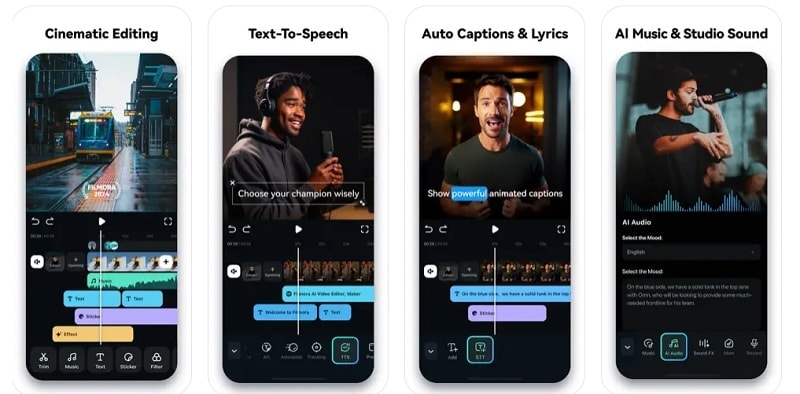
- AI background detection: Automatically identifies people and objects for precise blur application
- Adjustable background blur: Control blur strength for subtle or dramatic looks
- Smart cutout tools: Isolate subjects quickly to enhance foreground focus
- Rich effects library: Add transitions, filters, and overlays for polished videos
- Highquality export: Save videos in HD or 4K directly to your device
iOS & Android
- Easy to use with powerful AI features
- Works well for social media content
- No need for advanced editing skills
- Some advanced features behind a subscription
- Watermark in free exports
Creators who want professionalgrade blur effects and editing tools on mobile without complexity.
2. InShot
InShot is a multifunctional mobile video editor for both iPhone and Android that makes blurring video backgrounds and creating beautiful clips a blink of an eye and very simple. Perfect for social media creators, vloggers, and casual editors, InShot mixes professional tools with a very friendly user interface for working on the go.
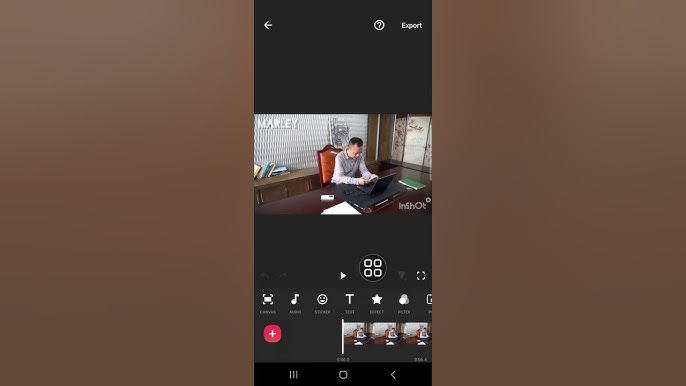
- Add smooth blur to your videos or photos with adjustable intensity
- Trim, cut, split, merge, crop, reverse, rotate, and flip videos
- Add featured tracks, your own music, or voiceovers; adjust volume and fade in/out
- 60+ cinematic transitions, including Glitch, Fade, Light, Slice, and more
- Movie-style filters, stop motion, RGB, Glitch effects, brightness/contrast adjustments
- Add animated text and stickers with multiple fonts and animation effects
- Slow motion, fast motion, and freeze special moments (0.2x to 100x)
iOS & Android
- Free and easy to use
- Supports long videos without time limits
- Combines video and photo editing in one app
- Some advanced features require in-app purchases
- Watermark in free exports
Users looking for a complete, beginner-friendly video editing app with powerful background blur
3. LumaFusion
LumaFusion is basically considered the top choice for mobile video editing that combines a user-friendly touchscreen experience with the provision of professional-level feature sets. It is most suitable for iOS users, especially those in filmmaking, content creation, and storytelling, who wish to have complete control over multi-layer edits, effects, and color grading, all from a mobile device.
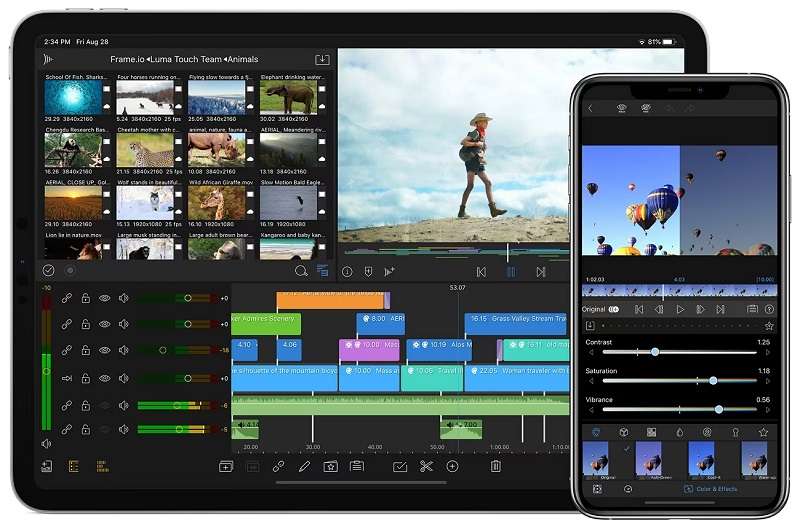
- Six video/audio tracks plus six additional audio-only tracks for complex projects
- Flexible track-based + magnetic timeline for smooth editing
- Use chroma and luma keying for professional compositing
- LUT support, waveform, vector scopes, unlimited keyframes
- Parametric EQ, keyframe audio, stereo/dual-mono support, audio ducking
- Multilayer graphics, custom fonts, borders, shadows, and reusable presets
- Various aspect ratios, frame rates (18–240fps), cloud & USB-C import
Android, iOS
- Professional-grade mobile editing features
- Extensive control over audio, color, and effects
- Great for advanced storytelling and social media content
- Only available on iOS
- Some advanced features require one-time in-app purchase or subscription
Creators looking for a complete mobile editing studio capable of professional results
4. KineMaster
KineMaster is a comprehensive blur video background app for mobile devices that offers professional-grade results to creators without requiring them to use complicated software. It is ideal for movies, vlogs, Reels, and Shorts as it mixes straightforward touch controls with powerful AI features for more rapid and intelligent editing.
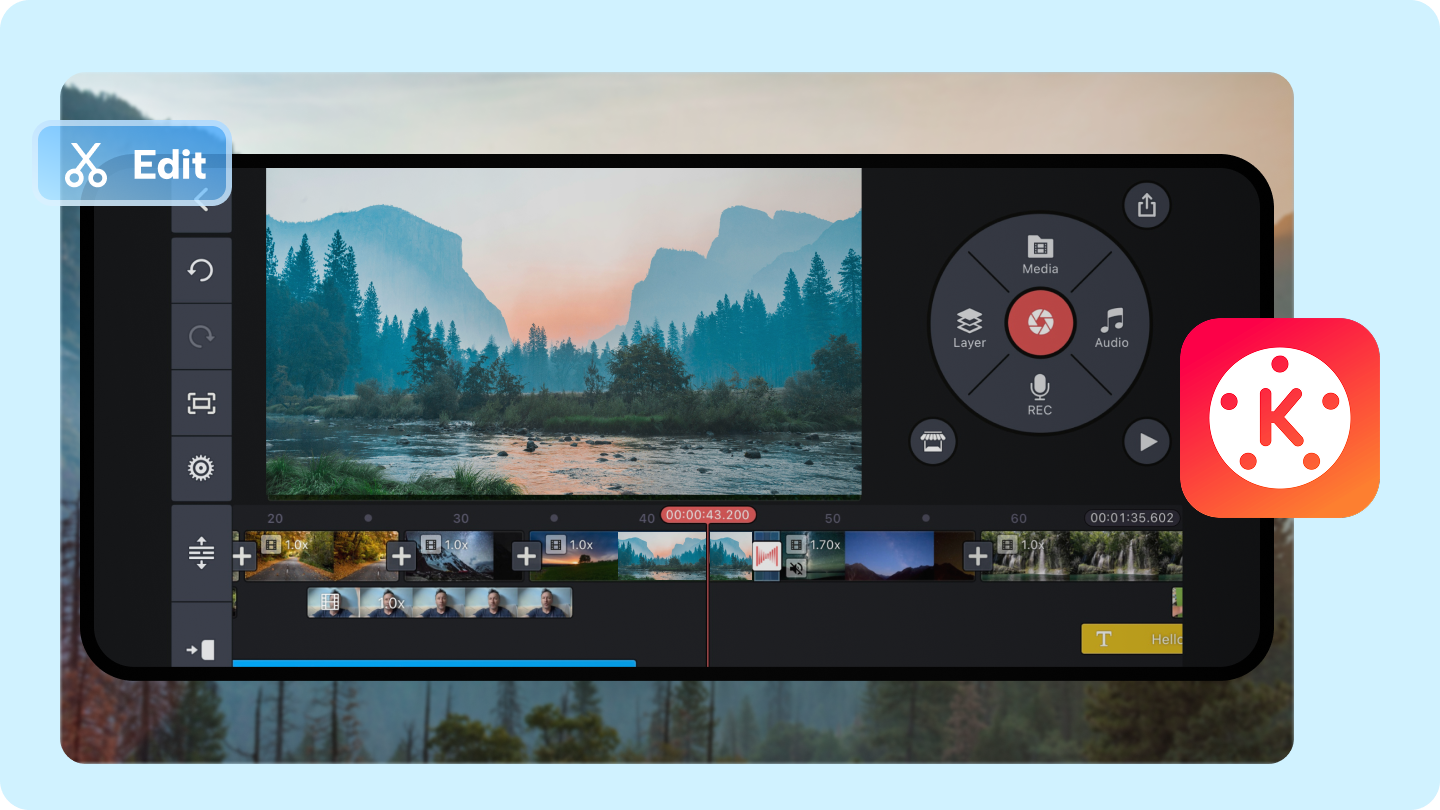
- Auto captions, text-to-speech, AI voice, background removal, noise removal, vocal separation, AI tracking, AI upscaling, and AI artistic effects
- Adjust size, position, rotation, and animation of each layer
- Easily remove and replace backgrounds
- Reverse, slow motion, and time-lapse effects
- Use thousands of templates and backup projects to the cloud for cross-device editing
- Access effects, transitions, stickers, fonts, music, SFX, stock footage, and video backgrounds
- Export videos in 4K 60FPS, optimized for social media, with transparent background support
iOS & Android
- Powerful AI tools for creative enhancements
- Supports multi-layered editing and professional-grade effects
- Optimized for social media sharing with high-quality export options
- Some advanced features require in-app purchases
- Can be overwhelming for absolute beginners
Creators who want a mobile editing powerhouse with AI enhancements
5. Blur Video: AI Blur Maker
Blur Video: AI Blur Maker is a mobile application, which is solely dedicated to professionally blurring backgrounds in your videos through AI automation. In case you are primarily interested in fast background blurring with hardly any work and at a high level of accuracy, this instrument can give you just that—basically, it does not require any heavyweight editing skills.
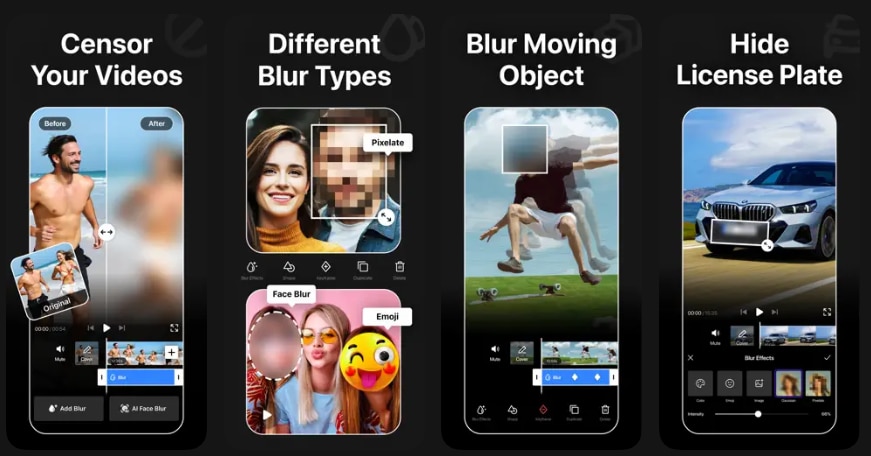
- Automatically identify subjects and apply blur around them for a clean look
- Control how strong or subtle the background blur appears
- Manually refine blur areas for more creative control
- See how blur effects look before exporting
- Save your blurred video in high quality and share directly to TikTok, Instagram, YouTube, and more
iOS
- Simple, focused blur experience with AI automation
- Great for users who want blur without full video editing tools
- Quick results ideal for social media clips
- Limited editing features beyond blur
- iOSonly (with possible Android alternatives available separately)
iPhone users who want a straightforward, dedicated app to blur video backgrounds fast
Comparison Chart | Best Blur Video Background Apps
Here's a comprehensive comparison table for all the tools:
| Tool / App | Platform | AI Background Blur | Other Key Features | Output Quality | Best for |
| Filmora (Desktop & Mobile) | Windows, macOS, iOS, Android | AI-assisted background recognition | Smart cutout, motion & face tracking, adjustable blur & bokeh, filters, transitions | Up to 4K | YouTubers, educators, social media creators |
| Adobe Premiere Pro | Windows, macOS | AI Object Masking & Advanced Shape Masks | Gaussian blur, frame-by-frame keyframing, media intelligence, motion tracking | Up to 8K | Professional editors, filmmakers |
| CapCut | Windows, macOS, iOS, Android | AI Background Blur | Keyframe animation, motion tracking, color correction, green screen, cloud sync | HD, up to 4K | TikTok creators, social media influencers |
| Final Cut Pro | macOS | Magnetic Mask & Keyframe-based control | Advanced color grading, motion & 3D graphics integration | 4K+ | Mac users, professional editors, filmmakers |
| Canva (Online) | Web | AI Video Background Remover | Magic Studio & Edit, templates, AI design tools, multi-language support | High-quality web export | Marketers, educators, social media creators |
| VEED.io (Online) | Web, mobile | AI video background remover | Auto subtitles, AI Translate, Magic Cut, Talking Head videos, stock library | HD | Teams, educators, content creators |
| Kapwing (Online) | Web, mobile | AI Video Generator & Background Blur | Drag-and-drop timeline, auto subtitles, translation, clean audio, smart cut | HD | Teams, marketers, educators, solo creators |
| Flixier (Online) | Web | AI-assisted background blur | Voiceovers, translation, auto subtitles, collaborative editing, fast cloud rendering | HD | Content creators, educators, marketers |
| Filmora (Mobile) | iOS, Android | AI background detection | Adjustable blur, smart cutout, transitions, filters, high-quality export | HD, up to 4K | Mobile creators, beginners |
| InShot | iOS, Android | Manual & AI-assisted blur | Trim, cut, split, merge, crop, slow/fast motion, transitions, filters, text, stickers, music | HD, up to 4K | Social media creators, vloggers |
| LumaFusion | iOS | Chroma & luma key | Multitrack editing, color correction, LUTs, unlimited keyframes, audio EQ & ducking | Up to 4K | Advanced mobile editors, storytellers |
| KineMaster | iOS, Android | AI Magic Removal & Chroma | AI tools: auto captions, TTS, AI voice, music match, tracking, effects, multi-layer editing, templates | 4K 60FPS | Professional mobile editors, creators |
| Blur Video: AI Blur Maker | iOS | Fully AI-driven blur | Manual refinement of blur, preview before export, fast social sharing | HD | iPhone users, fast background blur without full editing |
|
Show More
Show Less
|
|||||
Secure DownloadConclusion
Blurring your video background will instantly give your content a professional touch, keep the focus on your subject, and even protect privacy. Filmora is the one tool that really excels for both desktop and mobile users, with the help of great AI background detection, easy to use controls, and top quality exports—essentially a one-stop solution for creators at any level. Besides these, there are also other great options like web-based tools Canva and VEED.io, and mobile apps such as InShot, LumaFusion, KineMaster, and Blur Video: AI Blur Maker.
Making polished, distraction-free videos has become so easy with the right app—Filmora is the one that makes it the fastest and simplest.
FAQs
-
1. How do I blur the background in a video?
You can use Filmora to blur the background of a video quite simply. Its AI-enhanced background detection automatically spots the central figure and applies a nice blur, or you can set the blur level yourself for more artistic control.
-
2. Which mobile app is best for blurring video backgrounds?
Filmora's app is the one to go for on either iPhone or Android. It features AI subject recognition, customizable background blur, and high-quality outputs, which is great for social media content creators.
-
3. Can I blur video backgrounds online without installing software?
Though there are online editors, Filmora offers both desktop and mobile apps that, with AI help and no hassle, make blurring the background fast, accurate, and straightforward.
-
4. How to blur background into photos?
Filmora can also be used to blur photo backgrounds. Its AI portrait mode or manual selection tools allow isolation of the subject and giving a natural and convincing blur with intensity control.
