


 TL;DR:
CapCut's free Eye Contact AI effectively corrects your gaze for solo talking-head videos on mobile and desktop without adding a watermark, but its unpredictable regional availability makes Wondershare Filmora a more reliable alternative for consistent professional editing.
● CapCut requires using the latest app version and actively selecting the timeline clip to reveal the tool, but the AI only processes one face at a time and can produce rendering lag or unnatural visual artifacts when encountering poor lighting, fast movements, or heavy glasses glare.
● Wondershare Filmora serves as a stable alternative for detailed Windows and Mac workflows, offering smart clip recognition to prevent accidental B-roll edits while specifically optimizing its AI eye correction for clips under three minutes to eliminate focus drift.
Ask AI for a summary
 ChatGPT
 Perplexity
 Gemini
 Claude
 Grok
Grok
At this point, who doesn’t know about CapCut? It has become one of the most popular video editors for short-form creators, with Rest of World reporting that CapCut had more than 200 million monthly active users globally in 2023. And in 2026, the app had been downloaded for more than 1 billion times on the Google Play Store.
One reason people keep using it is simple: CapCut packs a lot of editing tools into an app that feels easy enough for beginners. And now, one feature getting attention is CapCut Eye Contact AI, a tool made to fix your gaze so it looks like you are looking at the camera, even when you are reading a script. But does CapCut eye contact correction actually look natural, and does it work smoothly on desktop and mobile? Let’s break it down.
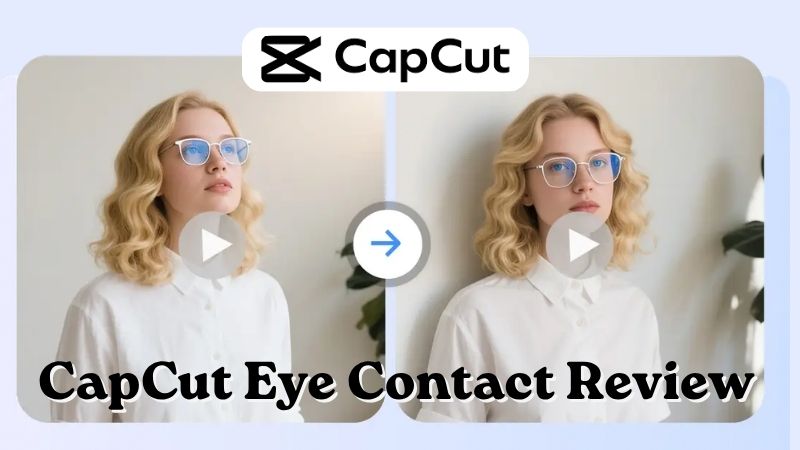
Part 1. What Exactly is CapCut's Eye AI?
As many people already know, CapCut is one of the most popular video editing apps for creating short-form content.
Now, CapCut has an Eye Contact feature that helps adjust your eye direction so it looks like you’re looking straight at the camera. So, if your eyes drift away while reading notes or a script, you can fix the footage without needing to reshoot the clip.
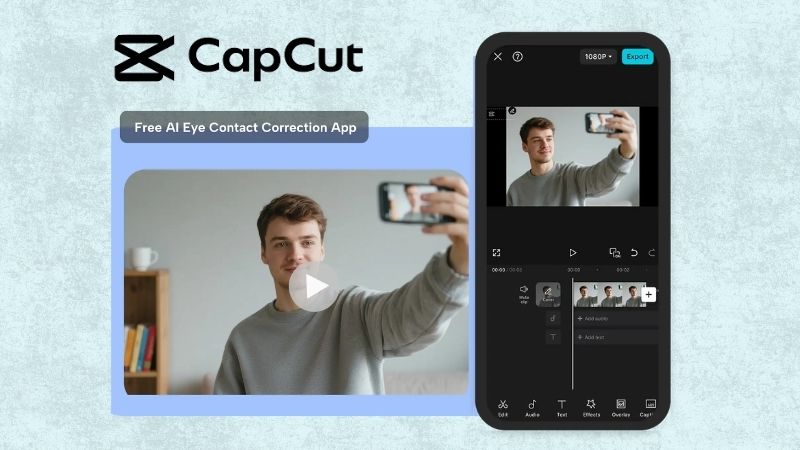
When recording videos, there are moments when we naturally look at notes or scripts to make sure everything we want to say is delivered properly without missing important points. That’s why the CapCut Eye Contact template can be especially useful for content like:
- Talking-head videos for social media or personal content
- Tutorial videos where you need to focus on explaining steps clearly
- Online classes that require longer explanations, while reading materials
- Product demos to present products more professionally on camera
- Webinars with presentations or prepared talking points
- Interview recordings where maintaining eye contact helps the conversation feel more engaging
Now, you may wonder how the CapCut template eye contact feature works. Basically, the AI scans your eye movement, adjusts your gaze so it appears directed at the camera, and keeps natural details like blinking and eye color intact so the final video still looks smooth and natural.
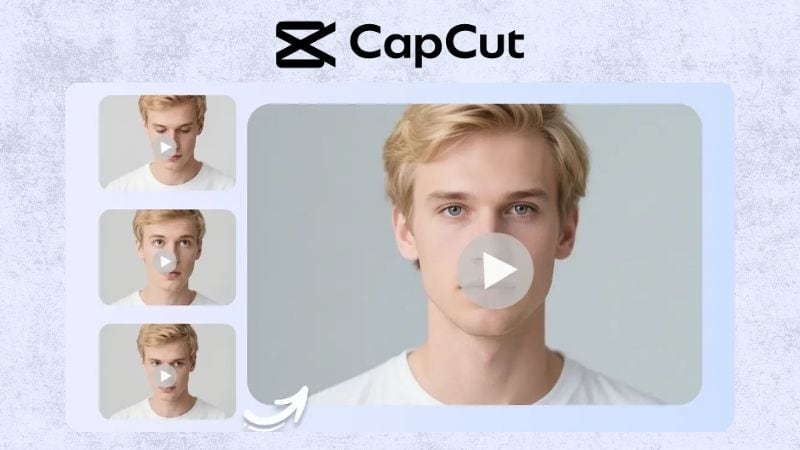
Is CapCut Eye Contact Free?
Many people ask: Is CapCut Eye Contact free? Does it require CapCut Pro for the Eye Contact feature? Fortunately, this feature is available for free, at no additional cost for all users.
That means you don’t need to subscribe to CapCut Pro or install premium software just to fix your eye gaze. Even better, the edited videos can still be exported without watermarks!
Part 2. How to Use CapCut Eye Contact on Mobile
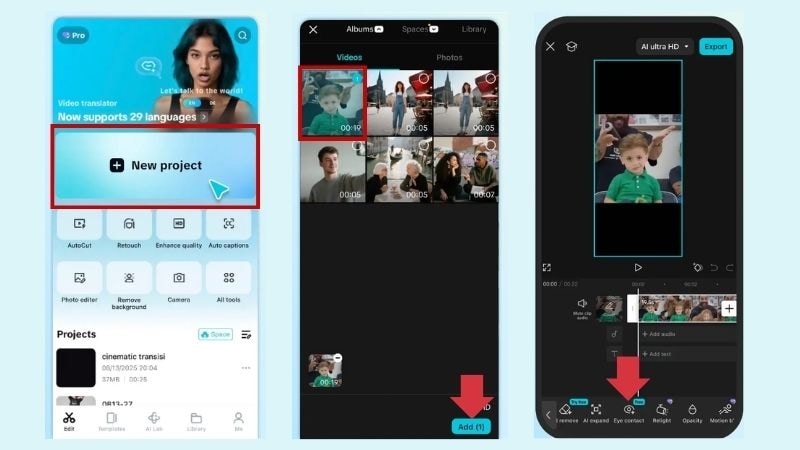
Most people searching for how to use CapCut Eye Contact are probably using the mobile version, especially since CapCut is widely used for TikTok, Reels, and Shorts. The good thing is that the mobile workflow is generally easy to follow, even for beginners. The tricky part is finding the feature, because not every app version displays it in the same place.
Step-by-Step: CapCut Eye Contact Tutorial for Mobile
Part 3. How to Use CapCut Eye Contact on Desktop or PC
Now, let’s see how the CapCut template’s new trend eye contact feature works on the desktop. Besides the mobile version, CapCut also provides desktop editing software for both Windows and Mac users.
However, the CapCut Eye Contact on PC availability may vary depending on your device, app version, or account region. There are reports from people who can access it normally, while others report that the option is unavailable or missing from the editor.
Step-by-Step: How to Use CapCut Eye Contact on PC
For this example, we’ll refer to a tutorial by Dynamic AI Tech on YouTube.
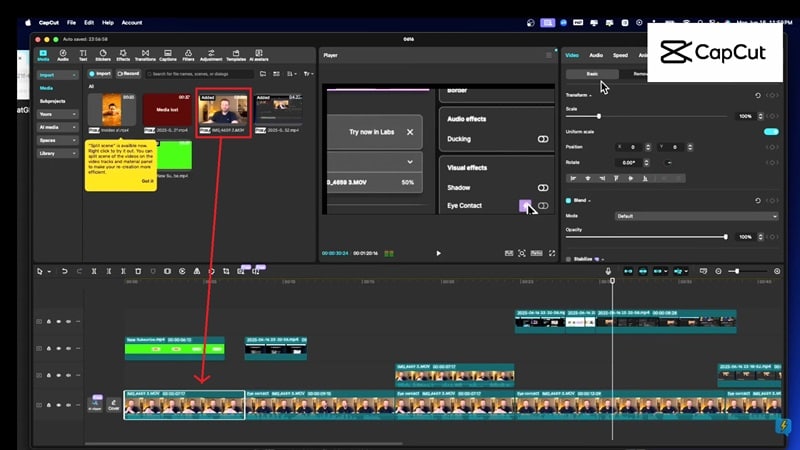
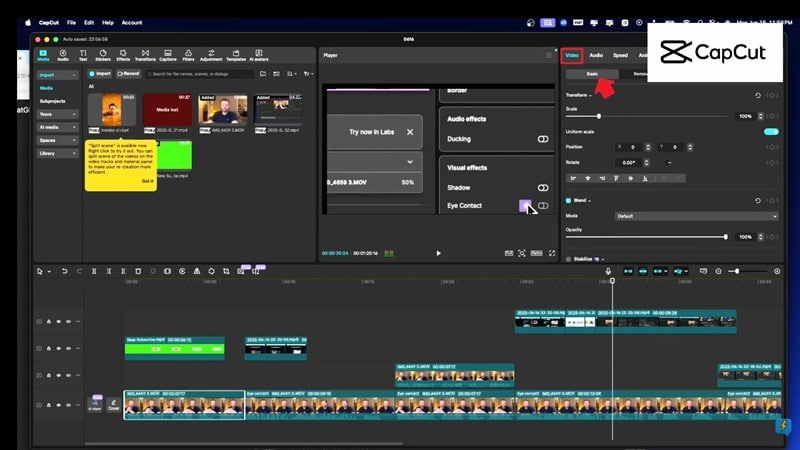
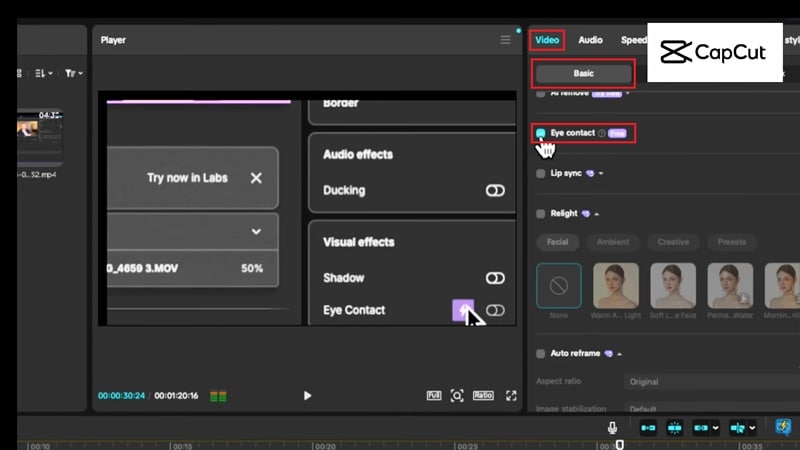
Afterward, you can keep editing your project or export it right away. The final export doesn’t include a watermark.
Part 4. CapCut Eye Contact Review: Pros and Cons
At first glance, CapCut Eye Contact AI may seem like a simple feature, but it can actually save you from having to record everything again. You looked at the script too much? Fix it. You glanced at the screen? Fix it. You recorded a course and forgot to look at the lens? Fix it.
However, once you start looking through user feedback online, the experience seems a bit more mixed. Some users find the feature genuinely helpful, while others are still struggling to locate the CapCut Eye Contact tool in the app itself.
- Mobile-Friendly: CapCut Eye Contact feature works well on both iPhone and Android.
- Great for Faceless Brands: Helps stock footage, AI avatars, or generated characters appear more natural.
- Pairs with Templates: Easy to use with a CapCut template eye contact for viral trends.
- Hard to Find: Many users say the feature doesn’t appear in their app, possibly because it is still rolling out gradually or limited to certain regions.
- Works Best Only with Clear Face Shots: Bad lighting, glasses, side angles, and fast movement can reduce quality.
- Processing Lag: Can be slow to render on older smartphones.
- Uncanny Vibes: In certain lighting conditions, the eyes may appear slightly awkward or unnatural.
Part 5. Best CapCut Eye Contact Alternative: Wondershare Filmora
CapCut Eye Contact works well if the feature is available to you. But as mentioned earlier, some users report that they cannot find it on their phone or desktop. That makes the tool feel a bit unpredictable, especially when you need to fix videos quickly.
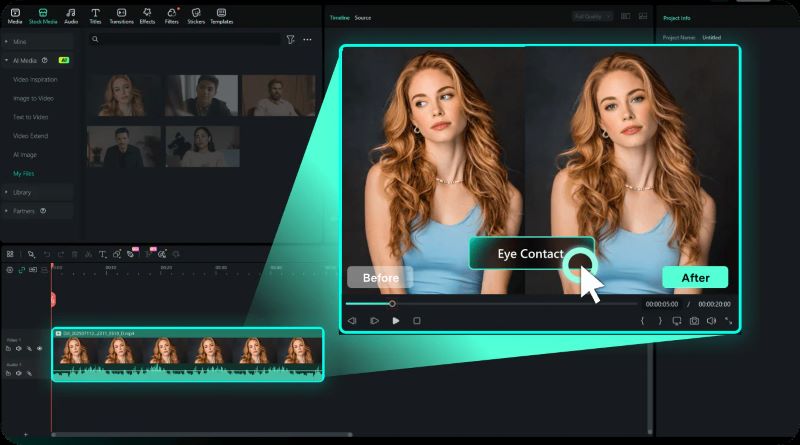
If you do not want to deal with that uncertainty, Wondershare Filmora is worth considering. Filmora recently introduced an AI Eye Contact feature designed for talking-head videos, presentations, courses, training videos, product demos, and commercial content.

Why Choose Filmora's AI Eye Contact?
Filmora’s AI Eye Contact is designed not only to correct your gaze, but also to keep the result looking stable and natural throughout the video. Some standout things that make the feature different are:
- Smart Clip Recognition: Filmora only shows the feature when your clip actually meets the criteria (no accidental clicks on b-roll).
- Optimized for Short Clips: Works best on videos under 3 minutes to ensure the AI doesn't "drift" or lose focus.
- Cross-Platform Stability: You don’t have to guess whether the feature exists on your device because Filmora supports it consistently across Windows and Mac devices.
- Natural Blending: The AI adjusts to your lighting and skin tone to make the eye correction blend more naturally with the original footage.
- Reliable for Final Edits: Filmora can help rescue footage that initially looks unusable and turn it into content that still feels polished and presentable.
 Secure Download
Filmora vs CapCut: Which AI Eye Contact Is Better?
Both tools are useful, but they serve slightly different users. CapCut is great for quick social videos, especially if you already edit on mobile. Meanwhile, Filmora is better suited for users who want more editing control, a more consistent workflow, and a fuller desktop editing experience.
To make the differences easier to understand, we’ve prepared a quick comparison table between CapCut Eye Contact and Filmora AI Eye Contact. This way, you can compare and decide which one matches your editing workflow better.
| CapCut | Filmora | |
| Platform | iOS, Android, Windows, Mac | iOS, Android, Windows, Mac |
| Conditions | Good, but the feature availability can feel inconsistent depending on the device or region | More reliable and consistently available across supported platforms |
| Naturalness | Generally looks natural, but the eyes can sometimes appear slightly awkward if the lighting or angle is not ideal | The AI adjusts to facial details, lighting, and skin tone to keep the result looking more natural |
| Editing Control | Focused more on quick fixes and fast edits | Offers more detailed editing control and flexibility |
| Pricing | Free | Affordable |
| Best for | TikTok, Instagram Reels, YouTube Shorts, and quick social media edits | Talking-head videos, tutorials, presentations, educational content, and both short-form and long-form videos |
Secure DownloadConclusion
CapCut Eye Contact can be a practical solution for correcting eye contact in videos, especially for creators who already edit through the mobile app. The tool is simple to use and works nicely for short-form content. Unfortunately, the feature availability still feels uncertain, as some users can access it, while others cannot find it on their device at all.
For a more reliable eye correction, Wondershare Filmora is worth trying. The AI Eye Contact feature is designed to adapt to your facial details, lighting, skin tone, and eye movement to keep the final result looking natural.
FAQs About CapCut Eye Contact
-
1. Why is CapCut Eye Contact not showing on my app?
The CapCut Eye Contact feature is relatively new and may not be available for all users yet. In many cases, the issue is usually caused by one of the following factors:
- - Outdated App Version: The CapCut Eye Contact feature may only appear on the latest version of CapCut, so make sure your app is updated.
- - Device Compatibility: The feature can work differently depending on your phone model or operating system version.
- - Video Selection Issue: Make sure you tap the video clip on the timeline first so the editing tools become visible.
-
2. Does CapCut Eye Contact work with glasses?
Yes, CapCut Eye Contact can still work when you wear glasses. However, strong lens glare, thick frames, or reflections may sometimes affect how accurately the AI tracks your eyes. For the best results, try recording in good lighting and keep your eyes clearly visible to the camera.
-
3. Can I use CapCut Eye Contact for group videos?
Not really. CapCut Eye Contact currently works best for solo or talking-head videos because the AI is designed to detect and adjust one face at a time. In group videos, the feature will usually focus only on the most visible face and may not work consistently for everyone else in the frame.
