

 TL;DR:
DaVinci Resolve provides a stable, all-in-one post-production suite with a free version and a one-time $295 Studio license ideal for filmmakers, while Adobe Premiere Pro is a $22.99 per month subscription better suited for YouTube creators requiring seamless motion graphics integration with After Effects.
● DaVinci Resolve leverages superior GPU optimization for real-time 4K and 8K playback without proxies and integrates the Fairlight audio DAW, outperforming Premiere Pro which can slow down or crash on heavy timelines if the computer is not top-tier.
● Editors can import Premiere Pro projects into DaVinci Resolve for advanced node-based color grading using XML or EDL files, though this specific migration requires manual clip relinking and post-import effect adjustments.
● Because both industry-standard editors present steep learning curves, Wondershare Filmora functions as a beginner-friendly alternative that extends editing to Android and iOS mobile devices while incorporating Veo 3 for automated AI video generation.
Ask AI for a summary
 ChatGPT
 Perplexity
 Gemini
 Claude
 Grok
Grok
The debate over DaVinci Resolve vs Adobe Premiere Pro has been going on for years. Both are top-tier editors with loyal fans, powerful features, and professional-level tools. However, for many creators, choosing the right one—whether it's the free version of DaVinci or the paid Premiere Pro subscription—can get tricky fast. We aim to settle the question: DaVinci Resolve vs Premiere Pro, which is better?
So, we'll break down everything that matters in this comparison, including DaVinci Resolve vs Premiere Pro color grading, performance, and suitability for YouTube creators in 2025. By the end, you'll have a clear idea of which one fits your editing style, or maybe even find an alternative that fills the gaps both leave behind.
Part 1. DaVinci Resolve vs Adobe Premiere Pro: Technical Specs & Pricing Face-Off
When it comes to DaVinci Resolve vs Adobe Premiere Pro, the numbers alone already reveal a lot about what kind of user each one is built for. So, before we dive into the workflow and creative features, it's worth taking a quick step back to see how these two editors compare on paper.
Take a look at the comparison table below to see how they stack up in terms of pricing plans to overall setup:
| Category | Adobe Premiere Pro | DaVinci Resolve |
| Platform | Windows & macOS. | Windows, macOS, and Linux. |
| Pricing | Free trial (7 days) + Subscription at $22.99/month (annual plan). | Free version + one-time Studio license ($295). |
| AI Tools | Generative extend, smart masking, and media search. | AI IntelliScript, AI Animated Subtitles, AI Audio Assistant, and more. |
| Collaboration | Works well with Adobe apps and lets you share projects through Creative Cloud. | Edit together in real time using Blackmagic Cloud. |
| Best For | Editors in the Adobe ecosystem who need strong motion graphics and plugin support. | Editors focusing on full post-production (editing + color grading + VFX + audio). |
Part 2. Adobe Premiere Pro Overview: The Industry Standard for Creative Cloud Users
If we're going to really understand the whole Adobe Premiere Pro vs DaVinci Resolve debate, it makes sense to look at each editor up close and see what gives it that edge. So, let's kick things off with Adobe Premiere Pro, a trusted favorite among studios, YouTubers, and creative teams everywhere.
This editor has been around for so long that it practically feels like the go-to choice for anyone serious about editing. Its reputation didn't just appear overnight either, it's earned from years of helping people tell stories with style and precision.
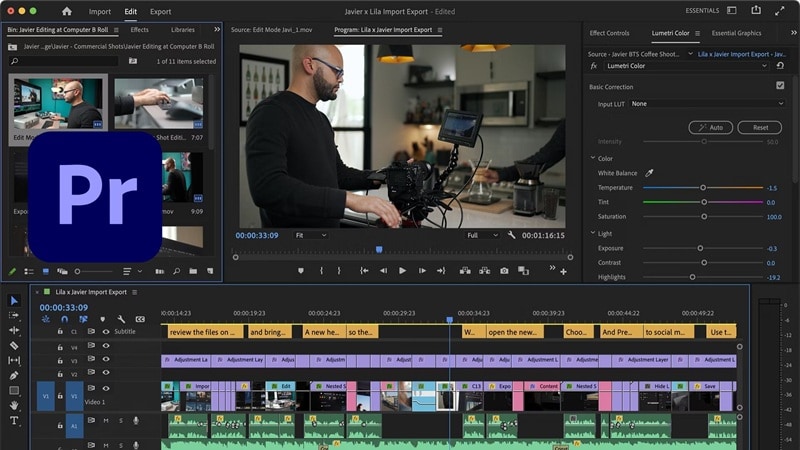
Standout Highlights:
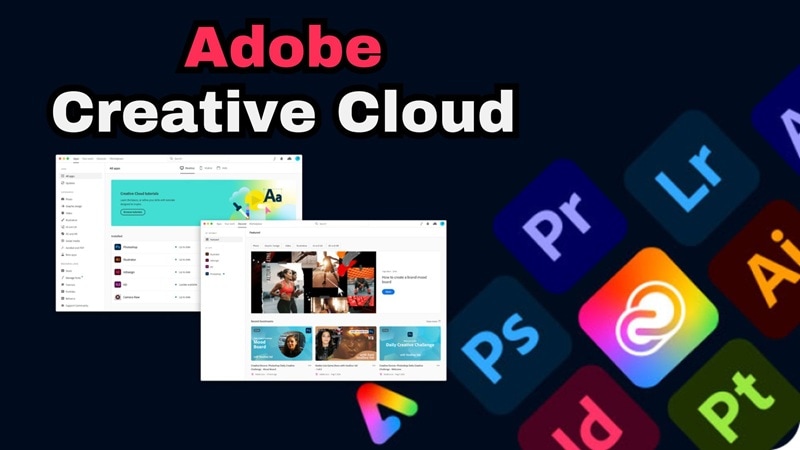
- Seamless Creative Flow: Premiere Pro shines the moment you connect it with other Adobe apps. Being part of the Creative Cloud means you can jump between After Effects, Photoshop, and Audition without breaking your workflow.
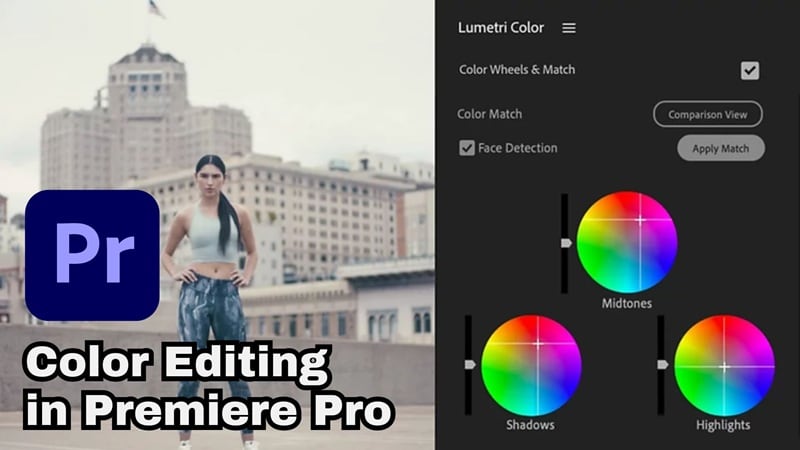
- Coloring with the Lumetri Panel: This color panel makes adjusting tones, balancing exposure, and adding creative color grades feel natural and intuitive. You can create anything from soft cinematic warmth to sharp commercial brightness with just a few sliders, all while seeing the results in real time.
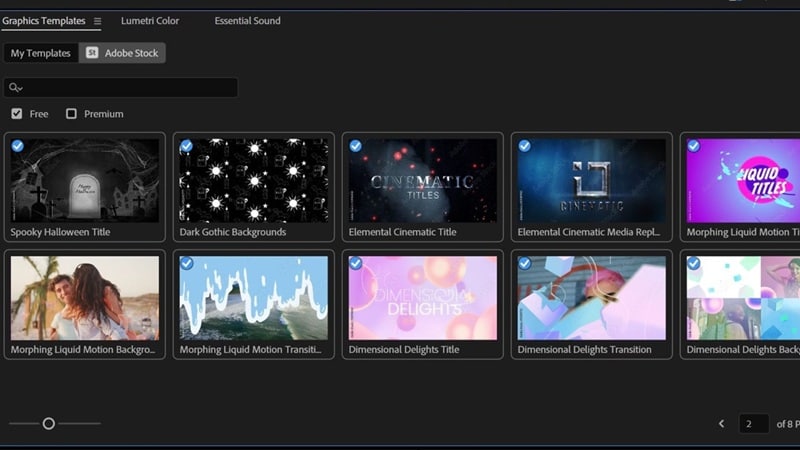
- Instant Motion Magic: Premiere's built-in Motion Graphic Templates make adding titles, lower thirds, and transitions super easy. You can grab templates from Adobe Stock or design your own in After Effects and use them right away.
- Smart AI Touches: Adobe Premiere Pro brings in clever AI tools like Auto Translation, Scene Edit Detection, and Text-Based Editing. They quietly handle the repetitive stuff so you can stay focused on your storytelling and creative flow.
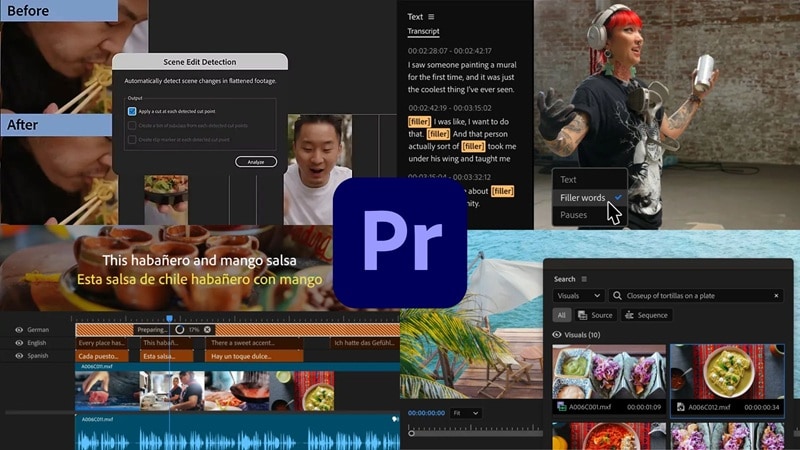
Looking at everything Premiere Pro brings to the table, you can see that it really holds its ground in the Adobe Premiere Pro vs DaVinci Resolve comparison. And beyond the creative teams already using Adobe's apps, Premiere Pro also fits perfectly for a few different types of creators. Including:
- YouTubers and vloggers.
- Marketing teams and agencies.
- Freelance editors.
- Social media content editors.
Part 3. DaVinci Resolve: The All-in-One Filmmaking Powerhouse (Free & Studio)
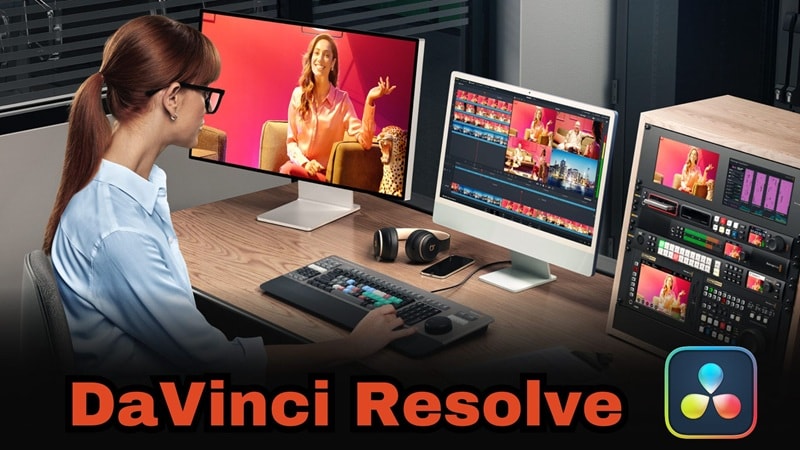
On the other side of the DaVinci Resolve vs Adobe Premiere story, there's a tool that feels like a full studio packed into one app. DaVinci Resolve combines editing, color grading, visual effects, and audio in a way that keeps everything connected from start to finish.
This editor originally started as a high-end color grading system used on Hollywood films, which explains its unmatched reputation for cinematic visuals. Over time, it's grown into a complete creative space where you can shape your story from the first cut to the final frame, all in one smooth flow.
Standout Highlights:
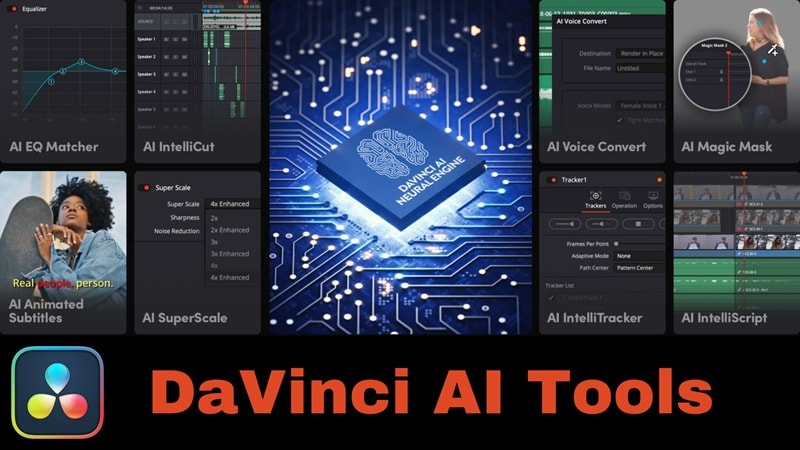
- Smart Editing Powered By AI: The DaVinci Neural Engine gives Resolve a serious boost. It handles things like automatic color correction, smart reframing, and even face detection. These tools help you save time on technical work so you can focus more on the creative part of editing.
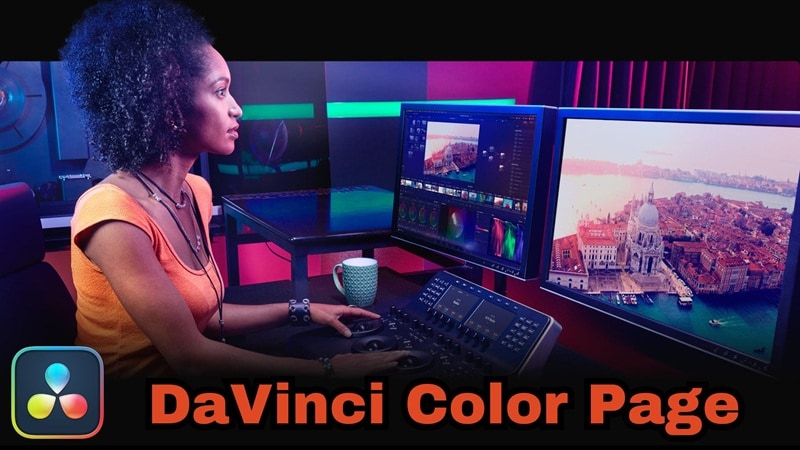
- Hollywood-Level Color Control: Resolve's color tools are legendary for a reason. You can fine-tune contrast, tweak tones, and shape the entire mood of your footage with precision. It's the kind of control that gives every project that high-end cinematic touch.
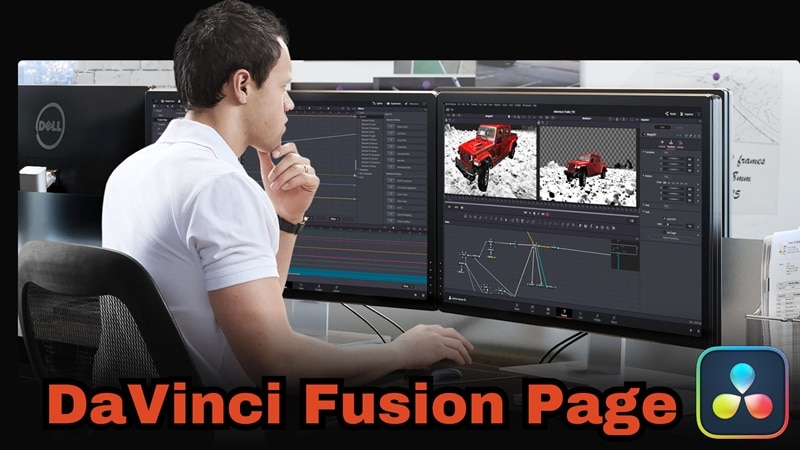
- Fusion For Visual Magic: This is Resolve's built-in visual effects space where you can add compositing, motion graphics, and 3D effects. It gives you creative freedom to experiment and make visuals that stand out.
- Fairlight For Perfect Sound: This page handles your audio with the same power that Color does for visuals. You can clean up dialogue, mix music, and add effects in one organized space. It's built for both speed and detail, making post-production sound design effortless.
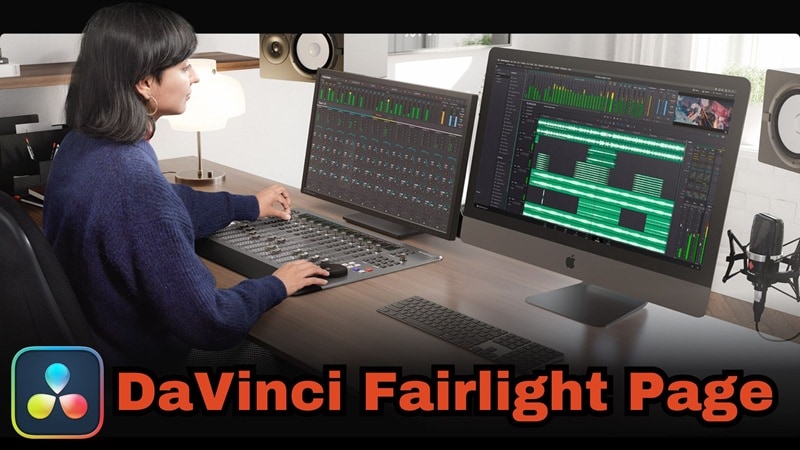
With its five main pages that handle every stage of post-production, DaVinci Resolve really holds its own as an all-in-one creative suite. Each part of it works together so smoothly that you can edit, color, mix sound, and add effects without ever leaving your project, which makes it ideal for:
- Filmmakers.
- Cinematographers.
- Colorists and video editors.
- Music video producers.
- Post-production teams.
Part 4. Deep-Dive Feature Battle: DaVinci Resolve vs Premiere Pro Workflow & Performance Review (2025)
Now that we've seen what each editor brings on its own, it's time to see how they go head to head. In this part, we'll dive into the real DaVinci Resolve vs Premiere Pro workflow and see how their features stack up in actual use.
From editing speed to color control and sound design, this is where we find out how each one performs when it really matters.
1. Editing Workflow
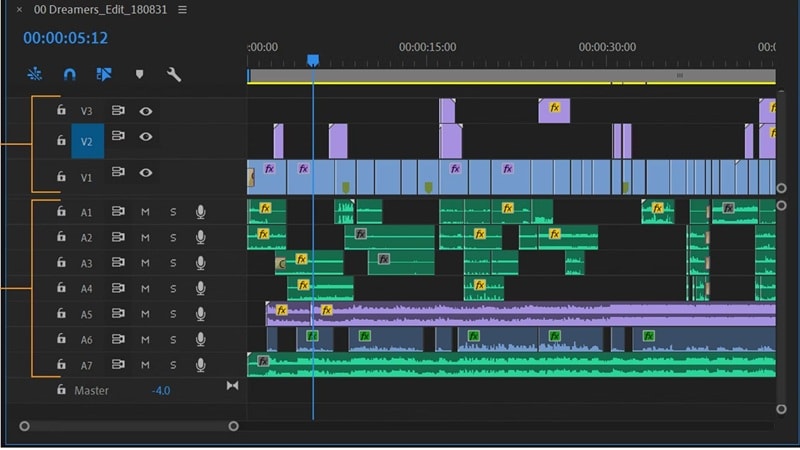
When it comes to the editing workflow, Premiere Pro keeps things familiar with its classic timeline setup. You can ripple edit, nest sequences, and use an endless library of third-party plugins to shape your project exactly how you like.
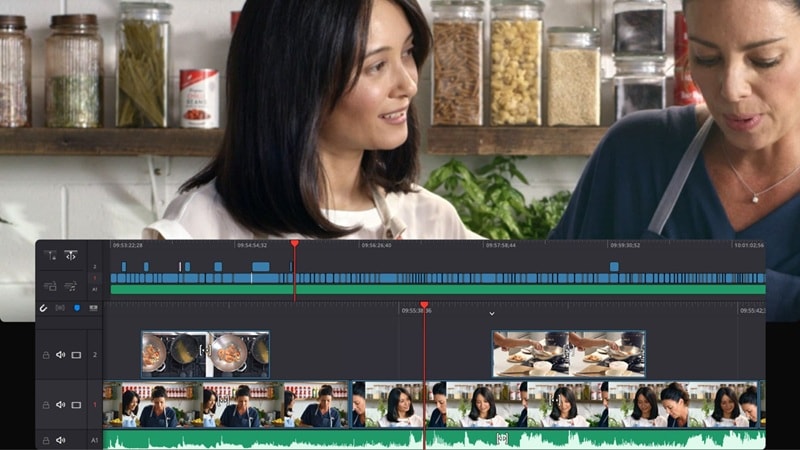
DaVinci Resolve, on the other hand, feels built for speed. The Cut page is designed for quick trimming and smooth assembly, while the real-time playback means you can review 4K footage without worrying about proxies. It's sharp, fast, and perfect for editors who hate waiting on renders just to preview a clip.
Result: For this round of the DaVinci Resolve vs Premiere Pro matchup, DaVinci clearly takes the win. Its workflow feels faster and smoother, with real-time playback that keeps you moving without waiting on renders.
2. Color Grading: DaVinci Resolve vs Premiere Pro Color Grading Showdown
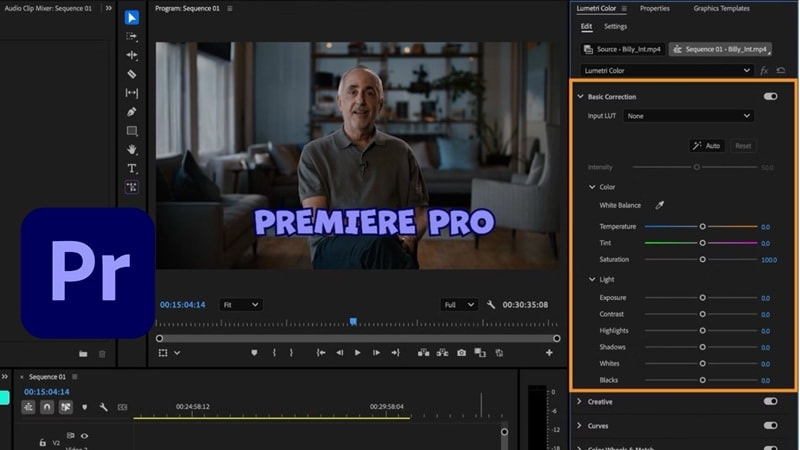
If we're discussing color grading, this is where the DaVinci Resolve vs Premiere Pro battle gets interesting. Premiere Pro makes color work easy with its Lumetri Color panel. You can fix exposure, tweak tones, and apply LUTs all in one clean workspace. It's quick, simple, and perfect for creators who just want their footage to look polished without getting too technical.
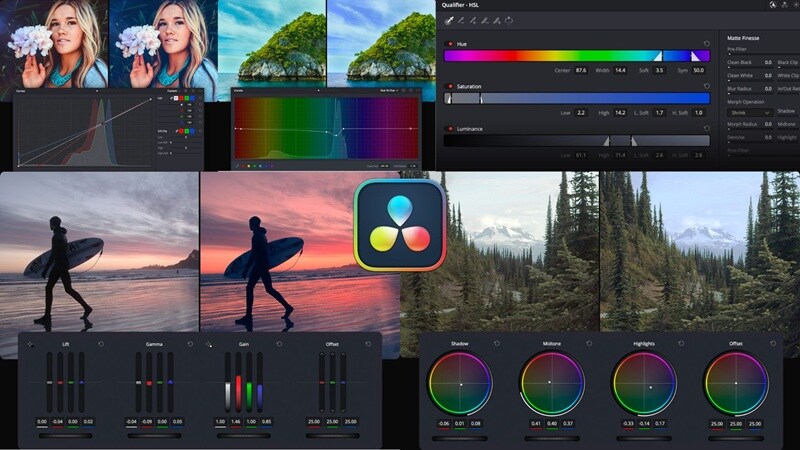
DaVinci Resolve, though, plays in a different league. Its node-based system gives you precise control over every detail, from subtle tone shifts to complex HDR looks. You can isolate colors, track movement, and use power windows to shape your image exactly how you want.
Result: There's no contest here, DaVinci Resolve wins this round. Premiere's Lumetri panel is great for quick adjustments, but Resolve's tools deliver professional-grade results that are trusted in Hollywood for a reason.
3. VFX & Motion Graphics: After Effects vs. Fusion Integration
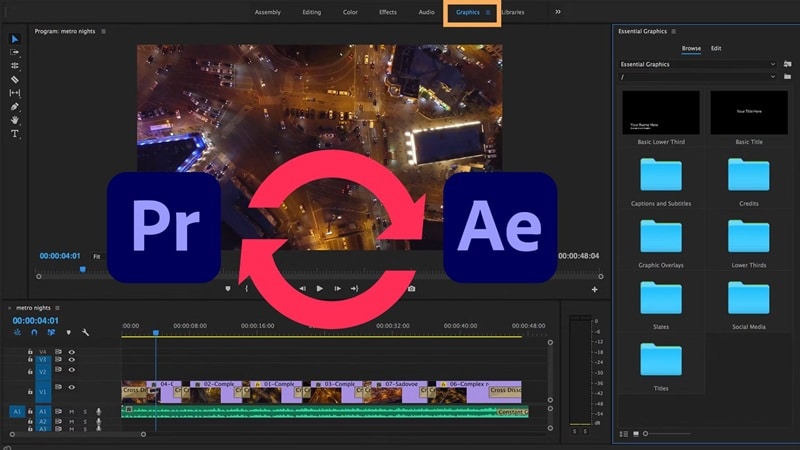
When we talk about VFX and motion graphics, this round of the Premiere Pro vs DaVinci Resolve battle really comes down to how each editor brings ideas to life. Premiere Pro leans on its close connection with After Effects, which is practically a playground for animators and visual artists. You can build cinematic intros, smooth transitions, or complex composites, then send them straight back to your timeline without missing a beat.
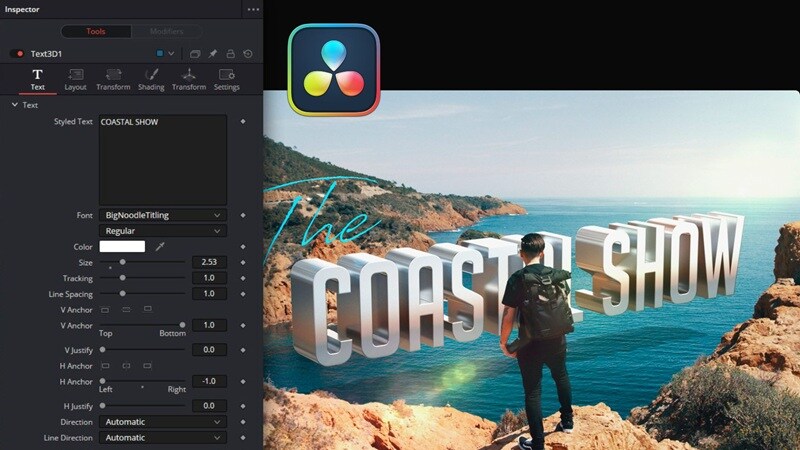
DaVinci Resolve, meanwhile, gives you powerful tools for compositing, motion graphics, and 3D work without leaving your project. It takes a little time to get comfortable, but once you do, it feels like having a full effects studio sitting quietly in the corner, ready whenever inspiration hits.
Result: Between the two, Premiere Pro takes this round. After Effects remains unmatched for motion design and animation flexibility, and that seamless connection gives Premiere a creative edge that's hard to beat.
4. Audio Post-Production: Audition vs. Integrated Fairlight DAW
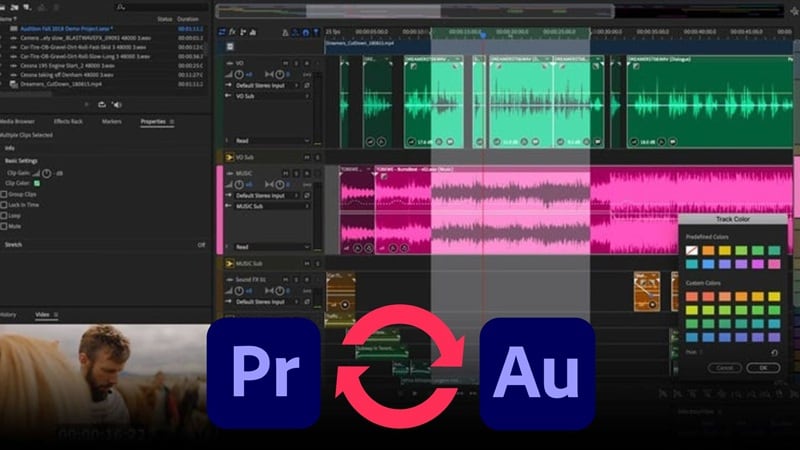
For audio post-production, Premiere Pro pairs beautifully with Adobe Audition, letting you move your project between the two with no effort. You can clean up background noise, adjust dialogue, or design layered soundscapes with precision.
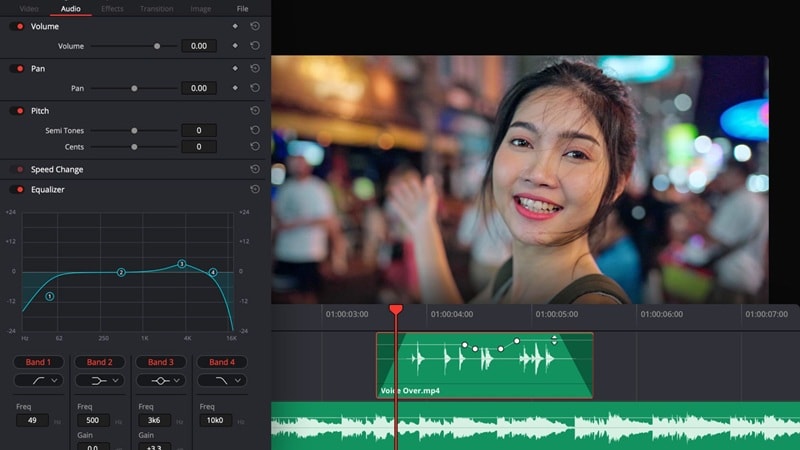
DaVinci Resolve takes a more unified approach with Fairlight, its built-in audio suite that lives inside the same workspace. It gives you everything from EQ and compression to full surround mixing and ADR recording.
Result: In this category, the Premiere Pro vs DaVinci Resolve matchup shows how differently each editor treats sound. That said, DaVinci Resolve takes the win. Having Fairlight built right in makes post-production feel more seamless, especially for long or complex projects.
5. Performance
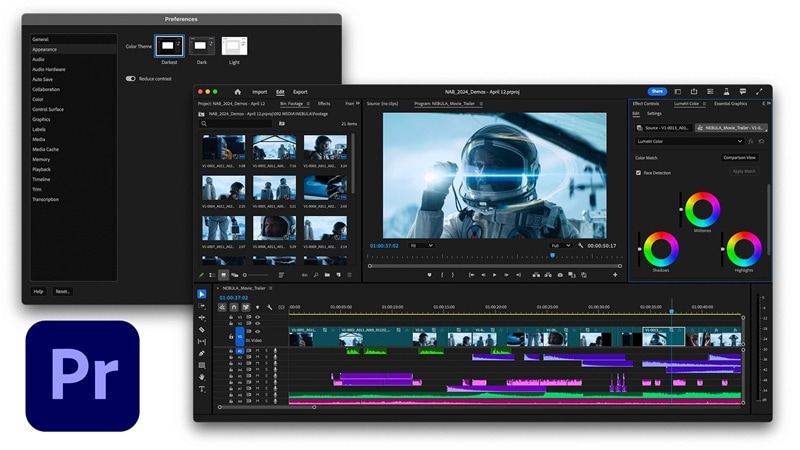
The last section of a DaVinci Resolve vs Premiere Pro face-off shows who's built for the long haul. Premiere Pro can handle big projects, but it starts to feel the weight when things get intense. Heavy timelines or 4K footage can make it slow down or even crash if your computer isn't top-tier.
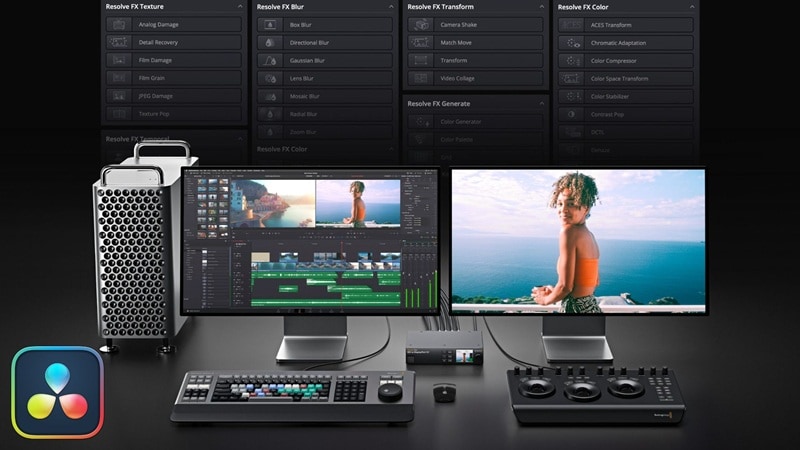
Meanwhile, DaVinci Resolve feels smoother from the start. It uses your GPU smartly, giving you quick playback, faster exports, and a steady editing flow even on demanding projects. Everything just runs cleaner, making long edits feel easier to manage.
So, this round goes to DaVinci Resolve. Its smart optimization and reliable performance make it far more stable, especially when you're working with demanding footage or tight deadlines.
Part 5. Who Wins in Real-Life Use Cases?
All the features in the world don't mean much if the software doesn't fit the way you actually work. So, the DaVinci Resolve vs Premiere Pro match really shows its colors when used by different creators.
To help you see which one fits your style, here's a quick table that breaks down how they perform in real creative work.
| Use Case | Better Option | Why |
| YouTube Content / Short Videos | Premiere Pro | Easy to edit, fast workflow, and great motion graphic templates. |
| Feature Films / Color Grading | DaVinci Resolve | Professional-grade color tools, HDR control, and cinematic finishing trusted by studios. |
| Multi-App Workflow | Premiere Pro | Works smoothly with Photoshop, After Effects, and Audition. |
| Budget-Friendly or Beginners | DaVinci Resolve | The free version is powerful and simple to learn. |
| All-in-One Post Studio | DaVinci Resolve | Has editing, color, audio, and effects all in one place. |
Part 6. The Best Alternative: Filmora - Simplicity, AI Editing, and Affordability
After going through the whole Premiere Pro vs DaVinci Resolve showdown, it's clear that both are heavy hitters, just in different ways. However, both editors also have its own flaws. Premiere can weigh you down with its price and extra layers, while Resolve takes time to master, especially if you just want to get straight into editing.
Thankfully, there's an alternative like Wondershare Filmora that steps up as the perfect middle ground. This all-in-one editor keeps editing fast, fun, and professional without the stress of learning curves. Plus, it offers flexible pricing plans so you won't need to worry about high costs. You can see how it stacks up in this Filmora vs Premiere Pro comparison.
 Secure Download
How Filmora Fills the Gap
1. Turn Ideas Into Videos Instantly
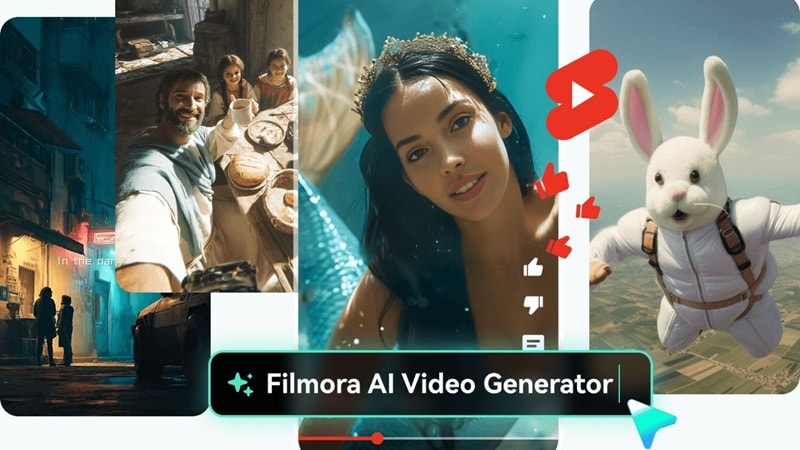
Filmora makes creating videos feel natural and fast. You can take a line of text, a short script, or even an idea prompt and turn it into a full video in seconds. With tools like AI Text to Video, AI Script to Video, AI Audio to Video, and AI Image to Video, your imagination becomes your timeline.
2. Cinematic AI Magic With Veo 3
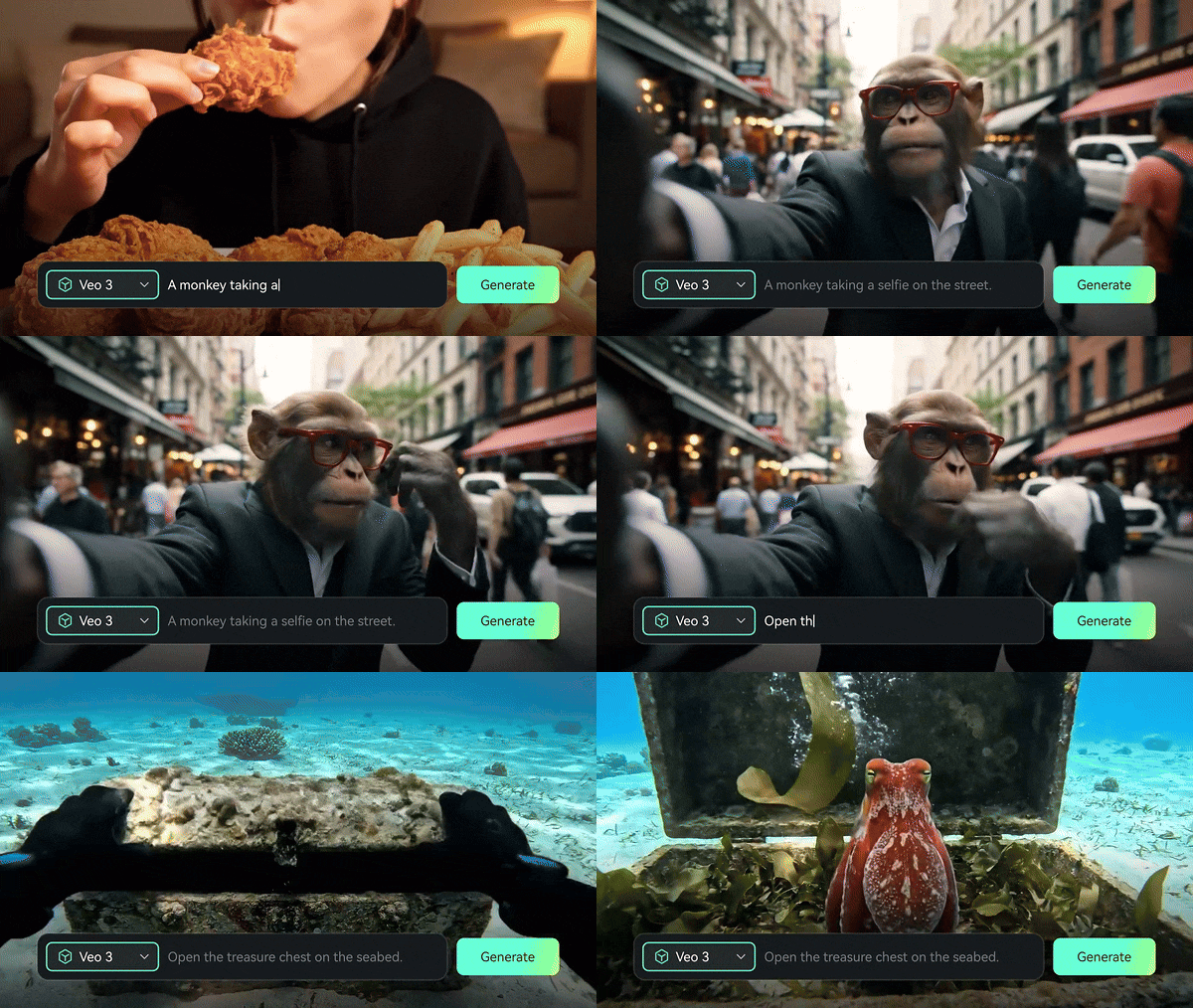
Filmora now works hand in hand with Veo 3, so you can generate stunning, cinematic AI videos without ever leaving the editor. Everything happens inside one smooth workspace, keeping your creative flow steady from start to finish.
3. Make Your Own Music And Elements
Filmora gives you space to build your own creative world. You can use the AI Music Generator to make custom background tracks, the AI Sound Effect Generator for the right mood, and AI Sticker or AI Image Generators to fill your video with personality.
4. Creative AI Tools Everywhere
Filmora is a playground for AI creativity. You can sharpen your footage with the AI Video Enhancer, auto-generate subtitles using AI Caption, or even polish your script through AI Copywriting. It's built to make editing smarter while keeping the fun part in your hands.
5. Cross-Platform Simplicity
Unlike Premiere Pro and DaVinci Resolve, Filmora keeps things flexible so you can edit wherever you feel inspired. It runs smoothly on Windows, macOS, and even on mobile devices like Android and iOS, so you can jump between devices without losing your progress or creative flow.
Conclusion
The Adobe Premiere Pro vs DaVinci Resolve debate has been going on for a long time since both are strong, professional editors. So, we compared their features, performance, and real use cases to see how they stack up.
In the end, DaVinci Resolve feels a bit ahead with its speed and all-in-one design, while Premiere Pro stays a favorite for its flexibility and Creative Cloud workflow. However, both still have gaps that can make editing feel heavy at times.
That's why Filmora is such a great middle ground. It's simple, smart, and packed with tools like AI instant video creation, Veo 3 integration, and custom music or element generators. It even works smoothly on mobile, making editing easy wherever you are.

Frequently Asked Questions
-
Which is the best video editor for beginners: Premiere Pro, DaVinci Resolve, or Filmora?
For beginners, Filmora is the easiest to pick up. Its clean layout, ready-made templates, and AI tools make editing simple without feeling limited. Premiere Pro and DaVinci Resolve are powerful, but they take more time to learn, so Filmora is a smoother start for new creators. -
DaVinci Resolve vs Premiere Pro Performance: Which is faster for 4K/8K and less likely to crash?
In terms of performance, DaVinci Resolve usually runs smoother with heavy footage. It's better optimized for GPUs, so 4K or even 8K videos play back without lag. Premiere Pro can handle large projects too, but it sometimes slows down on less powerful setups. -
Can you import Adobe Premiere Pro projects (XML/EDL) into DaVinci Resolve?
Yes, you can bring Premiere Pro projects into DaVinci Resolve using XML or EDL files. It's a handy way to finish color grading or final edits inside Resolve, though you might need to relink clips or adjust some effects after importing.
