

 TL;DR:
Snapseed is a completely free, ad-free mobile photo editor by Google that excels at manual, precise image adjustments but lacks built-in AI generation tools, video editing capabilities, and desktop support.
● Requires an Android device or an Apple device running iOS 17 or later, functioning entirely without mandatory account logins, subscriptions, watermarks, or cloud synchronization.
● Ideal for mobile photographers wanting granular control over still images using RAW file support, Selective Adjustments, and Healing tools, though it inherently lacks batch editing and trendy social media templates.
● Because Snapseed cannot create animated content, users must export their finalized photos to supplementary video editors like Filmora Mobile to utilize AI text-to-video prompts or motion templates.
Ask AI for a summary
 ChatGPT
 Perplexity
 Gemini
 Claude
 Grok
Grok
When people look for photo editing on mobile, they usually want three things: clean results, real control, and an app that doesn't lock features behind a paywall. That's why the Snapseed photo editing app keeps popping up in search results and creator recommendations.
But is Snapseed a photo app as good as they say it is? In this Snapseed review, we'll break down what the app actually does, how good it is for everyday photo editing, and whether it still holds up today.
Part 1. Snapseed at a Glance: What This Photo Editing App Is All About
Before moving further into this review, let's first look at what Snapseed actually does. Developed by Google, Snapseed is a photo editing app designed to be both efficient and precise. It has become popular largely because it's completely free, yet offers tools that go beyond basic expectations.
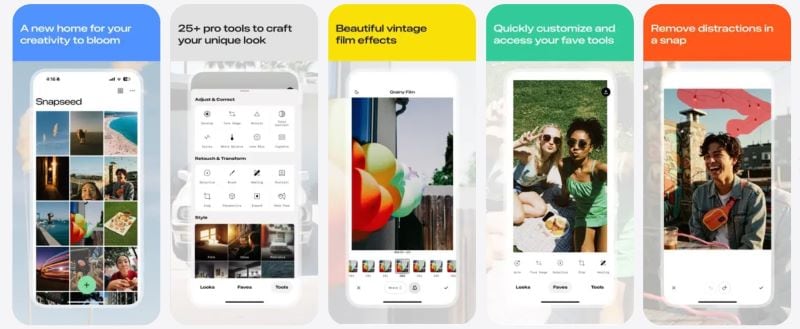
Snapseed is primarily designed for mobile photo editing rather than desktop use. It works well for adjusting exposure, refining details, applying selective edits, and exporting finished images in a single, smooth workflow. Today, many people rely on Snapseed to edit photos for social media, travel memories, and everyday use.
Our Quick Take
- Solid photo editor, not a flashy one. Image editing in Snapseed focuses on clean, manual control rather than trendy effects or automation.
- All tools are accessible without ads, subscriptions, or watermarks.
- Lightweight app that runs reliably on most supported devices.
- Works well on phones and tablets, but offers no desktop version or cloud sync.
- No AI features, templates, or motion tools, so it works best for still images only.
What's New
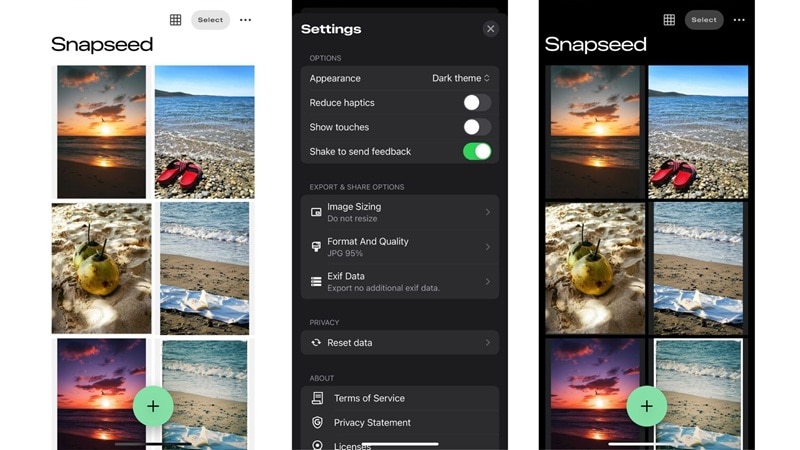
Snapseed continues to improve the app with users' comfort in mind. They added Dark Theme mode to make photo editing in Snapseed still comfortable even in low-light conditions. Small but thoughtful improvements help reduce eye strain during longer editing sessions. Also, they regularly fix bugs to make sure everything runs smoothly.
Compatibility
At the moment, Snapseed is available only on mobile devices running Android or iOS.
- On Apple devices, the app is available on the App Store, as long as your device runs iOS 17 or later.
- On Android, you can download the Snapseed app from the Google Play Store, though availability may vary by device and Android version.
Part 2. Inside Snapseed: Tools That Actually Do the Work
By now, it's clear that photo editing in Snapseed balances simplicity with control. Its editing tools are designed to handle detailed corrections, refined enhancements, and creative touches. Here, we will explore how these features help users edit more effectively.
1. For Precision Editing: The Local Control Advantage
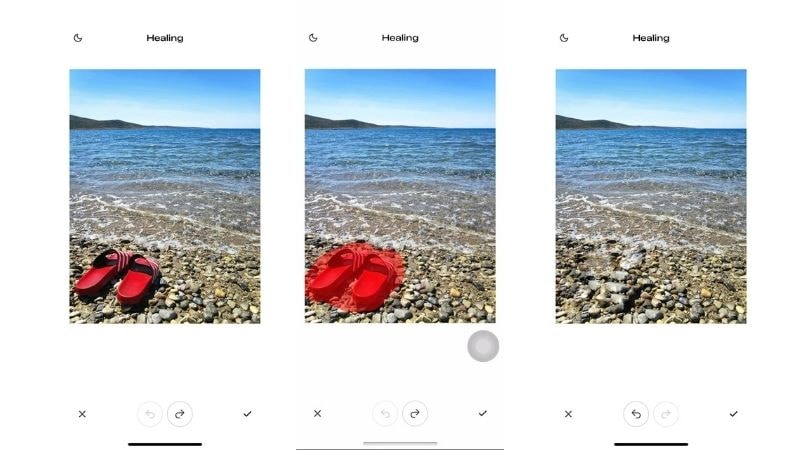
Precision editing is what sets Snapseed apart. When you edit photos in Snapseed, you can control composition, exposure, and specific areas of an image. This makes it easier to fine-tune edits and adjust photos to suit your liking.
- Control everything: Use Tune Image to balance brightness, contrast, and color before moving into detailed edits.
- Fix framing and distortion: Tools like Crop, Rotate, and Perspective help straighten images and correct awkward angles.
- Edit specific areas: Selective Adjustment and Brush allow targeted edits for more control over small details.
- Remove distractions: Quickly clean up unwanted objects or imperfections with the Healing tool.
2. For Image Fidelity: Working with RAW and Fine-Tuning
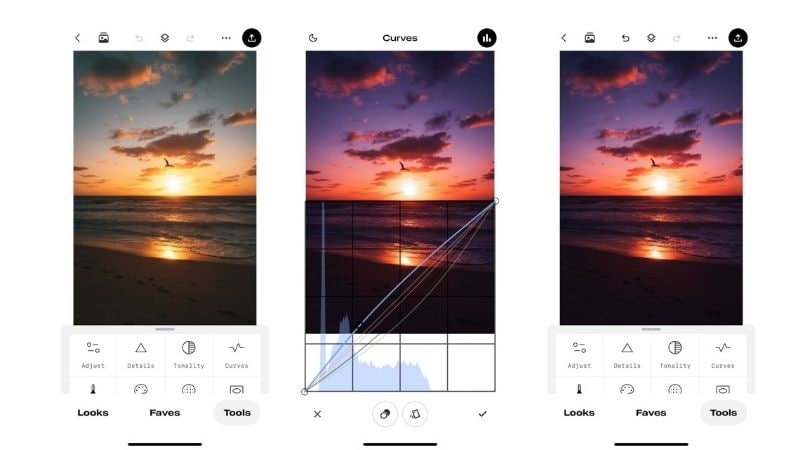
Snapseed photo app is a solid choice for users who care about image quality. It provides tools that allow users to refine tones and colors. This results in cleaner and more natural-looking edits, while keeping the photos high-quality.
- Refine color and contrast: Use White Balance, Tonal Contrast, and HDR Scrape to improve depth and color accuracy.
- Work with high-quality files: Edit RAW photos and fine-tune them using Curves and Expand for better detail retention.
3. For Creative Effects: Beyond Basic Filters
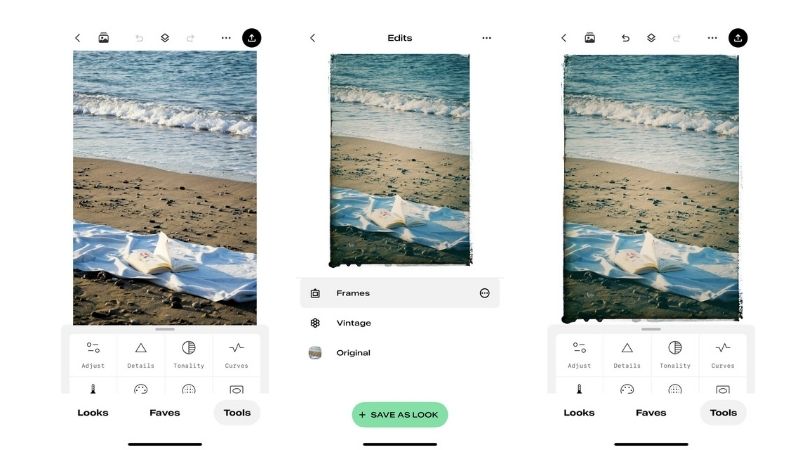
If you are looking for flexible visual filters, photo editing with Snapseed gives you room to experiment. Effects can be applied and adjusted to match the vibe you are going for. This lets you be creative while still in control.
- Enhance portrait photos: Use Lens Blur and Glamour Glow to highlight subjects and add depth.
- Apply visual styles: Effects like Bokeh, Drama, Grunge, Vintage, Retrolux, Noir, and Black & White help shape the overall mood.
- Add finishing touches: Vignette, Frames, and Text make images more visually engaging.
- Refine facial details: Face Enhance and Face Pose support subtle face-focused adjustments.
Part 3. The Good and the Limitations: An Honest Snapseed Review
Now that tools are covered, it is time to talk about real usage. We will take a closer look at how the Snapseed photo app feels in everyday use, how it performs during editing, and where it works well or falls short.
Hands-On Experience
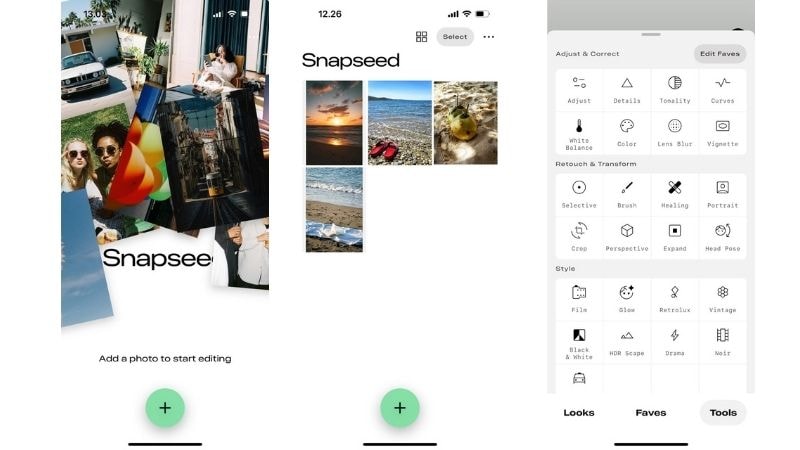
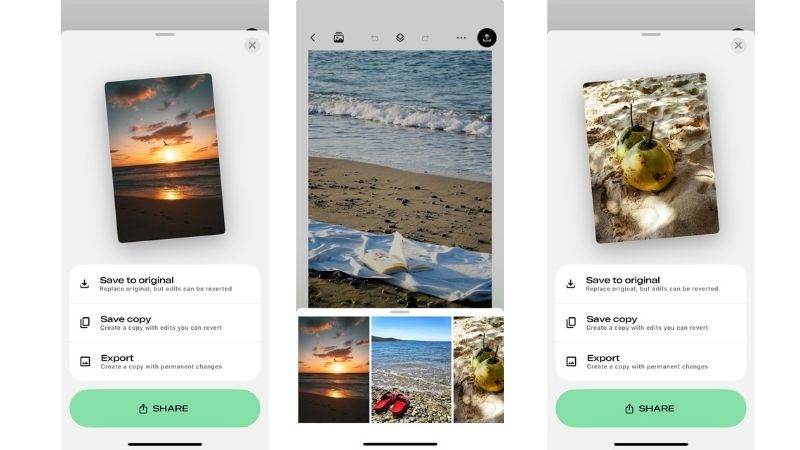
Snapseed photo editing app opens to a clean and simple interface. Plus, no need to log in or create an account before editing. Immediately start working by choosing single or multiple photos from the gallery.
All tools are clearly labeled and easy to apply, with intensity adjusted by sliding left or right. Another helpful feature is to copy and paste editing settings from one photo to another, which saves time when working with similar images.
Performance Testing
The process to download the Snapseed app was quick. The app feels lightweight and responsive. It runs smoothly from start to finish, with no noticeable lag or interruptions while editing. Saving and exporting photos is also fast and hassle-free.
Pros & Cons of Snapseed Editor
After using the app and testing its performance, certain strengths and weaknesses become clear. Here is a closer look at what stands out and what could be improved in the Snapseed photo app.
- Get full access to all tools without subscriptions, ads, or watermarks on photos.
- Edit images like a Pro with the advanced tools.
- Edits can be adjusted or undone at any time, making it easy to experiment without committing too early.
- Selective tools and background edits to make precise adjustments in specific areas.
- The app is lightweight and fast to use.
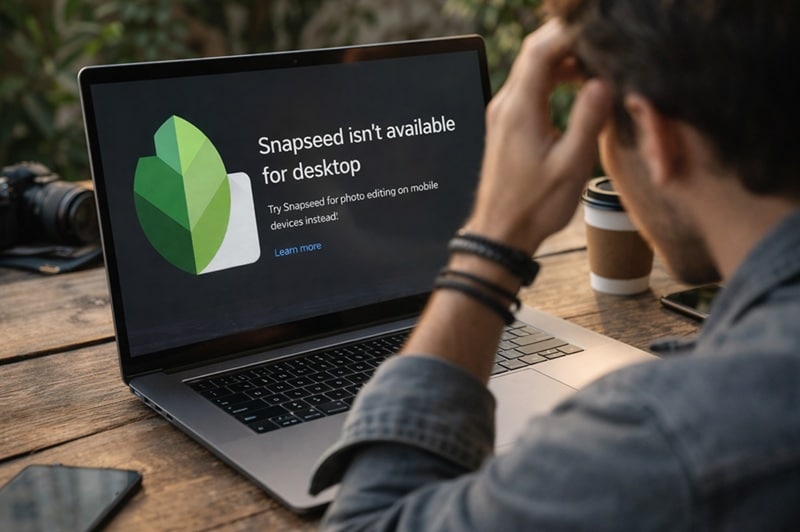
- No official Snapseed download for PC.
- Built-in AI generation features are unavailable.
- For beginners, tools like Curves and Selective adjustments may take time to fully understand.
- Doesn't support batch editing at once or cloud synchronization.
- Creative templates are limited compared to other social media-focused apps.
Part 4. Who Snapseed Is (and Isn't) Made For
Based on user feedback, the Snapseed photo app is often praised for being practical and accessible. People appreciate how quickly they can start editing and how much control they still have, despite the app being free. For casual edits or projects, many users say it gets the job done.
However, many people mention issues related to device compatibility. Some users report performance drop after OS updates, and others notice differences in available tools depending on the device. These experiences don't happen to everyone, but they do affect how some users view long-time use.

From these user experiences, it's clear that photo editing with Snapseed works very well for certain types of editors. At the same time, it may not be the right fit for every user.
Snapseed Is Ideal For:
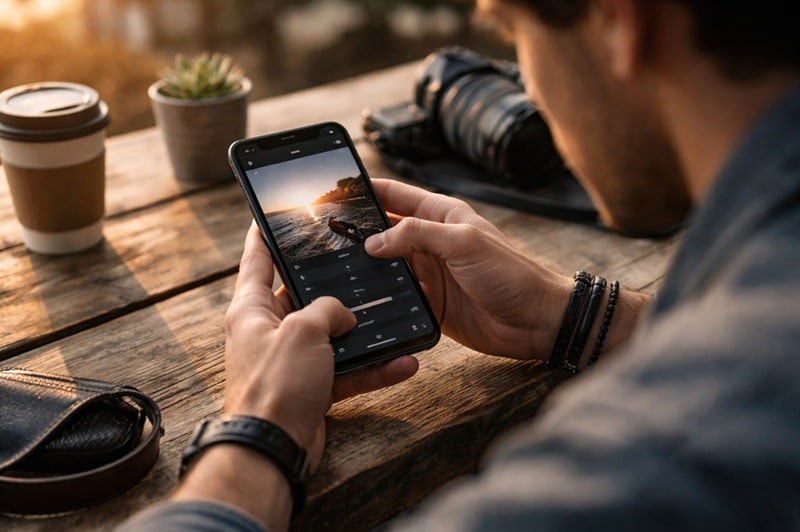
- Mobile photographers: Suitable for people who like to take photos with their phone, for personal or commercial purposes.
- Users who want full manual control: Solid choice for those who enjoy having control over the editing process rather than using one-tap results.
- People doing background or selective edits: For anyone who prefers detailed editing and having more control working over specific areas of the image.
- Editors on a Budget: An excellent pick for users looking for a powerful tool that remains professional and reliable.
Snapseed Is Not Ideal For:
- Users looking for AI-generated images: The app doesn't support generating photos or making edits using AI features.
- Desktop-based editing workflows: May not be suitable for users who are used to editing images on a PC or laptop.
- Template-driven social content: While great for manual edits, Snapseed is less ideal for creators who depend on frequently updated templates to match current social media trends.
- Video editing or motion effects: Not designed for users who want to create videos or animated content.
Bonus. Turn Your Snapseed Images Into Motion with Filmora Mobile
After using Snapseed for photo editing, one question naturally comes up: what's next?
For social media, static images often aren't enough. Videos tend to perform better and feel more interactive, so they reach more people.
Since Snapseed can only edit photos, you need a reliable video editor. In that case, there's no better option than Filmora Mobile. It is an all-in-one video editor that comes with an AI Image-to-Video feature, so you can turn a still photo into motion without extra work.
 Secure Download
The workflow will feel natural. After you edit a photo in Snapseed, upload it to Filmora, and leave the rest to the AI feature.
How to Turn a Photo into a Video with Filmora Mobile
Filmora makes it practical for anyone to create and edit videos using a single mobile app. Not to mention a wide variety of AI features that help enhance video quality. To see this in action, let's look at two ways Filmora can turn images into videos.
1. Turn Photo into Video Using a Text Prompt
After you finish photo editing in Snapseed, you can turn that image into a short video by simply typing a quick prompt in Filmora Mobile. Upload the photo, describe how you want it to move, and let the AI handle everything else.

To start, make sure Filmora is installed on your mobile phone. Here are quick ways to turn still images into motion visuals using a prompt:
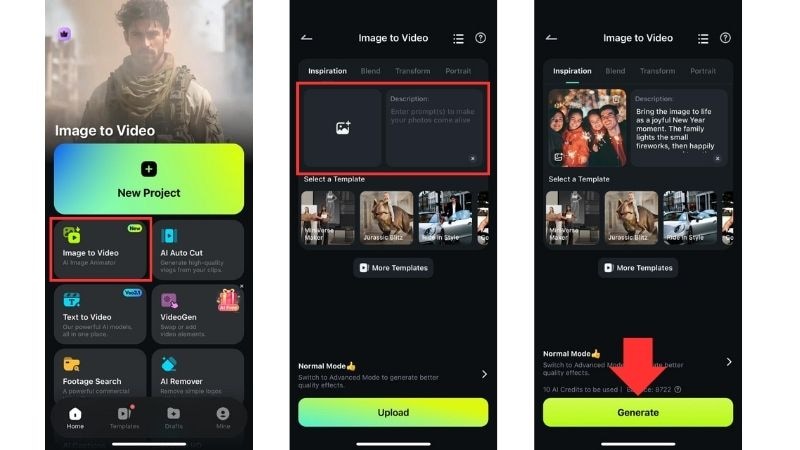
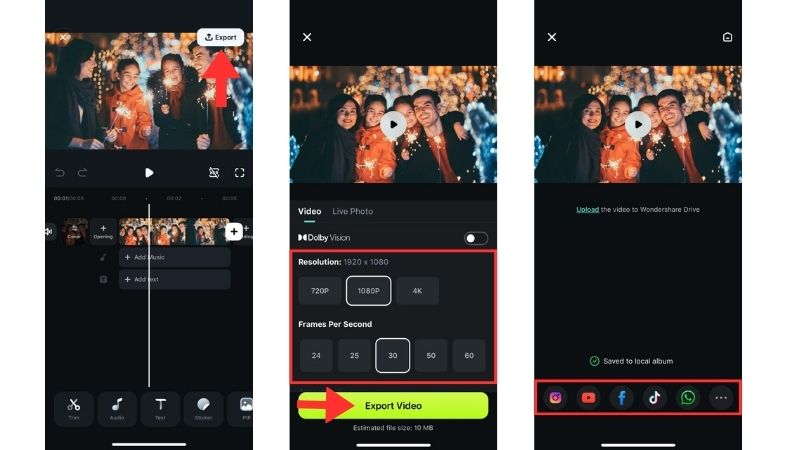
There you go. Filmora shows how easy it is to turn a photo into any video you want. Check out the final result!
2. Turn Photo into Video Using Templates
For more creative options, Filmora Mobile also offers numerous ready-to-use AI templates that animate photos instantly. This helps make your Snapseed-edited photos feel more lively and engaging.
 Secure Download
Below are easy steps to convert images into videos using Filmora templates.
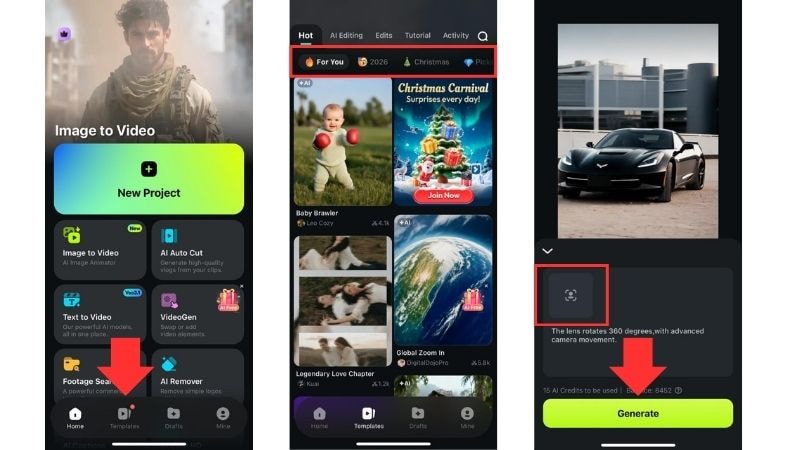
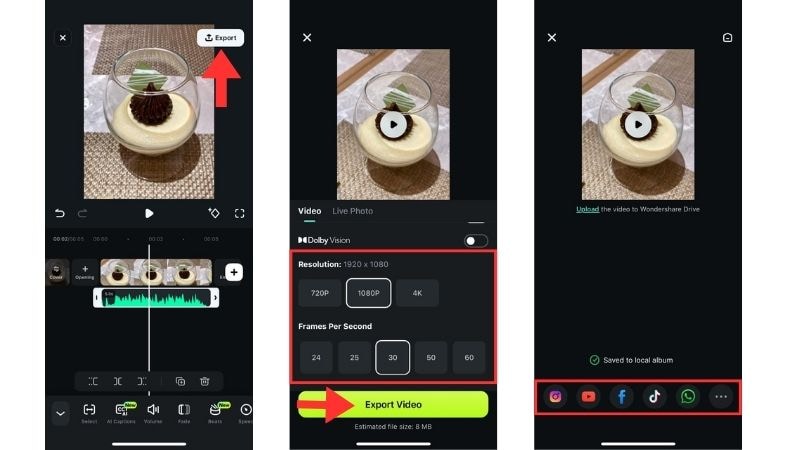
You've seen how easy it is to create a video using Filmora's templates. Since the app offers many template options with different moods and outcomes, the result can look very different each time.
Secure DownloadExplore More AI Templates in Filmora Mobile
Here are three templates we selected to showcase the different styles you can try.
1. Chromatic Detail Art
A fun way to make your outfit pop. This template adds color and style to your videos, perfect for anyone sharing fashion looks. It's playful and makes every clip feel lively.
2. Vintage Pixel Revival
Turn your photos into pixelated videos that feel straight out of the 80s. Retro vibes for a playful throwback look.
3. Pet Photo Booth
A spotlight for your favorite pet! Each frame shows a silly side of your furry friend. Cute, playful, and totally shareable.
4. Cool Camera Movement
Turn your simple pic into something dynamic. Make any object the star of your video. The camera circles your subject, perfect for highlighting product, food, or anything you want to show off.
Make a Video Montage from Your Photos Using a Template
After animating a single photo with Filmora templates, you can also combine multiple images into a video montage. This is perfect for trips, celebrations, or any special memories. Each photo automatically gets motion and style effects, and you can quickly add music, stickers, or transitions to make the video feel dynamic and shareable—all without extra effort.
Conclusion
It's no surprise that many people use Snapseed for photo editing. The app is completely free, requires no login to use, and offers a wide range of editing tools and effects, ideal for both beginners and professionals.
Although it is not available to download Snapseed for PC, the app remains popular because of its powerful editing control with no ads and watermarks when exporting images.
Once photo editing in Snapseed is done, Filmora Mobile helps transform your images into engaging videos. Whether you use the AI Image-to-Video feature or pre-made templates, bring your images to life anytime, anywhere, with a few simple steps.

