

 TL;DR:
You can fix video light flicker manually in After Effects by blending an offset layer, utilizing premium plugins for heavier correction, or using Wondershare Filmora's AI tool for an automated workflow.
● The free manual After Effects method works suitably for mild flicker and requires duplicating your clip, shifting the duplicate forward by exactly one frame, and setting its opacity to 50 percent.
● Third-party After Effects plugins provide high accuracy for severe lighting shifts but introduce costs ranging from $199 for Digital Anarchy Flicker Free 3.0 to $249.95 for RE:Vision DEFlicker, plus the need to manually tweak parameters like motion compensation to restore video sharpness.
● Wondershare Filmora is the most practical choice for users needing fast turnaround on lengthy clips, as its built-in AI feature automatically resolves LED or indoor lighting flicker in one click while remaining compatible with proxy files and existing timeline overlay effects.
Ask AI for a summary
 ChatGPT
 Perplexity
 Gemini
 Claude
 Grok
Grok
Light flicker in videos is one of those small things that can totally ruin an otherwise great clip. It shows up a lot in indoor shoots, slow-motion shots, and footage filmed under LED or fluorescent lights.
Thankfully, you can actually remove flicker in After Effects. But let's be real, it's not exactly a smooth ride. Between confusing parameters, long step-by-step fixes, pricey flicker plugins, and slow render times, it can feel way harder than it should be.
That's why we'll show you how to remove flicker in After Effects using manual methods and plugins, and then walk you through a smarter AI option that skips most of the technical mess. You'll see how AI can spot brightness changes automatically, smooth them out in one pass, and save you hours of trial and error.

Part 1. Fixing Flicker the Old-School Way in After Effects
Most tutorials you'll find online jump straight to telling you to install an After Effects flicker plugin. That makes it sound like there's no other way, but that's not really true. If the flicker in your clip is not too extreme, you can actually reduce flicker in After Effects using a simple manual trick with opacity smoothing and frame blending.
There's a tutorial on YouTube by Gloomvision that discusses this thoroughly. Just follow the steps below and you will see how you can reduce Flicker in After Effects for free:
- Upload and put your clip into a comp and move your playhead to the first frame.
- Zoom in on the timeline so you can see frames clearly.
- Select the clip, then press Ctrl + D to duplicate it.
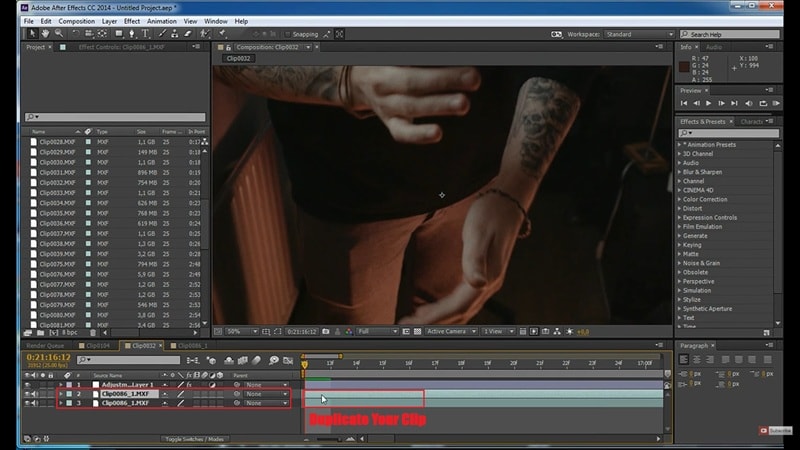
- Click the duplicated layer.
- Nudge it one frame forward so it starts one frame later than the original clip.
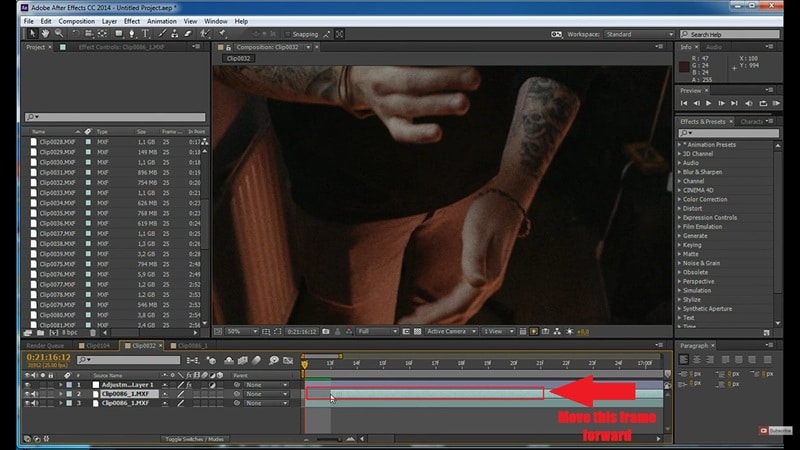
- With the duplicated layer selected, press T to reveal Opacity.
- Set the duplicated layer opacity to 50%.
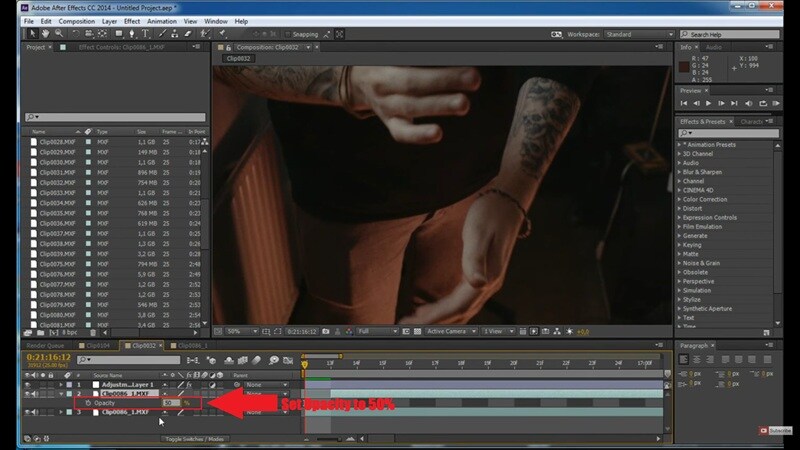
And just like that, the flicker should be smoothed out since both layers are blending across frames.
Part 2. Remove Flicker in After Effects Using Plugins
You've learned the After Effects flicker removal process manually. But honestly, not everyone has the patience for it. Duplicating layers, lining up frames, tweaking opacity, and previewing over and over can get old fast, especially if you have more than one clip to fix.
If your goal is to reduce flicker in After Effects as quickly as possible, plugins make life a lot easier.
Popular Third-Party Plugins for Removing Flicker in After Effects
There are actually quite a few plugins out there for After Effect flicker removal, and some come with free trials so you can see if they work for your clip. Below, we'll recommend three of the best After Effects flicker plugins:
1. Digital Anarchy Flicker Free

The first one on the list is Digital Anarchy Flicker Free, and it is probably the most well-known After Effects flicker plugin that users talk about. The latest 3.0 version costs around $199, which is not cheap, but a lot of editors say it pays for itself if you deal with flicker often.
Key Highlights:
- Automatically analyzes brightness changes.
- Works well for LED flicker and time-lapse clips.
- Offers presets for different types of flicker.
2. RE:Vision DEFlicker

Next up is DEFlicker from RE Vision. The nice part is you can try it first since they offer a free trial, so you can download this After Effects plugin for free, and see how it works on your own clip. If you decide to buy it later, the full version costs $249.95.
Key Highlights:
- Works with footage from pro cameras, GoPros, and phones.
- Automatically smooth flicker using smart tracking and color transfer.
- Used often in professional VFX workflows.
3. Neat Video (Bonus Tool)

Lastly, there is Neat Video, which is a bit different from the other two. It is mainly a noise reduction plugin, but it can also help smooth out exposure changes, which makes flicker less noticeable. You can try it first since they offer a demo, so it works as a flicker free plugin After Effects users can test before buying.
Key Highlights:
- Can smooth exposure changes as a side effect.
- Helpful when flicker and noise appear together.
- Works well for low light and grainy footage.
Tutorial: Using Flicker Free Plugin in After Effects
Now, it's time to actually learn how to remove flicker in After Effects using this plugin method. For this example, we are using the Digital Anarchy tool since they have a really clear tutorial on YouTube that walks through everything.
To keep things simple though, you can just follow the steps below and see how easy After Effects flicker removal can be with a plugin:
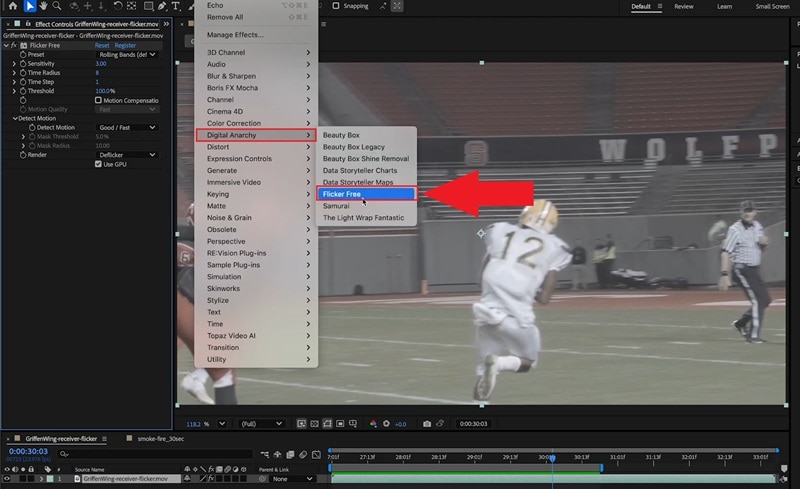
- Open the Effects menu in After Effects.
- Select Digital Anarchy.
- Choose Flicker Free and apply it to your slow-motion clip.
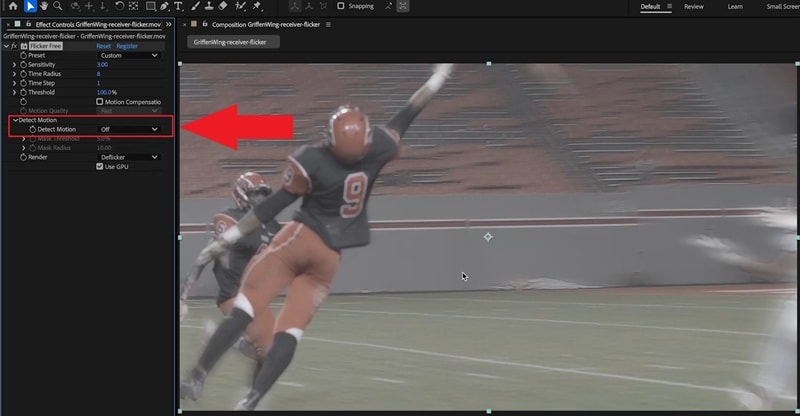
- Find the Detect Motion option in the Flicker Free settings.
- Turn Detect Motion off.
Preview the clip again. The flicker should now be gone, but the video may look blurry.
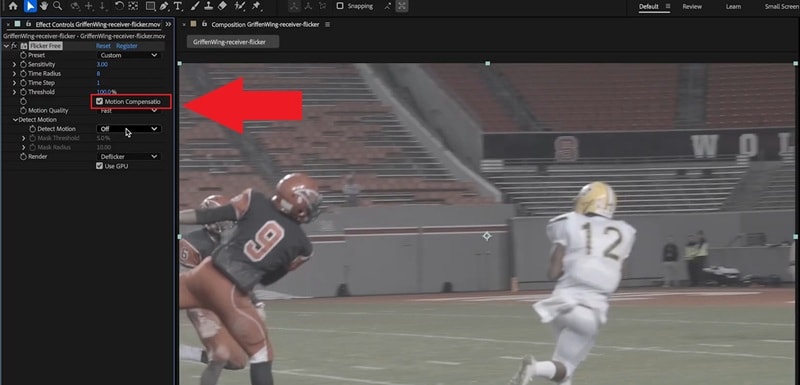
Find the Motion Compensation option and turn it on. This should bring back sharpness while keeping the flicker removed.
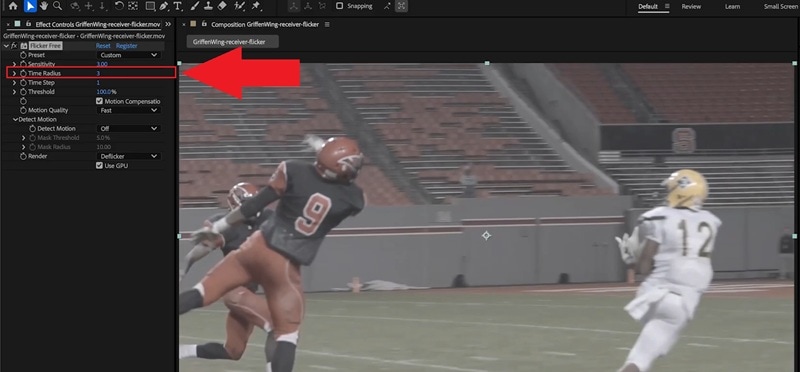
Find the Time Radius setting. Lower the value to 3 and preview the clip again. The flicker should stay gone, and moving objects should look sharper.
Part 3. A Faster Alternative to After Effects Flicker Removal: Wondershare Filmora
At some point, you just want the flicker gone without babysitting sliders all day. After Effects flicker removal can feel shaky, previews lag, renders take forever, and one tiny change can mess everything up. Plugins help, but they are pricey, inconsistent, and never work the same way on every clip. That is why a lot of people end up looking for something that just works.
In its latest version, Wondershare Filmora comes with an AI Flicker Removal tool that fixes flicker in seconds.

 Secure Download
The big win here is predictability. That's because the AI scans your clip, spots the brightness changes on its own, and smooths them out in one pass. Plus, you are not stuck buying extra plugins just to fix one problem, which makes Filmora a more cost-friendly way to do flicker removal.
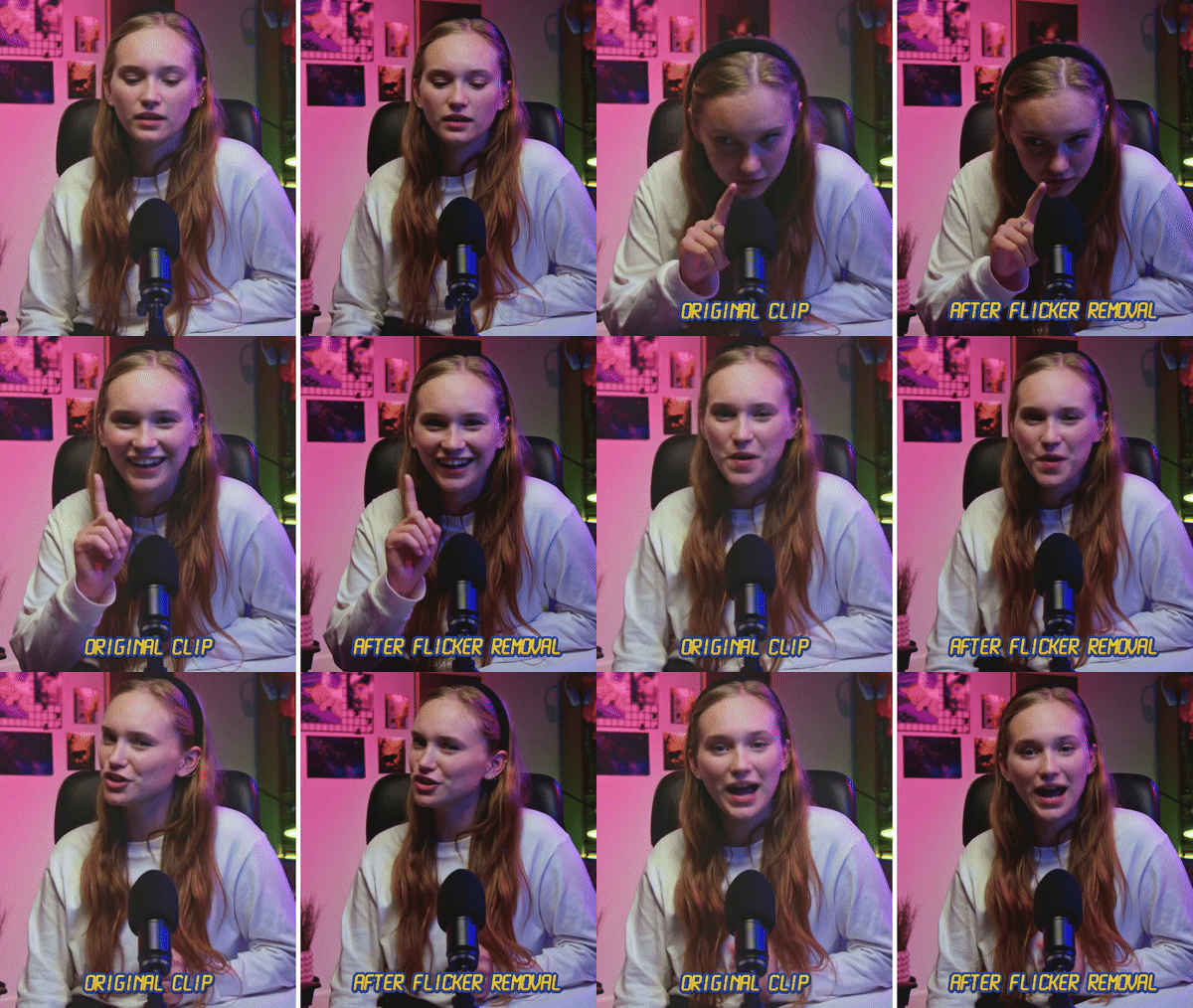
Why Filmora Makes Flicker Removal Way Less Painful
- One Click Fix: You do not have to touch any sliders or settings. Just upload your clip, hit Generate, and let the AI take care of the flicker for you.
- Works in Many Situations: Filmora AI Flicker Removal just works no matter where the flicker comes from. It handles night shots, indoor lighting, LED heavy scenes, and slow motion clips without you needing to change anything.
- Plays Nice with Your Footage: You can remove flicker easily without breaking your timeline or redoing your edit. It supports regular video clips, works with proxy files, and can handle clips that already have overlay effects.
Tutorial: Fixing Flicker the Easy Way with Filmora AI
Make sure you have downloaded and installed the latest version of Filmora, then follow the steps below.
- Open Filmora and click New Project to start a fresh edit.
- Go to Media, hit Import, upload your video, and drag it down to the timeline.
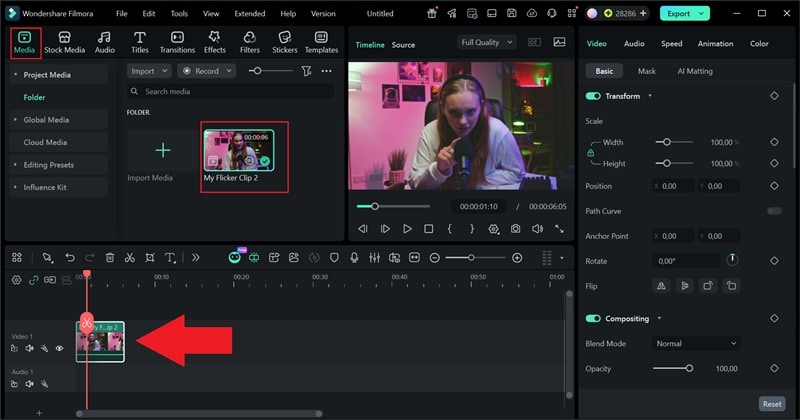
- Click your clip in the timeline to open the Property Panel.
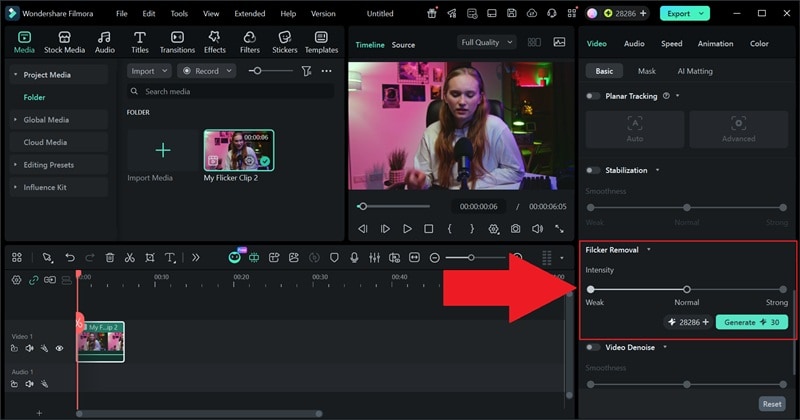
- Find the Flicker Removal option.
- Pick an intensity level and hit Generate to start the process.
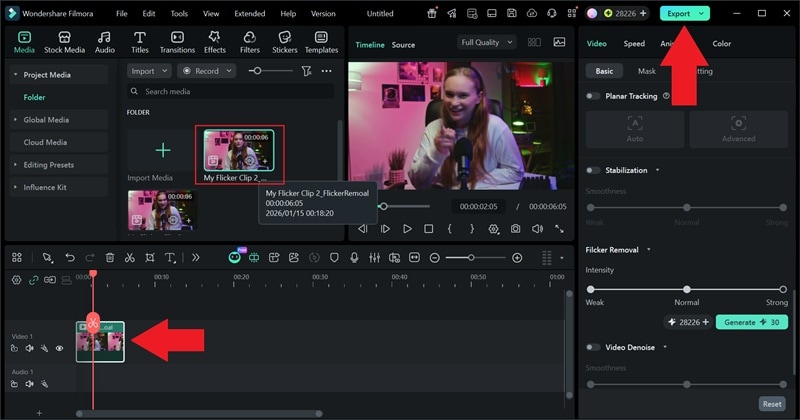
- When the processing is done, swap the clip on your timeline with the new version. Play it back to make sure the flicker looks smooth.
- Export your video once you are happy with the result.

Part 4. After Effects vs Filmora: Which One Makes Sense for You?
Now that you have tried a few ways to remove flicker, both in After Effects and with Filmora, the differences are pretty clear. After Effects flicker removal gives you more control, but it also takes more time and more effort to get right.
To make the choice easier, the table below shows how using After Effects compares to Filmora, so you can quickly see which one makes more sense for your workflow.
| Feature | Manual in After Effects | Plugins in After Effects | Filmora AI Flicker Removal |
| Ease of Use | Hard, lots of steps | Medium, some setup | Very easy, beginner-friendly |
| Setup Time | Short, start right away | Medium, install and tweak | Short, ready in seconds |
| Accuracy | Good for mild flicker | High for strong flicker | High and consistent |
| One-Click Workflow | |||
| Overall Speed | Slow | Medium | Fast |
| Works for Long Clips | Not great | ||
|
Show More
Show Less
|
|||
Conclusion
Removing flicker in After Effects is totally doable once you know the right tricks. So, we showed you how to remove flicker in After Effects using a manual method with layer duplication, frame blending, and opacity smoothing, plus an easier route with plugins made for After effect flicker removal. Both options work well, but they come with limits like trial and error, slow previews, and results that can change from clip to clip.
If you just want the flicker gone without all the tweaking, Wondershare Filmora is a solid shortcut. Its AI Flicker Removal tool can spot brightness changes on its own and fix them in one click. On top of that, Filmora gives you a full video editor to keep polishing your project without jumping between tools, which honestly makes the whole workflow feel way smoother.
