


 TL;DR:
Descript’s Eye Contact AI effectively corrects minor gaze diversions in single-person videos to simulate direct camera contact, yielding natural results primarily when footage features even lighting and minimal head movement.
● The tool operates in Google Chrome, Microsoft Edge, or the Descript desktop app, and the free tier limits exports to watermarked web links rather than local file downloads.
● The AI is prone to tracking failures or generating an unnatural stare if applied to footage with fast head movements, multiple people on screen, extreme side angles, or heavy glasses glare.
● Descript is best suited for quick, text-based edits of simple talking-head clips, whereas Wondershare Filmora is the better alternative for timeline-based video production, provided the selected clip is under three minutes long.
Ask AI for a summary
 ChatGPT
 Perplexity
 Gemini
 Claude
 Grok
Grok
Bad eye contact can quietly kill a good video. Your viewers may not always notice it directly, but they can feel when you’re reading to them rather than speaking, which makes your video less professional and less trustworthy.
Since retaking a video can drain time, energy, and patience, Descript addresses that with its Eye Contact feature. Descript Eye Contact adjusts your gaze so it looks like you’re facing the camera, even when you were not. But does it actually look natural, or does it make your eyes look weird? Read our review below.
Part 1. What Is Descript Eye Contact?
Descript Eye Contact is an AI feature that adjusts your gaze so it looks like you are speaking directly to the camera. Even if you were reading notes or looking slightly off-screen while recording, the AI redirects your eyes to create more natural-looking eye contact.
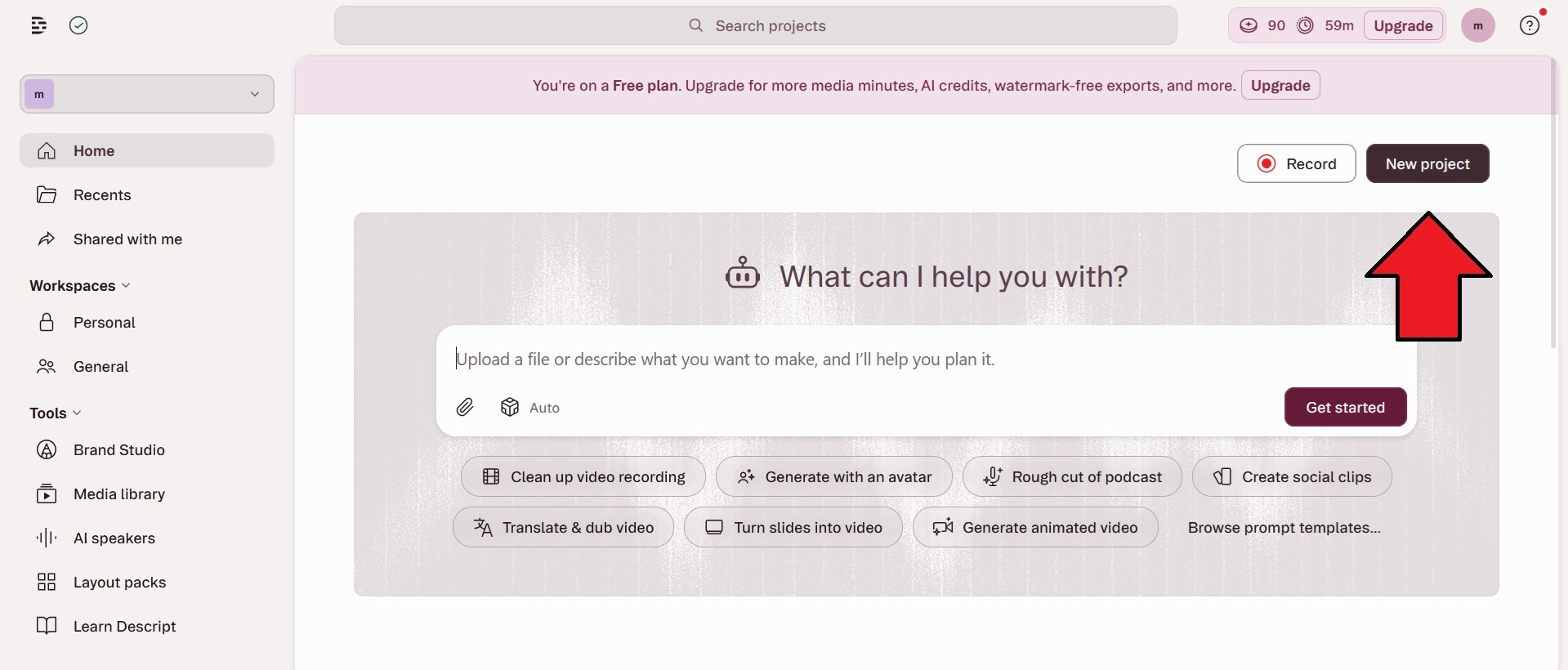
The feature works directly inside Descript’s video editor. After recording or uploading your footage, you can turn on Eye Contact during editing and let the AI automatically process the correction.
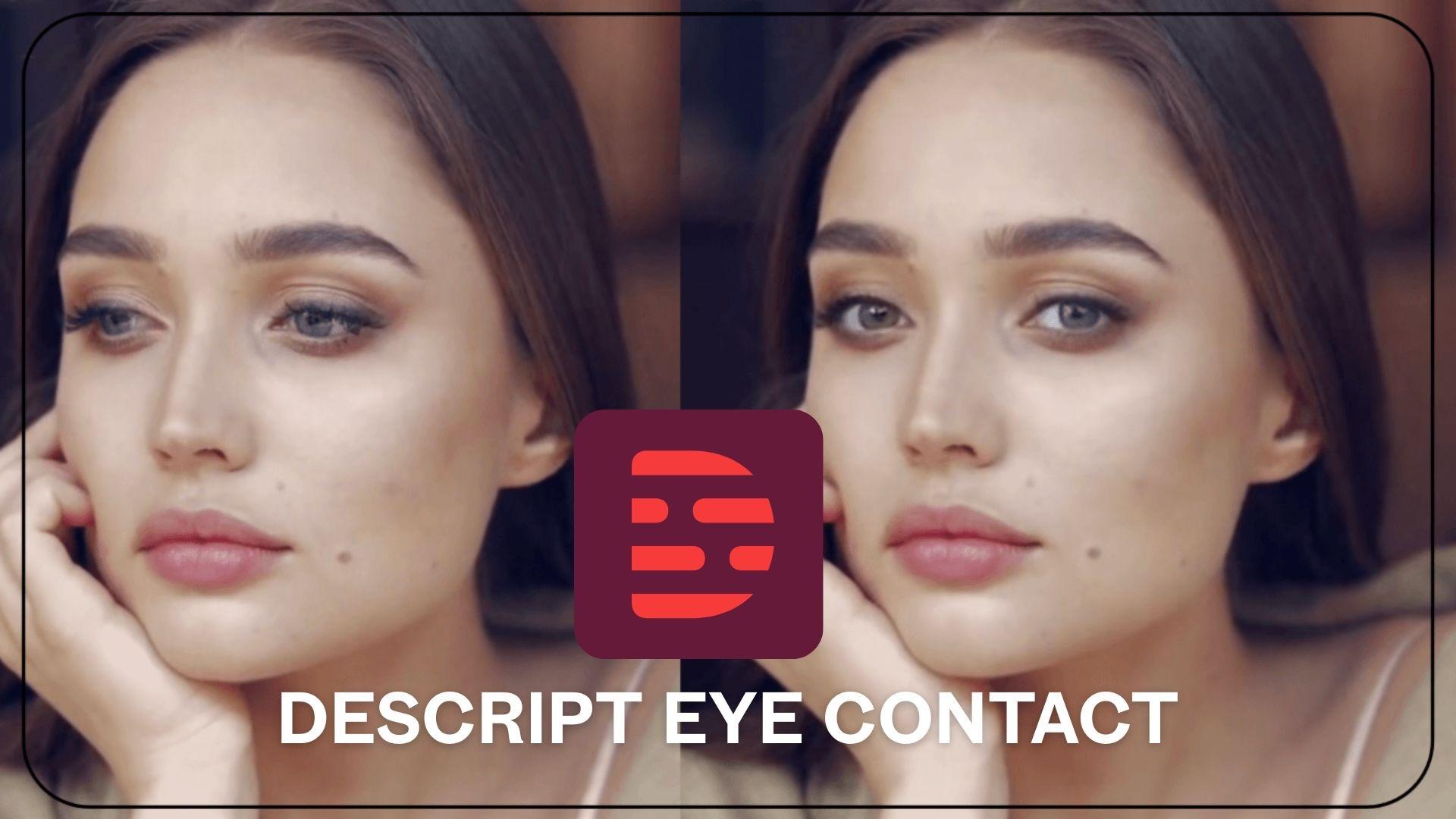
Descript’s Eye Contact feature is mainly designed for single-person videos and works best when your face is clearly visible with minimal head movement. It’s built for videos, where the speaker may be reading notes or looking slightly away, such as:
- Talking-head videos
- Tutorials
- Online courses
- Sales videos
- Podcast
Part 2. How to Use Descript Eye Contact to Fix Your Gaze
One reason Descript Eye Contact is popular is that it is very easy to use. But before using this feature, there are a few things you should keep in mind:
- Descript Eye Contact works best in Google Chrome, Microsoft Edge, or the dedicated Descript desktop app.
- It’s designed for single-person videos
- Make sure the lighting is good, and your head movement is minimal.
- Videos with fast movement, side angles, or partially covered eyes may produce less natural results.
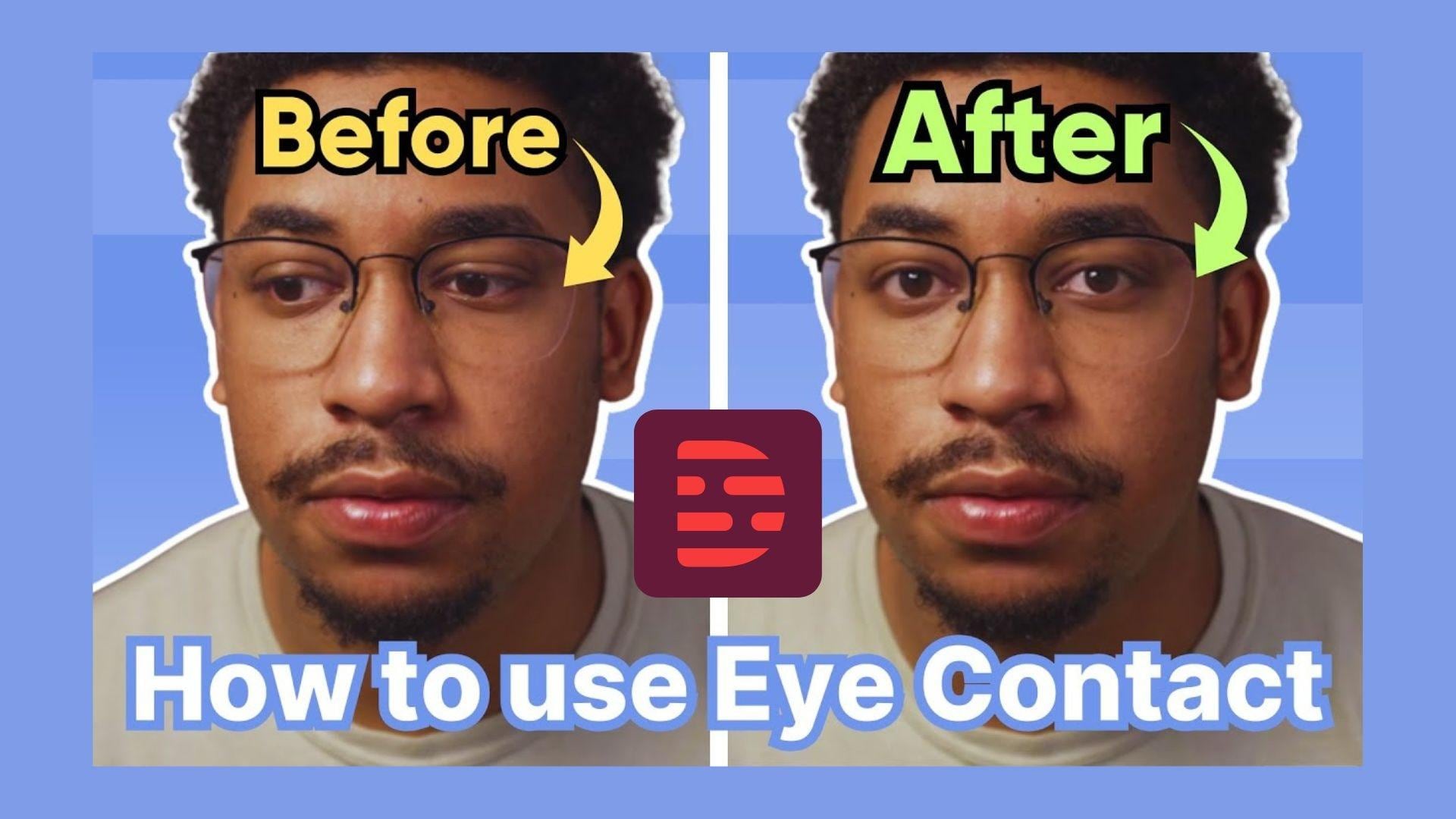
How to use Descript Eye Contact
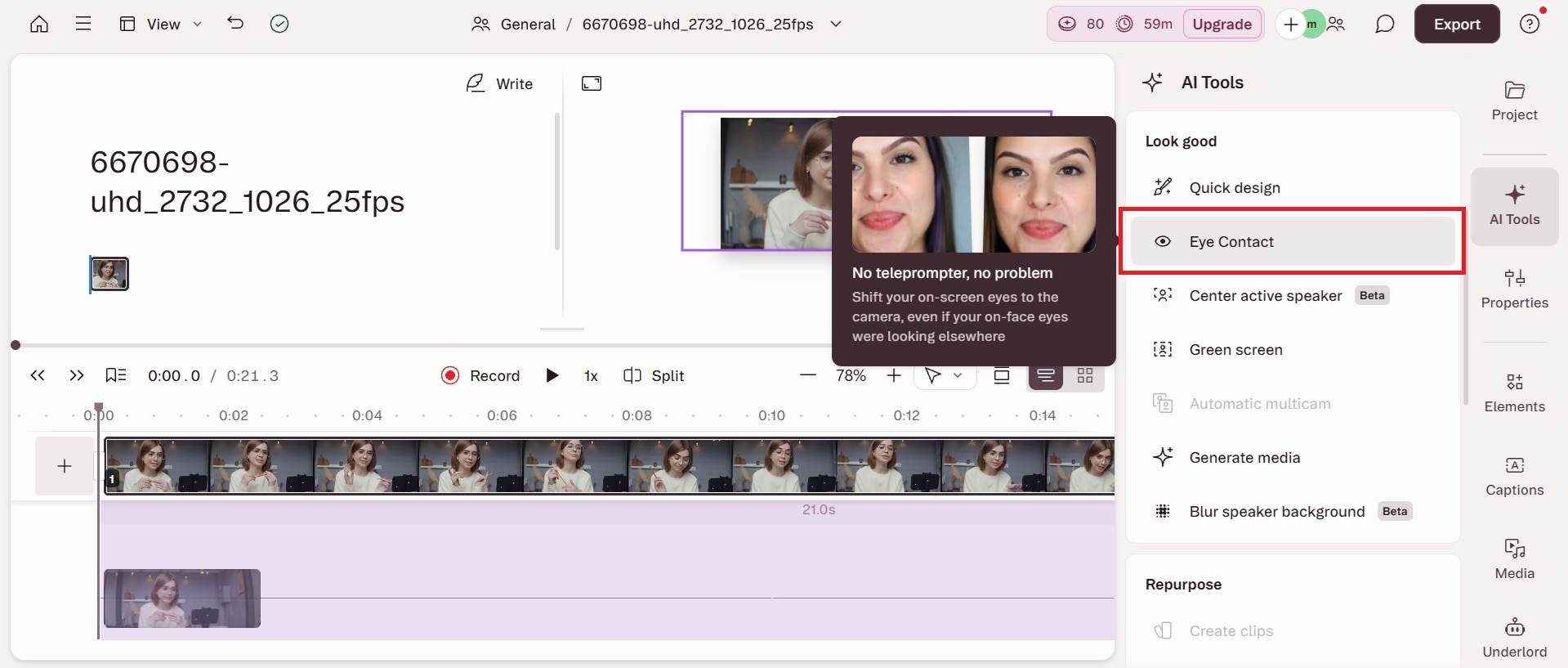
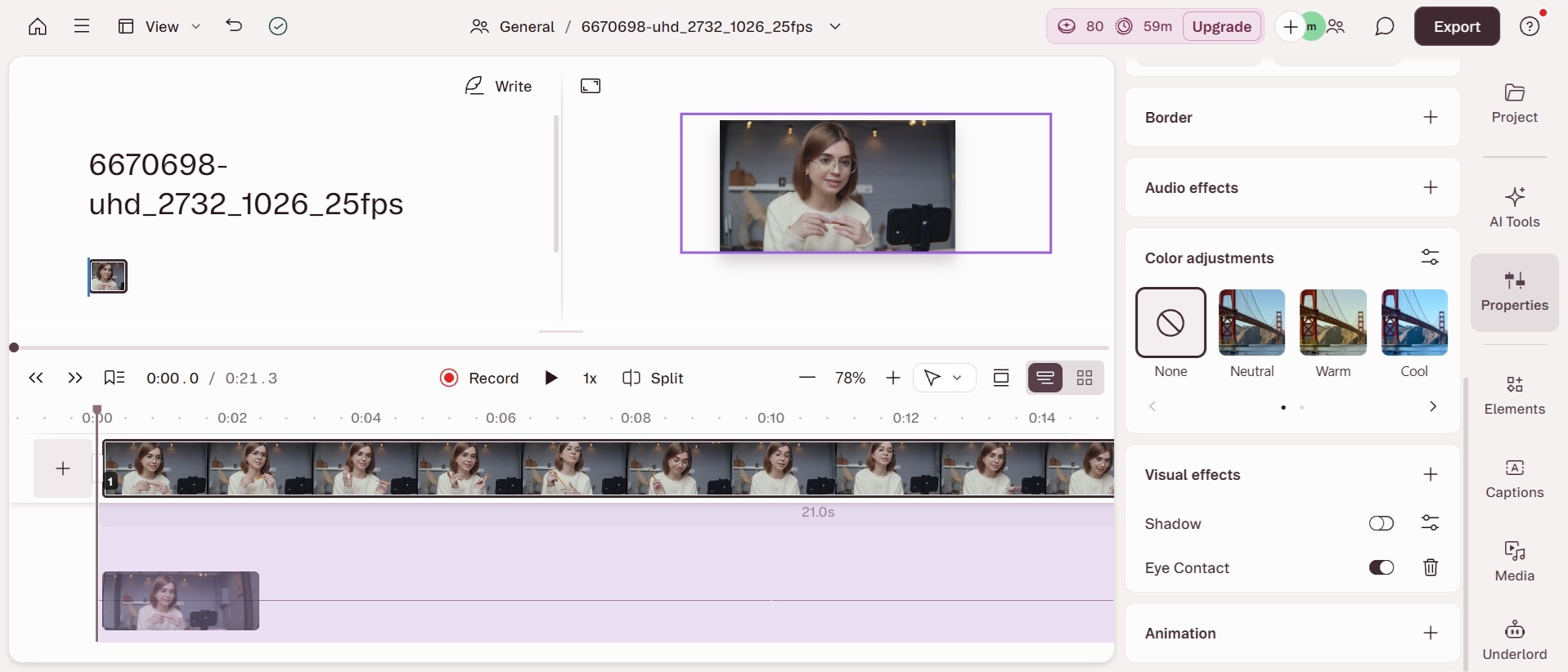
Processing time depends on the video’s duration and quality, but shorter talking-head clips are usually processed fairly quickly.
Is Descript Eye Contact Free?
You can enable the Eye Contact feature in Decript for free. But Descript free users can only export and share their edited videos on a web link. You can’t save it to your local computer. There will also be a watermark on your exported video.
Part 3. Troubleshooting: Why is Descript Eye Contact Not Working?
The Descript Eye Contact feature can work surprisingly well, but the results depend heavily on the quality of your footage. If the feature is not working properly, here are some common issues and how to fix them.
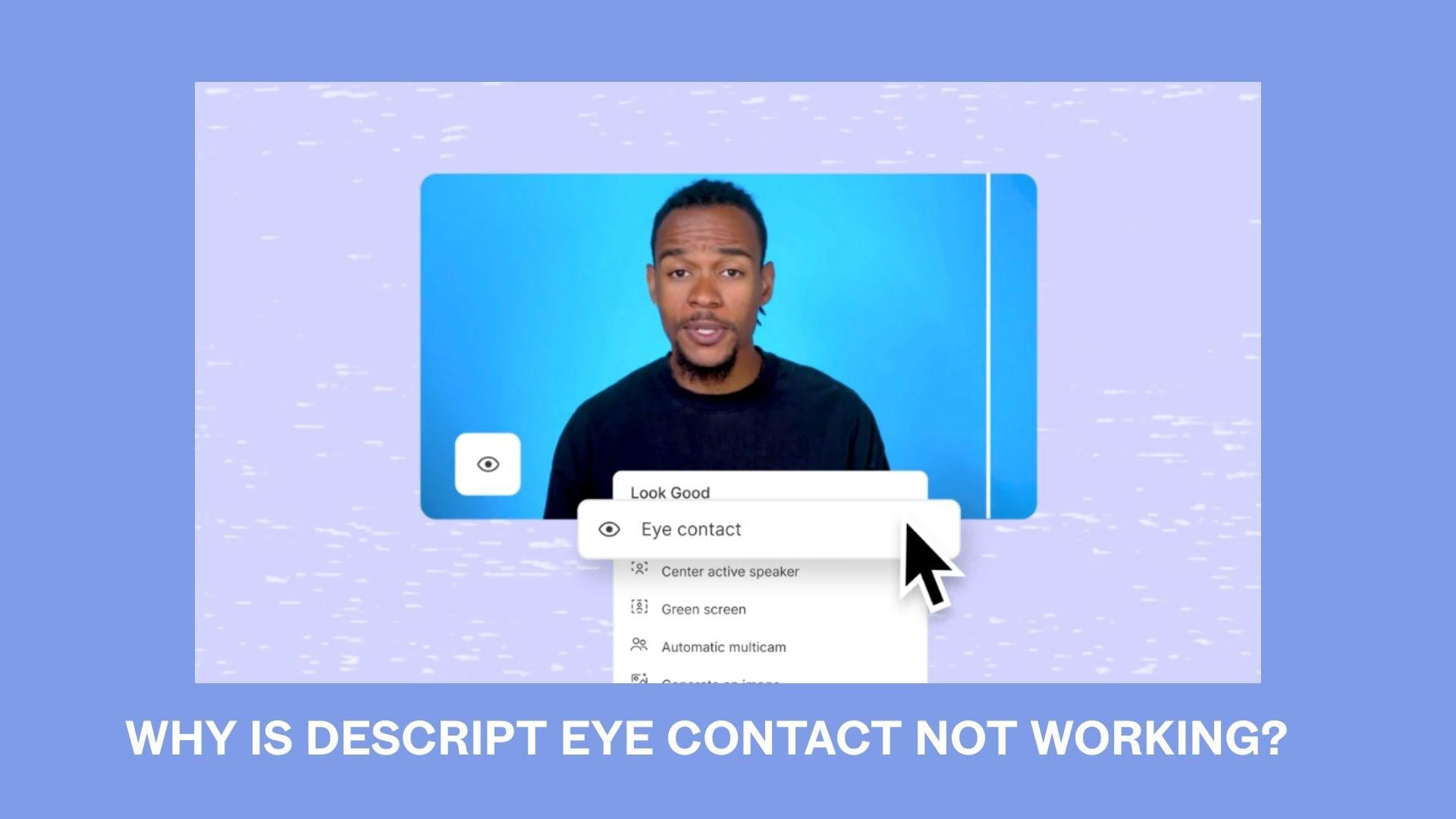
1. Eye Contact does not apply
Possible causes:
- Your face isn’t clearly visible
- The video contains multiple people
- Your eyes are covered by hair, glasses glare, or shadows
- The clip quality is too low
How to fix it:
- Use brighter and more even lighting
- Make sure your full face stays visible on screen
- Avoid recording from extreme side angles
- Use higher-resolution footage if possible
- Try splitting long clips into shorter sections before applying the effect
2. Eyes look creepy, stiff, or unnatural
Possible causes:
- Excessive head movement
- Looking too far away from the camera during recording
- Fast movements or sudden turns
- Low-quality webcam footage
How to fix it:
- Record while staying centered
- Keep your gaze naturally closer to the camera
- Use smoother head movement during recording
- Improve lighting and camera quality
- Reduce the Eye Contact intensity if Descript provides adjustment controls
In general, the fewer corrections the AI has to make, the more natural the final result will look.
3. Descript Eye Contact misses parts of the video
Possible causes:
- Your face briefly leaves the frame
- The AI loses eye tracking during movement
- Lighting changes throughout the clip
- Your eyes become partially blocked
How to fix it:
- Keep your face consistently visible
- Avoid sudden camera movement
- Maintain steady lighting across the video
- Reapply the effect after trimming problematic sections
- Cut away sections where tracking completely fails
For best results, think of Descript Eye Contact as a subtle enhancement tool, not a complete replacement for natural on-camera presence.
Part 4. Is Descript Eye Contact Good? What Works and What Feels Off
Descript Eye Contact is one of those AI features that can look impressive in the right situation. For simple talking-head videos, this feature often fixes minor eye contact issues well enough that most viewers won’t notice anything out of the ordinary.
The feature works best when you are already looking close to the camera and only occasionally glance away. In those cases, the correction feels subtle and natural instead of overly artificial.
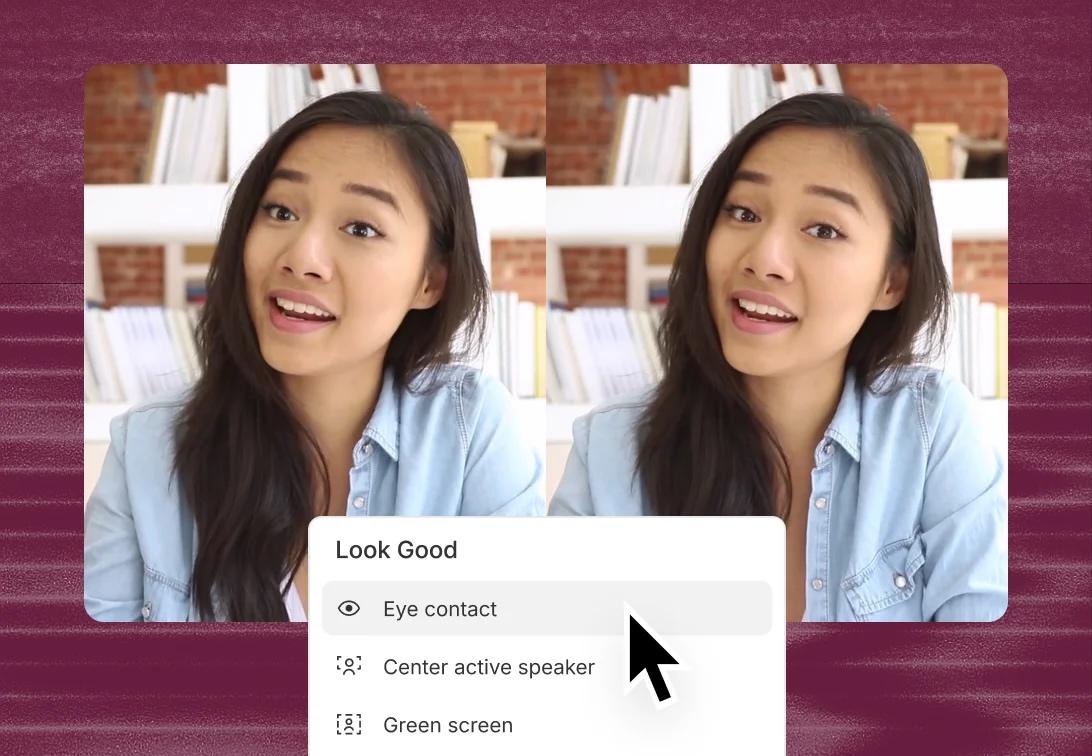
Many users also like how easy the tool is to use compared to more advanced editing software. You can apply the correction with just a few clicks, rather than manually re-recording clips. At its best, Descript Eye Contact truly saves otherwise unusable footage that would have been discarded due to inconsistent gaze.
Reddit feedback is quite varied, but generally positive when the recording quality is good.
- “Eye contact works pretty good in poor lighting, and even with glasses.”
- “I tried three other software for eye contact, and this definitely does it the best.”
- “Subtle fixes look best. If it's too perfect, it hits uncanny fast.”
At the same time, the feature still has clear limitations. When the AI has to correct large eye movements, the results can fall into the “uncanny valley” where the eyes look too fixed, unnatural, or slightly unsettling. Fast head movements, poor lighting, blurry footage, and strong side angles make this even more noticeable.
Some Reddit users also mention inconsistent results depending on the clip.
Overall, the Descript Eye Contact feature is best suited for minor adjustments. If the original footage is already decent, the AI can save good takes and reduce unnecessary re-recording.
Pros and Cons of Descript Eye Contact
- Very easy to use inside Descript
- Saves time by reducing retakes
- Works well for tutorials and talking-head videos
- Can produce surprisingly natural corrections
- Non-destructive editing with easy previewing
- Can produce eye movements that look unnatural or “creepy”
- Results are less than optimal with fast movements
- Not always reliable for every clip
- Limited mainly to single-person videos
- Export limitations on the free plan (link only)
Part 5. Looking for More? Other AI Eye Contact Tools to Try Next
If you want more editing control than Descript offers, Wondershare Filmora is another tool worth trying. Filmora also includes an AI Eye Contact feature that can correct your gaze direction and make it appear as though you’re looking directly into the camera.
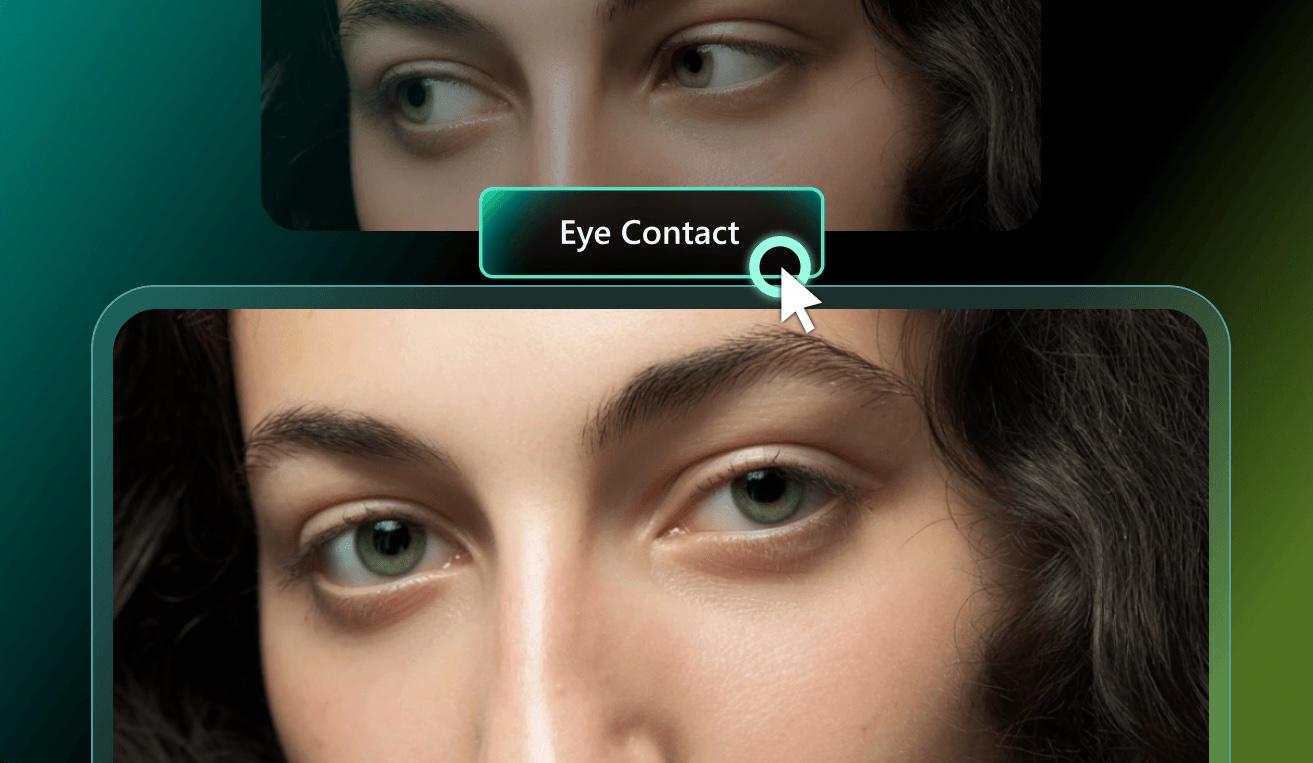
The biggest difference is the editing style. Filmora is more flexible for creators who want to combine eye contact correction with transitions, effects, audio editing, color grading, and more advanced video editing within a single workspace.
Filmora’s AI Eye Contact is designed to enhance the quality of talking-head videos without forcing users to re-record clips. It can help fix moments where you briefly look away, read notes, or lose focus during recording.
 Secure Download
How to Use Filmora AI Eye Contact
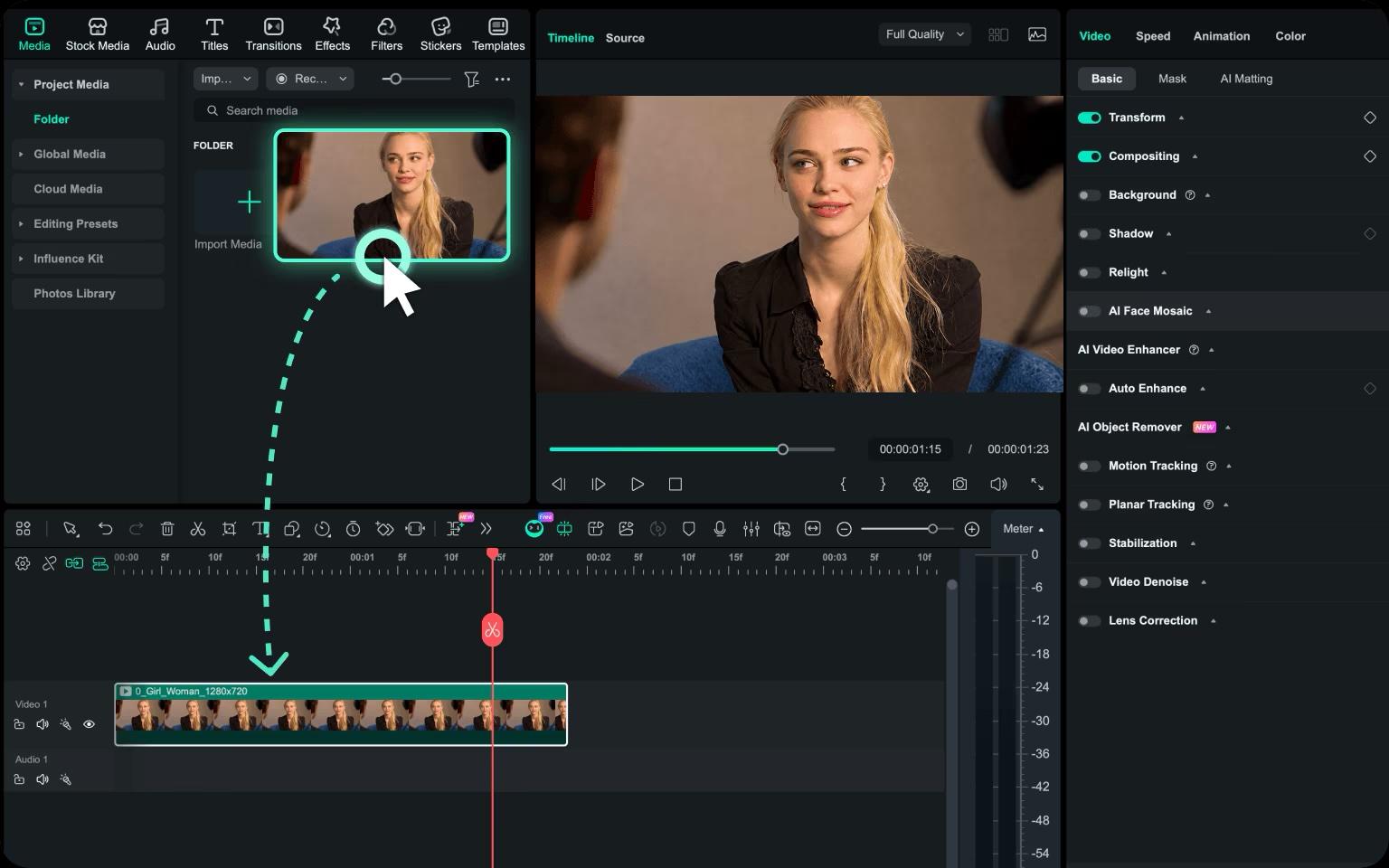
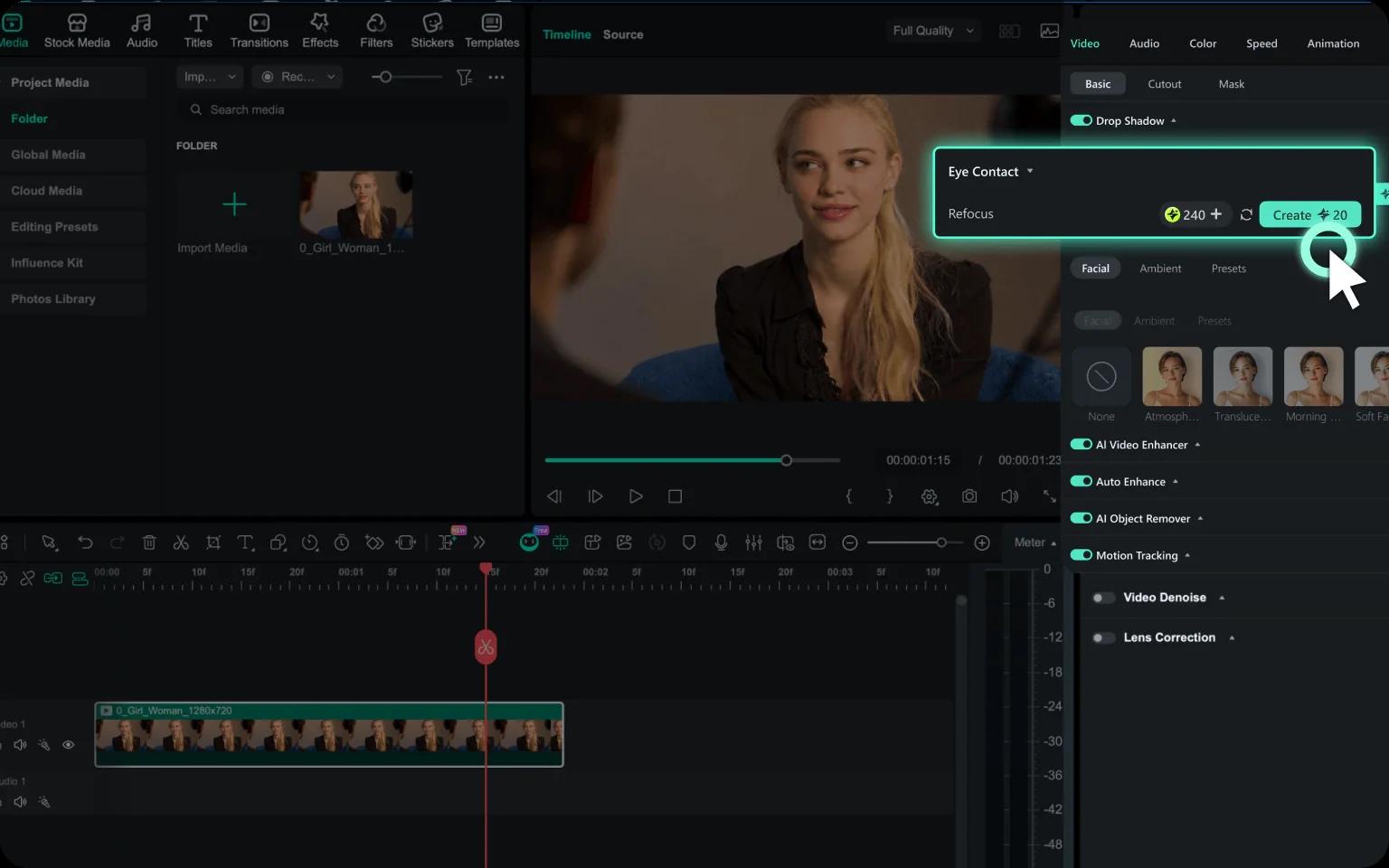
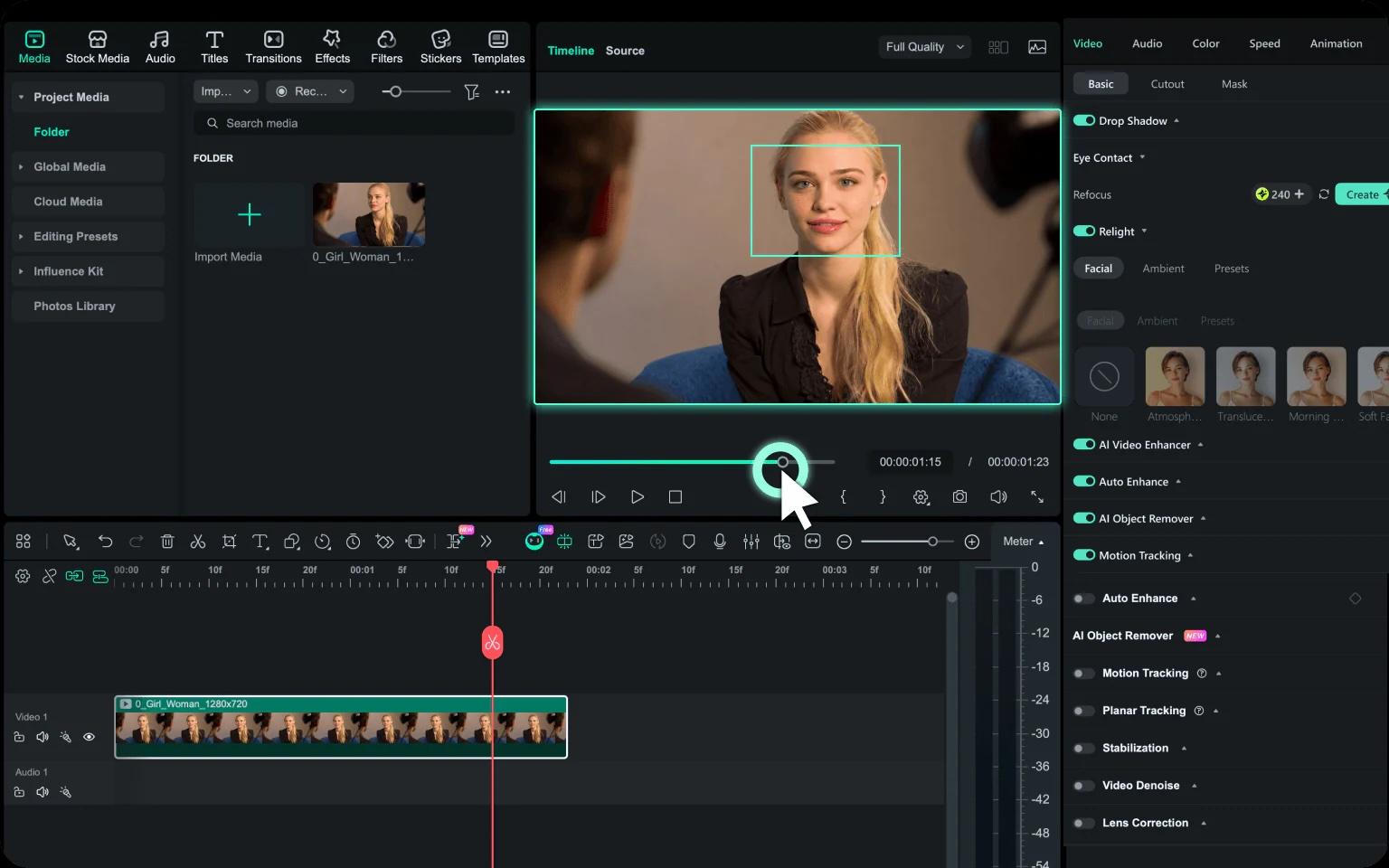
Filmora only shows the Eye Contact option when the selected footage meets certain conditions. For example, the feature works with a single selected video clip that is under three minutes long.
Secure DownloadBenefits of Using Filmora AI Eye Contact
Filmora focuses more on full video production rather than just quick AI-based corrections. This provides creators with extra flexibility after correcting their gaze. Some key advantages include:
- Timeline-based editing for more control
- Built-in effects, transitions, and audio tools
- Easy workflow for YouTube and social media videos
- Helps reduce re-recording time
- Makes presentations and tutorials look more professional
- Beginner-friendly despite having advanced tools
Filmora is highly useful for creators who want AI eye correction without leaving their main editing software.
How Descript Compares to Filmora
| Descript | Filmora | |
| Platform | Desktop and web-based workflow | Desktop video editor |
| Editing Type | Text-based editing | Timeline-based editing |
| Pricing | Free plan with export limitations | Free version with watermark; paid plans unlock full features |
| Quality | Great for simple talking-head videos | Better for combining AI fixes with full video editing |
| Speed | Fast for quick edits | Slightly more editing-focused workflow |
Secure DownloadConclusion
Descript Eye Contact is an AI feature that’s incredibly useful for creators who want to fix minor eye-contact errors without re-recording entire videos. When the footage is clear and the corrections are subtle, the results can look natural enough for tutorials, podcasts, online courses, and talking-head content. However, it still has limits, especially in scenes with intense movement or low-quality clips, where the effects can look unnatural.
If you’re mainly looking for quick and simple AI corrections, Descript works well. But if you need more editing flexibility and full control over the timeline, tools like Filmora might be a better long-term option for professional video creation.
FAQs
-
Does Descript Eye Contact work with glasses?
Yes, it can work with glasses, but strong glare or reflections may reduce accuracy. Clear lighting usually helps the AI track your eyes better. -
Does Descript Eye Contact work for multiple people?
No. Descript Eye Contact is designed primarily for single-person videos and may not work properly with multiple faces on screen. -
Is Descript Eye Contact better than Filmora AI Eye Contact?
It depends on your needs. Descript is better for quick text-based editing, while Filmora is better for full timeline editing and more creative control.
