


 TL;DR:
Digen AI is a cloud-based multi-model video generator that provides an accessible entry point with a 300-credit free tier for generating standalone clips, though its lack of timeline editing and 1080p resolution cap make it less suitable for professional, end-to-end video production.
● Testing of the web portal reveals that while clip generation takes 60 to 90 seconds and produces hyper-realistic details, the resulting motion can remain stiff, actual output duration may fall short of the selected length, and the dedicated mobile application is currently unstable.
● Free plan users are restricted to basic models and watermarked exports without commercial rights, requiring an Ultra subscription starting at $9.99 per month to remove watermarks and access premium models like Sora 2, which consume credit allocations rapidly.
● Wondershare Filmora serves as the recommended alternative for creators needing full post-production control, as it integrates the same Veo 3.1 and Sora 2 models directly into a professional editor with 4K export capabilities, timeline trimming, and AI Audio to Video input.
Ask AI for a summary
 ChatGPT
 Perplexity
 Gemini
 Claude
 Grok
Grok
With how common AI content has become, it’s only natural that AI video generator features keep coming at us faster than we can click "download." In fact, recent data from Wyzowl Video Survey shows that 60% of marketing teams are now using AI to create video content, a massive jump from just two years ago.
Digen AI has entered this crowded arena promising high-end realism without the Hollywood budget, but is it actually good? While many creators struggle with high subscription fees or "clunky" physics, this platform claims to solve both. Today, we’re going to find out if Digen AI video generators can truly compete with the heavy hitters or if it’s just another flash in the pan!
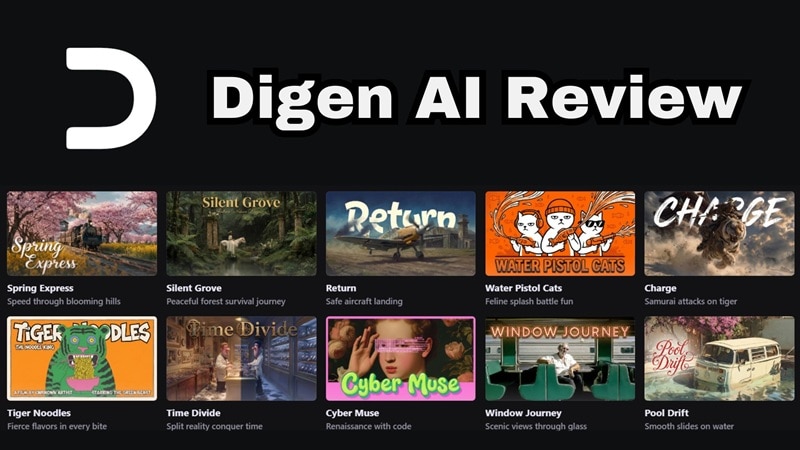
Part 1. What is Digen AI? The "Real Motion" Engine Explained
Simply put, Digen AI is a multi-model powerhouse that can generate videos using AI from images and text prompts.
They quickly gained a reputation for their "Real Motion" engine. Unlike older tools that just warp pixels, Digen’s proprietary tech acts more like a motion control camera in a physical studio. It allows you to upload a picture and then use specific prompts to dictate exactly how things move, keeping faces locked and physics realistic.
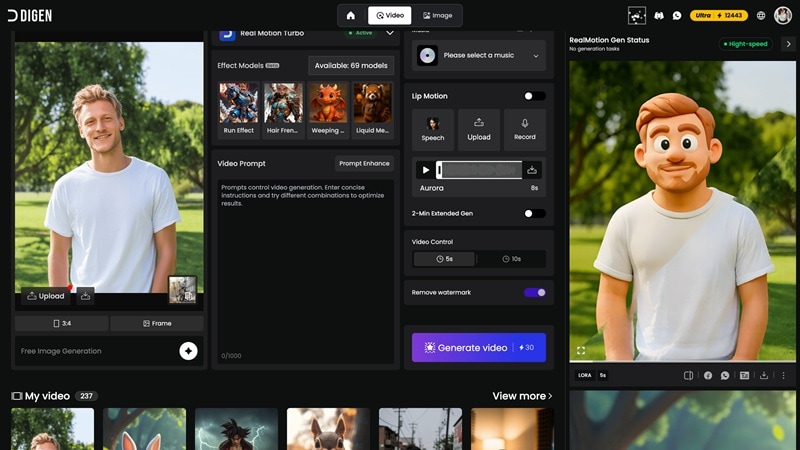
Part 2. Where You Can Actually Use Digen AI
There's no point in loving a tool if you can't actually open it when you need it. Digen AI is quite flexible in how you can reach it; however, not all of them are equally solid.
Main Ways to Use Digen AI
1. Online Web Portal
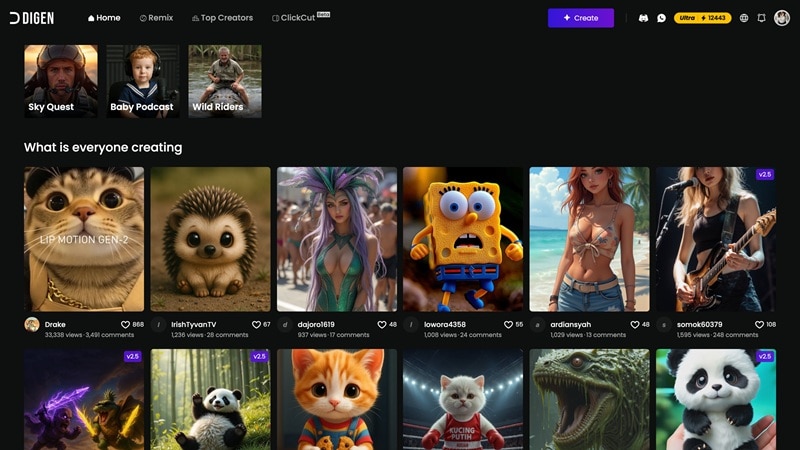
This is the primary hub at digen.ai. It’s snappy, easy to navigate, and works on almost any browser. You just need to log in to Digen AI, and you'll find the most stable experience.
2. Mobile App
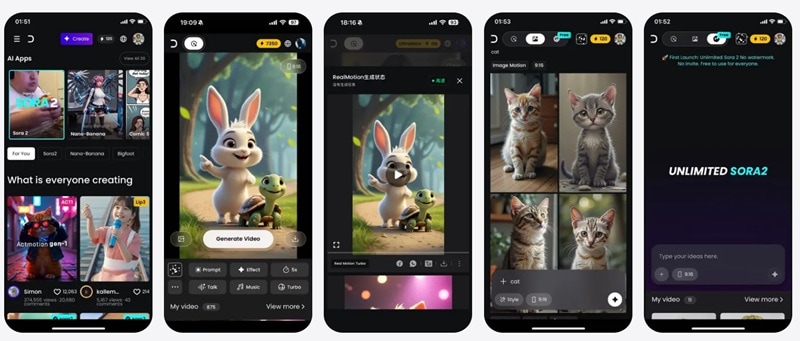
If you’re a creator on the move, there are dedicated Digen AI apps for both Android and iOS. It's great for quick "remixes" of trending content.
The Desktop Situation
While many are looking for Digen AI for PC as a standalone software, it doesn't exist just yet. However, the web version is so well-optimized for desktops that you likely won’t miss a dedicated app anyway.
Part 3. Digen AI Pricing and Free Credits
Digen AI pricing is one of the biggest reasons people try this platform in the first place. In fact, you don't have to spend a single dollar to get started. But like most AI platforms, free has its limits. Here's everything you need to know about the credit system and what each tier unlocks.
Free Plan (What You Get)
When you complete your Digen AI sign-up, you get:
- 300 free credits.
- Daily rewards to earn more.
- Access to basic models.
- Watermarked exports.
This makes it one of the more accessible Digen AI free AI video generator options right now.
Paid Plans Breakdown
If you run out of credits or want to lose the watermark, you’ll need to look at the subscription tiers: Ultra, Ultra Pro, and Ultra Max. Let’s see the differences.
| Feature | Ultra | Ultra Pro | Ultra Max |
| Monthly Price | $9.99 | $19.99 | $39.99 |
| Annual Price | $4.99 / month | $9.99 / month | $19.99 / month |
| Monthly Credits | 6000 | 15000 | Unlimited |
| Queue Priority | Standard | High | Turbo / Instant |
The Unlimited "Pass" System
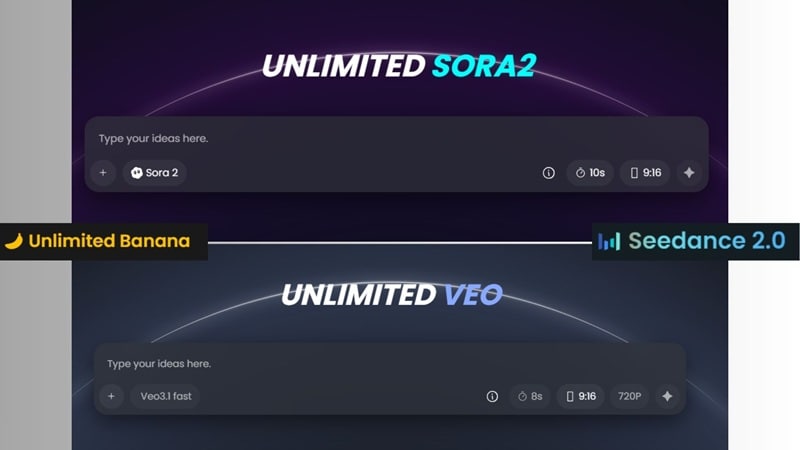
If you've found your favorite model and want to go all-in, Digen AI offers special standalone unlimited access packs that let you generate with a specific model as much as you like. These packs are currently available for:
- Unlimited Sora 2 ($69.99 / month).
- Unlimited Nano Banana 2 ($69.99 / month).
- Unlimited Veo 3.1 ($199.99 / month).
- Unlimited Seedance 2.0 ($139.99 / month).
Part 4. What You Can Actually Do Inside Digen AI
Okay, so we know what Digen AI is and what it costs. But what can you actually do inside the platform? More than you might expect, actually.
After all, it is a full creative ecosystem with multiple generation modes, model choices, and community features. Let's break it all down.
1. AI Video Generation
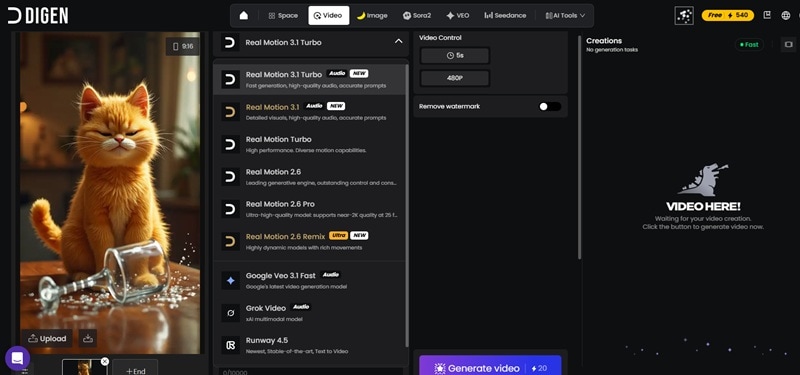
This is where the Digen AI text-to-video magic happens. You describe a scene, choose your model, and the AI builds it from scratch. Plus, there is also a Digen AI image-to-video feature. It allows you to upload photos and turn them into motion based on your prompt guide.
Models Available: Real Motion 3.1, Sora 2, Veo 3.1, Kling 3.0, Grok Video, and more.
2. AI Image Generation
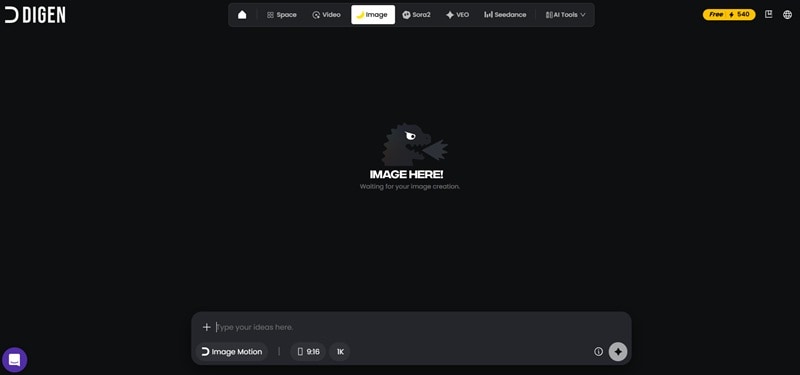
Before animation, you often need a base image. In that case, the Digen AI image generator lets you:
- Create characters
- Generate cinematic scenes
- Build detailed visual concepts
Think of it as your pre-production studio. You craft the exact image you want, then hand it off to the video engine.
Models Available: Nano Banana Pro, FLUX.2 [klein], and GPT Image 1.5.
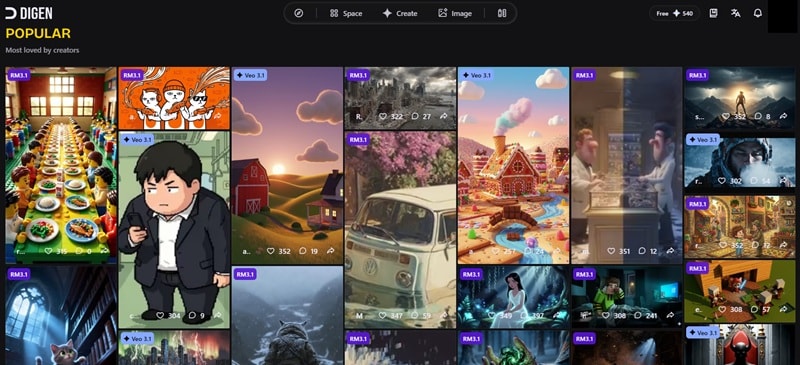
3. Templates and Explore Page
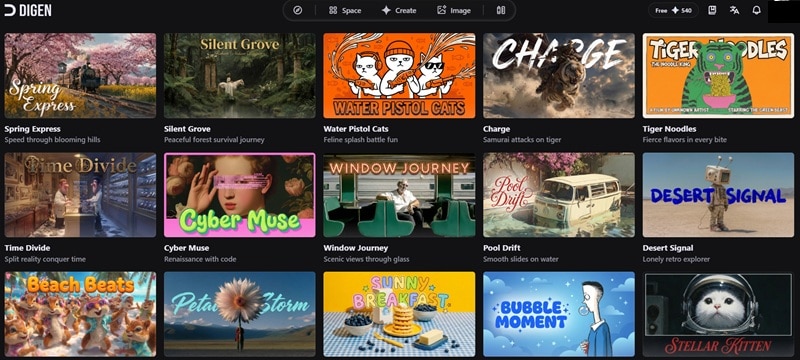
Don't feel like writing a 50-word prompt from scratch? You don't have to. Digen's massive template library lets you browse what's trending and simply swap your own images or text into proven cinematic formulas.
Meanwhile, the Digen AI explore page is where the community comes alive. It lets you:
- Browse trending videos from the global Digen community.
- See what other creators are building in real-time.
- Reuse or remix templates from the leaderboard.
Part 5. Digen AI Review: Testing It Ourselves
Our Digen AI review wouldn't be complete without actual testing. After all, reading about a tool is one thing, actually using it is another. So, we put Digen AI through its paces so you don't have to go in blind.
From logging in to generating our first clip, here's a step-by-step account of the experience, followed by our honest take on the good and the limitations!
How to Create Your First AI Video
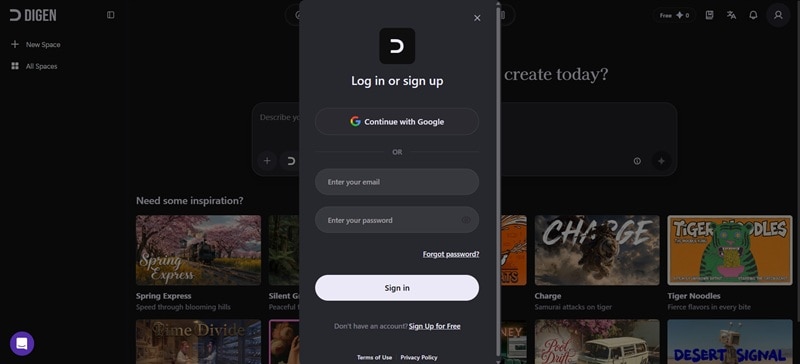
Step 1. Sign In to Digen AI
Head to digen.ai and sign up (or log in) to claim your free credits.
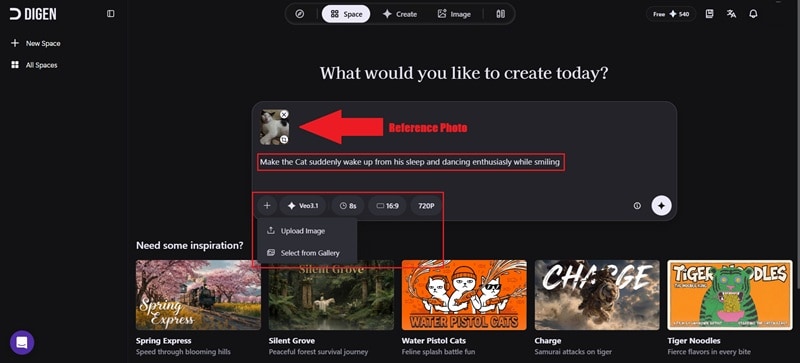
Step 2. Write Your Prompt and Generate
Type your prompt in the description box. If you want to use a reference, click the “+” icon to upload an image. Then choose your AI model, aspect ratio, duration, and resolution. Once everything looks good, hit Enter and let it generate your video.
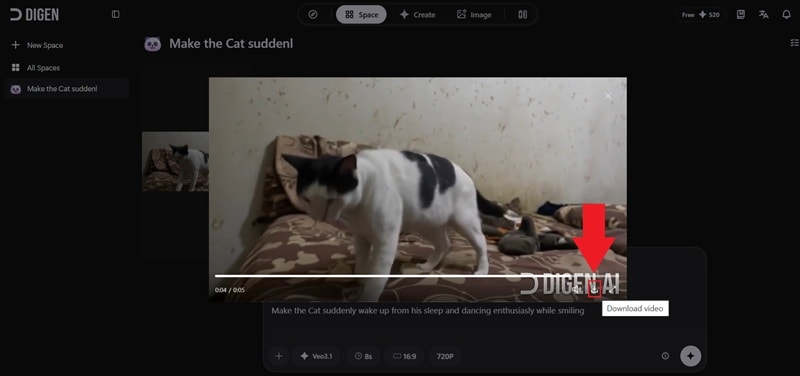
Step 3. Preview and Download
Expect a wait of around 60–90 seconds for your clip to render. Once that's done, open it to see how it looks. Click the download icon to save the video to your device.
And that’s it! The whole process is simple, and you don’t even need a Digen AI download since everything runs online.
That said, the actual results can be a bit of a mixed bag. We tested out the Veo 3.1 model and used a reference photo to give it the best shot, but the motion just wasn't that impressive. While the details look hyper-realistic, the movement feels a little stiff. Plus, even though they promise 8-second clips, our result clocked in at just 5 seconds.
You can check the generated video below and see how it looks.
Pros and Cons of Digen AI
- Plenty of AI Models: You’re not stuck with one engine. Switching between Sora 2 and Kling 3.0 gives you massive stylistic variety.
- Strong Community: The "Explore" page leaderboards are actually inspiring and make prompting easier.
- Generous Free Credits: 300 credits just for signing in is one of the best "starter" deals in the industry. Plus, you can actually collect rewards daily and get more credits which is very accessible.
- Weak Mobile Experience: Despite having a Digen AI app, it’s currently poorly received. Users report bugs and crashes, which makes it feel much less reliable than the web version.
- Credit Costs: Premium models (like Sora 2) consume credits quickly, so that a 300-credit gift doesn't last forever.
- No Timeline Editing: It’s a generator, not an editor. You can't fine-tune clips the way you would in a full-featured video editor here.
Part 6. Want More Control? Try Wondershare Filmora
Digen AI is just one of many AI video tools available today. And honestly, some of its limitations can’t be ignored, especially when it comes to editing control and stability.
If you're trying to make a full YouTube video or a professional ad, you'll find yourself with ten 5-second clips and no way to put them together. If missing a timeline editor, a buggy mobile app, or a 1080p resolution cap bothers you, there's a natural next step: Wondershare Filmora.
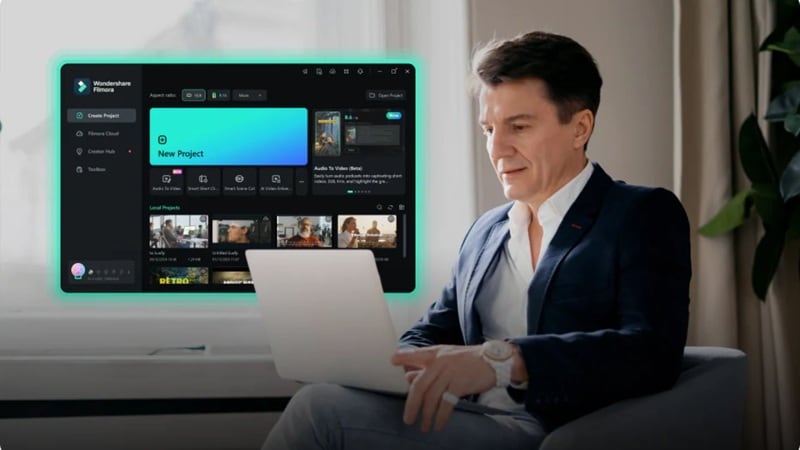
Filmora isn't just another AI generator. It's a full professional video editor with AI deeply integrated into every step of the workflow. And while both Digen AI and Filmora serve different needs, if you want end-to-end creative control, Filmora wins the long game.
 Secure Download
Why Filmora Wins the Long Game
Direct Integration with Veo 3.1, Seedance 2.0, and Sora 2
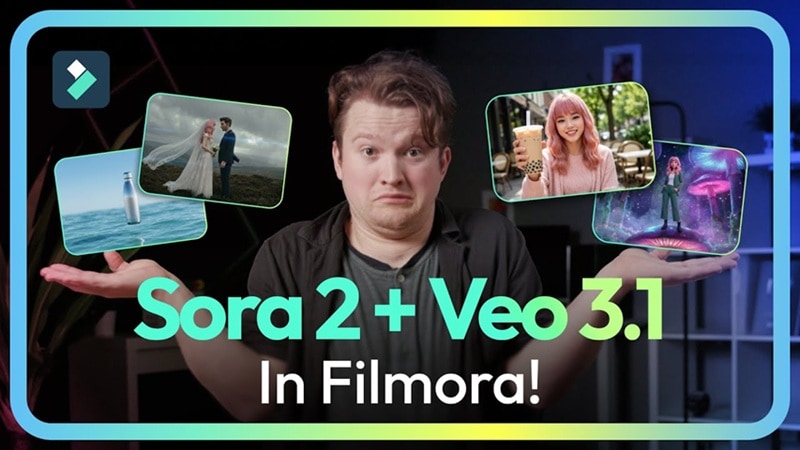
You get the same world-class AI models like Veo 3.1, Seedance 2.0, and Sora 2 built right into the software. This means you can generate a cinematic shot and immediately drop it onto your project without having to download, move files, or switch tabs. It’s all the power of Digen AI, but inside a professional studio.
More Input Options

Filmora gives you more ways to start a project, not just text prompts. You can use AI Audio to Video to turn music into visuals, or AI Idea to Video to build a single sentence and turn it into a full storyboard, complete with a script and suggested clips.
Professional Timeline Control
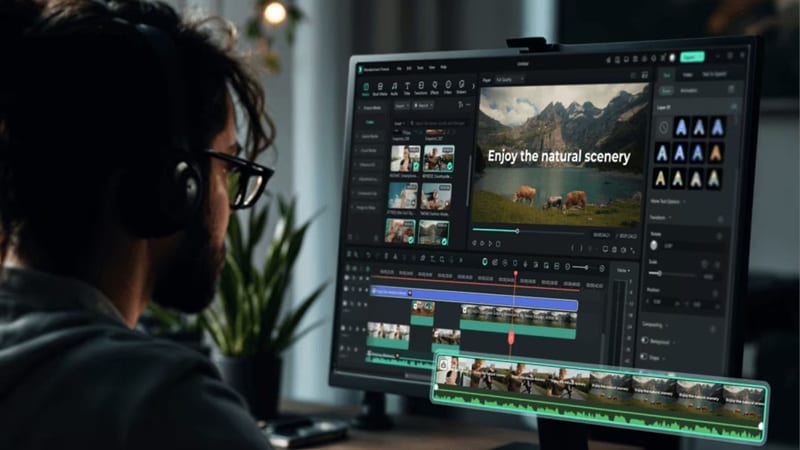
In Digen AI, if something isn’t right, your only option is to tweak the prompt and generate again. In Filmora, you can go in and fix things directly on a timeline. You can trim clips, layer elements, adjust timing, and fine-tune everything frame by frame. It gives you actual control instead of relying on trial and error.
A Trustworthy Mobile App
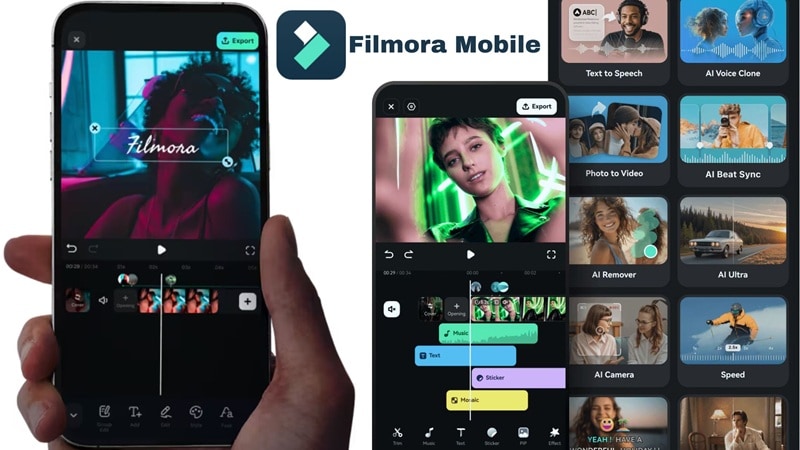
Filmora Mobile is stable, polished, and consistently rated above 4.5 stars. You can start editing on your phone and continue on your computer without issues. Compared to that, the Digen AI app still feels rough, with bugs and crashes that can interrupt your workflow.
4K Export and Better Output Quality
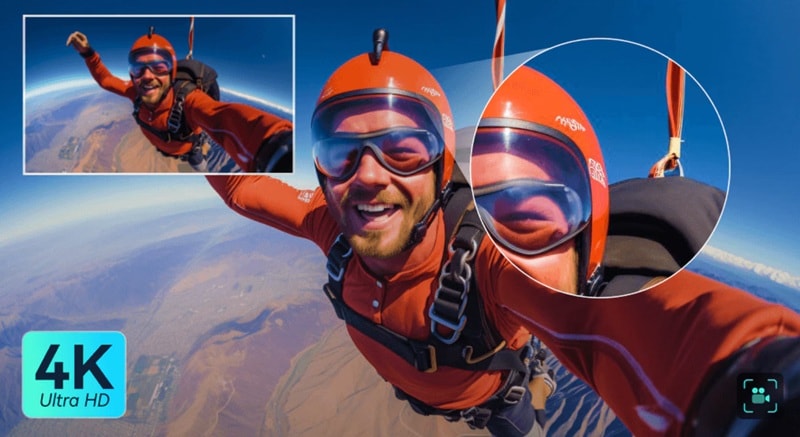
Even though Digen AI supports multiple models, its output is typically capped at 1080p. That can be limiting if you’re working on higher-quality content. Filmora, on the other hand, lets you export in full 4K, which makes a noticeable difference, especially for professional or commercial projects.
Secure DownloadConclusion
Digen AI free AI video generator is genuinely one of the better options out there. The 300-credit sign-up bonus, daily rewards, and variety of AI models make it accessible and fun to explore. That said, Digen AI is not a perfect tool. The mobile app needs serious polish, premium models burn through credits fast, and there's no timeline editor for refining your clips.
If you want something you can rely on for more serious work, Filmora gives you a much more complete setup. You get access to the same level of AI models, along with a full editing timeline, more input options like audio to video, a stable cross-platform workflow, and higher quality export up to 4K. All of those make Filmora a stronger choice as you move beyond simple generation.
FAQs About Digen AI
-
Can Digen AI be used for commercial videos?
Paid plan users (Ultra and above) can use Digen AI-generated videos for commercial purposes. Free plan users should review Digen's terms of service carefully, as watermarked content and credit-based usage may carry restrictions. Always check the latest terms on the official Digen AI website before publishing commercially. -
Does Digen AI work offline?
No. Digen AI is entirely cloud-based, and all rendering happens on Digen's servers. Meaning, it requires an active internet connection to generate videos and images. There is no offline mode, and no standalone software to install on your device. -
How long does Digen AI take to generate videos?
Standard generation typically takes between 60 and 90 seconds per clip. If you select a Turbo-grade model (like RM3.1 Turbo), you can get results in approximately 30 seconds, though with a minor quality trade-off. Generation times can also vary depending on server load and the complexity of your prompt. -
How do I earn more free credits without paying?
Digen AI offers a daily login reward system; simply visiting the platform each day earns you additional free credits. You can also participate in community challenges by posting videos, comments, or even liking videos on the site. These methods won't replace a paid plan for heavy use, but they're a great way to keep experimenting for free.
