


 TL;DR:
HeyVid AI is a cloud-based workspace integrating 18+ generative models—including Kling AI, Veo 3.1, Runway, Midjourney, and Suno—making it an economical choice for creators who want to produce varied short-form videos, images, and audio without paying for multiple individual subscriptions.
● Although the $29.90/month base plan and 300 free signup credits offer a cheaper entry point than buying tools separately, premium generators like Veo 3.1 and Kling AI consume the unified credits rapidly, meaning heavy users of a single model will get better value subscribing directly to that specific tool.
● Generation outputs are limited to raw 4-to-15-second clips and lack advanced post-production features, meaning you must export files to a timeline editor like Wondershare Filmora to arrange scenes, clean up audio, and finalize edits for YouTube or TikTok.
● For occasional projects, you can bypass monthly commitments using one-time credit packs starting at $35 that remain valid for a full year while still providing multi-model access, 4K rendering options, and watermark-free exports.
Ask AI for a summary
 ChatGPT
 Perplexity
 Gemini
 Claude
 Grok
Grok
Managing multiple tools for video generation, AI images, voice cloning, and music can be expensive and confusing. For that reason, HeyVid AI combines many popular AI models into a single platform, including Kling AI, Veo 3.1, Runway, Midjourney, Flux, and Ideogram. It also offers image-to-video tools, AI music, and voice within a single workspace.
In this HeyVid AI review, we tested its video quality, workflow, pricing, credit system, and overall usability to see whether the all-in-one setup is actually worth paying for. We’ll break down everything you need to know before signing up.
Part 1. Meet HeyVid AI: The Platform with 18+ AI Models
HeyVid AI is designed as a streamlined workspace for AI-powered content creation. It brings together multiple popular AI models into a single dashboard with a unified credit system, helping creators produce AI videos, images, and audio without juggling between platforms or subscriptions. The interface is optimized for quick command input, seamless switching between models, and handling multiple creative tasks without leaving the platform.

One of its key strengths is the variety of models. You can experiment with cinematic video creation, anime-style visuals, realistic AI art, voice tools, AI music, and image animation, all from the same workspace. It’s useful for creators producing YouTube Shorts, TikTok content, ads, concept art, marketing visuals, or AI-assisted storytelling projects.
Supported Models
| Tools | AI Models |
| Video Generator | Seedance 2, Seedance 2 Fast, Kling AI, Veo 3.1, Runway, PixVerse, Hailuo AI, Sora 2, and more |
| Image Generator | Midjourney, Flux, Ideogram, GPT-4o Image, Recraft, and more |
| Audio Generator | Suno |
Platform and Availability
Currently, HeyVid AI can be accessed through:
- Web browser via the official website: HeyVid AI
- Chrome extension for faster access while browsing or creating content online: HeyVid AI Chrome Extension
Since everything runs in the cloud, no desktop installation is required. Projects, generations, and credits are managed directly from the online dashboard.
Part 2. Key Features of HeyVid AI
HeyVid AI combines AI video, image, audio, and voice tools inside one workspace, giving creators access to multiple popular models without switching between platforms.
AI Video Generator
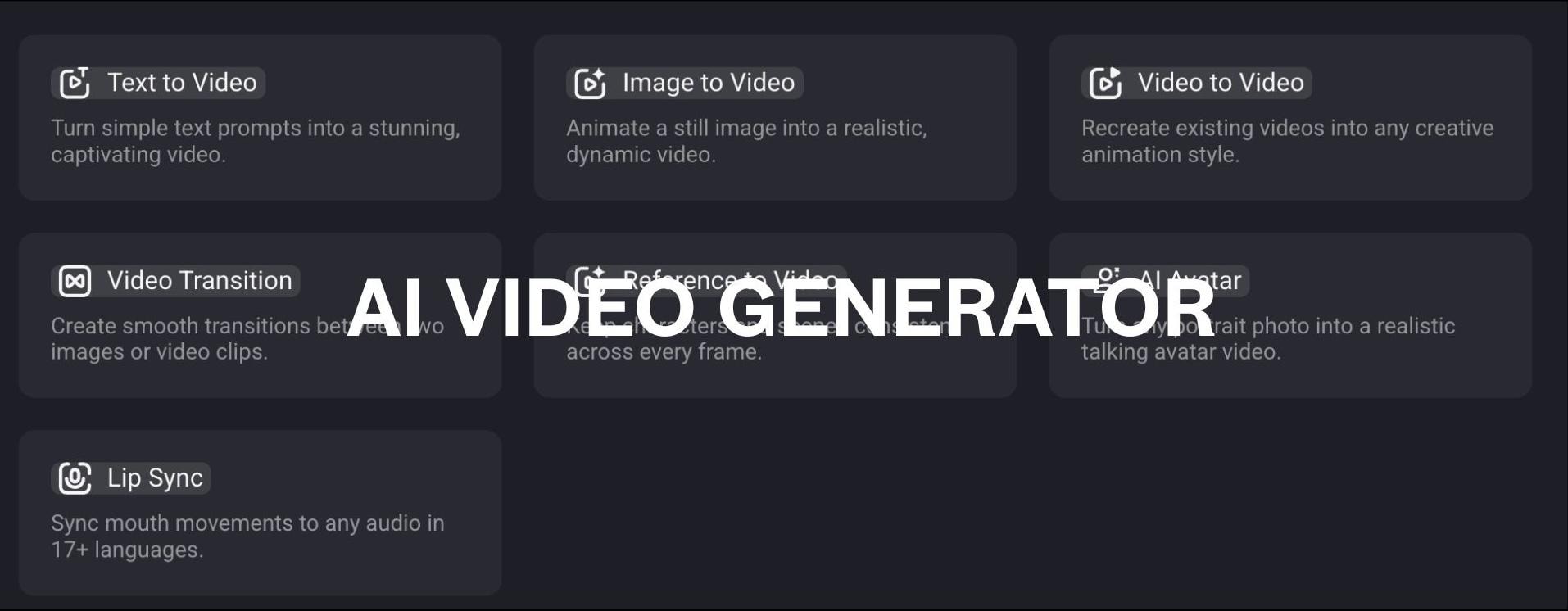
The AI Video Generator is the platform’s biggest feature category. Users can create cinematic clips, animated content, AI avatars, and stylized videos using different generation modes:
- Text to Video: Generate videos from prompts using models such as Seedance 2, Kling AI, Veo 3.1, Runway, Wan AI, PixVerse, and Hailuo AI.
- Image to Video: Animate still photos or AI art into moving scenes with camera motion and environmental effects.
- Video to Video: Restyle existing footage into anime, cinematic, realistic, or animated visuals.
- Video Transition: Create AI-generated transitions between clips or images for Shorts, TikTok videos, and reels.
- Reference to Video: Keep character appearance and scene consistency across generated frames.
- AI Avatar: Turn portraits into talking avatar videos with synced speech and facial animation.
- Lip Sync: Align speech audio with realistic mouth movements in multiple languages.
HeyVid regularly updates its model library, which is important because AI video trends move fast and newer models often improve motion quality, prompt accuracy, and realism.
AI Image Generator
In addition to video creation, HeyVid AI also serves as a multi-model AI image generator. The platform currently supports models such as:
- Midjourney: best for artistic images, mood boards, and concept visuals
- Flux: best for photorealism and commercial product photography
- Flux Kontext: best for context-aware image editing and inpainting
- Ideogram: best for images with text, logos, banners, and typography-heavy designs
- GPT-4o Image: best for conversational image generation and iterative edits
- Recraft: best for brand consistency and vector-style outputs
- Imagen: best for photorealistic people, faces, and nature scenes
- DALL·E: best for quick concept mockups and general-purpose image generation
- Stable Diffusion: open-source customization and self-hosted workflows
- Qwen Image: best for multilingual text rendering in images
- Nano Banana: best for high-fidelity image editing and inpainting on existing assets
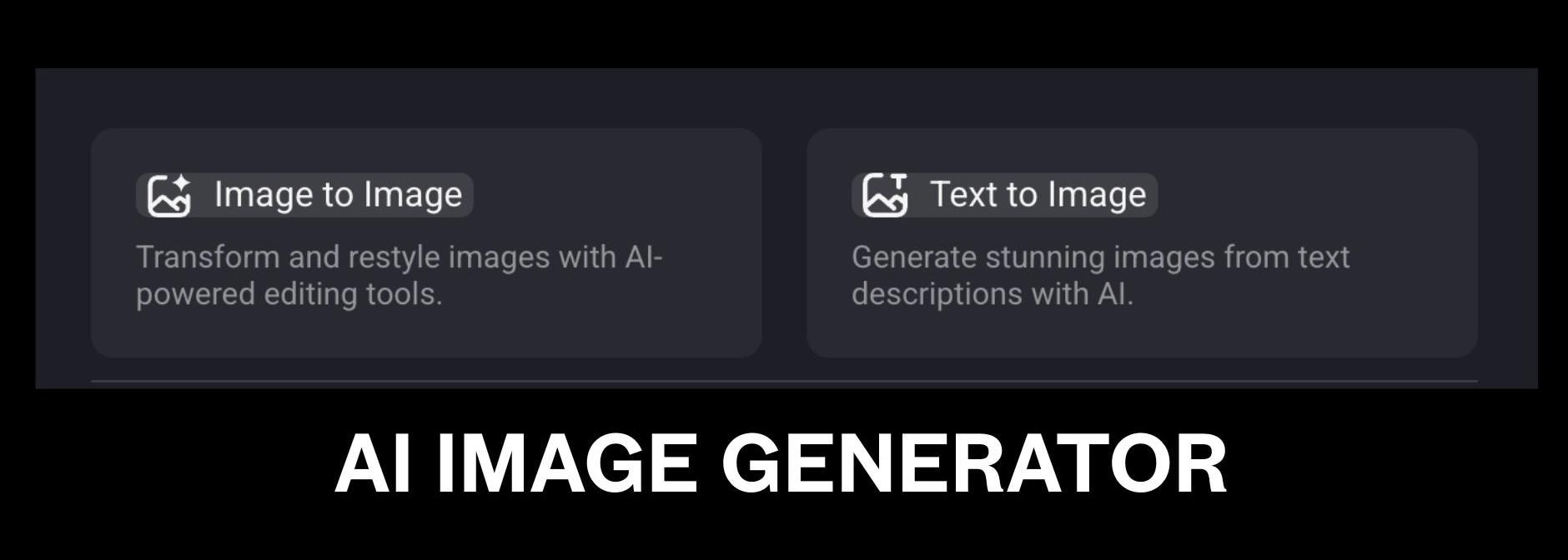
Image-to-Image
The Image-to-Image tool focuses on transforming existing visuals into new styles or variations. Users can upload a reference image and generate alternative versions while keeping the original composition or subject structure. Common use cases include:
- Anime restyling
- Cinematic color grading
- AI influencer content
- Character redesigns
- Thumbnail enhancement
- Concept art variations
This feature is useful when consistency matters more than generating random outputs from scratch.
Text-to-Image
The Text-to-Image workflow is straightforward. Users enter a prompt, select a model, choose aspect ratio or quality settings, and generate visuals directly in the browser. Since multiple image models are available in one place, you can compare results across different models without needing separate subscriptions.
AI Music & AI Voice
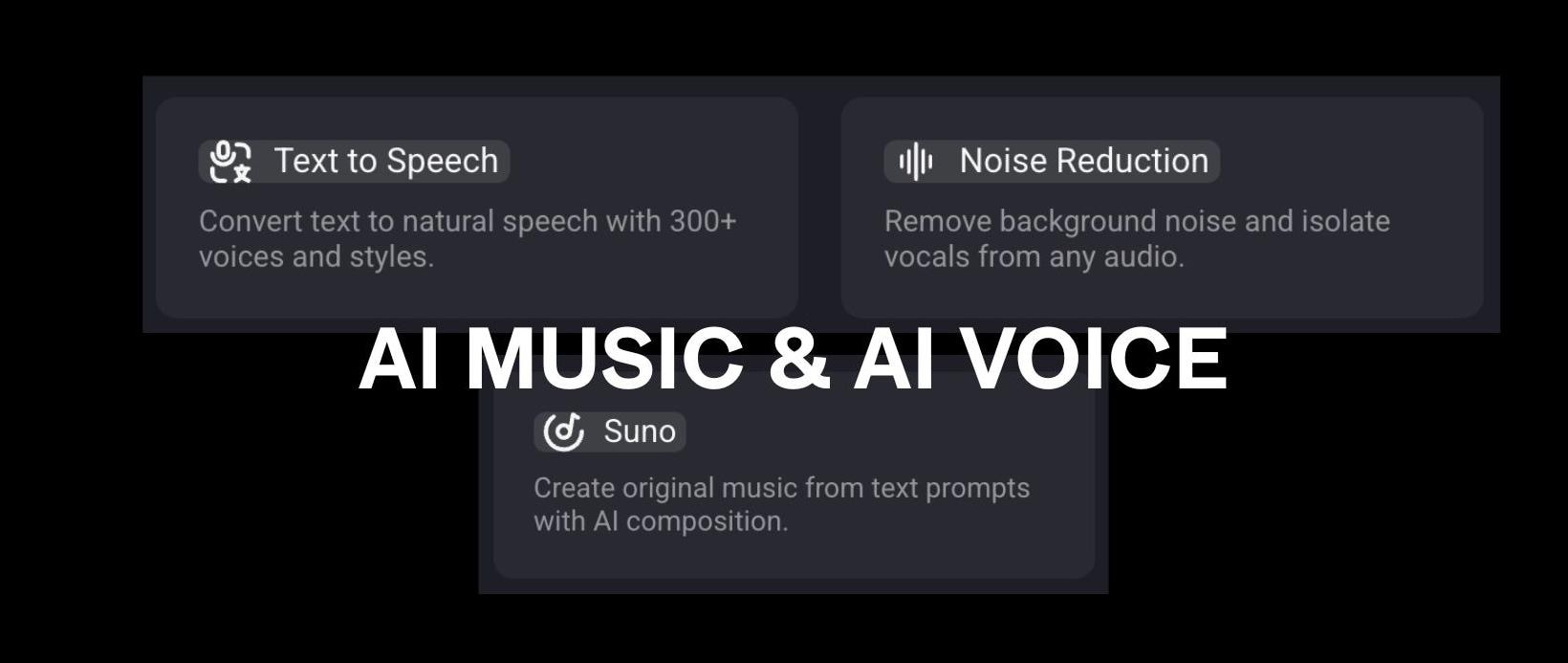
HeyVid AI also includes built-in audio tools for creators producing complete short-form content, ads, AI storytelling videos, or music-based projects.
AI Music Generator (Suno)
The AI Music Generator uses Suno for prompt-based music creation. Users can generate songs, instrumentals, vocal tracks, and background music in different genres without external music software. This tool can be useful for:
- TikTok background music
- AI music videos
- YouTube intros
- Podcast themes
- Short-form social content
Text-to-Speech
The Text-to-Speech feature supports AI-generated narration and voiceovers with different voice styles and language options. It can also integrate directly with Lip Sync and AI Avatar tools for talking character videos. This setup makes it easier to produce narrated clips, dubbed videos, or AI presenter content in a single workflow.
Noise Reduction
HeyVid AI also includes Noise Reduction tools to clean up recorded audio and enhance sound clarity. This helps reduce background sounds before exporting videos, voiceovers, podcasts, or AI narration.
Part 3. HeyVid AI Pricing: Subscription Plans & Credits Pack
HeyVid AI uses a combination of monthly subscriptions and separate credit packs. The subscription plans give users a fixed number of monthly credits, while the credit package is designed for creating additional content without upgrading to a higher tier.
Free Credits Availability
New users currently receive 300 free credits after signing up, which is enough to test several image generations and short AI video projects before deciding to subscribe to a paid plan.
Subscription Plans
| Lite | Pro | Max | |
| Pricing | $29.9/mo or $179.4/yr | $59.9/mo or $359.4/yr | $199.9/mo or $1,199.4/yr |
| Monthly Credits | 2,000 credits | 5,000 credits | 18,000 credits |
| Monthly Images & Videos | Up to 400 videos / 1,000 images | Up to 1,000 videos / 2,500 images | Up to 3,600 videos / 9,000 images |
| Parallel Tasks | 2 | 5 | 10 |
| Watermark-Free Export | |||
| Commercial Use | |||
| Priority Queue | No | Standard Priority | Highest Priority |
One important point to note is that credit usage varies significantly depending on the model. Premium generators like Veo 3.1 or Kling AI usually consume credits faster. Higher resolutions, longer durations, and generating audio also increase usage.
Credits Pack
In addition to monthly subscriptions, HeyVid AI also sells one-time credit packs for users who need additional generations without upgrading their main plan. These packs remain valid for up to one year, which makes them more flexible for occasional projects or burst workloads.
| Starter | Creator | Enterprise | |
| Price | $35 | $130 | $500 |
| Credits | 3,500 credits | 15,000 credits | 62,500 credits |
| Estimated Output | Up to 700 videos / 1,750 images | Up to 3,000 videos / 7,500 images | Up to 12,500 videos / 31,250 images |
| Parallel Tasks | 2 | 5 | 10 |
| Notes | Best for casual creators and testing | Better value per credit | Designed for heavy production workflows |
All credit packs include:
- Multi-model AI support
- AI video generation
- AI image generation
- AI voice tools
- Suno AI music generation
- Faster rendering speeds
- Watermark-free exports
The Creator Pack is currently considered the “Best Value” option because it reduces the cost per credit compared to Starter, while still avoiding the much higher upfront cost of Enterprise. The Enterprise Pack offers the biggest long-term savings per credit, but it only makes sense for agencies, teams, or creators generating AI content daily.
Part 4. Should You Try HeyVid AI? Pros and Cons
After hands-on testing, HeyVid AI feels most useful for creators who want multiple AI tools inside one workspace. But is HeyVid AI actually cheaper than using separate tools?
If you combine Kling + Runway + Midjourney, the cost already sits around $62/month, and that still doesn’t include AI music or voice tools. Meanwhile, HeyVid AI’s Lite plan starts at $29.90/month and gives you enough credits to test a few generations across different models for video, image, voice, and music.
| Monthly Cost | Credits / Usage Included | Approx. Generations | |
| Kling AI Pro | Around $37/month | 3,000 credits | Around 85 standard videos or 20 high-quality videos |
| Runway Standard | Around $15/month | 625 credits | Around 52 seconds of Gen-4 video, or 4 high-quality 10-second clips |
| Midjourney Basic | $10/month | - | 200 images |
So, if you use several AI tools regularly or want to make a few tests around different models, HeyVid can be the cheaper option. One thing to note, though, HeyVid operates on a unified credit system where premium models like Seedance or Kling AI consume credits faster than standard ones.
While the platform itself is cheaper, heavy usage of specific high-end models might burn through credits quickly. If you only need Kling AI and nothing else, subscribing to Kling directly may give you more credits dedicated to that one model.
What About Quality?
The output should be similar because HeyVid connects to models like Kling AI, Runway, Midjourney, and others through their APIs. You are mainly paying for convenience: one login, one workspace, and one credit pool. If anything, it saves time if you normally jump between different AI platforms.
Still, like many multi-model AI platforms, the experience can vary depending on which model you use.
- Access to multiple AI models in one platform
- Supports AI video, image, voice, lip sync, and AI music generation
- Includes popular models like Kling AI, Veo 3.1, Runway, Midjourney, and Flux
- Easy to compare outputs between models
- One-time credit packs stay valid for 1 year
- No software installation required
- Free credits available for testing
- Ideal for fast-paced social media content workflows
- Premium models can consume credits quickly
- Rendering speed varies between models
- Some tools have limited advanced customization
- Interface consistency changes depending on the AI model
- Heavy users may spend a lot on credits
- Project organization tools are still basic
- Better suited for short-form content than full professional editing
Part 5. HeyVid AI Is Great for Generating, But What About Editing?
HeyVid AI is highly capable of generating raw AI-generated content, especially short videos, animated visuals, AI music, and image-based clips. However, most AI-generated footage requires additional editing to look polished enough for uploading to YouTube, TikTok, ads, or client projects.
Tasks such as trimming scenes, adjusting pacing, adding subtitles, syncing music, and refining transitions are best handled within a dedicated video editor. In that case, you can pair HeyVid AI with Wondershare Filmora, as it combines AI tools with a full timeline editing workflow.
Since HeyVid AI focuses more on generation than detailed post-production editing, Filmora can pick up where it left off. Moreover, Filmora has its built-in AI video generation, AI image creation, and AI music features, so you can still generate content with AI and fine-tune every detail through manual editing.
What You Can Do With Filmora
- Generate and edit AI videos in one place, with support for Seedance 2.0, Veo 3.1, ToMoviee, and more.
- Import and arrange HeyVid AI clips on a full multi-track timeline.
- Extend short AI clips using AI Extend.
- Add transitions, effects, filters, and motion graphics.
- Add subtitles, captions, stickers, and text overlays.
- Mix in background music and sound effects.
- Clean up audio with voice enhancement and noise reduction.
- Resize and reformat videos for TikTok, YouTube Shorts, and Instagram Reels.
Using HeyVid AI for generation and Filmora for editing creates a smoother workflow for short-form content, AI music videos, ads, and social media projects.
 Secure Download
Conclusion
HeyVid AI makes AI content creation far more convenient by combining video, image, voice, and music generation into a single platform. Having access to models such as Kling AI, Veo 3.1, Runway, Midjourney, Flux, and Suno in a single workspace can save time for creators who regularly produce short-form videos, AI art, ads, and social media content.
The platform works best for quick experiments and multi-model workflows, though credit usage and limited editing controls are still important factors to consider. Combining HeyVid AI with an editor like Filmora creates a more complete workflow, especially for creators who want polished final videos rather than just raw AI-generated clips.
FAQs
-
What is the maximum video length HeyVid AI can produce?
The maximum length depends on the AI model used. Most models generate short clips, usually around 4 to 15 seconds per generation. Longer videos are generally created by combining multiple clips. -
Can I generate videos in 4K with HeyVid AI?
Yes. Some supported models offer 4K output options, though availability depends on the selected model and plan. -
How many videos can I generate at the same time?
The number of simultaneous generations depends on your plan. Lite supports 2 parallel tasks, Pro supports 5, and Max supports 10 parallel tasks at once. -
Does HeyVid AI work on mobile?
Yes. HeyVid AI works directly in mobile web browsers, so you can use it on phones, tablets, and desktops without installing software.
