100% Security Verified | No Subscription Required | No Malware

Most people think Google Photos is just a place to back up photos and videos, then forget about them. But here's the surprise: you can actually edit video in Google Photos too. If you've ever needed to trim a clip, fix lighting, or make a quick adjustment without installing extra apps, Google Photos can handle the basics.
In this guide, we'll walk you through how to edit a video in Google Photos, show what it's good at (and what it's not), and explain when it makes sense to switch to something more advanced.
In this article
Part 1. Turn Your Camera Roll into an Editor: How to Edit a Video on Google Photos
Before downloading a full video editor, it helps to know what you already have on your phone. A lot of people don't realize this, but you can actually use Google Photo to edit video with just a few taps. It's quick, easy, and works really well when you only need small fixes like trimming a clip or adjusting how it looks.
Below is a simple walkthrough showing how to edit a video on Google Photos without overthinking it.
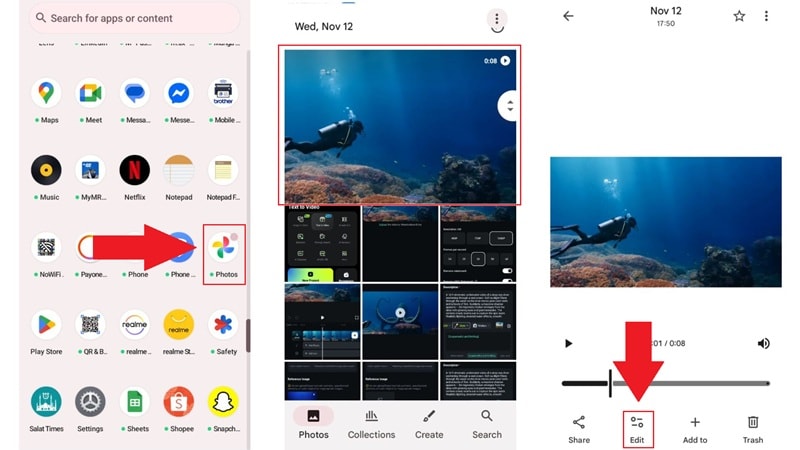
- Open the Google Photos app on your phone.
- Find the video you want to edit and tap it to play.
- Tap the "Edit" icon (the slider button) to open Google Photos' built-in video editor.
- Drag the handles at the start or end of the timeline to shorten the clip.
- Switch to the "Filters" tab and choose a preset to change the overall look of the video.
- Use the "Adjust" settings to fine-tune brightness, contrast, tone, and other details.
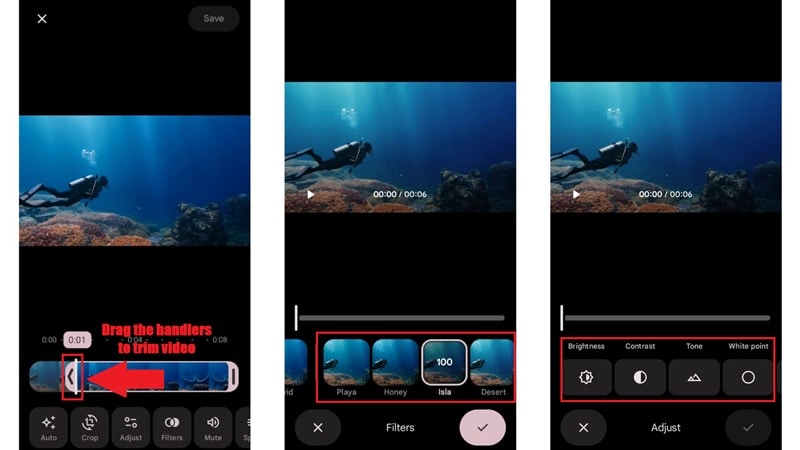
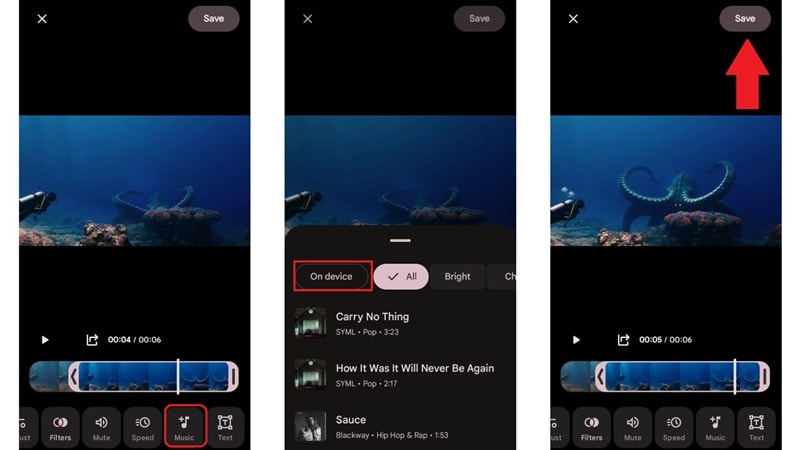
- Select the "Music" option from the menu.
- Choose one of Google's background tracks or tap "On Device" to use audio saved on your phone.
- Tap "Save" to save the project while keeping your original video safe and untouched.
You May Also Like:
How to Stabilize Videos Using Google Photos
How to Use Google Photos to Make Slideshows
Part 2. The Fine Print: Limitations of Editing Video on Google Photos
Now that you know how to trim video in Google Photos, you might be thinking it feels a bit basic. And honestly, that's because it is. So, before you keep using Google Photos to trim video for everything, you may want to know what it's good at and where it starts to fall short.
What Google Photos Can Do
For quick jobs, you can learn how to edit videos on Google Photos anywhere and finish small edits without opening a full editor. Here are some features that handle it well:
- Quick Trims: Using Google Photos' trim video tools, you can easily cut off awkward starts or endings and keep only the parts you actually want.
- Simple Color and Lighting Touch Ups: You can edit video in Google Photos to brighten dark footage or soften strong lighting without getting lost in settings.
- Apply Filters for a Style Change: Filters help your video look warmer, cooler, or more polished when you just want a quick visual boost.
- Basic Cropping and Rotation Fixes: Straightening and rotating clips is easy, which helps when a video was shot sideways or framed a little off.
What Google Photos Can't Do
Now, here's the problem. Even though you can edit video in Google Photos for simple fixes, it is not built for anything beyond that, including:
- Bringing Multiple Clips Together: Google Photos does not let you combine several clips into one video, so creating a longer or more complete story is not possible.
- Cutting Out a Moment In The Middle: You can trim the beginning or the end, but you cannot remove a section from the middle of a clip.
- Layering Sound Effects and Audio: You cannot add sound effects or stack audio tracks to match what is happening on screen.
- Adding Longer Captions or Animated Text: Text options are extremely limited, so captions and animated text are not supported.
- Working With AI Video Editing Tools: There are no smart features like auto captions or AI enhancements built in.
If you need any of this, editing video in Google Photos will not be enough, and that is when you may want to consider switching to a more complete editor.
Part 3. A More Complete Editor Than Google Photos: Filmora Mobile
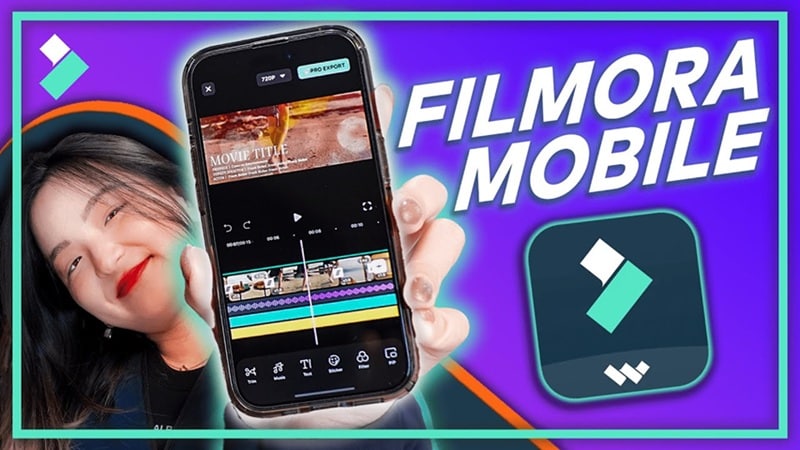
Because of these limitations, trying to edit video in Google Photos starts to feel a bit restrictive. That is usually when people look for something more flexible. In that case, Filmora Mobile is a natural step up because it still works great on your phone but gives you far more control.
It lets you move beyond basic edits in Google Photos and handle real projects without the process feeling heavy or complicated.
 Secure Download
When To Upgrade From Google Photos To Filmora
Filmora Mobile is an all-in-one AI video editor that feels just as dependable for bigger projects as it does for quick edits. It's the perfect solution because it answers the exact problems Google Photos users usually run into, such as:
1. "I can only trim the ends. I need to split a clip in the middle or combine multiple videos."
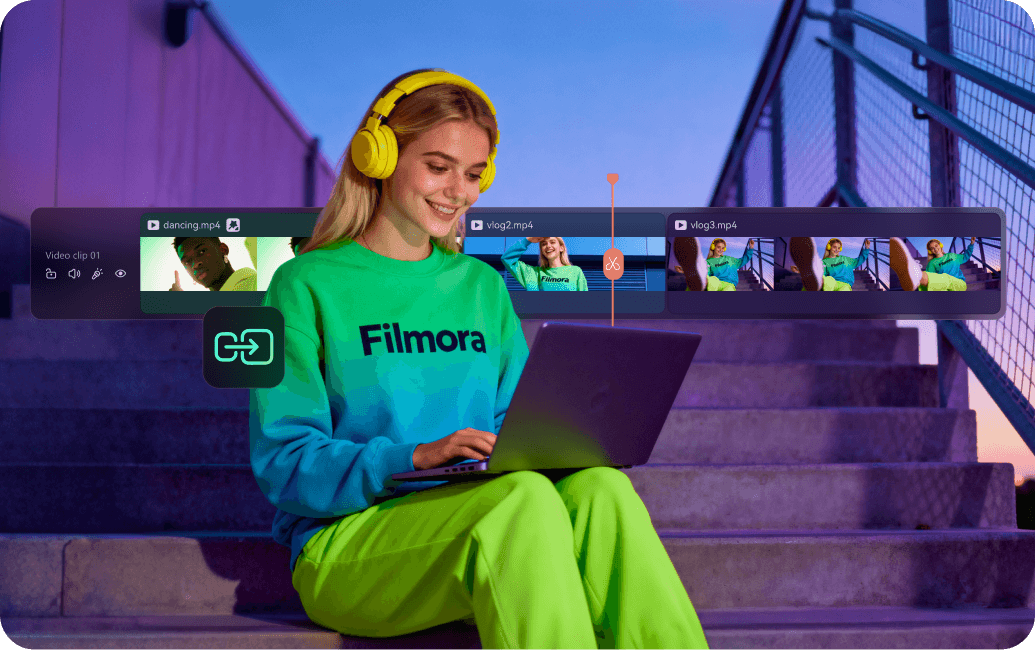
Filmora's Solution: If trimming the start and end is not enough anymore, Filmora gives you a full timeline editor. You can split a clip anywhere, combine multiple videos, and move scenes around easily to build a proper story.
2. "The filters are too basic. I want professional color grading or cool effects."
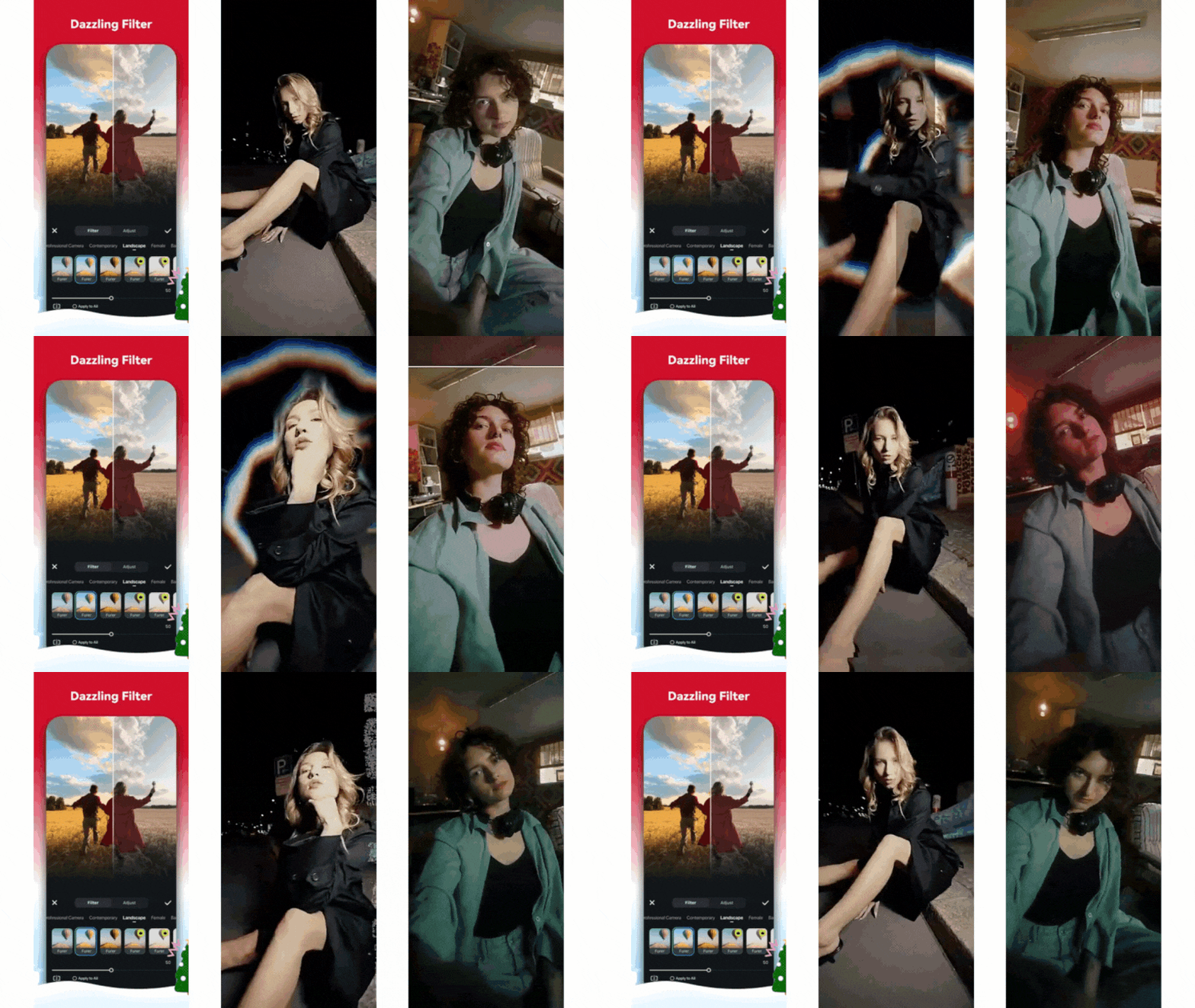
Filmora's Solution: It gives you access to a much bigger media library with advanced transitions, video effects, and creative filters that actually change the look of your video. Instead of settling for simple presets, you can style your footage in a way that feels more polished and intentional.
3. "Besides background music, I can't add sound effects, voiceovers, or fine-tune audio."
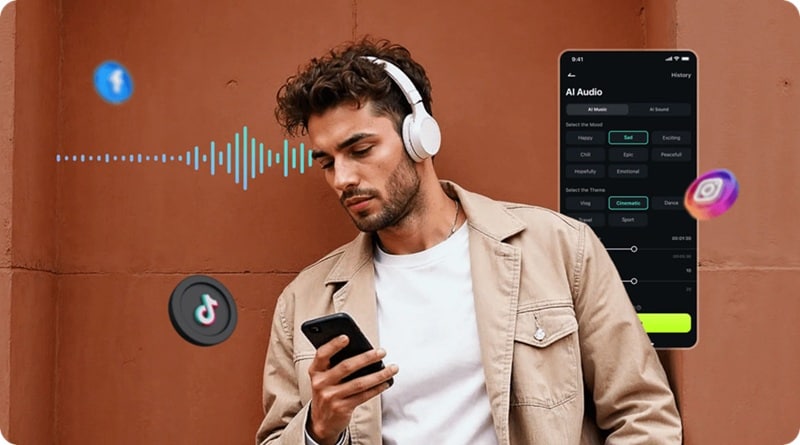
Filmora's Solution: It offers a full sound library that includes sound effects, music, and voiceovers. It also has AI audio tools that let you create custom soundtracks by picking a mood, theme, and genre, which makes it much easier to match the sound to the feel of your video.
Secure Download4. "I want to add nice captions or animated titles, but there's no way."
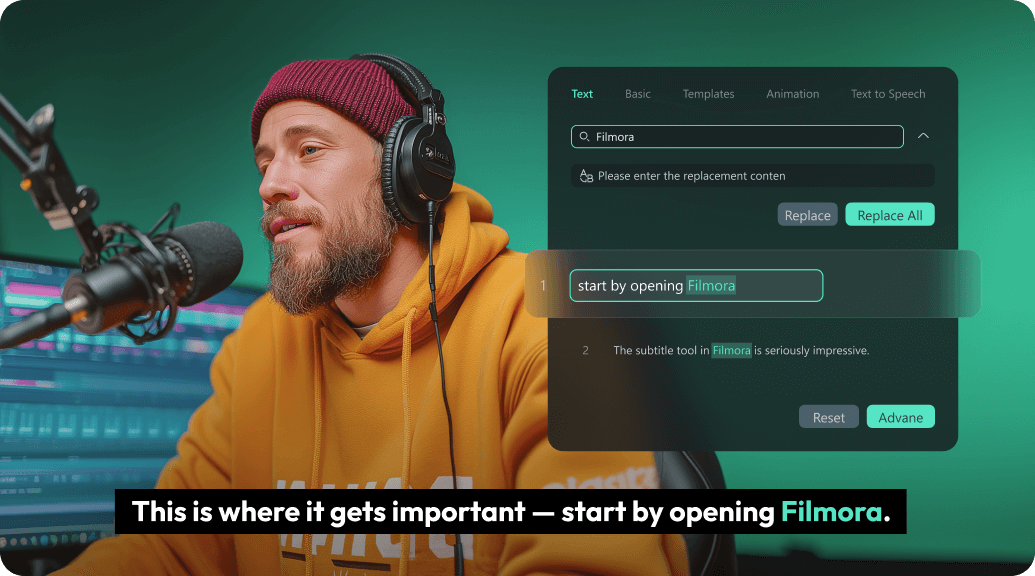
Filmora's Solution: Filmora makes this easy with its AI Caption feature, which automatically picks up what is being said and adds captions straight to your clip. On top of that, you get a bunch of ready-made text styles and animated templates, so your videos look more eye-catching without spending extra time on design.
5. "Editing feels slow and manual. Isn't there a smarter way?"
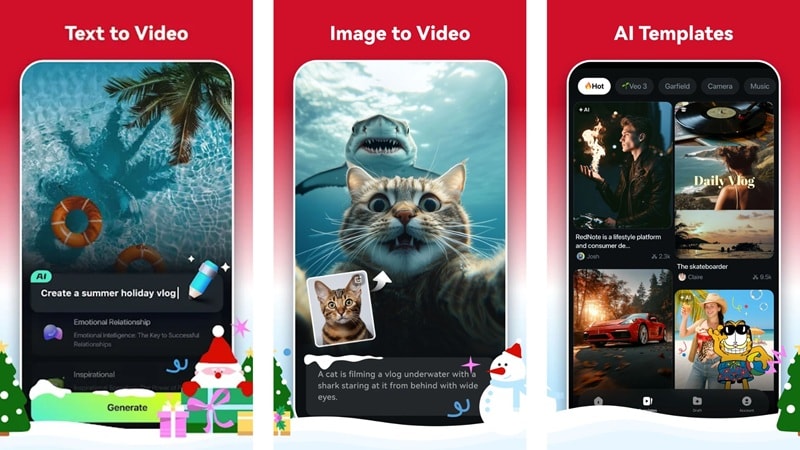
Filmora's Solution: With plenty of AI video generator features like AI Text-to-Video that can turn simple ideas into ready-made clips, along with AI Image-to-Video that brings still photos to life, you can create videos much faster without doing everything by hand. It also comes with templates made for social media, ads, vlogs, and trends, so you can get something done quickly without starting from scratch.
6. "I want to make a trending Reel or TikTok quickly, but don't know where to start."
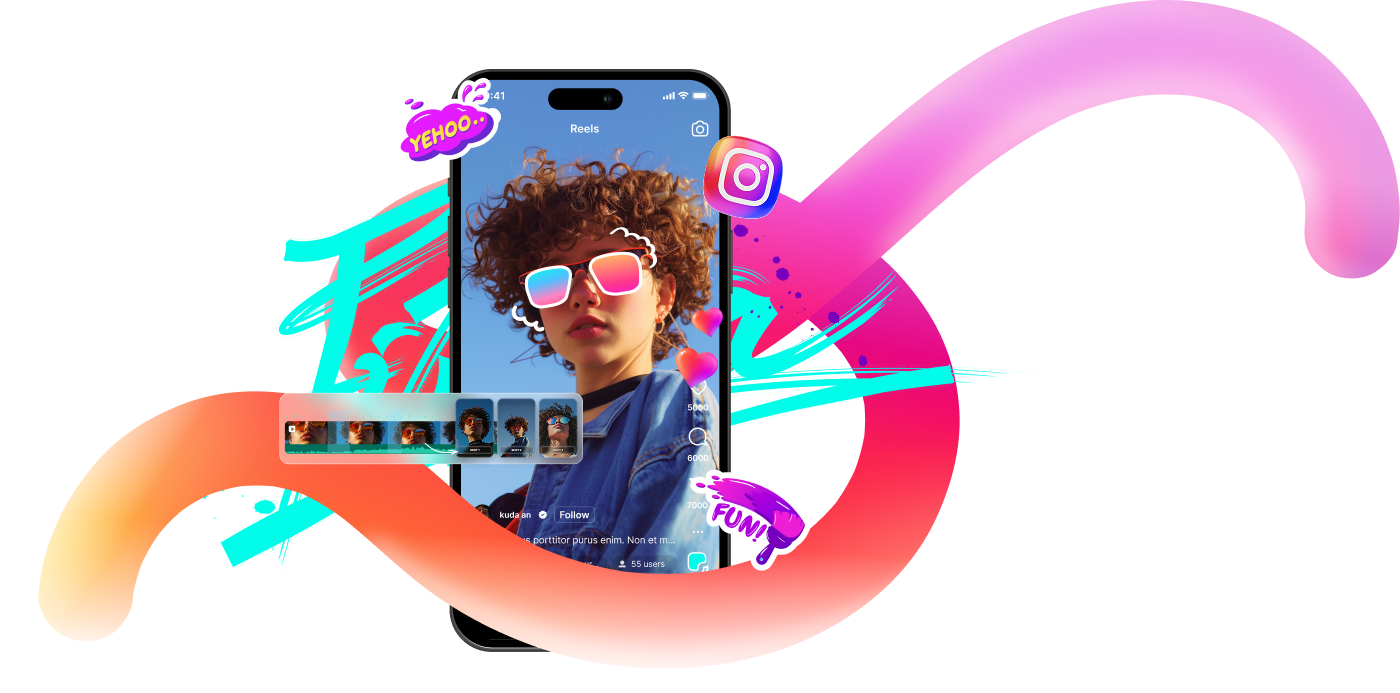
Filmora's Solution: You can rely on the AI Reels Maker feature, which helps you create eye-catching Reels without stressing over every cut. You just import your clips, pick a short video style, choose the mood and music, and the AI handles the timing and transitions. A few taps later, you have a Reel or TikTok that looks clean and ready to post.
Conclusion
Google Photos turns out to be more useful than most people expect, since you can actually edit video in Google Photos and handle simple trims and visual fixes with ease. So, we showed how to edit a video in Google Photos, but once you start using it, the limits become pretty clear, especially when you want more control or creative options.
That is why moving beyond editing video on Google Photos makes sense for bigger ideas. Filmora Mobile steps in as an easy upgrade with a richer media library, helpful AI editing tools, and a workflow that still feels simple and familiar. Instead of stopping at basic trims, Filmora lets you shape your videos properly and finish them with confidence.