
 TL;DR:
Although GPT-4o and GPT Image 1.5 have replaced it as the default ChatGPT models, you can still generate images with DALL-E 3 for free in 2026 by using a Microsoft account on Bing AI Image Creator or by selecting the specific DALL-E GPT inside ChatGPT.
● DALL-E 3 excels at rapid concept art and mood boards but lacks character memory and struggles with photorealism and legible text, making the newer GPT Image 1.5 a necessary alternative for continuous identities and realistic output.
● OpenAI permits full commercial use and monetization of your DALL-E 3 creations without attribution, but the US Copyright Office denies copyright protection for purely AI-generated work, leaving you with no legal recourse if others reuse your images.
● Static DALL-E 3 outputs can be animated or integrated into video projects using Filmora tools like AI Image-to-Video and AI Smart Cutout, though creators needing hyperrealistic assets should use the Nano Banana 2 or Pro models instead.
Ask AI for a summary
 ChatGPT
 Perplexity
 Gemini
 Claude
 Grok
Grok
Introduction: Master how to use DALL-E 3 in 2026 with our updated guide. Since GPT-4o and GPT Image 1.5 became the defaults, accessing the original DALL-E model has changed. Whether you want to generate AI images for free via Bing or ChatGPT, this tutorial covers the latest workflows and shows you how to integrate AI visuals into your video editing projects with Filmora.
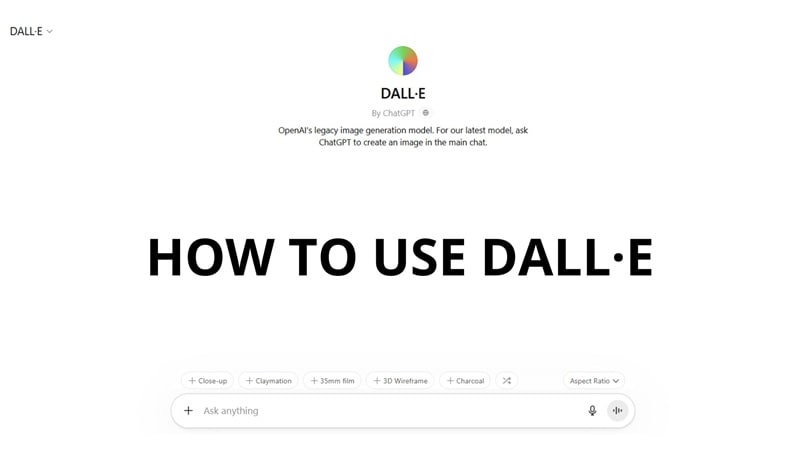
Part 1. How to Use DALL-E through ChatGPT
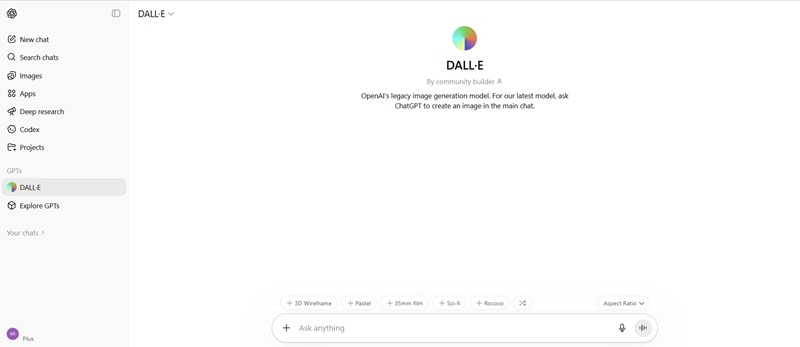
DALL-E is actually still inside ChatGPT, but it's not on the usual image generation interface. If you are generating images on ChatGPT, you are actually using GPT-4o or GPT Image 1.5, OpenAI's latest image generation model.
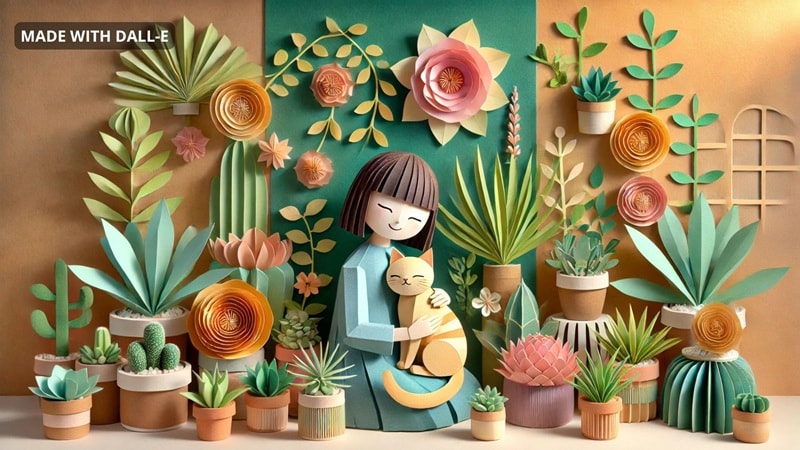
To use DALL-E specifically inside ChatGPT, you need to go through the DALL-E GPT, which is a separate entry point from the main chat window. This dedicated GPT, however, is not specific to DALL-E 2 or DALL-E 3, since everything is consolidated under a unified "DALL-E" model.
How to use DALL-E for free through ChatGPT
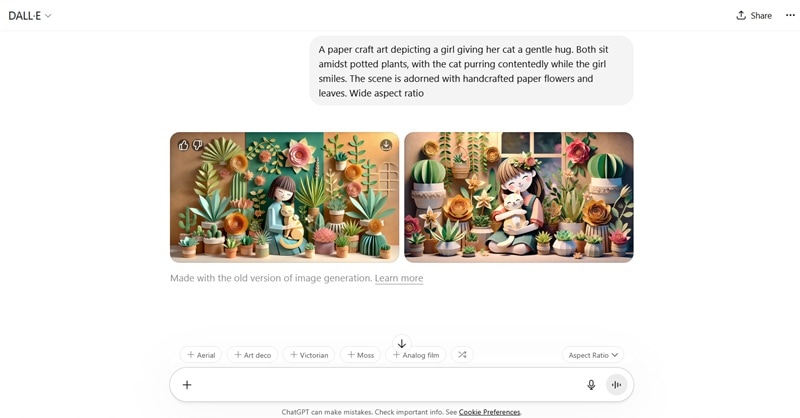
Now, what if you want to go back and use DALL-E 2 for your images? If you've been searching for how to access DALL-E 2, the answer is: you can't.
OpenAI shut down DALL-E 2 in early 2024 in favor of DALL-E 3, which produces significantly better results across the board. For anyone still holding onto DALL-E 2, DALL-E 3 is the only path forward at this point.
Part 2. How to Access DALL-E 3 for Free via Bing AI & ChatGPT
If you want to specifically use the DALL-E 3 model, you can do it for free through Bing AI Image Creator. Bing AI Creator includes DALL-E 3 as one of its selectable models alongside GPT-4o and MAI-Image-1.
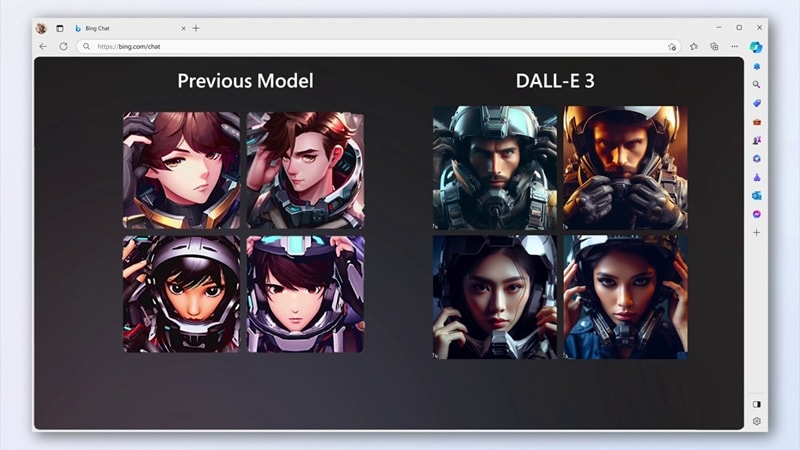
How to access DALL-E 3 for free
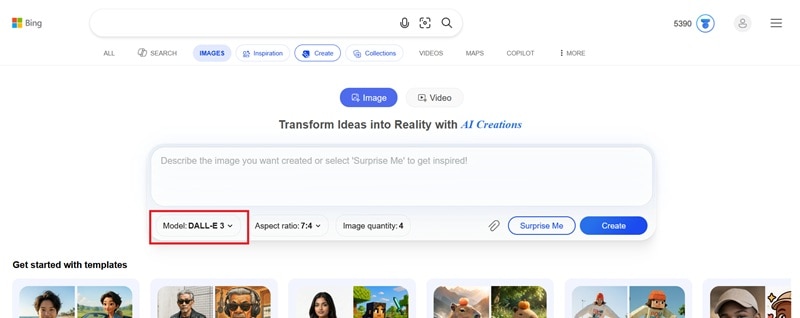
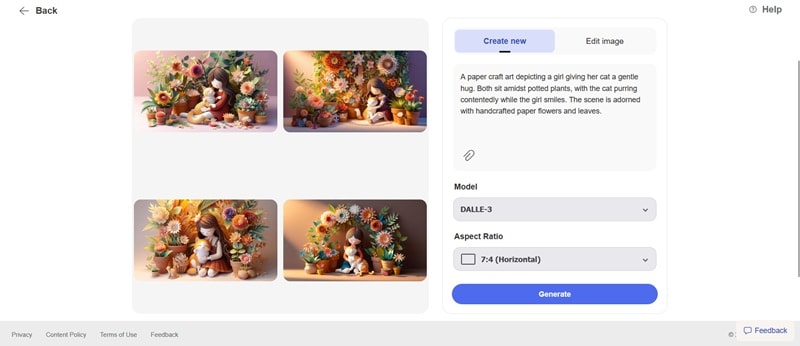
Part 3. Advanced Tips: DALL-E 3 Prompt Engineering Guide
Learning how to use DALL-E 3 for free is one thing. Getting the image you envisioned on the first try is another. It depends on how well you write your prompt. Vague prompts produce vague results. Remember that the AI is reading your words, not mind.
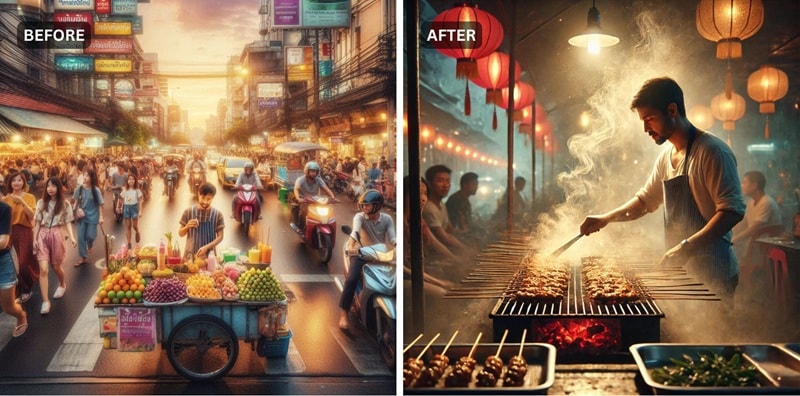
Some users shared their tested techniques on the OpenAI community forum. We summarized the most useful ones below.
1. Start With a Clear Prompt Structure
The more specific your prompt, the better the image quality. Include details like the setting, objects, colors, mood, and any specific elements you want in the image. A good structure you can follow is:
[Subject] + [Environment] + [Art style] + [Mood] + [Lighting] + [Camera angle]
Example: "A street food vendor at a night market in Bangkok, surrounded by hanging lanterns and steam rising from the grill. Photorealistic, warm golden light, eye-level shot, shallow depth of field."
2. Use Descriptive Adjectives, but Don't Overload
Adjectives help refine the image. Instead of saying "a dog," say "a fluffy, small, brown pomeranian." But don't put too many details or it will confuse the model. Strike a balance between being descriptive and being concise. The rule of thumb is: one clear scene with rich detail beats two competing ideas crammed into one prompt.
3. Camera and Lighting Terms That Work on DALL-E
Using the right camera and lighting vocabulary makes a bigger difference than most people expect. These lighting descriptors are reliably interpreted by DALL-E:
- Cinematic lighting: high contrast, directional, dramatic shadows
- Golden hour: warm, low-angle sunlight, long shadows
- Soft diffused light: overcast, no hard shadows, even exposure
- Rembrandt lighting: one side of the face lit, the other in shadow
- Neon glow: artificial colored light, urban or sci-fi scenes
- Studio lighting: clean, even, neutral background
You can also use camera terms to guide the composition and give you more control over the final result. For example: wide establishing shot, tight close-up, overhead / bird's-eye view, shallow depth of field, low angle.
Part 4. Practical Scenarios: Applying DALL-E 3 Visual Assets to Video Production
Now, what do you actually do with the image you generated using DALL-E? For video creators, the answer is a lot.
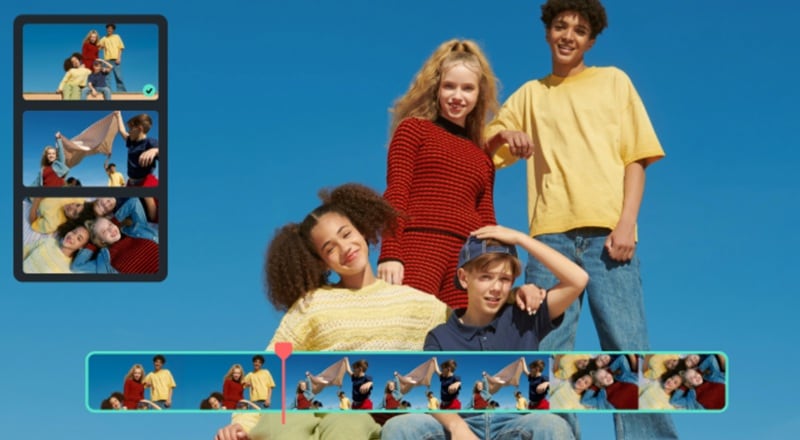
Video production constantly demands visuals, and not just for the video itself. Thumbnails, storyboard frames, background assets, and title card graphics are a few examples that need to come from somewhere.
Incorporate DALL-E 3 images into your AI video editing workflow. With Filmora's Image to Video and Smart Cutout tools, you can transform static DALL-E generations into dynamic cinematic backgrounds. The best way to put those DALL-E 3 assets to work is by using a video editor that keeps the workflow simple. Wondershare Filmora is exactly cut for this, and you can use it to bring those images into your video workflow.
 Secure Download
Replace Video Background
Let's say you need a background scene that's too specific to exist in any stock library. You can use DALL-E to generate that exact environment, in the mood and style you need, in under two minutes.
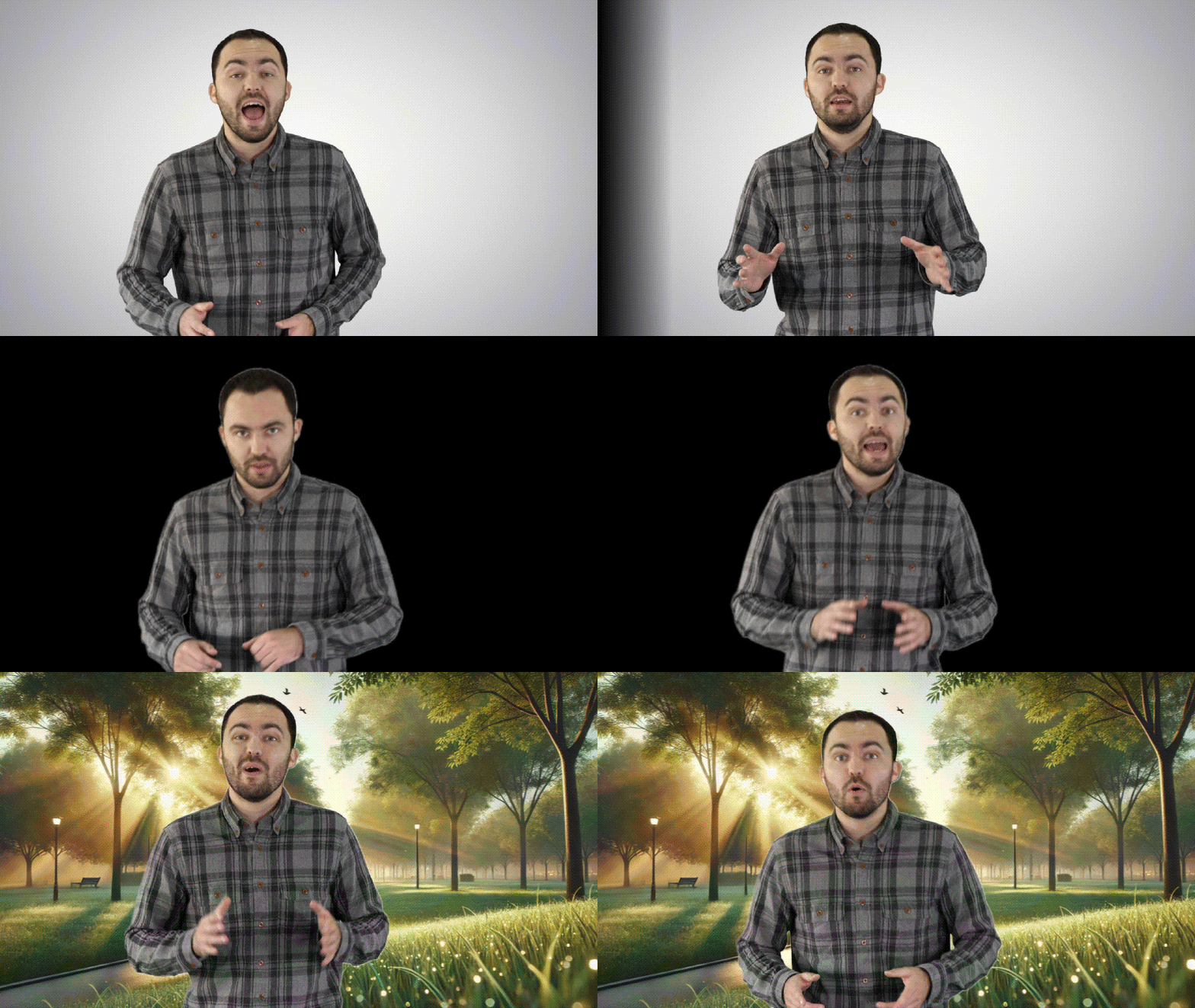
To put it into a video, you can use Filmora's background removal tools to cleanly separate your subject from the original footage and place the DALL-E image behind it. There are three options depending on your situation:
- Green Screen (Chroma Key): Best used when your footage was shot against a solid color background. Filmora removes the solid color in one click, leaving just your subject for the DALL-E background to sit behind.
- AI Portrait: Works when your background isn't a solid color but also isn't too complex. It's also a one-click removal, no manual selection needed.
- AI Smart Cutout: Gives you the most control. You can manually mark what to keep and what to remove, which makes it the right choice for complex backgrounds with fine edges like loose clothing or intricate objects.
These three tools cover pretty much every footage situation you'll run into. Since DALL-E can generate any background you describe, the combination gives you a custom scene setup without a physical set, a camera crew, or a stock subscription.
Secure DownloadCreate Video Thumbnails
A good thumbnail is sometimes all you need to bait viewers to watch your content. Since stock photos rarely nail the exact vibe you're going for, you can describe what you want in DALL-E, generate it, and you've got a custom image that no one else is using.
After that, bring the AI-generated image into Filmora, add your title text, adjust the colors, and you get the perfect thumbnail for your video. If you'd rather skip the manual work, Filmora's AI Thumbnail Generator can suggest thumbnail options from your video automatically.
Animate DALL-E AI Image Results
Besides leaving the generated image static, you can turn it into a short video. That alone has the potential of going viral. Filmora's AI Image-to-Video feature lets you take any still image, including ones generated from DALL-E, and animate it into a short clip ready for upload.
On social media, we already see many AI-animated images racking up millions of views. A cat casually doing the dishes, a historical photo that suddenly moves — these all start as a single still image and develop a story that keeps viewers watching till the end.
Secure DownloadPart 5. Avoidance Guide: Limitations and Copyright Notices of DALL-E 3
While you've learned all the basics on how to use DALL-E 3, it has its own boundaries and limitations that could affect your output, your workflow, and in some cases, how you're going to use what you generate, legally.
What DALL-E 3 Still Struggles
- Hyperrealistic output. DALL-E 3 is not the strongest model when it comes to photorealism. The results often look artificial, whether that's a human face, an animal, a product, or a natural environment.
- Word associations. The model defaults to the most common visual interpretation of a word. For example, "Dog" tends toward a golden retriever. Treat your prompt like a precise order, not a rough idea.
- Readable text is a no-go. Don't rely on DALL-E 3 to put legible words inside an image. It rarely works. The letters look plausible until you zoom in. It's better to generate the image without text and handle typography separately in an editor like Filmora.
- No memory between generations. Generate the same character twice and you'll get two different people. There's no way to tell DALL-E 3 to remember what a character looked like in a previous session.
Copyright and Usage of DALL-E 3 AI Images
Generally, it's safe to use DALL-E 3 outputs for most personal and commercial purposes. Some ground rules you need to know about before putting these images to work are:
- You own what you generate. According to OpenAI's terms of service, images created through ChatGPT and the DALL-E GPT are yours. You can use them commercially, sell them, and publish them without crediting OpenAI.
- You can't copyright it. Ownership and copyright are two different things. The US Copyright Office has ruled that purely AI-generated images don't qualify for copyright protection because there is no human authorship involved. This means anyone can take your DALL-E output and reuse it. You'd have limited legal recourse. This is still an evolving area of law, so the rules may look different in the future.
- Art style references are a gray area. DALL-E 3 will generate images in the style of most artists if you ask it to. Whether that's ethical or legally problematic for commercial use is a question the law hasn't cleanly answered yet.
What DALL-E 3 will refuse to generate
The model, however, has hard content restrictions built in regardless of how the prompt is worded:
- ❌ Real, named public figures in fabricated or misleading scenarios
- ❌ Sexual or explicit content of any kind
- ❌ Graphic violence
- ❌ Any content that sexualizes minors
- ❌ Imagery intended to spread misinformation
These restrictions apply across ChatGPT, Bing Image Creator, and the API. Attempting to work around them will result in a refusal.
Part 6. Comparison and Summary: Which Creative Scenarios is DALL-E 3 Suitable for?
Each AI image generator has its own forte. DALL-E 3 is at its best in these specific scenarios, and noticeably weaker in others. You can use the breakdown below as a quick reference to decide whether DALL-E 3 is the right tool for your project.
- Concept art and mood boards. If you're in the early stages of a project and need to quickly visualize ideas (color palettes, scene compositions), or rough character concepts) DALL-E 3 can get you there fast.
- Social media visuals. Quick, one-off images for posts, stories, and thumbnails are exactly the kind of work DALL-E 3 handles well. The output quality is more than sufficient for screen use, and the turnaround is hard to beat.
- Storyboarding. For rough visual planning, DALL-E 3 produces frames quickly enough to keep the creative process moving for free. Just don't expect perfect character consistency across frames.
Other than that, it may be better to explore other options, especially if your project calls for photorealistic output. One alternative worth trying is Nano Banana 2 and Nano Banana Pro (for higher quality results), both of which are available directly inside the Filmora AI Image Generator feature.
Conclusion
DALL-E has come a long way from when it first launched, and so has the landscape around it. You have learned what the current state of DALL-E actually looks like, how to use DALL-E and DALL-E 3 for free, and how to bring those images into a video production workflow with Filmora.
The barrier to getting started is as low as it gets. A free account and a well-written prompt are all you need, while everything else is just practice.

FAQs
-
Does DALL-E 3 add a watermark to generated images?
Whether you are using Bing AI Image Creator or ChatGPT, there's no visible watermark on the images generated with DALL-E. -
What is the difference between DALL-E 3 and GPT Image 1.5?
GPT Image 1.5 is OpenAI's latest and most capable image generation model, released in December 2025. Compared to DALL-E 3, it produces more photorealistic results, handles readable text inside images reliably, and preserves character identity across multiple generations. -
Is DALL-E 3 still the default model in ChatGPT?
No. Since March 2025, ChatGPT has used GPT-4o and GPT Image 1.5 as its default image generation models, not DALL-E 3.
