

 TL;DR:
Instead of risking malware infections and corrupted exports with a Topaz Video AI crack, users can legally apply the Topaz Starlight upscaling model directly within the Wondershare Filmora video editor.
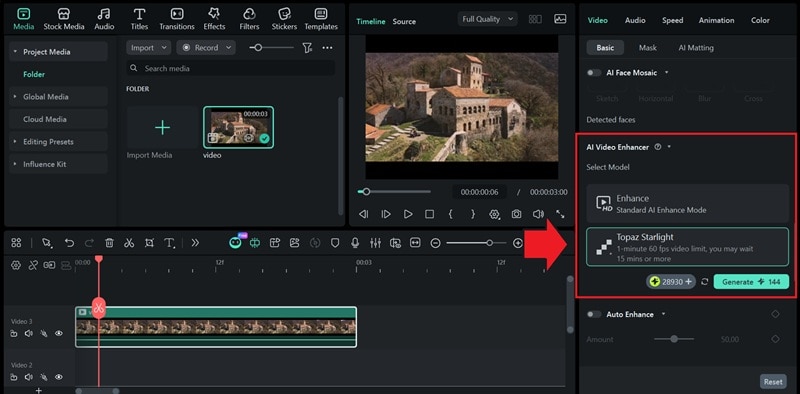
● Accessing the integrated upscaler requires installing Filmora v15.2 or newer and navigating to Video > Basic > AI Video Enhancer to apply the Topaz Starlight model.
● Filmora calculates enhancement costs using a credit-based system tied to video length, offering predictable pricing for occasional users who want to avoid Topaz's $33 or $67 monthly subscriptions.
● The integrated workflow is optimized for consumer-level PCs, eliminating the need for the high-end GPUs typically required by the standalone Topaz application.
Ask AI for a summary
 ChatGPT
 Perplexity
 Gemini
 Claude
 Grok
Grok
There's no denying that Topaz Video has helped many people upscale low-resolution footage and restore old or blurry videos with exceptional quality. But over time, higher pricing and demanding hardware requirements gradually pushed many users to search for a Topaz Video AI crack as a free workaround.
While that might sound tempting at first, it often comes with risks most people don't know about. Before doing anything risky and regretting it later, we'll recommend a safer solution instead that lets you enhance your videos without putting your system or files at risk.

Part 1. Why Many People Search for Topaz Video AI Crack
Topaz Video AI is an AI-powered video enhancement tool that uses diffusion-based models to rebuild details frame by frame. Because of this approach, the results it produces can look sharper, cleaner, and more natural than standard upscaling tools or denoise filters.
With that level of quality, Topaz AI runs as a standalone tool and comes with a higher price, which can be expensive or too much for users who don't need it regularly. At the moment, Topaz is only available through a subscription-based plan:
| Personal | Pro | |
| Pricing* | $33/month | $67/month |
| Monthly Video Cloud Credits | 25 | 100 |
| Commercial Use | Limited | Full |
*) Annual plans, billed monthly.
As a result, many users are tempted to look for Topaz Video AI crack download links, driven by several reasons:
- The subscription-only pricing can feel costly for occasional use
- Slow performance on average PCs due to heavy local processing
- Older licenses no longer include access to new features
With cracked software, you don't have to deal with all that upfront, which is why some people decide to take the risk. But the reality is often very different from what it seems, and it can cause bigger issues down the line that end up costing you more.
Part 2. The Real Risks Behind Using a Topaz Video AI Crack
So, what could go wrong with using a Topaz AI crack? It does feel like an attractive shortcut, but the real “cost” here isn't money. Instead, it's what it can do to your computer, your data, and your overall workflow.
1. GPU and Driver Conflicts
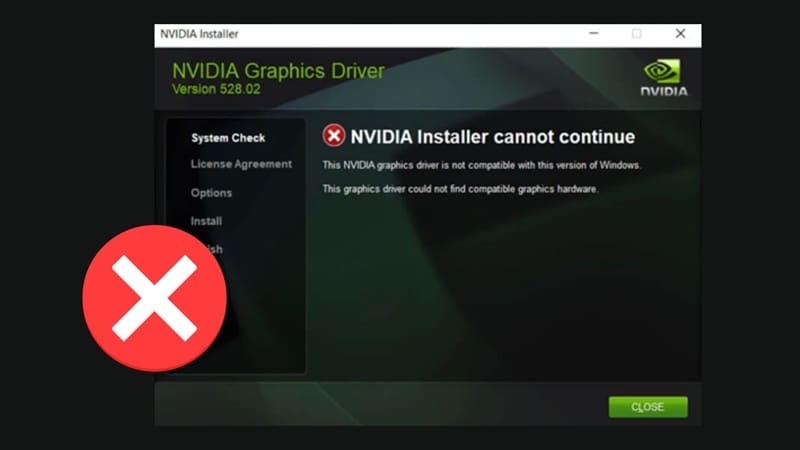
Both Windows and Topaz video AI Mac crack often rely on modified system files that don't work well with official GPU drivers. This can cause random crashes, failed exports, or the software breaking after a driver update. In some cases, it can even affect other editing or graphics apps on your computer.
2. Hidden Security Risks
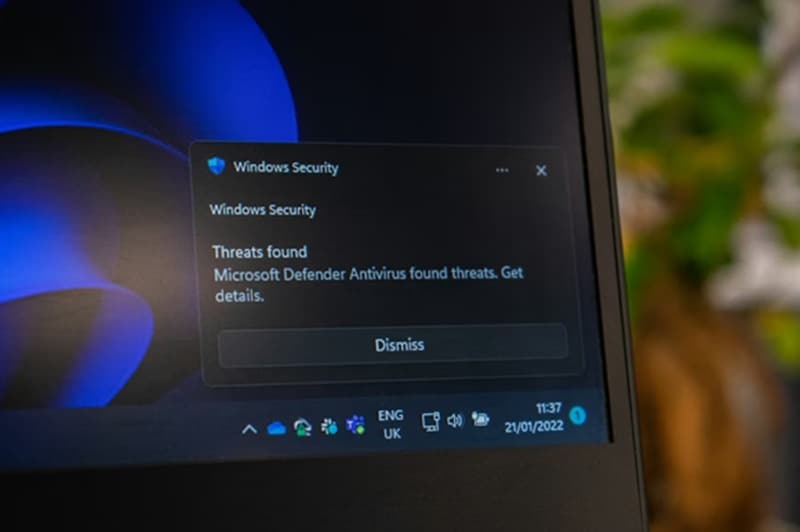
You shouldn't trust download links for Topaz Video AI crack on Reddit or any other platforms. Many cracked installers come bundled with malware, spyware, or hidden crypto-miners. These threats can slow down your system, put personal files at risk, and secretly use your CPU or GPU resources without you noticing.
3. Unstable Exports and Corrupted Video Files
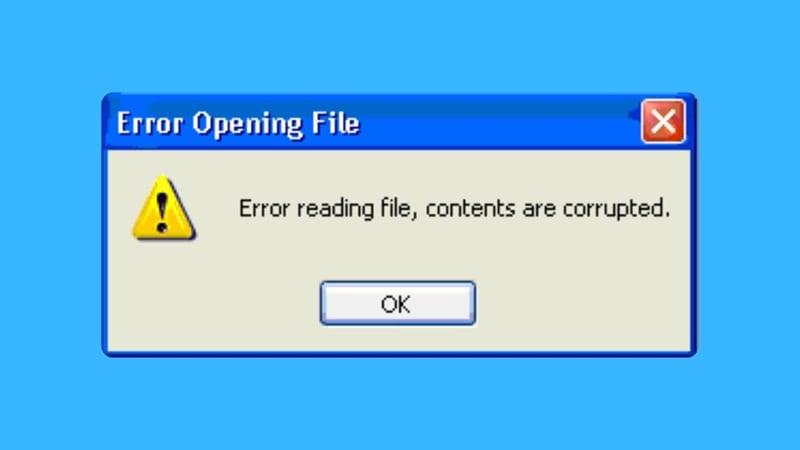
Because cracked software bypasses official updates and checks, exports can fail halfway, show visual glitches, or produce files that won't open properly. This is especially frustrating when you've spent hours processing a long or important clip, only to end up with a corrupted file.
4. Inability to Update AI Models
Topaz Video AI updates its models regularly to improve quality and performance. Cracked versions are locked to older builds, which means you will miss out on new models, bug fixes, and better compatibility with newer hardware and formats.

5. Legal and Ethical Risks
Using pirated software violates licensing terms and can lead to legal trouble, especially for commercial or professional use. You can face legal penalties or loss of professional credibility.

When you add everything together, the risks with using Topaz crack almost always outweigh any short-term savings you think you're getting. A safe way to use Topaz Video AI is by downloading the software directly from the official Topaz Labs website.
Or, if you feel that Topaz Video AI is too expensive or too hardware-intensive, it's better to look for a safer and more flexible Topaz alternatives that offers similar results without putting your device or data at risk. Wondershare Filmora is a good example, especially now that it integrates Topaz Video AI technology directly into its editing workflow.
 Secure Download
Part 3. A Safer Alternative to Topaz Video AI Crack - Wondershare Filmora
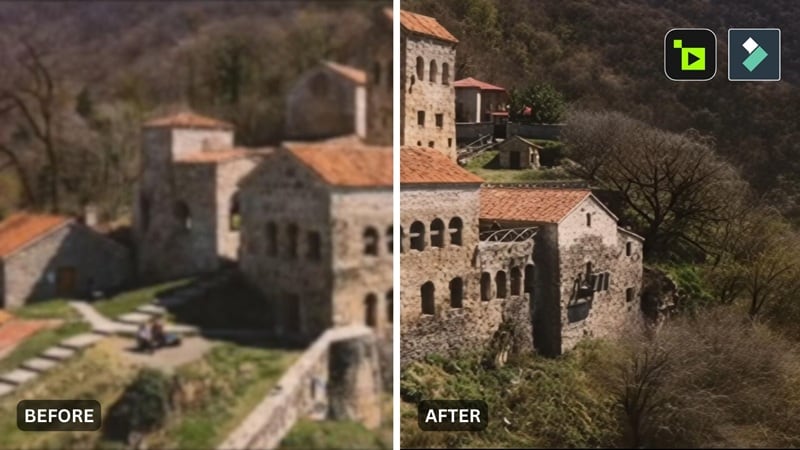
On top of its built-in AI video enhancer tool, Filmora gives you a more balanced approach to video restoration by integrating the Topaz AI Starlight model directly into the editor. Since everything runs in one place, you can handle video edits and enhancements within the same project instead of focusing only on upscaling.
This setup, of course, feels more practical. You can apply AI enhancement only where it's needed, keep system usage under control, and still maintain good output quality without taking the risks that come with using the Topaz Video AI cracked version.
Why We Recommend Filmora:
- Topaz AI video enhancer inside the editor: No need to jump between tools. You can upscale, enhance, and finish your videos entirely inside Filmora instead of relying on a standalone application.
- Use the credits as you need: Filmora uses a credit-based system tied to video length and selected AI features, which makes costs more predictable for occasional use. The same credits can also be used across other AI tools in Filmora.
- Lower hardware pressure for everyday creators: Filmora is designed to run smoothly on consumer-level PCs and laptops. You can use it even without high-end GPUs.
- Safer workflow with official updates and support: Using a licensed tool means stable performance, regular AI model improvements, and no risk of malware or corrupted files.
Secure DownloadUpscale Videos Using Topaz AI in Filmora
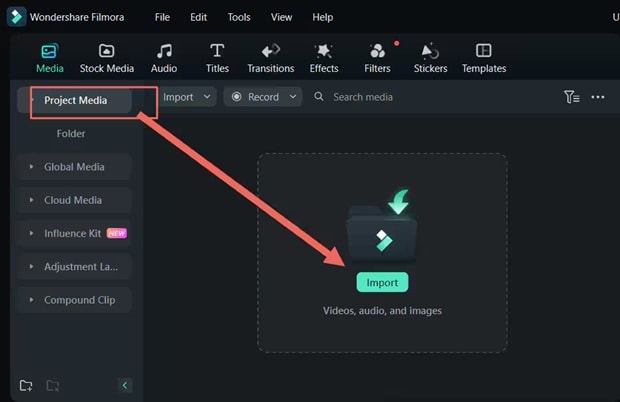
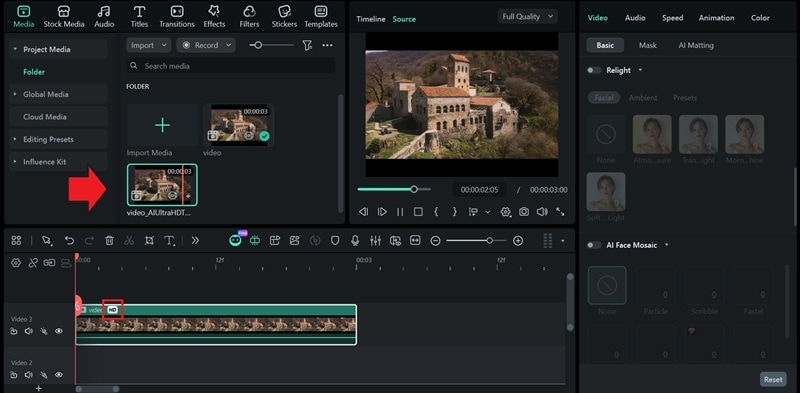
Before you begin, make sure you have installed Filmora to the latest version (at least v15.2) on your desktop, and follow the steps below.
Conclusion
Even though Topaz Video AI delivers impressive upscaling and restoration results, the tool can feel too expensive or too demanding for how often you actually use it. That's why using a Topaz Video AI crack can seem tempting at first, but it usually comes with risks you may not notice until something goes wrong.
At that point, you need to step back and look for an option that fits you better. We recommend Filmora since it now integrates the Topaz Video AI enhancement into the editor. It's way more efficient compared to using a standalone tool, as you can improve clips as part of your normal editing flow.

FAQs
-
Q1. Will my enhanced videos look different when using Filmora instead of Topaz Video AI?
Not really. Because Filmora integrates Topaz AI enhancement directly into the editor, you're essentially using the same AI technology while working inside a full editing workflow. If anything, it gives you more flexibility because you can enhance only the clips that actually need it instead of processing everything in a separate app. -
Q2. Can I use Filmora for batch upscaling multiple videos?
Filmora is mainly designed for timeline-based editing rather than large batch processing. That said, you can enhance multiple clips within the same project or across different projects without reopening a separate tool each time. -
Q3. Will AI upscaling in Filmora overwrite my original video file?
No. Filmora doesn't overwrite your original files. Your source videos stay untouched on your computer, and the AI enhancement is applied only inside the project. -
Q4. What factors determine credit usage when upscaling videos with Topaz AI in Filmora?
Credit usage mainly depends on the length of the video and the resolution of the original file. Longer and higher-resolution clips use more credits during the enhancement process. -
Q5. Does Filmora offer a free trial for upscaling your videos?
While Filmora offers a free version, upscaling your videos with Topaz Video AI Enhance in the software requires AI credits. However, Filmora often gives free AI credits through promotions or ongoing usage, so check the app and your account regularly for available offers.
