


 TL;DR:
SeeGen AI is a pay-as-you-go video generator powered by the Seedance 2.0 and Happy Horse models that enables creators to produce highly controllable 4- to 15-second cinematic clips by simultaneously combining text, up to nine images, three videos, and three audio references.
● The platform features native audio-video lip-syncing and a built-in upscaler that enhances MP4, MOV, and WebM files up to 4K resolution.
● Pricing operates on a non-expiring credit system starting at $17.99 for 3,000 credits, though users face strict restrictions on generating real celebrity faces and unreliable in-video text rendering.
● Because SeeGen AI lacks full timeline editing, creators building multi-scene storytelling projects will need companion software like Wondershare Filmora to combine clips, sync pacing, and generate subtitles.
Ask AI for a summary
 ChatGPT
 Perplexity
 Gemini
 Claude
 Grok
Grok
AI video tools are starting to feel less like simple prompt generators and more like complete creative workflows. What once felt experimental can now handle cinematic motion, character consistency, audio syncing, and even multi-scene storytelling.
One of the latest tools gaining attention is SeeGen AI, a platform designed to create cinematic AI videos with better control and consistency. It supports multi-reference generation using images, videos, and audio inputs, along with native audio sync and scene extension workflows.
Let’s learn more about how SeeGen AI works, its pros and cons, and find out if it’s worth using!
Part 1. What Is SeeGen AI?
SeeGen AI is an AI-powered video creation platform built on Seedance 2.0 and Happy Horse, a next-generation model designed to generate more cinematic and easily controllable AI videos. Many AI video creation tools still focus on short, meme-style clips or simple prompt experiments, but SeeGen AI prioritizes visual appeal and consistency.
SeeGen AI supports text-to-video and image-to-video generation, where you can combine multiple references, such as images, videos, and audio files in one go. Features like scene extension, character consistency, and native audio sync make the overall process feel more structured, especially if you are creating cinematic social media content, ads, or AI storytelling projects.
What Makes SeeGen AI Different?
SeeGen AI places a strong focus on creative control and reference-based content creation. Its positioning, “Everyone is a Director with Seedance 2.0,” reflects how the platform encourages users to shape scenes more intentionally, not relying only on random prompts.
What makes it stand out:
- Support for simultaneous image, video, and audio references
- Multi-modal AI generation workflows
- Built-in audio-video synchronization
- Cinematic camera movement and scene styling
- HappyHorse access for expanded generation workflows
- Stronger consistency across multiple scenes and clips
Supported Inputs
| Input Type | Current Support |
| Image | Up to 9 references |
| Videos | Up to 3 references |
| Audio | Up to 3 references |
| Generation style | Text-to-video & image-to-video |
| Clip duration | Around 4–15 seconds |
| Aspect ratios | 16:9, 9:16, 1:1, 4:3, 3:4 |
SeeGen AI is ideal for creators who produce:
- Cinematic TikToks and Reels
- AI-generated ads
- Music-style edits
- Mood trailers
- Visual storytelling clips
- Product showcase videos
- Short-form branded content
- Experimental AI filmmaking projects
Its workflow feels most useful when you want more control over scene style, character consistency, and overall cinematic direction without needing a full production setup.
Part 2. Main Features of SeeGen AI Video Generator
If you're wondering why SeeGen AI has been gaining so much attention lately, it’s because the platform focuses on creating cinematic-style AI videos in a more user-friendly manner. It combines text prompts, references, audio syncing, and quality enhancement tools in one place, with a more production-oriented approach than many other basic AI video generators.

Here are some of the key features currently available on SeeGen AI.
Text-to-Video and Image-to-Video
SeeGen AI is compatible with both text-to-video and image-to-video content creation workflows. You can create cinematic clips from written prompts or animate still images into moving scenes with camera movements, stylized motion, and lighting effects.
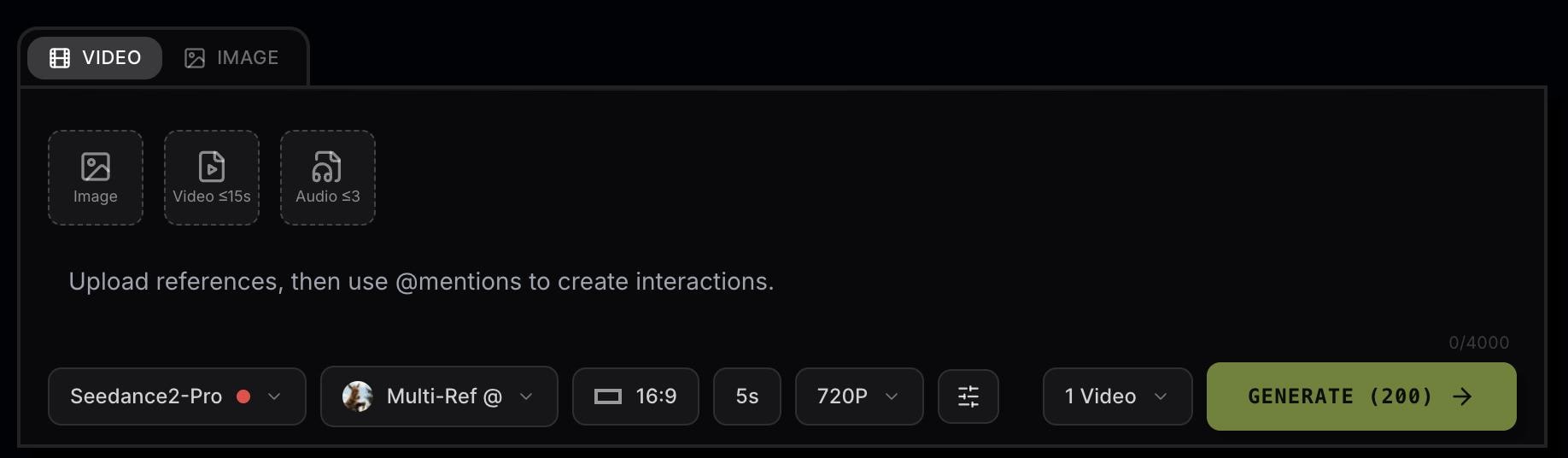
The text-to-video model works best with detailed prompts that include scene descriptions, mood, camera direction, and subject movement. Meanwhile, image-to-video generation is useful for animating portraits, product photos, illustrations, or concept art into short cinematic clips for TikTok, Reels, ads, and storytelling content.
The current generation of workflows supports short-form videos of 4 to 15 seconds, depending on the selected model and settings.
Multi-Reference Control
Since you don’t have to rely on a single text prompt, you can combine multiple images, videos, and audio references to guide the final output more consistently. This helps improve:
- Character consistency
- Scene continuity
- Visual style matching
- Cinematic mood
- Camera direction
Based on the current platform support, users can upload:
- Up to 9 image references
- Up to 3 video references
- Up to 3 audio references
The workflow is most useful for creators producing multi-scene AI videos, branded campaigns, recurring characters, music-style edits, or cinematic storytelling projects.
Native Audio and Lipsync
SeeGen AI also includes built-in audio-video syncing and lip-sync generation features directly inside the platform. Creators can create scenes that align more naturally with dialogue, narration, music, or sound effects without relying entirely on separate lip-sync tools afterward.
The feature works well for:
- Talking AI characters
- Narrated short videos
- Cinematic dialogue scenes
- Multilingual content
The platform currently supports audio-guided generation workflows, helping scenes feel more in sync with the voice pacing and sound timing.
Video Upscaler
Additionally, SeeGen AI features a built-in Video Upscaler designed to improve the quality of your clips. You can upload videos directly, import them from your gallery, or use a video link. It’s useful for fixing blurry AI-generated footage, sharpening cinematic scenes, enhancing animation visuals, and preparing videos for export to social media at a higher quality.
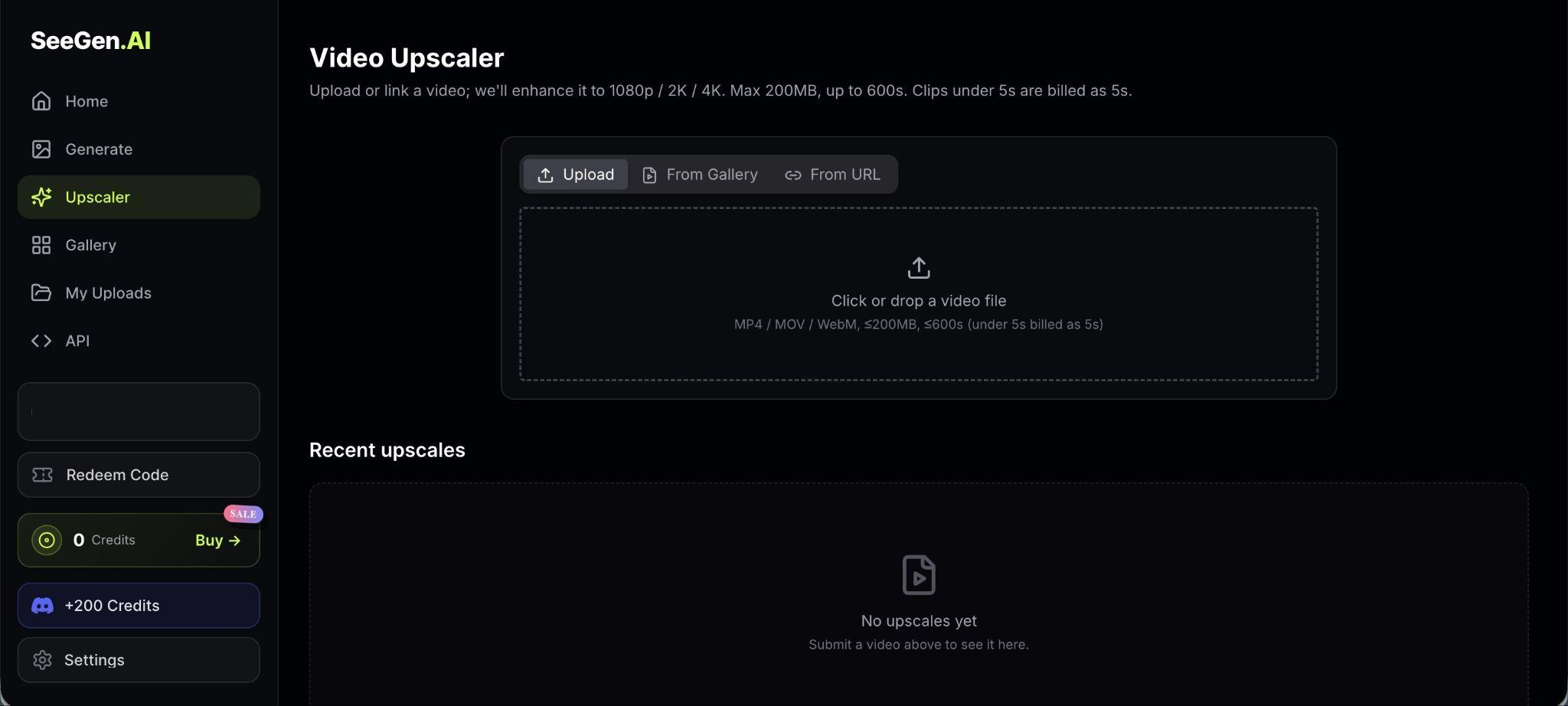
The Video Upscaler feature currently supports:
- MP4, MOV, and WebM files
- Files up to 200MB
- Videos up to 600 seconds long
- AI upscaling to 1080p, 2K, and 4K outputs
One detail worth noting is that clips shorter than 5 seconds are still counted as 5-second generations, which may affect credit usage during testing or repeated exports.
Part 3. How SeeGen AI Works
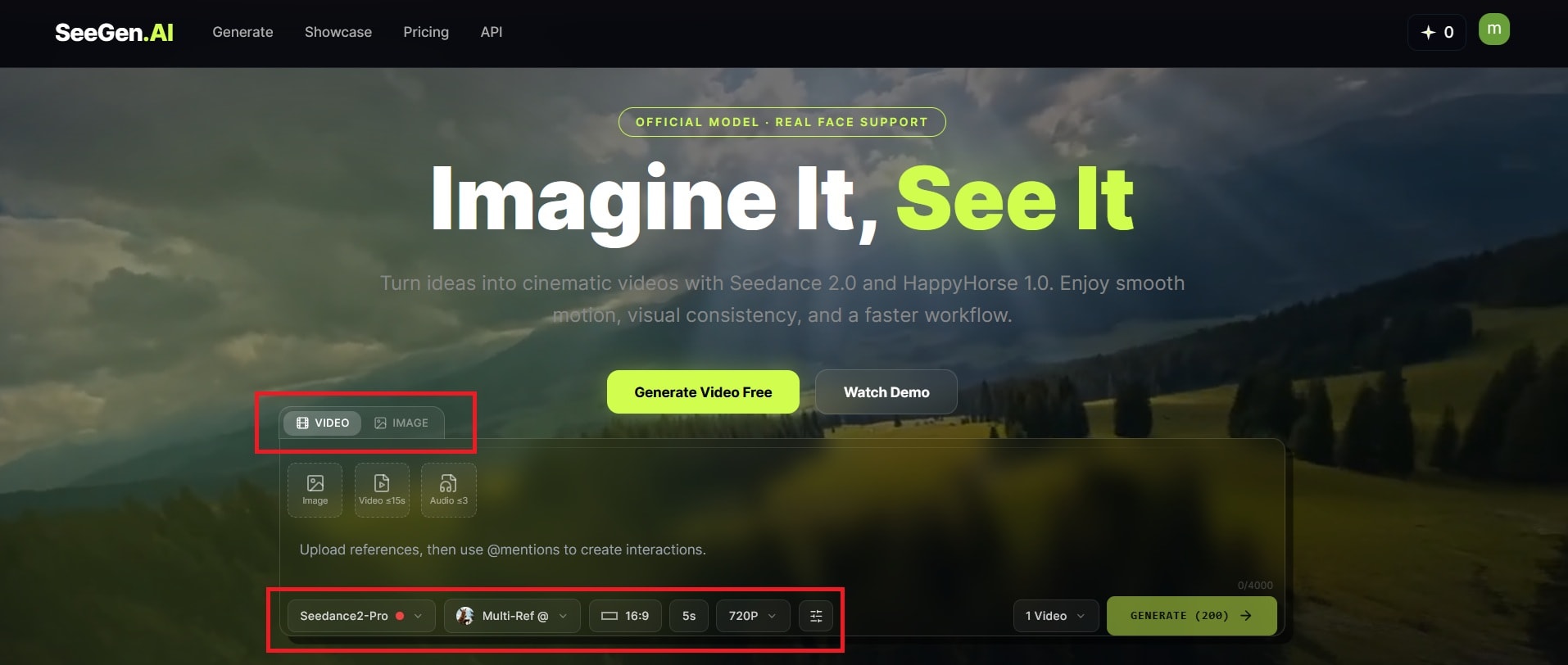
Getting started with SeeGen AI is straightforward, especially for short-form cinematic content. Here’s a simple step-by-step guide on how to use it.
Part 4. SeeGen AI Pros and Cons
SeeGen AI delivers impressive visual quality for AI-generated videos, especially while working with references, audio syncing, and stylized motion. The platform feels well-suited for creators producing social media content, AI ads, music edits, and storytelling clips where visual direction matters more.
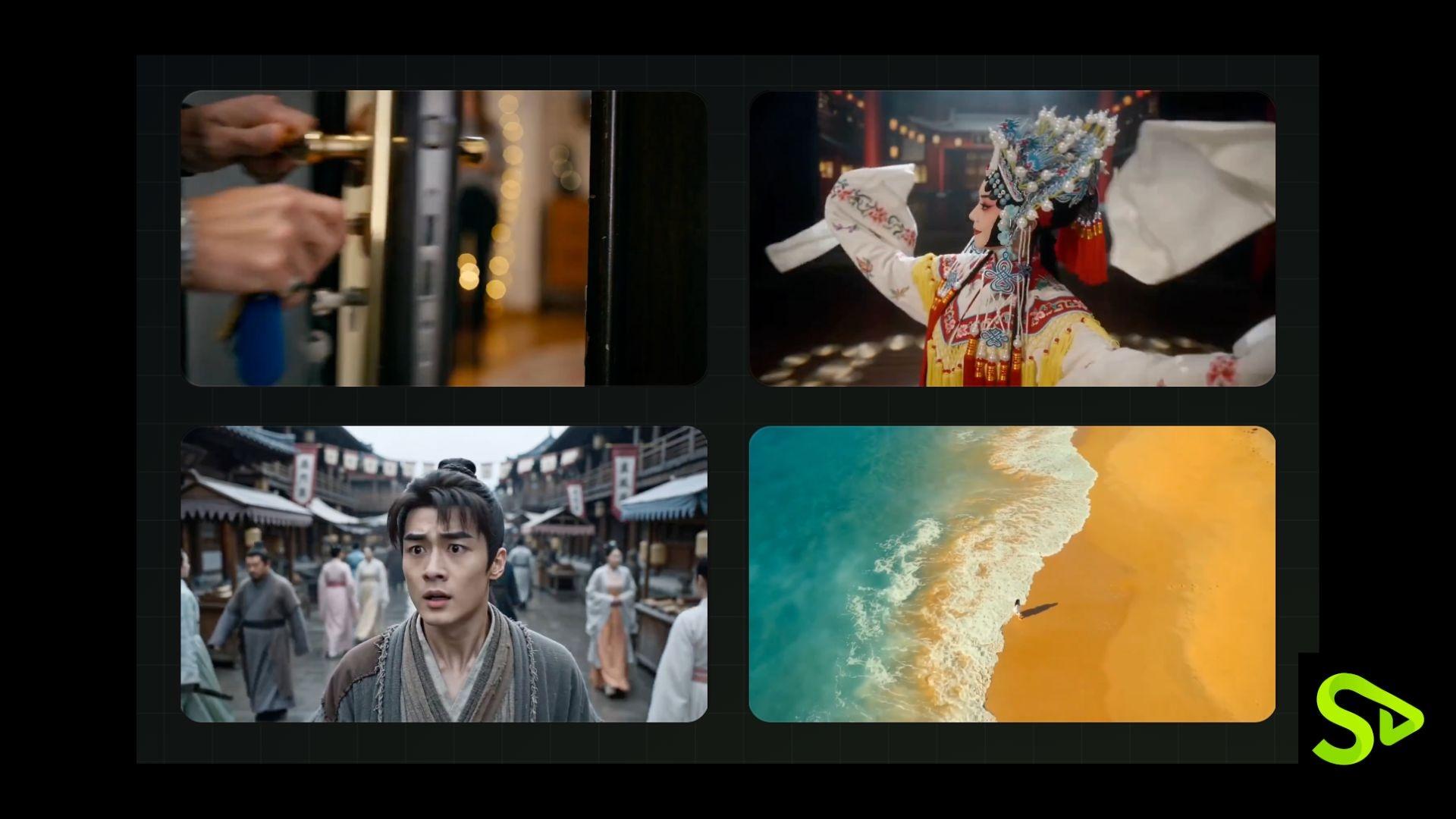
Still, there are some limitations to consider, including credit costs, clip length, and the amount of refinement some scenes require.
- Multi-reference workflows improve scene consistency
- Built-in audio-video sync and lip sync support
- Supports text, image, video, and audio inputs together
- Good character consistency across multiple scenes
- Fast generation speed for short-form content
- Useful for TikTok, Reels, ads, and visual storytelling
- More controllable outputs compared to many basic AI video tools
- Credit usage can become expensive during repeated testing
- Restrictions on real faces and celebrities are quite strict
- Some text rendering inside videos is still unreliable
- Product-focused shots may need extra refinement
- Certain higher-resolution exports rely on AI upscaling workflows
- Longer cinematic projects still require external editing software
Part 5. How Much Does SeeGen AI Cost?
SeeGen AI uses a credit-based system, so users only pay for the generated results they use, rather than subscribing to a monthly plan. Credit usage depends on factors such as video duration, resolution, and the selected model.
SeeGen AI Pricing Plans (2026)
| Plan | Price | Credits | Estimated Outputs |
| Free | Free | 200 credits | Around 1 five-second Seedance 2.0 Pro video |
| Starter Pack | $17.99 | 3000 credits | Around 19 five-second videos |
| XL Pack | $99.99 | 22000 credits | Around 137 five-second videos |
Current paid plans include:
- Seedance 2.0 and HappyHorse access
- No watermark exports
- Support for commercial use
- Non-expiring credits
Check out Seegen AI’s official pricing page: https://seegen.ai/pricing.
How to Get SeeGen Free Credits
If you want to try SeeGen AI for free, it currently offers a reward system through its Discord community. By joining the official SeeGen Discord server, you can claim:
- 200 free credits
- Access to creator showcases
- Workflow tips
- Early feature announcements

SeeGen API
SeeGen API provides developers direct access to Seedance 2.0 generation workflows. The API supports:
- Text-to-video
- Image-to-video
- Audio-guided generation
- Multi-reference
- Video upscaling
- Automated video pipelines
This API is designed for developers, creative tools, AI applications, and teams handling large-scale video generation workflows.
SeeGen API Pricing
| API Plan | Plan | Price |
| API Pack | $500 | 125,000 credits |
| API-XL Pack | $2,000 | 500,000 credits |
Estimated API Generation Rates
| Resolution | Estimated Credits Per Second |
| 720p | 32–40 credits/sec |
| 1080p | 52–100 credits/sec |
| 2K Upscaled | 62–70 credits/sec |
| 4K Upscaled | 72–80 credits/sec |
Part 6. SeeGen AI Alternative for Full AI Video Editing
Generating AI videos is only part of the process. After creating clips in SeeGen AI, most of you still spend time refining pacing, combining scenes, adding subtitles, syncing music, and polishing the final edit before publishing it online.
In that case, Wondershare Filmora works well alongside SeeGen AI by combining conventional editing tools with built-in AI features in a much simpler process. It already covers additional editing needs that make your videos more complete and watchable.
 Secure Download
Some Filmora features that pair well with AI-generated videos include:
- Drag-and-drop timeline editing to arrange and trim your AI clips
- AI captions and subtitle generation with high accuracy to boost accessibility and watch time.
- AI audio cleanup and noise removal, where you can polish the voiceovers or background audio in one click.
- Transitions and motion effects to smooth out scene changes
- Music syncing tools to match background music to your video's pacing and mood
- Color adjustment features to make AI-generated visuals look consistent
- Aspect ratio presets for TikTok, Reels, and YouTube Shorts
Filmora also includes its own AI generation tools directly inside the editor. The platform currently supports AI video generation models such as Seedance 2.0, Veo 3.1, and ToMoviee, along with AI image generation (Nano Banana 2 and Nano Banana Pro) to create additional visuals, concept shots, or backgrounds during editing.
Secure DownloadConclusion
SeeGen AI feels most useful for creators who enjoy experimenting with cinematic visuals, stylized motion, and reference-based AI workflows. The platform already delivers strong results for short-form content like TikToks, Reels, music edits, and creative ads, especially when prompts and references are well prepared.
Credit usage and short-clip limits still require some planning, but the overall workflow feels much more polished than that of many previous AI video generators. For creators editing multiple scenes at once, tools like Filmora can help turn generated clips into content that feels more polished and ready to publish.
FAQs
-
What is SeeGen AI used for?
SeeGen AI is used for creating AI-generated videos from text prompts, images, videos, and audio references. It’s mostly used for TikToks, Reels, AI ads, music edits, and short cinematic content. -
Is SeeGen AI free to use?
You can get 200 free credits to use SeeGen AI by joining the official Discord community. Paid plans start at $17.99 for 3,000 credits. -
How long can SeeGen AI videos be?
Most SeeGen AI video generations currently support short videos around 4 to 15 seconds. Users can also extend scenes to gradually create longer sequences. -
Does SeeGen AI include video editing tools?
Yes, but the editing tools are fairly simple. SeeGen AI includes features like scene extension, beat sync, and video upscaling. Many creators still use editors like Wondershare Filmora for captions, transitions, music syncing, and full timeline editing.
