

 TL;DR:
Topaz Project Starlight is a diffusion-based AI video enhancement tool that reconstructs missing details and corrects severe degradation in low-resolution footage, providing a more natural and temporally consistent result than traditional pixel-enlarging upscalers at the cost of higher hardware demands and slower processing speeds.
● Accessing the model locally requires a Topaz Studio Pro subscription and heavy GPU usage, particularly when utilizing the Starlight Mini variant for strong local restoration or Starlight Sharp for extreme low-resolution detail recovery.
● The AI effectively separates compression artifacts from genuine textures like film grain or skin, but it cannot accurately spell or reconstruct extremely small and heavily blurred text due to a lack of source data.
● Users can bypass standalone re-exporting bottlenecks by running the Starlight model directly inside Wondershare Filmora version 15.2 or newer, enabling immediate timeline editing and the use of shared AI credits.
Ask AI for a summary
 ChatGPT
 Perplexity
 Gemini
 Claude
 Grok
Grok
Many older videos suffer from noise, compression artifacts, and missing detail that traditional upscaling or sharpening can't truly fix. To address this, Topaz Labs has presented Topaz Project Starlight, a new AI video enhancement solution built for editors working with old, heavily compressed, or low-quality footage.
But how does it manage to recover detail while the usual methods can't? This article will review Topaz Starlight, breaking down how it works, its intended use cases, and how you can use it to restore and enhance your video clips.
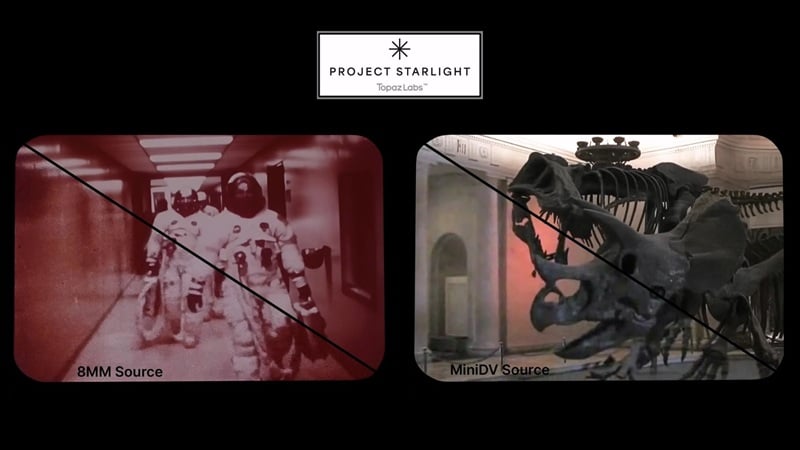
Part 1. What is Topaz Project Starlight?
Topaz Project Starlight is a research project developed by Topaz Labs that focuses on restoring low-resolution and heavily degraded video into high-quality footage. It uses diffusion-based AI that analyzes hundreds of surrounding frames to repair visual damage in a clip, instead of simply increasing resolution like most traditional upscalers.
Because of that, the results tend to look more natural. If regular upscaling still leaves your video looking noisy or a bit broken, Project Starlight AI solves that problem by focusing on rebuilding detail and motion, not just sharpening what's already there.
Topaz Starlight Diffusion AI vs Traditional Video Upscaling
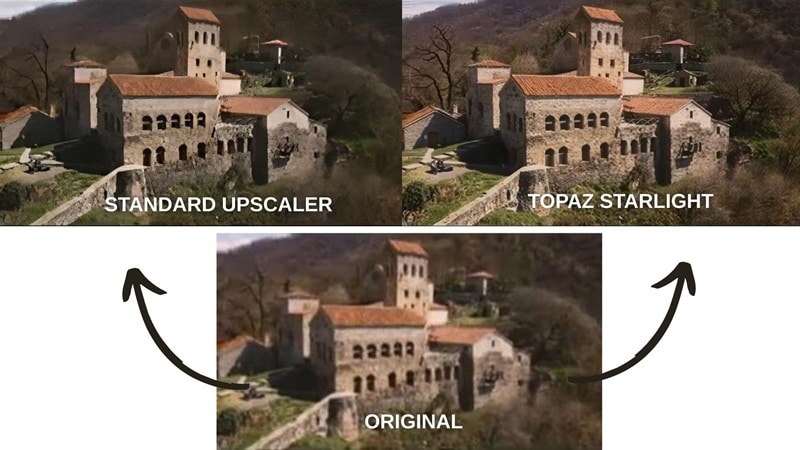
If you look at how Topaz Project Starlight works compared to traditional AI upscaling, the differences can be simplified as follows:
| Topaz Starlight | Traditional AI Upscaling | |
| Core Technology | Diffusion-based AI that rebuilds structure and detail across time | Interpolation or super-resolution models that enlarge pixels |
| Output Quality | More natural | Can look artificial or over-processed |
| Temporal Consistency | High consistency with minimal flicker or jitter | Can cause flicker or crawling textures |
| Noise & Artifact Handling | Excellent | Often amplifies noise or blocky artifacts |
| Speed | Slower | Faster |
|
Show More
Show Less
|
||
But because diffusion-based processing is more demanding, using Topaz Project Starlight places a heavier load on your system and requires more powerful hardware than traditional AI upscaling tools. You can check the system requirements for Topaz Starlight here.
How Much Does Project Starlight Cost?
Topaz Labs' Project Starlight is available inside Topaz Video AI. To use it locally, you need the Pro subscription. See the full pricing of Topaz Labs apps and the benefits it offers.
Topaz Studio (includes all Topaz Labs apps)
| Topaz Studio | Topaz Studio Pro | |
| Pricing* | $37/mo | $75/mo |
| Starlight Access | Cloud-only | Local access |
| Commercial Use | Limited | Full |
|
Show More
Show Less
|
||
*) Annual, billed monthly.
Can I use Topaz Starlight for free?
Topaz Video AI offers a free trial for new users. If you use Starlight online through Astra, you'll usually receive 20 free credits to test the model.
Part 2. Key Features: What You Can Do With Topaz Starlight
Every piece of footage comes with its own set of problems, depending on how the video was captured, compressed, or stored. So, while the goal of Topaz Starlight is to enhance or upscale footage, what you can do with it is actually quite wide-ranging.
It can handle many types of video sources, such as:
- 8 mm and 16 mm film
- VHS footage
- Videos taken from older mobile phones
- Low-resolution AI-generated content, and more
Diffusion-Based Video Enhancement
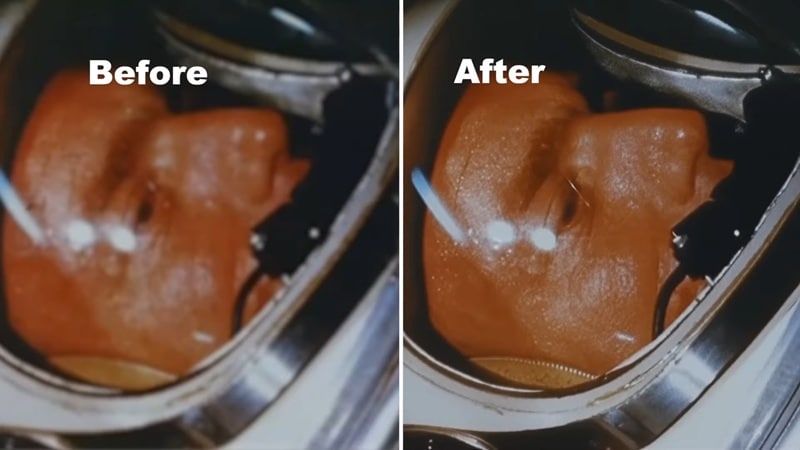
Diffusion AI is a model type commonly used in modern AI video generation. But instead of creating new scenes, Topaz Project Starlight applies this same core technology to enhance and restore video by rebuilding missing detail.
Upscale Low-Resolution Footage
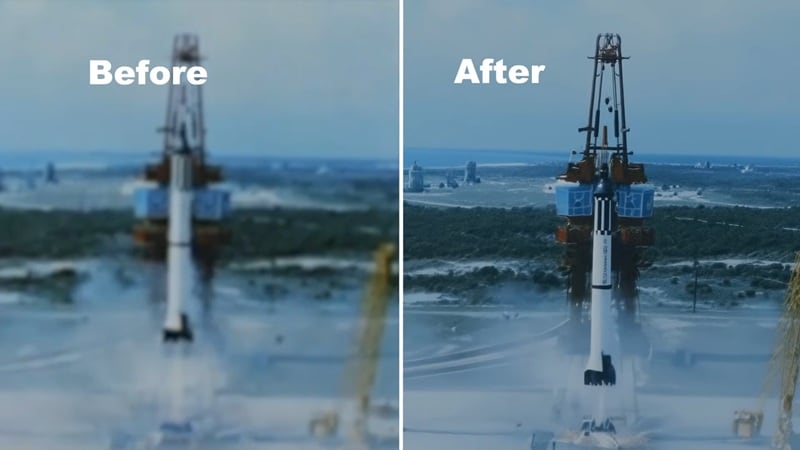
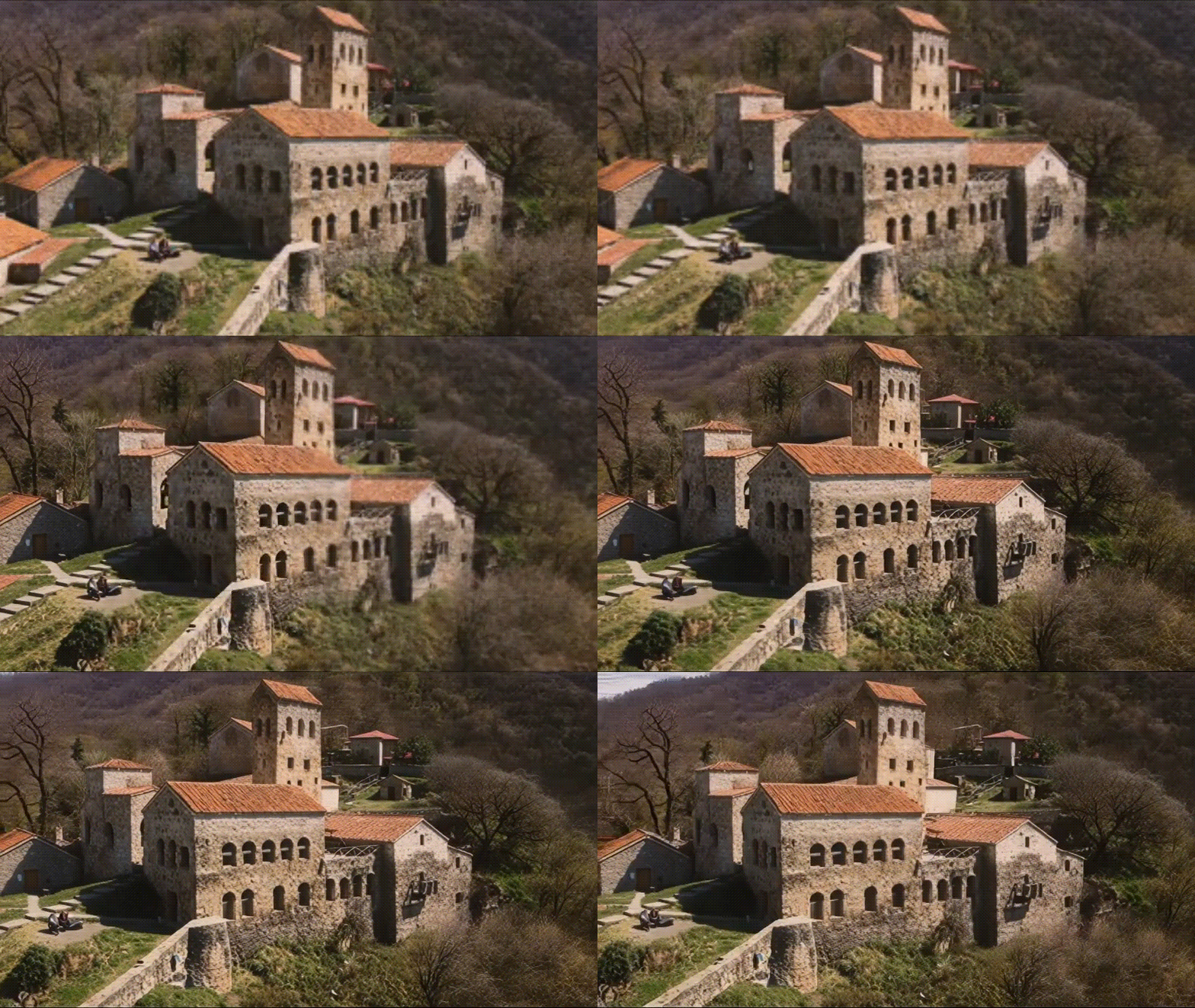
While Topaz Starlight can upscale any video up to 4K, it does more than stretch the image. The model rebuilds higher-resolution detail by learning patterns from the footage itself, which helps low-resolution clips scale up with fewer distortions.
Denoising and Artifact Reduction
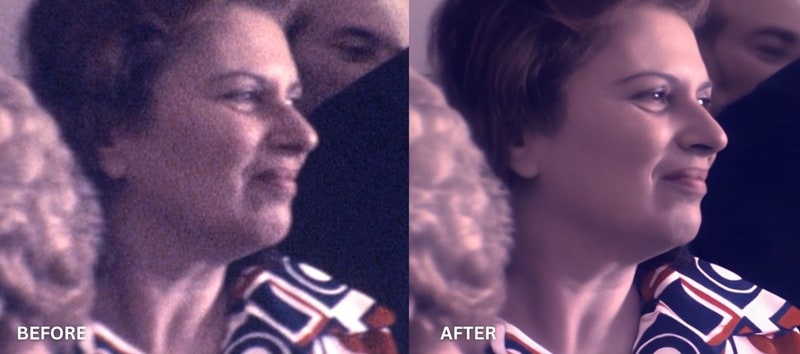
Most traditional tools only blur the noise away. Yet, the Project Starlight AI model is capable of separating unwanted grain and compression artifacts from real detail. As a result, you get a cleaner result without losing fine textures like skin, fabric, or film grain character.
De-aliasing and Deblurring
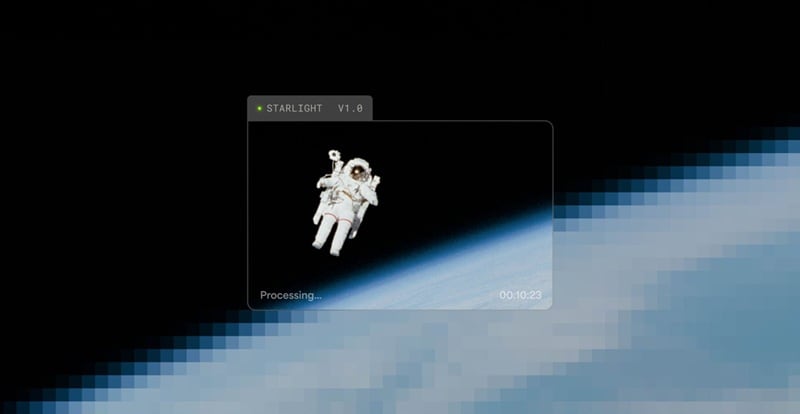
Starlight targets jagged edges and motion blur by rebuilding smoother transitions between pixels. When diagonal lines, text, or fast movement appear in a clip, they look more solid and less broken, with fewer flickers. However, extremely small or heavily blurred text may not be spelled perfectly, since there is not enough detail for the model to recover letter shapes.
Part 3. How to Use the Topaz Starlight Model to Enhance Videos
Starlight is one of the Topaz Video AI models you can use either online through Astra or inside the Topaz Video AI desktop software. In most cases, using Starlight requires credits, with the amount depending on your video length and how much processing the footage needs.
How to Use Topaz Starlight
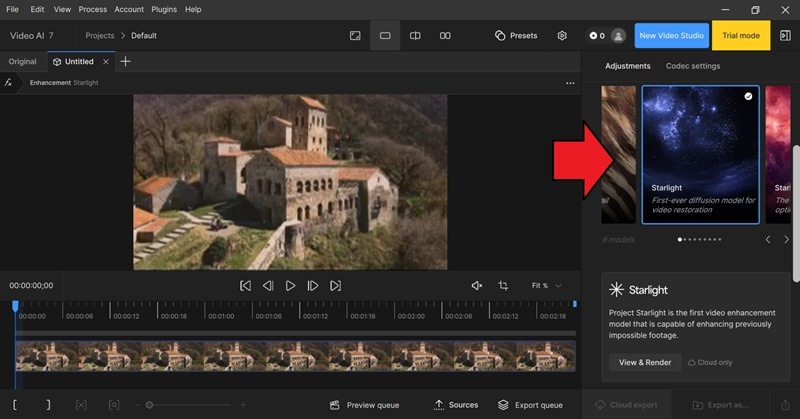
If you're using Starlight online on Astra, you can pick between two processing modes:
- Precise: Designed to stay closer to the original footage. Processing is faster, but with lighter detail recovery.
- Creative: Rebuilds more detail, with adjustable strength levels from subtle to bold, but takes longer to process.
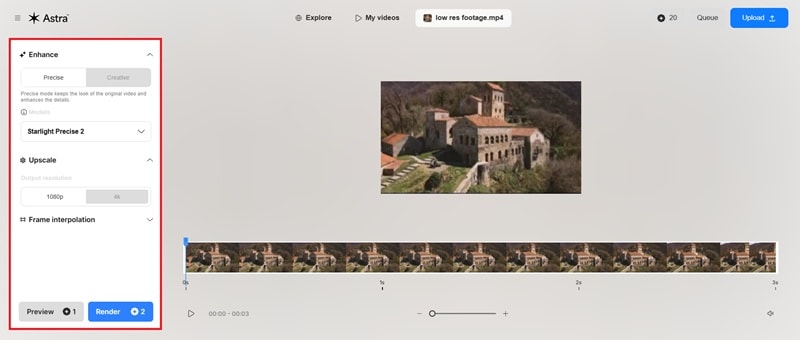
After that, you can select the resolution you want to export. Then, start rendering to generate the enhanced video.
Starlight Series: Starlight Mini & Starlight Sharp
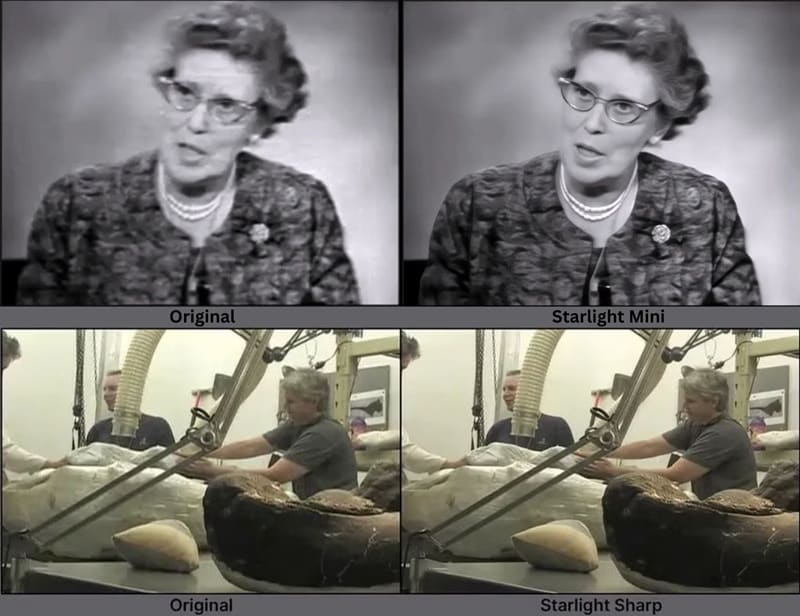
When you're dealing with more complex footage, you can also try Topaz Starlight Mini and Starlight Sharp as one of the model options:
- Starlight Mini: Runs as an in-app variant of Project Starlight that processes videos on your computer, as long as your system meets the required hardware. It delivers stronger restoration results, but because all processing happens locally, rendering can take several hours depending on your GPU and video length.
- Starlight Sharp: ThisProject Starlight variant is designed for more challenging footage. You can use it when dealing with very low-resolution videos, since it helps recover fine detail more effectively than the standard Starlight model.
Part 4. Try Topaz Starlight Inside an Editor for a Faster Workflow - Filmora
As impressive as Topaz Project Starlight is, the more you learn about it, the more you may find certain limitations that don't work well with your preferred workflow or fully solve everything your video still needs.
The Problem With Standalone Enhancement Workflows
Topaz starts to feel impractical when enhancement is the only thing it does, because of a few reasons:
- Enhancement isn't the final step. After enhancement, you still need to trim, fix the color, clean up audio, resize it for different platforms, and make other adjustments. Topaz Starlight alone can't cut it, so the video is still far from finished.
- Re-exporting breaks momentum and sometimes quality. Meanwhile, you need to move your video or project into another tool when you need to make those changes.
- Tiny edits can mean long waits. What if you only need to fix a few seconds of video? With a standalone enhancer, even making a small change can still mean reprocessing the entire clip.
Bringing Topaz Starlight Into the Editing Timeline
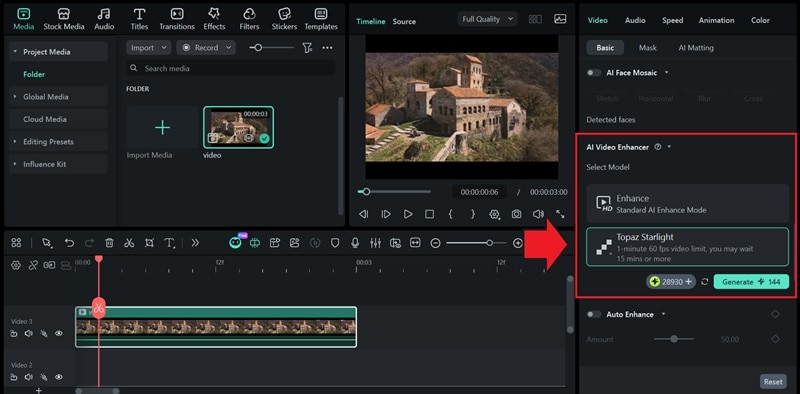
A more practical option is using it inside an editor. Now that Topaz Labs' Project Starlight works within Wondershare Filmora, you have better room for customization and flexibility. You can enhance your clips with Topaz Starlight and continue editing on the same timeline.
 Secure Download
From a cost point of view, this setup can also be more efficient. You don't have to pay credits only for upscaling. The same credits can be used across different Filmora's AI features when you need them, so you can better use what you're already paying for.
Why This Integration Matters in Real Projects
- One timeline, one project: Video enhancement, editing, and finishing all happen in the same place.
- Less re-exporting means better consistency: Since you don't need to do repeated exports, you don't have to worry about quality loss due to extra compression.
- Faster delivery: When you need to change or add something, you can do it right away, which shortens turnaround time.
- Practical beyond restoration: The integration isn't just useful for fixing old footage. It works just as well for editing or making any content.
How to Access Topaz Starlight in Filmora
Make sure you're running the latest desktop version of Wondershare Filmora (version 15.2 or newer), then follow the steps below.
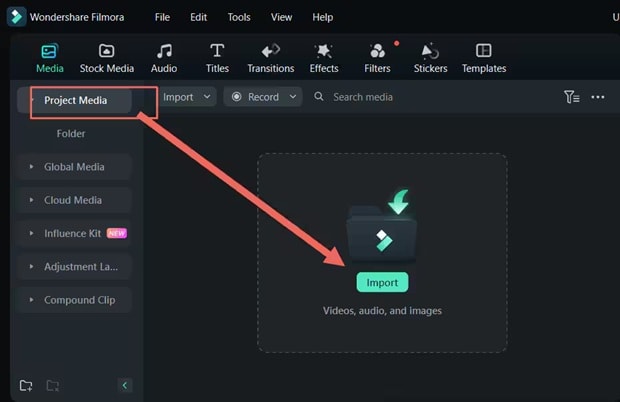
- Add music, text overlays, captions, and visual effects
- Apply filters for color and tone adjustments
- Adjust and adjust audio volume
- Control playback speed for smoother or more dramatic timing
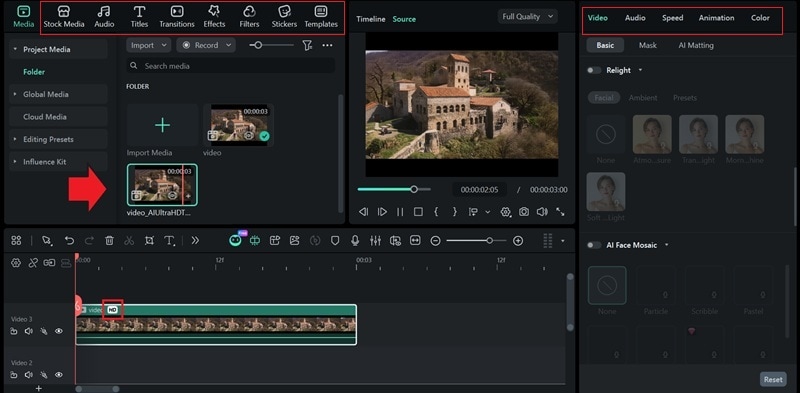
Then, export your finished video or share it directly to social media platforms.
Conclusion
With Topaz Project Starlight, clips that once felt hard to watch can feel usable again. It uses a diffusion-based video enhancement that rebuilds motion and detail instead of just sharpening pixels. The result looks smoother and closer to how the footage should have looked in the first place.
So, if you feel like your old clips are beyond saving, try Topaz Starlight and watch your footage come back with better quality. Use it on Filmora for a more practical workflow, and do everything from enhancement to final export in one platform only.

