


 TL;DR:
VEED AI Eye Contact is a browser-based premium tool that automatically corrects subtle off-camera glances in pre-recorded talking-head videos using a simple one-click toggle without manual intensity controls.
● The AI requires clear, well-lit footage to function properly and will fail to correct extreme head turns, sustained side-glances, or eyes obscured by glasses reflections and hat shadows.
● Free tier access is strictly limited to a single watermarked export, meaning ongoing usage requires upgrading to a premium plan that draws from a monthly credit pool.
● While VEED is optimal for quick browser-based fixes, Wondershare Filmora is the recommended desktop alternative for complex video production, offering the same eye correction alongside a multi-track timeline and up to 8K export resolution.
Ask AI for a summary
 ChatGPT
 Perplexity
 Gemini
 Claude
 Grok
Grok
Drifting away from the camera can make your video come across as unprofessional. Yet most creators do it without realizing, especially when reading from a script or glancing at notes during a take. If reshooting is not an option, VEED AI Eye Contact can fix it without you having to go back in front of the camera.
This article aims to help you understand what VEED AI Eye Contact actually does, how to use it, where it works well, and where it still struggles. We’ll also look at a better option if you need more control over the full video editing process.
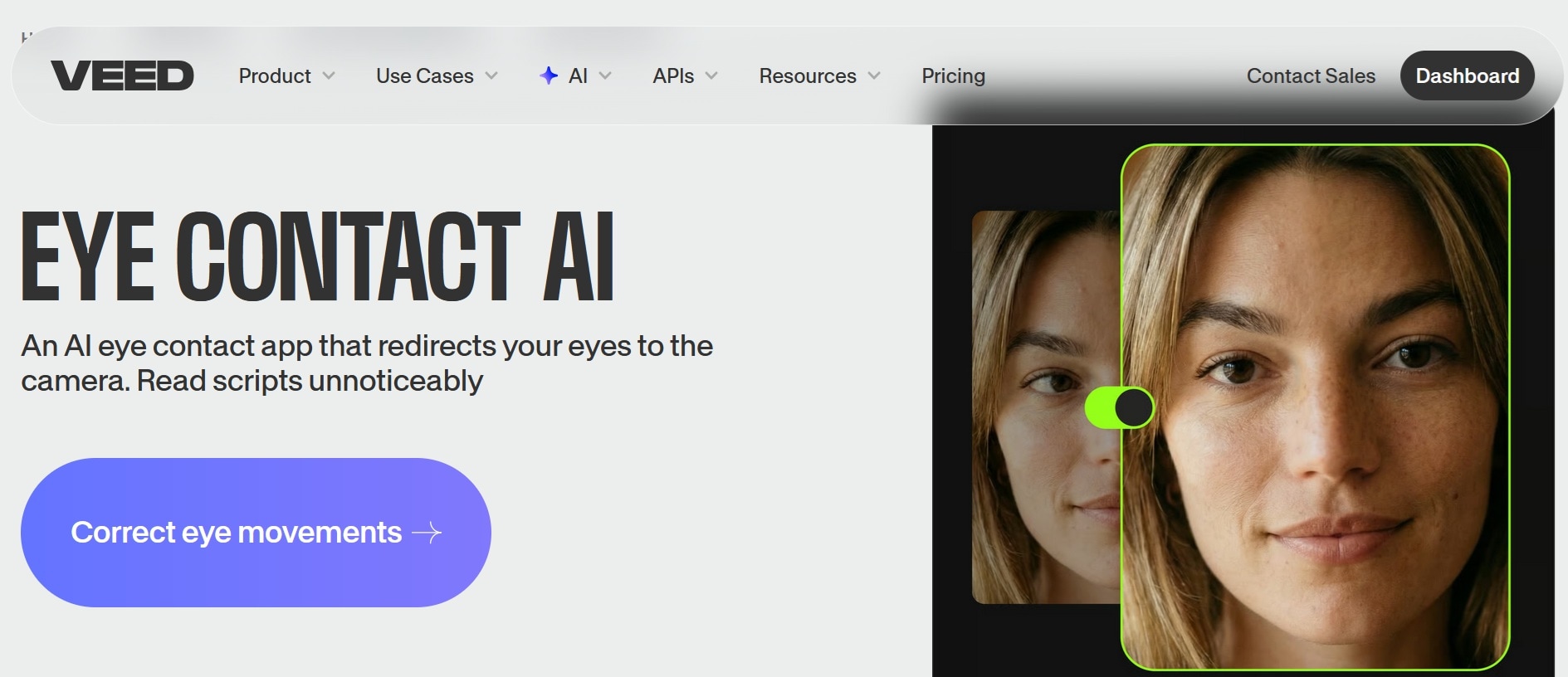
Part 1: What Is VEED AI Eye Contact?
VEED AI Eye Contact is a tool that uses AI to detect where your eyes are looking in a recorded video and subtly adjusts your gaze to appear directed at the camera. It is designed for content formats like talking-head videos, online courses, product demos, and anything where the presenter carries the weight of the content.
Even through a screen, eye contact builds credibility and holds attention. When your eyes are on the camera, your viewers feel like you are talking to them directly. When they are not, the video starts to feel detached and “unprepared,” regardless of how well you put everything else together.
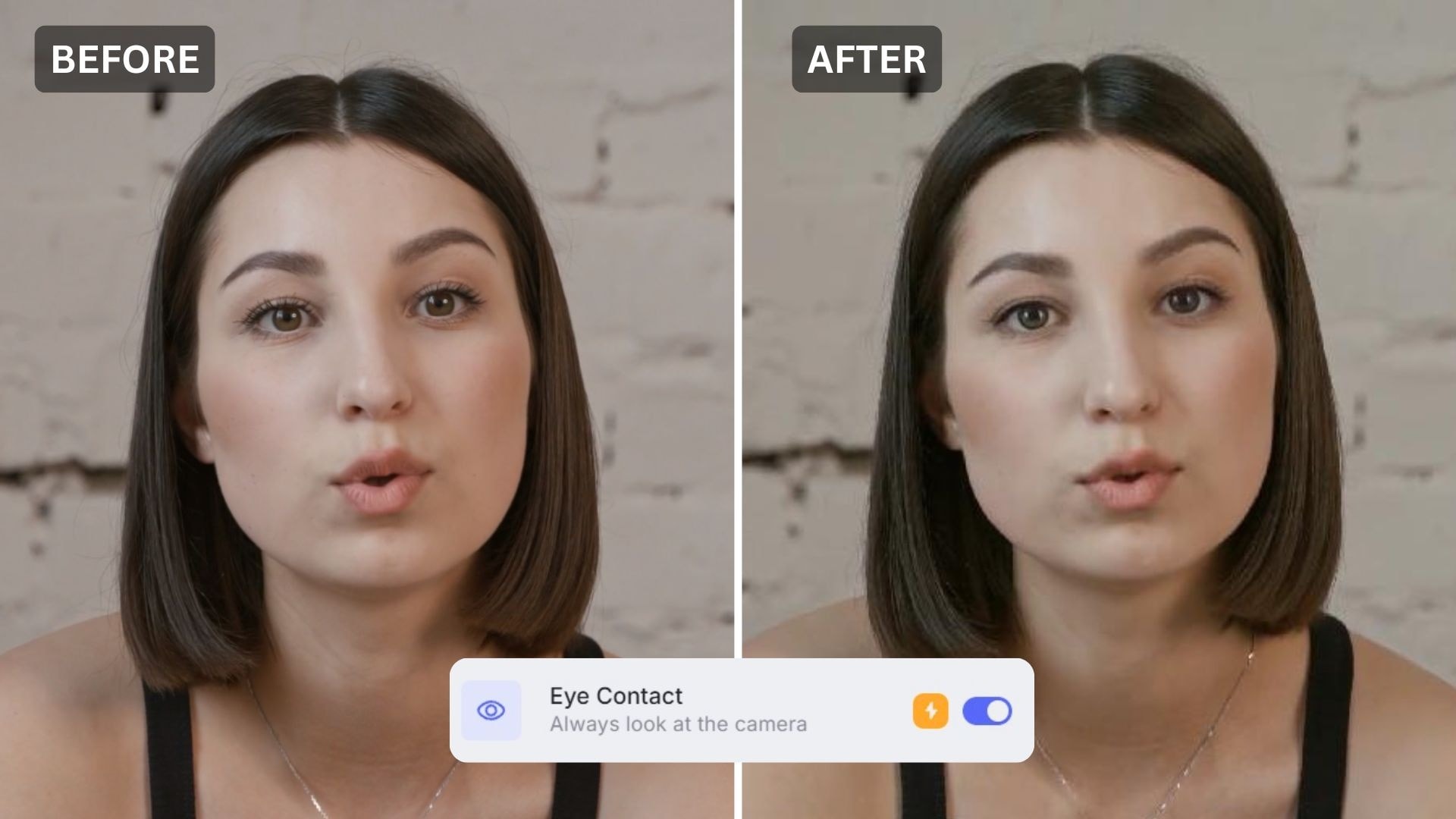
VEED AI Eye Contact Features
- Detects your eye direction. The AI tracks your eye frame by frame and maps where your gaze is pointing at any given moment throughout the clip.
- Fixes subtle gaze movement. The AI tracks your eye frame by frame and maps where your gaze is pointing at any given moment throughout the clip.
- Works better with clean footage. Clear lighting, a steady shot of your face, and a simple background give the AI more to work with.
Part 2: VEED AI Eye Contact Pricing: Is It Free?
The VEED.io Eye Contact AI feature is a premium feature. Free users can use it once only, and a watermark will appear on the exported video. If you want to subscribe to the VEED premium plans:
| Creator | Pro | Studio | |
| Price | $10/mo or $116/yr | $21/mo or $257/yr | $35/mo or $414/yr |
| Yearly Credits | 6,000 | 30,000 | 180,000 |
| Storage | 5GB | 50GB | Unlimited |
| Export Quality | 1080p | 4k | 4k |
| Watermark |
VEED AI Eye Contact draws from your monthly credit pool, so the right plan depends on how often you use it. Prices may vary depending on your billing cycle and region, so check VEED's pricing page directly before subscribing.
Part 3: How to Use VEED AI Eye Contact
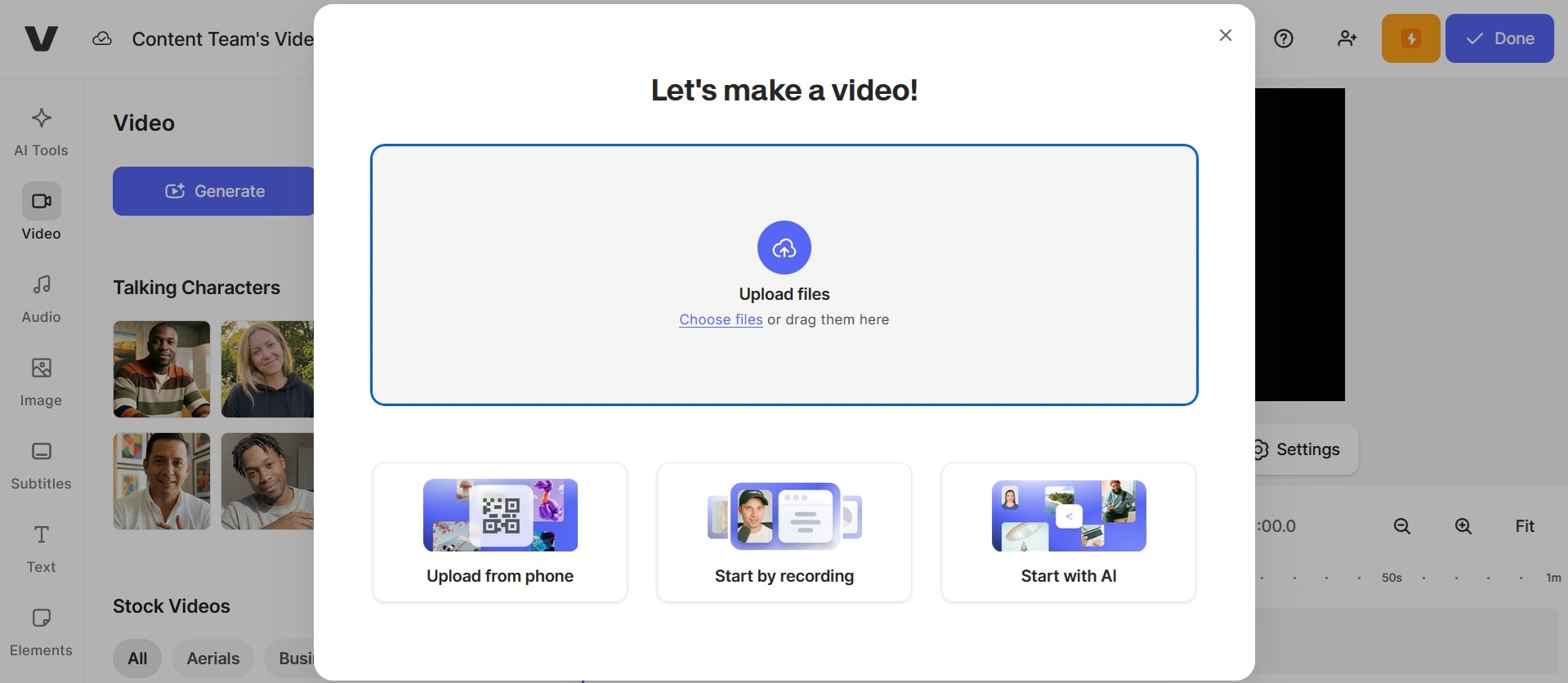
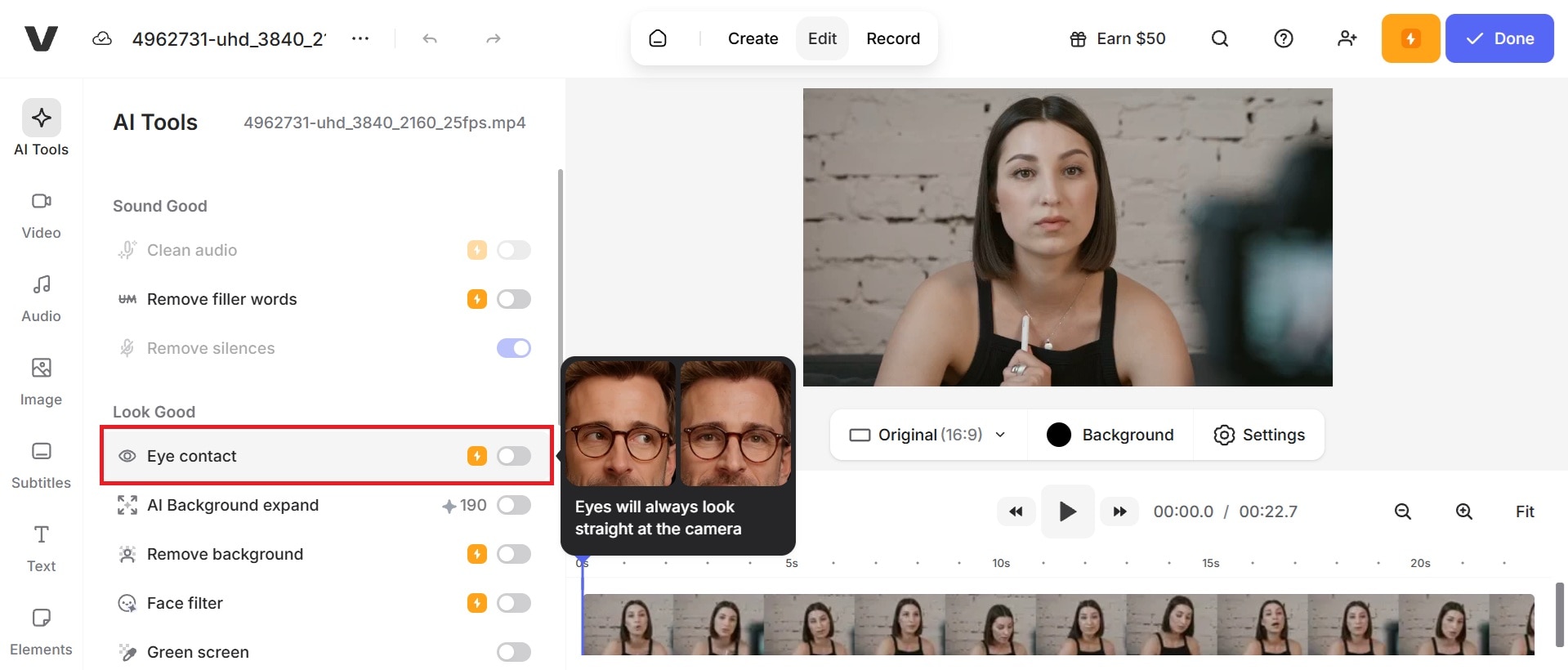
To start using VEED AI Eye Contact, you need a VEED account and the video file you want to fix. The whole process happens inside VEED's online editor, so there is nothing to download or install.
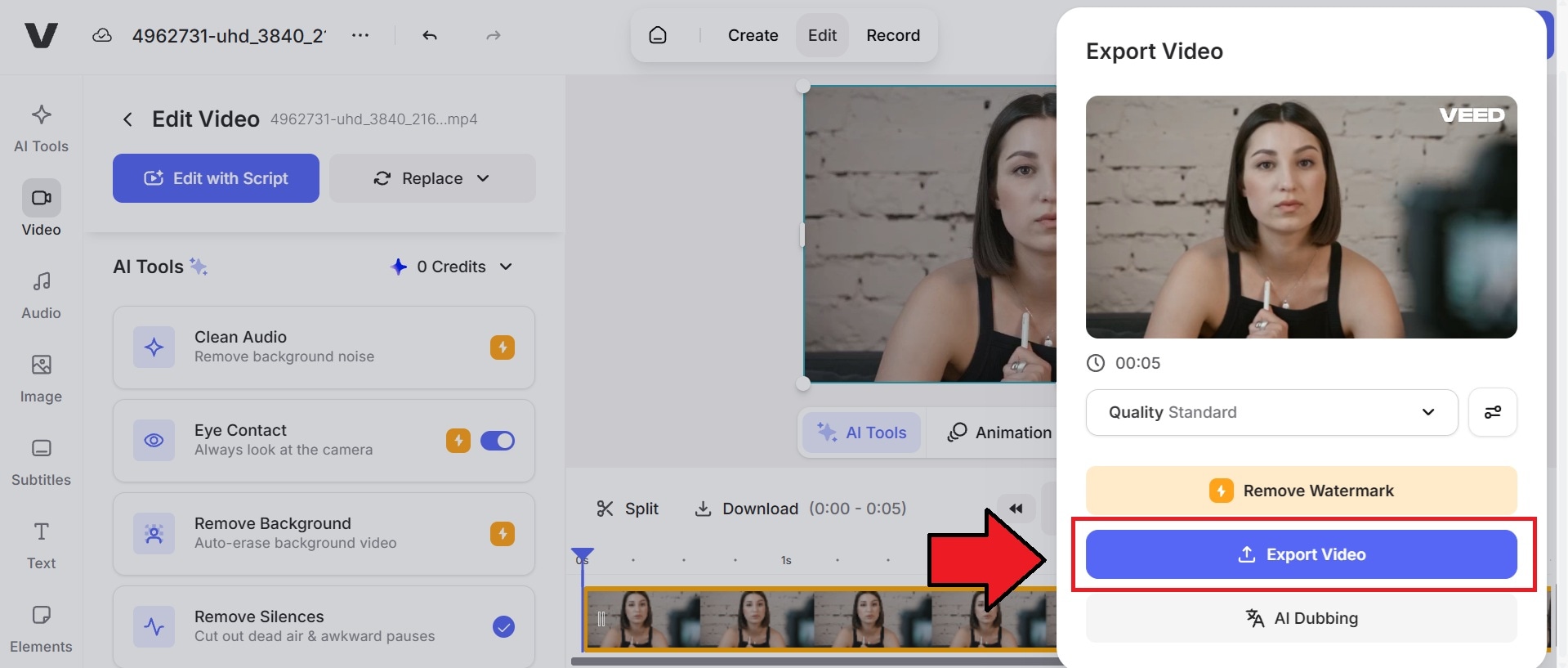
Part 4: Does VEED AI Eye Contact Work As Promised?
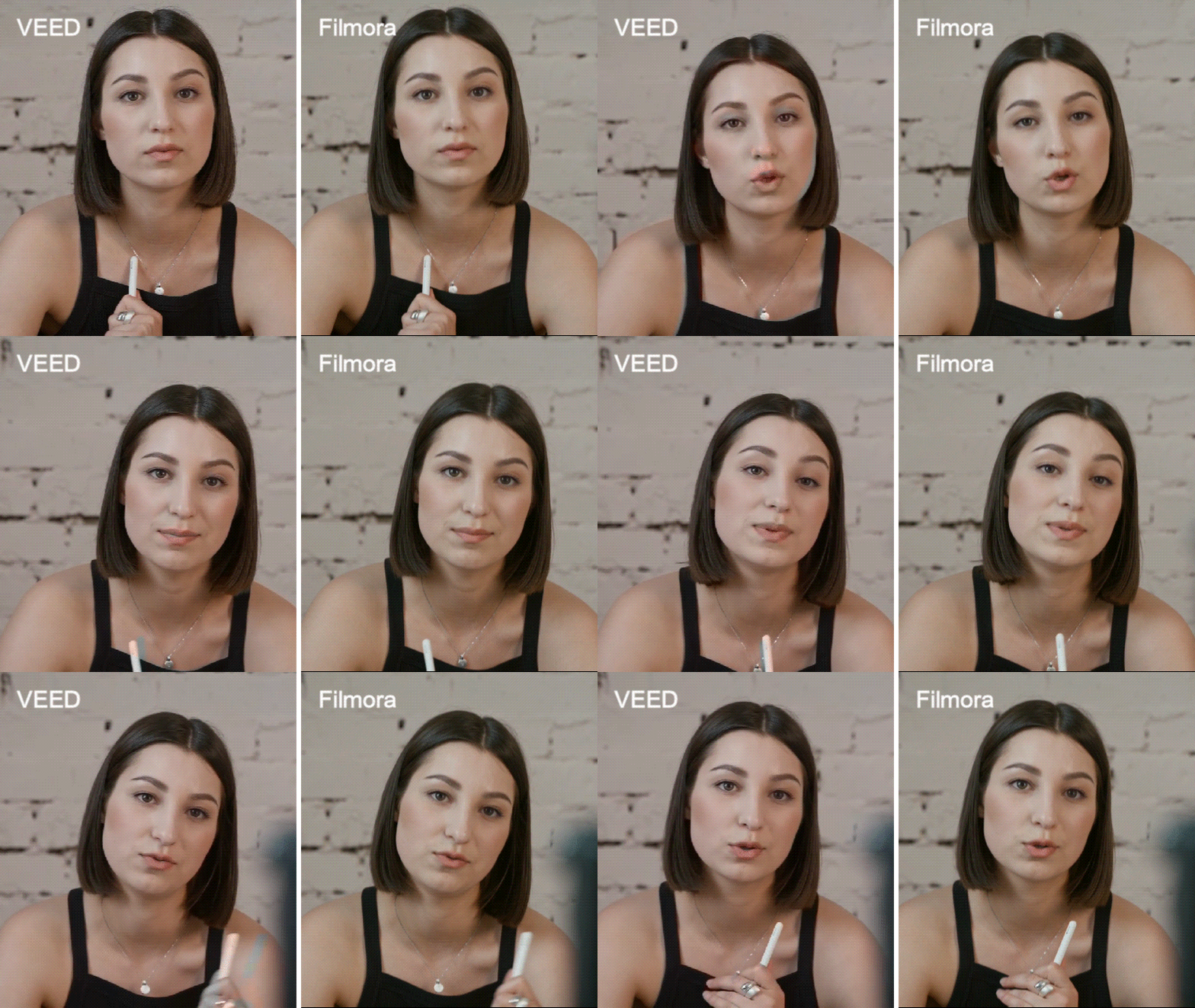
This is the video result sample that we tested with VEED AI Eye Contact:
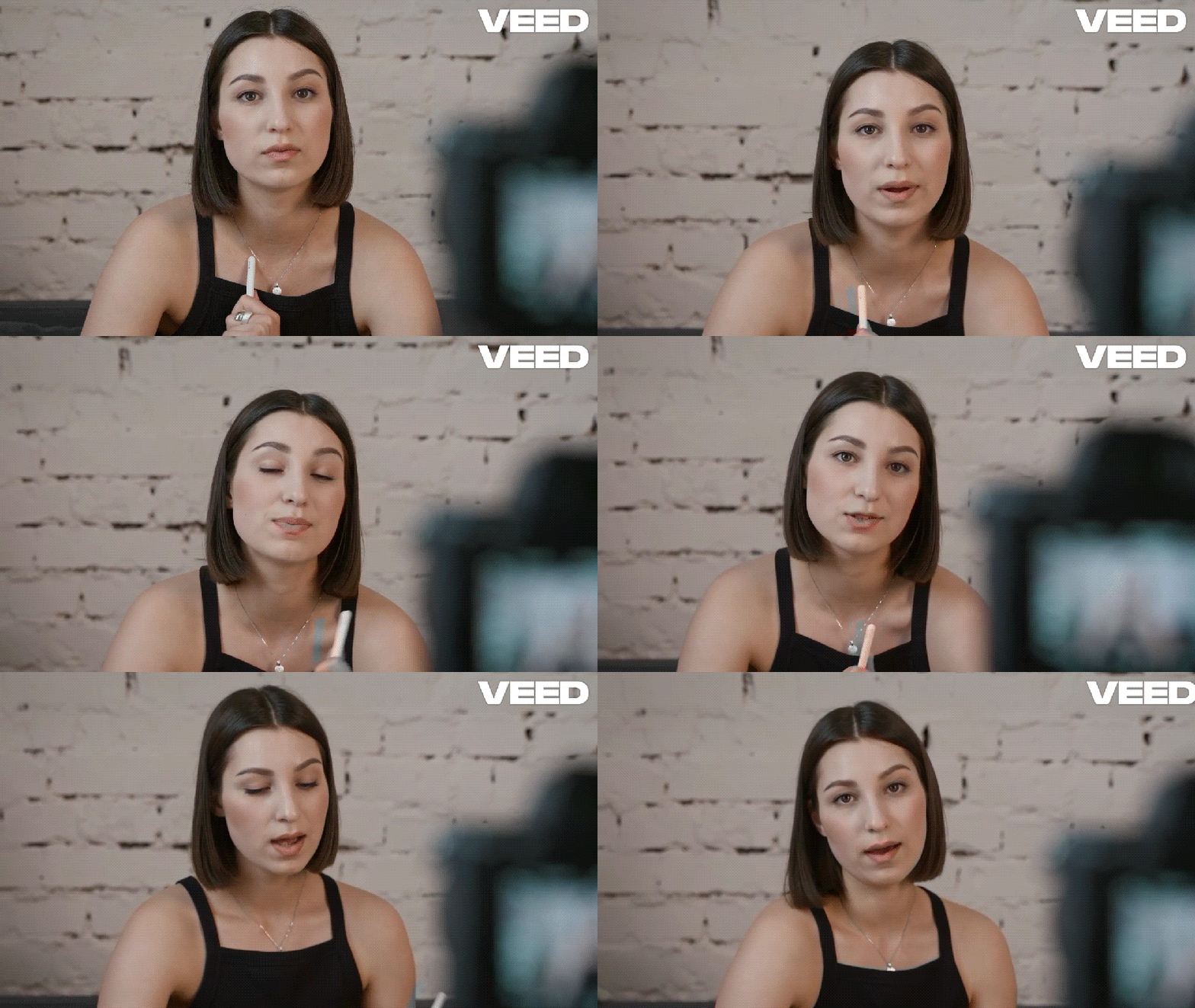
This tool works well for what it is designed to do, but there are specific situations where you need to use it carefully.
Easy Enough for Beginners
There's nothing to configure, no sliders to adjust, and no prior experience needed. Pretty straightforward for a first timer. But the catch is that simplicity cuts both ways.
You get no control over how the effect is applied. There's no way to adjust the correction intensity or dial in how aggressively the gaze shifts. The AI makes the call, and you work with what it gives you.
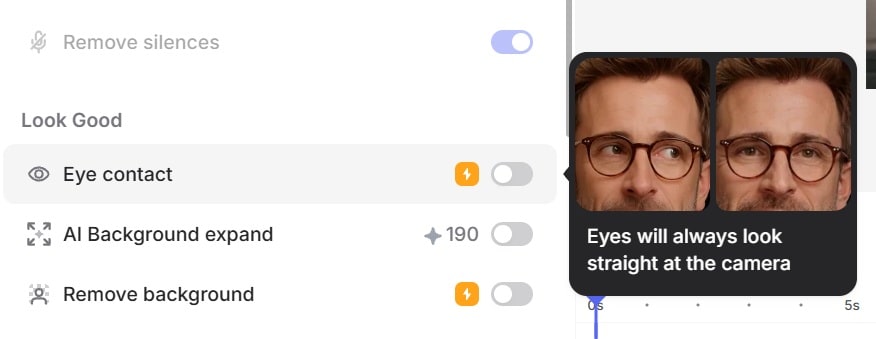
Works Inside a Larger Editing Platform
Another thing that works in VEED's favor is that Eye Contact is not a standalone tool you have to visit separately. It sits inside a full editor alongside trimming, captions, audio adjustments, and other features. If you're already using VEED to edit, the AI Eye Contact feature adds value without adding steps.
Not Working on Extreme Eye Movement
The correction is built for subtle drift, not major redirections of gaze. If you are frequently looking far to the side or turning your head significantly away from the camera, the AI may not fix it well.
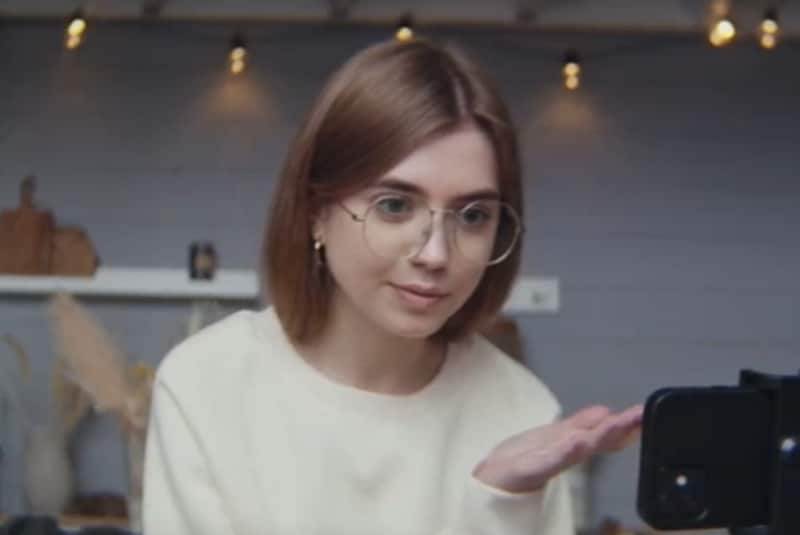
The same goes for anything that gets in the way of your eyes. Wearing a hat that casts a shadow, or glasses with lens reflections, makes it harder for the AI to read your gaze accurately. The tool needs a clear, unobstructed view of your eyes to work properly, and anything that blocks or darkens that area affects how well the correction works.
Part 5: Pros and Cons of VEED AI Eye Contact
If we put it simply, this is the good and not-so-good side of VEED’s AI Eye Contact tool.
- Simple to use with no learning curve
- Built into a full online video editor, so no switching between tools
- Works well on footage with subtle gaze drift
- No software installation required
- Fast processing time for most clip lengths
- You get to try once for free
- No control over correction strength or intensity
- Struggles with extreme or sustained eye movement
- Inconsistent results on footage shot with glasses
- Free tier limits you to one use with a watermark
- Less effective on low-light or cluttered footage
Best Use Cases for VEED.io Eye Contact AI:
- Online course videos
- YouTube talking-head videos
- Business presentations (sales videos, pitch clips, company updates, and training content.
- Social media clips (TikTok, Instagram Reels, LinkedIn videos, and YouTube Shorts)
- Remote work videos
Part 6: A Better Choice for Full Video Editing Control
AI eye contact correction is not exclusive to VEED. If VEED's one-click approach does not give you the level of control you need, Wondershare Filmora offers the same feature inside a significantly more capable editing environment.
Filmora's AI Eye Contact works on the same principle, but since it lives inside a video editing software, it feels more stable and reliable. You get a full multi-track timeline alongside it, so you can trim, color grade, add effects, mix audio, and apply eye contact correction within a single project without the constraints of a browser-based editor.
 Secure Download
With Filmora, you get:
- Better performance on longer and more complex video projects
- More consistent eye contact correction across different footage conditions
- Higher export quality with more supported file formats
Not to mention, the AI Eye Contact also pairs well with Filmora's other AI tools. Features like AI noise removal, AI portrait cutout, and AI color enhancement can all be applied in the same session to make your video better.
How VEED’s AI Eye Contact tool compares to Filmora’s
| VEED AI | Filmora | |
| Platform | Browser-based | Desktop software (Windows and Mac) |
| Full timeline editing | Basic online editor | Full multi-track timeline |
| Video length | Limited on lower plans | No strict length limit |
| Quality | Up to 4k | Up to 8k |
| Export Formats | MP4, GIF | MP4, MOV, MKV, AVI, WMV, WEBM, GIF, etc. |
| AI video enhancement | Eye contact, color correction, background remover, face filter | Eye contact, AI Video Enhancer, face filter, color correction, LUTs, background remover, etc. |
| Best for | Quick fixes on simple clips | Complete video production with AI support |
Secure DownloadConclusion
You don't have to worry about your eyes wandering off camera while reading from a script during a take. VEED AI Eye Contact does a decent job catching that and keeping your gaze on the camera where it should be.
What you may need to watch out for is that you only get to try it for free once, and the exported video will have a watermark. You also have zero control over how strong the correction is. Another tool worth checking out is Filmora. The eye contact correction works the same way, but you get a full editing environment around it and better performance on longer clips.
FAQs
-
Does VEED Eye Contact work for live streaming?
No, it doesn’t work in real time. VEED's AI Eye Contact tool is designed for pre-recorded videos. If you are a live streamer, you can either edit your post-stream recordings with it or pre-record your video before going live. -
Why is VEED Eye Contact not working on my video?
VEED Eye Contact AI works best if the eye wanders not too far away from the camera. When your gaze is drifting significantly to the side, the AI will likely leave those parts uncorrected. Other factors that can affect results include poor lighting, obstructions like glasses or hats, and low video quality. -
Is VEED’s AI eye contact tool the same as eye tracking software?
Not exactly. Traditional eye tracking software physically tracks where your eyes are looking in real time, usually for UX research or accessibility purposes. VEED's tool is designed to correct subtle eye movements on recorded videos and redirect your gaze toward the camera. -
What videos are best for VEED.io Eye Contact AI?
The AI Eye Contact tool is best for talking head videos where the subject is clearly visible. This includes online course recordings, YouTube videos, business presentations, and social media clips where your face is the main focus of the frame. It is less effective on footage with multiple people or low lighting.
