


 TL;DR:
Visla 2026 is a fast, AI-driven video generation platform best suited for business teams creating training materials, SOPs, and internal communications from existing documents, but it lacks the deep creative control required for extensive manual editing.
● Choose Visla if your priority is rapidly generating structured drafts from PDFs, PowerPoints, or screen recordings, but switch to Wondershare Filmora if you require flexible timeline editing, Auto Reframe for multiple aspect ratios, and Smart Short Clips for social media repurposing.
● Visla operates on a restrictive credit-based system where the free tier limits production to 2,000 monthly credits and forces watermarked exports, requiring at least the $22/month Pro plan to secure clean outputs for commercial use.
● The platform simplifies production for non-editors through its AI Director Mode, a storyboard-first workflow that requires users to define characters, environments, and voiceover styles before generating the full video clips rather than adjusting a traditional timeline.
Ask AI for a summary
 ChatGPT
 Perplexity
 Gemini
 Claude
 Grok
Grok
Visla AI video brings together video generation, editing, screen recording, voice features, and collaboration, which makes it especially appealing for explainers, training videos, presentations, and internal team content. The main draw is convenience; instead of building everything from scratch, users can start with text, documents, or recordings and move much faster.
To help you decide if Visla is the right fit, we’ll look at where it works well, where it feels limited, how its pricing works, and what kind of user is most likely to benefit from it. We’ll also point out an alternative for users who want more creative control and a more flexible editing workflow.
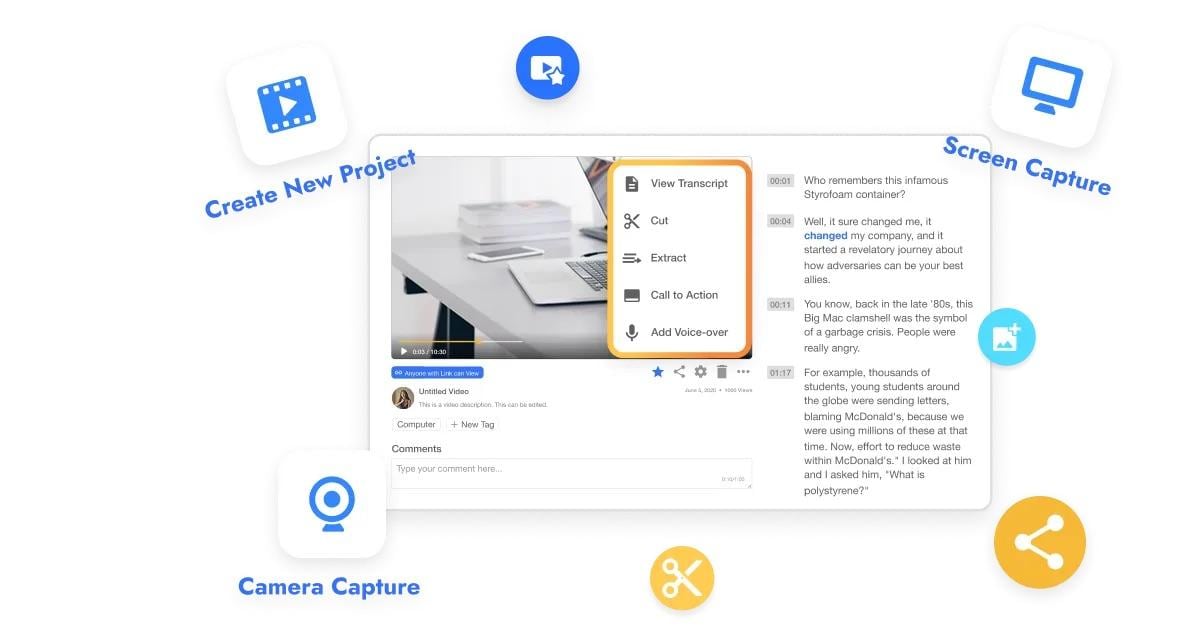
Part 1. First Look at Visla: What It Does Well?
Visla positions itself as an AI video workflow platform for business, with a clear focus on marketing, training, and internal communication teams.
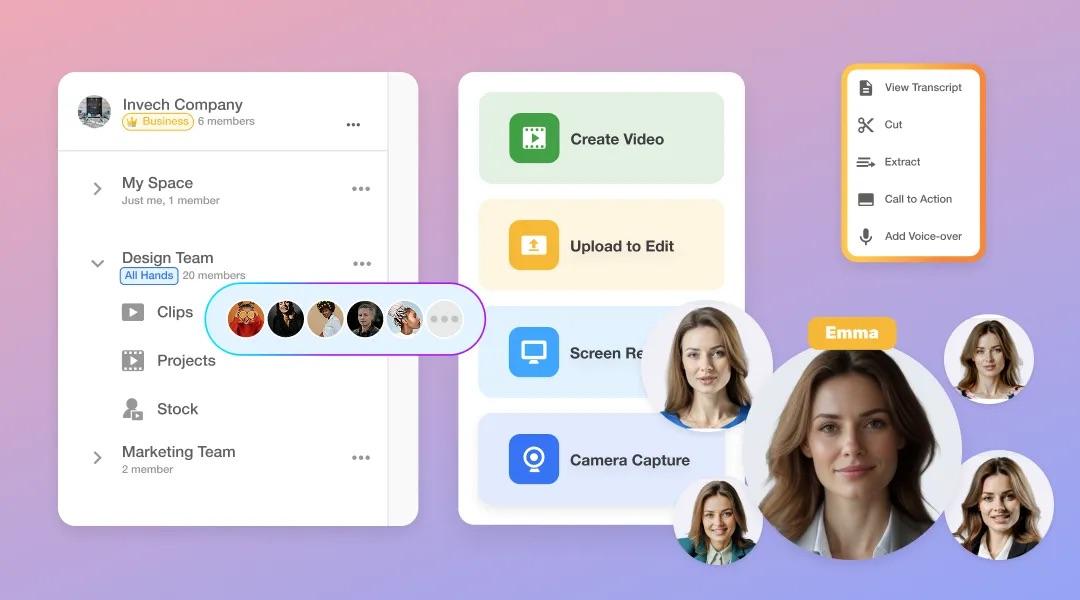
One of Visla’s main strengths is flexibility at the starting point. Instead of relying on a single input type, it can generate videos from scripts, text, webpages, audio, speech-based content, PDFs, and PowerPoint files. That makes it useful for teams that already have source material and want to turn it into a usable video draft faster. It also brings capture, creation, editing, and collaboration into one place, so users do not have to move between multiple tools.
Overall, Visla AI video editor stands out most in these areas:
1. Fast AI draft creation
One of Visla’s clearest strengths is speed. Visla's text-to-video workflow is designed to turn written content into a first draft in minutes, which makes it useful for explainers, presentation videos, and internal business content. Instead of building every scene manually, users can start with existing material and let the AI structure the first version.
2. Strong business and training workflows
Visla is especially appealing for training and process-driven content. Its Screen Step Recorder captures on-screen actions and turns them into step-by-step guides with scenes, overlays, narration, and export options such as video, GIF, and PDF. For SOPs, onboarding, demos, and customer support content, which makes the workflow feel more purposeful than a general AI video app.
3. Easier editing for non-editors
Another reason Visla feels approachable is that many of its tools are designed to reduce manual editing. Its broader editing workflow focuses on AI-assisted cleanup and faster production, which is helpful for users who want results without spending too much time on a traditional timeline. The platform is easier to pick up for beginners or business users who need video output, but do not see themselves as editors first.
4. Team collaboration
Visla video maker also places a strong emphasis on collaboration. Its Workspace features are built for teams that need to create, manage, share, and approve projects together. That makes the platform more attractive for organizations than lightweight AI video tools that are mainly built around solo use.
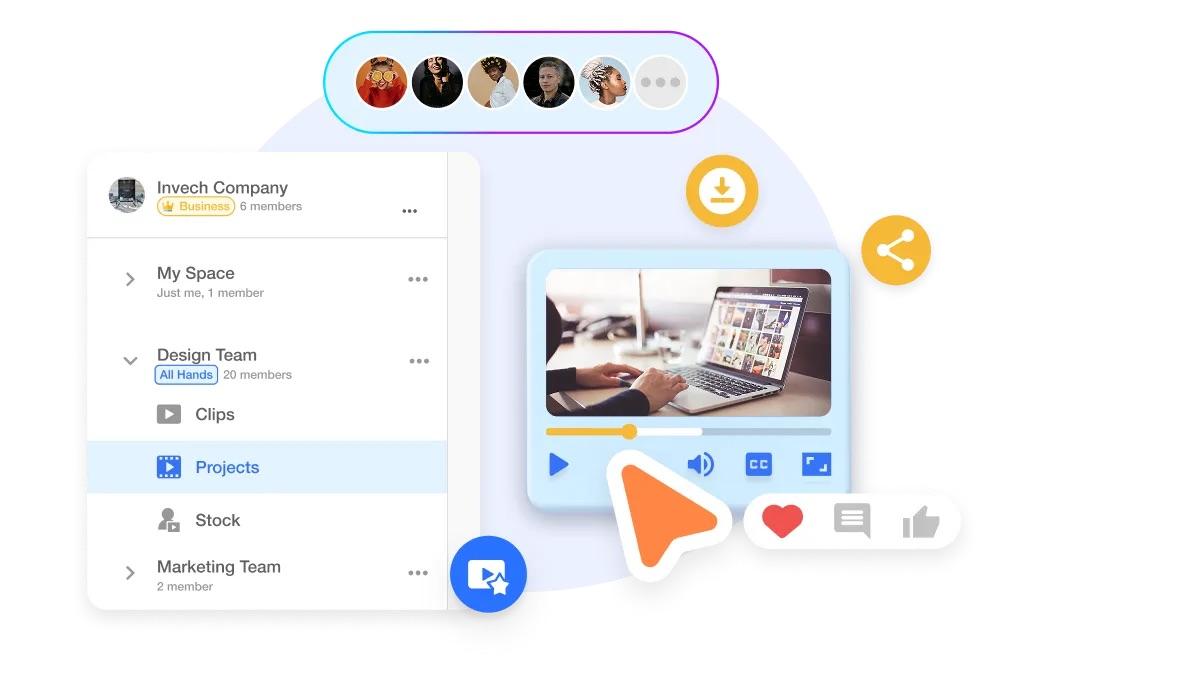
Part 2. The Core Features Breakdown Behind Visla
Visla’s feature set is built around speed. Instead of acting like a traditional editor first, it focuses on helping users move from raw material to a usable video draft with less manual work.
Text-to-video generation
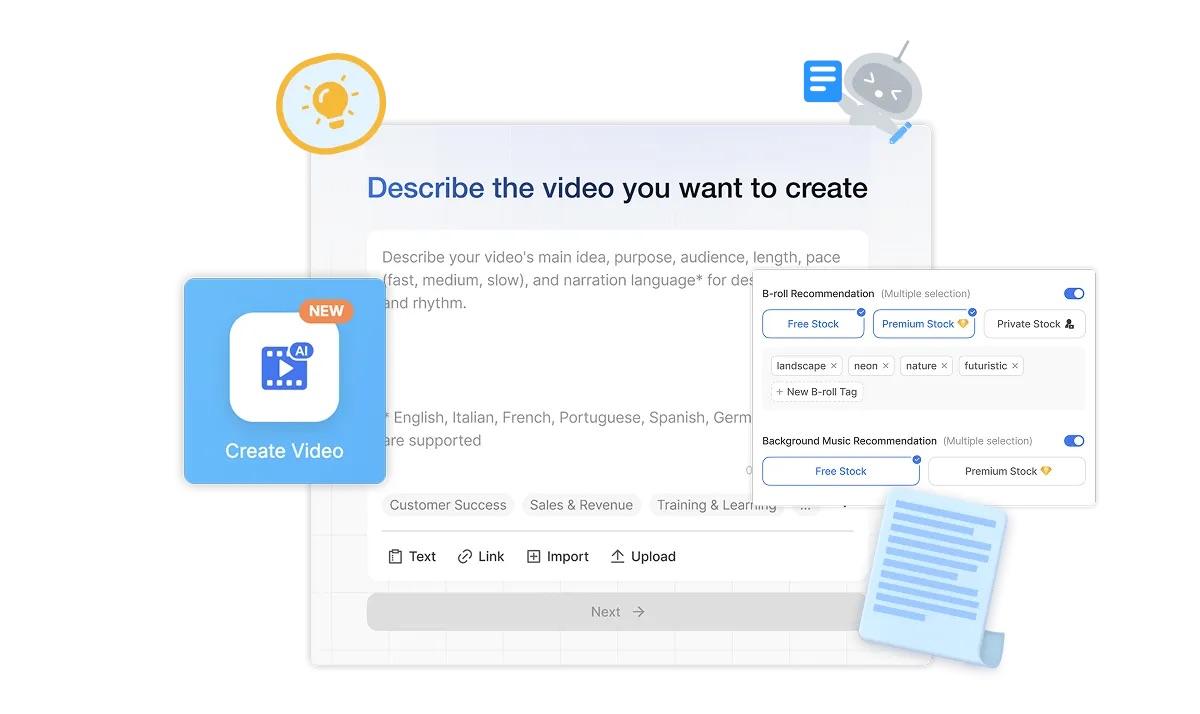
One of Visla’s biggest selling points is its text-to-video generator. It can turn text, scripts, webpages, PDFs, PowerPoint files, audio, and speech-focused videos into draft videos, which gives you a faster starting point than building scene by scene from scratch. Visla also lets you adjust the voiceover, language, speed, layout, music, and visuals after the first draft is generated.
That makes the tool especially useful for explainers, presentation content, and business videos where speed matters more than highly customized editing. For non-editors, this is one of the easiest parts of the workflow to understand.
AI video editing tools
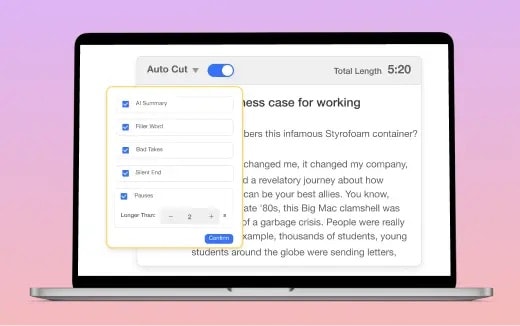
Visla’s editing tools are built to simplify production, not to imitate a full creative suite. It highlights AI Video Editor, AI Summary, scene-based editing, and text-based video editing, all aimed at helping users clean up and shape videos faster.
That is why the editing experience feels lighter for beginners. Instead of depending on heavy timeline work, users can rely more on AI-assisted cleanup and guided editing steps. It is a good fit for people who need results quickly, but it also hints at one of Visla’s limits, which we will get into below.
Screen recording and tutorial creation
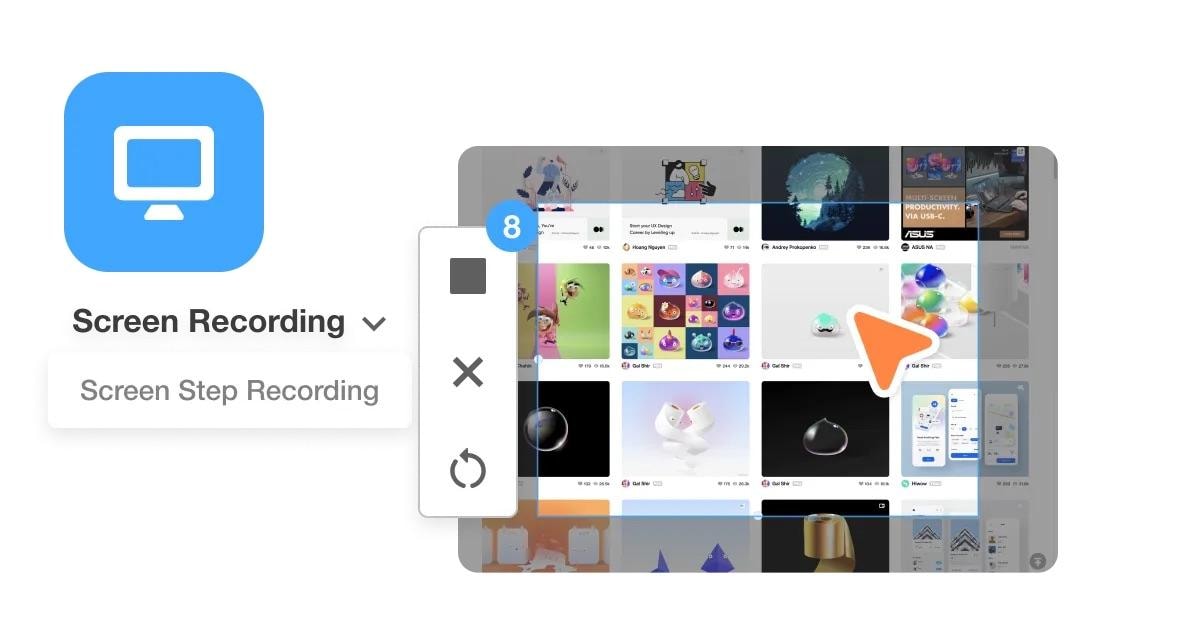
Visla is especially practical for demos, SOPs, walkthroughs, and training material. Its screen recording tools support screen capture, webcam, mic or computer audio, zoom, pan, and post-recording cleanup inside the AI editor.
That matters because Visla is clearly built for instructional content, not just AI-generated promo videos. Its broader product positioning also leans heavily toward training and business communication use cases, which makes the screen workflow feel like a real core feature, not just an extra add-on.
AI voice and narration tools
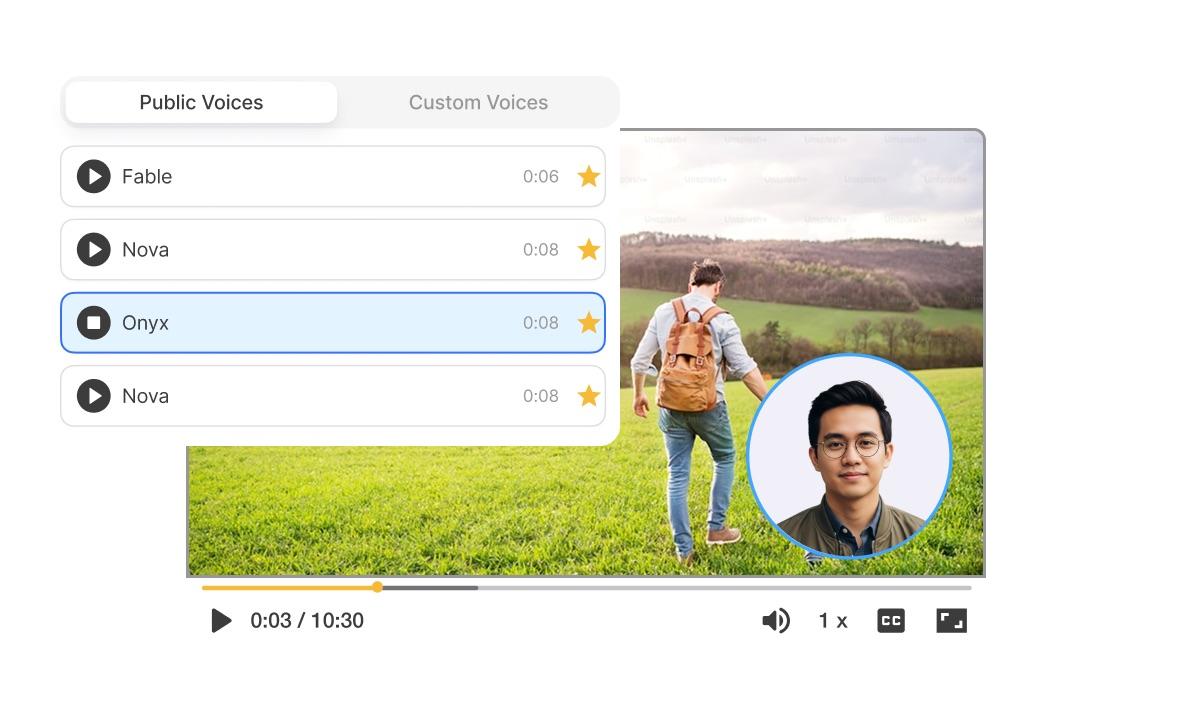
Visla also supports voice-focused production features. It offers natural voiceovers, instant voice cloning, custom AI voice, commentary voiceover, and AI translation features that include translated voiceovers and subtitles.
For users creating tutorials, presentations, and internal communication videos, this can save time. Instead of recording every line manually, they can build narrated drafts faster and keep the workflow moving.
Where Visla Starts to Feel Limited
Visla is strongest when the goal is speed, structure, and AI-assisted production. The trade-off is that it can feel narrower once users want more hands-on control over the final edit.
- ❌Less flexible for deeper editing: Its AI editor focuses on faster cleanup, summaries, and guided editing, not a wide creative toolkit.
- ❌More business-focused than creator-focused: The platform is clearly positioned around marketing, training, and internal communication workflows.
- ❌The workflow can feel restrictive: Visla is great for moving quickly, but users who like shaping every detail manually may want more freedom. This is an inference from its AI-first product design.
- ❌Credits can be a factor for heavier use: The free plan includes monthly credits, and different workflows consume credits at different rates, so usage can add up faster than expected.
Part 3. Visla’s Pricing and What It Offers
Visla uses a tiered, credit-based pricing model. Instead of paying only for access to features, users also need to pay attention to how quickly different workflows consume credits.
| Plan | Pricing per Month | Credits per Month | Best For |
| Free | $0 | 2.000 | Trying the platform |
| Pro | Start from $22 | 10.000 | Solo users and small teams |
| Business | Start from $59 | 20.000 | Teams producing videos regularly |
| Enterprise | Custom | Custom | Large organizations with advanced needs |
Visla’s value depends on three things: how often you use AI features, how much team collaboration you need, and what kind of videos you create.
The pricing makes the most sense for teams creating business videos often, especially if speed and workflow matter more than deep manual editing. Some users may want a different option, though, including:
- Users who want stronger editing flexibility
- Ceators making content for multiple platforms, and
- People who want AI tools with more manual control after the first draft
Part 4. What to Use Instead If You Want More Creative Freedom
If the Visla video generator feels a little too workflow-driven, Wondershare Filmora is one of the strongest alternatives to look at. It covers many of the same AI-first needs, but gives users more room to keep editing after the first draft is done. That makes it a better fit for people who want both speed and more hands-on control.
How Filmora Covers the Same Ground as Visla
- AI Video Generator: Filmora can generate videos from text, images, or audio, then keep the result editable inside the main editor. The generated output comes with separate video, audio, and text tracks, which gives users more freedom to refine the draft instead of treating it like a fixed result.
- AI Text to Video: Filmora also works well as a text-to-video option. Its AI Text-to-Video tools can turn prompts, ideas, or full scripts into videos, with settings for things like language, aspect ratio, duration, and negative prompts.
- Speech-to-Text and Auto Subtitles: For subtitle and transcript-based workflows, Filmora includes Speech-to-Text with up to 99% accuracy, support for 45 languages, auto subtitle translation, and animated captions. That makes it a practical replacement for users who want fast captioning and easier transcript-driven editing.
- Text-to-Speech: Filmora also includes Text-to-Speech, with more than 48 natural voiceovers in 33 languages, plus voice cloning support. This helps users create narrated drafts faster without recording every line manually.
- Built-in Screen Recorder: Like Visla, Filmora also supports screen-based workflows. Its screen recorder can capture the screen, webcam, and voiceover, then move straight into editing, which makes it useful for tutorials, demos, and presentation videos.
Where Filmora Brings More to the Table
- Auto Reframe: Filmora’s Auto Reframe can detect the focal point of a video and automatically crop it for different aspect ratios. That is especially useful for users repurposing one video across platforms with different formats.
- Smart Short Clips: Filmora also has Smart Short Clips, which help turn longer videos into shorter, social-ready edits. The feature can identify key moments, support caption editing, and export to platforms like YouTube, TikTok, Instagram, Facebook, and Vimeo.
- Stronger all-in-one workflow: The biggest advantage is that Filmora combines AI generation with a full editor. It is positioned as an all-in-one video editing platform for desktop and mobile, with a broader mix of editing tools, effects, and workflow features around the AI tools. That makes it easier to go from idea to draft to final polish in one place.
Overall, Filmora is the better alternative for users who like the speed of AI video creation, but do not want to give up editing flexibility once the draft is generated.
 Secure Download
Part 5. Visla vs Filmora: Which One Should You Choose?
At this point, the choice comes down to what kind of workflow you want. Visla is built around speed, structure, and business-friendly production. Filmora covers many of the same AI-driven needs, but gives you more room to keep editing, repurpose content, and shape the final result more freely.
| Category | Visla | Filmora |
| Best For | Marketing teams, training teams, and business communication workflows | Creators, marketers, and users who want AI tools plus fuller editing control |
| Main strength | Fast, structured video production with collaboration built in | More flexible editing workflow with AI creation and post-editing polish |
| Workflow style | Workflow-driven and automation-first | Edit-first after generation, with stronger room for polishing and customization |
| Screen recording | Strong fit for demos, SOPs, and walkthroughs | Built-in screen recorder and can move into a broader editing workflow |
| Creative flexibility | Better for quick drafts and guided refinement | Better for deeper customization and creative polishing |
| Value for different users | Best for teams that care most about speed and structure | Best for users who want one tool for creating, editing, and repurposing content |
Quick takeaway
The biggest gap comes down to flexibility:
- Choose Visla if your priority is speed, structure, and business-focused video workflows.
- Choose Filmora if you want a more flexible editor that can handle AI generation, creative polishing, and content repurposing in one place.
Secure DownloadConclusion
Visla is a solid choice for teams that want to turn scripts, documents, and recordings into business videos quickly. Its biggest strengths are speed, structure, and collaboration. But if you want more creative flexibility after the AI draft is done, it can start to feel limited.
Filmora is the stronger alternative for users who want AI-powered creation, easier content repurposing, and more control over the final edit in one workflow. In short, Visla is a practical tool for business use, while Filmora is the better all-around option for broader video needs.
FAQs
-
1. Can I use Visla for commercial purposes?
Yes. Visla is marketed for business use cases like marketing, training, customer success, HR, and product communication, so commercial use is clearly part of its intended use. -
2. What is Visla’s "AI Director Mode"?
Visla’s AI Director Mode is a storyboard-first AI video workflow. Visla turns inputs like scripts, webpages, PDFs, slide decks, images, footage, or audio into a scene-by-scene storyboard, then lets you control elements like characters, objects, environments, pacing, and voiceover style before generating full AI video clips. -
3. Is there a way to get Visla without a watermark?
Yes, but the free plan may include a watermark in some workflows. Visla’s help page notes that free-plan projects may include watermarking, so a paid plan is the safer route if you need clean exports.
