

 TL;DR:
To enhance images to 4K or 8K without pixelation, choose Topaz Gigapixel AI for professional 6x enlargement, Upscayl for completely free local processing, or Wondershare Filmora for mixed photo and video workflows.
● Upscayl operates offline as open-source software on Windows, macOS, and Linux without usage limits, whereas VanceAI and Nero AI rely on cloud processing and credit-based subscriptions for browser-based batch enhancement.
● Wondershare Filmora integrates enhancements directly into a video editing timeline, requiring AI credits for the generative Topaz Starlight video mode and utilizing a Snapshot tool to export the high-resolution frames.
● When targeting extreme 8K outputs, you must use uncompressed or RAW source files and upscale the resolution in gradual stages to prevent the AI from generating artificial halos and unnatural textures.
Ask AI for a summary
 ChatGPT
 Perplexity
 Gemini
 Claude
 Grok
Grok
Is your photo too blurry or pixelated on a large screen? An AI image upscaler is the perfect solution to enhance image resolution instantly. These tools use deep learning to improve detail, sharpen textures, and upscale images to 4K or 8K without manual adjustments.
In this updated guide, we'll review the best AI image upscaler free and paid options, comparing features like batch processing and reconstruction quality to help you choose the right one for your workflow.
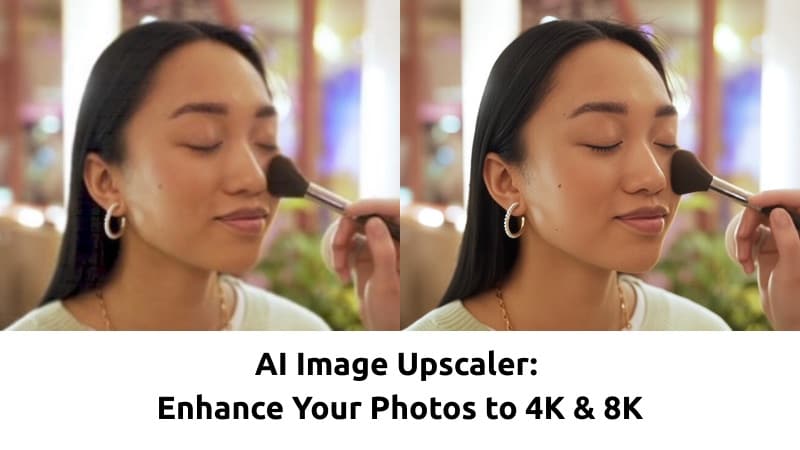
Part 1. What is an AI Image Upscaler and Why Do You Need One?
An AI Image Upscaler is an AI tool that increases image resolution while keeping it sharp and natural-looking. Instead of stretching pixels, it uses artificial intelligence to analyze patterns, textures, and details to recreate missing information. The result looks clearer and more refined, even when enlarged to 4K or 8K.
Traditional Upscaling vs AI Image Upscaling
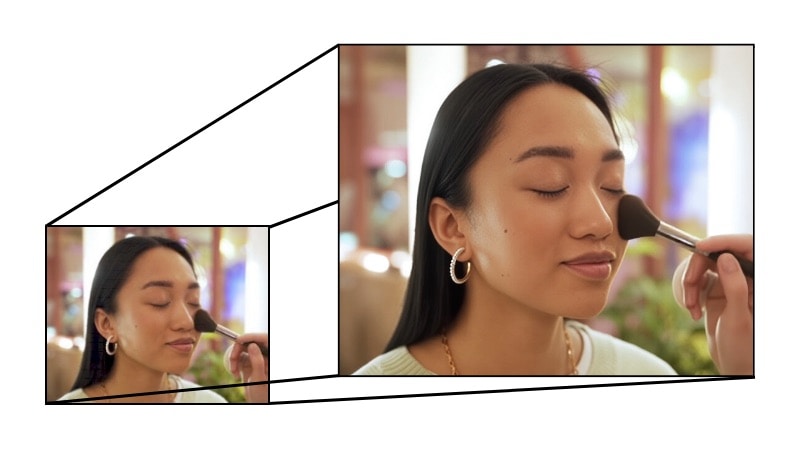
Traditional upscaling using basic interpolation methods. These methods enlarge photos by guessing and filling in missing pixels, making the photos look blurry and soft.
AI image upscaling works differently. It uses deep learning models trained on millions of images to understand patterns, such as edges, textures, and details. Instead of just enlarging the image, AI predicts what the missing details should look like and reconstructs them.
- Restore old or low-quality photos with improved clarity and details.
- Enhance e-commerce product images to make them look sharper and more professional.
- Prepare images for high-resolution printing without obvious pixelation.
- Improve social media visuals when resizing for larger displays.
If you work with digital content, photography, online stores, or print materials, an AI Image Upscaler helps maintain image quality. It also allows you to scale up the resolution without losing detail. It saves time, reduces manual retouching, and delivers cleaner results compared to traditional resizing methods.
Part 2. 5 Best AI Image Upscalers: Detailed Reviews
This section will show you the 5 best AI Image Upscalers that you can choose, depending on what you need most. Some tools are designed for fast online enhancement, while others focus on professional-level 4K or 8K quality. Pricing, processing speed, and output quality also vary.

Quick Comparison: Free vs Paid AI Image Upscalers
To make things easier, here's a quick comparison of popular AI Image Upscalers free and paid options you can use.
| Tool | Best Use Case | Max Resolution | Processing Speed | Pricing | Platform |
| Wondershare Filmora | Creators working across both photo and video projects. | Up to 4K | Fast | Free version with watermark; paid subscription available. | Windows, macOS, Android, and iOS. |
| Nero AI | Quick online image upscaling for everyday use. | Up to 4x image enlargement | Fast | Free credits available; paid subscription available. | Web browser |
| Topaz Gigapixel AI | Professional photo enlargement and printing. | Up to 6x image enlargement | Moderate | Paid subscription plans. | Windows and macOS. |
| Upscayl | Upscale images offline for free. | Up to 4x image enlargement | Moderate | Free | Windows, macOS, and Linux. |
| VanceAI | Online image enhancement with automated workflows. | Up to 8x online; up to 40x with its desktop software. | Fast | Subscription plans with tiered credits; free trial available. | Web browser or Windows. |
|
Show More
Show Less
|
|||||
1. Wondershare Filmora – Best for Video Creators
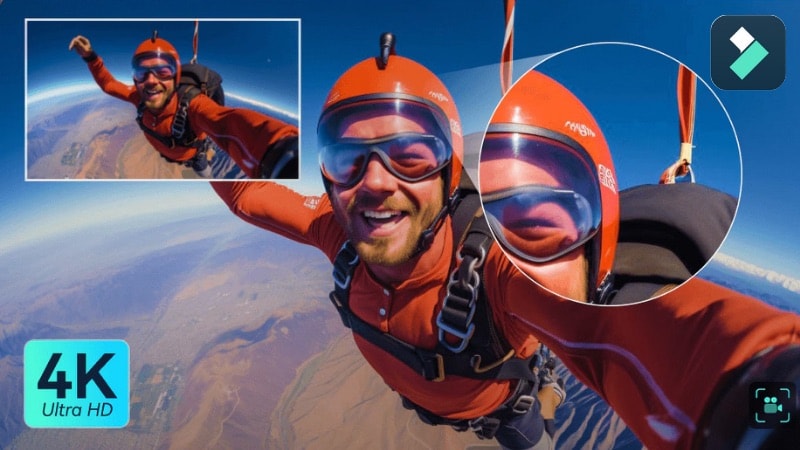
Wondershare Filmora stands out as a versatile AI photo and video upscaler. Beyond video enhancement, Filmora also includes a dedicated AI Image Enhancer that works directly on selected image assets—sharpening low-resolution photos, restoring facial details, reducing noise, and boosting overall clarity without manual adjustments. If you are looking for an AI image upscaler for PC that also handles video editing, Filmora is the top choice.
 Secure Download
- AI Video Enhancement: Improves clarity, sharpens details, and increases resolution for videos.
- AI Image Enhancer: Dedicated tool for low-resolution or blurry images—restores facial details, reduces noise/artifacts, sharpens textures, and maintains high fidelity to the original content.
- Dual AI Enhancement Modes for Video Quality: Filmora offers Standard AI for fast processing and Topaz Starlight for generative super-resolution. While mainly designed for video enhancement, it can improve extracted frames or still images from footage.
- Video upscaling up to 4K: Enhances low-resolution footage and restores textures without visible quality loss.
- AI Detail Reconstruction: Rebuilds facial features and textures instead of simply sharpening pixels.
- Blur and Noise Reduction: Removes motion blur, compression artifacts, and grainy visuals.
- Built-in Editing Workflow: Includes color correction, trimming, and export tools so you can enhance and edit in one place.
2. Nero AI – Best for Quick Photo Enhancement
Nero AI Image Upscaler suits users who want fast image improvement without complex editing steps. It runs in your browser and uses cloud processing, so you don't need powerful hardware or software installation. The AI enlarges images, improves resolution, sharpens edges, and reduces noise in just a few clicks.
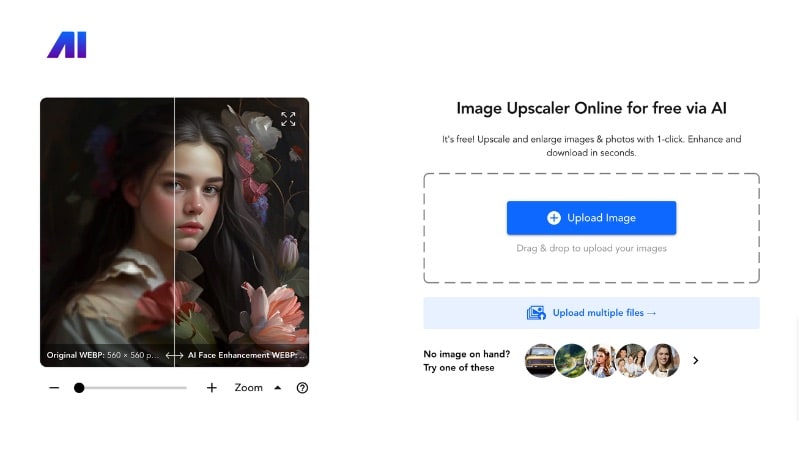
- One-click Image Upscaling: Upload your photo and let the AI enhance resolution without manual adjustments.
- High-resolution Upscaling (up to 4x enlargement): Increase image size while keeping textures and edges clearer than traditional resizing.
- Noise Reduction and Sharpening: Clean up grain and improve detail in low-quality images.
- Portrait Enhancement Option: Improve facial features in portraits for sharper results.
- Cloud Processing: No heavy system requirements since processing happens on your browser.
3. Topaz Gigapixel AI – Best for Professional High-Resolution Output
Topaz Gigapixel AI is an AI Image Upscaler built for users who need very high image quality. Photographers, designers, and print professionals often use it to enlarge images for posters, commercial work, or large displays. Instead of just increasing size, the tool rebuilds textures and fine details so the image stays clear even at higher resolutions.
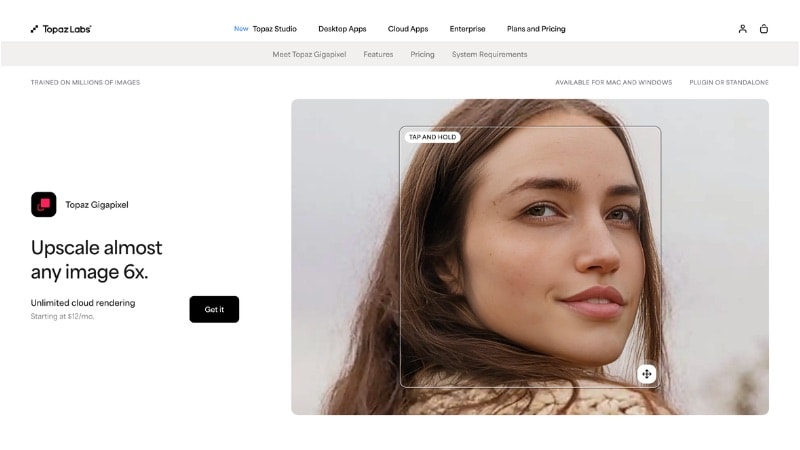
- High-resolution Upscaling: Enlarge images up to 6x times while preserving textures and detail. Suitable for 4K and 8K output, depending on the source image.
- Multiple AI Models: Choose different enhancement modes based on image type, such as standard photos, compressed images, or artwork.
- AI Detail Reconstruction: Restores edges, textures, and facial features instead of applying simple sharpening.
- Batch Processing Support: Upscale many images in a single session to speed up the workflow.
4. Upscayl – Best Free Open-Source AI Image Upscaler
Upscayl is a free AI Image Upscaler designed for users who want to enlarge images without a subscription. It runs on your computer, so you can upscale images without uploading files online. The desktop software is open source and free to use, with optional cloud plans available for online processing.
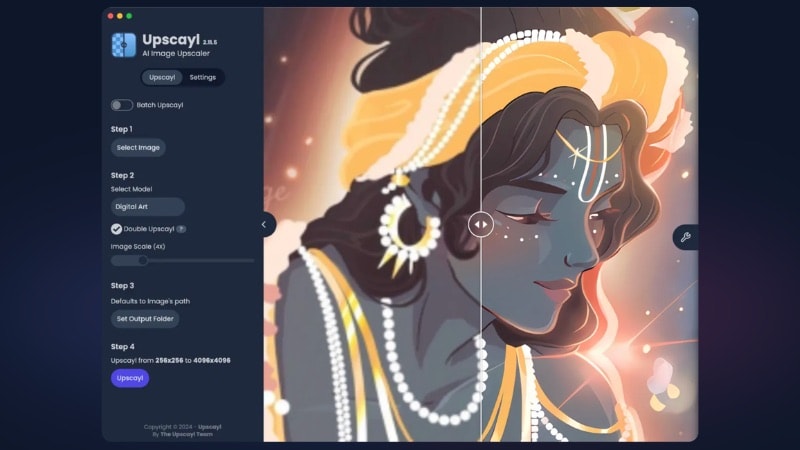
- Free Open-source Desktop Software: Use the core upscaling features without paying for a subscription. The source code is publicly available, and you can run the tool without usage limits.
- Local AI Processing: Upscale images directly on your computer instead of uploading them to a server. This feature helps protect privacy and gives you full control over your files.
- Multiple AI Models: Choose different enhancement models based on your image type, such as photos, artwork, or low-quality images. Each model handles textures and details differently.
- High-resolution Upscaling: Enlarge the image up to 4x or more, depending on the source and settings.
- Batch Processing Support: Enhance multiple images at once, which saves time when working with large image collections.
5. VanceAI – Best for Online Batch Image Upscaling
Try VanceAI if you're looking for an online AI Image Upscaler to upscale large numbers of images. It runs on a web-based platform where you can enhance, upscale, and refine images in one place. The platform also includes several AI tools that improve image quality, such as a denoiser, a cartoonizer, and a background remover.
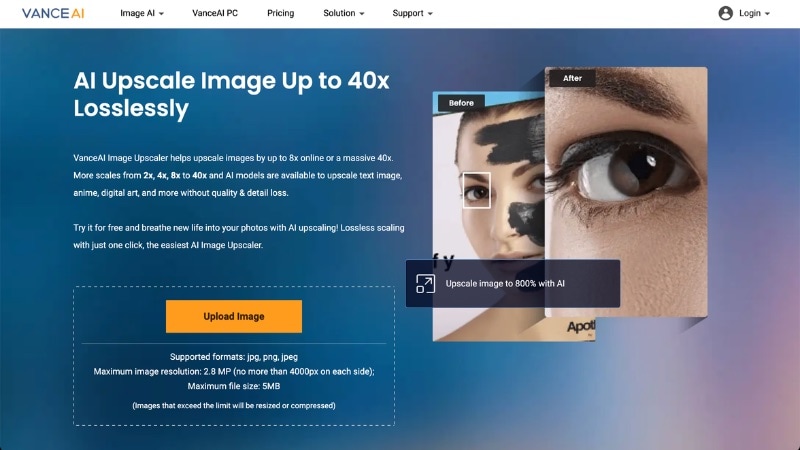
- Resolution Enhancement: Increase image resolution and improve clarity while preserving textures and details.
- Additional AI Tools: Includes AI tools for sharpening images, removing backgrounds, and improving photo quality.
- Preset Enhancement Settings: Apply ready-made adjustments to speed up image processing.
- Batch Image Processing Support: Enhance multiple images in one session to save time and reduce manual work.
- Cloud-based Processing: Use the tool online without installing software or using local resources.
Part 3. How to Choose the Best AI Image Upscaler for Your Needs?
Do the 5 best AI Image Upscalers above make it hard to choose the right one? Each tool offers different strengths, and the best choice depends on how you plan to use the enlarged images.
Before selecting a tool, think about your main purpose and the level of quality you need. Below are common scenarios and what to look for in each case.
Scenario 1: Printing Large Posters or Commercial Materials
If you plan to print images for large posters, exhibitions, or other close-view displays, resolution becomes the top priority. You'll need an AI Image Upscaler 8K or a tool that supports large-scale enlargement and strong detail reconstruction.
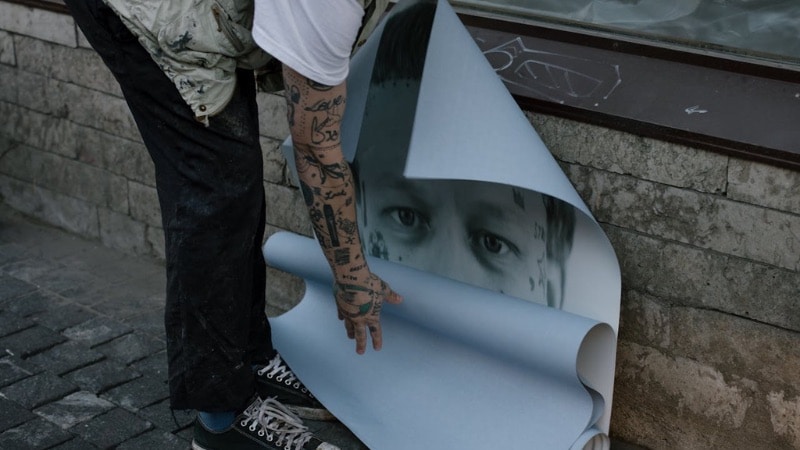
For very large prints such as billboards, extreme resolution is less critical because viewers see them from a distance. However, the image still needs enough clarity to avoid visible blur.
What to look for:
- Support for high scaling output capability (4x, 6x, or higher)
- Strong detail reconstruction for textures and edges
- Ability to handle large image files
- Batch processing for print professional projects
Tools designed for professional output work best in this case, especially if you prepare images for commercial use or printing.
Scenario 2: Images for Social Media Content
For social media posts such as Instagram, TikTok, and other online platforms, speed and convenience matter more than ultra-high resolution. Since these platforms often compress images, you only need clear and sharp visuals instead of extreme upscaling. Online tools or software with simple controls can help you process content faster.

What to look for:
- Quick processing time
- Simple workflow or browser-based access
- Built-in sharpening and noise cleanup
- Easy export for different aspect ratios
Tools like VanceAI or Nero AI Image Upscaler work well for quick improvements. If you also edit videos or create short-form content, Filmora can help you enhance and edit in one place.
Scenario 3: Restoring Old or Low-Resolution Photos
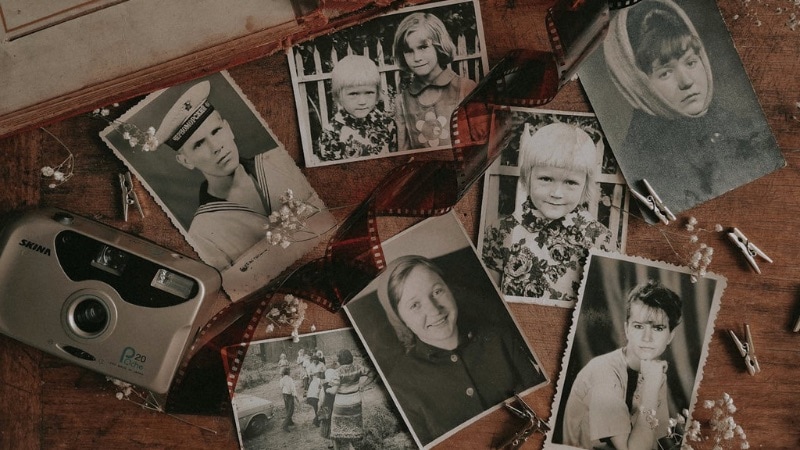
Old photos or low-quality images often contain blur, grain, or missing details. When restoring these images, choose an AI Image Upscaler that involves noise removal, texture repair, and facial detail enhancement.
What to look for:
- Strong AI detail reconstruction
- Noise and blur reduction features
- Enhancement models for low-quality or compressed images
- Facial detail improvement for portraits
In this situation, tools with stronger AI models tend to produce better results than basic upscalers. The goal is to recover details and improve clarity rather than increase size alone.
Part 4. Step-by-Step: How to Use AI Image Upscaler to Get 4K Results
Using an AI Image Upscaler usually involves uploading an image, applying an enhancement, and exporting it at a higher resolution. Some tools work as standalone photo upscalers, while others improve image quality inside an editing workflow.
Secure DownloadFilmora, for example, can help enhance image quality using AI within a video editing environment. You can improve still images placed on the timeline or extract high-quality frames from video footage.
This approach works well if you create thumbnails, social media visuals, product images, or presentation materials from videos.
How to Enhance an Image Using Filmora's AI Image Enhancer
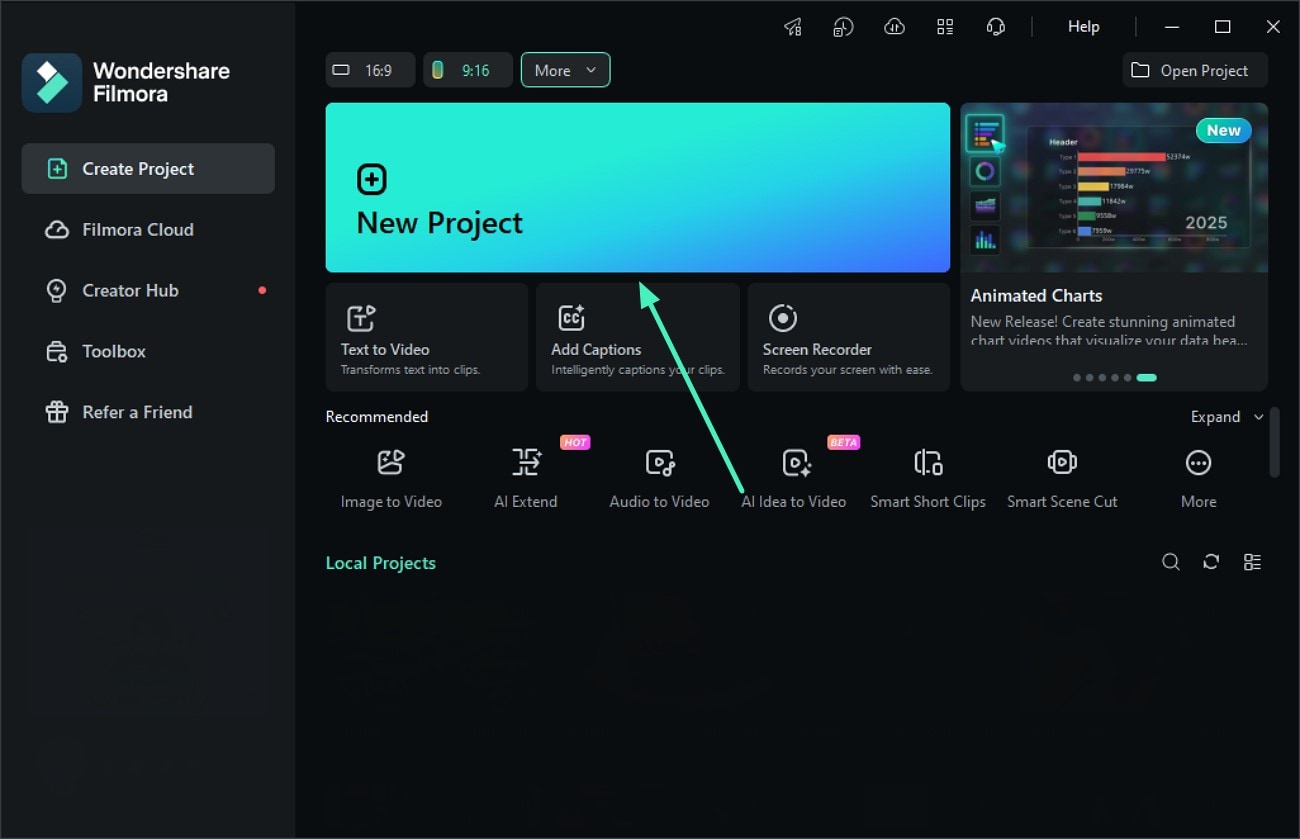
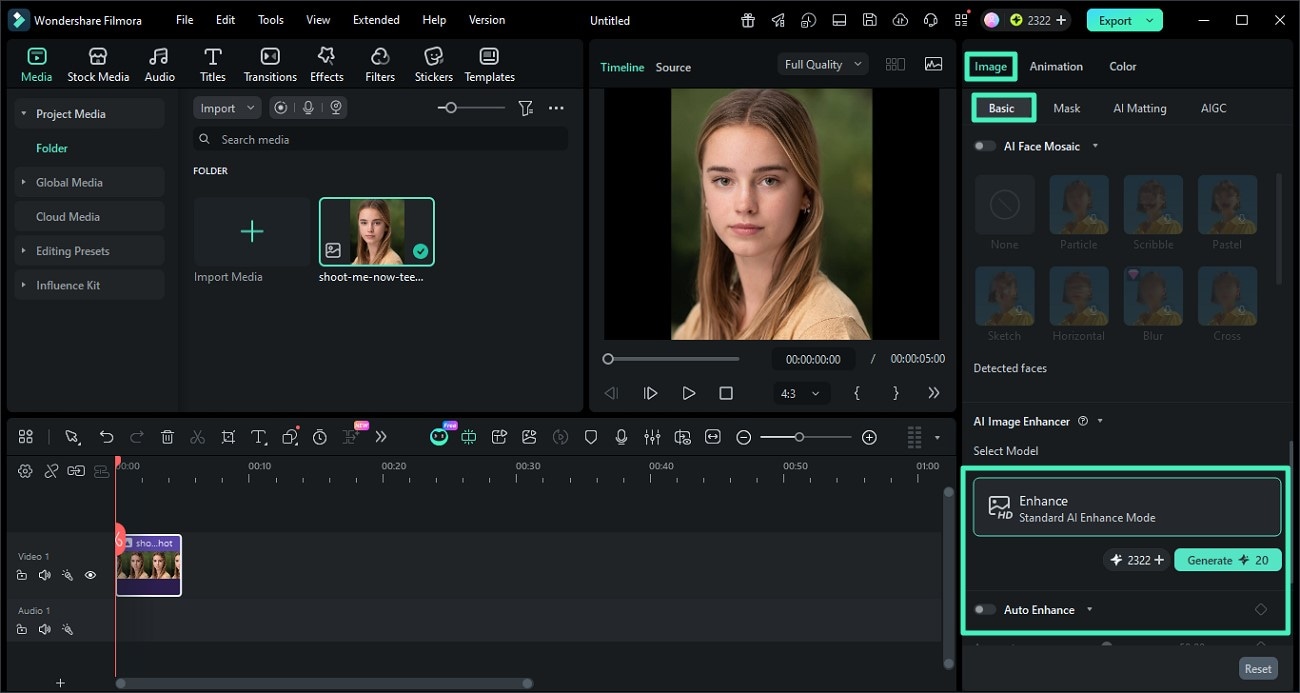
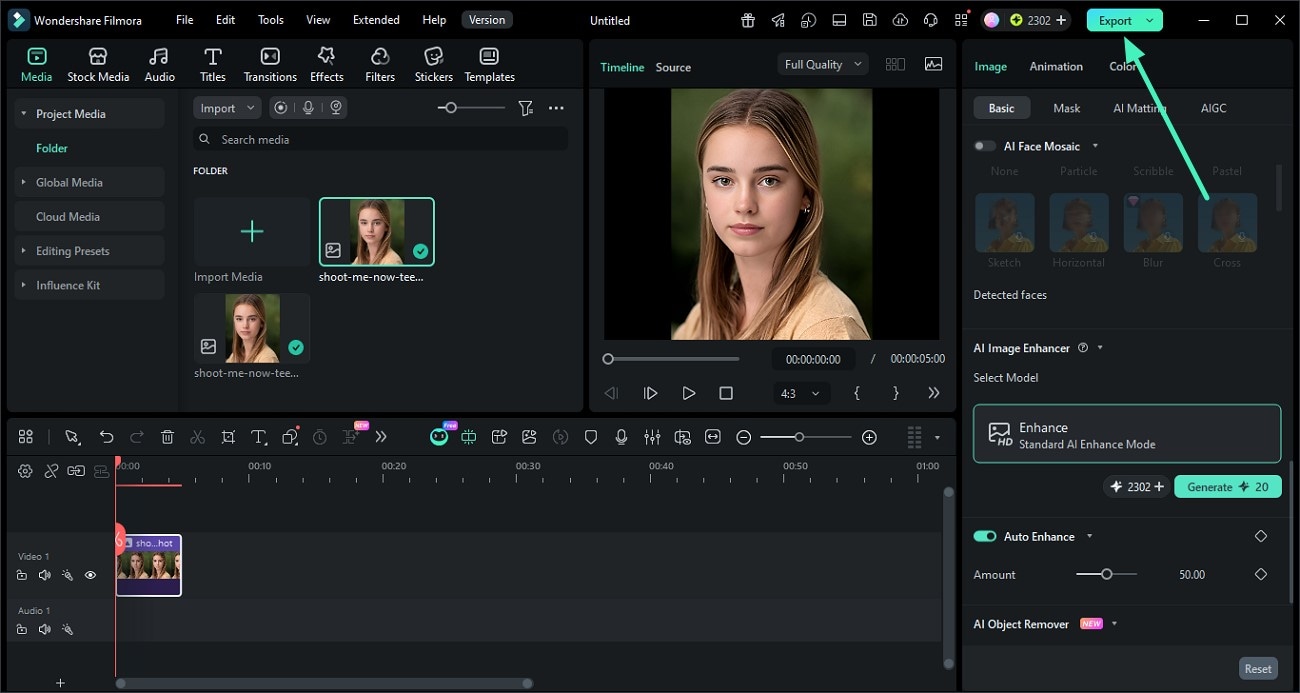
Enhance an Image (Auto Enhance)
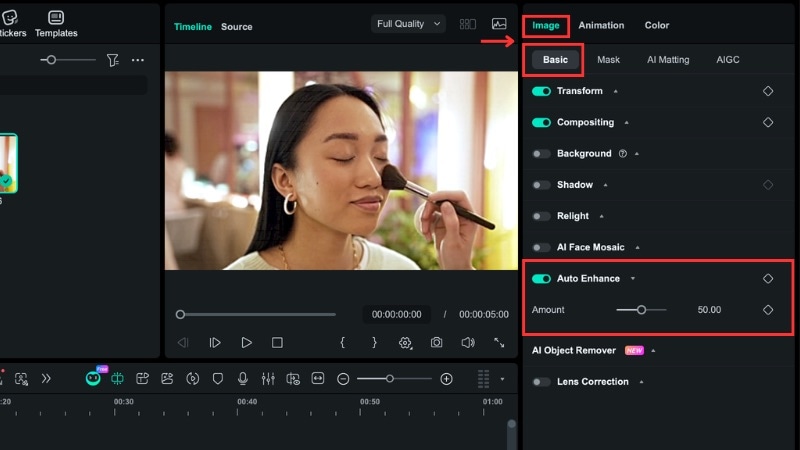
Go to Image > Basic, and enable Auto Enhance. Adjust the Amount slider to control the level of enhancement.
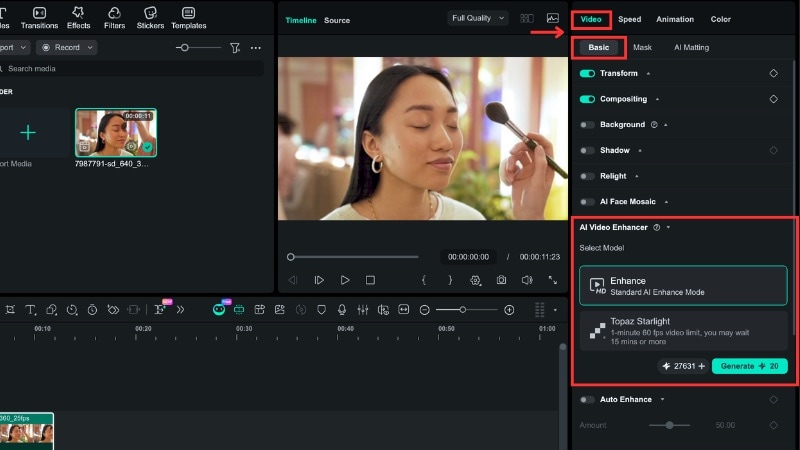
Enhance Video (AI Video Enhancement)
For video clips, you can use Auto Enhance or AI Video Enhancement to improve visual quality. To use AI Video Enhancement:
- Go to Video > Basic > AI Video Enhancement.
- Choose either Standard AI Enhance or Topaz Starlight mode
- Click Generate to start processing. Note that this feature uses AI credits.
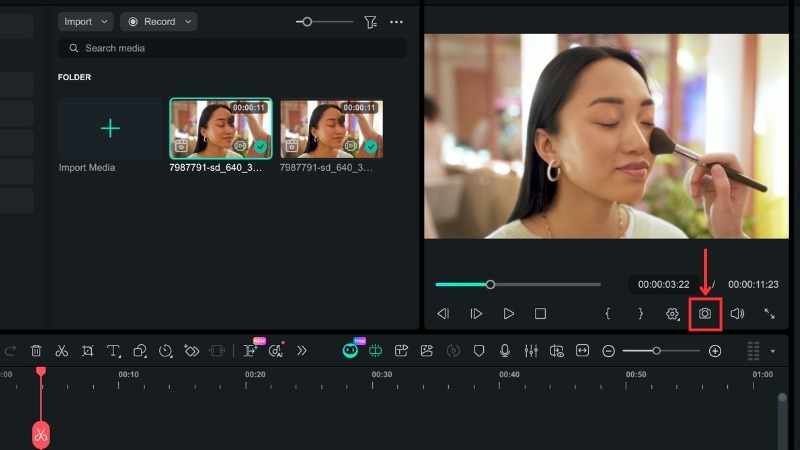
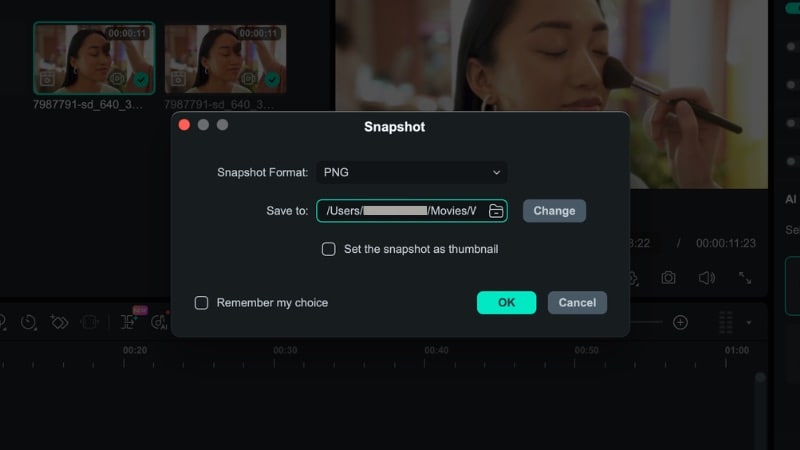
- For images: Display the enhanced image in the preview window and click Snapshot.
- For video: Move the playhead to the frame you want in the preview window, then click the Snapshot icon.
Part 5. Advanced Tips: Achieving Pro-Level 8K Upscaling
If you plan to use an AI Image Upscaler for 8K output, focus on image quality, not just size. Extreme upscaling can reveal noise, blur, or soft textures, so careful processing helps produce clearer and more natural results.
Check out some tips you can apply when upscaling an image using AI Image Upscaler:
- Start With the High Quality Source Image: AI tools rebuild missing details, but they still rely on the original file. Avoid heavily compressed files when possible. Use high resolution or RAW files for better 8K results.
- Avoid Over-Sharpening: Do not push enhancement sliders too far. Too much sharpening can create halos or artificial textures. Aim for natural detail rather than exaggerated clarity.
- Upscale in Stages Instead of One Large Jump: Jumping directly from low resolution to 8K can create artifacts or unnatural textures. A gradual process helps maintain cleaner edges and reduces visible artifacts.
- Integrate Upscaling Into Your Editing Workflow: When working with both images and videos, enhance and upscale them in one workflow instead of switching between different tools. In Filmora, you can set your project resolution up to 4K, then save the result using the Snapshot tool.
- Use Batch Processing for Large Projects: If you need to upscale many images, use a tool with a batch processing option to save time. This feature can also help maintain output settings consistent across all files.
Conclusion
An AI Image Upscaler helps you improve photo quality by increasing resolution while keeping the details. Instead of stretching pixels, it rebuilds textures and edges, making images suitable for larger screens and prints.
There are many AI Image Upscaler free and paid options available. Some work best for quick online edits, while others are designed for professional printing and batch processing. This guide has compared the best AI Image Upscaler, along with how to choose the right option.
Choose the tool that fits your workflow and try the steps in this guide to improve your images.

FAQs
-
Is there a completely free AI Image Upscaler?
Yes, there is an AI Image Upscaler that is completely free. For instance, Upscayl offers free desktop upscaling without subscriptions. Other platforms may provide free access with limits, such as daily credits, watermarks, or restricted features. -
Can I upscale images to 4K without losing quality?
Using an AI Image Upscalers for 4K output is possible, depending on the original file. AI upscalers rebuild missing details and sharpen textures, yet heavily compressed or very small images may not produce perfect results. Higher-quality source files produce better outcomes. -
How does the AI Nero Image Upscaler compare to Topaz?
AI Nero Image Upscaler is better for online upscaling with one-click processing, which is suitable for casual users. Topaz Gigapixel AI is more suitable for professional use, especially for large prints and detailed enlargement. -
Can I use an AI Image Upscaler for printing?
Yes. For prints people will see up close, choose a tool that can enlarge images a lot while keeping details sharp. For very large displays viewed from far away, you just need the image to look clear without obvious blur.
