


Back in April 2026, OpenAI released ChatGPT Images 2.0, a powerful model that could generate stunning visual content from simple prompts. Just a few months later, they dropped the newest version: ChatGPT Images 2.5.
Many users were surprised by how fast this update arrived, raising the question of whether it brings real, meaningful upgrades or if it was just rushed out. So, we will break down all about GPT Image 2.5 and how it compares to its predecessor to help you decide if it is actually worth using.
Part 1. What Is ChatGPT Images 2.5? OpenAI’s New Image Generator Explained
ChatGPT Images 2.5 release date is September 8, 2026, only a few months after launching ChatGPT Images 2.0 on April 21, 2026. OpenAI says Images 2.5 brings sharper details, more natural lighting, and richer textures.
The changes are aimed at some of the most annoying parts of AI image generation, including getting an edit to affect only one thing, keeping a character consistent across several changes, and getting the model to understand exactly what you mean.
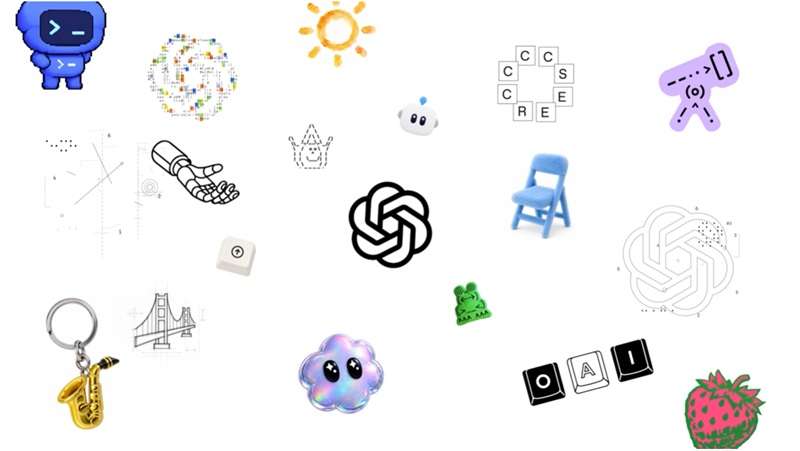
The model's reception backs that up, too. On Arena's blind-vote leaderboards, GPT-Image-2.5 Sunburst currently landed at #1 across the Text-to-Image, Image Edit, and Multi-Image Edit categories, with GPT-Image-2.5 Flare right behind it at #2, both bumping ChatGPT Images 2 (the model behind Images 2.0) down to third place.
The Biggest Features in ChatGPT Images 2.5
So, what are you actually getting with the new model? The improvements make the most sense when you look at how people usually work with AI images. Let’s break it down!
Targeted Precision Editing
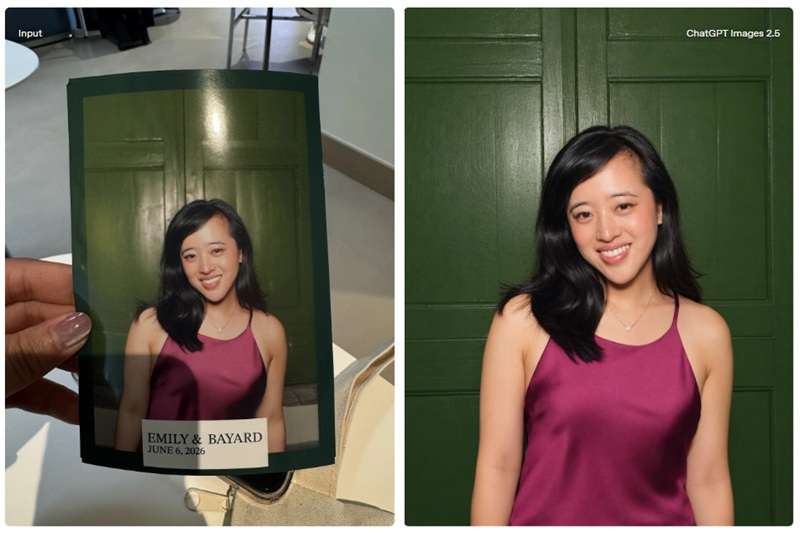
One of the biggest ChatGPT Images 2.5 upgrades is the ability to make a specific change without throwing the rest of the image off. Want to swap someone's jacket or adjust lighting without changing their face or wiping out the background? You can now make pinpoint tweaks while preserving the surrounding composition.
Sketch Turns Doodles Into Visual Guides
Not everyone knows how to write the perfect image prompt. Sometimes, it is easier to draw what you mean. That is exactly what the new Sketch feature is for. It lets you draw a rough doodle directly inside ChatGPT and use it as a layout guide for the AI to build the final image around.
Multi-Turn Edit Stability
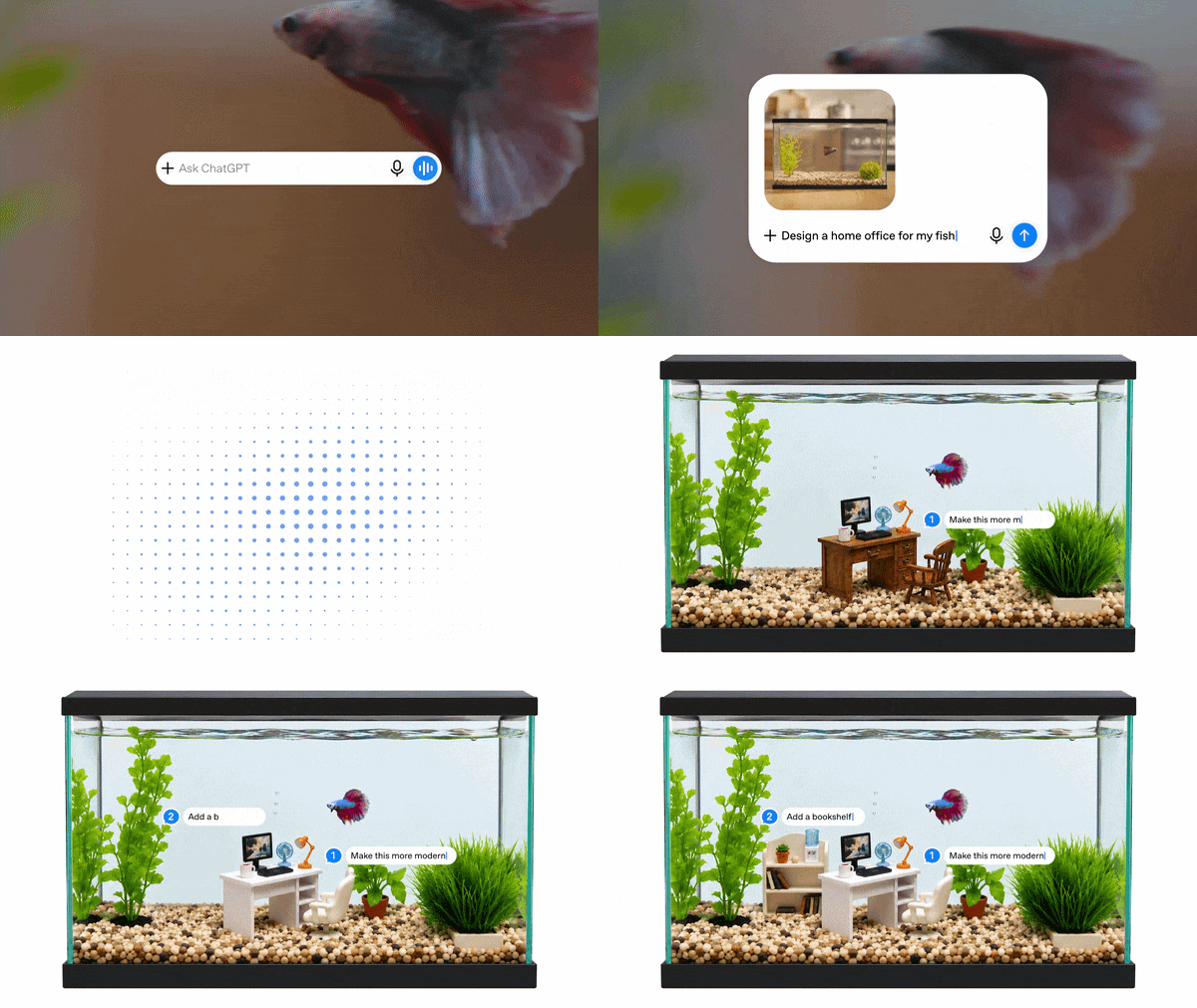
This is another GPT Image 2.5 upgrade that sounds small until you actually use it. You can tweak an image five times in a single thread without watching your character morph into a completely different person or lose crisp detail.
Reference Image Fidelity
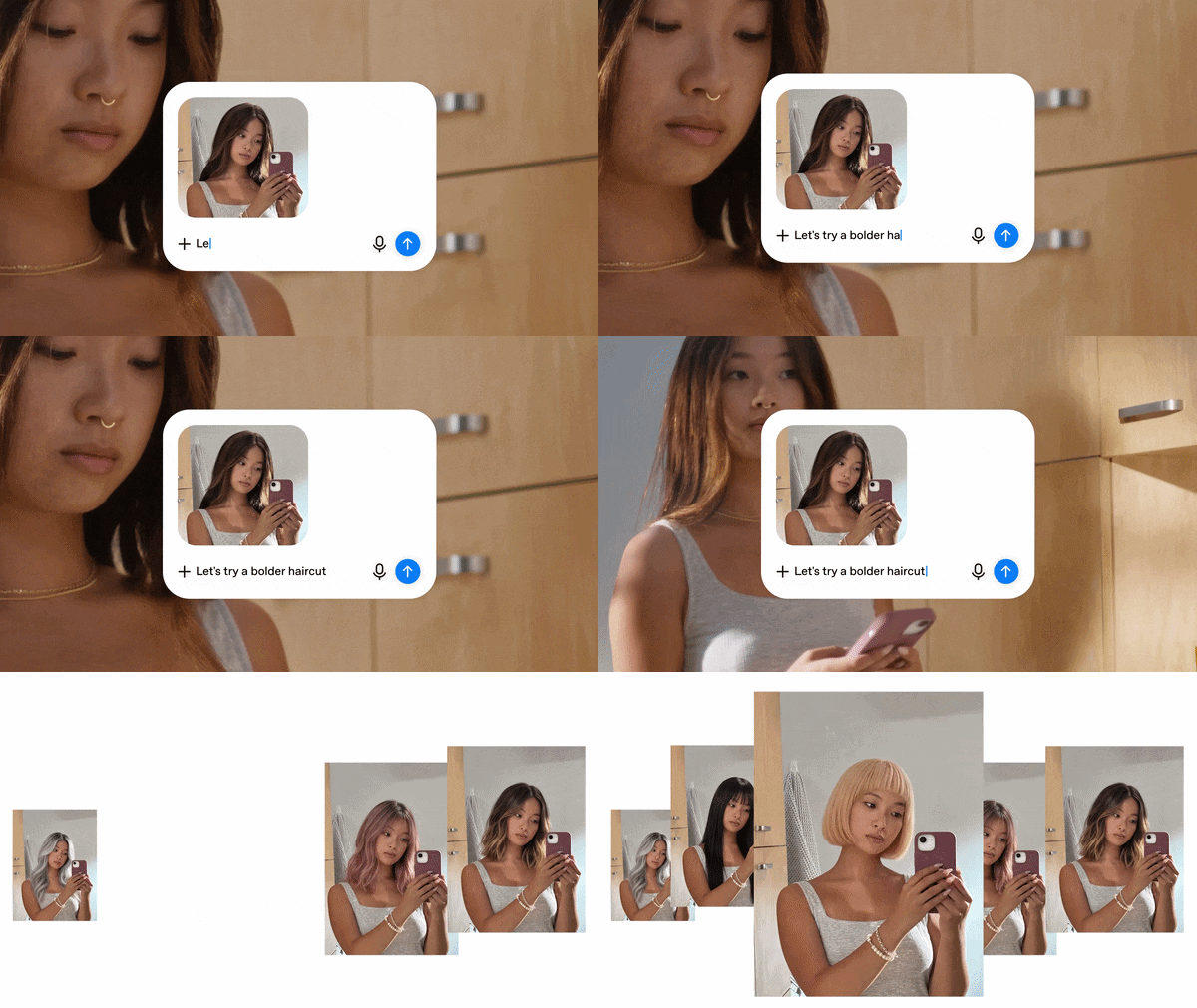
You can also give ChatGPT Images 2.5 a reference photo and ask it to create something new around it. The generator holds onto those distinct features across brand-new backgrounds and styles.
Part 2. GPT Image 2.5 vs GPT Image 2: Is the Upgrade Worth It?
Now that we know what ChatGPT Images 2.5 brings to the table, it is time to stack it up against ChatGPT Images 2.0. Plenty of updates list new features yet still feel identical in practice. Check out this GPT Image 2.5 vs GPT Image 2 comparison table across everyday tasks.
| Category | GPT Image 2 | GPT Image 2.5 |
| Generation Latency | Standard processing speed | Up to 50% faster (Flare), so back-to-back edits feel far less sluggish |
| Editing Accuracy | Good, but broader edits can occasionally shift unrelated parts of the image | Targeted precision editing keeps everything untouched except what you asked to change |
| Input Methods | Text prompts and reference images | Text prompts, reference images, plus the new Sketch canvas for doodled layouts |
| Multi-Turn Consistency | Can drift after repeated changes | Holds subject details steady even across long, multi-step edit chains |
| Text & Poster Layouts | Solid for simple words | Much sharper text rendering for posters, flyers, and banners |
| Best For | Casual art generation and basic visual concepts | Precise layout design, brand assets, and iterative editing |
|
Show More
Show Less
|
||
Part 3. ChatGPT Images 2.5 Pricing and Availability Explained
One of the nicer parts of this release is that you do not need to be a developer to try it. Anyone using ChatGPT across Web, Mobile, or Desktop apps gets access to ChatGPT Images 2.5, including Free, Plus, Work, and Codex tiers.
As for the ChatGPT Images 2.5 price, it can be a bit tricky. If you use Images 2.5 inside ChatGPT, you are using it through your ChatGPT plan and its applicable usage limits. If you are a developer building GPT Image 2.5 into an app, website, or automated workflow, that's when API usage and token pricing come into play. See the pricing table guide below.
| Model Variant | Ideal Use Case | Speed & Performance | Per-Image Cost Range |
| GPT-Image-2.5 Flare | High-volume generation, social content, rapid drafts | Up to 50% faster than GPT Image 2 | ~$0.006 (low-res) to ~$0.053 (high-res) per image |
| GPT-Image-2.5 Sunburst | Production-ready campaign visuals, polished brand assets | Slower, prioritizes maximum accuracy | Slower, prioritizes maximum accuracy |
|
Show More
Show Less
|
|||
API Token Rates:
- Input: $5 per 1 million text tokens.
- Image Output: $30 per 1 million image tokens.
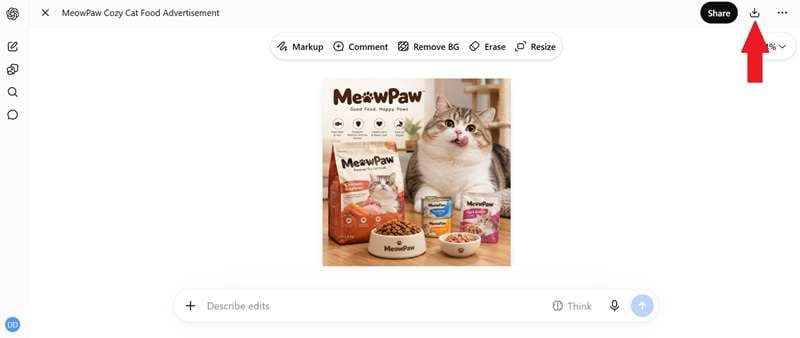
Part 4. Trying ChatGPT Images 2.5 for the First Time
Reading about an image model only tells you so much. Since ChatGPT Images 2.5 is available on free accounts, testing it out takes only a couple of minutes. Here is how you can put the new engine through its paces.
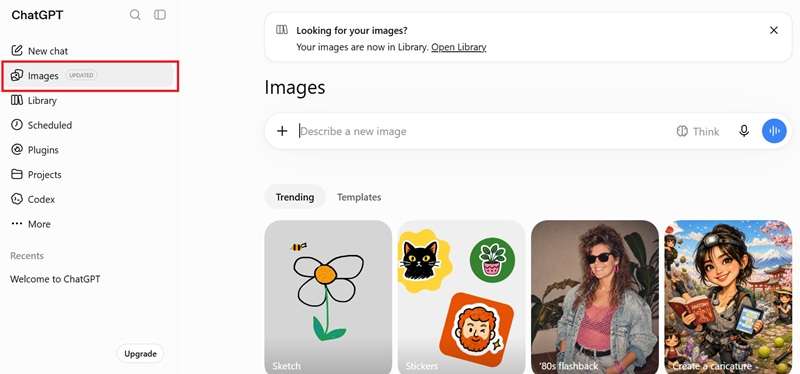
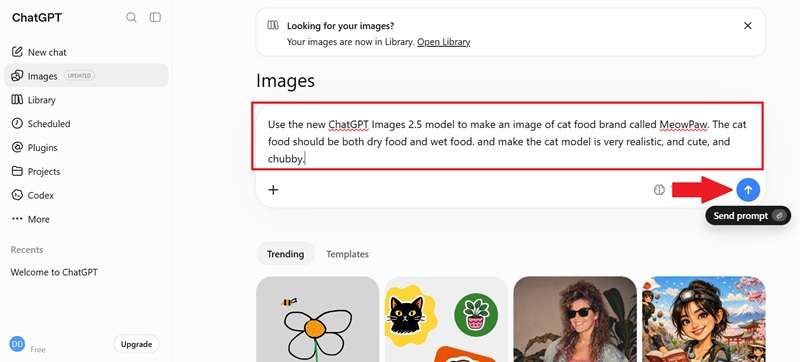
Part 5. What People Say About ChatGPT Images 2.5: Pros and Cons
Over on r/ChatGPT, creators have been putting ChatGPT Images 2.5 through real-world stress tests since the announcement dropped. While people appreciate the technical upgrades, real feedback points out both hits and misses.
- Noticeable Speed Upgrade: Generations feel snappy, and the interactive mini-game on screen makes short waiting times go by fast.
- Readable Typography: Text on signs, flyers, and promotional mockups comes through clearly without garbled letters.
- Sketch Integration: Doodling a layout saves tons of time compared to writing endless paragraph prompts.
- Stricter Moderation: Automated guardrails feel tighter around stylized anime characters and beachwear concepts.
- Persistent Noise Patterns: Long editing chains in a single chat can still trigger faint high-frequency checkerboard noise across dark areas.
- Refined, Not Revolutionary: If you rarely edit generated photos or design flyers, the update feels like a solid polish rather than a completely new era.
Bonus: Want More Than Images? Take Your Creations Into Filmora
It's nice that ChatGPT Images 2.5 is available across ChatGPT tiers. But if you're a content or video creator, static graphics only go so far on modern social feeds. If you want to turn those still designs into engaging content, you can take your creations straight into Wondershare Filmora.
Filmora is an all-in-one video editor that already has GPT Image 2 built directly into its AI Image generator. The useful part is that the workflow does not have to end with the image. Filmora lets you send generated visuals directly to its timeline, where you can add text, transitions, effects, and its AI Image-to-Video tool.
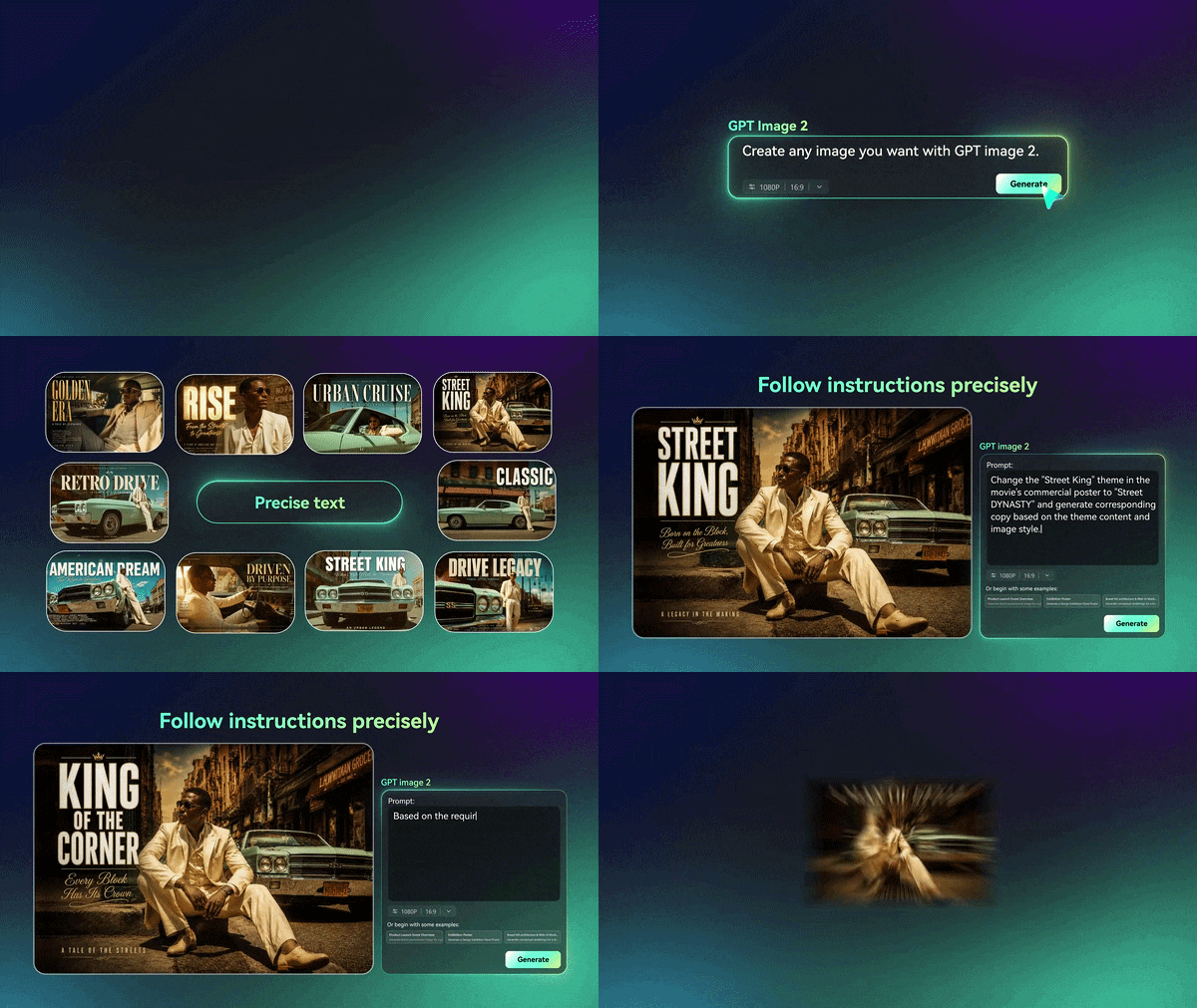
Ideal Workflow: Converting ChatGPT Images into Short Ads with Filmora
Here's the simple version: generate your image in ChatGPT using Images 2.5. Then, bring that file into Filmora, where the AI Image-to-Video feature can turn it into a 15-second animated clip complete with camera movement and sound.
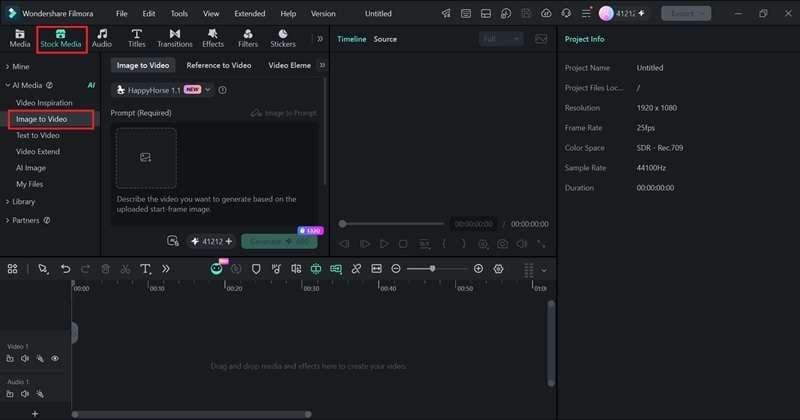
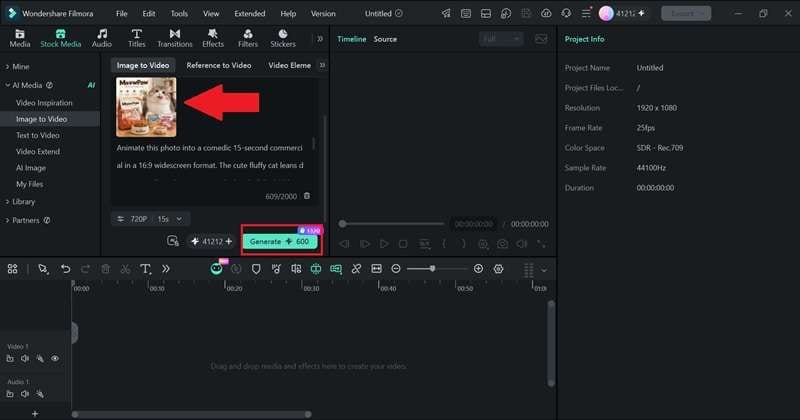
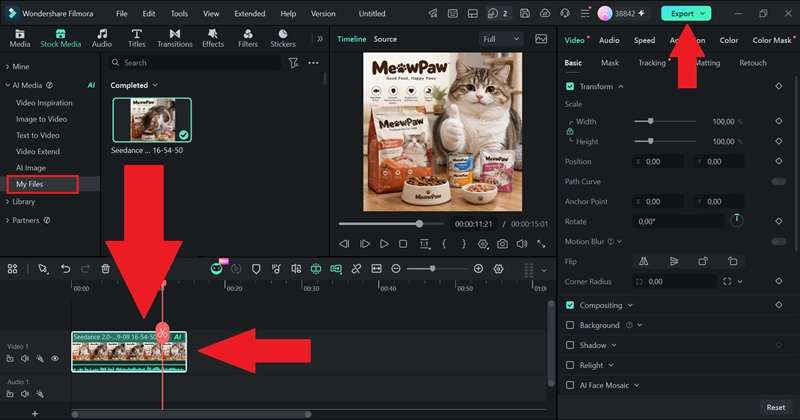
In only a few steps, a static product shot becomes a short, scroll-stopping ad without touching a camera. See how it turns out:
 Secure Download
Conclusion
ChatGPT Images 2.5 isn't a reinvention of what came before it, but it's not a hollow version bump either. The speed gains are real, the precision editing genuinely solves one of GPT Image 2's more annoying quirks, and the fact that it's available to free users from day one makes it easy to try without committing to anything.
If you want to push your creative projects further, bringing your generated graphics into Filmora opens up endless possibilities. This AI video editor lets you animate still images into high-converting video ads, add dynamic text overlays, and polish your content for any platform in minutes.
FAQs
-
Does ChatGPT Images 2.5 support transparent background generation out of the box?
Yes, ChatGPT Images 2.5 handles transparent background prompts and subject isolation much better than version 2.0, making it easier to extract items for graphic design. -
What happens if I reach my fair-use limit for image generation on a Free or Plus plan?
When you hit your generation cap, ChatGPT will notify you that you have reached your temporary limit. You can either wait for your quota to reset or let requests process at a lower-priority speed. -
What is the difference between GPT-Image-2.5 Flare and Sunburst?
GPT-Image-2.5 Flare focuses on maximum speed and lower costs for high-volume apps, while GPT-Image-2.5 Sunburst prioritizes ultra-high accuracy and precise editing control for complex creative assets.
