


 TL;DR:
Dedicated timecode calculators resolve manual math errors for video editors by accurately adding, subtracting, and converting timecodes or frame counts across mixed frame rates.
● Nitrosoft Technology provides a free, Windows-only offline desktop calculator, while mobile users can install Simple Timecode Calculator ($0.99) for iOS and macOS or GoWorks for Android.
● Michael Cinquin uniquely offers a keycode calculator that outputs total frames, seconds, and audio samples for physical film, whereas AVTools TC Calc focuses on real-time SMPTE calculations with an optional bulk subscription starting at $19 per month.
● You must select the exact project frame rate, including specific drop-frame or non-drop-frame formats, before calculating inputs to successfully use the timing reference in frame-accurate editors like Wondershare Filmora.
Ask AI for a summary
 ChatGPT
 Perplexity
 Gemini
 Claude
 Grok
Grok
For every video editor, timecode is an important part of keeping clips lined up well. It’s useful when you need to sync audio, match shots from different cameras, and figure out how long a sequence really is.
But once you start working on different frame rates or multiple raw clips, doing the math by yourself can mess with your head fast. What you need then is a timecode calculator, which can help you break everything down more easily to make sure your delivery is accurate. It’s often used when you need to add, subtract, convert, or compare different timecodes.
For those who are pretty new to working with timecode, we have shortlisted several timecode calculators you can use to make editing easier.
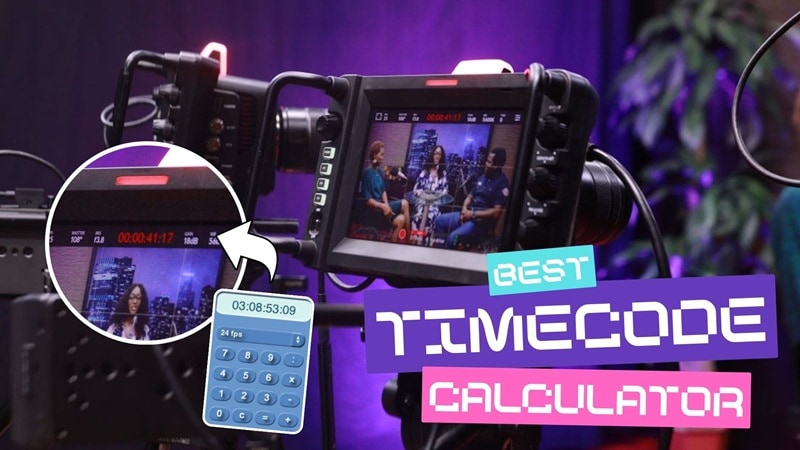
We test each timecode calculator the same way an editor would use it in real projects:
- Accuracy across frame rates: We put each calculator to the test by converting, adding, and subtracting timecodes at different frame rates to ensure they give reliable results.
- Frame rate options: We selected a timecode calculator that provides common frame rates, like 23.976, 24, 25, 29.97, 30, and 60 fps, to cater to different needs.
- Pricing: We prioritize timecode calculators that you can use for free and note any limits, paywalls, or features that may be locked behind a subscription.
With all of this in mind, we narrow things down to the calculators that are genuinely reliable. You only need to pick the one that feels right for how you work.
Part 1. Best Timecode Calculators for Video Editors
Even being off by just one second can mess up your whole edit, especially when you’re syncing audio or matching clips from different cameras. When that happens, the timecode calculators in the list below can help you get back on track fast and keep your timing accurate.
1. robwomack.com
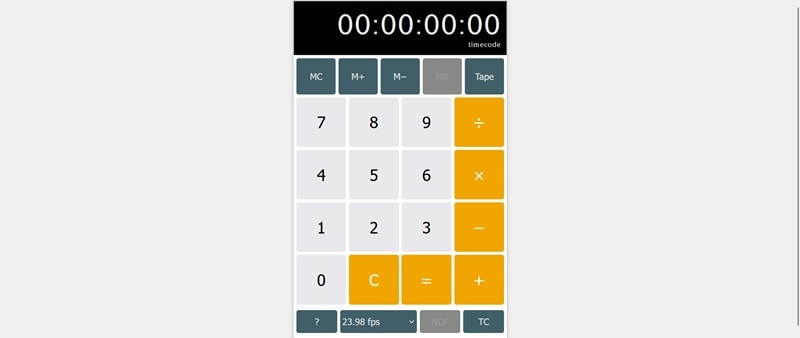
Robwomack is an independent project by producer, director, and editor Robert Womack. This online timecode calculator is very straightforward and handles basic calculations. You can choose whether to work with timecode values or frame counts as your input.
- Basic timecode calculation
- Includes a “Tape” that keeps a running log of all your calculations
2. Timecode Calculator by Nitrosoft Technology
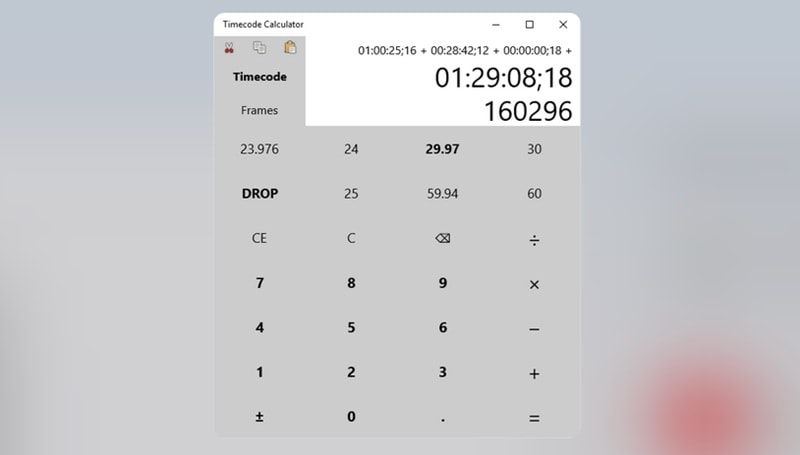
If you edit videos daily, having a dedicated timecode calculator software can be more convenient since you don’t have to worry about losing access due to a sudden internet issue. Timecode Calculator by Nitrosoft Technology is a solid option in this case, as it’s available to download from the Microsoft Store.
For Mac users, though, you’ll need to look for another alternative because this software is Windows-only. When using it, you can enter either a frame count or a timecode as your starting input. The result will show you both the converted timecode and total frames based on the frame rate you select.
- Basic timecode calculations
- Shows both total frame counts and timecode based on the selected frame rate
3. AVTools TC Calc
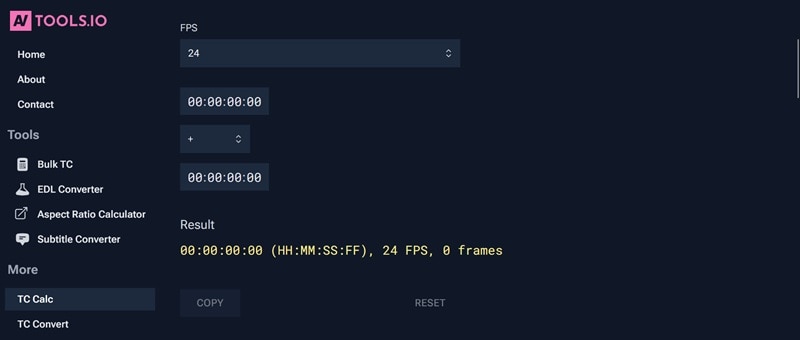
TC Calc by AVTools is an SMPTE timecode calculator that helps you add or subtract two different timecodes with proper support for both drop-frame and non-drop-frame formats. The interface isn't like a traditional calculator, but it provides input fields where you type in your timecodes and pick the frame rate you want to work with.
Once a calculation is done, it displays the final timecode, the frame rate used, and the total frame count, which you can copy with ease. You can also use its bulk timecode calculator with six different modes for added convenience.
- Adds or subtracts two SMPTE-conform timecodes
- Input validation with clear error messages
- Real-time results that update as you type
- Copy and Reset buttons to save results or clear entries
4. Simple Timecode Calculator
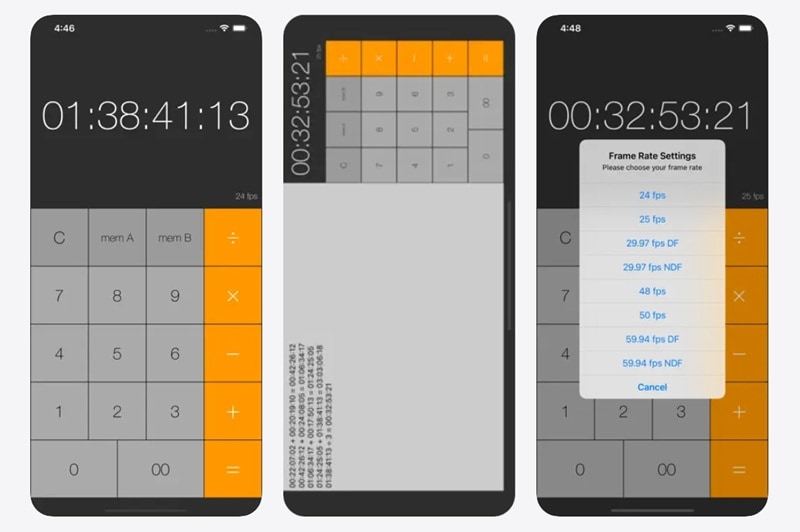
If you think using an online tool or desktop software isn’t always convenient, you can install a timecode calculator app on your iPhone instead. Simple Timecode Calculator is a lightweight mobile app made for quick and basic timecode math on the go.
For mobile editors, it’s a practical tool to have in your pocket. But even if you mainly edit on a computer, you can still use it as your little sidekick to double-check timecodes or do fast conversions on a different device.
- Activate the Ticker Tape function when used in a landscape orientation
- Available to install on macOS as well
5. Michael Cinquin
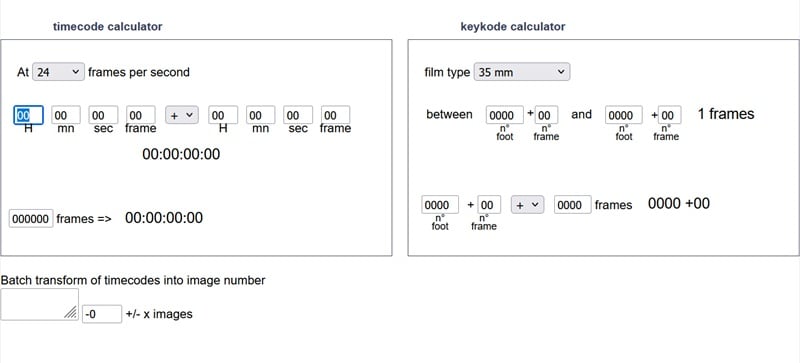
In one of its tools, Michael Cinquin offers an online timecode calculator, along with a keycode calculator. This additional keycode feature is useful when you need to match timecodes with physical film frames or handle more technical post-production tasks.
While it doesn’t show a traditional calculator-style interface and only lets you add or subtract timecodes, it makes up for that with more detailed output than most timecode calculators. The results include not just the final timecode, but also the total frames, seconds, and even audio samples.
- Perform addition and subtraction between two timecodes
- Turn a timecode into its total number of frames
- Add or remove frames using keycode values
- Figure out how many frames fall between two keycodes
6. GoWorks Timecode Calculator
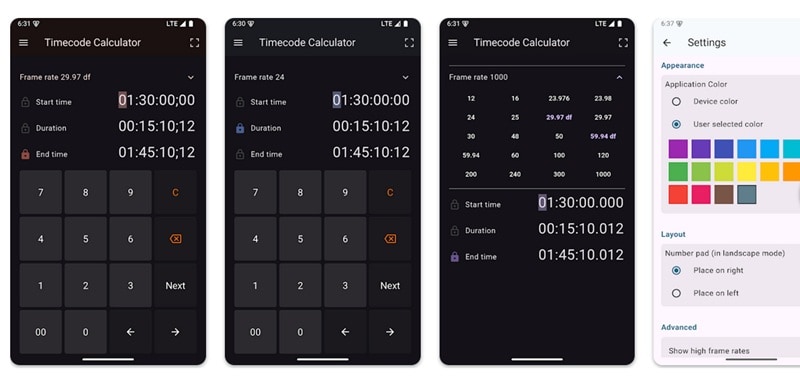
If iOS users have Simple Timecode Calculator, Android users can use GoWorks. It supports a wide range of frame rates, including both non-drop-frame and drop-frame formats. You can lock the start time, duration, or end time, and the app will automatically update the other values as you make changes.
- Lock start time, duration, or end time for automatic recalculation
- Dark mode support for low-light editing environments
- Landscape mode is available for a better screen layout
- Customizable timecode calculator layout
Part 2. How to Read and Use a Timecode Calculator for Editing a Video
If you look at the timecode calculator we have listed before, each of them may look a little different. Some tools only have add and subtract options, while others have more tools to work with.
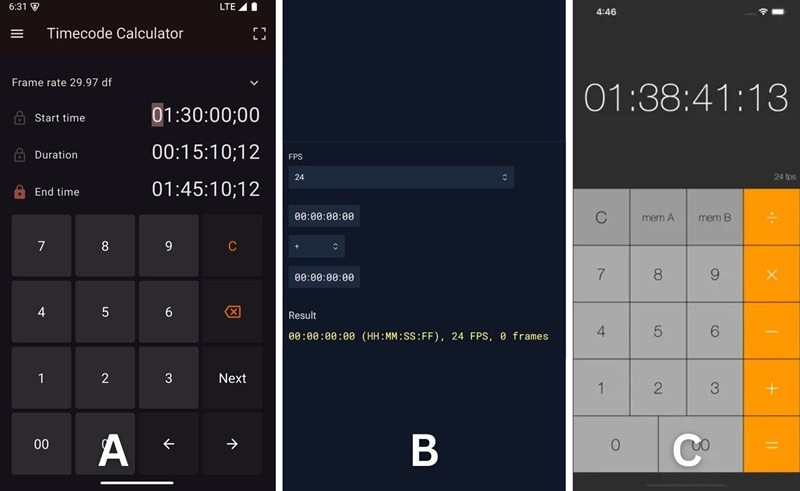
So, choose the one that fits your needs, and make sure it has the FPS option for your project. The way you use a timecode calculator depends on what you’re trying to figure out. This tool is useful for:
- Converting a frame count into a timecode and turning a timecode back into total frames
- Adding or subtracting clip lengths to find exact start and end points
- Converting timecodes between different frame rates
- Switching between drop-frame and non-drop-frame timecodes for NTSC projects
Yet, the basic logic of using a timecode calculator stays the same no matter which tool you use. Start by selecting the correct frame rate. Then, enter either a timecode or a frame count, depending on what you want to calculate.
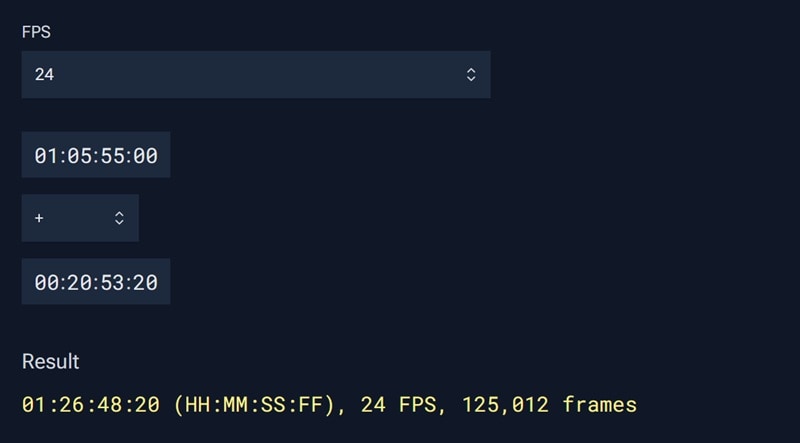
After hitting add or subtract, the calculator shows the result in a readable timecode format. Use that information as your exact timing reference when editing your footage.
Wondershare Filmora: Best Video Editor for Frame-Accurate Editing
To put your timecode calculations to real use, you need a video editor that lets you work down to the exact frame. In Wondershare Filmora, you can use your timecode results to trim clips precisely, set clean in and out points, and double-check that your timeline matches the runtime you’re aiming for.
 Secure Download
You can see your video’s timecode in Filmora right below the preview window.
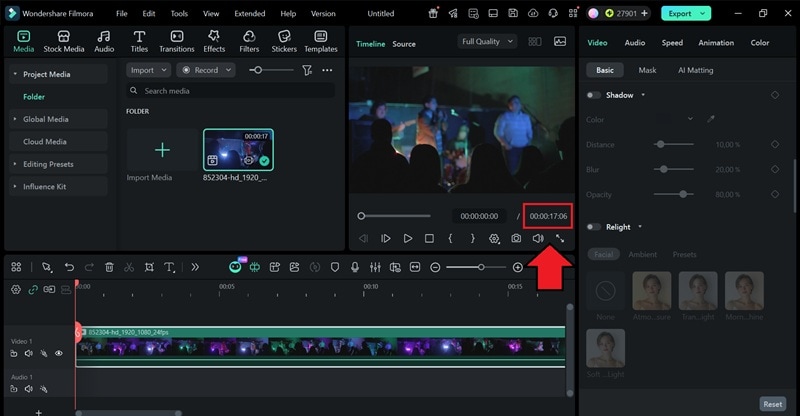
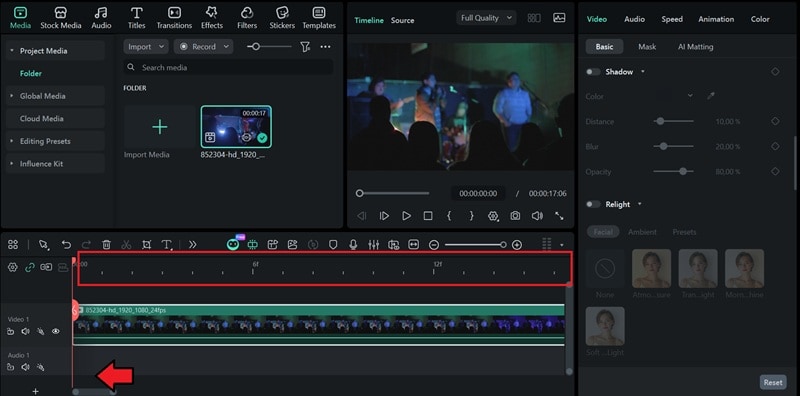
On the timeline, you can zoom in by dragging the slider to see more detailed timing. As you zoom closer, Filmora shows individual frames, down to 6f, to help you fine-tune your cuts with much better precision.
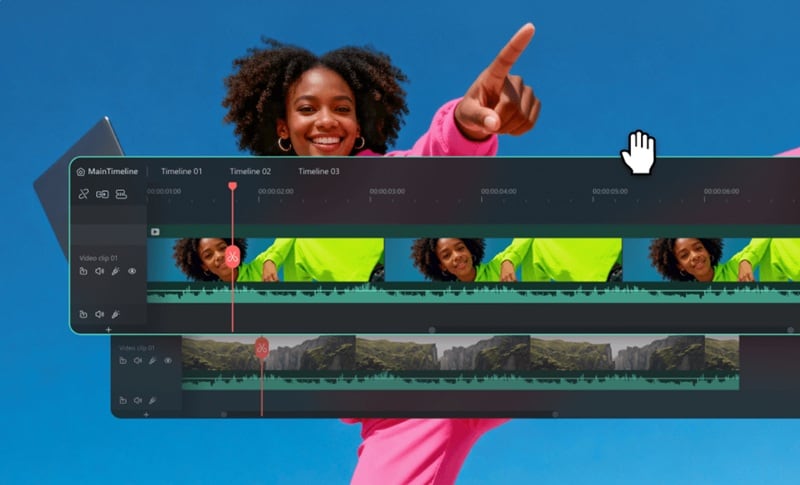
Filmora also includes a multiple-timeline feature that helps you edit accurately. You can keep your main cut on one timeline while using the second timeline to test trims, adjust runtimes, or rebuild a section based on your new calculated timecodes.
 Secure Download
Conclusion
Timecode is an important yet often overlooked detail that can quietly mess up a whole edit if it’s off by even a little. But a good timecode calculator can take your stress away whenever you need to add, subtract, or convert timecodes across different frame rates.
Choose from the timecode calculators we’ve listed above and pair them with a video editor that actually respects frame accuracy, like Filmora. You can use your calculated timecodes to trim clips precisely, set clean in and out points, and double-check that your timeline matches the runtime you’re aiming for.
FAQs
-
Q1: What is the most common frame rate for cinema?
The most common frame rate for cinema is 24 frames per second. It’s been the standard for decades because it gives a good balance between smooth motion and film-like look while keeping file sizes and playback practical. -
Q2: How do I add two timecodes together?
First, you need to set the correct frame rate in the timecode calculator you are using. Then, enter the first timecode, choose the add option, and enter the second timecode. The tool will automatically handle the frame carryover and give you the final combined timecode. -
Q3: Can I calculate the timecode for 4K 60fps video?
Yes, you can. Timecode works the same way at 4K 60fps as it does at lower resolutions. The key is choosing a calculator that supports 60 fps, then entering your timecode or frame count using that frame rate. Most modern timecode calculators handle 60 fps without any issues.
