


 TL;DR:
Wondershare Filmora is the top recommended video aspect ratio changer due to its AI Auto Reframe feature that automatically tracks subjects during resizing, while Canva, Adobe Express, OnlineConverter, and Clipchamp serve as the best alternatives for exporting without watermarks on free plans.
● Free versions of online editors like Media.io, Kapwing, and VEED.IO restrict exports to 720p and apply watermarks, whereas Filmora, Filmora Mobile, VEED.IO, and Clipchamp are capable of maintaining quality up to 4K resolution.
● Platform-specific limitations dictate that OpusClip restricts free users to 60 minutes of processing per month while downscaling 4K files to HD, Adobe Express imposes a strict 1GB file size limit, and the Video Resizer app requires iOS 17.6 or newer.
● Creators repurposing 16:9 horizontal videos into 9:16 vertical formats for mobile viewing should utilize Filmora, OpusClip, or VEED.IO, as these are the specific tools featuring Auto Reframe functionality to eliminate manual shot adjustments.
Ask AI for a summary
 ChatGPT
 Perplexity
 Gemini
 Claude
 Grok
Grok
Videos should be enjoyed in the right format and aspect ratio, not squeezed, stretched, or awkwardly cropped. So, to avoid seeing black bars, cut-off subjects, or distorted frames, it's important to use a video aspect ratio changer.
Aspect ratio is simply the relationship between a video's width and height. But since one size rarely fits all, we need a video ratio changer whenever we want to repurpose videos for different platforms and screen formats.
Below, we've shortlisted the best aspect ratio changers you can rely on, depending on what you need.
Different Aspect Ratios and When to Use Them
So you're looking for a video aspect changer, but first, what exactly do you want to use it for, and which size do you need? Before jumping into the best tools to change video aspect ratios online or offline, it helps to understand the different aspect ratios and where they work best.
Take a look at the image below to see how each aspect ratio compares.
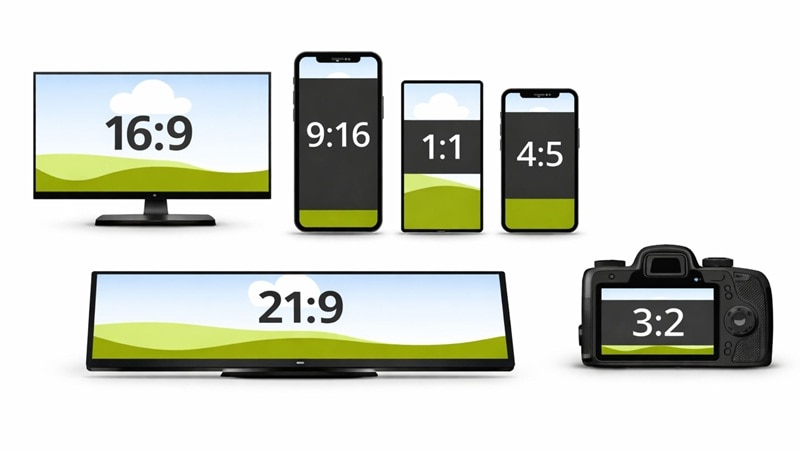
Once you understand the basics, choosing the right format becomes way easier and your videos won't look stretched, cropped, or full of black bars. The next thing to think about is which resolution works best for each ratio, and where you'll usually see it used. Use this table for your reference.
| Aspect Ratio | Resolution Example | Best For | Where You'll See It |
| 16:9 | 1920×1080 | Wide videos | YouTube, TV, tutorials |
| 9:16 | 1080×1920 | Mobile viewing | TikTok, Reels, Shorts |
| 1:1 | 1080×1080 | Social posts | Instagram feed |
| 4:3 | 1440×1080 | Classic format | Presentations |
| 21:9 | 2560×1080 | Cinematic videos | Films |
| 3:2 | 1620×1080 | Photography | DSLR cameras, photo slideshows, prints |
When You Should Change a Video's Aspect Ratio
- Repurposing a horizontal (16:9) video into vertical (9:16) for mobile viewing (TikTok, Reels, or Shorts), and vice versa
- Fixing a video that looks stretched or squeezed after export
- Removing black bars caused by mismatched dimensions
- Meeting specific ad platform size requirements
- Updating older content to match current trends
There are tons of tools out there that claim to help you change the video ratio online or offline. So, instead of relying on marketing claims, we shortlist each video aspect ratio changer based on real editing needs and hands-on testing.
- Ease of Use: We check how simple the tool feels from the start. A good aspect ratio changer should be easy to use, even if you've never edited a video before.
- Available Presets: We look at how many preset sizes the MP4 video resizer tool offers, like 16:9, 9:16, or 1:1. More presets mean you can resize videos faster for different platforms.
- Free vs Paid Limitations: We check what you actually get for free. Some tools add watermarks, limit exports, or lock features unless you upgrade.
- Speed: We test how fast the tool processes videos, uploads files, and exports results. No one wants to wait forever just to resize a clip.
- Output Quality: We check if the video stays sharp after resizing. A good tool should not make your video blurry or reduce the resolution.
Our Top 3 Picks for Changing Video Aspect Ratios
We have a long list today, a total of 13 tools to convert video aspect ratio online and offline. Among those, a few clearly stood out during testing. If you just want the best options without going through the whole list, these three are a great place to start.



Comparison Chart: Best Video Aspect Ratio Changers
With 13 different tools on the list, jumping straight into full reviews can feel like a lot. This chart gives you a simple overview of each video aspect ratio changer, before reviewing them in more detail later.
| Platform | Aspect Ratio Presets | Auto Reframe | Free/Paid | Our Ratings | |
| Wondershare Filmora | Windows, macOS | 16:9, 9:16, 1:1, 4:3, 3:4, 21:9, 4:5 | Available | Free & Paid | 5/5 |
| Filmora Mobile | Android, iOS | 16:9, 9:16, 1:1, 4:5, 5:4 | Unavailable | Free & Paid | 4.7/5 |
| Media.io | Online | 16:9, 9:16, 1:1, 3:4, 4:5 | Unavailable | Free & Paid | 4.7/5 |
| Canva | Online, Android, iOS | 16:9, 9:16, 1:1, 4:5, 2:3 | Unavailable | Free & Paid | 4.6/5 |
| Adobe Express | Online, Android, iOS | 9:16, 16:9, 4:5, 1:1, 2:3, 1.97:1. | Unavailable | Free & Paid | 4.7/5 |
| Kapwing | Online | 21:9, 16:9, 9:16, 1:1, 4:5 | Unavailable | Free & Paid | 4.5/5 |
| Clideo | Online, iOS | 16:9, 9:16, 1:1, 4:5, 2:3 | Unavailable | Free & Paid | 4.5/5 |
| Resize Video, Compress & Crop | Android | 16:9, 9:16, 1:1, 4:3, 3:4 | Unavailable | Free & Paid | 4.5/5 |
| Video Resizer | iOS | 16:9, 4:3, 1:1, 4:5, 9:16 | Unavailable | Free & Paid | 4.6/5 |
| OpusClip | Online | 1:1, 9:16, 16:9 | Available | Free with restrictions | 4.7/5 |
| OnlineConverter | Online | 1:1, 4:3, 4:5, 5:4, 9:16, 16:9 | Unavailable | Free | 4.5/5 |
| VEED.IO | Online | 1:1, 3:4, 4:3, 4:5, 5:4, 9:16, 16:9, 32:9 | Available | Free with restrictions | 4.6/5 |
| Clipchamp | Online | 1:1, 2:3, 4:3, 4:5, 9:16, 16:9, 21:9 | Unavailable | Free | 4.6/5 |
|
Show More
Show Less
|
|||||
 Secure Download
Top 13 Video Aspect Ratio Changers (Full Review)
Next, we'll review both offline and online video aspect ratio converter tools thoroughly and see what they actually offer.
1. Wondershare Filmora
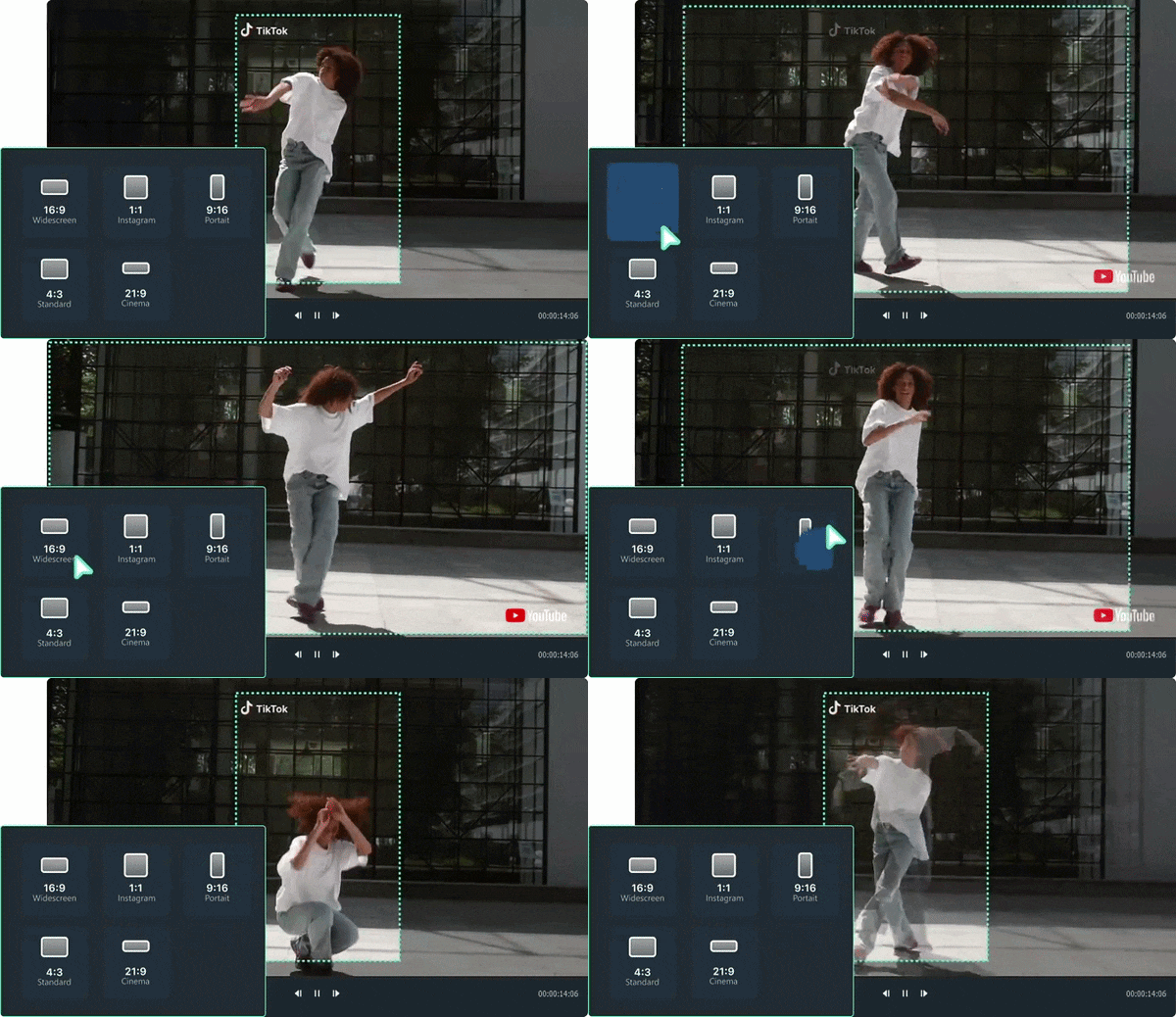
We'll start with a strong contender for the best AI video aspect ratio changer, Wondershare Filmora. This is a full video editor packed with practical AI tools, and one of its most useful features is Auto Reframe. This feature automatically resizes your videos and keeps the main subject in focus, so nothing important gets cut off when you change formats.
Secure Download- Auto Reframe to automatically resize your video while keeping the action centered.
- Common aspect ratio presets are 16:9, 9:16, 1:1, 4:3, 3:4, 4:5, and 21:9.
- Instant aspect ratio selection ideal for social media during export.
- Custom ratio crop for more flexible framing.
- Full timeline editing tools included.
- Includes AI that can automatically reframe your content to fit different aspect ratios without manual adjustments.
- You can use a custom ratio crop for unique layouts, ads, or special projects.
- Presets and manual controls are available in the same workspace.
- The free version adds a watermark to exported videos.
Windows, macOS.
Free version available, with flexible upgrade plans listed on the Filmora pricing page.
Content creators, YouTubers, marketers, and social media managers who repurpose long-form videos into multiple formats like Shorts, Reels, and ads.
It's the perfect balance between smart automation and hands-on control. Simply changing the aspect ratio can crop out your subject, but since it comes with Auto Reframe, you don't need to worry about it anymore. You also get preset formats and custom ratio options inside a full editor, making it the ideal video width and height changer.
2. Filmora (Mobile App)
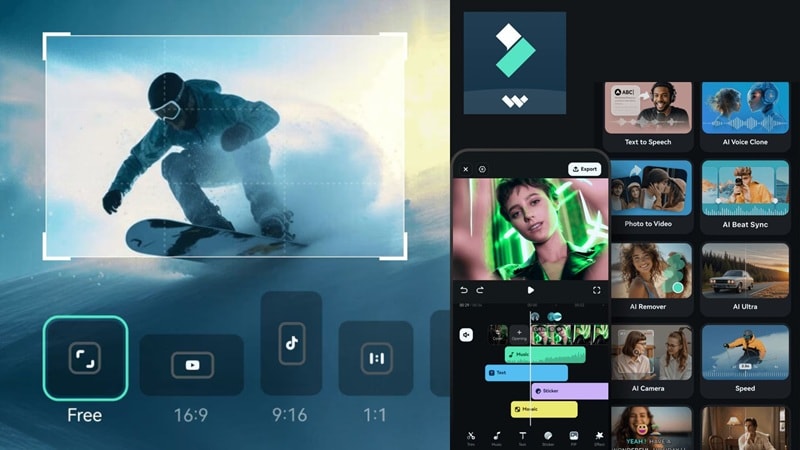
If you prefer editing straight from your phone, Filmora is also available as a mobile app. It does not include the AI Auto Reframe feature from the desktop version, but it still works well as a quick aspect ratio changer video.
You can switch between preset formats or manually crop your video in just a few taps. Once you are done, you can export and share your video directly to popular social media apps without leaving the app.
Secure Download- Common aspect ratio presets like 16:9, 9:16, 1:1, 4:5, and 5:4.
- Supports popular video formats including MP4, MOV, AVI, MKV, and more.
- Custom crop option to adjust framing manually.
- Direct sharing to social media platforms after export.
- Presets are ready for major social media platforms.
- Supports video quality up to 4K.
- Custom crop ratio is available, but export still follows standard aspect ratio formats.
Android, iOS.
Free version available, with flexible upgrade plans listed on the Filmora pricing page.
Social media creators who need a quick way to change video ratio for TikTok, Reels, Shorts, or Instagram posts.
Many mobile apps can resize videos, but Filmora Mobile keeps things simple while still offering social media preset ratios, custom crop control, and high-quality export.
3. Media.io
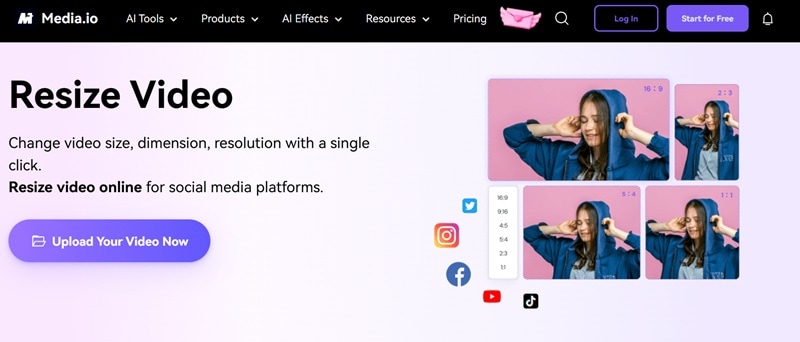
If you prefer not to install anything, Media.io is a solid online video aspect ratio changer that runs straight in your browser. The platform makes it quick and extremely simple. You just need to upload your video, pick a ratio, and it resizes the frame in just a few clicks. It also lets you adjust video size, dimension, and resolution without digging through complicated settings.
- Preset aspect ratios including 16:9, 9:16, 1:1, 3:4, and 4:5.
- Manual crop option with a lasso-style selection tool.
- Supports common video formats including MP4, MOV, AVI, MKV, and more.
- No strict file size limits or processing time restrictions.
- Great for batch processing when you need to resize several videos at once.
- You need to log in before exporting finished videos.
- The free version supports up to 720p export and adds a watermark.
Online.
Free version available, with paid plans starting at $17.99 per month.
Creators and marketers who need to change video aspect ratio online for free quickly.
Many online tools feel limited or slow, but Media.io combines preset ratios, manual crop control, and batch processing in one clean interface. It's great when speed and convenience matter more than advanced editing features.
4. Canva
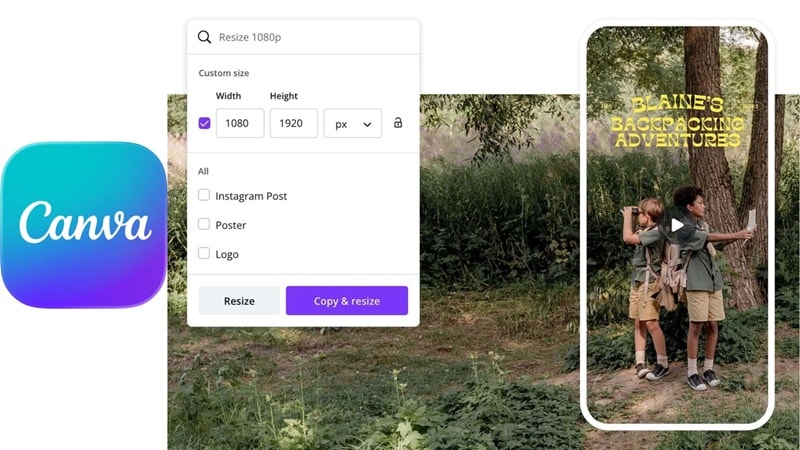
Canva is already known as a go-to design platform, so it makes sense that it also works well as an option to change the aspect ratio of video online for free. If you are used to creating posters, thumbnails, or social posts in Canva, resizing videos feels just as simple. You can just upload your clip, pick a format, and it adjusts the frame to fit different platforms in seconds.
- Resize a video in seconds using preset sizes like 16:9 for YouTube, 9:16 for TikTok and Reels, 1:1 for Instagram feed, and 4:5 for vertical posts.
- Magic Switch tool resizes your video online while keeping the layout consistent.
- Share directly to your social media pages without leaving Canva.
- Export up to 1080p without a watermark on the free plan.
- Works on laptop and mobile since it runs online and also has a mobile app.
- Changing the aspect ratio again after uploading can feel confusing for beginners.
- Magic Switch is available only for Canva Pro users.
Online, Android, iOS.
Free version available, with paid plans starting from $15 per month.
Social media managers, small business owners, and creators who already design content in Canva and want to resize videos without switching tools.
Most online tools only focus on resizing. Canva stands out because it combines video resizing with full design features in one place.
5. Adobe Express
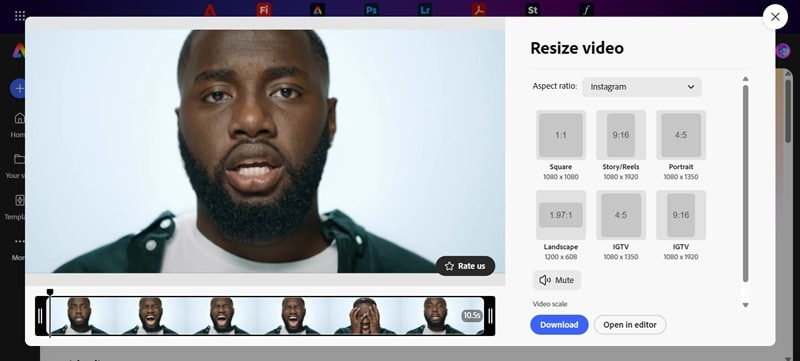
Another solid option if you want a free online video aspect ratio converter is Adobe Express. It comes from Adobe, so you already know it has a clean interface and strong performance. You can pick from preset sizes for different platforms or adjust the frame manually if you need something specific. Plus, you can download your video without a watermark as long as you do not use premium Adobe assets.
- Wide range of aspect ratios, including 9:16, 16:9, 4:5, 1:1, 2:3, and 1.97:1.
- Scale control slider to zoom in or adjust framing manually.
- Integration with other Adobe apps like Premiere Pro and Photoshop.
- Preset aspect ratios are varied and cover most social and creative needs.
- You can upload your clip, select a ratio, and download it quickly without opening a full editor workspace.
- File size limit is 1GB, which is not ideal for large video projects.
- The speed performance when downloading can be slow.
Online, Android, iOS.
Free version available, with paid plans starting at $9.99 per month.
Content creators, students, and small business owners who need to change video aspect ratios online quickly.
Adobe Express keeps resizing simple while still offering flexible presets and manual scaling control. The integration with the Adobe ecosystem is also a plus.
6. Kapwing
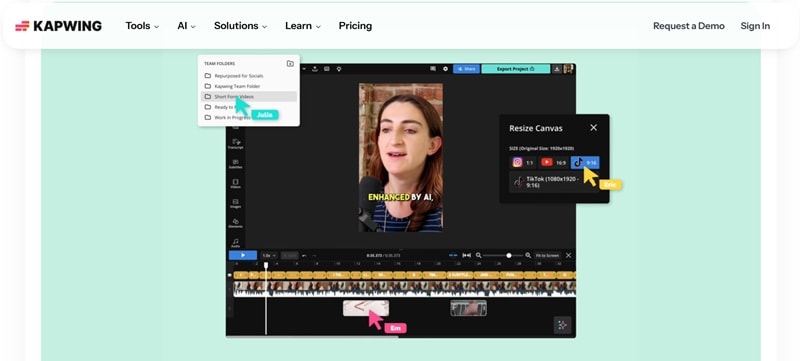
Kapwing is another strong option when talking about the best tool to change the aspect ratio of video online. It is built with social media in mind, so you get preset ratios ready for TikTok, YouTube, Reels, and more, plus built-in AI features like auto captions. That combination makes it really useful if you are turning long videos into short form content.
- Aspect ratio presets, including 21:9, 16:9, 9:16, 1:1, and 4:5.
- Upload videos from URL links, Google Drive, Vimeo, or directly from your device.
- The magic Create feature lets you resize videos and add subtitles in one step.
- Multiple ways to upload videos, which makes the workflow flexible.
- You can save your own aspect ratios and styles for future projects.
- The free version exports with watermark and supports up to 720p.
- Requires sign-in before you can use the tool.
Online.
Free version available, with paid plans starting at $16 per month (billed annually).
Creators who repurpose YouTube videos into Shorts, TikTok, or Reels and want to resize and add captions in one online workspace.
Kapwing stands out because it combines video aspect ratio changer features with subtitle tools and social media presets in the same interface. That makes it practical for social creators who care about speed and workflow.
7. Clideo
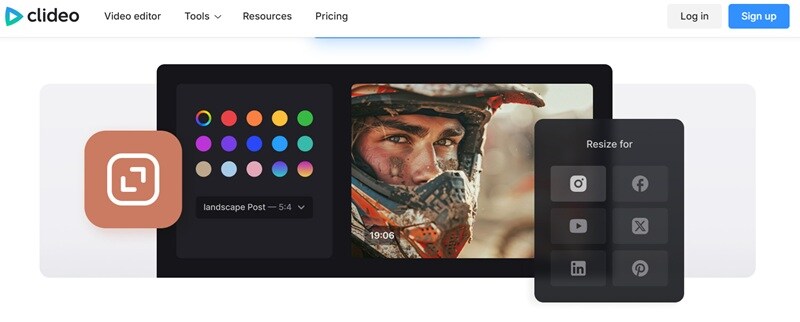
Continuing down the list of top online video ratio converter tools, we have Clideo. This one already has presets prepared for different types of posts and ads across Instagram, Facebook, YouTube, Snapchat, Twitter, Pinterest, and LinkedIn. You can fit the whole video inside the selected frame and adjust the background color, or zoom in to fill the frame completely so there is no empty space.
- Preset common aspect ratios including 16:9, 9:16, 1:1, 4:5, and 2:3.
- Custom crop option where you can enter specific width and height values.
- Export support for formats like MP4, MOV, 3GP, AVI, FLV, and more.
- Wide range of preset aspect ratios tailored for social media posts and ads.
- Custom input gives access to more than 20 format options.
- The free version adds a watermark to exported videos.
- Editing features are limited beyond resizing and basic cropping.
Online, iOS.
Free version available, with paid plans starting at $9 per month.
Social media managers and small business owners who need a quick way to change the aspect ratio of video online for ads.
Clideo stands out for its large selection of preset formats and simple background adjustment options.
8. Resize Video, Compress & Crop
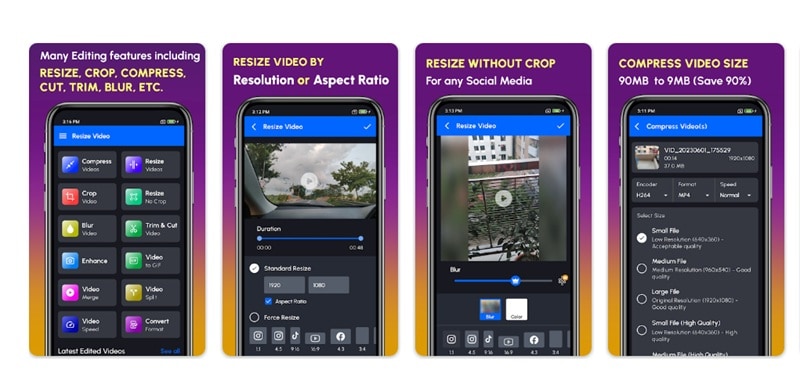
If you are looking for a simple video aspect ratio changer app on Android, this one is worth checking out. It is developed by DOSA Apps, a developer known for utility apps like subtitle tools and voice changers. And this app focuses on practical features, so you can cut, compress, and convert videos while keeping the quality as close as possible to the original.
- Social media aspect ratio presets, including 16:9, 9:16, 1:1, 4:3, and 3:4.
- Supports common video formats like MP4, MOV, and AVI.
- Adjust dimensions manually and crop unwanted sections to focus on important parts.
- Easy for beginners to use with a straightforward interface.
- Lets you compress videos without noticeably lowering quality.
- Ads in the app can interrupt the workflow.
- Some users report occasional crashes or blank screens during processing.
Android.
Free version available, with in-app purchases starting at $0.99 to $99.99 per item.
Android users who record videos on their phones and need a quick way to change video ratio, crop, and compress clips before uploading to social media.
Unlike many basic mobile tools, this app combines video aspect ratio changer features with compression and format conversion. That makes it practical when you need to resize a clip and reduce file size at the same time.
9. Video Resizer
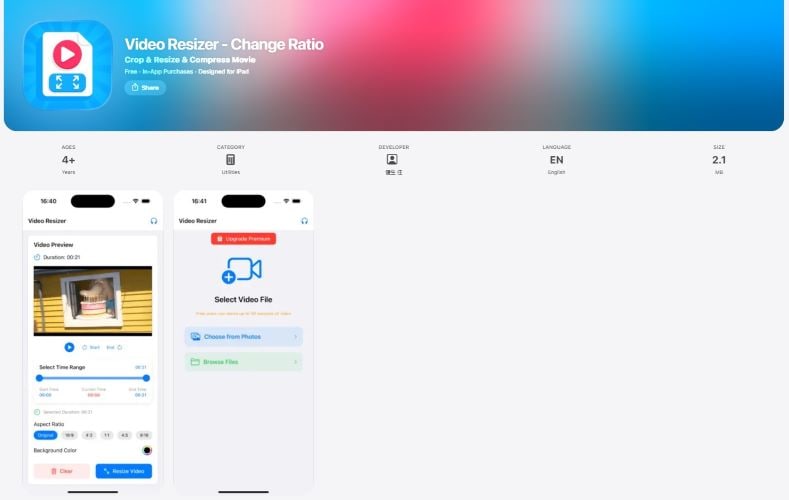
Sometimes we're away from our laptop but suddenly need to do a custom aspect ratio or crop a video. In that case, Video Resizer is a strong option for your iPhone or iPad. The app is lightweight, so it doesn't consume much storage on your device. With Video Resizer, you can quickly resize and crop videos to fit various social media formats.
- Import videos directly from your gallery or files.
- Trim clips as needed by adjusting the start and end points.
- Customize background colors to fill empty spaces.
- The interface is simple and straightforward, making it easy to understand.
- Provides a preview before saving, so you can double-check and adjust if needed.
- Requires iOS 17.6 or newer to run.
- The export quality can drop slightly.
iOS.
Free version available, with paid plans starting at $4.99 per week.
Creators who need to quickly custom or crop ratio for their videos.
Video Resizer works as a fast solution without opening heavy editing software. It keeps things practical and efficient, especially when you're on the go.
10. OpusClip
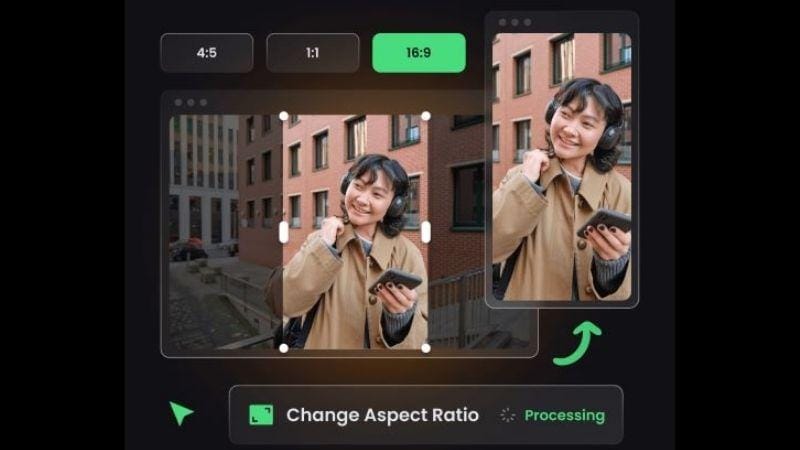
OpusClip is a popular video editing tool that many creators rely on, and it also works as an aspect ratio changer online. You don't need to manually resize your YouTube videos for TikTok, Instagram Reels, or the other way around. With just a few clicks, your video is ready to be published across different platforms.
- Supports video uploads in 25 languages, with up to 10 hours per upload and a 10 GB file size limit.
- Comes with style presets and automatic subtitle generation.
- AI automatically detects faces and key actions, then keeps them centered in the frame.
- You can import videos directly by pasting a link from YouTube, Google Drive, or Vimeo. So you don't need to download and re-upload files.
- It supports batch processing, allowing you to resize multiple videos at once, which saves a lot of time.
- The free plan has limitations: it only converts horizontal videos into 9:16 or 1:1, processing time is limited to 60 minutes per month, and videos include a watermark.
- Video quality is maintained up to 1080p. If your original file is 4K, the resized version will be reduced to HD.
Online.
Free with limitations.
Social media creators who want to change the ratio of video online and publish their content across YouTube, YouTube Shorts, TikTok, and Instagram Reels.
OpusClip is a practical choice if you want to repurpose content quickly. No need to switch apps for resizing and adding captions, the final output is ready to post on other platforms.
11. OnlineConverter
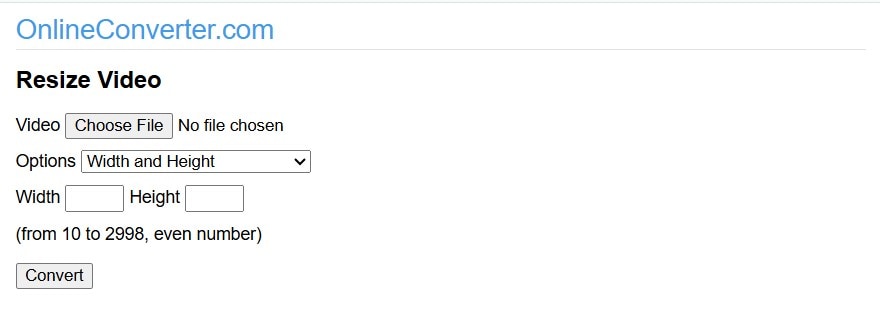
OnlineConverters is worth considering if you want to change the video aspect ratio for free. Simply upload a file up to 200 MB, choose from the preset ratios or manually adjust the width and height, and let the platform process it for you. No complicated setup needed, and it's convenient when you just need a quick resize without extra editing features.
- Supports uploads in various file formats.
- Offers fairly complete preset ratios, including 1:1, 4:5, 4:3, 5:4, 16:9, and 9:16.
- There are additional resize options you can select directly, such as resizing based on the resolution, and even cropping the video into a circle.
- No sign-up or login required to use the feature.
- Everything is clearly laid out, making it easy to figure out what to click.
- The presence of ads may feel slightly distracting.
- The resizing process takes time.
Online.
Free.
Students and social media users who need to quickly change the ratio of videos online.
OnlineConverter does exactly what it promises without unnecessary steps. If you only need to change the aspect ratio quickly, this tool gets it done without overcomplicating things.
12. VEED.IO
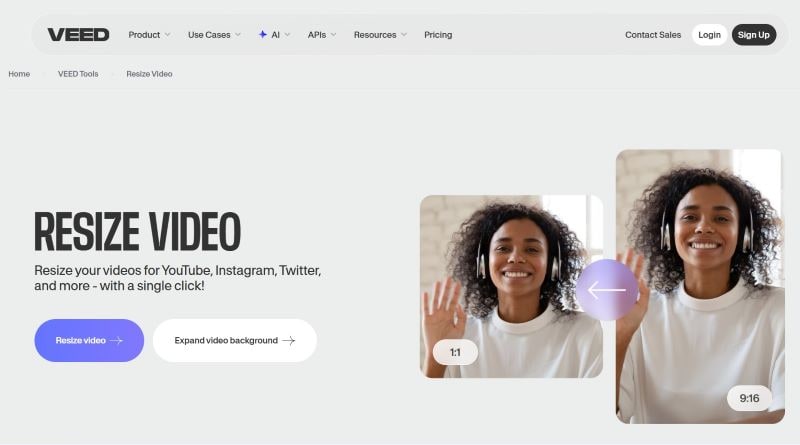
If you need a free video aspect ratio converter that feels simple but still professional, VEED might be the right choice. You can easily repurpose content for YouTube, Instagram Reels, and even for Facebook, Twitter, and LinkedIn. VEED also keeps the resized video quality close to the original.
- Supports converting to various aspect ratios such as 1:1, 3:4, 4:3, 4:5, 5:4, 9:16, 16:9, and 32:9.
- Includes extra features to expand the video background, helping avoid awkward crops or black bars.
- Allows direct export for specific social media platforms.
- The platform feels intuitive and easy to navigate, so users won't feel confused while using it.
- The preset ratios are more complete compared to other online video aspect ratio changers, making it easier to repurpose content for different platforms.
- The framing isn't always spot on.
- Free users can only export up to 720p, with a maximum length of 10 minutes, and the video includes a watermark.
Online.
Free with limitations.
Companies and social media creators who want to adapt one video for multiple platforms.
VEED is able to maintain quality up to 4K, making it flexible for casual use or bigger projects.
13. Clipchamp
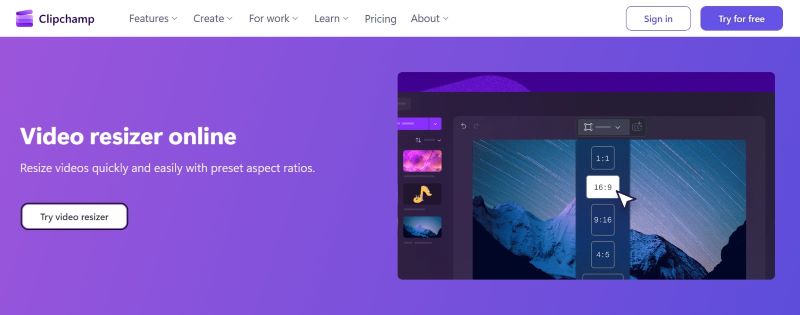
If you want a completely free aspect ratio converter, Clipchamp is worth trying. You can resize videos to fit different platforms without worrying about quality loss. It's simple to use, even if you've never adjusted aspect ratios before.
- Use the ratio presets (1:1, 2:3, 4:3, 4:5, 9:16, 16:9, 21:9) or manually adjust the width and height.
- Includes AI that can automatically fill in backgrounds or black borders.
- Comes with an Online Video Cropper to remove unwanted objects or visuals from your clip.
- Your video quality stays the same after the process.
- Aside from resizing, the extra features help refine and improve your video overall.
- The platform may struggle with larger projects, which can sometimes cause lag or slowdowns.
- Since it runs online, resizing speed depends on a stable and fast internet connection.
Online.
Free.
Businesses, tutorial and educational creators, digital marketers, and brand teams.
Clipchamp is a free video aspect ratio changer with no watermark on exported videos, so your final result still looks clean and professional.
What to Consider When Choosing the Right Aspect Ratio Changer
Basically, almost every tool on this list can resize or crop a video. But the real question is how efficient they are and how much control they give you. So, to decide which pixel ratio changer might be best for you, you can make a judgement based on:
Preset vs Custom Aspect Ratios
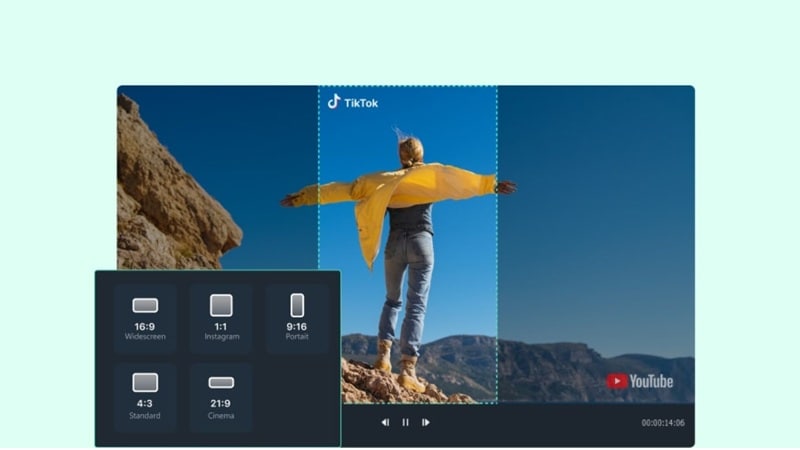
Presets save time. If you mostly post on TikTok, YouTube, or Instagram, picking 9:16 or 16:9 in one click is just easier. At the same time, having custom aspect ratio options matters too. You might need a specific size for ads, websites, or special layouts. A good video aspect ratio changer should include both options.
Recommended tools with a wide range of preset aspect ratios: Filmora, Filmora Mobile, Canva, Adobe Express, Kapwing, OnlineConverter, VEED.IO, Clipchamp.
Recommended tools that offer excellent custom aspect ratios: Filmora, Kapwing, Clideo, Adobe Express, OnlineConverter.
Secure DownloadCropping, Resizing, or Auto Reframe
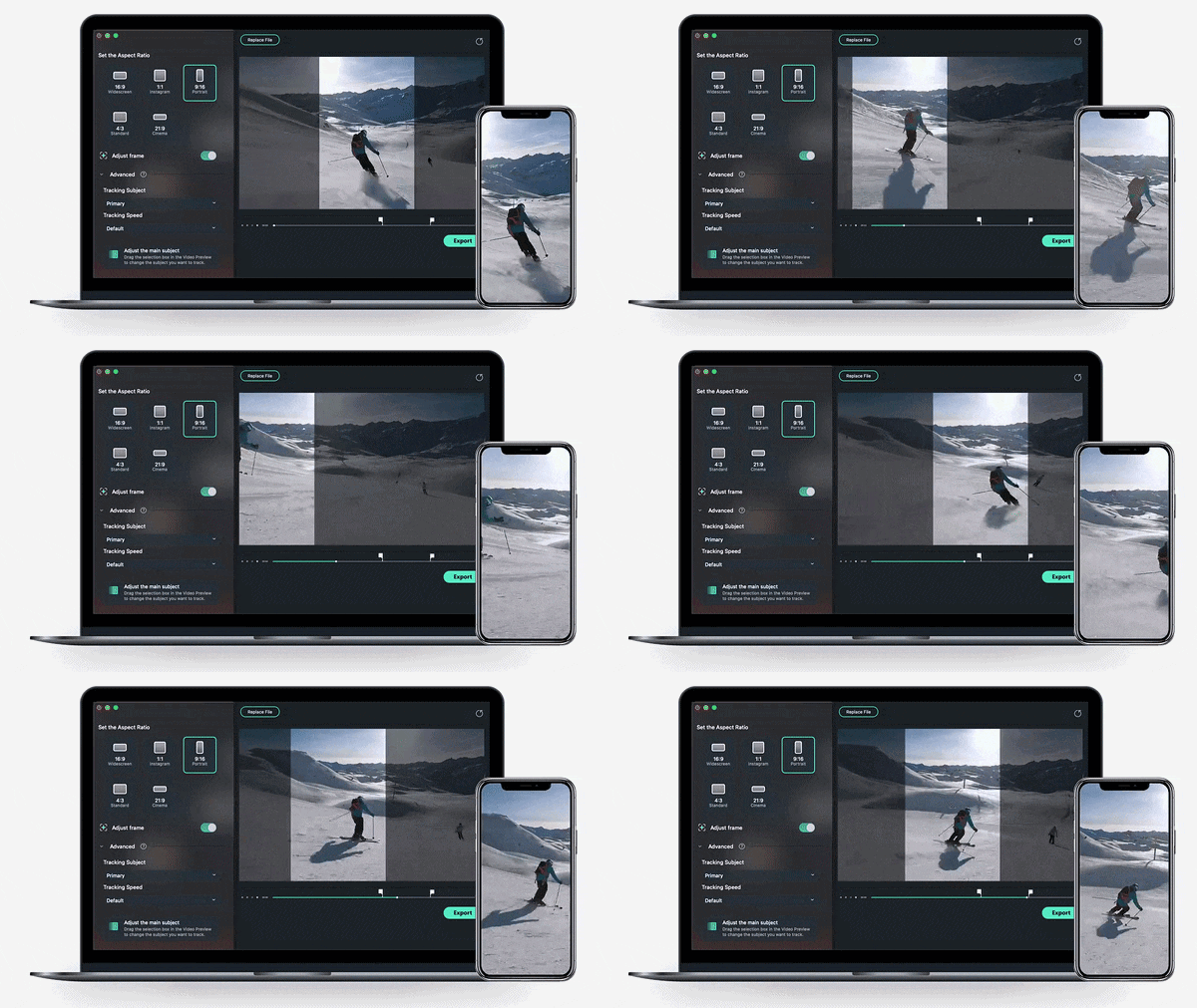
Not all tools handle resizing the same way. Some just crop the frame. Others let you manually scale and reposition. A few go further with aspect ratio changer AI. If you are repurposing long videos into vertical formats and do not want to manually adjust every shot, Auto Reframe helps a lot.
Recommended tools that offer Auto Reframe: Filmora, OpusClip, VEED.IO.
Output Quality and Resolution
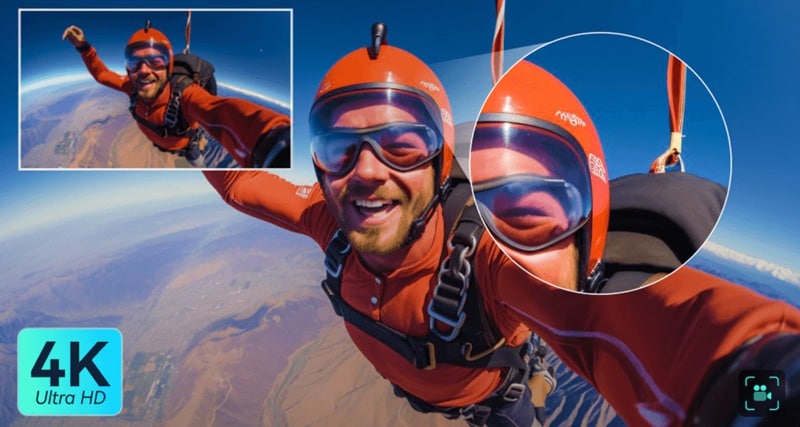
Resizing should not ruin your video quality. Some online tools limit exports to 720p on the free plan. Others support up to 1080p or even 4K. If quality matters, especially for YouTube or client work, you need to choose an aspect ratio changer that gives better control over resolution.
Recommended tools that offer 4K resolution: Filmora, Filmora Mobile, VEED.IO, Clipchamp.
Watermarks and Free Limitations

Free tools are convenient, but there are usually trade-offs. Many online video aspect ratio changer platforms add watermarks or limit export length.
Recommended tools that are free with no watermark: Adobe Express, Canva, OnlineConverter.
Secure DownloadConclusion
Using a video aspect ratio changer makes your workflow way more practical when you post on different platforms. That's why we rounded up the top aspect ratio changer tools, from online video aspect ratio changer options to mobile and desktop apps.
Out of all the tools to change video aspect ratio online and offline, Filmora stands out the most. Its Auto Reframe automatically keeps your subject in focus while resizing, so you do not lose important parts of your shot. It also gives you plenty of presets for social media posts and makes exporting to different platforms simple.
