


 TL;DR:
Kinovi is recommended for creators who need to switch between specialized AI models like Seedance 2.0 for motion, Kling 3.0 for character consistency, and Midjourney for images using a single, non-expiring credit balance instead of maintaining multiple subscriptions.
● Because Kinovi strictly handles generation with a 15-second maximum clip limit and zero built-in editing tools, users must export raw assets to an external timeline editor like Wondershare Filmora to arrange multi-shot sequences, extend clips, or add audio.
● Generation costs scale rapidly based on your selected model and resolution, ranging from highly cost-efficient options like GPT Image 2 at 1.3 credits per image to expensive high-resolution video runs that will quickly consume the 200 free sign-up credits.
● Achieving visual consistency across different shots requires navigating a learning curve to assign roles using the beta @-tag reference system, and any assets generated before upgrading to a paid pack will contain a mandatory watermark.
Ask AI for a summary
 ChatGPT
 Perplexity
 Gemini
 Claude
 Grok
Grok
Not every scene calls for the same model. Seedance 2.0 handles motion well. Kling 3.0 is better when you need character consistency across shots. Knowing which to use, and actually having access to both without juggling multiple platforms, is exactly what Kinovi is built for.
Kinovi is an AI studio built for creators who prefer to use different top-tier models depending on the scene's needs. It brings models with multimodal input and precise creative direction, like Seedance 2.0, Kling 3.0, and the latest hot entry, HappyHorse 1.0, within the same platform. There’s also an image generation tool if you need stills alongside your video work.
But does having everything in one place actually make things easier? Check out our review.
Part 1. What Is Kinovi AI?
Kinovi is a web-based AI studio that lets you generate videos and images using multiple state-of-the-art models from a single interface. Depending on the models you choose, the output quality and credit cost will vary quite a bit, but the experience is not very different from using each model on its standalone platform.
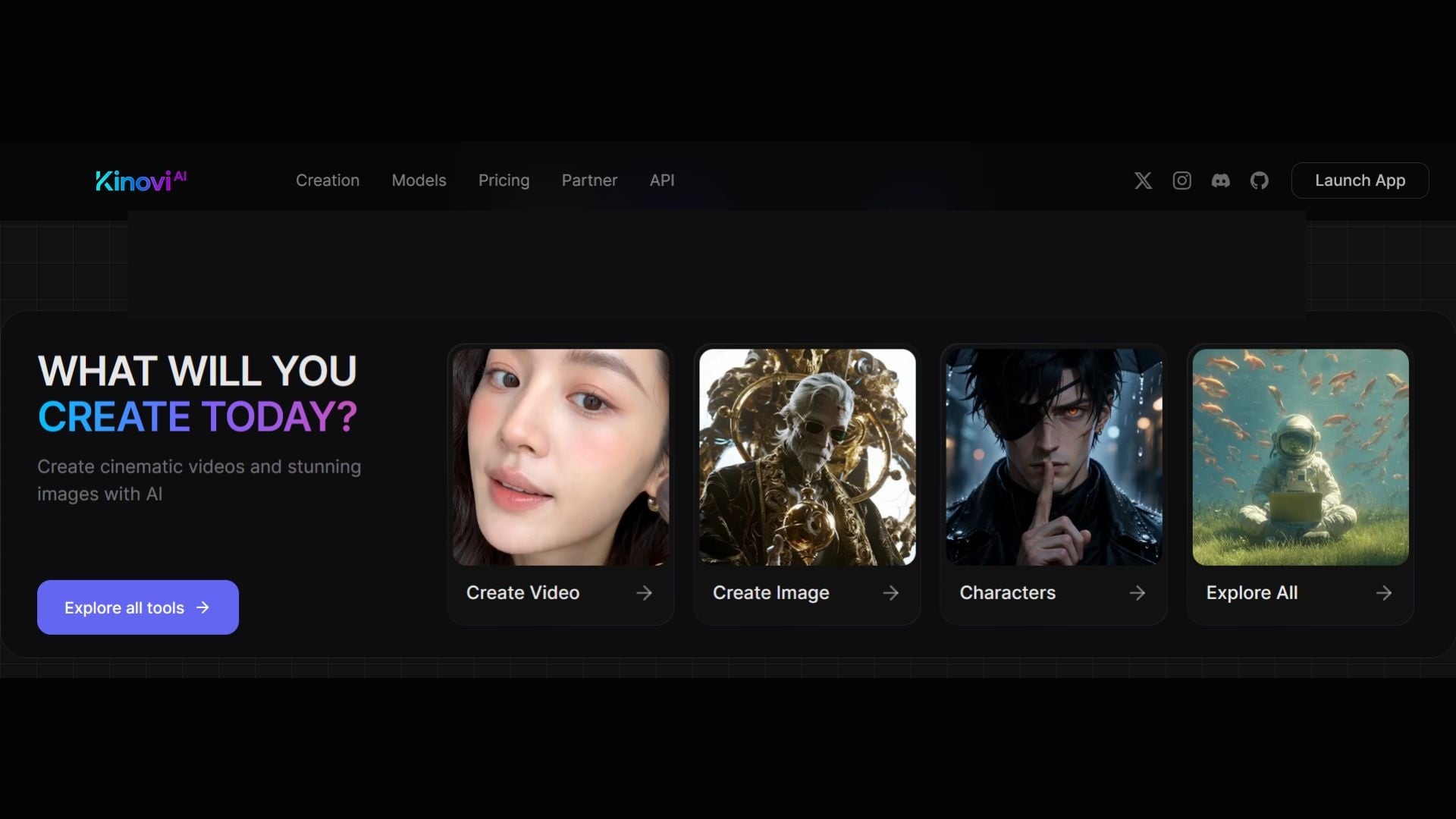
It only works as a hub to access them in one place, so understanding what each model is good at matters more here than if you were locked into just one. Kinovi has two main generators:
- AI Image Generator
- AI Video Generator
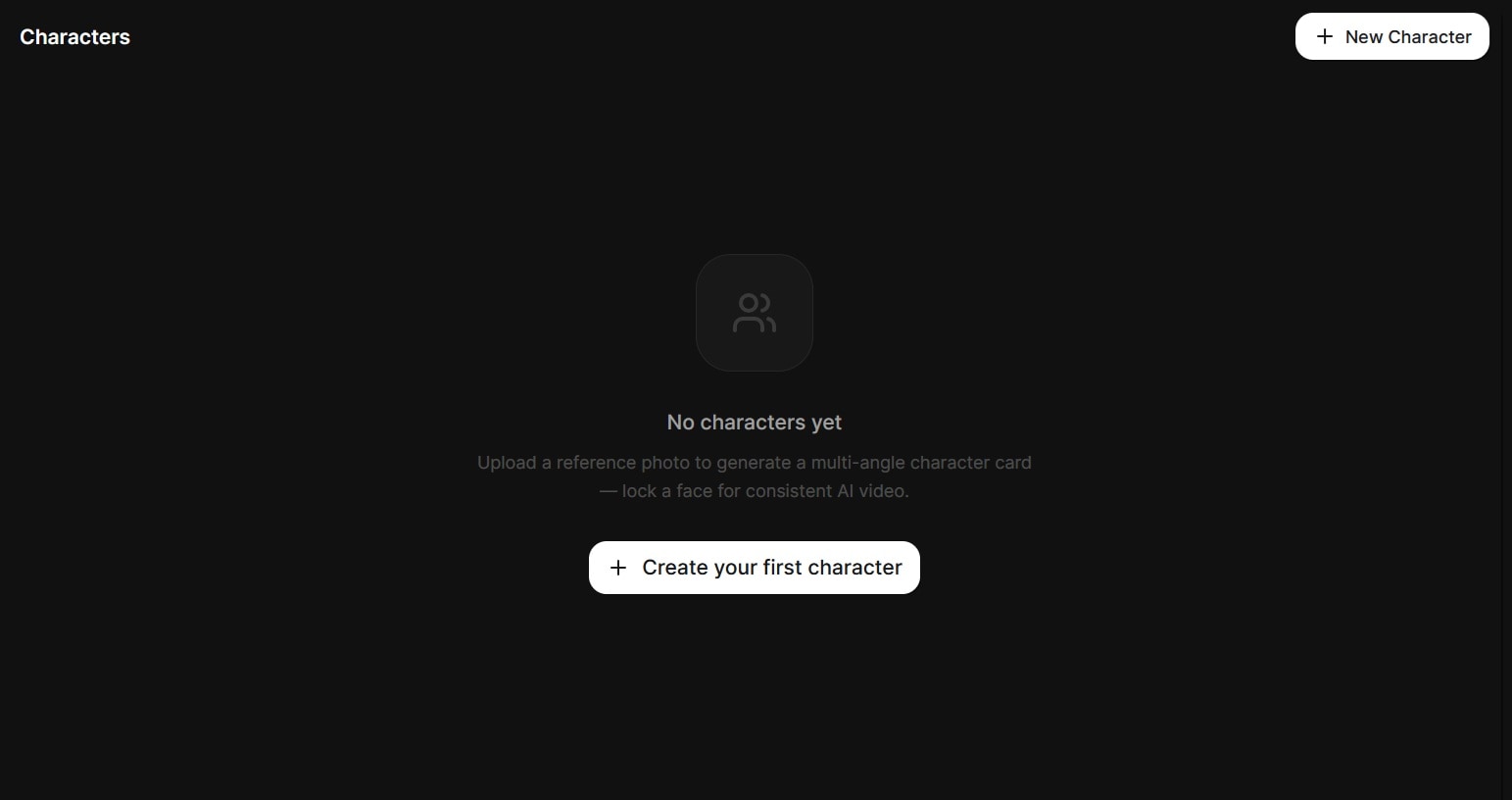
There’s also a Characters feature (currently in beta) that lets you upload a character reference and reuse it across generations. The goal is to keep your subject more consistent.
Kinovi AI Pricing
Can you use Kinovi for free? Yes. Kinovi gives you 200 credits on sign-up, which is roughly enough for one 5-second Seedance 2.0 Pro video or one Seedance 2.0 Fast video. Free-tier output comes with a watermark.
Beyond the free tier, Kinovi uses a one-time credit pack model. There’s no monthly subscription, and credits never expire. Here's how the paid plans of Kinovi AI currently break down:
| Plan | Free | Starter Pack | XL Pack | Studio | Enterprise |
| Pricing* | $0 | $17.99 | $142.5 | $500 | $1,000 |
| Credits | 200 | 3,000 | 22,000 | 101,325 | 212,300 |
| Concurrent Generations | - | 2 | 10 | 25 | 50 |
| 4K Resolution Support | |||||
| API Access | |||||
| Characters | - | 10 | 100 | Unlimited | Unlimited |
| Watermark |
*) Prices are subject to change depending on ongoing promotions and region.
Kinovi API access is available on all paid plans. It offers a REST API for Text-to-Video, Image-to-Video, and Omni-Reference generation. API concurrent request limits match the concurrent generation limits for each plan tier.
Part 2. Kinovi's AI Image Generator Tested & Reviewed
Supported Models: Seedream 5.0-Lite, GPT Image 2, NanoBanana 2, Midjourney Anime, and Midjourney.
The Kinovi image generator works like most text-to-image tools at a surface level. Just type a prompt, pick a model, and generate. The main differentiator here is that you're choosing between four very different models with different cost structures and output styles.
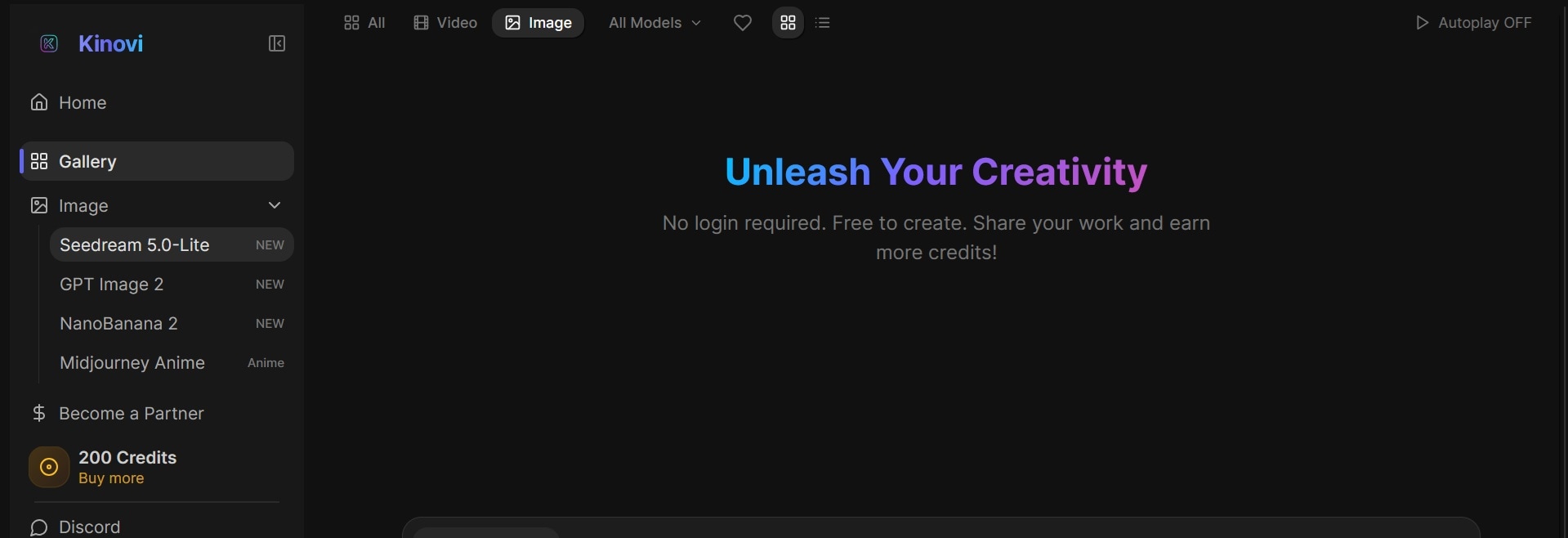
GPT Image 2 is by far the cheapest per image at 1.3 credits a run. Seedream 5.0-Lite gives you four images per generation at 10 credits, making it efficient for exploring variations. Nano Banana 2 is the most expensive option at 15 credits for a single image, so you'd want to use that selectively.

Notably, having Midjourney inside Kinovi is pretty helpful because Midjourney normally requires its own subscription, or you need to do it inside its Discord server. Accessing it through Kinovi's interface via credits gives a better experience for some users, though the cost per run is higher than going directly.
How We Rate It
| Score | Review | |
| Ease of Use | ★ ★ ★ ★ ✰ | The interface is straightforward without too many buttons. Switching between models is simple, but you need to figure out which model to use for what, since there's no guidance built in to help you choose. |
| Video Quality | ★ ★ ★ ★ ✰ | Output quality appears to match what you'd get from each model's native platform. Kinovi doesn't seem to compress or alter output in any meaningful way. |
| Text Rendering | ★ ★ ★ ✰ ✰ | Largely depends on which model you pick. GPT Image 2 handles text the best of the four. Seedream 5.0-Lite and Midjourney are inconsistent with text. |
| Style Variation | ★ ★ ★ ★★ | Four image models with distinct aesthetics means you're not stuck with one visual style. |
| Value for Money | ★★★★✰ | GPT Image 2 at 1.3 credits per image is pretty cheap. Midjourney access here beats maintaining a separate subscription if you only need it occasionally. Nano Banana 2 at 15 credits per image is the least cost-efficient. |
Part 3. Kinovi's AI Video Generator Tested & Reviewed
Supported Models: Seedance 2.0 Pro, Seedance 2.0 Fast, HappyHorse 1.0, and Kling 3.0.
It's clear that Kinovi focuses on quality over quantity. It doesn't just include as many models as possible, but focuses only on the ones that support multimodal input and offer meaningful creative control.
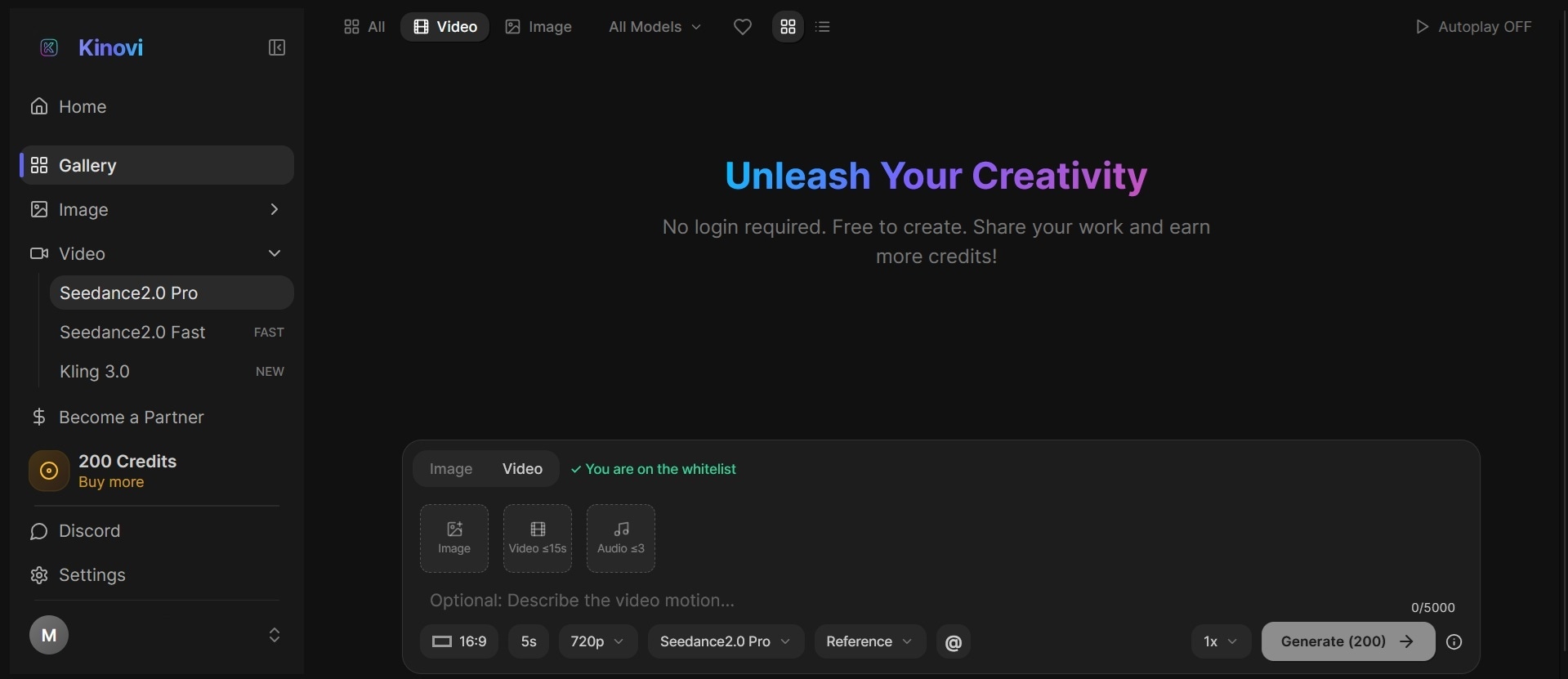
When generating videos, credits are charged per second. Adding a reference video as input or selecting a higher resolution costs extra on top of the base rate. Still, the 200 free credits you get on sign-up are enough for at least one full generation, which is more than most AI hubs can say about their free tiers.
Kinovi is also one of the few platforms that has adopted the latest HappyHorse 1.0 early. If you want to test it without signing up for yet another platform, Kinovi is one of the few places you can do that right now.
How We Rate It
| Score | Review | |
| Ease of Use | ★ ★ ★ ✰ ✰ | The reference system takes some getting used to. If you've used Seedance or Kling on their native platforms before, the process feels familiar. For those who don’t, managing multiple references and assigning roles may need a few tries. |
| Video Quality | ★ ★ ★ ★ ✰ | Output quality is consistent with what each model produces on its own platform. |
| Motion Consistency | ★ ★ ★ ★ ✰ | The result is very model-dependent; Kling 3.0 holds character and scene consistency across shots better than the others. |
| Customization | ★ ★ ★ ✰✰ | Different video models across different price points, resolution tiers, and input types gives you a lot of room to tailor generations to your needs, but there’s barely anything you can do beyond the generation itself. |
| Value for Money | ★ ★ ★ ★✰ | The free tier is usable, unlike most tools. Credits never expire, which is a real advantage over subscription models. But costs still climb fast at higher resolution or if you iterate heavily. |
Part 4. Verdict: Pros and Cons of Kinovi AI
If we put together everything covered in this review, Kinovi is a strong pick for creators who already know their way around AI video generation. The model variety is genuinely useful. Where it falls short is everything that happens after you hit generate.
- Access to multiple top-tier video and image models in one place.
- 200 free credits on sign-up, enough for at least one real generation.
- Credits never expire on paid plans.
- No built-in editing tools after generation
- Per-second credit pricing adds up fast at higher resolutions.
- Learning curve with the @-tag reference system.
- Free tier output is watermarked.
Part 5. AI Creation Platforms Like Kinovi with Built-in Editing Tools
Kinovi's limitation is also its category's limitation. Multi-model AI platforms are built around generation, and once you have your clips or images, you're on your own to refine, arrange, and finalize them.
If you are a type of creator who needs a more complete production workflow, one recommended option worth looking at is Wondershare Filmora. Filmora is an AI-powered video editor that combines generation and editing in one place, so you're not bouncing between apps once your clips are ready.
 Secure Download
Supported models in Filmora include:
- GPT image 2, Nano Banana 2, and Nano Banana Pro for AI image generation.
- Seedance 2.0, Veo 3.1, and ToMoviee for AI video generation.
Some of the same models you'd use on Kinovi are available here, too. Or, if you're already generating on Kinovi and happy with the results, you can bring those clips into Filmora to finalize everything without switching to yet another app.
What you can do with Filmora
- Generate and edit your clips directly on a full timeline.
- Extend AI-generated videos with AI Extend when a shot needs more length.
- Trim and combine multiple clips into a single sequence.
- Add captions, effects, and audio within the same workspace.
- Export a finished video in multiple formats without ever leaving the app.
Secure DownloadConclusion
Kinovi is one of the best places to access the models that matter right now, without making you sign up for each one separately. Kinovi is a convenience if you’re the type who already switches between models depending on the shot, since you get all of them in one place with credits that never expire.
Its limitation, however, is in the post-production. What you make on Kinovi may still need to go somewhere else to become a finished piece, since it only handles generation and nothing beyond that. If you need generation and editing in the same app, pair it with something like Filmora or skip ahead to that instead.
FAQs
-
Can you use Kinovi for commercial projects?
Yes. Kinovi's paid plans include full commercial usage rights on generated content. -
How many credits does one generation cost on Kinovi?
It depends on the model and resolution you choose. For example, a 5-second Seedance 2.0 Fast clip at 720p costs 140 credits. The same length at 1080p with Seedance 2.0 Pro costs 450 credits. -
Can you create long videos with Kinovi?
Not in a single generation. AI video models on Kinovi usually cap clip length at 15 seconds per generation. For longer content, you'd need to generate multiple clips and stitch them together using an external editor like Filmora. -
Does Kinovi support multi-shot videos?
Not natively as a single generation. You can plan your shots individually, generate each one separately, and combine them outside the platform. The @-tag reference system helps keep your style and references consistent across shots, which makes multi-shot workflows more manageable even without a built-in timeline.
