


 TL;DR:
Samsung Studio is a completely free, watermark-free video editor built into Galaxy devices running One UI 6 or later and Windows PCs, ideal for basic 4K clip trimming but too limited for complex, multi-layered projects.
● Samsung Studio best serves casual users making quick, drag-and-drop edits synced via a Samsung account, whereas Wondershare Filmora is recommended for creators requiring 8K exports, AI auto-captions, and full multi-track timelines across Mac, iOS, Android, and Windows.
● The software is restricted exclusively to the Samsung and Windows ecosystems and lacks advanced capabilities like keyframe animation, multi-track audio, and third-party plugins, while heavily edited 4K footage or videos longer than 15 minutes can cause performance drops.
● Access the Android version solely through the native Gallery app and the PC version via the Microsoft Store, completely avoiding unofficial third-party APK downloads to prevent malware exposure, software crashes, and broken exports.
Ask AI for a summary
 ChatGPT
 Perplexity
 Gemini
 Claude
 Grok
Grok
Samsung Studio is not exactly new, but many Galaxy users still do not realize Samsung has its own built-in video editor. The Samsung Studio app is available on Samsung Galaxy devices through the Gallery editing experience, and there is also Samsung Studio for PC through the Microsoft Store.
But is it actually good enough for editing videos in 2026? In this breakdown, we'll go through what the Samsung Studio app can do, where it struggles, and whether it deserves a spot in your editing workflow or should stay forgotten in your app drawer.
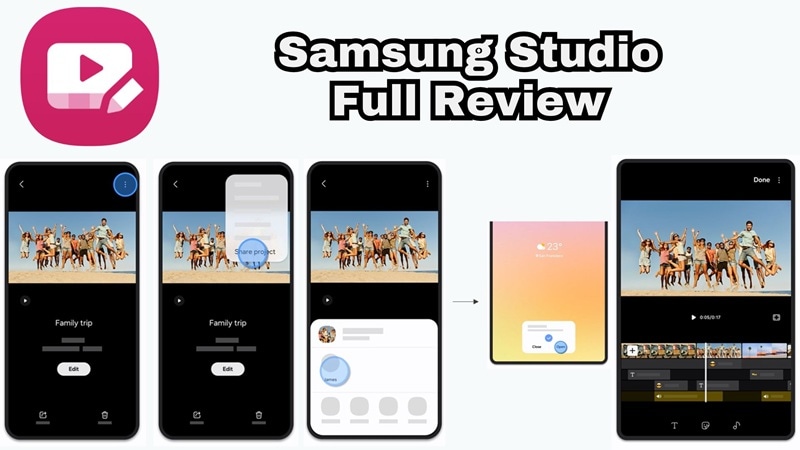
Part 1. What is Samsung Studio?
Let's keep this simple. Samsung Studio is Samsung's own video editing software, and it's free. You won't find it as a separate download on the Play Store (more on that in a bit), because it's built right into the Gallery app on Samsung Galaxy phones running One UI 6 or later.
For desktop users, there's also a Samsung Studio for PC version available through the Microsoft Store, which is a more expanded editing environment.
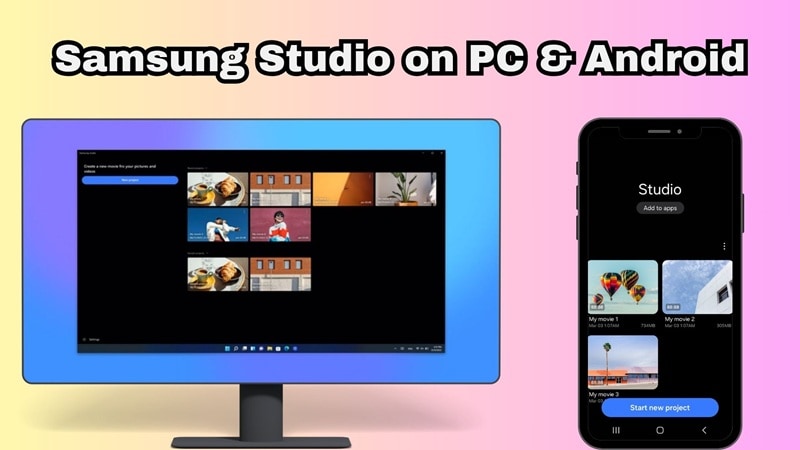
Is Samsung Studio Free?
Yes, Samsung Studio download won't cost you a dime. It is completely free to install and use. There are no subscription tiers, no paywalls for basic editing, and no watermarks on your exports. The core experience costs you nothing.
However, any third-party AI features inside the app may be subject to fees. You can use these AI tools to create AI images, AI stickers, and even AI wallpaper.
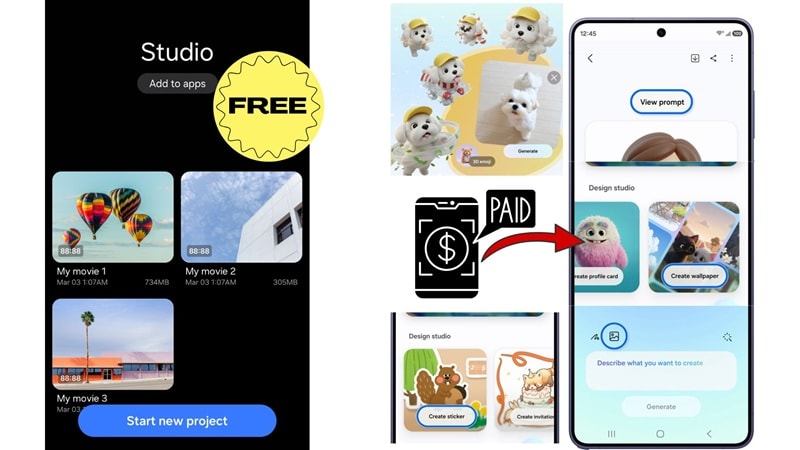
The Differences Between Samsung Studio on PC vs Android
Before you pick a platform, check out this side-by-side breakdown:
| Feature | PC | Android |
| Access | Available on Microsoft Store | Accessed through the Gallery app |
| Editing Layout | Multi-layer editing screen without needing to switch between screens | Full timeline-based editing on mobile |
| Max Export Quality | Up to 4K (3840×2160) | Up to 4K (3840×2160) |
| Simultaneous Media | Edit/play up to 4 photos/videos simultaneously on one screen | Integrated with the camera roll |
| Supported Formats | MP4, MOV, AVI, JPG, PNG, HEIC | MP4, MOV, JPG, PNG, HEIC |
As you can see, the biggest difference is the editing space. Samsung Studio for Android feels fast and direct because it is connected to your phone’s Gallery. On PC, it gives you a bigger canvas, a timeline area, easier drag-and-drop control, and better room for arranging multiple media files.
Part 2. Samsung Studio Features & Installation Guide
Getting started with Samsung Studio is refreshingly straightforward. Whether you're jumping in on your Galaxy phone or setting it up on a Windows machine, you don't need to jump through hoops to start editing.
Let's break down both methods:
How to Access Samsung Studio on Android
If you have a Samsung Galaxy device running One UI 6 or later, Samsung Studio is already there. Here's how to find it:
- Open the Gallery app on your Samsung device.
- Select any video clip you want to edit.
- Tap the pencil icon to open Samsung Studio directly.
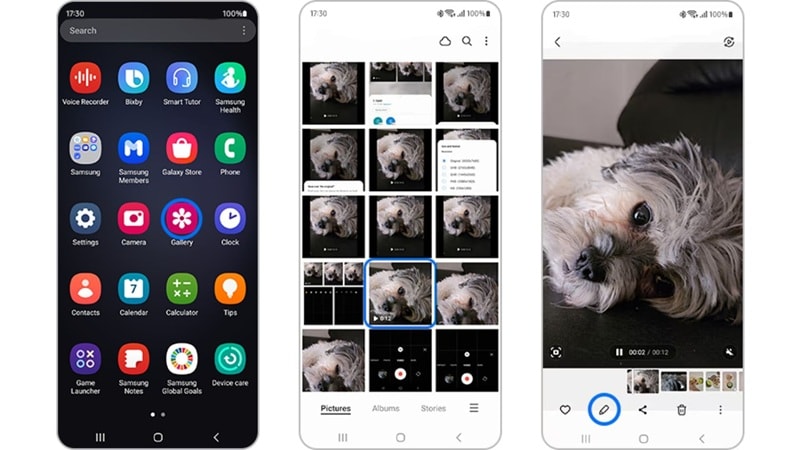
If your device doesn't show this option, check that your Gallery app is updated via the Galaxy Store.
How to Install Samsung Studio on PC
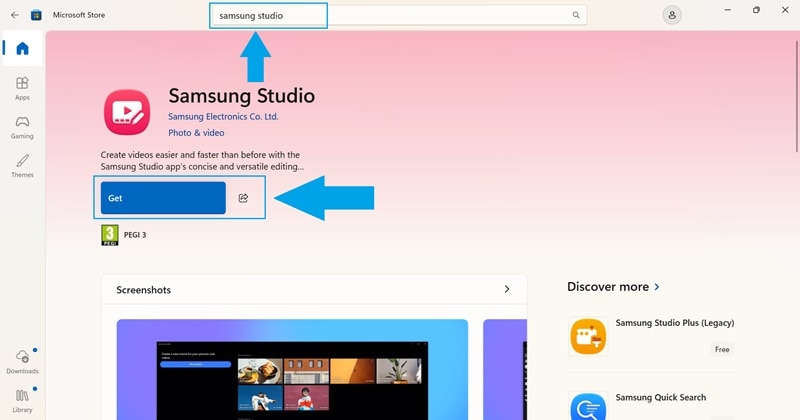
For Windows, use the official Microsoft Store route. Follow these steps:
- Open the Microsoft Store on your Windows PC.
- Search for "Samsung Studio".
- Click Get and wait for it to finish.
- Launch the app and sign in with your Samsung account to enable cross-device sync.
⚠️ Avoid Samsung Studio APK ⚠️
Be careful with Samsung Studio APK searches. Samsung Studio is not something you should download from random APK websites just because a page says “Latest Samsung Studio Update and Premium Features.”
Any third-party APK file claiming to unlock Samsung Studio may be unofficial, outdated, modified, or simply incompatible. That can lead to app crashes, broken exports, missing features, malware risk, or privacy issues. For a Samsung system app, official sources are the safer choice.
Samsung Studio Features Breakdown
Samsung Studio is not trying to be Premiere Pro or DaVinci Resolve. Its strength is convenience. Here's a quick rundown of every feature category inside the app:
| Feature | What It Does |
| 🎬 Timeline-Based Editing | Drag-and-drop clips on a visual timeline. Trim, split, reorder, it's smooth and beginner-friendly. |
| 🎨 Filters & Color Adjustments | Brightness, contrast, saturation, and preset filters. Nothing wild, but enough for everyday touch-ups. |
| ✨ Effects & Transitions | A selection of transitions and video effects. Limited variety compared to dedicated editors, but does the job. |
| 🔤 Text & Stickers | Add captions, titles, and fun stickers. Fonts and animations are basic but functional. |
| 📁 Clips & Media Management | Import from your gallery or camera roll easily. The PC version supports batch import. |
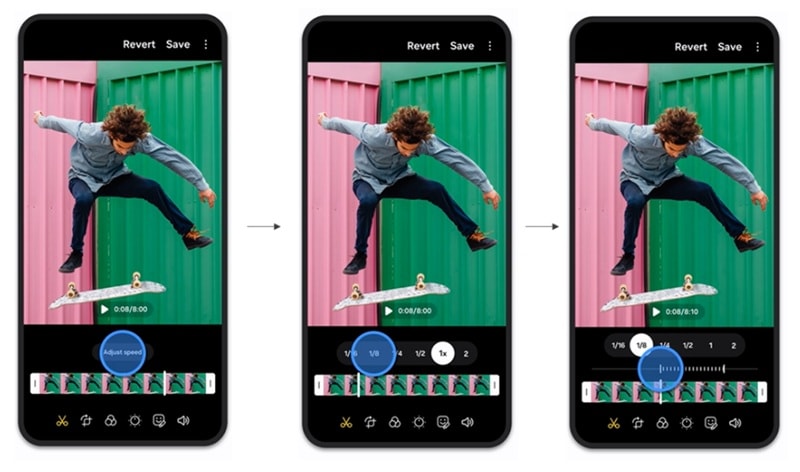
| ⏩ Speed Control | Speed up or slow down clips. Supports slow motion on supported footage. |
| ✏️ Drawing Tool | Annotate or doodle directly on your video frames. Handy for tutorial-style content. |
| 🔊 Audio Controls | Add background music, adjust volume, and trim audio. No multi-track audio, though. |
| 📤 Export & Sharing | Export up to 4K. Share directly to social platforms or save to your device/PC. |
Part 3. Samsung Studio Review: Our Hands-On Take
When it comes to video editing, all those features mean nothing if the actual experience is annoying. So, to make sure that is not the case here, we put Samsung Studio video editor through its paces on both a Galaxy S24 Ultra (Android) and a mid-range Windows laptop to see what the day-to-day experience is actually like.
Workflow & Ease of Use
Samsung Studio is easy to understand. It gives you a cleaner editing space, especially if you prefer using a mouse and keyboard. You can import clips, drop them into the timeline, add text or music, and export without feeling like you opened a professional editing dashboard by mistake.
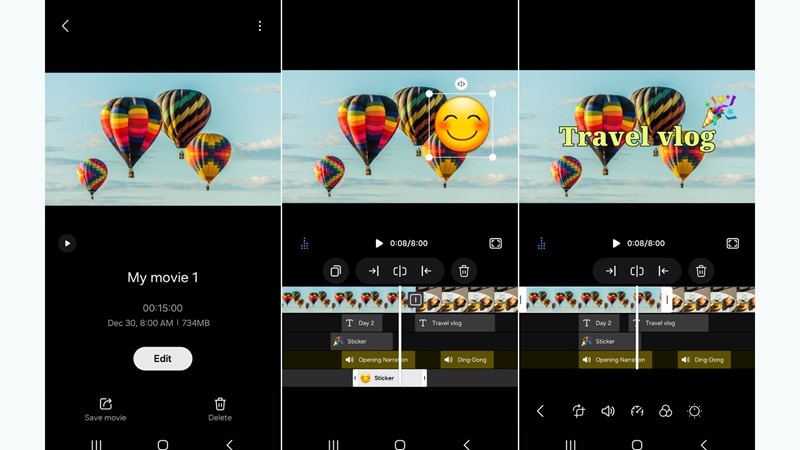
The workflow is smooth when the project is small, such as:
- Cutting down a long phone video.
- Making a simple birthday clip.
- Adding music to a travel recap.
- Creating a short school project.
- Making a quick Reel or YouTube Short.
- Adding text or stickers to a casual clip.
But once you need more layers, more audio tracks, advanced transitions, motion control, AI cutouts, or polished captions, the app starts to feel limited.
Templates & Drag-and-Drop Tools
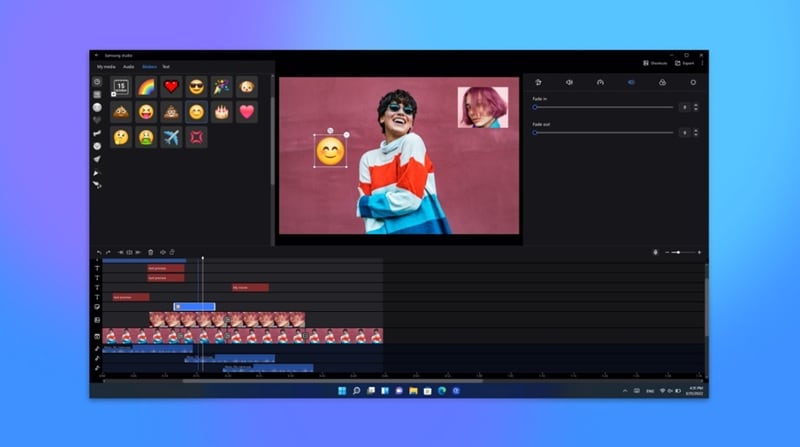
Samsung Studio video editor is not a template machine. If you want trendy social templates, auto beat edits, AI hooks, or one-click viral formats, this is not the app.
The PC version is better for drag-and-drop editing because you get more space to arrange clips. But it still feels more like a simple Samsung editor than a creator platform.
Video Quality & Speed
Export quality is solid. 4K outputs look clean, colors are accurate, and the rendering speed on modern Galaxy devices (Snapdragon/Exynos variants) is genuinely fast. A 3-minute 1080p video exported in about 40 seconds on an S24 Ultra, that's respectable.
On PC, rendering times vary depending on your hardware, but nothing catastrophic. One thing to note: heavy effects stacked on 4K footage can cause noticeable frame drops during preview playback, especially on mid-tier machines.
Part 4. Pros and Cons of Using Samsung Studio
Samsung Studio is easy to recommend for quick edits. It is also easy to outgrow. And based on hands-on use and digging through real user feedback across forums and reviews, here's where it lands:
- Completely free, no hidden subscription fees.
- Seamlessly integrated into the Samsung Gallery app.
- Clean, intuitive UI that doesn't overwhelm beginners.
- Cross-device sync between phone and PC via Samsung account.
- Solid 4K export quality for casual content.
- Regular updates pushed through the Galaxy Store.
- No watermark on exported videos.
- Samsung Galaxy devices and Windows only, no iOS or other Android brands.
- Limited advanced editing, with no multi-track audio, no keyframe animation.
- AI tools are restricted to eligible flagship devices.
- No third-party plugin or asset support.
- The effect and transition library is notably thin.
- Not ideal for videos longer than 15 minutes (performance drops).
- No advanced color grading or LUT support.
Part 5. Best Samsung Studio Alternatives If You Need More Power
Samsung Studio is convenient, no doubt. Having a video editor already on your phone without downloading anything is genuinely great for casual use. But the gaps in its feature set become hard to ignore the moment your editing needs grow beyond trimming clips and slapping on filters. No multi-track audio. No AI captions. No keyframe control. And if you're not on a Samsung device, you're locked out entirely.
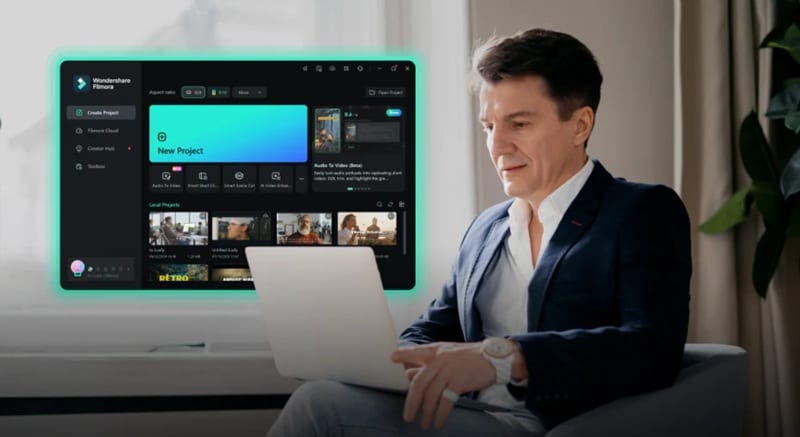
If you need more than the basics, Wondershare Filmora is the next step. Available on both desktop and mobile (Windows, Mac, iOS, and Android), Filmora is built for creators who want actual control over their edits without spending weeks learning a professional-grade tool.
What Filmora Brings to the Table
1. Full Multi-Track Timeline
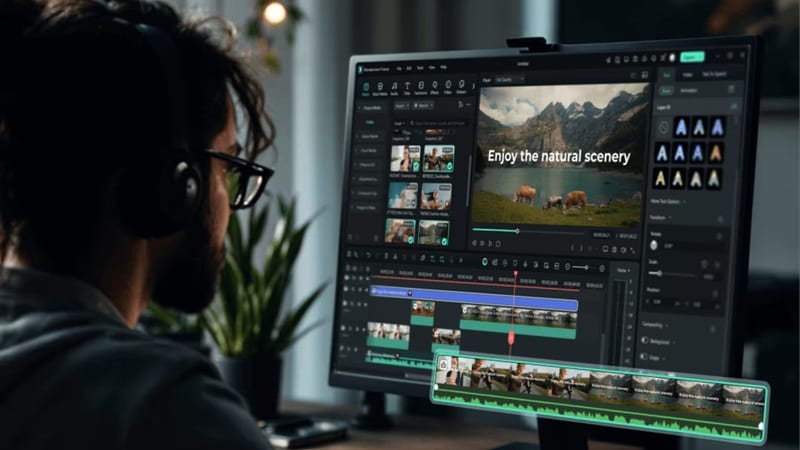
Filmora gives you proper room to layer clips, audio, overlays, effects, titles, stickers, and transitions. This makes it much better for YouTube videos, product demos, explainers, tutorials, and branded social content.
2. Advanced Effects and Transitions

Filmora has a much bigger library of filters, stickers, templates, effects, and creative assets. That matters when you want a video to feel more polished instead of just “edited on my phone.”
3. AI-Powered Tools
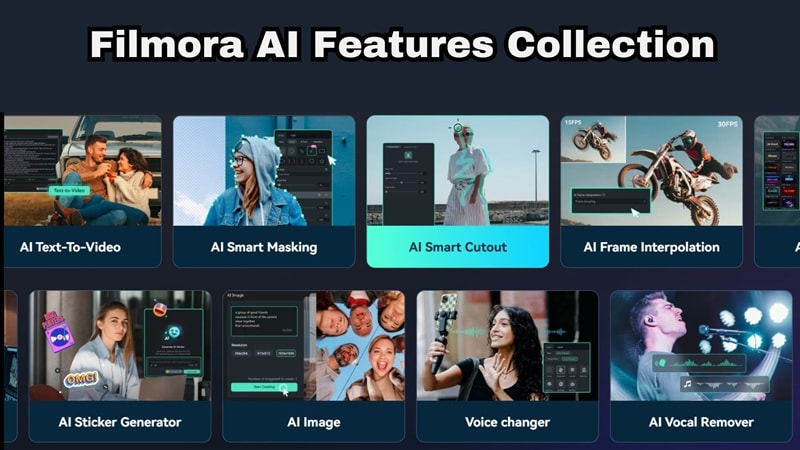
This is where Filmora clearly pulls ahead. Samsung Studio handles simple edits. Filmora helps you speed up the whole editing process. You get tools like:
- AI Auto captions.
- AI Smart cutout.
- Text-based editing.
- AI image-to-video.
- AI video enhancer.
- AI portrait/background cutout.
- Smart short clips.
- Text-to-speech.
- AI Music & Sound Effect Generator.
4. Better Audio Editing
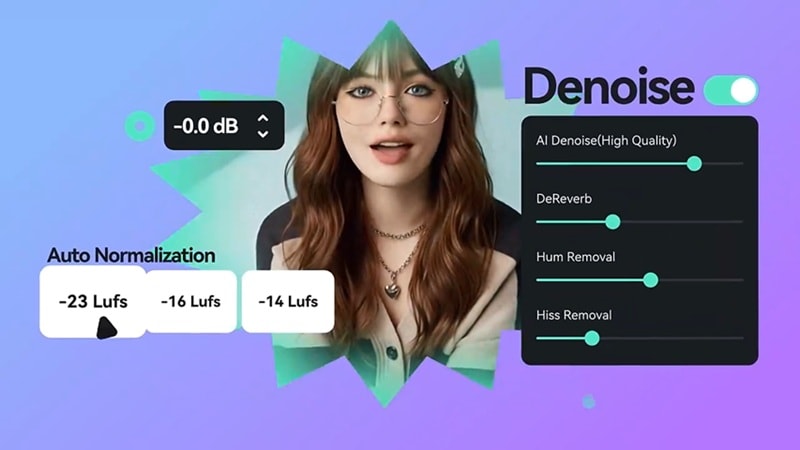
Samsung Studio can add music and voice-over. Filmora gives you more space to clean, layer, adjust, and polish audio. If your videos use narration, music, sound effects, or captions, that extra control matters.
5. Flexible Export Options Up to 8K
Filmora is stronger when you need more export control, especially for creator or client work. It supports higher-end exporting options, including up to 8K depending on your project, device, and settings.
Samsung Studio vs. Filmora — The Full Comparison
| Feature | Samsung Studio | Filmora |
| Platform | Samsung Galaxy devices, Windows PC | Windows, Mac, Android, iOS |
| Free Tier | Fully free | Free (with watermark) |
| Watermark on Export | None | Free tier only |
| AI Tools | Limited | Wide range and extensive |
| Audio | Basic music, voice-over, narration on PC | More complete audio editing tools |
| Templates | Unavailable | Creative templates and social-ready assets |
| Effects | Basic | Much larger effects and transition library |
| Learning curve | Very easy | Still beginner-friendly, but more powerful |
| Max Export | Up to 4K | Up to 8K |
| Best For | Casual Galaxy users | Creators, YouTubers, marketers, small businesses |
|
Show More
Show Less
|
||
 Secure Download
Conclusion: Try It or Skip It?
Samsung Studio video editor is genuinely worth using, just not for everything. If you're a Samsung user who wants to make quick, clean edits without downloading anything or spending money, it does that job well. But the moment your content demands get more serious, then it's time to upgrade to a more complete editor.
And if you want an editor that is as simple as Samsung Studio but offers many more features, Filmora is the answer. It layered advanced AI audio tools, AI-assisted editing, cross-platform access, and a wide range of AI features to speed up your editing process. If your project requires beyond basic cuts and filters, stepping up to something like Filmora isn't overkill, it's just the right call.
FAQs
-
Is Samsung Studio available on all Android phones?
No. Samsung Studio is exclusive to Samsung Galaxy devices running One UI 6 or later. It's not available on other Android brands like Pixel, OnePlus, or Xiaomi. It's also not available as a standalone Samsung Studio APK from the Play Store. -
Does Samsung Studio support 4K video editing?
Yes, Samsung Studio video editor supports editing and exporting in 4K (3840×2160) on both Android and PC versions. Note that previewing 4K footage with heavy effects applied may cause playback slowdowns on older or mid-tier hardware. -
Is Samsung Studio good for YouTube videos?
It depends on the type of content. For short-form YouTube Shorts or simple vlogs under 10 minutes, Samsung Studio is perfectly capable. For longer, more polished productions; with commentary, background music, multiple B-roll layers, and professional color grading, you'll want a more capable editor like Filmora. -
Can Samsung Studio sync projects between phone and PC?
Yes, this is one of Samsung Studio's genuinely useful features. When signed into your Samsung account on both the Android Gallery app and the Samsung Studio for PC Windows app, your projects can sync across devices. It's not instantaneous, but it works reliably for most use cases.
