

 TL;DR:
Wondershare Filmora enables creators to build before-and-after transformation videos by combining manual split-screen editing for authentic raw footage with Google's Veo 3.1 AI model to generate conceptual results directly from text prompts or single images.
● Choose Filmora's manual desktop editor with split-screen templates and color correction for authentic transformations using real footage, but switch to Veo 3.1 for conceptual marketing variations or when you need to visualize an "after" state without actual video recordings.
● Keep the total comparison duration strictly between 7 and 15 seconds for optimal viewer retention on TikTok and Instagram Reels, utilizing Filmora's Auto-Reframe feature to automatically adapt standard aspect ratios into centered vertical layouts without manual cropping.
● If you only have static images rather than video clips, use the Veo 3.1 Image-to-Video tool to animate a single photo into a dynamic sequence, ensuring you add clear text labels and sync the transition reveal with background musical beat drops for maximum impact.
Ask AI for a summary
 ChatGPT
 Perplexity
 Gemini
 Claude
 Grok
Grok
Want to showcase your progress with a professional before-and-after video? Whether it's a fitness glow-up, home renovation, or product upgrade, a transformation video is the most engaging way to tell your story. With Wondershare Filmora, you can now use a powerful AI before and after video generator powered by Veo 3.1 to create these comparisons instantly. Learn how to combine manual editing with AI text-to-video technology to make your results stand out.
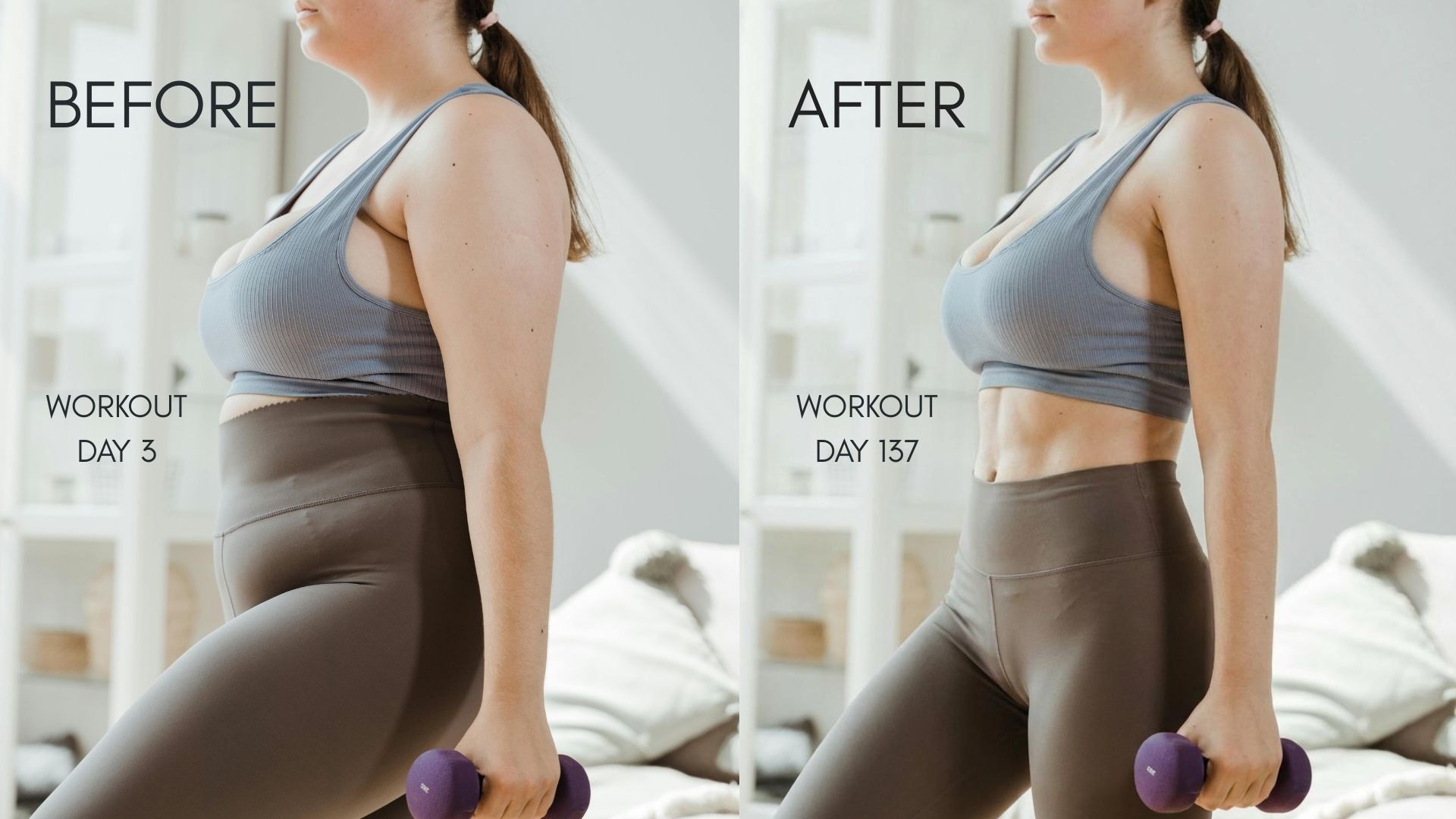
Part 1. Understanding User Intent – What Makes the Best Before and After Video Maker?
Most people looking for a before-and-after video maker have a practical purpose. They want to show a clear comparison without having to spend too much time learning complicated tools. The focus isn't on advanced effects, but on clarity, speed, and ease of use.
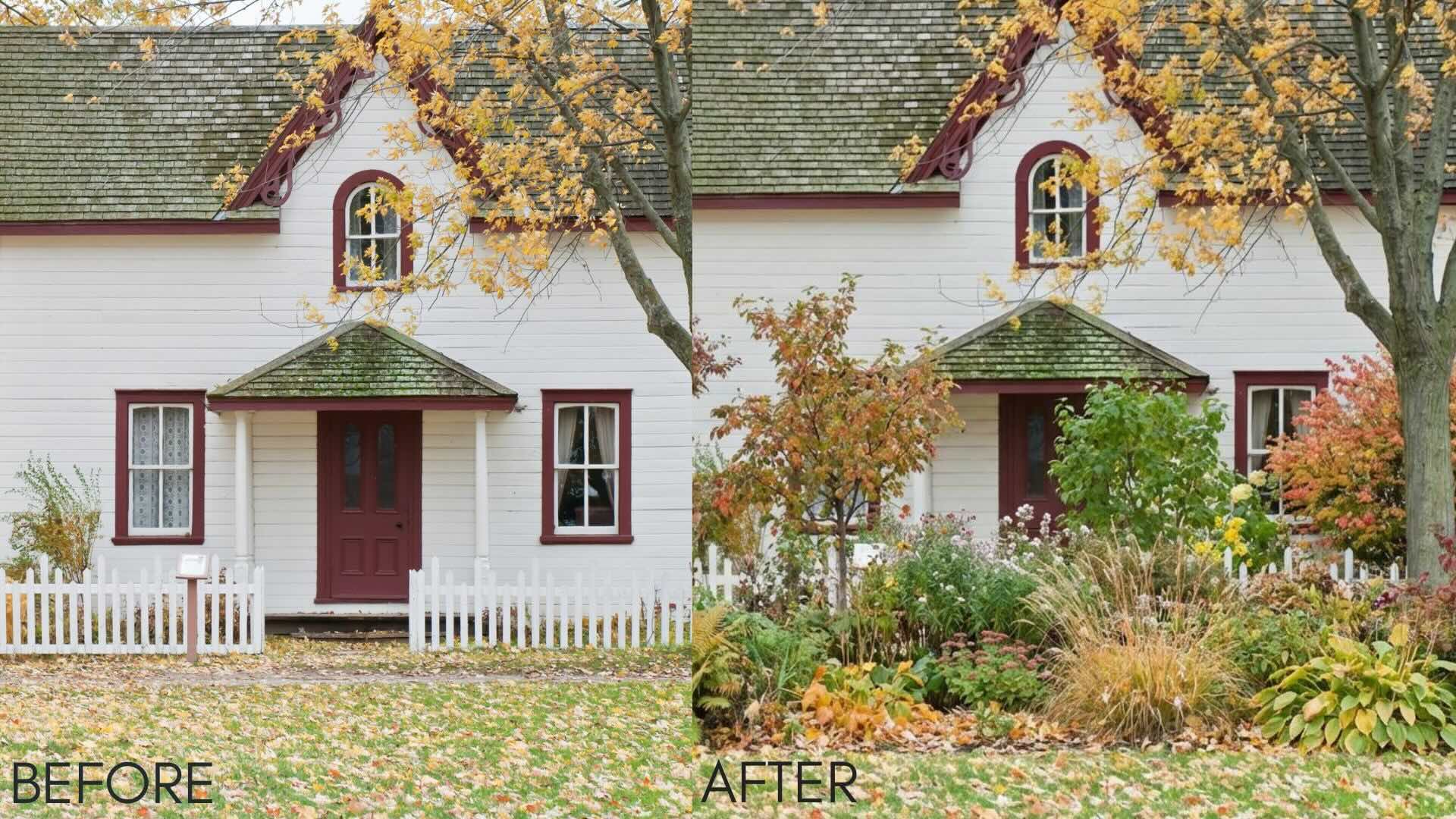
What users usually look for in a before-and-after video maker:
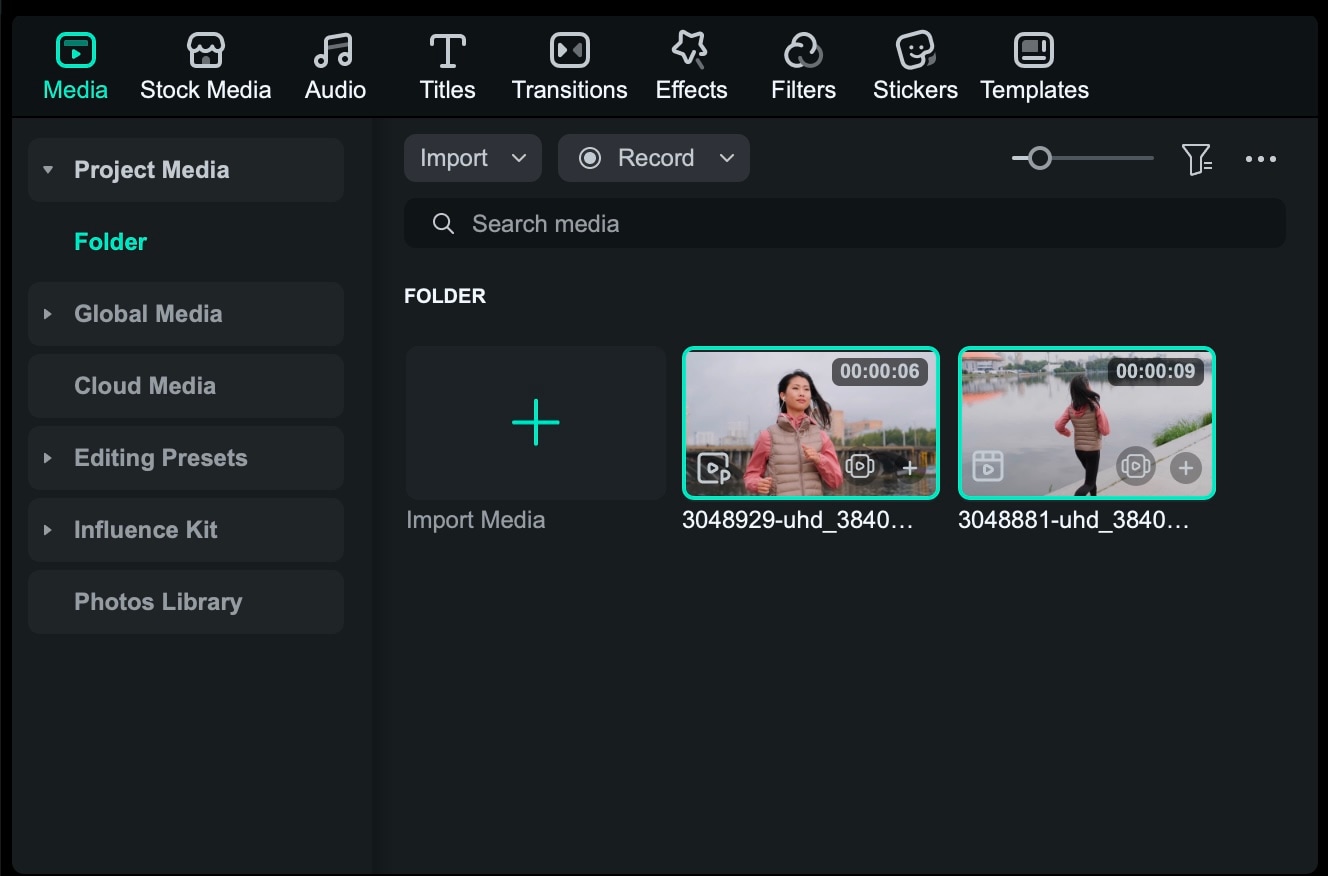
- A simple way to upload and arrange before and after clips or photos
- Support for images and videos in a single project
- Ready-made layouts, such as split screens or slide effects
- Quick video creation from photos for users who don't have video recordings
- Clean transitions so changes are easy to see
- Optional AI features to enhance or generate after results
In this case, Filmora checks all the boxes. You can use it to build before-and-after videos manually or with AI, so you can create transformation videos even if you're starting with just a few photos.
Part 2. How to Create a Before and After Video on Your PC/Mac
For creating before-and-after videos, Filmora gives you complete control over how clips are placed and displayed.
- A flexible timeline that lets you precisely arrange before and after clips
- Built-in transitions for smooth comparisons
- Split-screen layouts for side-by-side views of changes
- Simple text tools to clearly label each stage of the transformation
These features make it a good choice for both simple comparisons and more polished transformation videos.
Step-by-Step How to Use Filmora Desktop to Create Split-Screen B&A Videos
 Secure Download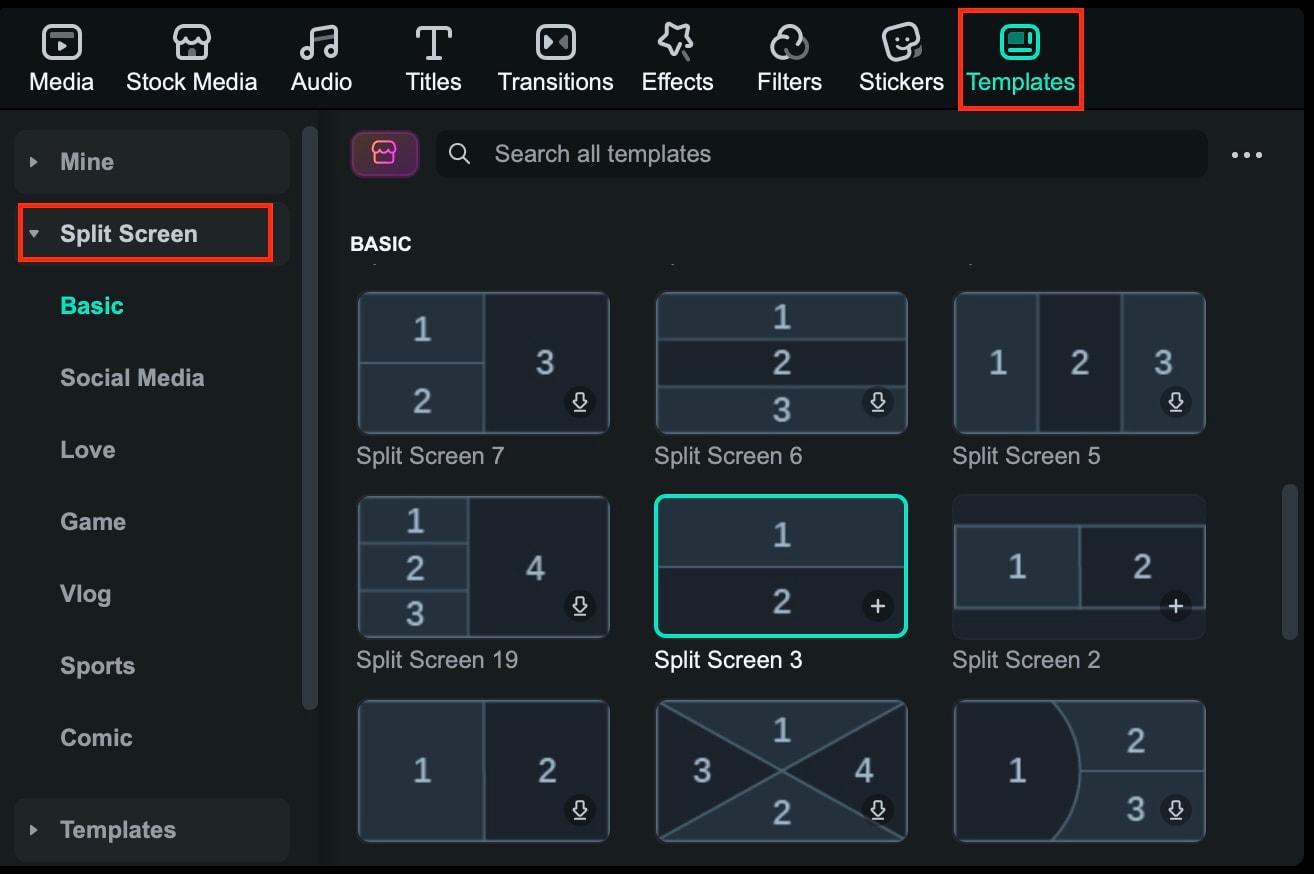
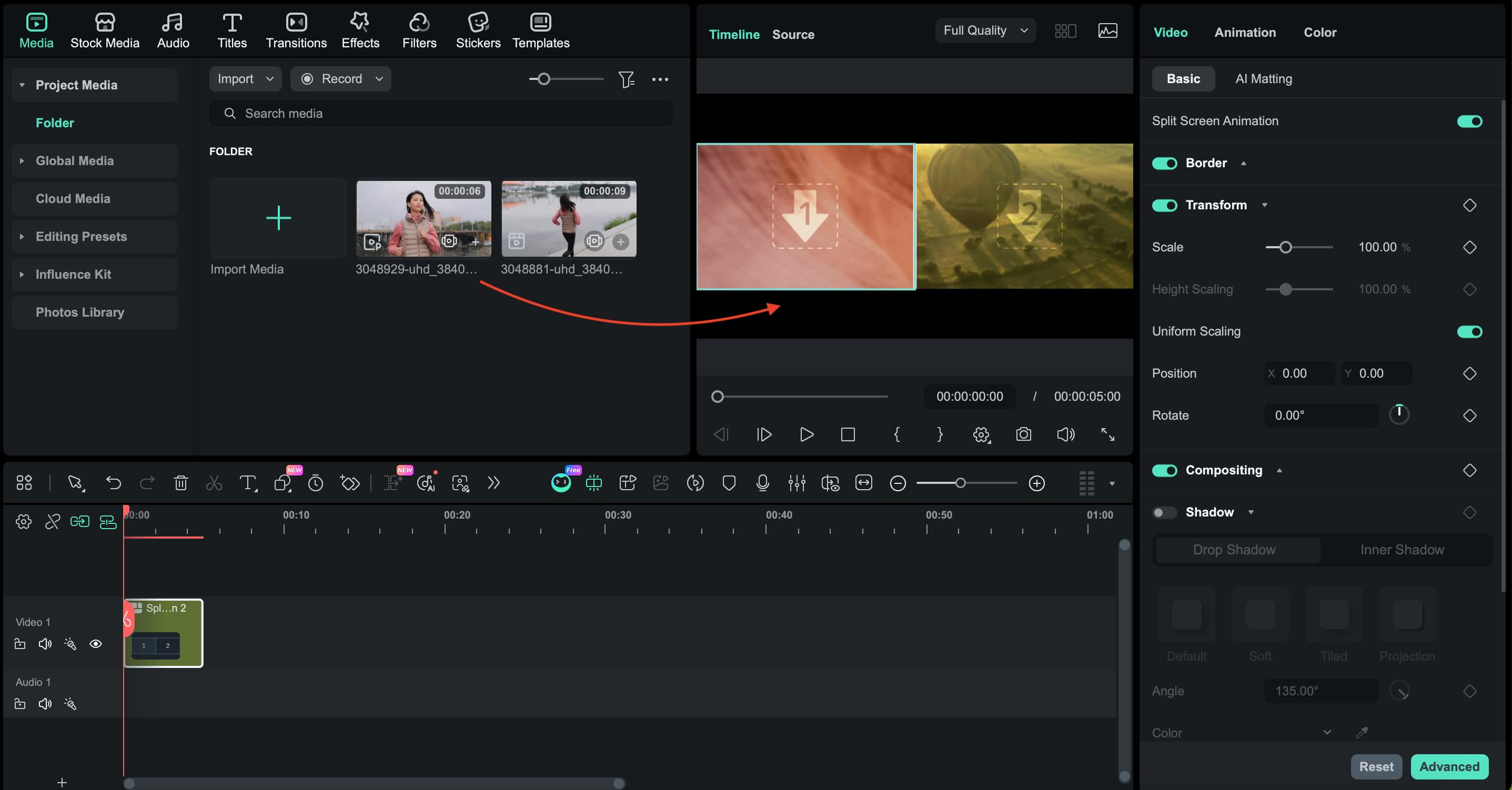
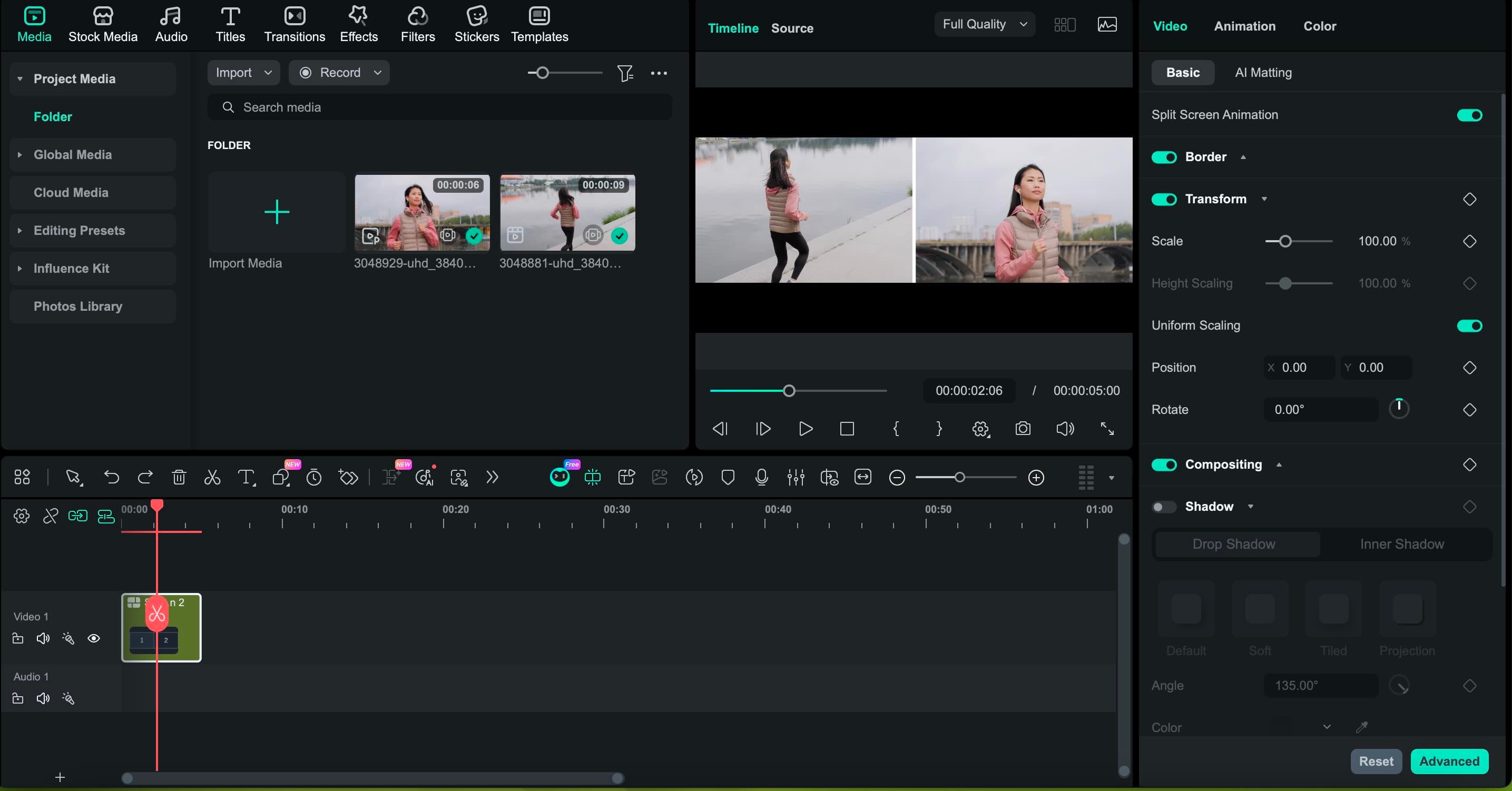
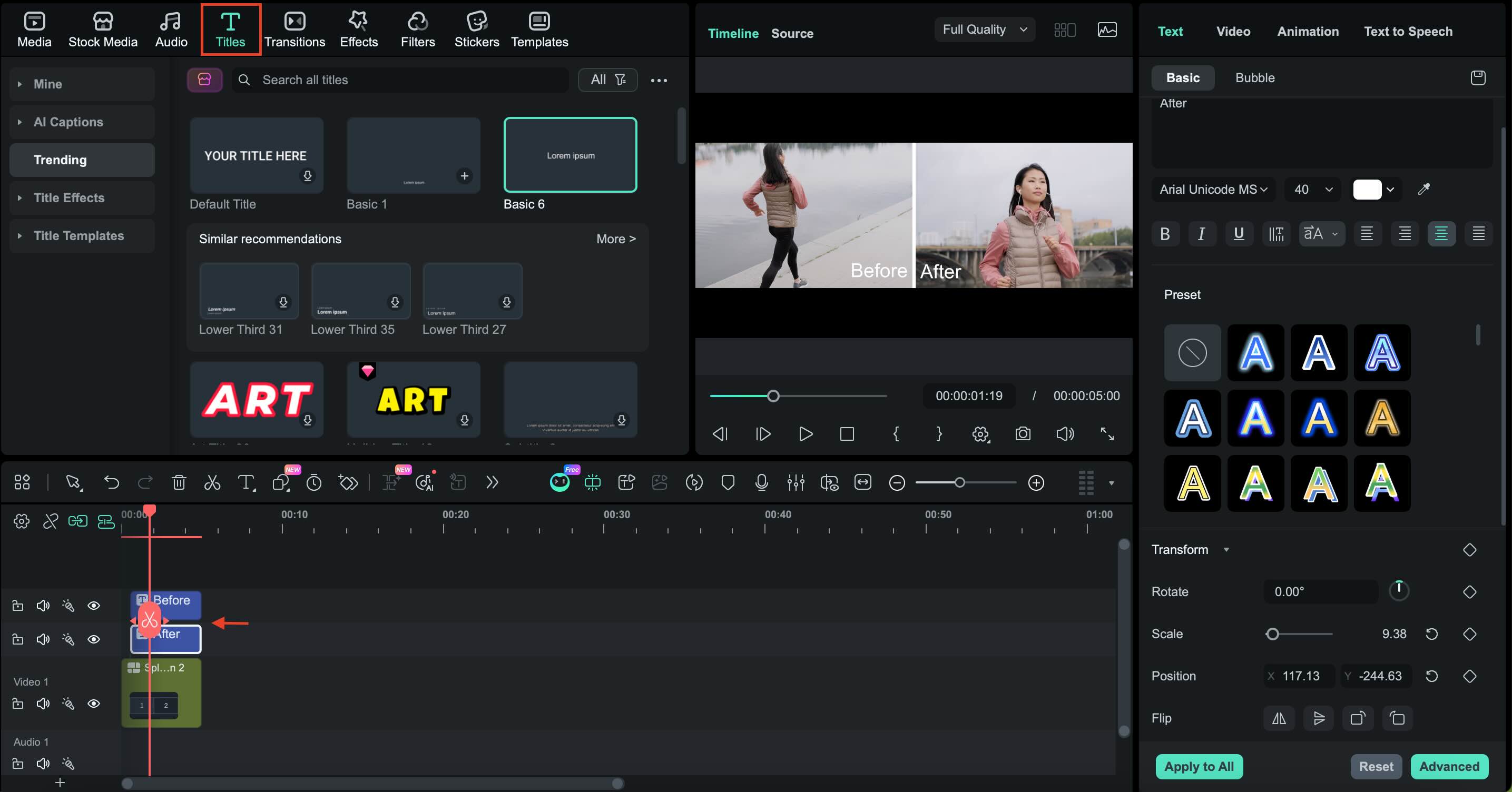
Preview the video and make final adjustments. Export the video in the resolution and aspect ratio you want.

Part 3. How to Use Veo 3.1 as an AI Before and After Video Generator in Filmora
As before-and-after video content continues to expand, more creators are turning to AI to accelerate the production process and explore creative ideas that are challenging to film. Rather than relying solely on original footage, AI enables the generation of the final result from a single prompt or image.
Secure DownloadIn Filmora, the AI video generation tools run on Veo 3.1, an advanced AI model by Google designed to better understand prompts, scenes, and visual context, then generate more realistic videos.
What Veo 3.1 Does
You can use Filmora's Veo 3.1 in two ways:
- Text-to-Video: Describe the desired transformation, and the AI will generate movements based on that idea.
- Image-to-Video: Upload an image, and Veo 3.1 adds movement and visual changes to produce dynamic video results.
These features simplify the creation of transformation effects and smooth motion without the need for manual animation.
How to Create Before and After with AI
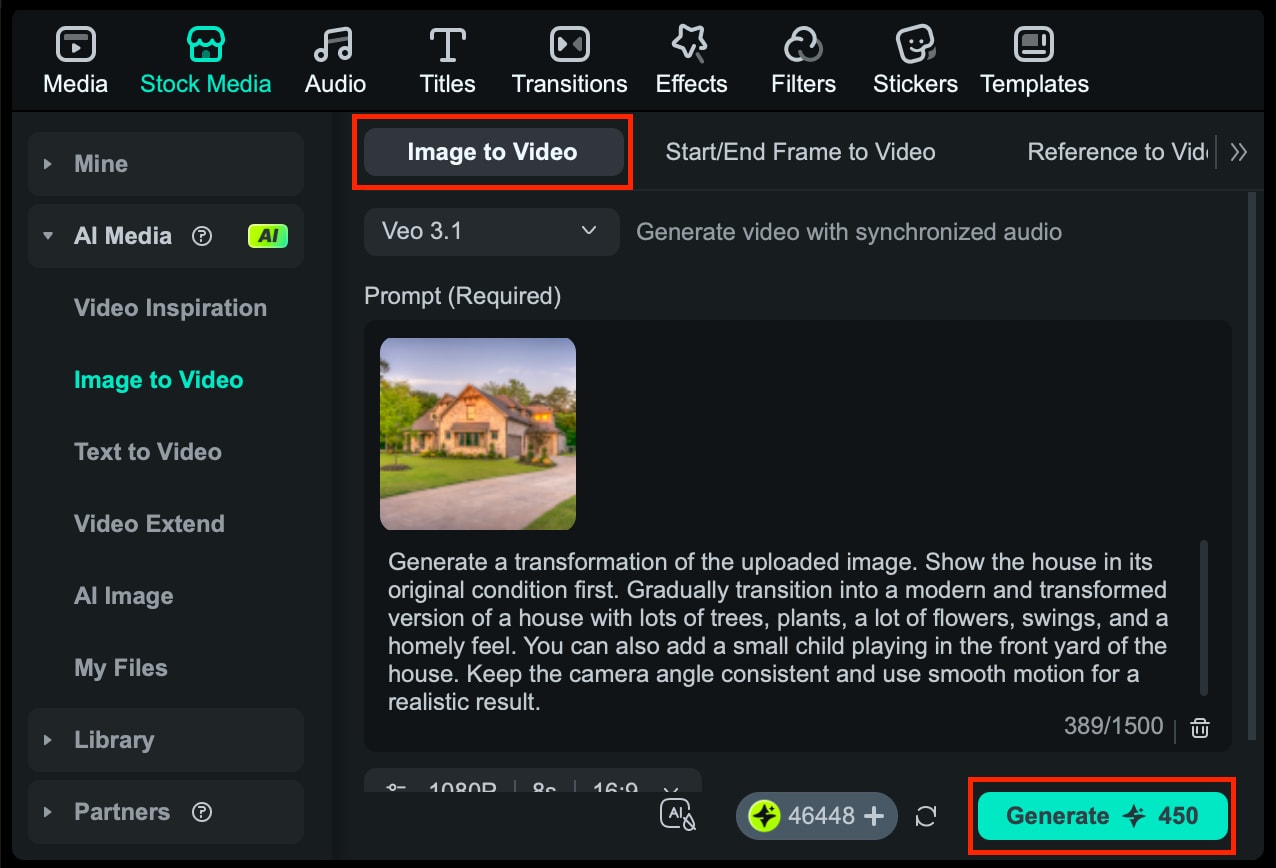 Secure Download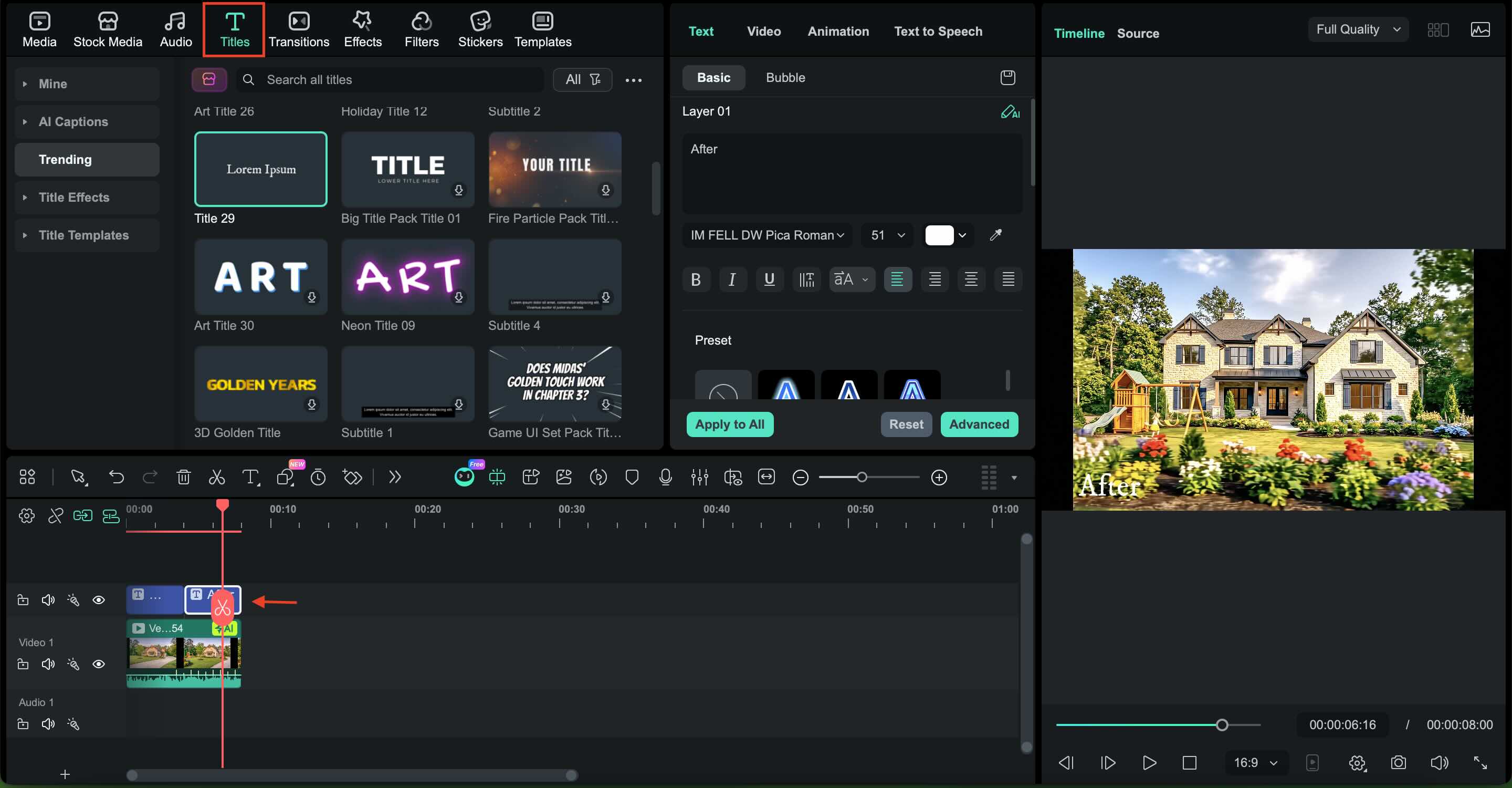
When AI Is the Better Choice
Using AI for before-and-after videos works best in certain situations:
- When no real after footage exists, and the result needs to be visualized
- When creating conceptual or stylized transformations that go beyond real-world filming
- When producing advertising content or product simulations that require multiple variations quickly
Part 4. Manual Editing vs AI-Generated Editing: Which One to Choose
Both manual editing and AI-generated editing can produce effective before-and-after videos. What's best depends on your goals, the type of content you're creating, and how much you're working with original footage or ideas that need to be visualized.
| Goal | Recommended tool |
| Fast for social media content | Filmora Mobile or AI with Veo 3.1 |
| Conceptual or imaginary transformations | Veo 3.1 with Filmora for final editing |
| Authentic transformations | Filmora desktop |
| Multiple versions of marketing | Veo 3.1 combined with Filmora |
|
Show More
Show Less
|
|
Part 5. Tips to Make Before and After Videos More Engaging
Creating before-and-after videos isn't always about showing the change. Small editing choices can make the transformation clearer, cleaner, and more engaging for viewers. The tips below help improve visual impact and performance, especially on short-form content platforms.
Match colors with Filmora's Color Correction tools
Use Filmora's Color Correction tools to balance brightness, contrast, and color tones between the before and after clips. This makes the comparison feel intentional and professional rather than inconsistent.
Use the Filmora Auto-Reframe feature to instantly adapt your before and after video for the TikTok or Reels format
Different platforms require different aspect ratios. Filmora's Auto Reframe feature automatically adjusts your video for the vertical format used on TikTok and Instagram Reels, which helps keep your subject centered without manual cropping.
Add powerful visual impact using Filmora's Split Screen Templates
For those seeking an efficient before and after video maker, Filmora's split-screen templates are a game-changer. These layouts are optimized for social media transformations, allowing you to showcase side-by-side comparisons for beauty, fitness, or DIY projects. By using the AI Image-to-Video feature, you can even animate a single "before" photo into a dynamic "after" result.
Keep videos short for TikTok and Reels
Short videos are more effective on TikTok and Reels. Try to keep the duration of the video before and after the change to no more than 10 to 15 seconds so that viewers can immediately see the change without losing interest.
Add clear labels and simple motion
Use simple text such as "Before" and "After" and avoid excessive animation. Smooth zooming or gentle transitions help direct attention without distracting from the results.
Choose music that builds into a revelation
Background music that slowly builds energy can make the transition more satisfying. Sync the reveal with the beat drop or a clear musical cue for better impact.
Conclusion
Mastering the art of the transformation video has never been easier. Whether you prefer manual precision or the speed of an AI before and after video generator, Wondershare Filmora and Veo 3.1 provide the ultimate toolkit. Download Filmora today and start creating viral before-and-after content that captures attention.

FAQ
-
Can I use only photos to make a before-and-after video?
Yes. Filmora lets you turn before-and-after photos into a video by setting image duration, adding transitions, or using split-screen layouts. -
Does Filmora support split-screen layouts?
Yes. Filmora provides ready-to-use split-screen templates and also allows manual layout adjustments. -
What is the best length for short-form videos before and after?
For TikTok, Instagram Reels, and YouTube Shorts, the ideal duration is usually between 7 and 15 seconds. It gives viewers enough time to see the changes without losing their attention. -
Is an AI video generator better than a desktop editor like Filmora for B&A videos?
AI tools are useful for quick or conceptual results. Filmora is a suitable choice for raw footage and precise editing. Many creators use both together.
