


 TL;DR:
Color correction fixes technical issues like exposure and white balance to create a neutral baseline, while color grading is applied afterward to creatively shape the video's mood and visual identity.
● Always perform color correction before grading, as applying a strong stylistic grade to unbalanced footage will amplify existing exposure and color inaccuracies.
● Filmora handles technical balancing under the Basic Color menu using tools like Auto Color or Light, and includes a Protect Skin Tones option when applying LUTs to prevent unwanted changes to human subjects.
● For creative stylization, use advanced controls like HSL, Curves, Color Wheels, or the AI Color Palette, an upgraded feature replacing Color Match that analyzes a reference image to replicate its specific color style onto a target clip.
Ask AI for a summary
 ChatGPT
 Perplexity
 Gemini
 Claude
 Grok
Grok
Color correction and color grading are essential post-production steps that often get confused. While both involve adjusting the look of your footage, they serve different purposes in the editing workflow.
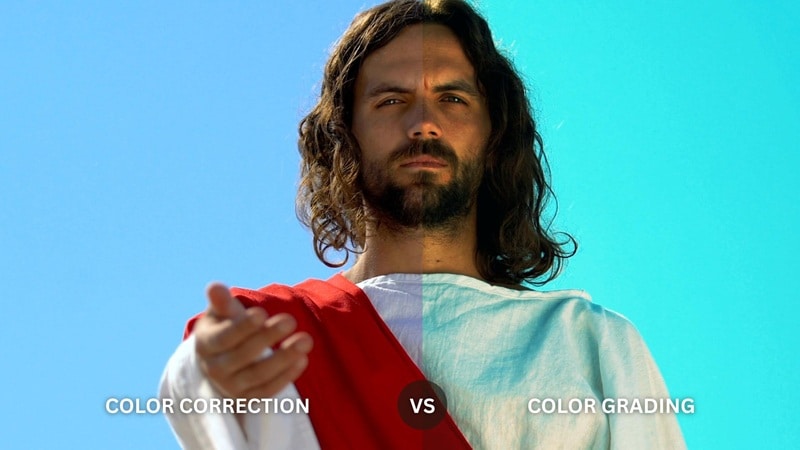
Color correction fixes technical issues such as exposure, white balance, contrast, and color balance so the image looks more natural and consistent. Color grading comes afterward and focuses on shaping the mood, style, and visual identity of the footage.
Understanding color correction vs. color grading helps you build a more efficient workflow: correct the footage first, then grade it creatively.
In this article
Part 1. What Is Color Correction?
Color correction is the technical process of adjusting footage so that its exposure, white balance, contrast, and color relationships look balanced and consistent.
For example, if footage appears too dark, too bright, too warm, too cool, or has an unwanted color cast, color correction is used to bring it closer to a neutral and natural-looking baseline.
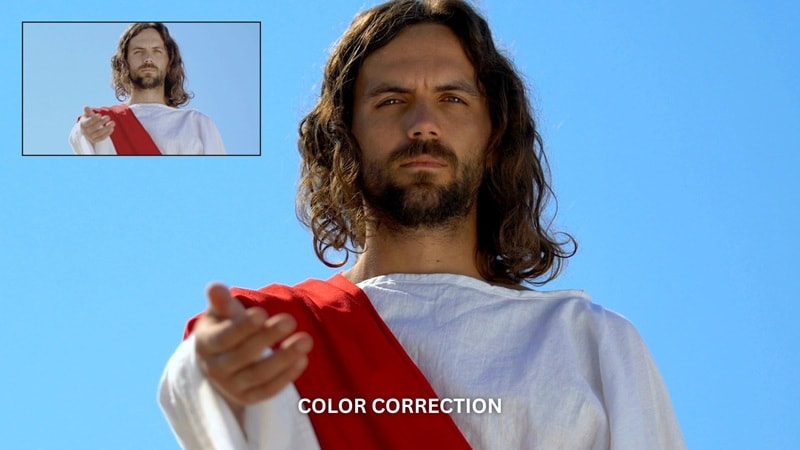
Typical color correction tasks include:
- Fixing exposure
- Correcting white balance
- Adjusting temperature and tint
- Balancing contrast
- Recovering highlight or shadow detail
- Correcting saturation
- Matching color between different shots
The goal is not necessarily to create a dramatic style. It is to give you a technically balanced image that provides a reliable starting point for further grading.
Part 2. What Is Color Grading?
Color grading is the creative stage that usually comes after basic correction. Instead of primarily fixing problems, grading is used to create a visual style and influence how a scene feels.
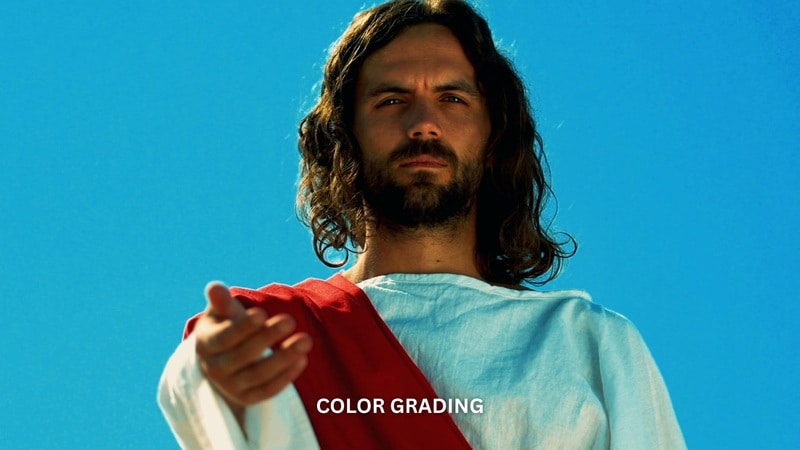
During color grading, editors may adjust hue, saturation, contrast, tonal balance, LUTs, Curves, and Color Wheels to create a specific visual direction.
The Importance of Color Grading
Color grading can play several roles in storytelling and visual presentation:
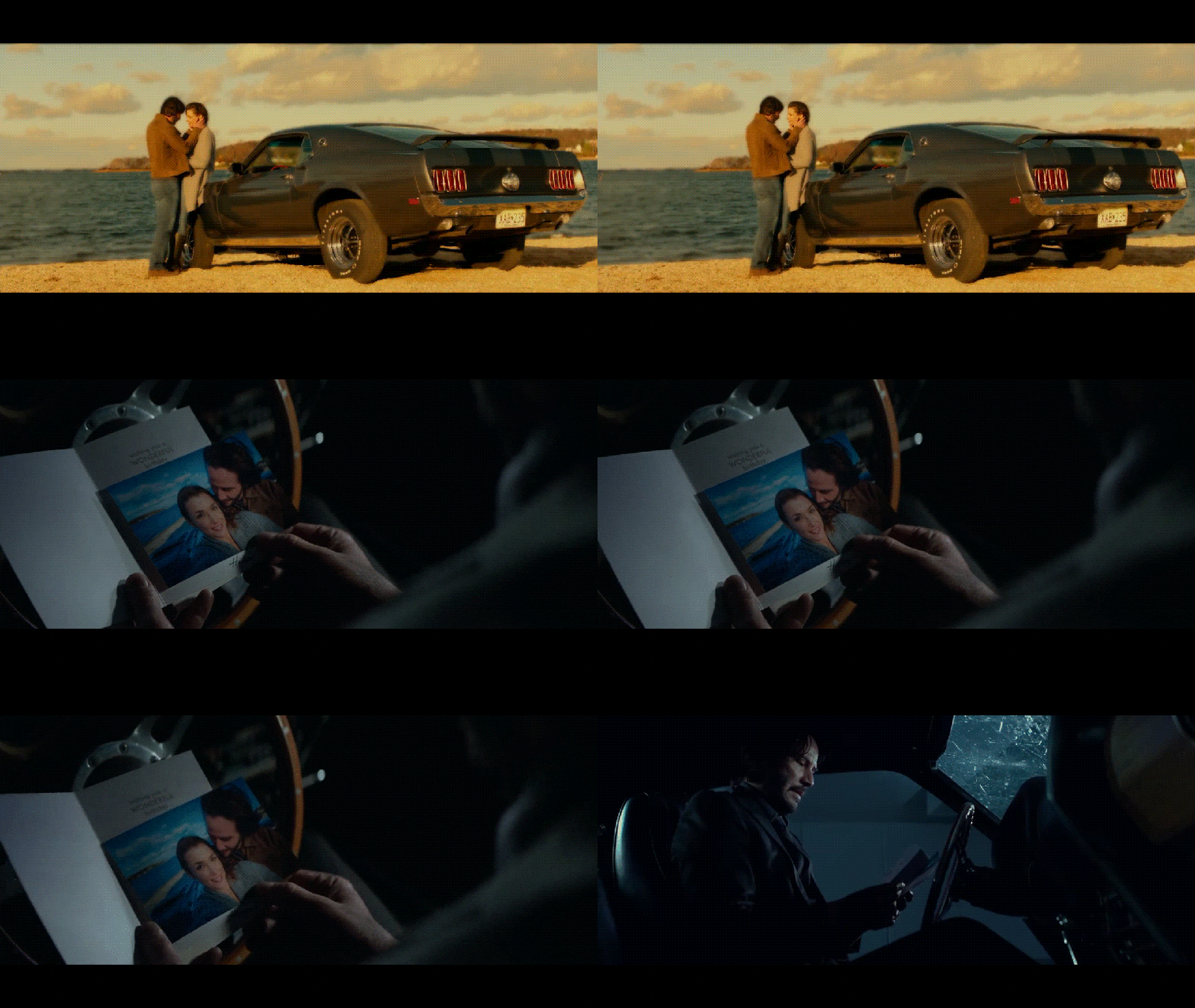
- Shape emotional response: Warm, cool, muted, or high-contrast palettes can influence how viewers interpret a scene.
- Support the narrative: Different color treatments can help distinguish locations, time periods, memories, or emotional states.
- Create visual consistency: A shared grade can help multiple shots feel like part of the same sequence.
- Build visual identity: Creators and brands can use consistent color styling across projects.
- Direct attention: Contrast and color relationships can help emphasize important subjects or areas of the frame.
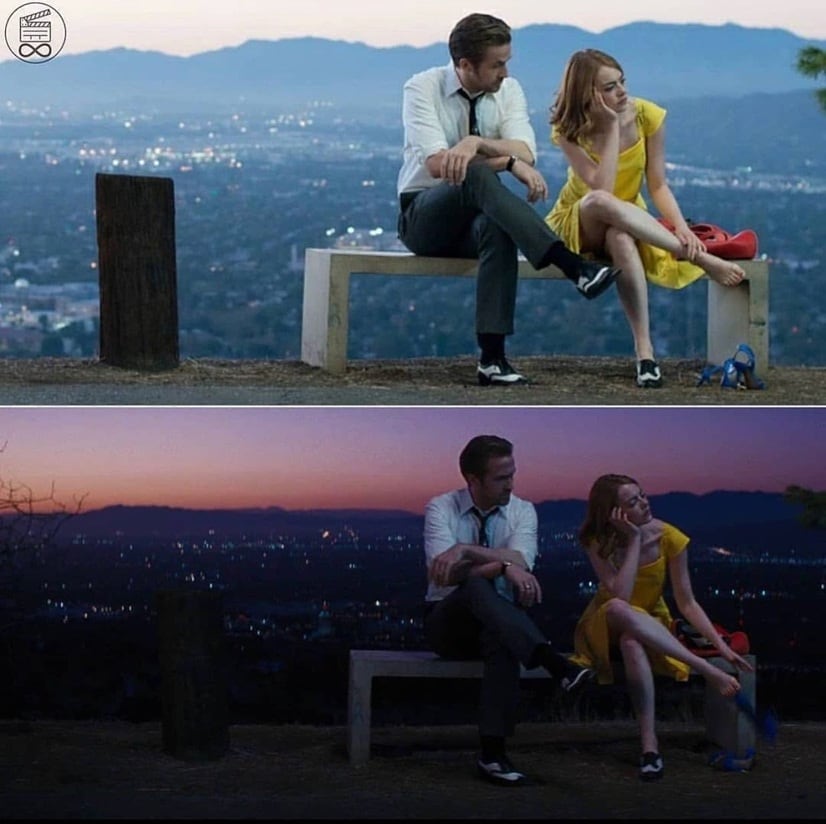
One common grading approach is to use color temperature and tonal contrast to reinforce emotion. Cooler or darker palettes can help create a more restrained or tense atmosphere, while warmer tones can suggest comfort, nostalgia, or intimacy.
Part 3. 5 Key Differences Between Color Correction and Color Grading
The easiest way to understand the difference is to look at what each process is trying to achieve.
| Feature | Color Correction | Color Grading |
| Primary Goal | Fix technical issues and balance the image | Create a specific mood, atmosphere, or visual style |
| Workflow | Usually performed first | Usually follows correction |
| Focus | Exposure, white balance, contrast, and color accuracy | Style, mood, tonal relationships, and visual identity |
| Common Tools | White balance, exposure, highlights, shadows, contrast | LUTs, HSL, Curves, Color Wheels, creative color adjustments |
| Typical Result | A balanced, consistent image | A deliberately stylized image |
A simple way to remember the difference is: color correction creates the foundation, while color grading creates the look.
Part 4. Which Comes First: Color Correction or Color Grading?
In most workflows, color correction comes first. Fixing technical issues before grading gives you a balanced starting point and makes creative adjustments more predictable.
If you apply a strong grade before correcting white balance, exposure, or contrast, the grade can amplify those problems and make the footage harder to balance later.
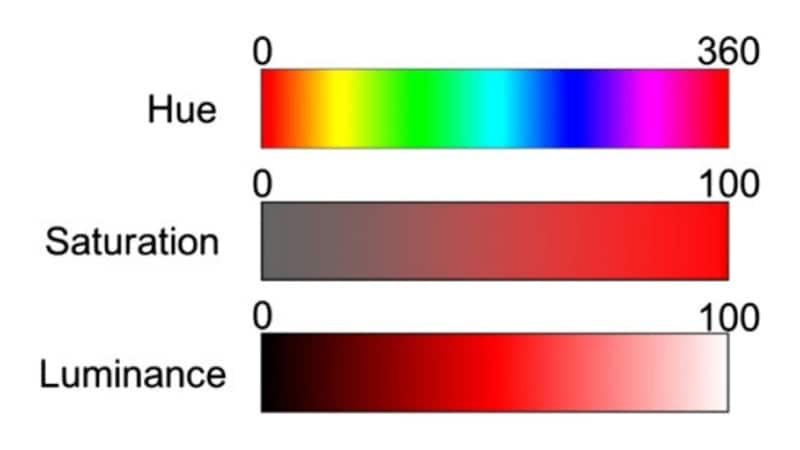
Core color concepts used throughout both stages include:
- Hue: The base color, such as red, blue, green, or yellow.
- Saturation: The intensity of a color.
- Luminance: The brightness or darkness of a color or tonal region.
- Temperature: The warm-to-cool balance of the image.
- Tint: The green-to-magenta balance used to refine color casts.
Part 5. How to Correct Video Color in Filmora
Wondershare Filmora organizes its main technical color controls under Color > Basic. The current workflow includes LUTs, White Balance, Light, Sharpen, Vignette, and Auto Color. :chatgpt-content-reference{index="2"}
1. Apply and Adjust a LUT
Import your footage, add it to the timeline, select the clip, and open Color > Basic > LUT.
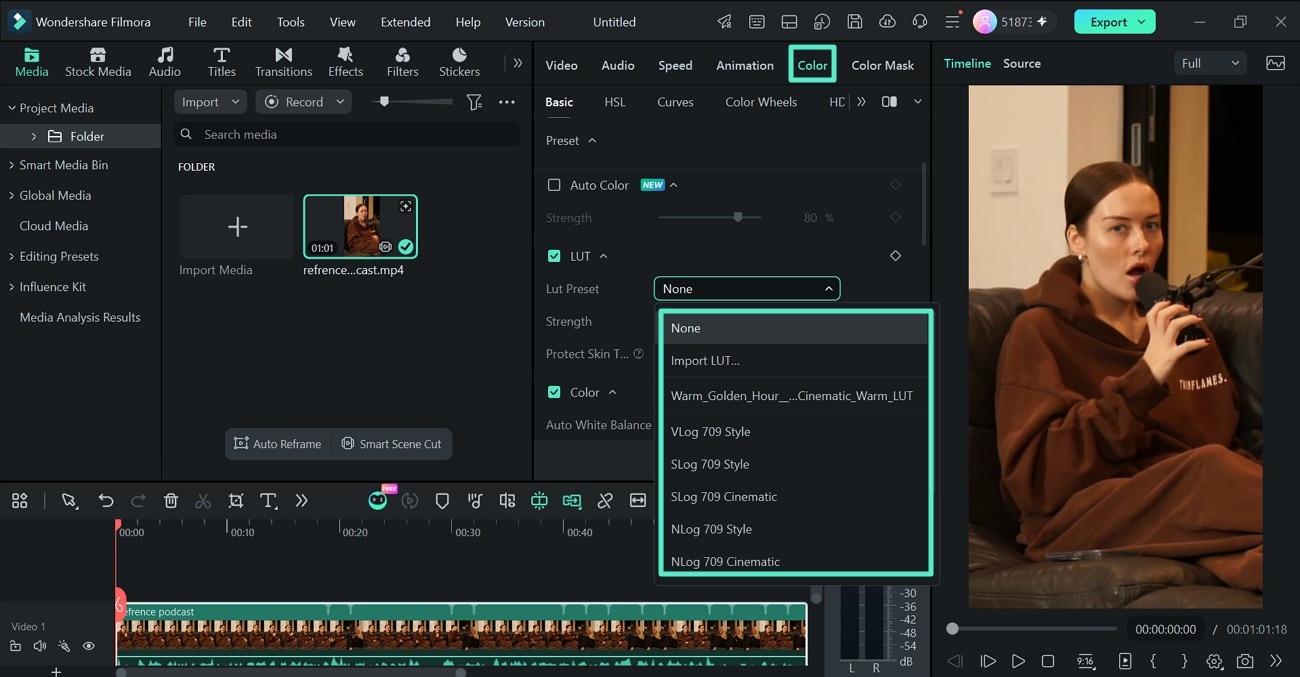
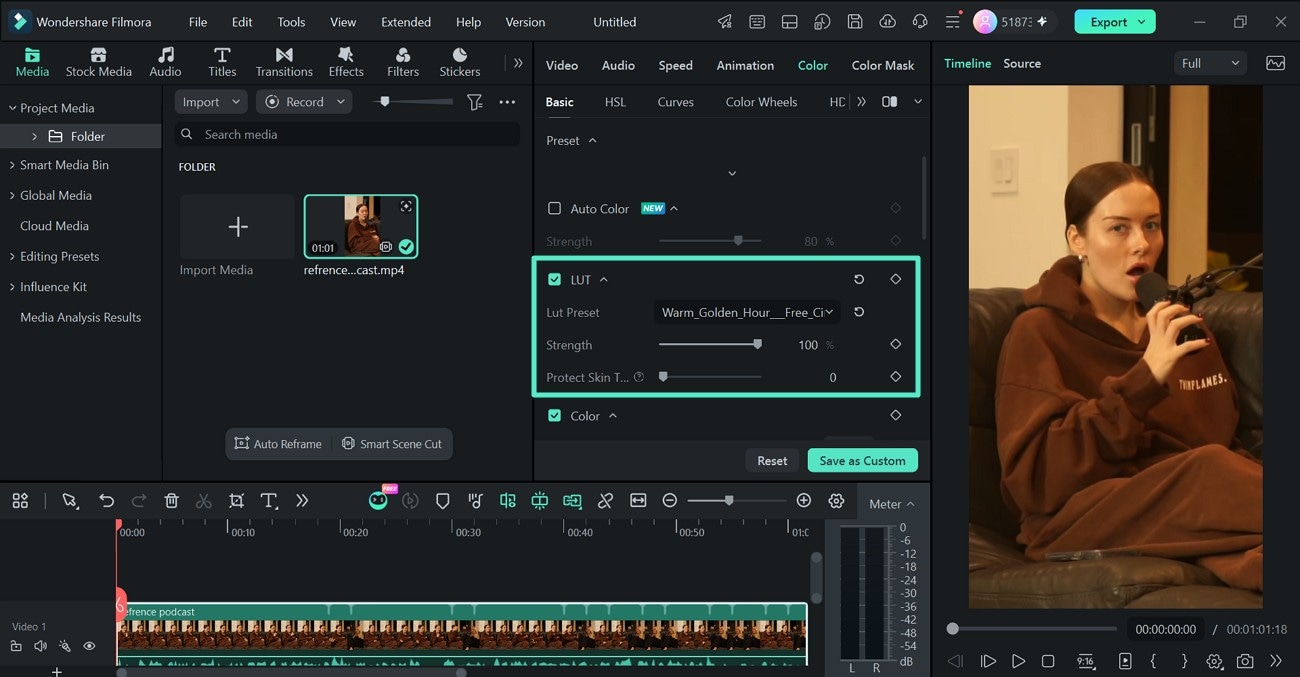
Select a built-in LUT or choose Load new LUT... to import your own. Use Strength to control how strongly the LUT affects the footage.
If your video contains people, you can enable Protect Skin Tones when needed to reduce unwanted changes to skin. :chatgpt-content-reference{index="3"}
2. Correct White Balance
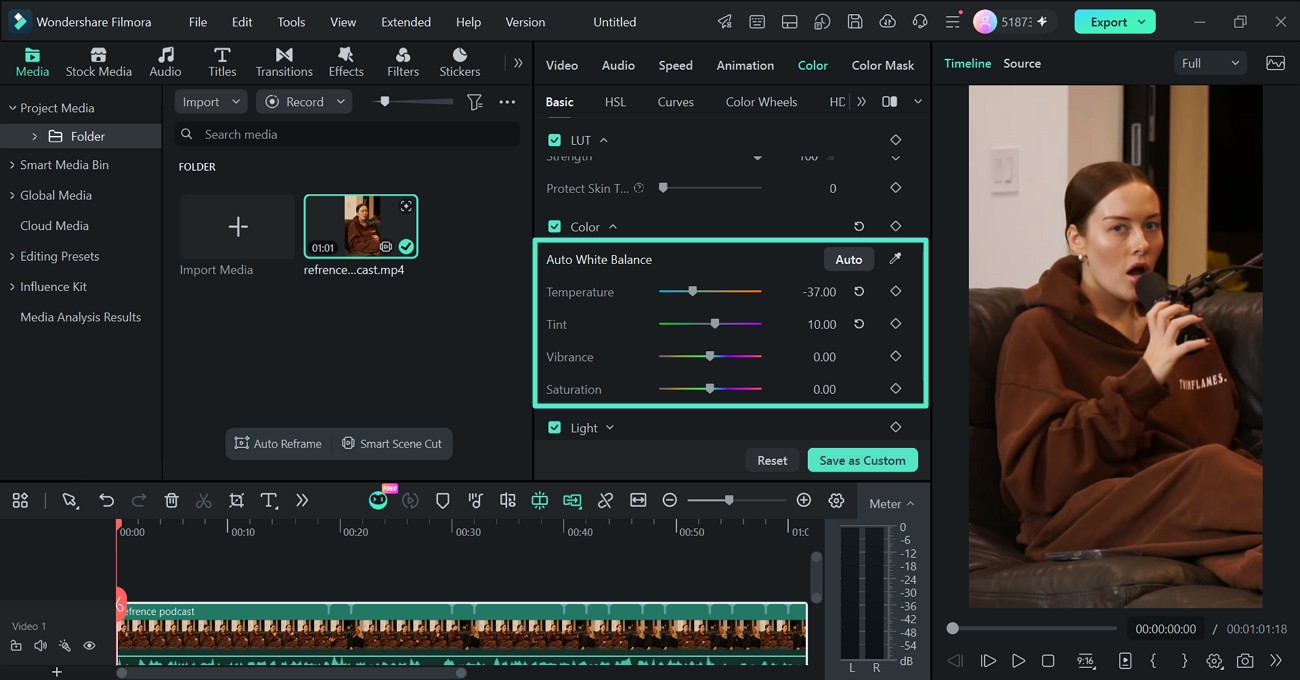
Open Color > Basic > Color to correct unwanted color casts and white balance.
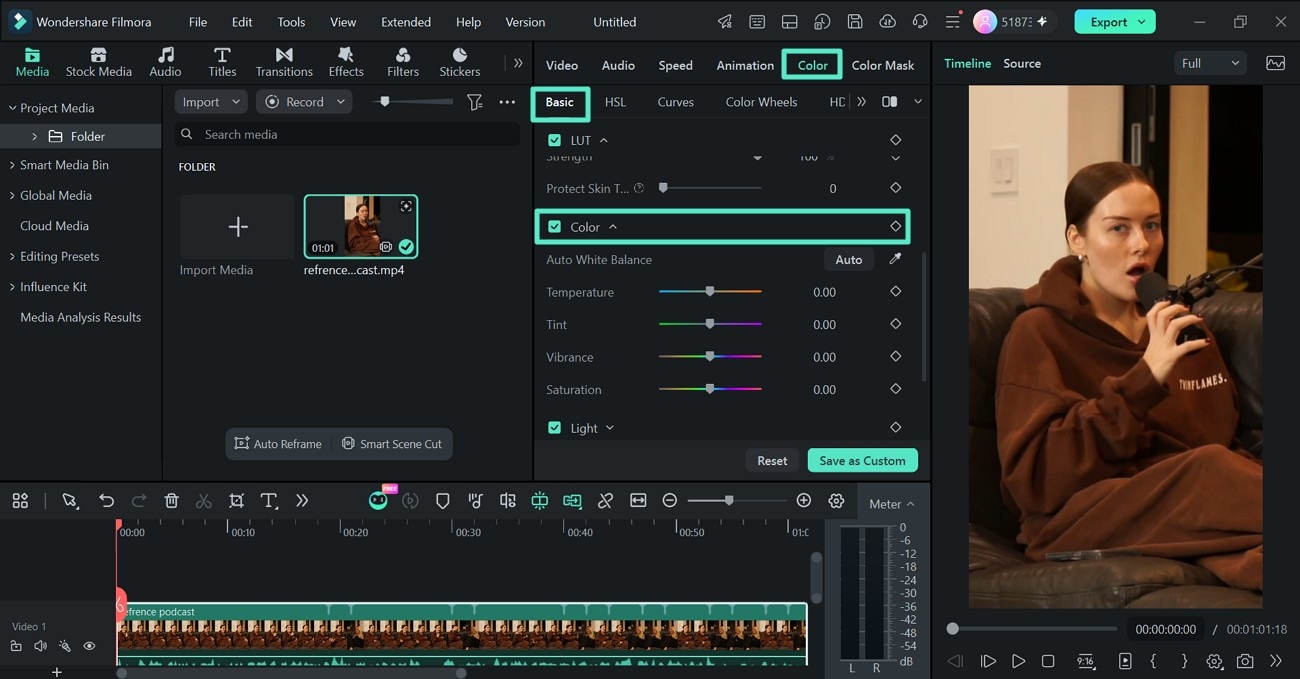
You can use Auto for an automatic adjustment, select a neutral area with the Eyedropper, or manually refine Temperature and Tint.
3. Adjust Exposure and Lighting
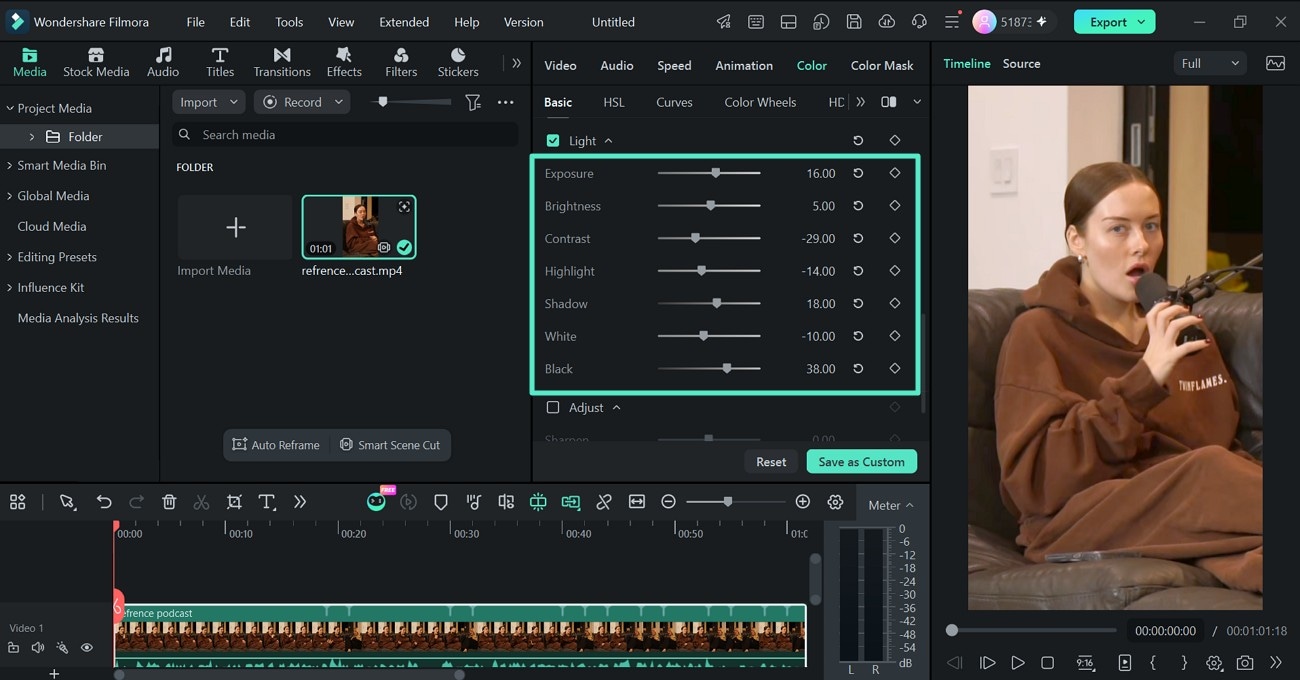
Open Color > Basic > Light when your footage appears too bright, dark, flat, or uneven.
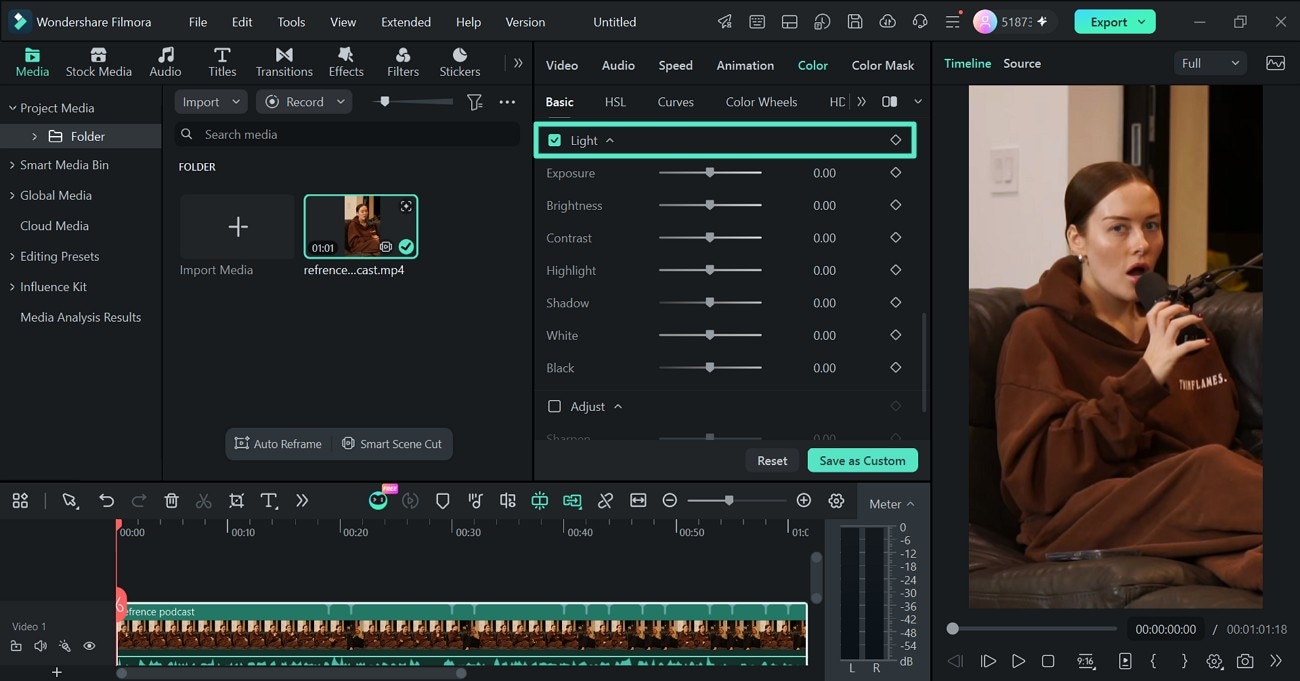
Filmora provides controls for Exposure, Brightness, Contrast, Highlight, and Shadow. Use these together to refine the overall light level and preserve detail across brighter and darker areas. :chatgpt-content-reference{index="4"}
4. Sharpen Video Details
Go to Color > Basic > Adjust and enable the section to access Sharpen.
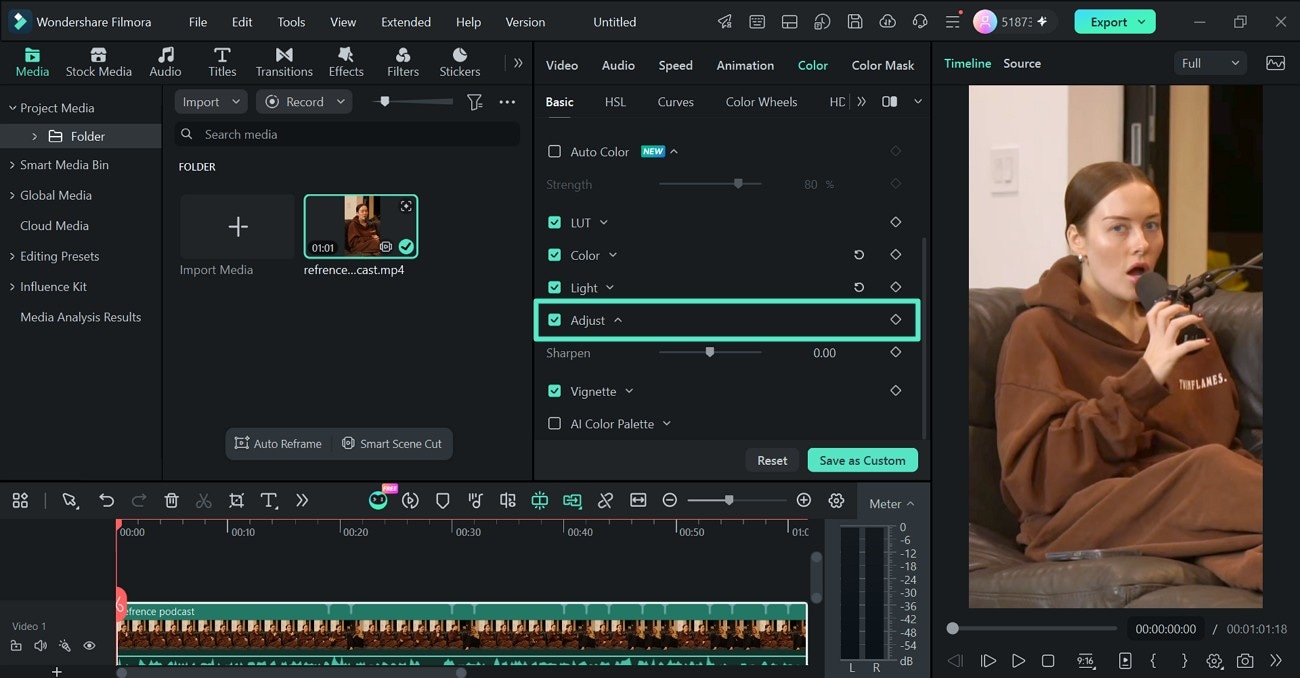
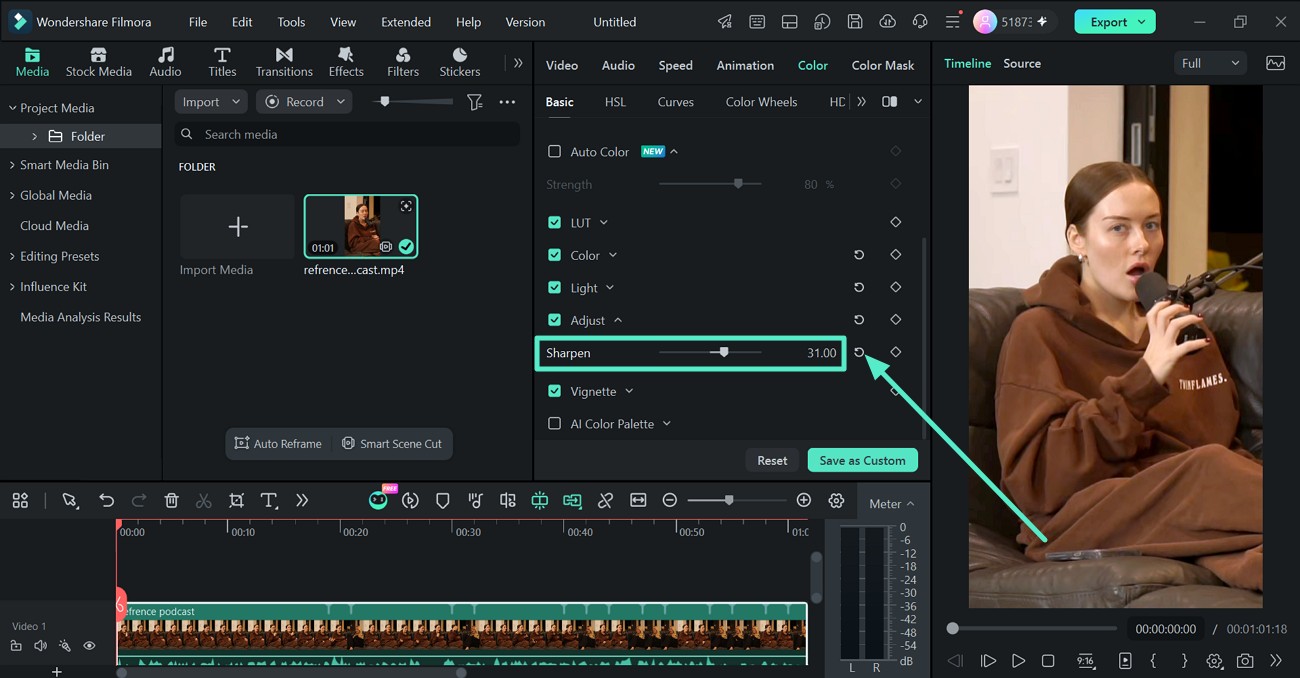
Move the Sharpen slider while monitoring the preview. Use the adjustment carefully, since excessive sharpening can make edges look unnatural.
5. Add a Vignette
Open Color > Basic > Vignette to adjust the appearance around the edges of the frame.
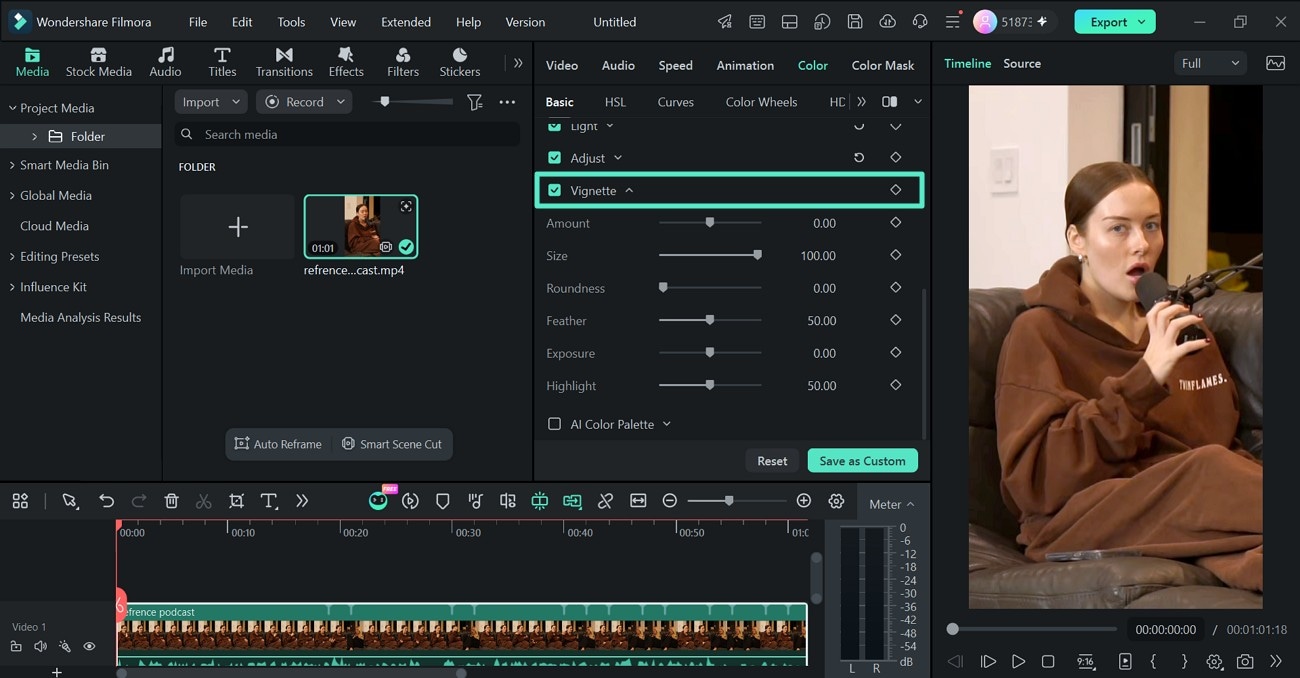
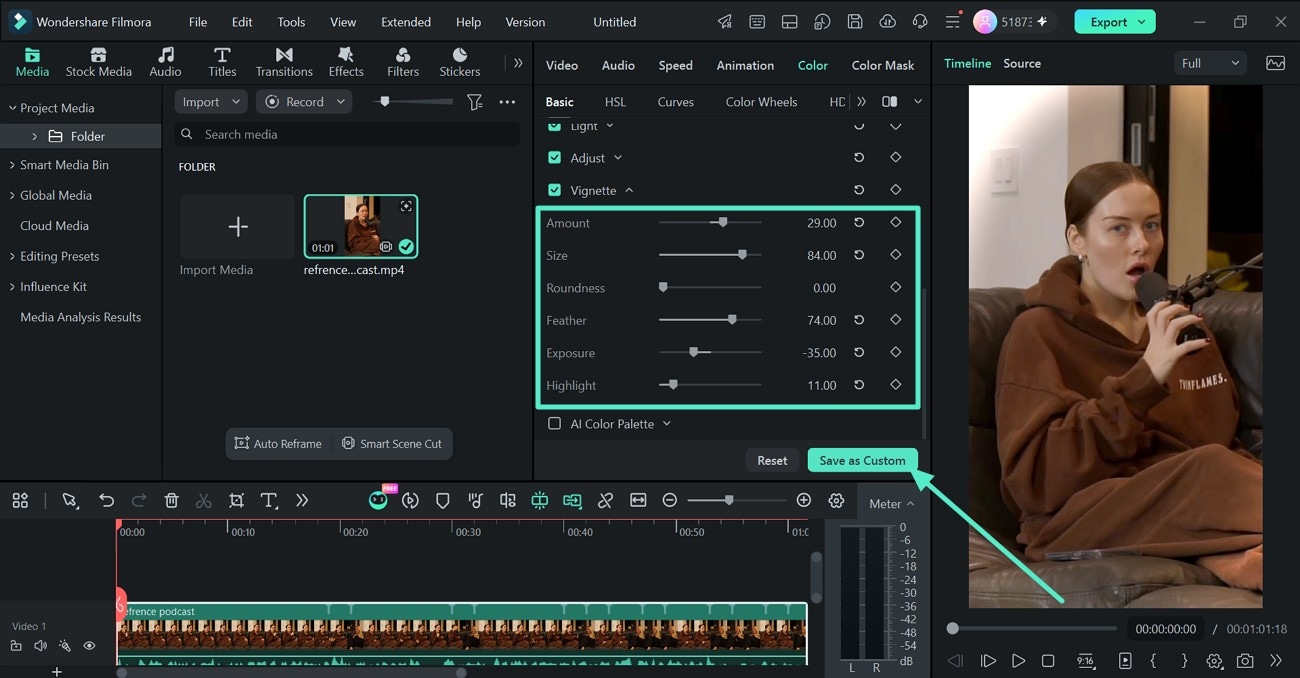
Refine the vignette while checking the preview. A subtle vignette can help direct the viewer's attention toward the central subject.
6. Use Auto Color for Faster Correction
If you want a faster starting point, enable Auto Color under Color > Basic. Filmora automatically adjusts the overall appearance of the footage, and you can control the result with Strength. :chatgpt-content-reference{index="5"}
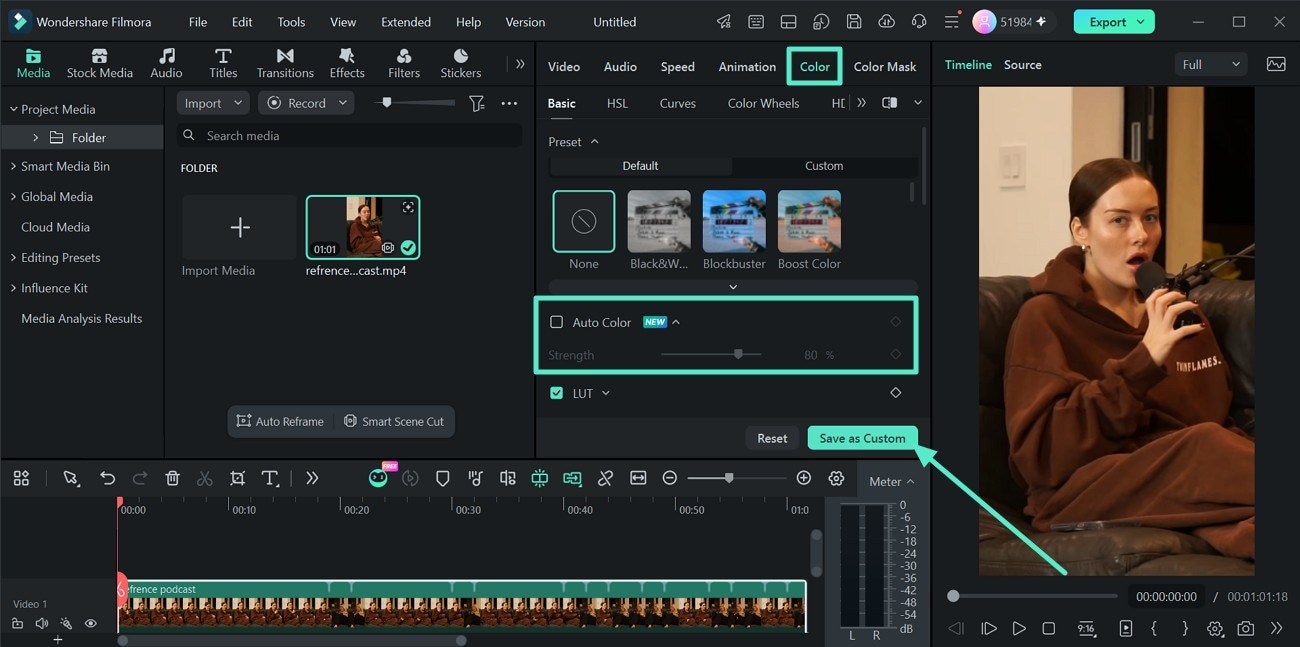
Preview the result and continue refining it with the other Basic controls if necessary. Once satisfied, export the finished video.
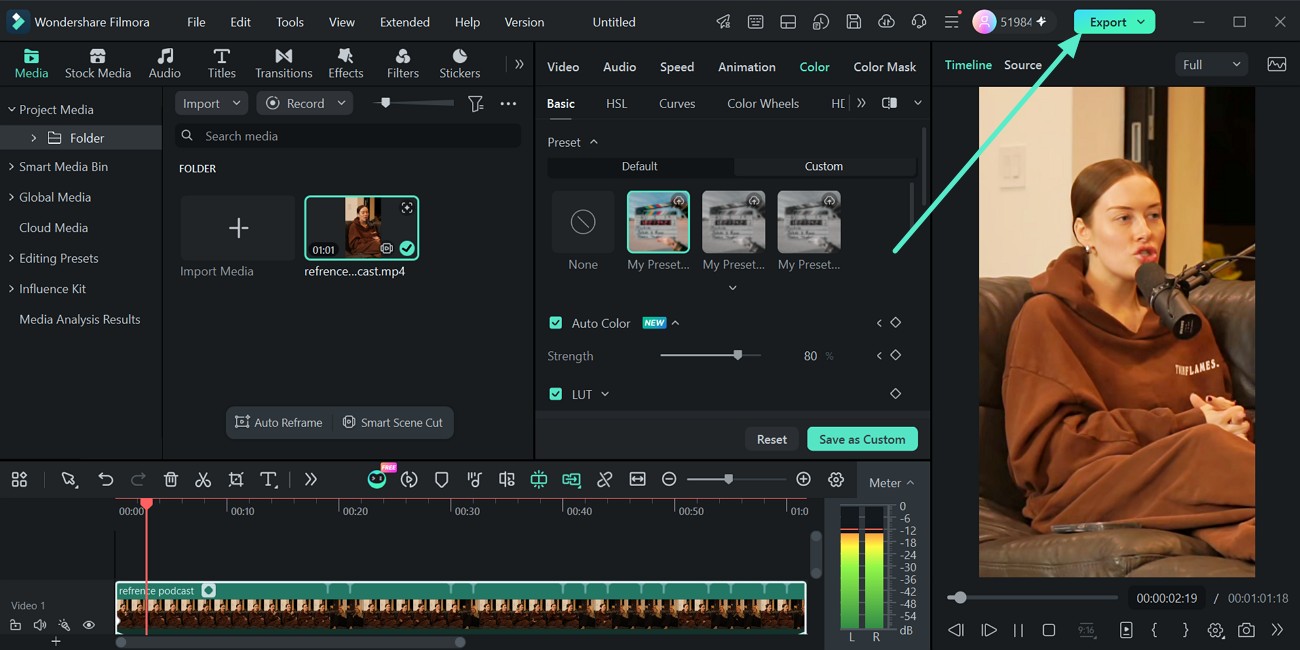
For the complete current workflow, see the Filmora Color Adjustment Guide for Windows or Color Adjustment Guide for Mac.
Part 6. How to Color Grade in Filmora
After the footage is technically balanced, move into the more creative grading controls.
HSL
Use HSL to adjust the Hue, Saturation, and Luminance of individual color ranges. This is useful when one color needs refinement without affecting the entire image. :chatgpt-content-reference{index="6"}
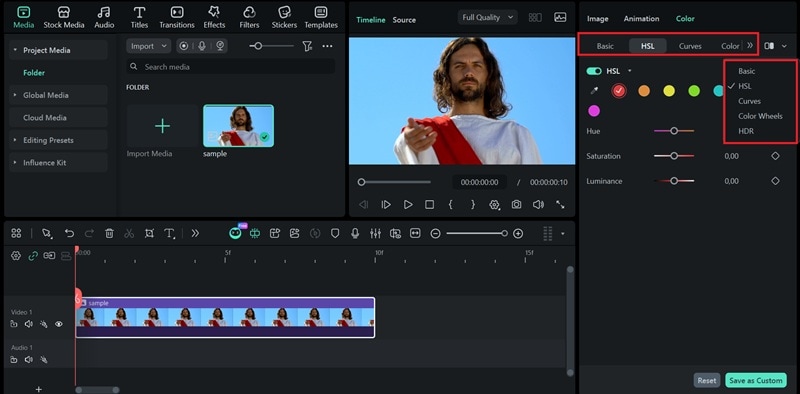
Curves
Use Curves to refine tonal contrast and individual color channels. Filmora provides Y, R, G, and B curves, along with additional color curve controls for more detailed grading. :chatgpt-content-reference{index="7"}
Color Wheels
Use Color Wheels when you want separate control over Shadows, Midtones, and Highlights. This is particularly useful for creative color styling and balancing different tonal regions. :chatgpt-content-reference{index="8"}
AI Color Palette
If you already have a reference shot or image whose color style you want to reproduce, use AI Color Palette.
The former Color Match feature has been upgraded to AI Color Palette. It analyzes a reference image or video and applies a similar palette to the selected footage, which can help create more consistent color between different shots. :chatgpt-content-reference{index="9"}
Other Finishing Tools
- Filters: Apply ready-made visual treatments as a creative starting point.
- AI Relight: Refine lighting when the issue is related to scene illumination rather than only color.
- AI Video Enhancer: Improve overall visual clarity when image quality itself needs enhancement.
FAQs About Color Correction and Color Grading
FAQs on Color Correction and Color Grading
-
Can I skip color correction?
You can skip it when footage is already well-exposed, correctly white-balanced, and consistent across shots. However, correction is generally recommended before creative grading because grading can amplify existing exposure or color problems.
-
What is the main difference between color correction and color grading?
Color correction fixes technical problems such as exposure, white balance, contrast, and color consistency. Color grading comes afterward and creates the intended visual style, mood, or atmosphere.
-
Does Filmora have automatic color correction?
Yes. Filmora includes Auto Color under Color > Basic. It automatically adjusts the overall appearance of the footage, and you can control the intensity with the Strength slider before refining the result manually.
-
How do I fix white balance in Filmora?
Go to Color > Basic > Color. You can use Auto, select a neutral reference with the Eyedropper, or manually adjust Temperature and Tint.
-
Can Filmora import custom LUTs?
Yes. Open Color > Basic > LUT and choose Load new LUT.... You can then use Strength to control how strongly the LUT affects your footage.
-
What is the difference between Auto Color and AI Color Palette?
Auto Color automatically balances the selected footage. AI Color Palette uses another image or video as a reference and applies a similar color palette to the target clip.
-
Should I color correct or color grade first?
Color correction usually comes first. Once exposure, white balance, and overall color balance are under control, color grading can be used to build the final creative look.
-
Does color correction vs. color grading apply to photos too?
Yes. The same distinction also applies to photography and other visual media: correction focuses on technical balance, while grading or creative color treatment focuses on style and mood.
Conclusion
Color correction and color grading are complementary stages of video editing. Correction creates a balanced technical foundation by fixing white balance, exposure, contrast, and other color issues. Grading then builds the creative look through HSL, Curves, Color Wheels, LUTs, and other stylistic adjustments.
Filmora's current Basic Color workflow makes that sequence easier to follow: use LUT, Color, Light, Sharpen, Vignette, or Auto Color to establish the foundation, then move into advanced grading controls when you need more creative precision.
