

 TL;DR:
TikTok enables users to alter their original audio or voiceovers by applying built-in voice filters and AI Text-to-Speech narration directly through the app's preview screen or video editor.
● TikTok strictly limits users to one voice effect per clip; applying multiple distinct effects to different segments of a single audio track requires an external editor like Filmora Mobile.
● If the Voice Effects option is missing, it is typically caused by an outdated app version, active VPNs blocking regional rollouts, or format incompatibilities with externally imported video files.
● Voice effects can degrade overall sound quality through distortion and app compression, but they remain fully reversible by reopening an unposted draft and selecting "None" to remove the filter.
Ask AI for a summary
 ChatGPT
 Perplexity
 Gemini
 Claude
 Grok
Grok
Want to make your TikTok videos stand out? Learning how to add voice effects on TikTok is the secret to boosting engagement. Whether you want to use the classic TikTok voice changer, explore new AI voice filters, or edit a voiceover after recording, we've got you covered. This 2026 guide covers basic, advanced, and AI methods to transform your audio instantly.
Part 1. Basic Method: Add Voice Effects from the Preview Screen
If you want a fast way to learn how to add voice effects on TikTok, start with the preview screen. You record your clip first, then apply voice effects from the preview screen before posting. This method works for both your original sound and any voice over you add.

How to Add Voice Effects from the Preview Screen
Follow the steps below to learn how to add a mic effect on TikTok and change how your recorded voice sounds:
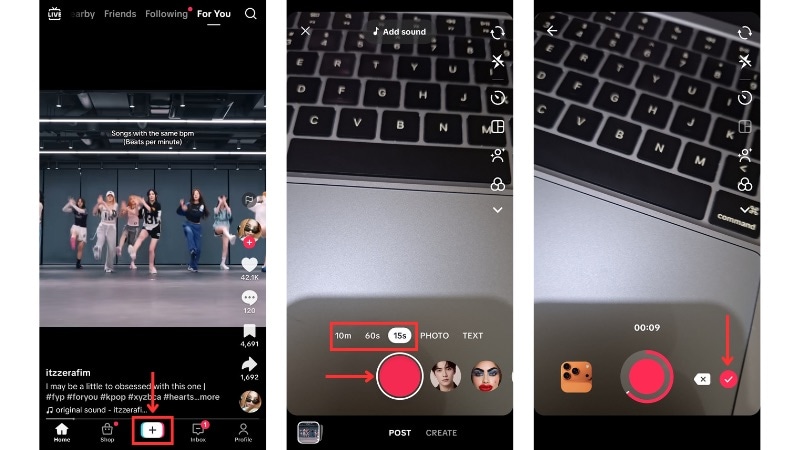
Launch the TikTok app and tap the Plus (+) button. Record your video as usual, then tap the Checkmark icon to move to the preview screen.
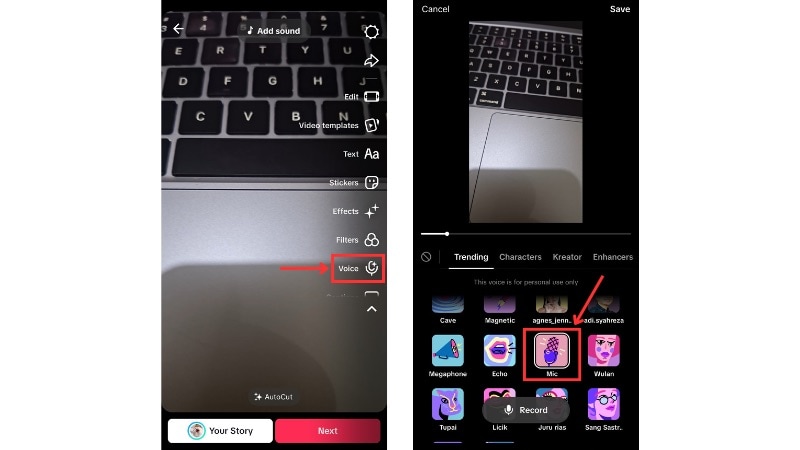
On the right-side toolbar, tap on the Voice tool. A list of built-in voice effects will appear at the bottom of the screen.
Tap each effect to hear how it changes your audio. For this example, select the Mic option. TikTok will apply the effect to your original sound.
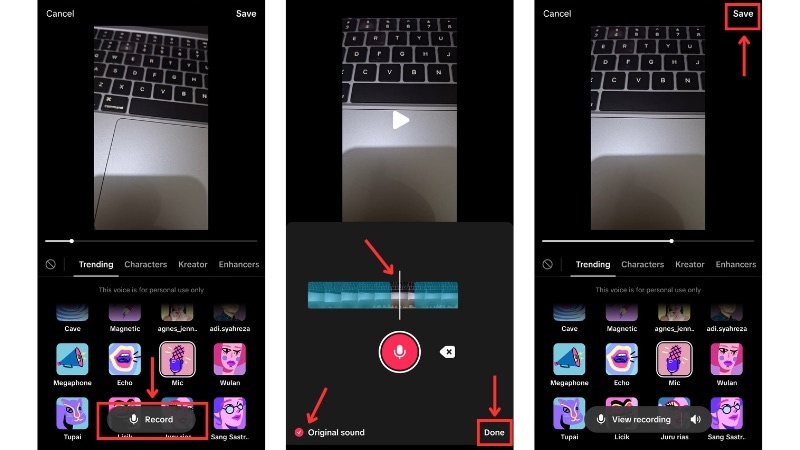
If you want to add a voice over with the effect applied, tap on the Record button to open the voice recording screen.
- Press the Record button to start your voice-over and tap it again to pause. You can skip parts by moving the playhead on the timeline.
- Turn off the "Original Sound" option if you don't want the voice effect to apply to your recorded clip.
Tap Play to preview how it sounds, then tap Done to confirm. Once you return to the Voice Effects menu, tap Save to keep your edits.
Part 2. Advanced Method: Add or Change Voice Effects in the TikTok Editor
TikTok also has a built-in video editor where you get more control over your audio. This method shows how to add a voice filter on TikTok from the full editing page. Here, you can apply voice effects, fix audio timing, and refine your video.
This approach works well when you already have footage on your phone and want to change how your voice sounds without recording again.
Step-by-Step: How to Add Voice Effect in the TikTok Editor
Follow the instructions below to learn how to add voice effects on TikTok after recording using TikTok's video editor:
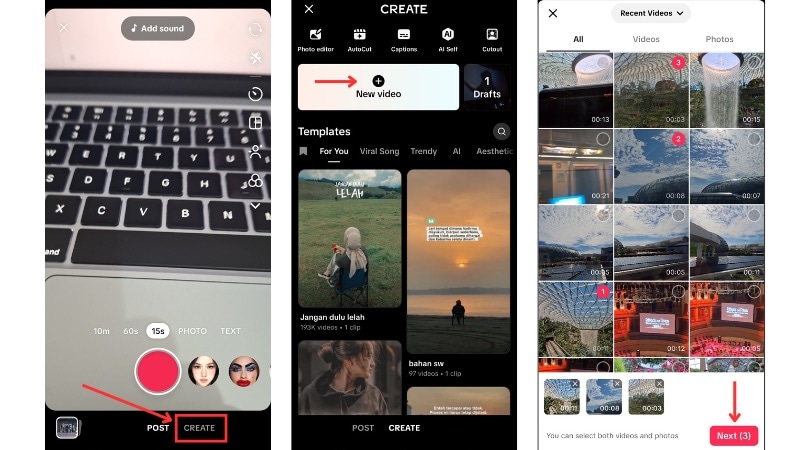
- Tap on the Plus (+) button on Tiktok, and go to the Create menu.
- Tap on New Video to start creating a new video, and select one or more video clips from your phone.
- Tap Next to enter the editing page.
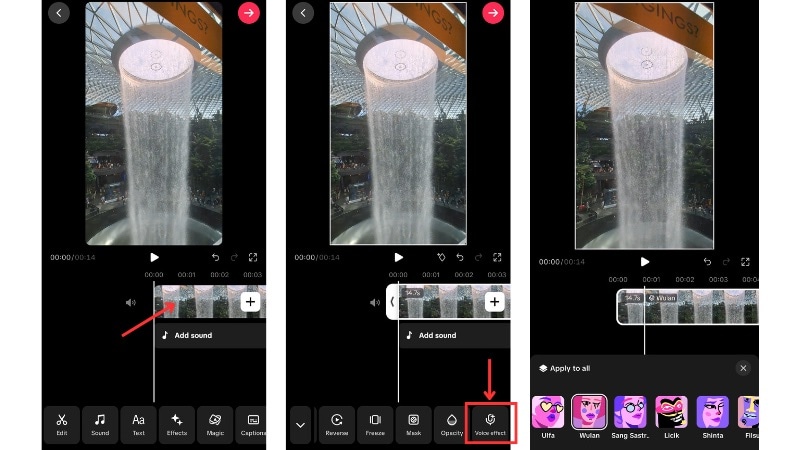
On the editing page, tap the clip on the timeline. Then, swipe the toolbar until you find Voice Effects. Tap any voice effect to preview how it changes your voice.
Once you pick an effect, close the panel to keep it on your clip.
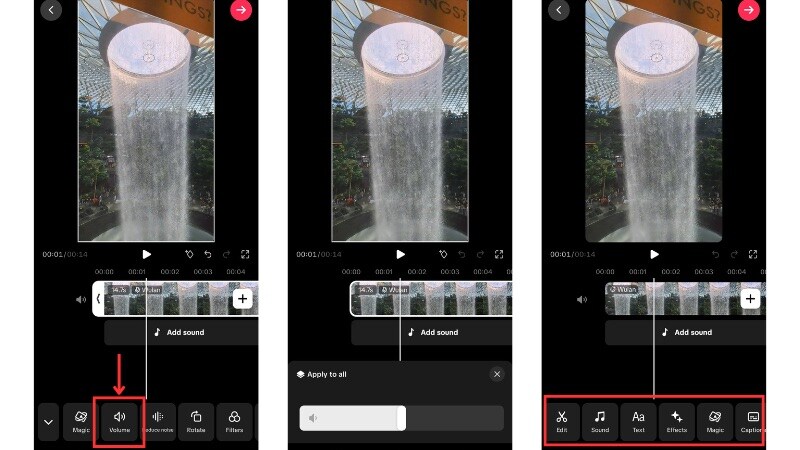
Go to the Volume tool and adjust the slider to balance your voice. You can also use TikTok's editor tools to keep refining your video.
Part 3. The AI Revolution: Using Text-to-Speech (TTS) Filters
If you don't want to record your own voice, you can use TikTok's Text-to-Speech feature. It lets you turn a text script into spoken audio using an AI voice. These AI voices work well for storytelling clips, product videos, and tutorials where you want a clean and steady narration.
Step-by-Step: How to Use AI Text-to-Speech on TikTok
Follow the steps below to learn how to add a voice changer on TikTok using its Text to Speech feature:
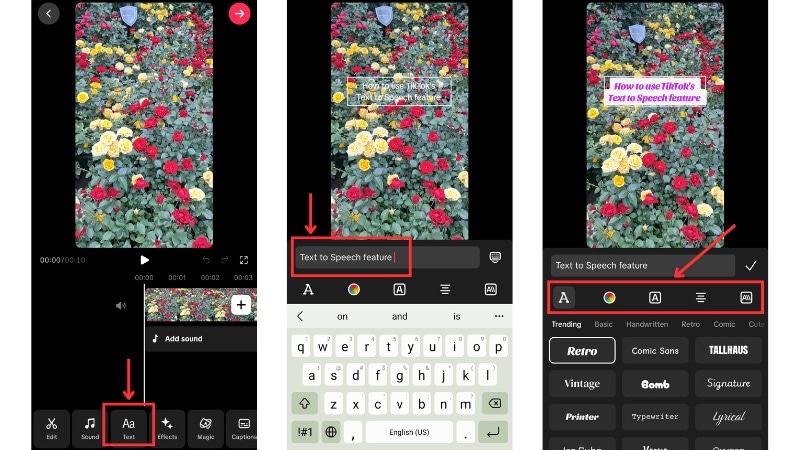
Record a new clip or upload a video from your phone. Tap Next to reach the editing page.
Tap Text and type the words you want TikTok to speak. Resize or move the text box to place it where you want on the screen. Tap on the Checkmark icon to save the edits.
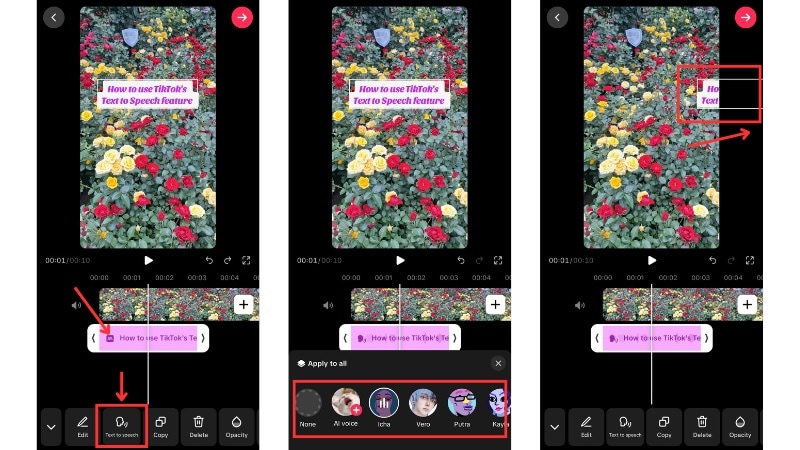
Tap on the Text track you just added in the timeline, and go to Text to Speech. Pick the one that fits your content.
Drag the text box on the timeline to match when the voice should start and end.
Part 4. Beyond TikTok: Using Filmora for Pro Voice Effects
You now know how to add voice effects on TikTok using basic, advanced, and AI methods. TikTok's built-in voice tools work well for quick edits, but they have limits when creators need more control.
 Secure Download
While TikTok's native tools are great for quick edits, they often limit your creativity. For instance, you can't easily apply different effects to specific parts of a single clip. Filmora for Mobile breaks these boundaries, offering a professional AI Voice Changer and multi-track audio editing that TikTok lacks. It's the best way to get high-quality, customized audio for your viral content.
Step-by-Step: Add Voice Effects to Videos with Filmora Mobile
This workflow shows how to prepare your voice effects in Filmora before uploading the video to TikTok. Install Filmora Mobile from the App Store or Google Play and follow the steps below.
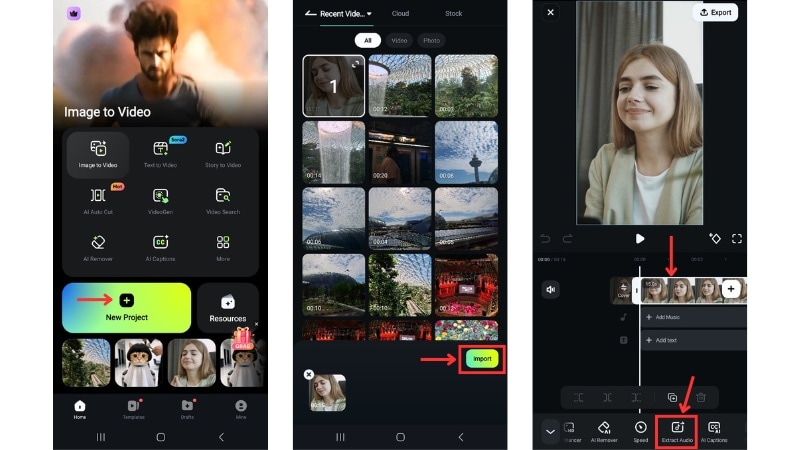
Open the app and start a New Project. Select the video you want to edit and tap Import.
Tap the video clip on the timeline, and use the Extract Audio option to split the audio into its own track. This gives you more control over your voice without changing the video.
Tap the audio track on the timeline and open the Voice Effect tool. Select any voice style and tap the Checkmark icon to save the selection.
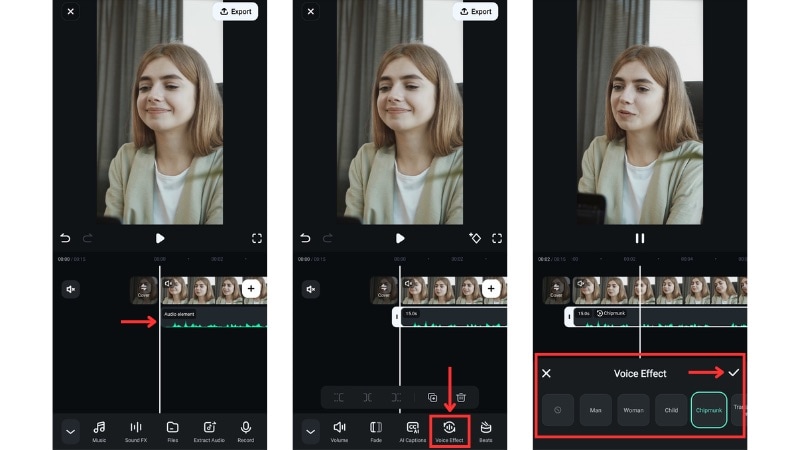
Note: You can split the audio track to apply a voice effect to only part of the clip. This approach also lets you use one voice style for one scene and switch to a different style in the next.
Step-by-Step: Add AI Voice with Text-to-Speech in Filmora Mobile
If you don't want to record your own voice, Filmora Mobile also includes a Text to Speech tool.
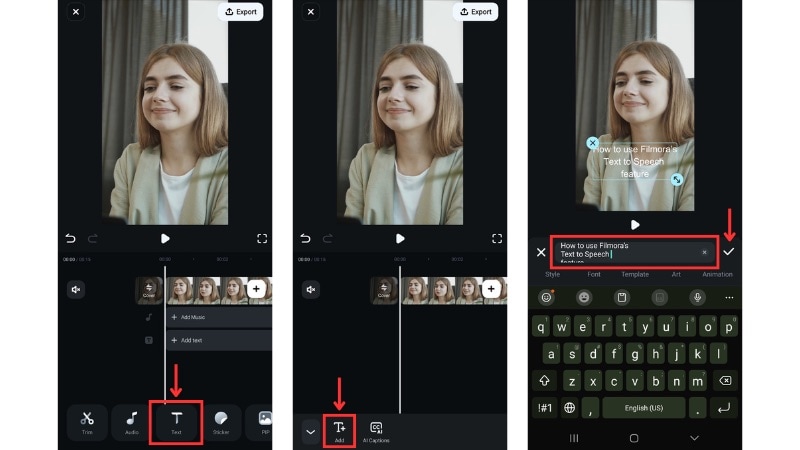
Go to Text > Add menu, and type the script you want the AI voice to read. Adjust the font style, size, or position and tap the Checkmark icon to save your edit.
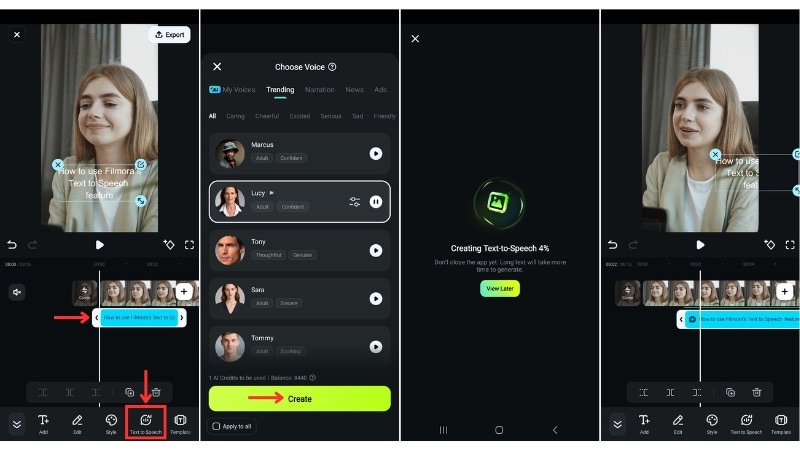
Tap the text box on the timeline. From the toolbar, choose Text to Speech to open the AI voice options. Select one, and tap Create to create spoken audio from your text.
Move the text box or audio track along the timeline to set when the voice begins and stops. If you only need the audio, place the text box outside the frame.
Part 5. Troubleshooting: Why Can't I Get Voice Effects on TikTok? (4 Quick Fixes)
Are you following the steps for how to add voice effects on TikTok, but can't find the feature? The issue may come from app version limits, account settings, or regional rollouts. TikTok releases tools in stages, so not every user sees the same features at the same time.

Check out the most common causes and what usually fixes them:
- Your TikTok App Version is Outdated: Update TikTok to the latest version. Many missing-feature issues come from older builds that don't include the newest voice tools.
- Your Region or Account Doesn't Support Voice Effects Yet: TikTok rolls out features in phases, and some accounts get them later. If you use a VPN, turn it off since it can affect what features appear.
- TikTok Doesn't Support Voice Effects on This Clip: The Voice Effects option may not show in some imported videos or older drafts due to file format limits or app glitches. Try recording a new clip inside TikTok to check if the feature appears. If it does, the issue comes from the original file.
- Cache Issues are Blocking the Feature: Corrupted app files or cached data can stop tools from loading. Clear TikTok's cache, then reopen the app. If the tool still doesn't show, reinstall TikTok to reset the app files.
Conclusion
This guide has shown you how to add voice effects on TikTok using its preview screen, built-in editor, and the AI tool. These options work for both original audio and voice overs, whether you record inside the app or upload clips from your phone.
Adding voice effects in TikTok works well for quick edits, but it has limits when you need more audio control. Filmora Mobile can help prepare voice effects before uploading to TikTok. Follow our guide on how to put a voice effect on TikTok today and test which method fits your content best.

FAQ
-
Can I use more than one voice effect in the same TikTok video?
TikTok only applies one voice effect per clip. If you want different effects in different parts, you need to split your video into separate clips and apply a different effect to each section. External editors like Filmora Mobile also support this workflow.
-
Do voice effects change the sound quality of my video?
Yes. Some voice effects can reduce clarity or add distortion, depending on the filter. TikTok also compresses audio during export, which may affect sound quality further. For cleaner results, keep the original volume balanced and avoid stacking heavy effects.
-
Can I remove or change a voice effect after saving a draft?
Yes. Open your draft, go to the preview screen or editor, and tap the Voice Effects tool again. Select a new effect or choose "None" to remove the existing one before posting.
