

 TL;DR:
Wondershare Filmora is the most effective AI video restoration software because it natively integrates the Topaz Starlight SLF 1 upscaling model into a full non-linear editing workflow, whereas Topaz Video AI is the optimal standalone choice for pure detail recovery and AVCLabs is best for beginners seeking automated one-click enhancements.
● Filmora's local AI processing requires an NVIDIA RTX 30 series GPU or higher, and its Topaz generation feature is strictly limited to one minute of video at 60 frames per second per session using a credit system.
● Topaz Video AI operates solely as a resolution upscaler without any built-in editing functionality and demands high-end local hardware to prevent severe rendering delays.
● UniFab provides the most viable alternative for users with weaker computers by offering FabCloud support for remote processing alongside specialized AI models categorized specifically for animation and vintage television recordings.
Ask AI for a summary
 ChatGPT
 Perplexity
 Gemini
 Claude
 Grok
Grok
Old videos carry memories, but low resolution, noise, blur, and faded colors often ruin the experience. But thanks to AI video restoration, you can finally restore old videos, clean up damaged footage, and even upscale old videos without advanced editing skills.
And to help you better understand the concept, we will walk you through the best AI video restoration software available today. You'll get clear recommendations, a side-by-side comparison, and a simple breakdown of how to restore old video using AI, step-by-step.
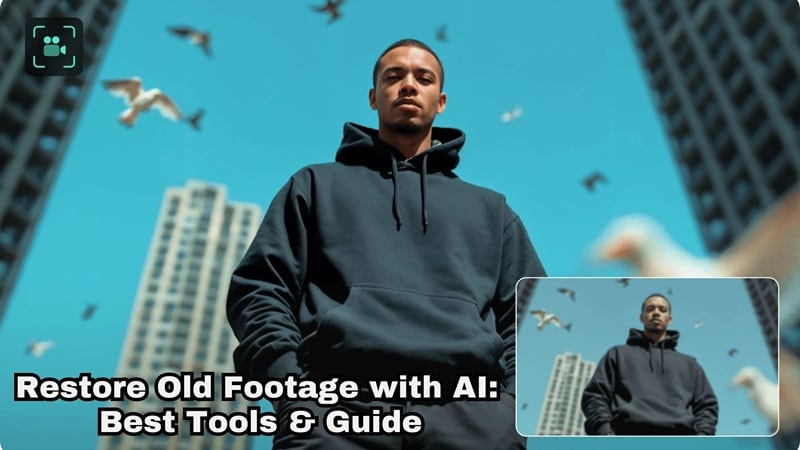
Our Top 3 Picks of the Best AI Video Restoration
We tested seven different tools for AI video restoration and spent time with real old footage, not just clean demo clips. Out of everything we tried, these three stood out the most in their own ways:



How We Tested These AI Video Restoration Tools
The AI video restoration tools we recommend here earned their spot through real use, not by looking good on a feature page. Each tool was tested on how it handles real old footage, including VHS rips, low-bitrate clips, and blurry home videos.
- AI upscaling quality: How natural the video looks after upscaling and whether details feel rebuilt instead of sharpened too hard.
- Detail recovery: How well edges hold up, textures come back, and motion stays smooth without weird artifacts.
- Noise and artifact removal: How clean the footage looks after removing grain, blocky compression, and visual noise.
- Workflow efficiency: How fast the tool works and how easy it feels to get from import to export.
- Editing flexibility: Whether you can fine-tune results or adjust things manually when needed.
Part 1. Full List: Top 7 AI Video Restoration Software with Reviews
The criteria we talked about above help make sure this list only includes tools that actually deliver when it comes to AI video restoration. But before diving into individual reviews, let's take a quick comparison first so you can easily see how these tools differ and which one might fit your needs best.
AI Video Restoration Comparison Chart
| Tool Name | AI Upscaling Quality | Detail Recovery | Editing Included | Rating |
| Filmora | Very high | Strong and natural | Yes full editor | 4.7 / 5 |
| Topaz | Very high | Excellent | No | 4.5 / 5 |
| UniFab | High | Good | No | 4 |
| VidHex | Medium to high | Moderate | No | 4 |
| AVCLabs | High | Good | Limited | 4.5 / 5 |
| Audials One | Medium | Moderate | No | 4 |
| HitPaw VikPea | Medium | Moderate | No | 4 |
|
Show More
Show Less
|
||||
1. Wondershare Filmora: All-in-one NLE with Topaz AI Upscaling

If you're looking for the easiest and most complete AI restore old video workflow, then look no further than Wondershare Filmora. This AI video editor has an AI Video Enhancer that is now also powered by the Topaz Starlight AI model. This helps improve clarity, reduce blur, and upscale old footage while keeping the results looking natural. Even low-quality or damaged videos can look cleaner and more watchable after processing.
- The AI Video Enhancer improves resolution and helps rebuild lost details, powered by the Topaz Starlight model.
- The AI Video Denoiser removes grain and compression noise while keeping motion smooth.
- Local AI processing is supported on computers with an NVIDIA RTX 30 series GPU or higher.
- A full non-linear video editor is included for trimming, color correction, stabilization, and audio editing.
- Supports formats such as MP4, MKV, AVI, WebM, GoPro Cineform, JPG, PNG, and GIF.
- Choose between a standard AI enhancer or Topaz Starlight model.
- Restoration and editing are done in one tool.
- Footage can be upscaled to 1080p or 4K.
- The Topaz model delivers better detail recovery and noise control than basic upscaling.
- Topaz AI processing is limited to one minute of video at 60 frames per second per session.
- Requires credits to enhance videos with AI
Windows and macOS.
Ideal for restoring old home videos, fixing blurry social media clips, and improving low light recordings using video restoration AI without complex settings.

2. Topaz Video Upscale AI

If your main goal is pure AI video restoration quality, Topaz Video Upscale AI is also available as a standalone tool. The highlight of this tool is Project Starlight, a diffusion-based AI model built specifically for video. It looks at many surrounding frames at once, not just a single frame, which helps keep motion smooth and consistent.
- Upscales video resolution, such as from 1080p to 4K or higher.
- The AI understands objects and motion, which helps the results look more realistic.
- Reduce pixelation, blur, and noise in low-quality footage.
- Make movement look smoother with smart frame interpolation.
- Different modes are available, such as Film & TV, Sports, Gaming, Old Video, Art & CG, or Standard.
- You can preview the results before committing to a full render.
- You need a strong GPU for faster processing, and weaker systems can feel slow.
- There are no built-in editing tools since it focuses only on AI restore old video tasks.
Windows, macOS, and online (via Astra).
A good fit for YouTube videos, social media clips, and viewing on larger screens.
3. UniFab Video Upscaler AI
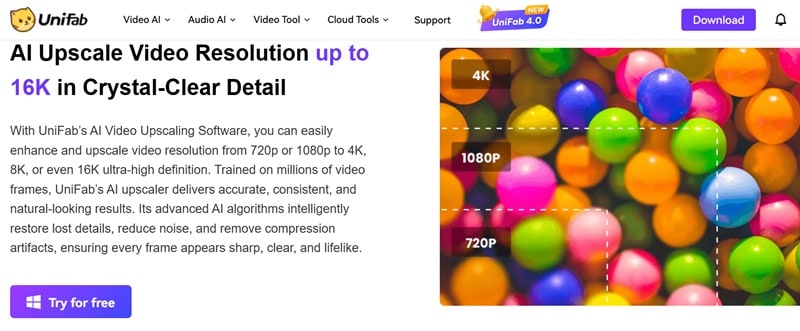
UniFab is another solid option if you want AI video restoration that leans more toward smart upscaling and cleanup. What makes UniFab interesting is how it separates its AI models based on the type of video you are working with. Instead of using one approach for everything, it lets you choose a model that fits your footage better, whether that is old family videos, TV recordings, or animation.
- The Equinox model works well for low-resolution old movies, TV recordings, and home videos.
- The Kairo model is designed specifically for animated and cartoon style content.
- Vellum and Titanus models are built for movies, TV series, and cinematic footage.
- FabCloud support allows cloud-based video enhancement without relying on local hardware.
- Multiple AI models are available for different video types.
- It can colorize black-and-white footage automatically.
- The demo trial on the website often fails or times out.
- Cloud processing can take longer during busy hours.
Windows, macOS, and Online.
Works well for restoring old movies, recorded TV shows, and personal home videos that need higher resolution and basic cleanup.
4. VidHex
There's also VidHex, which may seem simple at first glance, but it actually gives you several useful options for restoring old videos. It is mainly built for upscaling, making it easy to turn low-resolution footage into 2160p or higher. Everything is designed to feel quick and straightforward, so you can get results without much setup.
- Video enhancer that improves overall clarity and sharpness.
- Video restorer that helps clean up older and compressed footage.
- Frame interpolation for smoother motion and playback.
- Color enhancement model to improve faded or dull colors.
- Offers several AI video restoration tools in one place, which is helpful if you want quick results.
- The interface is simple and easy to understand, even for first-time users.
- There is limited control over detailed quality settings during restoration.
- Free users can only preview a few seconds of the result, which makes full testing difficult.
Windows and macOS.
Ideal for upscaling old home videos or low-resolution clips when you want fast video restoration AI results and do not need deep manual control.
5. AVCLabs Video Enhancer AI
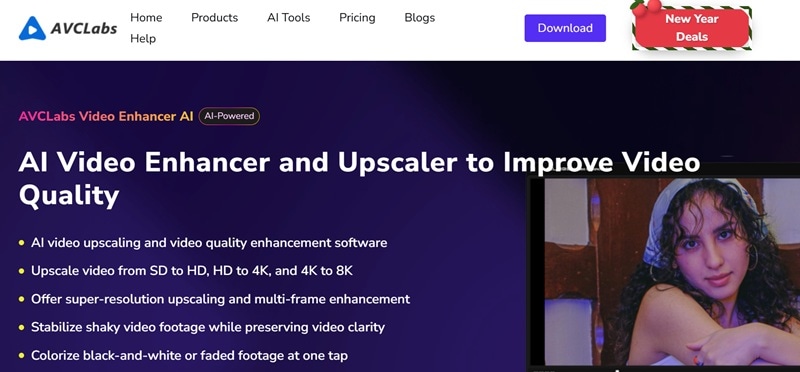
If you want a fast and simple way to handle AI video restoration, AVCLabs is worth a look. It is built for quick cleanup and upscaling, so you can restore old videos without spending much time adjusting settings. Most of the work happens in a single click, and it does a solid job improving clarity and even sharpening facial details in blurry clips.
- Upscales video from SD to HD, HD to 4K, and up to 8K.
- Colorizes black and white or faded footage with one tap.
- Works well with Apple M series, NVIDIA, AMD, and Intel graphics cards.
- Supports common formats like MP4, AVI, and MOV.
- Offers multiple AI modes such as Ultra, Standard, Anime, Denoise, and Colorize.
- Supports batch processing for multiple videos at once.
- The online version requires creating an account before use.
- Processing speed can drop on lower-end systems.
Windows, macOS, and online.
Works best for restoring old home videos, cleaning up smartphone footage, and improving gaming clips.
6. Audials One
Audials One is a bit of a surprise, since most people know it for streaming and media capture, but it also includes a solid video restoration AI feature. With the Premium version, you can AI restore old video by adding back missing details and boosting resolution up to 4K. You just need to load your video, pick a few settings, and let the AI handle the rest without much tweaking.
- Frame rate interpolation supports up to 120 FPS to reduce stutter and motion blur.
- Slow motion options let you play clips at 50 percent, 30 percent, 20 percent, or even 10 percent speed.
- Playback speed can also be increased up to 200 percent when needed.
- Preview mode shows before and after results right away, including HDR changes.
- Comes with multiple AI models tuned for different types of videos.
- Includes an AI music upscaler for improving audio quality in older media.
- Limited compatibility since it only runs on Windows.
- AI features require a paid plan and the free trial is limited to 14 days.
Windows and online.
Works well for restoring digitized VHS tapes, old phone recordings, vintage films, TV series, and short clips made for social media.
7. HitPaw VikPea
Even though it comes last on our list, HitPaw VikPea still holds its own when it comes to restoring old videos. Its AI video enhancer tool, along with the General Denoise Model does a good job cleaning up footage, and its AI models are designed to enhance old or damaged videos in a way that feels natural, especially for softer or stylized content.
- Improves overall video quality and gently enhances facial details.
- Lets you choose an AI model based on the type of video for better repair results.
- Gives control over resolution, bitrate, and output format.
- Preview options let you see the results before exporting the final video.
- Can add natural-looking color to grayscale or faded footage.
- Supports batch processing in the desktop version.
- Full features are locked behind the paid version.
- Manual fine-tuning is limited for advanced users.
Windows, macOS, and online.
Perfect for restoring anime clips, animated videos, and casual old footage.
Part 2. How to Restore Old Videos with AI with the Best Tool
Restoring old videos with AI often comes down to a trade-off between quality and workflow.
Some tools deliver impressive enhancement but require complex, multi-step processes. Others are easy to use but fall short in results.
Filmora stands out by combining Topaz-grade enhancement with an all-in-one editing workflow. Powered by the Topaz Starlight SLF 1 model, its AI Video Enhancer improves detail, reduces noise, and refines edges while keeping the entire restoration process simple and editor-friendly.
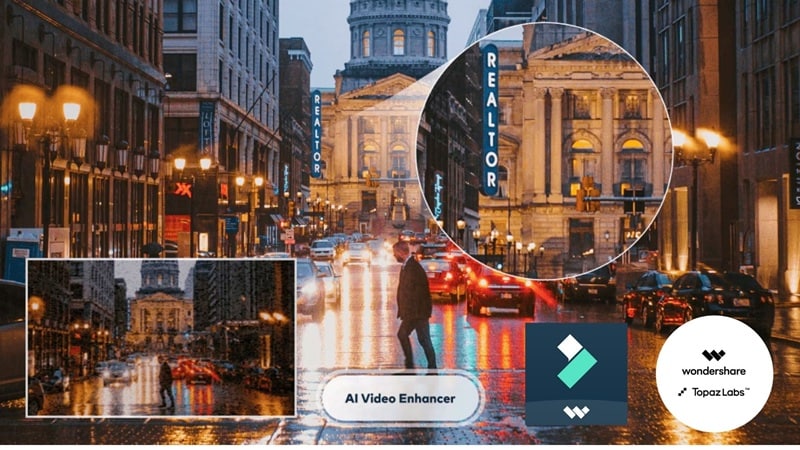
How to Restore Old Videos with Filmora (Topaz Starlight)
Below is a quick walkthrough of how to restore old videos in Filmora, followed by a before-and-after comparison.
 Secure Download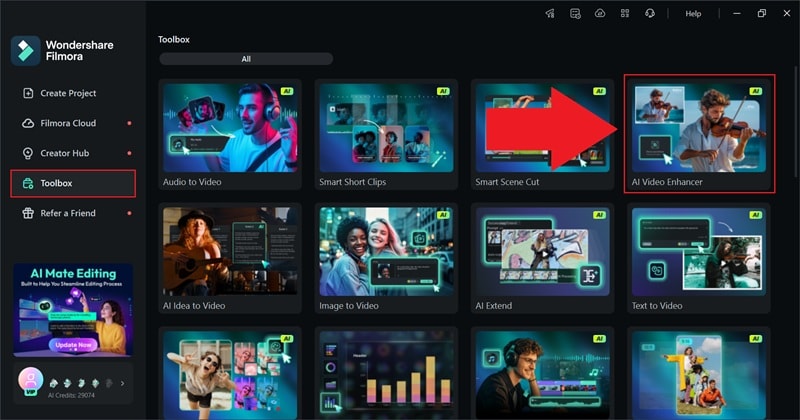
Go to the "Media" tab and click "Import" to upload your video. Drag the uploaded clip onto the timeline and select it to open the "AI Video Enhancer" settings:
- Select "Topaz Starlight" as the enhancement option.
- Click "Generate" and let Filmora process the restoration.
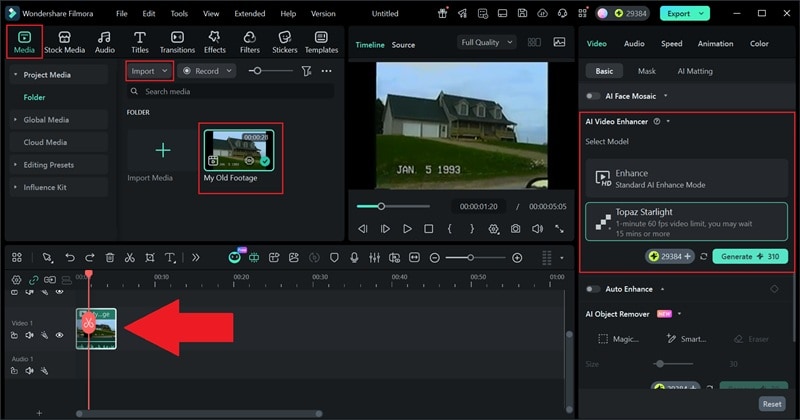
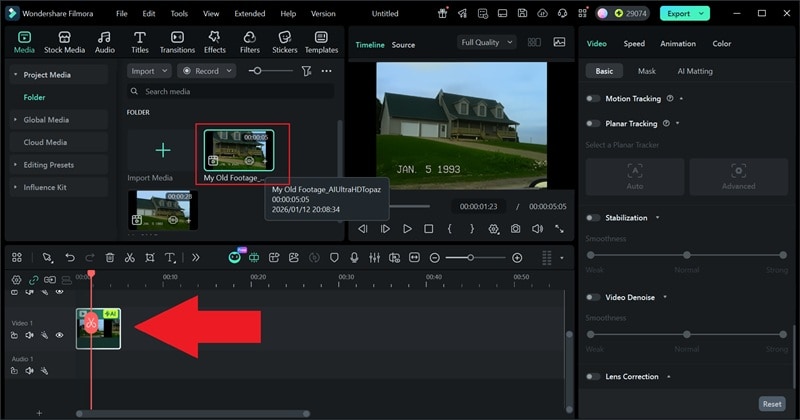
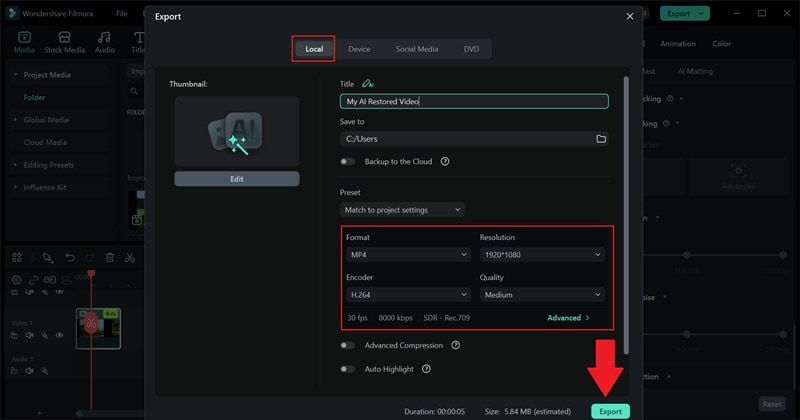
Now, you can restore old videos, even footage dating back to 1993, using Filmora's AI tools. The difference is easy to see, and the restored video looks noticeably cleaner and more watchable. Take a look at the result:
Conclusion
Restoring old videos is getting much easier now thanks to advanced AI video restoration. That is why we rounded up seven of the best AI video restoration software you can try today. Each of these tools can help restore old videos, clean up damage, and even upscale old videos, but one option clearly stands out.
Filmora rises above the rest because of its integration with the Topaz Starlight SLF 1 generative model, which delivers stronger detail recovery, cleaner edges, and better noise control. On top of that, Filmora includes extra AI tools like AI Video Denoise and other smart enhancements, making video restoration AI feel practical instead of complicated.
FAQs on AI Video Restoration
-
Q1. What's the best AI video restoration software for beginners?
For beginners, Filmora is a strong choice because it combines AI video restoration and basic video editing in one interface. You don't need to export files between different apps, and most enhancements work automatically, which makes it easier to get good results on the first try.
-
Q2.How much can AI upscale old videos realistically?
Most AI video restoration software can realistically upscale old videos from SD to 1080p, and in some cases to 4K, depending on the original footage. AI focuses on rebuilding lost detail, reducing noise, and improving clarity, rather than creating perfect new information. The cleaner the source, the better the final result.
-
Q3.Does AI video restoration replace manual editing?
AI video restoration handles the heavy lifting, such as upscaling, noise reduction, and basic cleanup. Manual editing is still useful for fine tuning colors, trimming clips, or adjusting audio. Tools like Filmora make this combination easier by letting you restore and edit videos in the same timeline.
