


 TL;DR:
Cutout Pro Photo Enhancer offers automated, one-click upscaling and noise reduction for quick web image fixes, but creators requiring manual color control or project-based editing should use Wondershare Filmora instead.
● Cutout Pro increases image resolution by up to 200% and targets blur or low-light grain across JPG, PNG, WEBP, and BMP formats, but it does not adjust lighting, and free downloads are strictly capped at a maximum of 750 x 750 pixels.
● Wondershare Filmora provides a broader macOS, Windows, Android, and iOS alternative that maintains original image sizes up to 4K, applying automatic facial refinements alongside manual controls for temperature, tint, contrast, and 3D LUTs.
● Neither AI enhancer is capable of fixing physical damage like scratches on old photos; users dealing with heavily degraded or scratched images must apply separate retouching tools before using resolution-focused enhancers.
Ask AI for a summary
 ChatGPT
 Perplexity
 Gemini
 Claude
 Grok
Grok
Cutout Pro photo enhancer is a quick AI tool that helps improve image quality without making you deal with complicated editing. It is commonly used to sharpen soft details, reduce visible noise, and upscale small images for websites, online stores, and social posts. Many rely on its AI to handle most of the enhancement work and get cleaner results faster.
To see what it can really do, it helps to break down how the tool works, which features matter most, where it performs well, and how it stacks up against other options for photo enhancement and upscaling.
Part 1. How Cutout Pro Photo Enhancer Works
Cutout Pro photo enhancer is built to make image cleanup feel simple. The tool focuses on boosting resolution and sharpness automatically, not on adjusting color, contrast, saturation, or lighting. That makes it a better fit for quick detail improvement than for full photo retouching.
Part 2. Key Features of Cutout Pro Image Enhancer
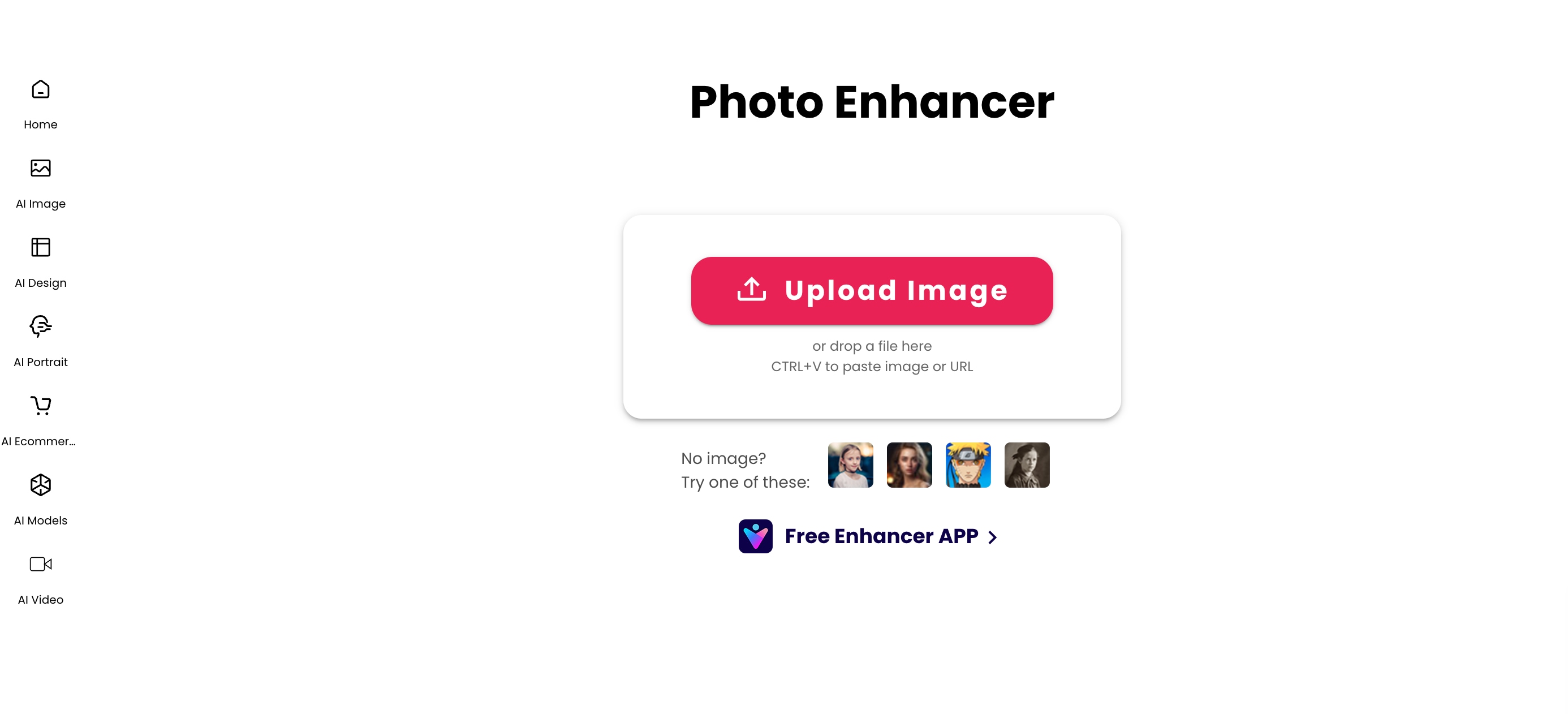
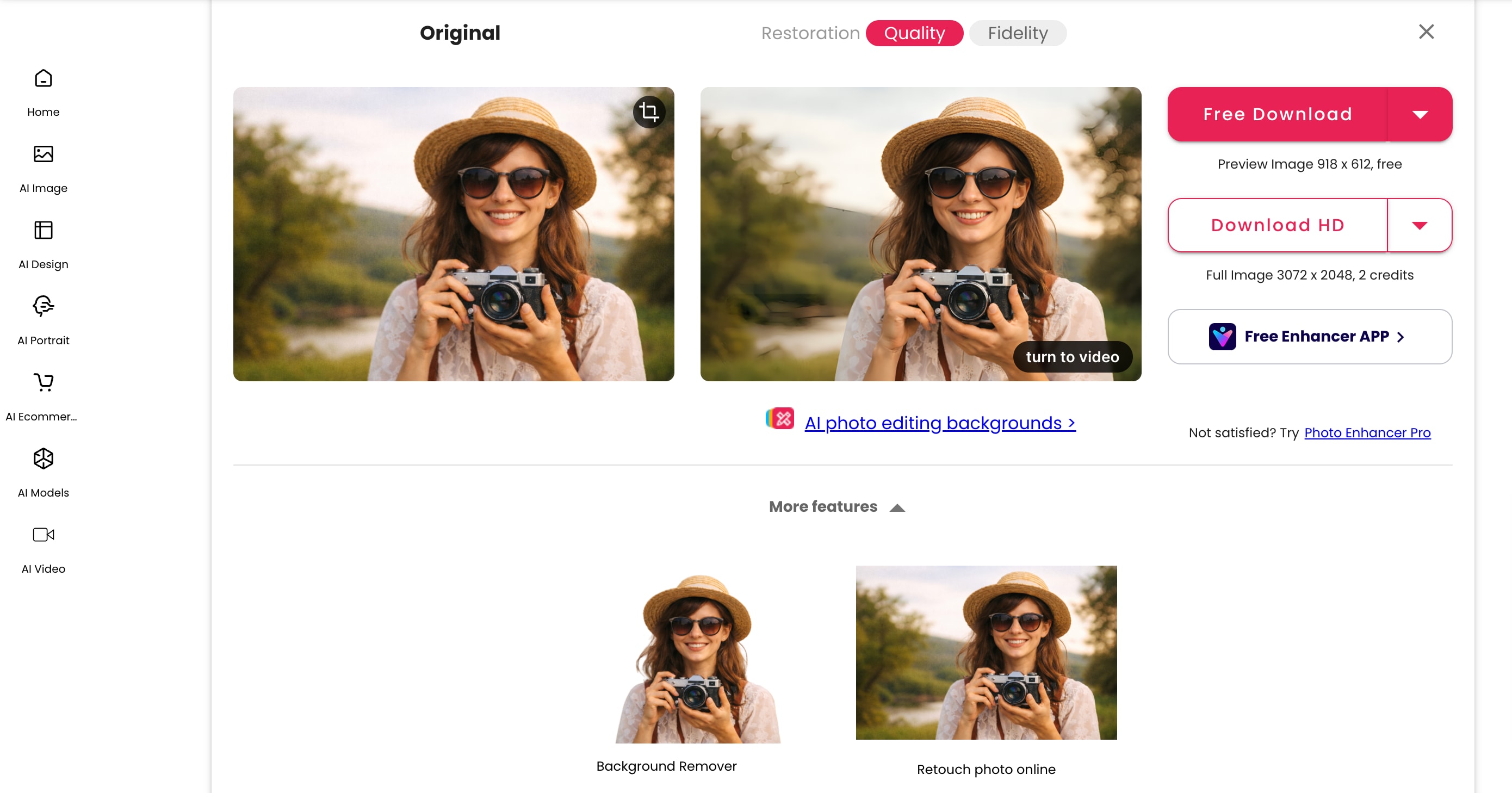
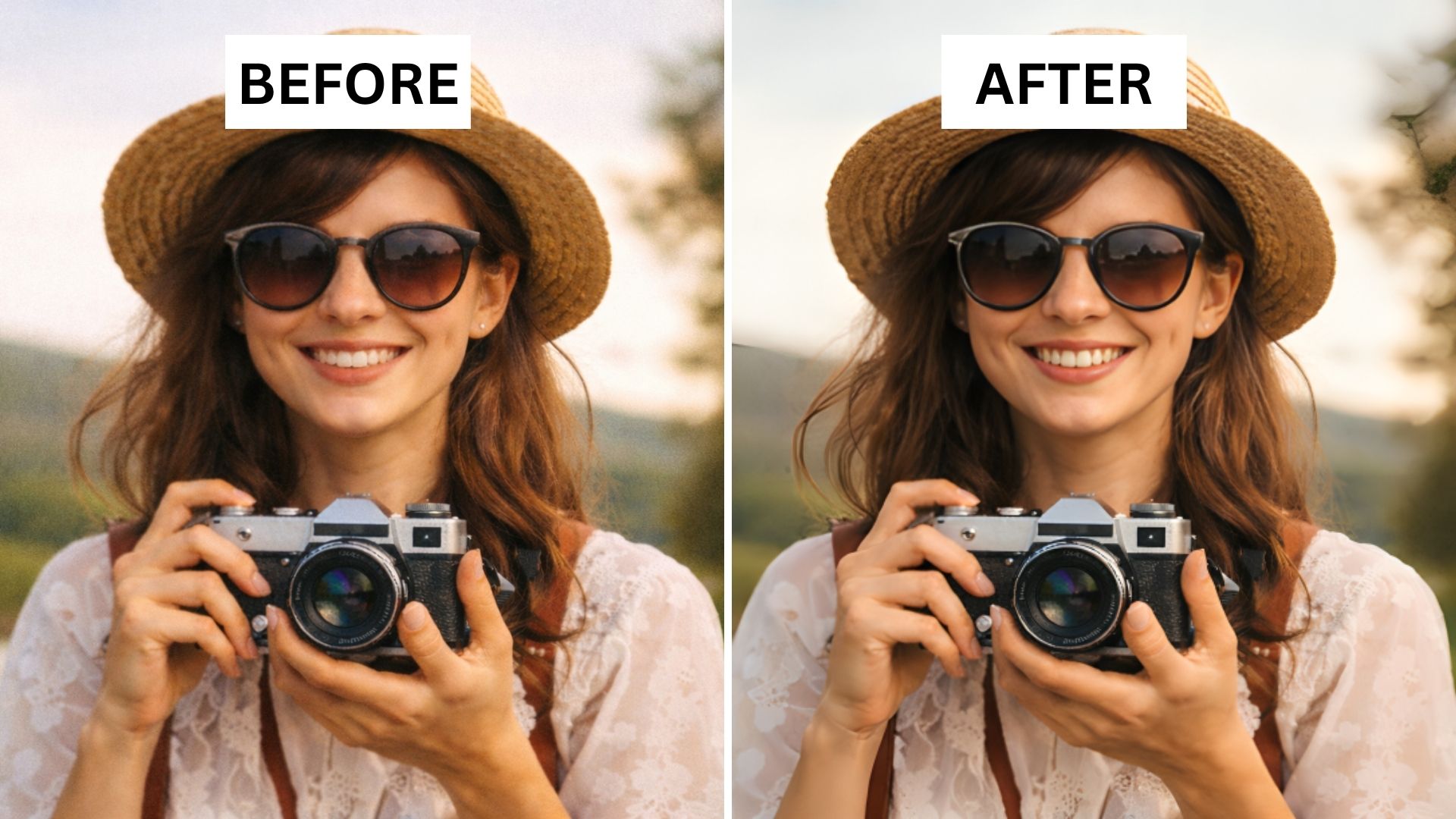
Cutout Pro image enhancer focuses on fast, one-click improvements for images that look soft, small, noisy, or slightly damaged. Here are some highlights of its core image-quality features.
1. Upscale Images Without Losing Quality
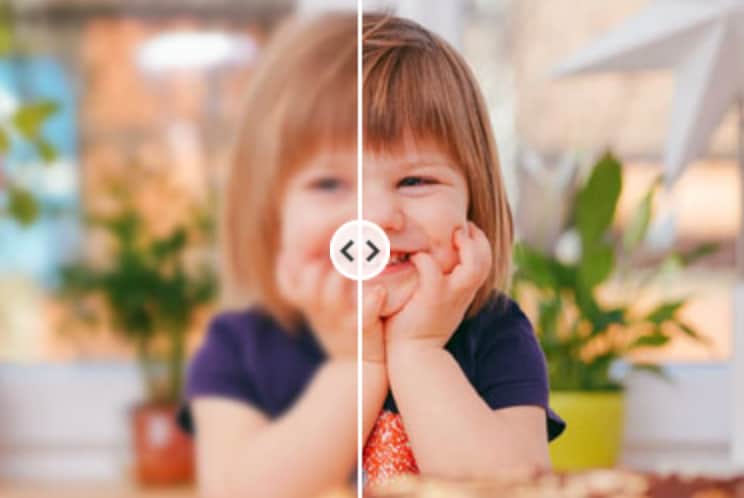
One of the main strengths of Cutout Pro photo enhancer is AI upscaling. The tool is designed to enlarge images while keeping details cleaner than a normal resize would. Its enlargement can increase image size and improve actual image resolution, with the standard enhancer promoting up to 200% upscaling.
Best for: Small image that needs to look better on a website, product page, slide deck, or print layout, and low-resolution files that look pixelated after resizing.
2. Sharpen Blurry Photos Automatically
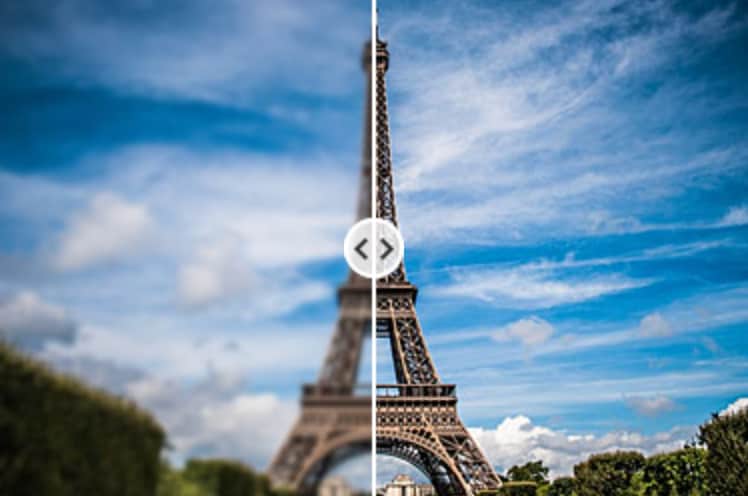
Cutout Pro also includes an AI Image Sharpener that targets blurry or soft-looking photos. It is built to unblur images and make details look crisper with minimal manual work.
Best for: Photos that are slightly out of focus, compressed, or lacking detail.
3. Restore Old Photos and Remove Noise
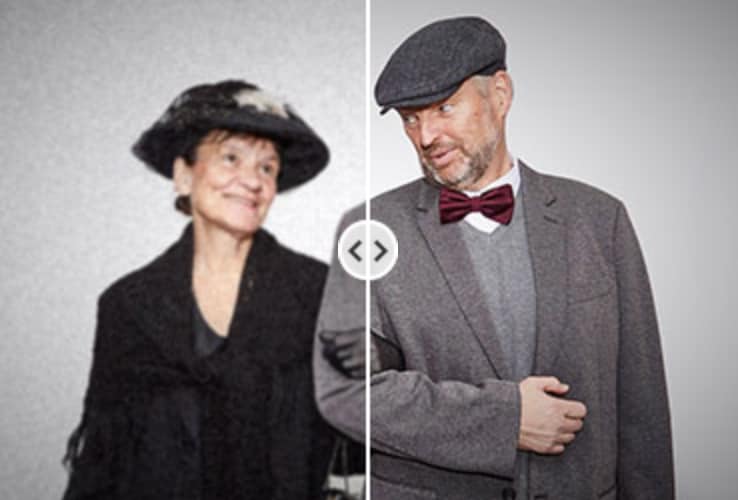
Another standout feature of the Cutout Pro image enhancer is its ability to reduce noise and improve older images. Cutout Pro has AI Image Denoiser, AI Night Scene, and AI Old Photo Repair & Denoise among its enhancement modes.
Best for: Cleaning up grainy phone photos, underexposed night shots, and older pictures that need a clearer, less noisy result.
Part 3. When to Use Cutout Pro Photo Enhancer
Cutout Pro photo enhancer is best for quick image improvements when you don't want to spend time editing by hand. Certain situations that require fast, automatic results without much manual control are where it performs best, such as:
- Improving photos taken in low light. If you often deal with dark, noisy night shots, Cutout Pro includes an AI Night Scene mode specifically built to fix noisy and underexposed night photos.
- Enhancing product images for online stores. Cutout Pro also works well for product photos that need to look sharper and more polished fast, helping create more attention-grabbing visuals for online selling.
- Preparing images for printing or presentations. When you need an image to look better in slides, posters, or print materials, Cutout Pro AI's upscaling feature helps enlarge low-resolution images while preserving detail.
- Speeding up repetitive image tasks. Since the tool is built for automatic enhancement, it can save time when you need to process a larger number of images.
However, note that Cutout Pro photo enhancer is not ideal for:
- Heavily damaged or extremely low-quality images. Cutout Pro can improve blur, noise, and low resolution, but it is not a complete fix for every damaged photo. If an old photo has scratches, you may need to use its Photo Retouch tool first instead of relying on the enhancer alone.
- Professional retouching projects. It's also not the best fit when you need detailed manual control. The enhancer mainly improves resolution through sharpness, and does not handle color, lighting, contrast, saturation, or other deeper editing adjustments. For more polished retouching work, a fuller editor will usually give you more control.
Part 4. Cutout Pro Alternatives for Photo Enhancement and Upscaling
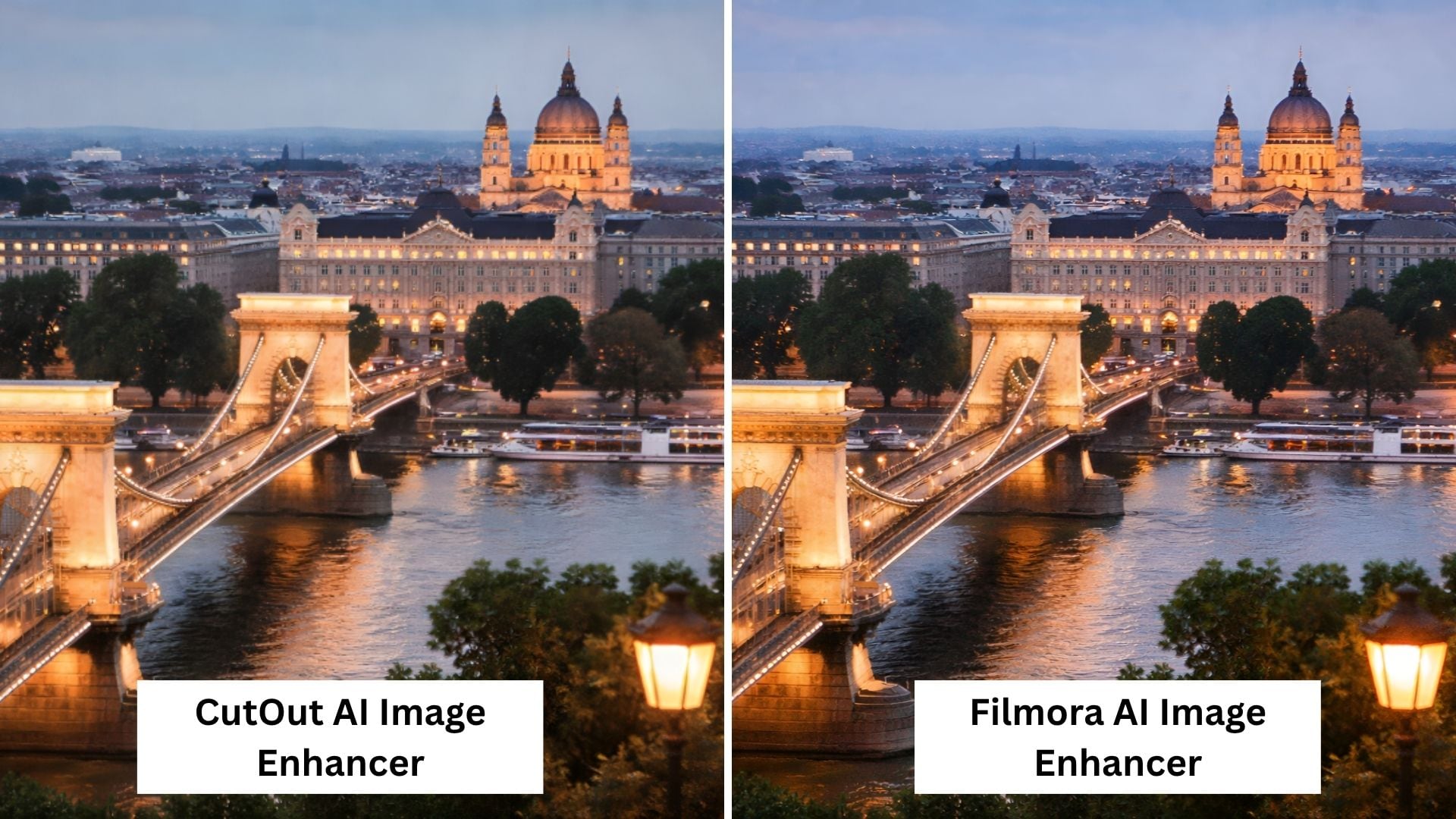
If you want more than a quick online fix, Wondershare Filmora is a strong alternative to the Cutout Pro photo enhancer. Cutout Pro focuses on fast web-based enhancement, while Filmora also offers a one-click AI Image Enhancer within a broader editing workflow. You can use it to improve image quality and keep refining the result in the same project.
 Secure Download
Why Filmora is a Practical Alternative
- Filmora keeps the process in one place. You can enhance image quality and continue editing in the same project.
- Its AI Image Enhancer can refine portraits more naturally. When a face is detected, Filmora adds extra enhancement to facial areas for a cleaner result.
- You can still fine-tune the result. Filmora also includes tools like brightness, contrast, saturation, temperature, tint, and 3D LUTs.
- It keeps the original resolution. The feature improves image quality without changing the image size, and it supports images up to 4K.
- It works best on moderately degraded images. Results may be more limited on images with dense text, very complex details, or severe damage.
How to Enhance a Photo in Filmora
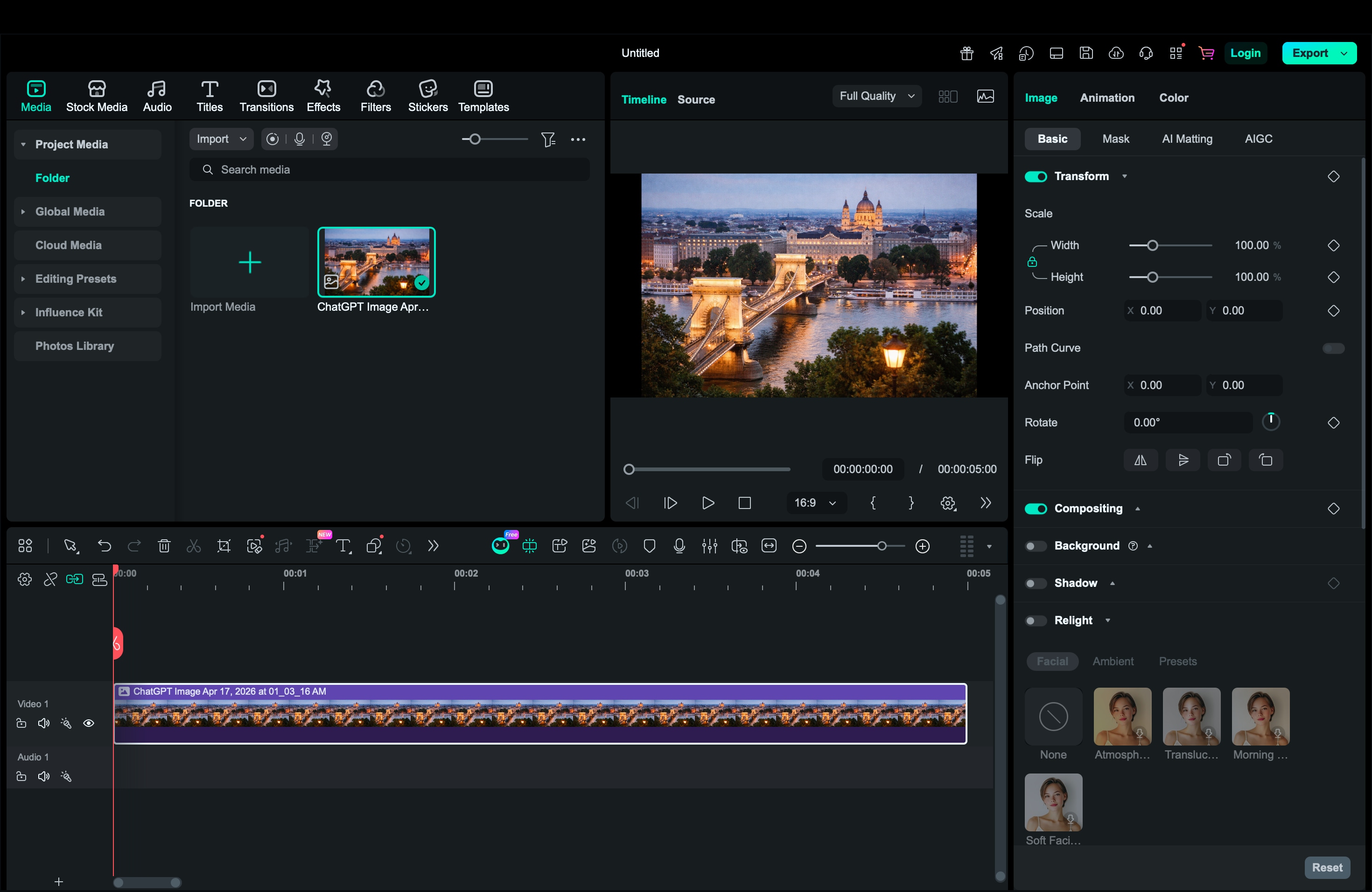
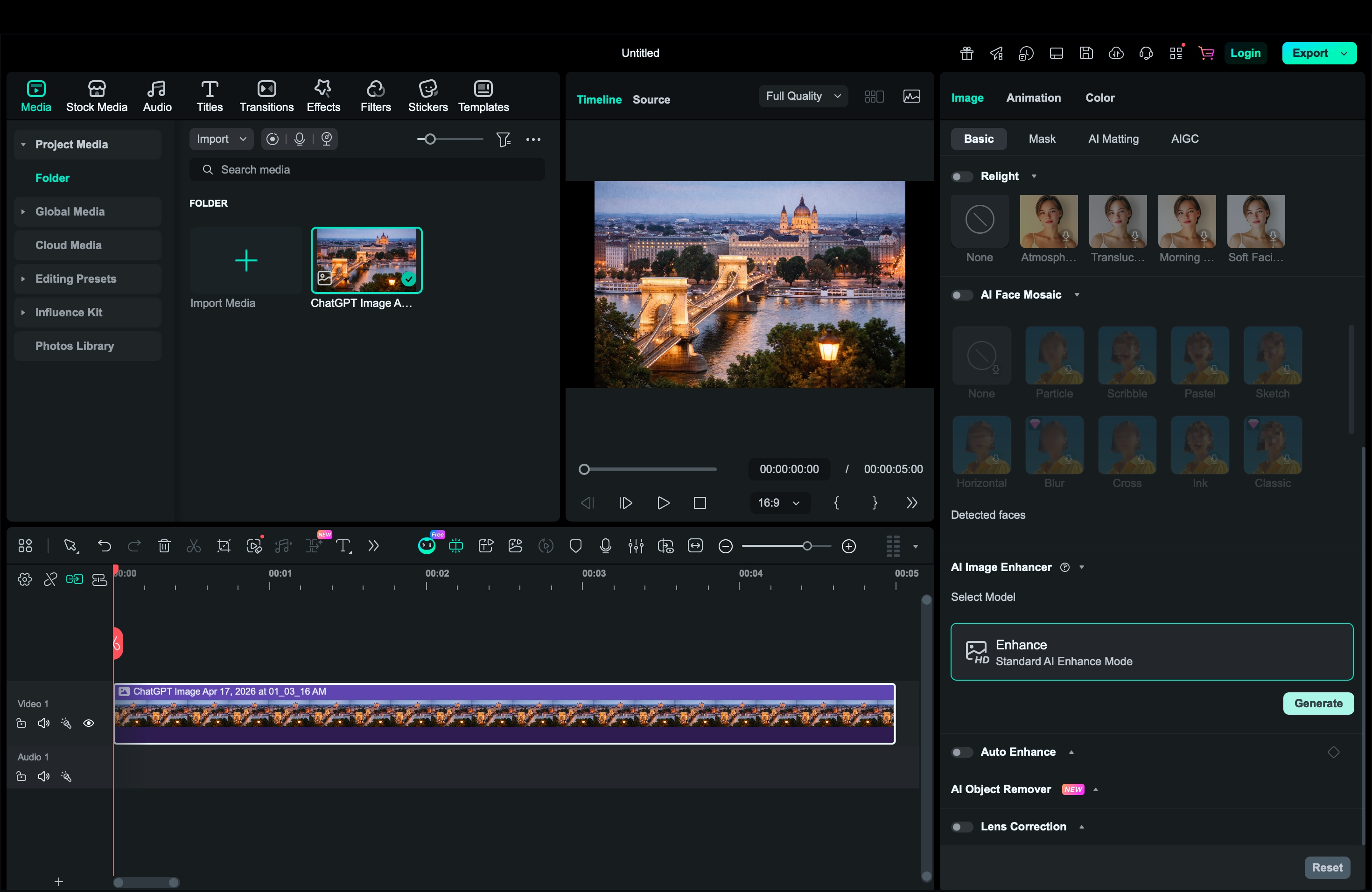
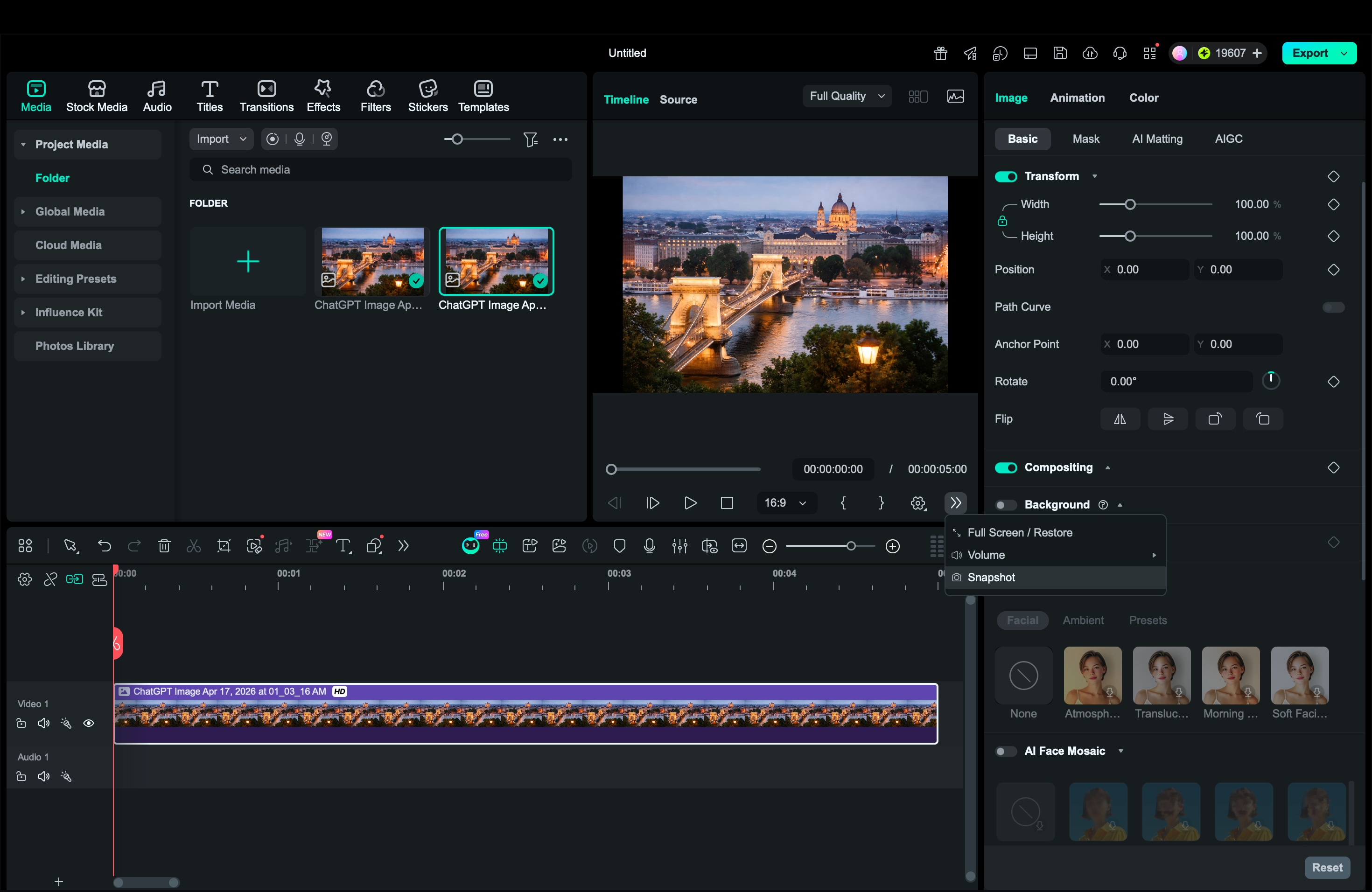 Secure Download
Comparing Cutout Pro vs Filmora Photo Enhancer
| Cutout Pro | Filmora | |
| Platform | Web, Android, iOS | macOS, Windows, Android, iOS |
| Quality | Fast one-click enhancement with up to 2x upscaling | One-click image cleanup with support for images up to 4K |
| Features | Sharpening blur, reducing noise, improving night photos, and cleaning up old photos | Improving clarity, restoring visible detail, reducing noise, and refining facial areas automatically |
| Format Supported | PNG, JPG, JPEG, BMP, WEBP | JPG, PNG, BMP, TIFF, HEIC, WEBP, SVG, RAW formats, and more |
| Manual Controls | Limited in the enhancer itself | More flexible, with controls for temperature, tint, contrast, saturation, brightness, and 3D LUTs |
| Best for | Quick online fixes for blurry or low-resolution images | Creators and marketers who want image enhancement and editing in one place |
|
Show More
Show Less
|
||
Conclusion
Cutout Pro photo enhancer is a good option for quick image improvement. It works best when you need to sharpen a soft photo, reduce visible noise, or upscale a small image without spending much time on editing. For simple online fixes, it is fast and easy to use. However, it is not the best fit for severely damaged images or projects that need deeper manual adjustments.
If you want a tool that combines AI image enhancement with more editing flexibility, Filmora is a strong alternative to consider.
FAQs About Cutout Pro Photo Enhancer
FAQ
-
Is Cutout Pro enhancer free to use?
Cutout Pro is free to try, so you can test the tool before committing. For higher-volume use, batch processing, or ultra-HD watermark-free downloads, the platform offers paid plans. -
Does Cutout Pro reduce noise in low-light photos?
Yes, it can help with that. Cutout Pro's AI photo enhancer is designed to sharpen edges, reduce noise, and improve dark or grainy images automatically, which makes it useful for low-light photos that need a cleaner look. -
What image formats does Cutout Pro support?
Cutout Pro supports common image formats such as JPG, PNG, WEBP, and BMP. That gives you enough flexibility for most web images, product photos, and everyday image enhancement tasks. -
Can I enhance multiple images at once with Cutout Pro?
Yes, but that depends on how you use it. Cutout Pro supports batch processing through web batch upload and its Desktop App, which is more useful when you need to work on multiple images at the same time.
