


 TL;DR:
Wondershare Filmora provides the most comprehensive video compression for Windows and macOS by combining custom bitrate control with built-in editing tools for files up to 50GB, while HandBrake serves as the primary free, open-source alternative for detailed codec manipulation.
● ShrinkIt and iMovie are exclusively designed for native macOS batch processing and light MOV compression, whereas FreeVideoCompressor, VSDC, and Format Factory restrict their lightweight file shrinking and format conversion functions entirely to Windows systems.
● Free versions of premium software like Filmora apply watermarks to exported videos, unlike completely free open-source tools such as HandBrake and Shutter Encoder that avoid watermarks but feature steep learning curves and highly technical interfaces.
● Users who prefer not to install dedicated compression software can use the manual Convert/Save feature in VLC Media Player across desktop and mobile devices, though aggressive manual bitrate and frame rate adjustments without automatic previews can noticeably reduce video quality.
Ask AI for a summary
 ChatGPT
 Perplexity
 Gemini
 Claude
 Grok
Grok
Big video files can be a real headache. Upload limits on email, cloud drives, websites, and social platforms can stop you instantly. Re-editing the whole video just to reduce the size feels unnecessary and frustrating.
In that case, using a video compressor for PC makes more sense. You can shrink the file, keep the quality, and move on. The issue is that finding reliable video compression software for Windows or macOS is not always easy.
That's why we're here! We'll break down the best video compressors for Windows 10, PC, and Mac, including free and paid options, so you can compress videos quickly and upload them without stress.
Not every PC video compressor does a good job. Some are confusing to use, some crush the video quality, and some barely make the file any smaller. To keep things realistic, we tested each tool on this list the same way you would in real life.
Here’s what we paid attention to:
- Compression Quality vs File Size: We checked how much each tool could shrink a video while keeping it watchable, since nobody wants blurry results after compressing video files on Windows or Mac.
- Platform Support: We looked at whether the tool works smoothly as a video compressor for Windows, macOS, or both, and how reliable it feels on each system.
- Ease of Use: We focused on whether you can compress a video in Windows or Mac without digging through settings or reading long guides.
- Format Support: We tested common formats like MP4 and AVI, and paid extra attention to how well each tool handles compressing MOV files on Mac and larger video files on Windows.
- Value for Money: We compared free and paid options to see which ones actually earn their spot, especially free video compressor software for PC and Mac that still delivers solid results.
Our Top 3 Video Compressor Picks (Quick Wins)
Our list consists of 10 video compressors for Mac and Windows. And while each has its own strengths, a few clearly did a better job than the rest. These three stood out for how well they handle real-world video compression without turning it into a hassle.
Video Compressor Comparison: A Quick Look Before You Decide
Before we break down each tool in detail, it helps to have everything laid out in one place. This quick comparison gives you a feel for which video compressor software for PC or Mac might fit your needs at a glance. Think of it as a quick guide, not the final decision.
| Video Compressor | Platform | Free / Paid | Control Level | Best Use Case |
| Filmora | Windows, macOS | Free & Paid | High | AI editing and compressing videos in one place |
| HandBrake | Windows, macOS, Linux | Free | High | Free compression with detailed quality control |
| ShrinkIt | macOS | Free & Paid | Low to Medium | Batch compressing MOV files on Mac |
| FreeVideoCompressor | Windows | Free | Low | Quick video compression on Windows with no cost |
| VSDC | Windows | Free | Medium | Converting and compressing videos together |
| Cisdem | Windows, macOS | Free & Paid | Medium | Flexible compression with target file size |
| Shutter Encoder | Windows, macOS, Linux | Free | High | Compression with basic editing and format control |
| VLC | Windows, macOS, Linux, iOS, Android | Free | Low | Basic compression using a familiar media player |
| iMovie | macOS, iOS, iPadOS | Free | Low | Simple editing and compression on Mac |
| Format Factory | Windows | Free | Medium | Compressing and converting files for storage |
|
Show More
Show Less
|
||||
 Secure Download
Top 10 Video Compressors You Can Rely On
Now, it's time to take a look at each option more closely. Below, we'll break down every tool on the list, going through what each one does well and where it might fall short. This way, you can see which video compressor software for Windows or macOS actually fits how you work.
Wondershare Filmora
Let’s go straight to the best video compressors for Mac and Windows available right now, Wondershare Filmora. This AI editor includes an advanced video compression feature that makes it easy to reduce file size for social media, email, or storage. Plus, it also lets you clean up your clip before shrinking the file. You can trim, add text, fix colors, and then compress the video without jumping between apps.
- Adjustable compression levels range from 10 percent to 90 percent.
- Fine-tune video quality by changing resolution, bitrate, frame rate, and other settings.
- Compresses popular formats like MP4, MOV, AVI, MKV, MPEG, FLV, and more.
- Handles large video files smoothly, including files up to 50GB.
Windows and macOS.
Free version available with affordable upgrades on the official Filmora pricing page.
Speed compressing and video editing all at once.
- Dedicated YouTube upload mode that automatically compresses videos based on YouTube recommended bitrate.
- Very fast compression speed, even with large files.
- The free version adds a watermark to exported videos.
Secure DownloadHandBrake
Next, let’s talk about one of the most popular free tools out there. HandBrake is a free video compressor software for Windows 10 and Mac that also works on Linux, and it has been around for years. Compressing videos is simple once you get used to it, as you can choose a preset, tweak quality or bitrate if needed, and export a smaller file.
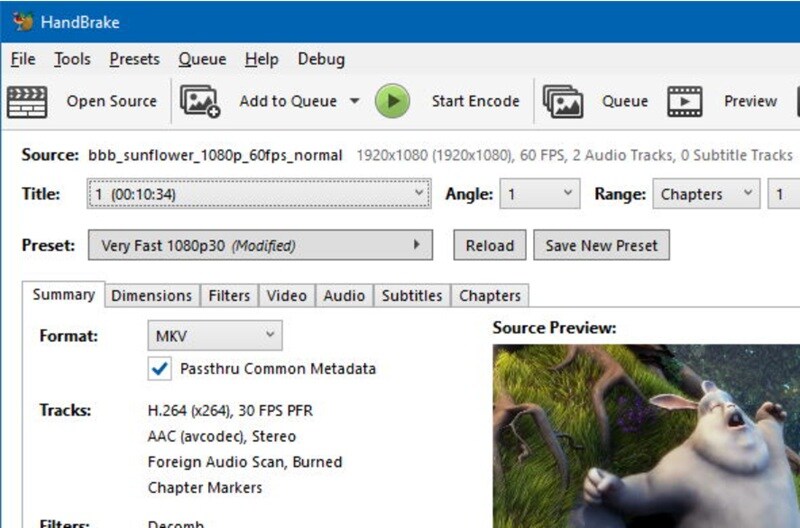
- Compresses videos using efficient codecs like H.264 and H.265.
- Lets you reduce resolution, lower bitrate, and control quality using CRF.
- Supports standard video files and unprotected DVD or Blu-ray sources.
Windows, macOS, and Linux.
Free.
Free video compression with solid control over file size.
- Completely free with no limits.
- Open-source development keeps the tool active and reliable.
- Compression can affect video quality if settings are pushed too far.
- The interface looks outdated and takes time to get used to.
ShrinkIt
We move on to ShrinkIt, a solid pick for anyone focused on video compression on Mac. It supports common formats like MP4, M4V, and MOV, and keeps the process simple, which makes it useful if you often need to compress MOV files on a Mac. ShrinkIt fits right in and earns its spot among the best video compression tools for macOS.
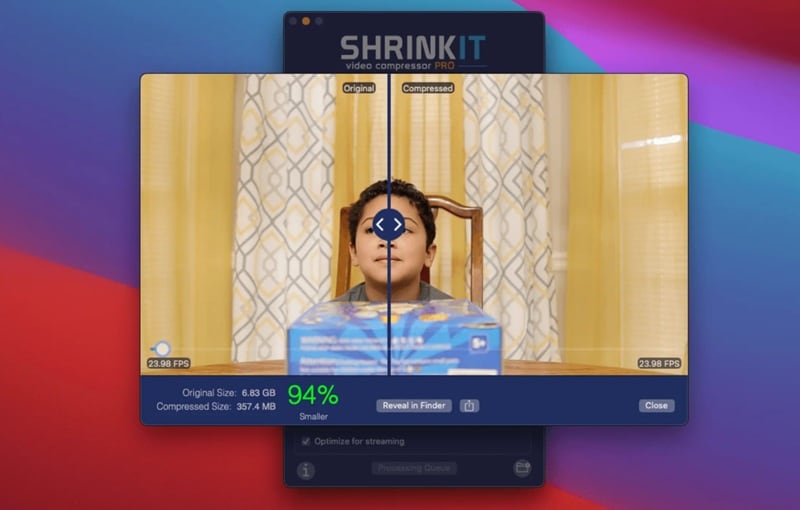
- Available in seven languages, including English, Chinese, Italian, and German.
- Option to remove audio to reduce file size even more.
- Built-in preview lets you check the quality before saving the compressed file.
macOS.
Free version available, with Pro options starting at $14.99.
Batch video compression on Mac.
- Easily compress multiple videos at once with simple drag-and-drop.
- Compressed videos do not include watermarks.
- Only available on macOS, which limits use for Windows users.
- Compression speed can slow down during longer batch sessions.
FreeVideoCompressor
Another solid choice if you want to download a video compressor for PC without paying anything is FreeVideoCompressor. This video compression software for Windows focuses on one job and keeps it simple. You open a video file, choose the file size you want, and hit compress.
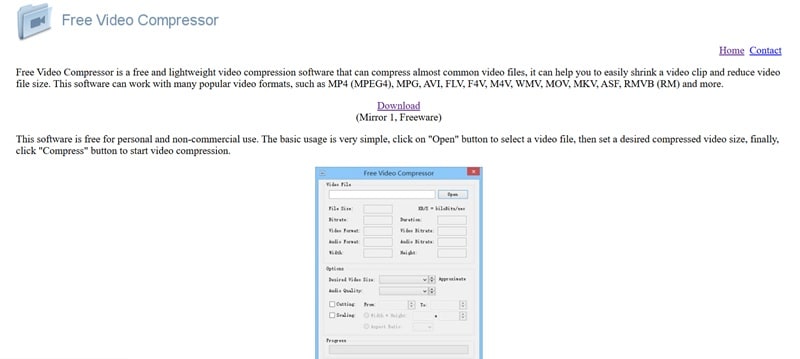
- Works with many common video formats, including MP4, AVI, FLV, WMV, MOV, MKV, and more.
- Lets you adjust audio bitrate, lower overall bitrate, or remove audio completely.
- Allows you to change video size and aspect ratio.
Windows.
Free.
Simple video compression on Windows at no cost.
- Free to use for personal and non-commercial projects.
- Lightweight software that runs smoothly even on older PCs.
- Only focuses on compression with no extra features.
- No auto-compression or preview, so settings must be adjusted manually.
VSDC Video Converter
Continuing down the list, we have VSDC, which works well as a compress video converter for Windows users. While it is mainly known as a video editor and converter, you can also use it to compress video files by lowering settings like bitrate and resolution during export. This makes it useful if you want to change formats and reduce file size in one step.
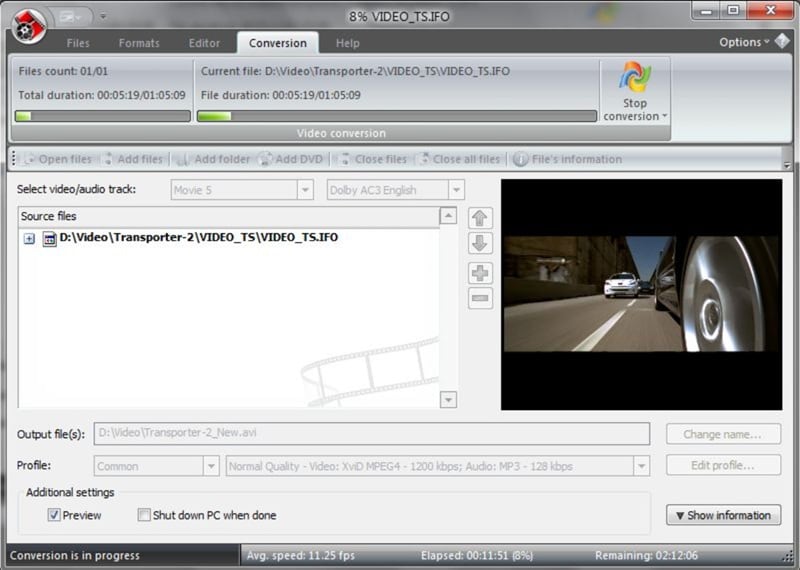
- Supports a wide range of formats, including DVD, AVI, MPEG, WMV, FLV, MOV, MP4, M4V, RM, RMVB, and more.
- Export presets let you choose video quality and format without guessing settings.
- Built-in editing tools allow you to cut out unwanted parts to reduce file size further.
Windows.
Free.
Compressing and converting videos at the same time on Windows.
- Export presets make compression easier with automatic quality settings.
- Uses multiple processors to speed up conversion and compression.
- Only focuses on compression with no extra features.
- No auto-compression or preview, so settings must be adjusted manually.
Cisdem Video Compressor
Cisdem is another solid video compressor software for PC and Mac, especially if you like having a bit of control without things getting confusing. It gives you a few simple ways to compress videos, so you can aim for a smaller file by percentage, target size, or basic settings. You can also pick a quality level like high, medium, or low, which makes it easier to decide how much quality you want to keep.
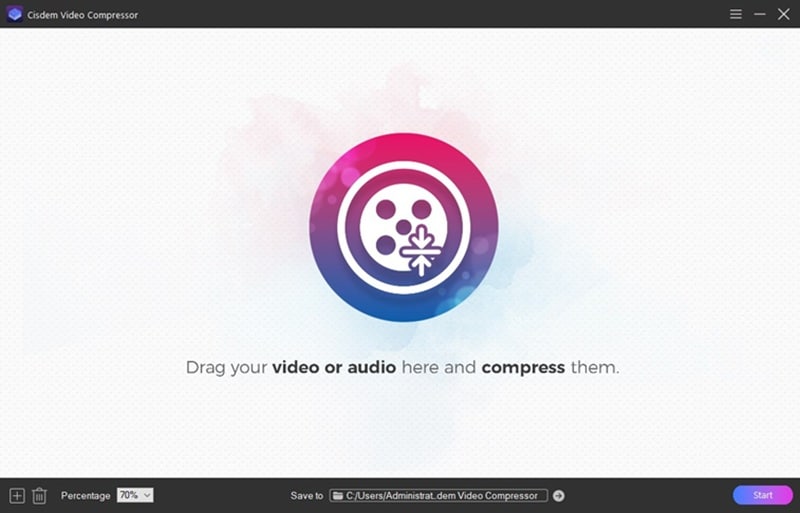
- Compresses common formats like MP4, MKV, AVI, MOV, FLAC, AIFF, and WAV.
- Supports compression by percentage, target file size, or custom parameters.
- Uses hardware acceleration like Intel QSV, AMD VCE, and NVIDIA NVENC for faster compression.
Windows and macOS.
Free version available, with paid plans starting at $19.99 per year for one PC or Mac.
Flexible video compression with clear quality control on PC and Mac.
- Very easy to use interface with a helpful preview before exporting.
- Fast compression speed even with larger video files.
- Only focuses on compression with no editing or conversion tools.
- The free version has restrictions that push you toward the paid plan.
Shutter Encoder
One video compressor download for PC that is worth recommending is Shutter Encoder. This tool goes beyond basic compression and also handles image and audio files, which makes it surprisingly versatile. It has been downloaded by millions and is widely trusted, especially among editors who want more control without paying for software.
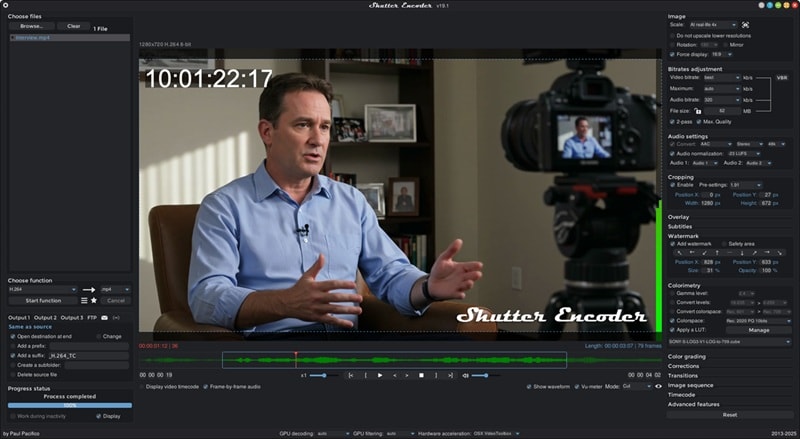
- Built on FFmpeg, which means support for a wide range of codecs and formats.
- Includes basic editing tools like trimming, cropping, subtitles, and scene detection.
- Lets you download online videos and compress them directly inside the app.
Windows, macOS, and Linux.
Free, with optional donation support.
Video compression with basic editing tools on PC and Mac.
- Designed by video editors, so the workflow feels practical and efficient.
- Editing tools work well and are useful before compressing videos.
- The interface can feel overwhelming at first.
- Some settings are technical and not beginner-friendly.
VLC Media Player
Most people know VLC as a media player for watching movies, but it also works as a reliable video compressing app for PC and even mobile. Using the Convert Save feature, you can compress videos by adjusting bitrate, resolution, frame rate, or codec like H.264 for MP4. It is a handy option if you already have VLC installed and just want to compress videos on Windows, macOS, or mobile for easier sharing or storage.
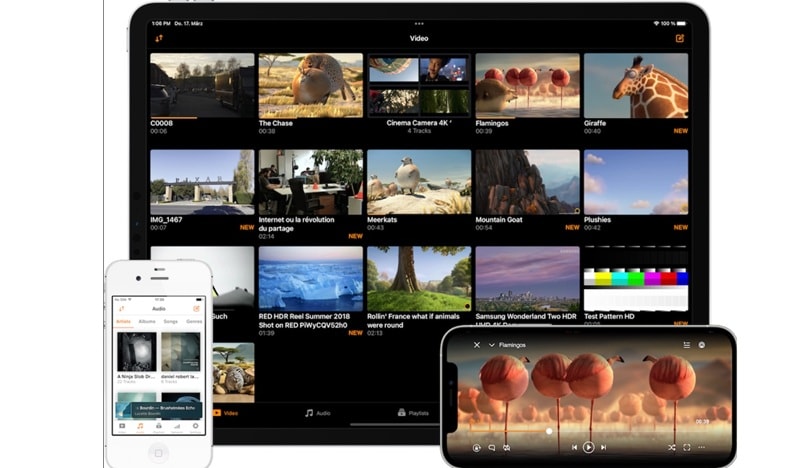
- Manual control over compression settings like bitrate, resolution, and frame rate.
- Supports common formats such as MKV, MP4, AVI, MOV, and WebM.
- Works with many codecs, including H.264, MPEG, MP3, AAC, FLAC, and Vorbis.
Windows, macOS, Linux, iOS, and Android.
Free, with optional donation support.
Basic video compression on PC and mobile without installing extra tools.
- Completely free to use with no limits.
- Available on many platforms, which makes it easy to use across devices.
- Heavy compression can noticeably reduce video quality.
- The compression workflow is not very intuitive for beginners.
iMovie
There is also iMovie, which is a handy option if you want to compress video on Mac for free while doing some light editing. iMovie lets you reduce file size during export by adjusting resolution, quality, and compression settings. Choosing options like 720p or medium quality can noticeably shrink the file, which works well for sharing online or saving space.
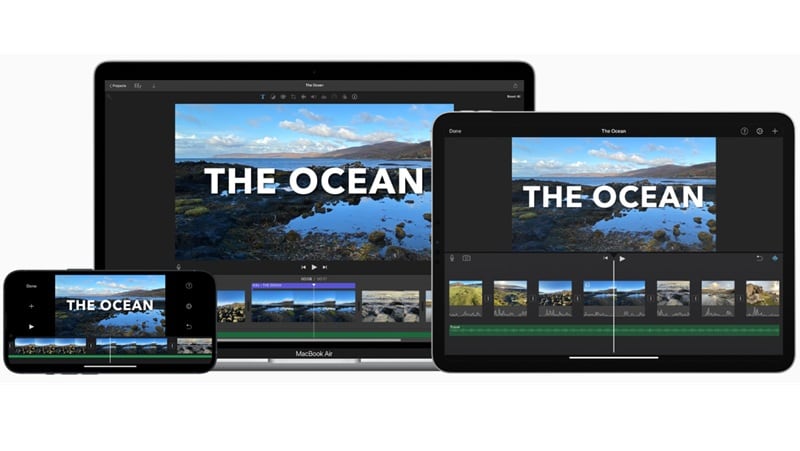
- Built-in export settings that control resolution and quality to reduce file size.
- Exports videos in widely supported formats like MP4 using H.264, which helps keep file sizes smaller for sharing.
- Basic editing tools like trimming, cropping, and simple effects before compression.
macOS, iOS, and iPadOS.
Free.
Editing and compressing videos on Mac in one place.
- Free and already installed on most macOS and iOS devices.
- Lets you do basic edits before compressing the video.
- Compatibility is limited outside the Apple ecosystem.
- Not ideal for batch compression or large video projects.
Format Factory
To wrap things up, there is Format Factory, a long-running Windows video compression software that focuses on shrinking files and converting formats. It works well as a video compressor for PC if your goal is to reduce file size for saving, backing up, or sharing later. It is especially useful if you deal with different formats and want everything converted and compressed in one place.
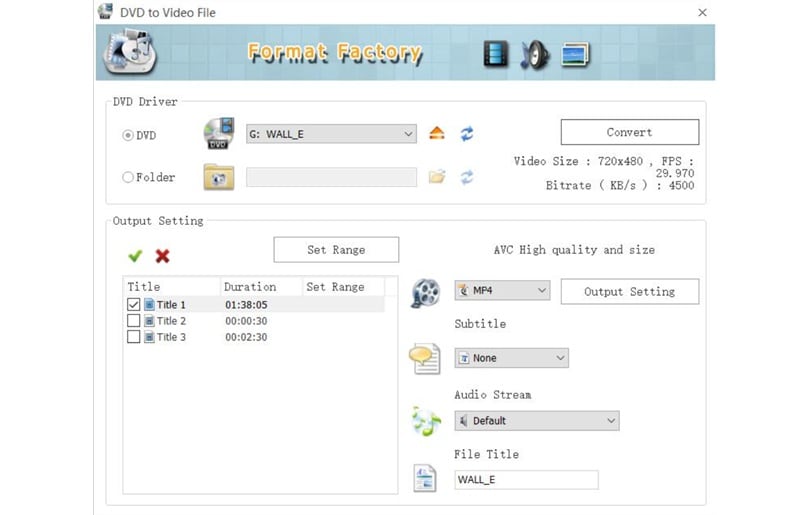
- Supports over sixty languages, including English, Japanese, Spanish, and Italian.
- Converts most popular video, audio, and image formats into smaller files.
- Includes presets for Apple devices like iPhone and iPod formats.
Windows.
Free.
Compressing and converting videos on Windows for storage and backup.
- Supports video downloads from many websites, so you can download and compress in one step.
- Handles a wide range of formats without needing extra plugins.
- Only available on Windows, which limits use on Mac.
- The interface feels outdated and may confuse new users.
How to Choose the Right Video Compressor for You
After looking through each video compressor for PC and Mac, you probably already have a few favorites in mind. That makes sense, because every tool on the list does something a little better than the others. That said, the best choice really comes down to how you work and what you need most.

To make that part easier, here are a few ways to narrow things down:
- For Beginners: Tools like Filmora work well here because the interface is easy to understand and the advanced video compressor handles most of the work for you. FreeVideoCompressor and iMovie are also good picks if you want something simple and straightforward.
- For Windows 10 Users: Stability is key when you compress videos on Windows 10. In that case, HandBrake, Filmora, and VSDC are also good options if you want dependable video compression software for Windows, since it runs smoothly and give you reliable results.
- For Mac Users: ShrinkIt is a strong choice for batch compression, and iMovie works well for basic projects. Filmora also fits nicely here since it handles MOV files on Mac and runs smoothly on macOS.
- For Creators: Filmora stands out because it combines AI video editing tools with video compression, plus a YouTube compression mode that makes exporting for online platforms much easier. Shutter Encoder is another option if you want basic edits before compressing.
- For Large files: Control over bitrate and codecs becomes more important than one click compression. HandBrake and Shutter Encoder give you detailed control, while Filmora also works well since it supports large video files up to 50GB without slowing things down.
Secure DownloadConclusion
Compressing video files is sometimes necessary when file sizes get in the way of uploading, sharing, or storing your videos. That is why we put together this list of ten solid video compressor options for PC and Mac. Each video compressor for Windows, macOS, Linux, and even mobile has its own strengths, but Filmora clearly stands out when you look at ease of use, speed, and overall flexibility.
Filmora comes with an advanced video compressor feature that lets you shrink video files at remarkable speed while staying in control of quality. You can adjust settings based on your needs, and the built-in YouTube upload option makes sharing much easier. When you add in its AI video editing tools and smooth performance on both Windows and Mac, Filmora becomes a reliable choice and one of the best video compressors available right now.
